Automations
When this happens, and these things are true, do that — across every part of the system.
An automation is a rule: a trigger, some conditions, and a list of actions. It is the part of the product that does the follow-up nobody remembers to do.
The point is that a rule is not confined to one module. An invoice going unpaid can open a task for the sales agent. An accepted estimate can note itself on the customer and start the work. A ticket left waiting can raise its own priority.
The list of rules
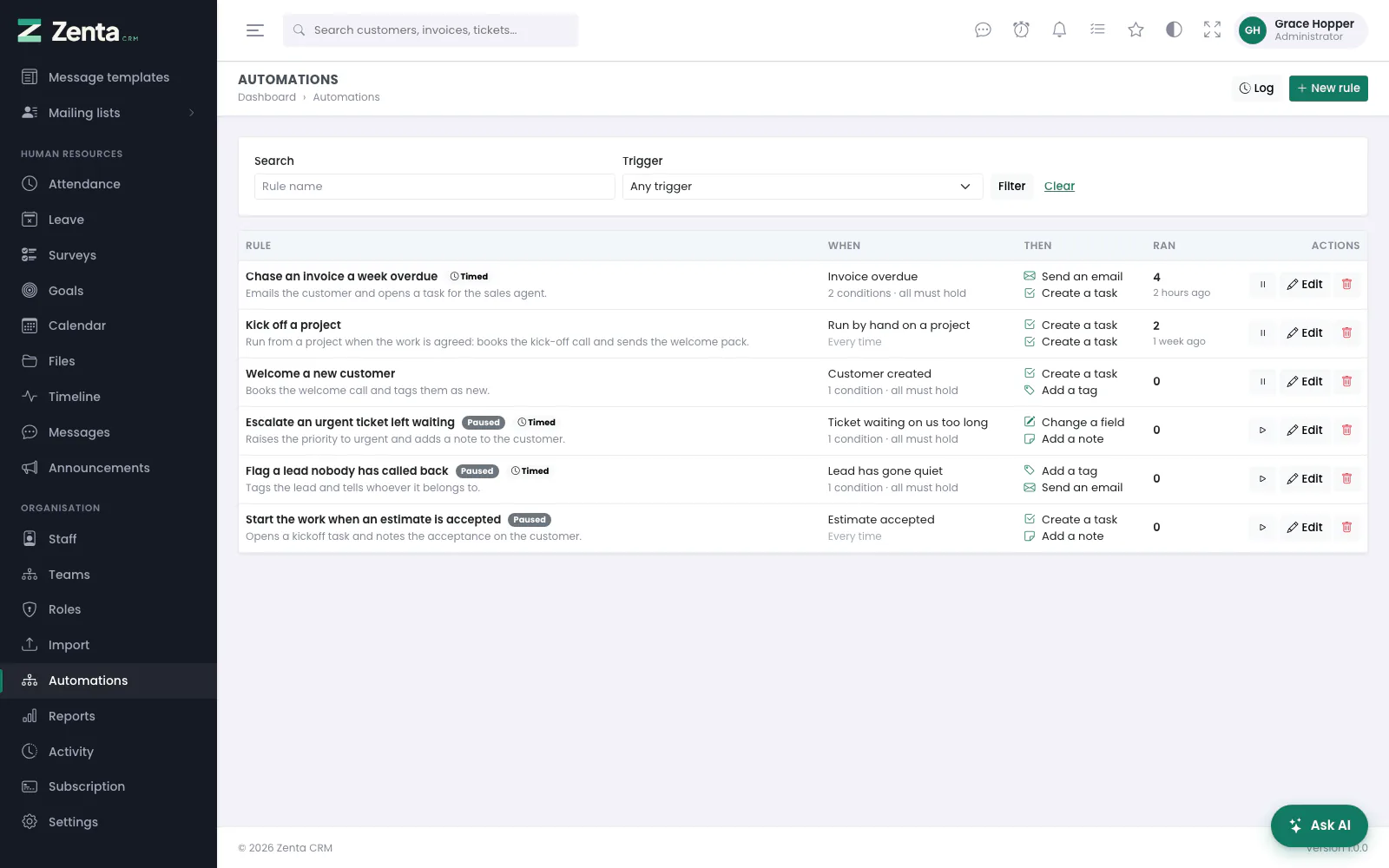 Organisation → Automations: every rule, what it listens for, what it does and how often it has acted.
Organisation → Automations. Each row shows the rule's name and its note, a Paused badge when it is not running and a Timed badge when it is checked hourly rather than raised by something happening; When (the trigger, and how many conditions must hold, or Every time); Then (its actions); and Ran (how many times it has acted, and when it last did). Running rules are listed first.
Search by rule name or pick a Trigger, then press Filter; Clear removes both. On each row:
- Pause / Resume — stops or restarts the rule without opening it. A paused rule does nothing at all, including when it is run by hand.
- Edit — opens the rule in the builder.
- — deletes the rule after a confirmation ("…" will stop running.). Its lines in the log stay, under Deleted rule.
Log in the top right opens the automation log; New rule opens the builder. Seeing rules takes the Automations View permission; writing, pausing and deleting them take Create, Edit and Delete.
Building one
 New rule: a name, then three numbered steps. The placeholders on the right follow the trigger.
New rule opens the builder. At the top, Name (required) and Note to yourself, which shows under the name in the list. Then three numbered steps, top to bottom, and on the right Settings and Placeholders. Press Save rule; a new rule then reopens as a saved one, where Try it becomes available.
1. When this happens
Pick the trigger from the list, grouped CRM, Sales, Delivery, Support and Run by hand. Two kinds, and the difference matters:
| Kind | What it means |
|---|---|
| Raised the moment it happens | Lead created, Lead status changed, Lead converted to a customer, Customer created; Estimate sent, accepted or declined; Proposal sent, accepted or declined; Invoice created, Invoice sent, Invoice fully paid, Payment recorded, Contract fully signed; Project created, Project finished; Task created, Task completed; Ticket opened, Ticket replied to, Ticket closed. |
| Timed (marked with a clock) | Lead has gone quiet, Estimate about to expire, Proposal about to expire, Invoice due soon, Invoice overdue, Contract has started, Contract about to expire, Contract has ended, Project deadline approaching, Task overdue, Ticket waiting on us too long. Nothing raises these — nothing happens when an invoice becomes overdue, the due date simply passes — so the application goes looking every hour for records that match. |
The line under the picker says which kind you have chosen: Raised the moment it happens., Checked every hour. Nothing raises this - the application goes looking for records it matches., or, for a run-by-hand trigger, Runs when somebody starts it by hand, from the record's page. Triggers for a module switched off under Settings → Modules are not offered; a rule already written on one keeps its trigger.
Run by hand
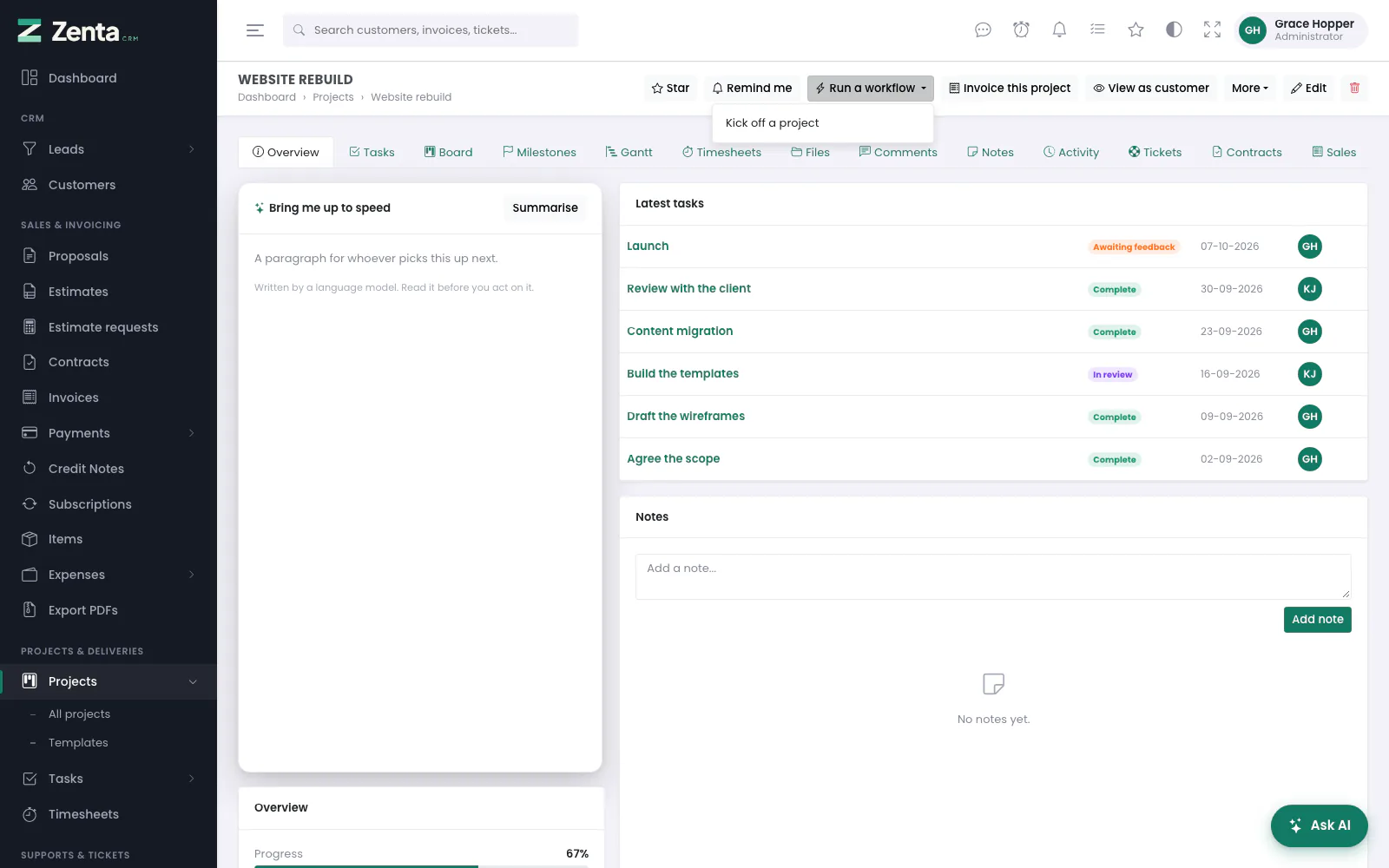 A run-by-hand rule on a project page, under Run a workflow.
A third kind is raised by nobody but a person. A rule whose trigger is Run by hand on a project (or a lead, customer, estimate, contract, invoice, task or ticket) appears under Run a workflow on each of those records — a kick-off checklist for a new project, a hand-over to accounts. Pressing it asks for confirmation (the rule's note is the question, when it has one) and runs the rule there and then.
- The menu appears only when there is a running rule for that kind of record, and only for people who may edit that kind of record. No automations permission is needed: writing rules is one decision, pressing a button somebody else wrote is another.
- A rule run by hand runs every time it is pressed, whatever it did before.
- If its conditions do not hold for that record, nothing happens and you are told so: Nothing happened — the rule's conditions did not hold for this record. Otherwise: … ran. The run log says what it did.
2. And these are true
Press + to add a condition: a field, an operator and a value. Conditions test fields on the record that triggered the rule, and on the records around it. A rule about an invoice can test the invoice, and also its customer and the person it is assigned to. Up to twenty conditions.
Choose whether All of them must hold or Any of them. No conditions at all means the rule runs every time.
The operators offered depend on the field: a number gets is greater than, a checkbox does not. has just changed is the useful one people miss — it fires only on the save that altered that field, not on every save afterwards. Besides the record's own fields there are worked-out ones such as Days overdue, Days until due, Days since last contact and Hours awaiting our reply. Changing the trigger keeps every condition that still makes sense for it.
3. Do this
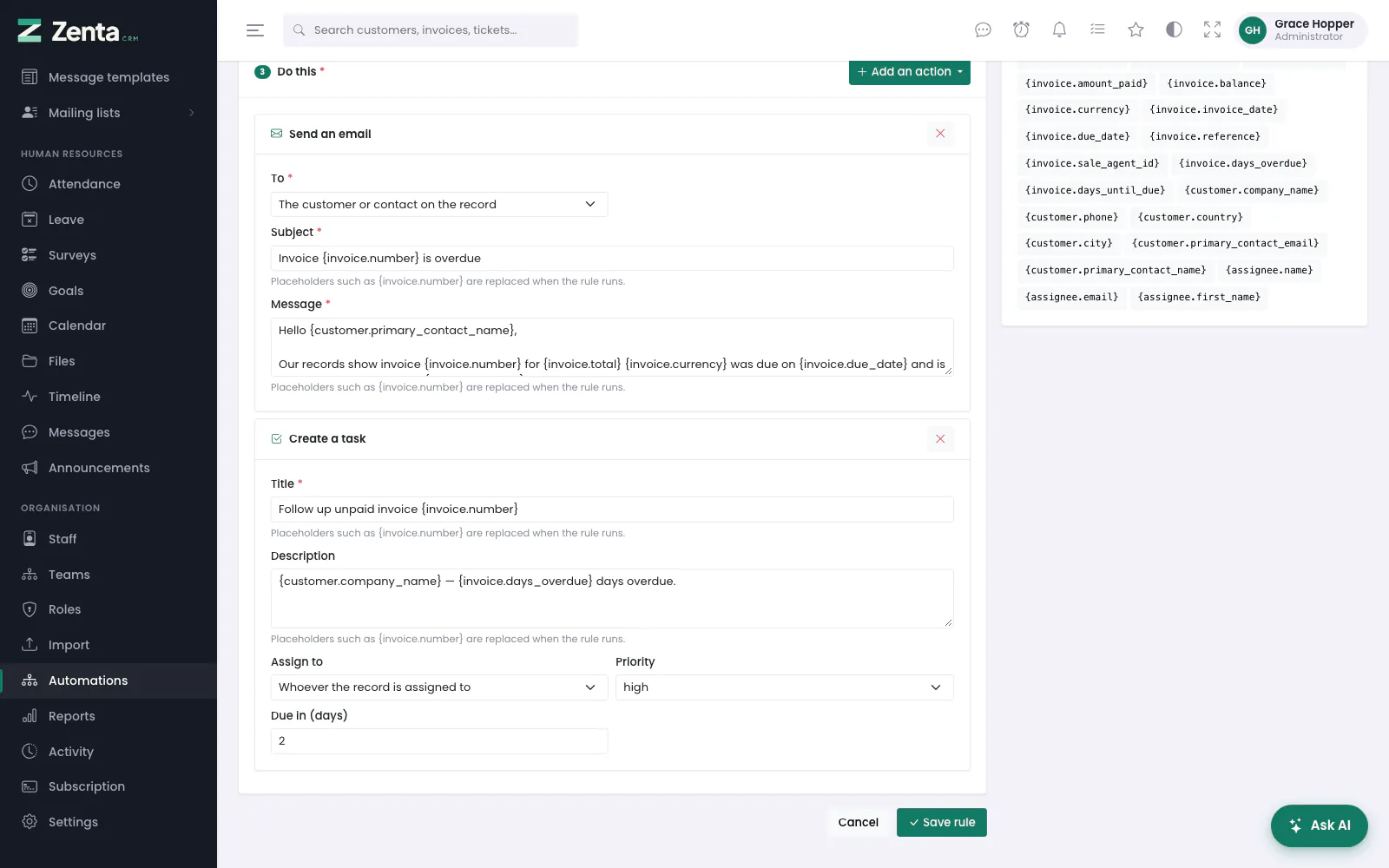 Two actions on the overdue-invoice rule: an email to the customer and a task for whoever the invoice is assigned to.
Add an action lists what the rule can do, each with a line saying what it is for. At least one is required — A rule that does nothing is not a rule — and up to twenty. The on an action removes it. Actions run in the order listed.
| Action | What it does |
|---|---|
| Create a task | Opens a task (Title, Description, Assign to, Priority, Due in (days)), attached to the project or customer behind the trigger and linked back to whatever raised it. |
| Open a ticket | Raises a support ticket against the customer, with a Subject, First message, Priority and who it is assigned to. |
| Send an email | To the customer or contact on the record, whoever the record is assigned to, the customer's account manager, whoever created the record, a specific member of staff, or a fixed address; with a Subject and Message. |
| Add a note | A dated note on the record, or on its customer, project or invoice. |
| Add a tag | Labels it; separate several with commas. Existing tags are kept. |
| Change a field | Sets one field on the trigger record, from a short allow list — a lead's status, source, junk flag or description; a task's status, priority, billable or private flag; a ticket's status, department or priority; a project's status; a customer's active flag or notes. Never ids, money totals or ownership. |
| Assign to someone | Hands the record to a member of staff. |
| Raise the invoice | Turns an estimate into a draft invoice, carrying over only the lines the customer chose. |
| Create a project from it | Opens a project for the estimate or proposal, with the customer, the value and the dates filled in, optionally From this project template (the template's name; empty gives a blank project named after the document). |
| Call a URL | Posts the trigger data to an https address you choose, signed like any other webhook: with a Signing secret it is sent back as X-Zenta-Signature so you can verify the call. |
| Add to a mailing list | Puts the lead, or the contacts at the customer, on a list by name — made if it does not exist. Anybody who unsubscribed stays unsubscribed. See Marketing campaigns. |
| Send a text message | To the customer or contact on the record, a member of staff, or a fixed number (Or this number, with the country code), through the SMS provider under Marketing channels. |
| Post to Slack | A message to the channel connected under Settings → Notifications. |
| AI: score the lead, AI: triage the ticket, AI: draft a reply, AI: summarise | See AI assistance. Until AI is set up the builder warns that the step will do nothing. |
Every action is offered whatever the trigger, except those whose module is switched off under Settings → Modules; one that does not fit the record, such as Raise the invoice on anything but an estimate, has nothing to act on. A rule is refused on saving if an action was left unfinished — an email with no subject, a task with no title — with … is needed for "…" under the field, rather than saving happily and then doing nothing every time it runs.
Settings
- Rule is running — on for a new rule. Off is the same as pausing it from the list.
- May act on the same record more than once — see Acting once.
Once saved, the panel also shows Times run and Last run, and Forget what it has done.
 A saved rule: the conditions filled in, and Times run, Last run and Forget what it has done on the right.
Placeholders
Anywhere an action accepts text, {invoice.number} and its like are
replaced with the real values when the rule runs. The Placeholders
panel on the right of the builder lists every placeholder the chosen trigger offers;
click one to copy it.
Hello {customer.primary_contact_name},

Invoice {invoice.number} for {invoice.total} {invoice.currency} was due on
{invoice.due_date} and still shows a balance of {invoice.balance}.
A placeholder nobody recognises is left standing rather than blanked, so a typo shows
up as {custmer.name} where you can see it, instead of an empty gap in a
sentence a customer is reading.
Acting once
By default a rule acts on any given record once, ever. This matters most for timed rules: the hourly sweep meets the same overdue invoice every hour, and without this it would send a reminder every hour. The record counts as dealt with even when one of the actions failed — a rule that half-worked has already sent the email.
Switch on May act on the same record more than once if you genuinely want a daily nag. Forget what it has done, on the rule's own page, clears the memory after a confirmation (Anyone it has already emailed may be emailed again.) and says how many records it cleared.
Trying a rule before trusting it
 Try it: the invoice matched the first condition and not the second, so the rule would not run.
Try it, at the top of any saved rule, opens Try it against a real record. Enter a Record id of the trigger's kind (blank uses the most recent one) and press Check. The answer says whether the rule would run, and lists each condition with a tick or a cross, in the builder's own words (is at least, not the stored name of the operator), and the value the record actually has. Nothing is changed and nothing is sent.
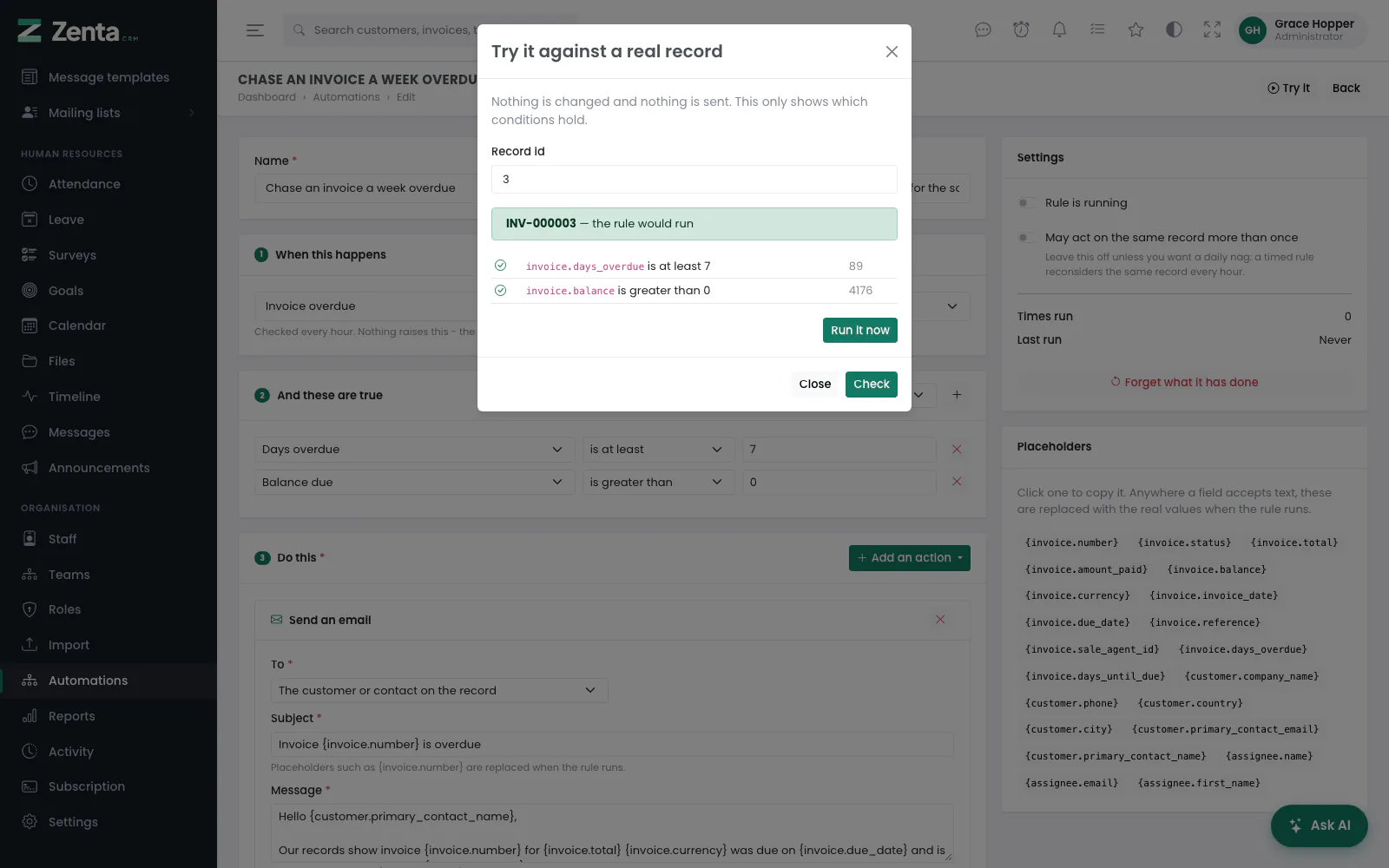 Try it on an invoice that passes: every condition ticked, and Run it now under the answer.
When the record passes, the answer ends with Run it now. It asks Run this rule on that record now? Its actions really happen - emails included. and then runs the rule for real on that record, once, and says The rule ran. See the log for what it did. A rule that has already acted on that record, and is not set to act every time, does nothing (Nothing happened — the conditions did not hold, or the rule has already acted on that record.). It needs the permission to edit automations. It runs on exactly the record Check just tried — the one whose id you typed, or the most recent one when the box was left blank. Both only reach records you could open yourself.
It is the fastest way to answer "why did my rule not fire?", and much better than finding out by having it fire.
The log
 The automation log: which rules acted, on what, and what each action did — or which condition stopped them.
Automations → Log records every time a rule was considered: When (and how long it took), the Rule and its trigger, the Record, the Outcome — Acted, Did not act or Failed — and What happened: each action with its result, or, when the rule did not act, each condition (in the builder's words, such as is at least) with the value that stopped it. An action with nothing to do, such as an email to a customer with no address, is listed with a dash rather than as a failure.
Narrow it by Rule and Outcome (Acted, Did not act, Something failed) and press Filter. Runs are kept for 30 days. Timed rules record only the runs that did something — reconsidering every overdue invoice every hour would bury everything else.
Rules chasing each other
A rule acts on records, and acting on a record can raise another event. Two careless rules can therefore feed each other. Two limits prevent it:
- A single originating event may cascade three levels deep, no further.
- One rule performs at most twenty actions in a run.
Both are in config/automation.php if your situation genuinely needs more.
It very probably does not.
Four rules to start from
A new workspace comes with four written and paused: Chase an invoice a week overdue, Start the work when an estimate is accepted, Flag a lead nobody has called back and Escalate an urgent ticket left waiting. The last raises a ticket's priority to urgent and adds a note on the customer's record once it has waited a day; it emails nobody. Workspaces made before this was corrected had a description saying it emailed the support lead; the upgrade rewrites it, unless the workspace had already reworded it.
Adding your own actions
Everything the builder offers — triggers, fields, operators, actions and the form
fields each action shows — is declared in config/automation.php. Add an
entry there, point it at a class implementing
App\Support\Automation\Actions\Action, and it appears in the builder
with a working form. No views or JavaScript to touch.
Addresses on this page
For reference and for anyone scripting against the panel. Everything here needs somebody signed in to the workspace whose role allows it; anybody else is refused.
| Method | Address | What it does |
|---|---|---|
GET | admin/automations | The list of rules, with search and event filters. |
GET | admin/automations/create | The builder for a new rule; ?event= preselects the trigger. |
POST | admin/automations | Saves a new rule. |
GET | admin/automations/{automation}/edit | The builder for a saved rule. |
PUT | admin/automations/{automation} | Saves changes to a rule. |
DELETE | admin/automations/{automation} | Deletes a rule. |
PATCH | admin/automations/{automation}/toggle | Pauses or resumes a rule. |
POST | admin/automations/{automation}/reset | Forget what it has done: clears the records the rule has acted on. |
POST | admin/automations/{automation}/test | Try it: checks the conditions against one record (record) without acting; used by the page itself. |
POST | admin/automations/{automation}/run | Runs a rule for real against one record (record), honouring Acting once. The Run it now button in Try it. |
POST | admin/automations/{automation}/run-on/{id} | Run a workflow: runs a run-by-hand rule on one record. |
GET | admin/automations/log | The automation log, with automation and status filters. |