Announcements
A message above every page, for the staff of every workspace you address it to.
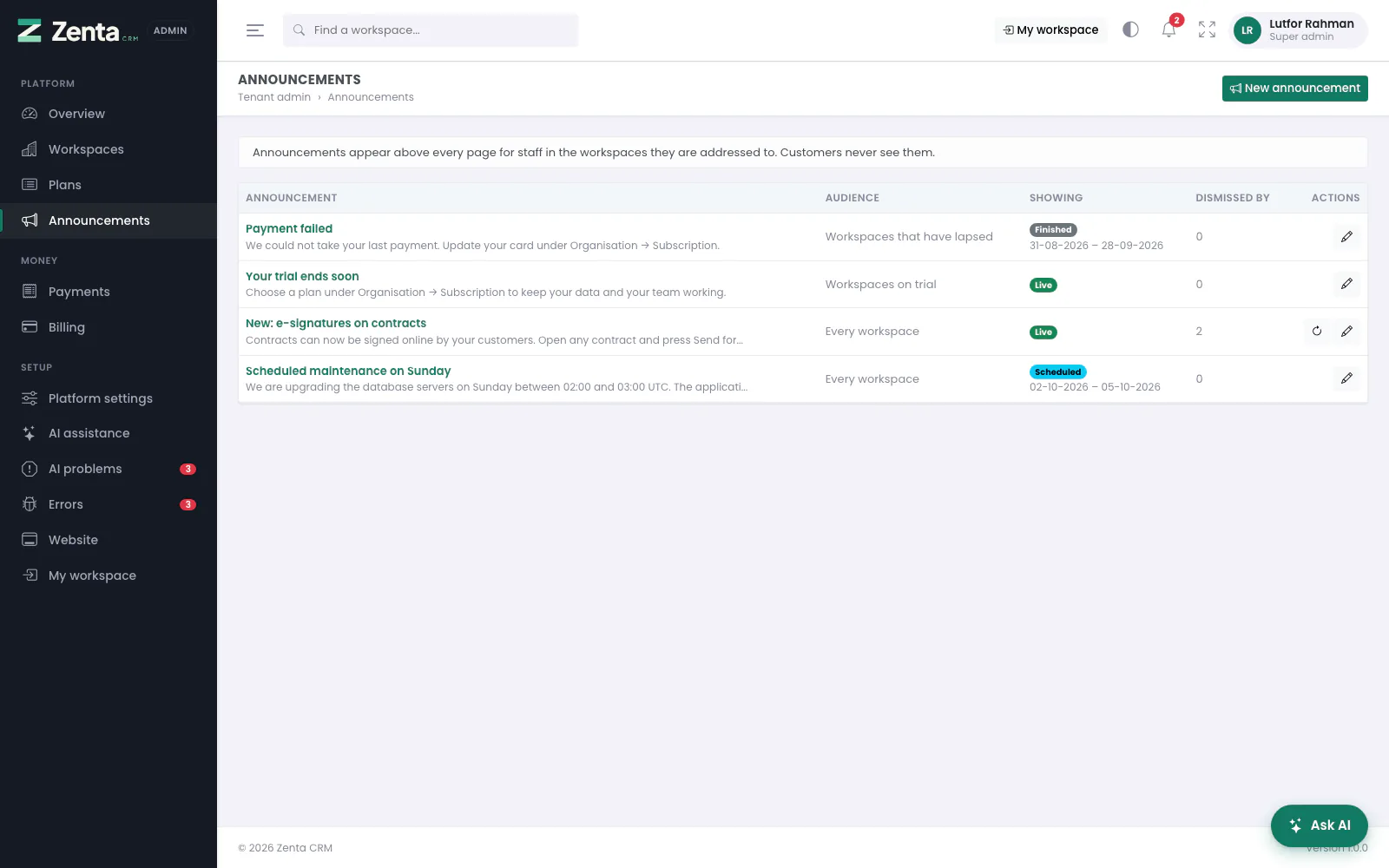 Announcements: who each is for, whether it is showing, and how many people dismissed it.
Tenant admin → Announcements writes to the businesses on your platform all at once: planned maintenance, a new feature, a trial about to end. An announcement appears as a banner above every page for the staff of the workspaces it is addressed to. A workspace's own customers, in the client portal, never see it.
The list
Each announcement with the start of its message, and:
| Column | Shows |
|---|---|
| Audience | Who it is for. |
| Showing | Live (on screen now), Scheduled (its start is ahead), Finished (its end has passed) or Off (switched off), with its dates when it has any. |
| Dismissed by | How many people have closed it. |
| Actions | Show it again (when somebody has dismissed it) and edit. |
Writing one
 A new announcement: what it says, how loudly, to whom and when.
Press New announcement.
| Field | What it does |
|---|---|
| Title | Required. The bold first line of the banner. |
| How loudly | Notice, Warning or Urgent. Only the colour and the icon change. |
| Message | Required, up to 2,000 characters. Plain text; line breaks are kept. It is written by one person and shown to everybody, so it takes no HTML. |
| Who sees it | Every workspace, or only workspaces on trial, active subscribers, workspaces that have lapsed (past due), or suspended workspaces. |
| Show from / Until | Optional, in your own time zone. Blank Show from starts it now; blank Until keeps it showing. Write Sunday's maintenance notice on Thursday and let it disappear on Monday. |
| Active | Off keeps it without showing it. |
| People can dismiss it | On by default. Turn it off only for something that must stay on screen, such as an outage in progress. |
Press Publish.
A suspended workspace still sees the ones addressed to it.
Those workspaces cannot open a single page of the application, so an announcement for
them appears on the page they are shut behind. It is the only way a message about an
unpaid invoice ever reaches the person who has to act on it.
Changing, repeating and deleting
 Editing an announcement. Delete is at the bottom left.
- Edit — click its title or , change it, Save changes.
- Show it again — on the list. Dismissal is per person rather than per workspace: one colleague clearing a banner does not clear it for everybody at the same company. Show it again brings it back for everyone who waved it away — better than editing the text, which would only reach the people who had not read the first version.
- Delete — on the edit page, then confirm. It disappears from every workspace immediately.
Addresses on this page
For reference and for anyone scripting against the panel. Everything here needs a signed-in super admin at the platform's own address; anybody else gets 403.
| Method | Address | What it does |
|---|---|---|
GET | tenant/admin/announcements | The list. |
GET | tenant/admin/announcements/create | The New announcement form. |
POST | tenant/admin/announcements | Publishes it. |
GET | tenant/admin/announcements/{announcement}/edit | Edits one. |
PUT | tenant/admin/announcements/{announcement} | Saves it. |
DELETE | tenant/admin/announcements/{announcement} | Deletes it. |
POST | tenant/admin/announcements/{announcement}/resurface | Shows it again to everyone who dismissed it. |