Notifications
Telling people about work that is theirs: the bell, desktop notices, Slack and text messages.
The bell
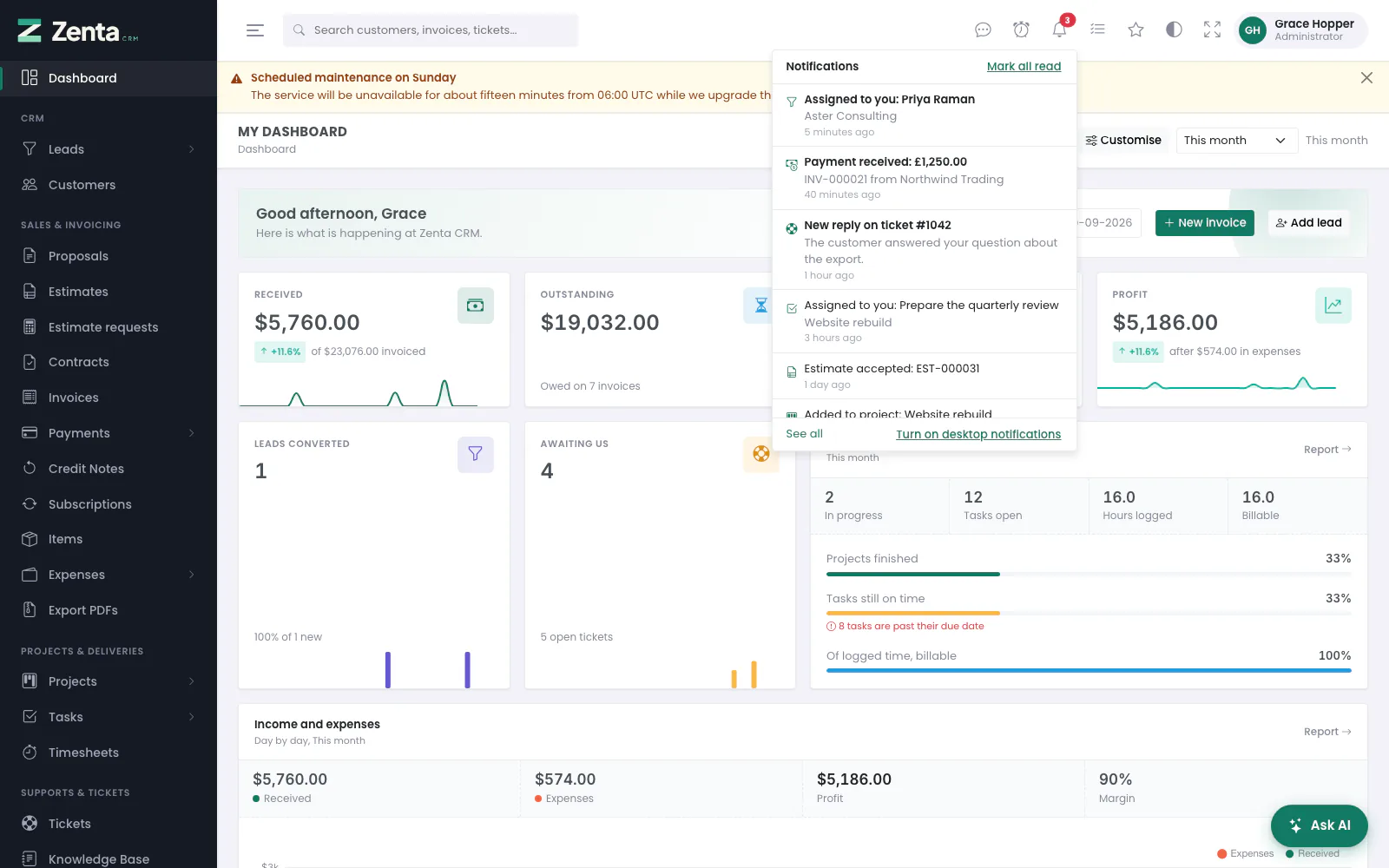 The bell: unread notices in bold, Mark all read, See all, and the offer of desktop notifications.
The in the top bar counts the notices you have not read yet and opens the latest ten. A notice is about work that is yours. Among them:
| Notice | Who is told |
|---|---|
| A new lead, or a lead handed to you | The person it is assigned to |
| A task assigned to you | The people it is assigned to |
| A comment on a task | Its assignees, followers and creator |
| A task done | Whoever created it, and its followers |
| Added to a project; a project finished | The project's members |
| A new ticket, or a reply on one | The person it is assigned to |
| A payment received; an invoice paid in full | The invoice's sales agent and the customer's owner |
| An estimate accepted or declined | Its sales agent and whoever created it |
| A proposal accepted | The person it is assigned to and whoever created it |
| One of your reminders coming due | You |
Nobody is told about something they did themselves, and a deactivated account is told nothing. Notices come from the same place as automations and webhooks, so they are raised however the thing happened — from a screen, the API, the portal or a rule. Other parts of the product add their own, such as a new estimate request or a customer registering in the portal.
- Unread notices are in bold. Clicking one opens what it is about and marks it read.
- Mark all read clears the count.
- See all opens the full list.
- Turn on desktop notifications is offered when the workspace allows desktop notifications and your browser has not yet been asked.
Each open page asks for news once a minute, so a new notice appears in the bell within a minute without reloading. With Pusher connected it arrives the moment it is written.
All your notifications
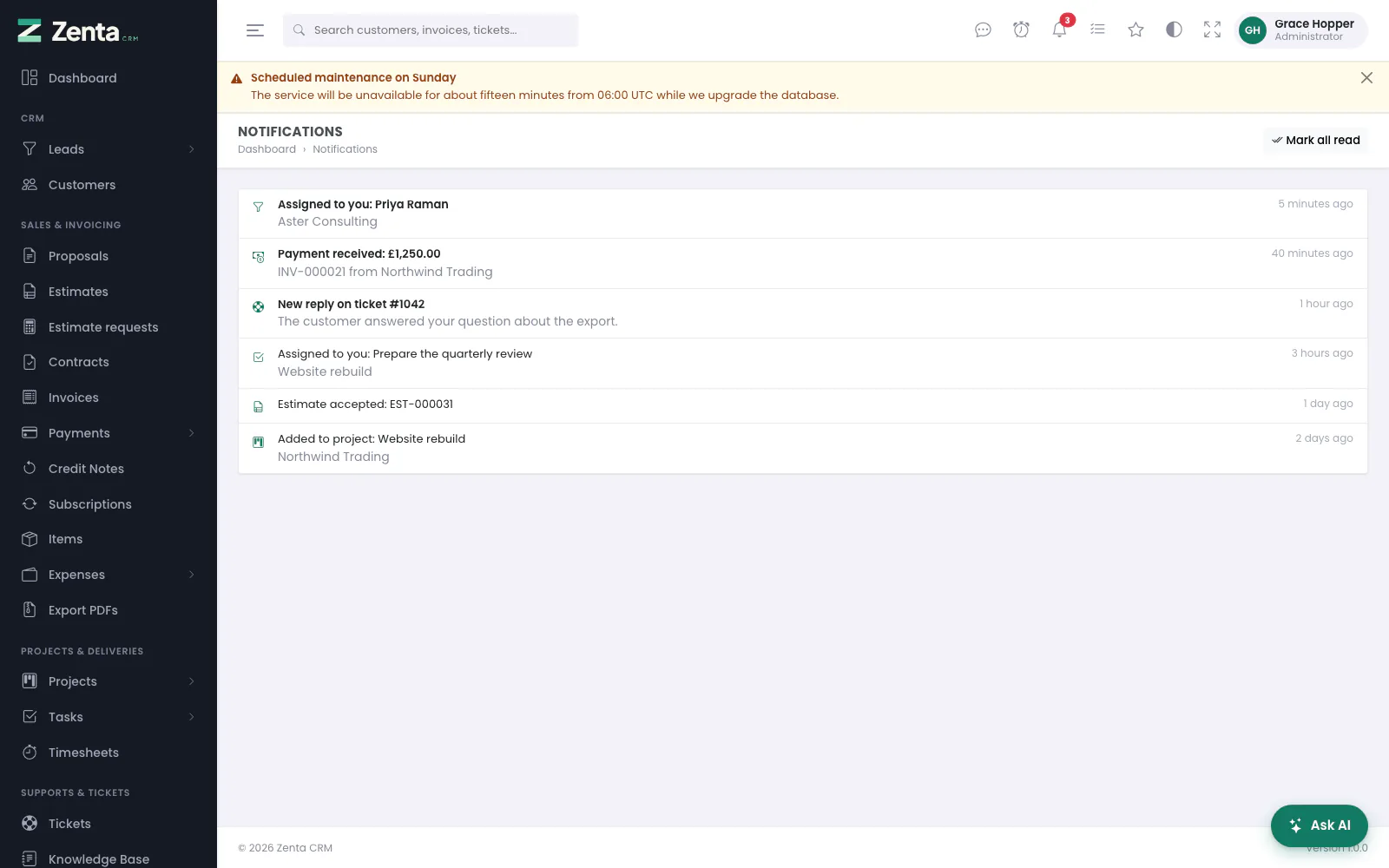 Notifications: every notice for you, newest first, unread in bold.
See all under the bell. Every notice addressed to you, newest first, thirty to a page, with when it arrived. Clicking one opens it and marks it read. Mark all read at the top right marks every one read, after you confirm.
Notices are private: each person sees only their own, and no permission is needed to read them. The platform's own notices to a super admin are kept in the Tenant admin area's bell, never in this one.
Notification settings
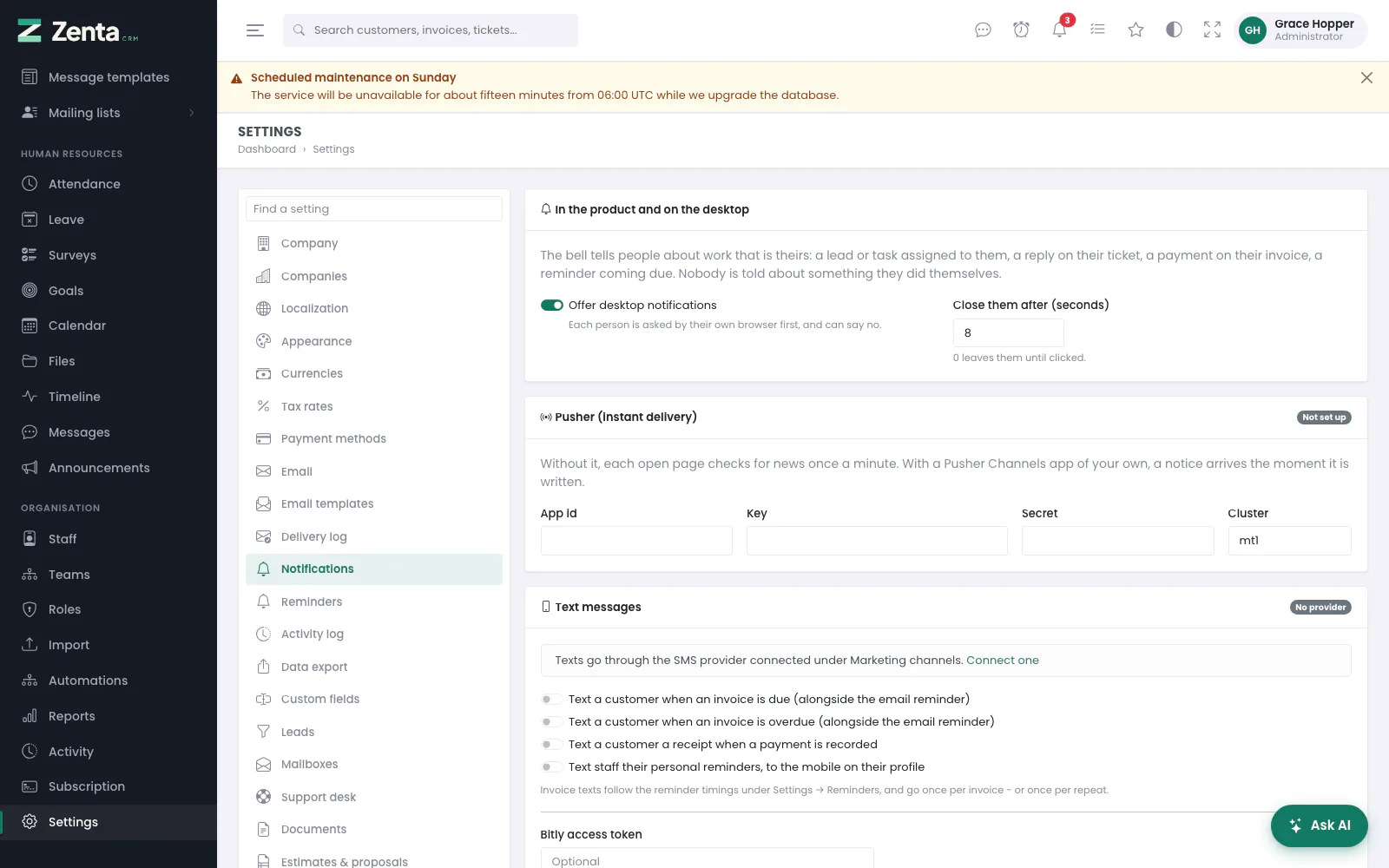 Settings → Notifications: desktop notices, Pusher and text messages.
Settings → Notifications has four cards. Change what you need and press Save changes at the bottom. Secrets — the Pusher secret, the Bitly token and the Slack address — are never shown again once saved; the box says Stored — leave blank to keep it, and leaving it blank keeps it.
In the product and on the desktop
- Offer desktop notifications — on by default. The bell offers each person Turn on desktop notifications; their browser asks first, and they can say no. From then on a new notice also pops up on their desktop, and clicking it opens what it is about.
- Close them after (seconds) — 0 to 120, 8 by default. 0 leaves them until clicked.
Pusher (instant delivery)
Without Pusher, each open page checks for news once a minute — nothing to set up. With a Pusher Channels app of your own, a notice arrives the moment it is written. The badge at the top of the card says Connected or Not set up.
- Create a Channels app at Pusher.
- Copy its App id (a number), Key, Secret and Cluster (
mt1unless you chose another) into the card. - Press Save changes.
- Press Send a test notice, which appears once Pusher is set up, and confirm. A notice saying Pusher is connected should appear on the page within a second or two. If Pusher refuses it, check the four values.
Each person listens on a private channel only they can join; the product signs the request to join, and refuses one for anybody else's channel. The Pusher library is bundled and loaded only once Pusher is set up. Pages still check every five minutes behind the connection, to catch anything a dropped connection missed.
Text messages
Texts go through the SMS provider connected under Settings → Marketing channels — Twilio, Clickatell, MSG91, or any HTTP gateway (see Marketing campaigns). The badge says Provider connected or No provider, and without one a Connect one link takes you there. Each text is off until you switch it on:
| Switch | To |
|---|---|
| Text a customer when an invoice is due (alongside the email reminder) | The customer's primary contact (or the company's own number) |
| Text a customer when an invoice is overdue (alongside the email reminder) | The same, following the overdue reminder's timing |
| Text a customer a receipt when a payment is recorded | The customer |
| Text staff their personal reminders, to the mobile on their profile | The member of staff |
Invoice texts follow the reminder timings under Settings → Reminders, and go once per invoice — or once per repeat.
A Bitly access token is optional: with one, links in texts are shortened — a payment link alone is most of a text.
Slack
 The Slack card: the webhook address and the events to post.
- In Slack, add the Incoming Webhooks app to a channel and copy the address it gives you. It can only ever post to that one channel.
- Paste it into Incoming webhook address. An address that does not start with
https://hooks.slack.com/is refused. - Under Post when, tick the events to post: A new lead, A new support ticket, A payment received, An invoice paid in full, An estimate accepted, An estimate declined, A proposal accepted, A task completed, A project finished.
- Press Save changes, then Post a test (shown once Slack is connected) and confirm. The message should appear in the channel.
The automation action Post to Slack covers anything more specific.
The bell in the customer portal
Your customers' contacts have the same bell in the portal's top bar. It tells them about a new invoice, estimate or proposal sent to them, an invoice gone overdue, a payment you have recorded, a reply from you on their ticket (only the contact who opened it) or the ticket being closed, and a project finished. A contact is only told about what they may see in the portal — someone kept out of invoices hears nothing about them, and a module switched off tells nobody — and every notice links into the portal. Pusher delivers these instantly too when it is connected; desktop notifications are for staff only.
Addresses on this page
For reference and for anyone scripting against the panel. Everything here needs somebody signed in to the workspace whose role allows it; anybody else is refused.
| Method | Address | What it does |
|---|---|---|
GET | admin/notifications | All your notifications. |
GET | admin/notifications/feed | The latest notices and the unread count, for the bell (used by the page itself). |
POST | admin/notifications/{id}/read | Marks one notice read (used by the page itself when you click it). |
POST | admin/notifications/read-all | Marks all your notices read. |
POST | admin/notifications/pusher-auth | Lets your browser join your own Pusher channel (used by the page itself). |
GET | admin/settings/notifications | Settings → Notifications. |
PUT | admin/settings/notifications | Saves the notification settings. |
POST | admin/settings/notifications/pusher-test | Sends you a test notice through Pusher. |
POST | admin/settings/notifications/slack-test | Posts a test message to the Slack channel. |