Integrations
Google, reCAPTCHA, Dropbox, GitHub, Bitbucket and social sign-in — each with keys of your own, each off until you connect it.
Everything on Settings → Integrations uses an account you hold. Keys and secrets are stored encrypted and never shown again; nothing is loaded from any of these services until it is set up. The whole screen is one form: press Save at the foot to keep what you change. A key or secret already stored shows Stored — leave blank to keep it; leave the box blank to keep it.
Google Calendar
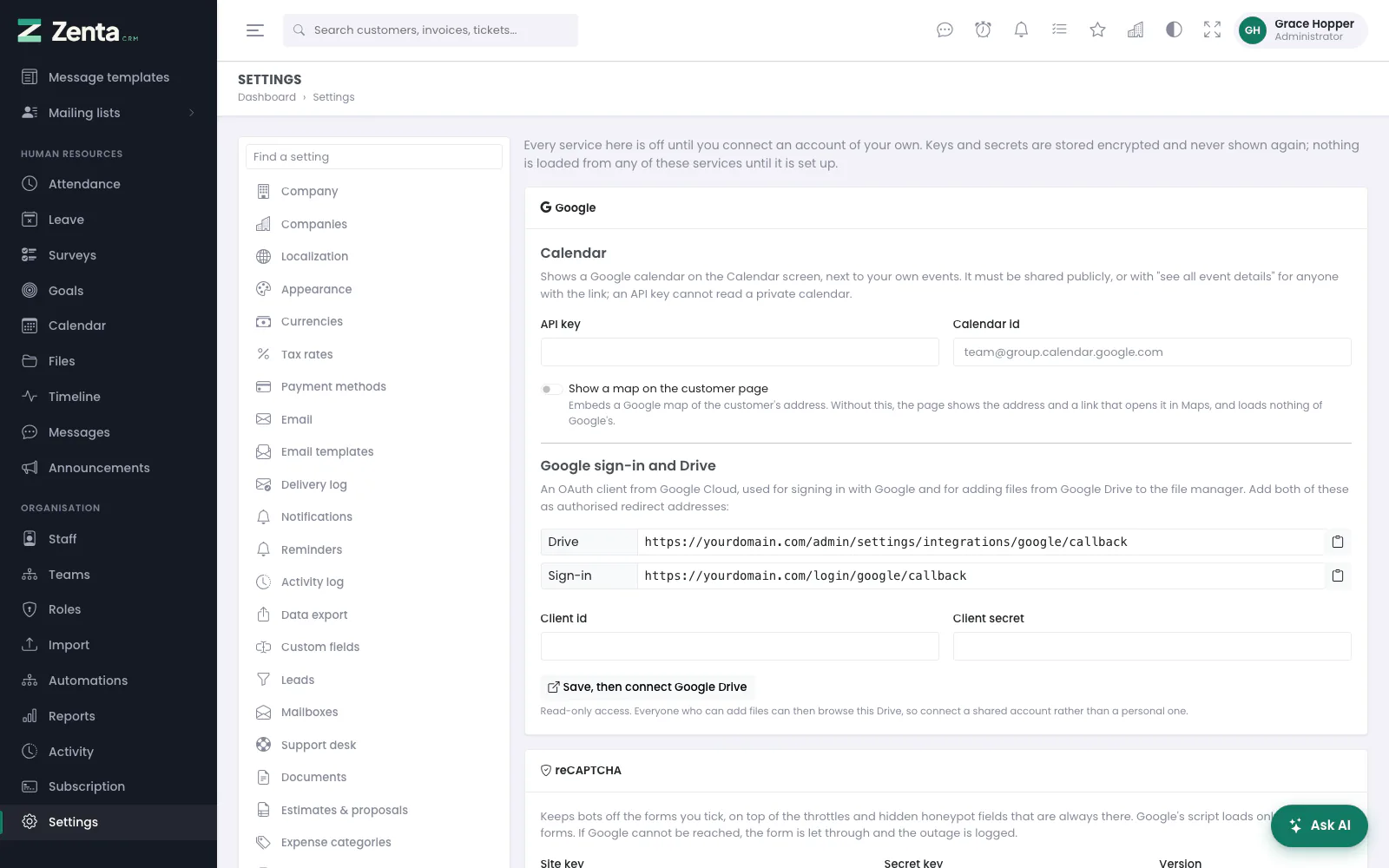 Integrations: the Google card first, with the calendar, the customer map, sign-in and Drive.
Shows a Google calendar on the Calendar screen, beside your own events, as a "Google" source people can switch off. You need an API key from Google Cloud with the Calendar API enabled, and the calendar's id (in Google Calendar: Settings and sharing → Integrate calendar). After saving, Test the calendar (after you confirm) reads this month from it and says It works: 3 events this month — or what Google said was wrong.
The same API key can draw a map: Show a map on the customer page embeds a Google map of the customer's address. Without it, the customer page shows the address and a link that opens it in Maps, and loads nothing of Google's.
Google sign-in and Google Drive
One OAuth client from Google Cloud (type "Web application") serves both. Add the two redirect addresses shown on the settings screen to the client, then paste its id and secret.
- Google Drive: press Save, then connect Google Drive and sign in with Google. You come back to this screen, which says Connected to … and marks the card Drive connected. Access is read-only. From then on the file manager has Add from → Google Drive: browse, tick files, and they are copied in. Google Docs, Sheets and Slides arrive as PDF.
- Sign in with Google: see Social sign-in below.
Everyone who can add files can browse the connected Drive, so connect a shared account rather than somebody's personal one.
Connect a different Drive replaces the connection. Disconnect, after you confirm, forgets it: files already copied in stay, and nobody can add more from Drive until it is connected again. Changing the client id and saving also forgets the connection, because it was made through the old one.
Dropbox
Create an app in the Dropbox App Console
with the files.metadata.read and
files.content.read permissions, add the redirect address
shown in the settings, and paste its key and secret. Then
Save, then connect Dropbox and sign in to Dropbox; you come back to
this screen, connected. The file manager gains Add from → Dropbox.
Connect a different account replaces the connection, and
Disconnect forgets it, keeping the files already copied in. Changing
the app key and saving forgets it too.
If Google or Dropbox refuses, or does not grant lasting access, the screen says so and nothing is connected. A sign-in that did not start from this screen is ignored.
Files from either service are copied, up to 20 MB each — the same limit as an upload — so they are still there when somebody tidies their Drive or stops sharing a folder.
reCAPTCHA
Keeps bots off the forms you tick under Ask on: staff sign-in, customer portal sign-in, customer portal registration, the public support form, newsletter sign-up pages, the public estimate request form and, on a SaaS install, workspace sign-up. Enter the Site key and Secret key you create at Google's reCAPTCHA console for your domain, and choose the Version you created them for:
| Version | What people see |
|---|---|
| v2 | The "I'm not a robot" tick box. |
| v3 | Nothing. Each visitor is scored invisibly, and anybody below Lowest score let through (v3) — 0.1 to 0.9; 0.5 is Google's suggestion — is turned away. |
Google's script is loaded only on the forms you tick. If Google cannot be reached, the form is let through and the outage is logged — the throttles and hidden honeypot fields that are always there still apply — so a Google outage can never lock your staff out.
GitHub and Bitbucket
A commit whose message mentions a task — task #42,
task 42 or T-42 — appears on that task under
Commits, with a link to it. A bare #42 is
deliberately ignored: on both services it already means an issue or a
pull request.
- Choose a secret of at least 12 characters and enter it as the GitHub secret or Bitbucket secret, then save.
- GitHub: in the repository, Settings → Webhooks → Add webhook. Payload URL: the address shown in the settings; content type
application/json; the same secret; "Just the push event". - Bitbucket: Repository settings → Webhooks → Add webhook, with the address shown, the same secret, and the trigger "Repository push".
Every push must carry a valid signature made with that secret; with no secret set, nothing is accepted. The same commit reported twice lands once.
Social sign-in
Adds Continue with Google and/or Continue with Facebook to the staff and customer portal sign-in pages. It only signs people in to accounts that already exist — an active member of staff, or a portal contact who has been given access — matched by an email address the provider has verified. It never creates an account.
- Google — uses the OAuth client above: switch it on.
- Facebook: switch it on, create an app at Meta for Developers with Facebook Login, add the Valid OAuth redirect address shown to the app, and paste the Facebook app id (a number) and Facebook app secret.
 Further down: GitHub and Bitbucket, social sign-in, and the formatting editor.
The formatting editor
Use the formatting toolbar for contracts, proposals and help articles: those are then written with a formatting toolbar — headings, lists, links, tables, images and right-to-left text. It is TinyMCE, bundled with the product rather than loaded from anywhere. Switch it off to go back to plain text boxes that accept basic HTML. Whatever is written is cleaned of anything executable before it is shown to anyone.
Pictures in the editor
The toolbar's image button uploads a picture into the text: PNG, JPG, GIF or WEBP,
up to 4 MB. It is stored in public/uploads/editor-images, in a
folder per workspace under a random name, and the text links to it — so it
survives, and prints into a PDF. A picture pasted straight into the text is refused
rather than embedded, because the cleaning would throw an embedded one away. If the
upload fails, the editor says why (for example, that public/uploads is
not writable). SVG is not accepted: it can carry a script.
Addresses on this page
For reference and for anyone scripting against the panel. Everything here needs somebody signed in to the workspace whose role allows it; anybody else is refused.
| Method | Address | What it does |
|---|---|---|
GET | admin/settings/integrations | The integrations screen. |
PUT | admin/settings/integrations | Save: keys, secrets, the reCAPTCHA forms and the switches. |
POST | admin/settings/integrations/calendar-test | Test the calendar: reads this month from the Google calendar. At most ten a minute. |
GET | admin/settings/integrations/google/connect | Save, then connect Google Drive: sends you to Google to sign in. |
GET | admin/settings/integrations/google/callback | Where Google sends you back; stores the Drive connection. Used by the page itself. |
POST | admin/settings/integrations/google/disconnect | Disconnect Google Drive. |
GET | admin/settings/integrations/dropbox/connect | Save, then connect Dropbox: sends you to Dropbox to sign in. |
GET | admin/settings/integrations/dropbox/callback | Where Dropbox sends you back; stores the connection. Used by the page itself. |
POST | admin/settings/integrations/dropbox/disconnect | Disconnect Dropbox. |
POST | admin/editor/images | The formatting editor's image upload; returns the picture's address. Used by the page itself. |
POST | webhooks/commits/github/{key} | Called by GitHub on a push: links commits that name a task, accepted only with the workspace's secret. |
POST | webhooks/commits/bitbucket/{key} | Called by Bitbucket on a push: links commits that name a task, accepted only with the workspace's secret. |