Email delivery
How mail leaves the building: your own mail server or mailbox, a queue with an hourly limit, a log of every message, and the templates it is written from.
Everything the product sends by email — invoices, reminders, password resets, ticket replies, campaigns — goes through the settings under Settings → Email, is written from a template under Settings → Email templates, and is recorded under Settings → Delivery log. In SaaS mode each workspace has its own of all three.
Email settings
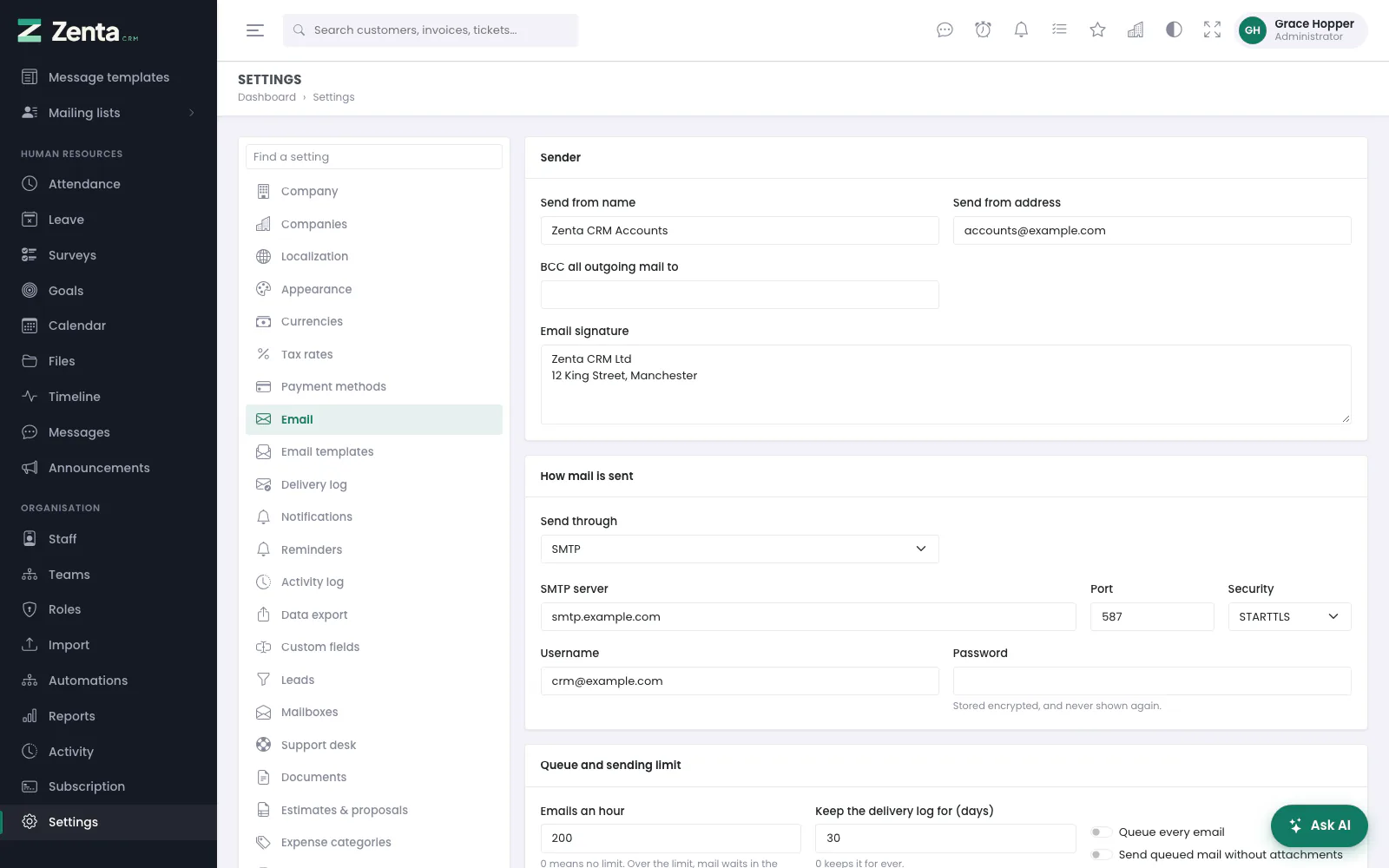 Settings → Email: the sender, and how mail is sent (here, through an SMTP server).
The screen has four cards. The first three are saved together with Save changes; the fourth sends a test.
Sender
| Field | What it does |
|---|---|
| Send from name | The name mail comes from, up to 150 characters. |
| Send from address | The address mail comes from. Use a real mailbox on your own domain: mail "from" a Gmail address sent through another server is widely treated as spam. |
| BCC all outgoing mail to | Optional. A copy of every message goes to this address too — useful for an archive mailbox. |
| Email signature | Up to 2,000 characters, added under every message sent from an email template. |
A single template can override the sender name and address and add its own BCC; see Email templates.
How mail is sent
| Send through | When to choose it |
|---|---|
| The server's own settings (.env) | The default. Uses the MAIL_ lines in .env, as the installer wrote them; the screen says which mailer that is at the moment. |
| SMTP | Almost always the right answer: the server, port, username and password your host or mail provider gives you for a real mailbox. |
| Sendmail | The server's own mail program, where the host provides one. |
| PHP mail() | Works with no password, but nothing confirms delivery and much of it lands in spam. A last resort. |
| Google Workspace or Gmail (OAuth) | Sends through a Google mailbox without its password. See below. |
| Microsoft 365 (OAuth) | Sends through a Microsoft 365 mailbox without its password. |
The fields that follow depend on the choice:
- SMTP: SMTP server (required), Port, Security (STARTTLS, usually port 587, or SSL/TLS, usually 465), Username and Password. A server on a private or internal address is refused.
- Sendmail: the Sendmail command — a path and its options only. On a SaaS install the command is the server's to decide and the box is not shown.
- Google or Microsoft 365: Client id, Client secret and, for Microsoft, Directory (tenant) id, with the Redirect address to copy.
Passwords and client secrets are stored encrypted with your
APP_KEY and never shown again. Leave the box blank to keep
the one already stored (it says Stored — leave blank to keep it).
Google and Microsoft without a password
Both are withdrawing password sign-in for business mailboxes. Instead:
- Register an app — in Google Cloud → APIs & Services → Credentials (an OAuth client of type "Web application"), or in Microsoft Entra → App registrations.
- Add the Redirect address shown on the Email settings screen to the app.
- Paste the app's client id and secret into the settings, choose the provider under Send through, and press Save changes.
- Press Save, then connect the mailbox. You are sent to Google or Microsoft: sign in as the mailbox that should send, and agree. You come back to this screen, which says Connected to … with the mailbox's address.
- Send a test, to be sure.
For Microsoft, the Directory (tenant) id can stay "common", or be your organisation's own id to allow only its mailboxes. The mailbox must have "Authenticated SMTP" allowed in the Microsoft 365 admin centre.
- If the provider refuses, or does not grant offline access (without which mail could only be sent for an hour), the screen says so and nothing is connected. Remove the app's access in your account and connect again.
- A sign-in that did not start from this screen is ignored, so nobody can connect your workspace's mail to their own mailbox by sending you a link.
- Connect a different mailbox replaces the connection.
- Disconnect, after you confirm, forgets the mailbox and sets Send through back to the server's own settings until another is connected.
- Switching Send through away from Google or Microsoft and saving also forgets the connection.
The queue and the hourly limit
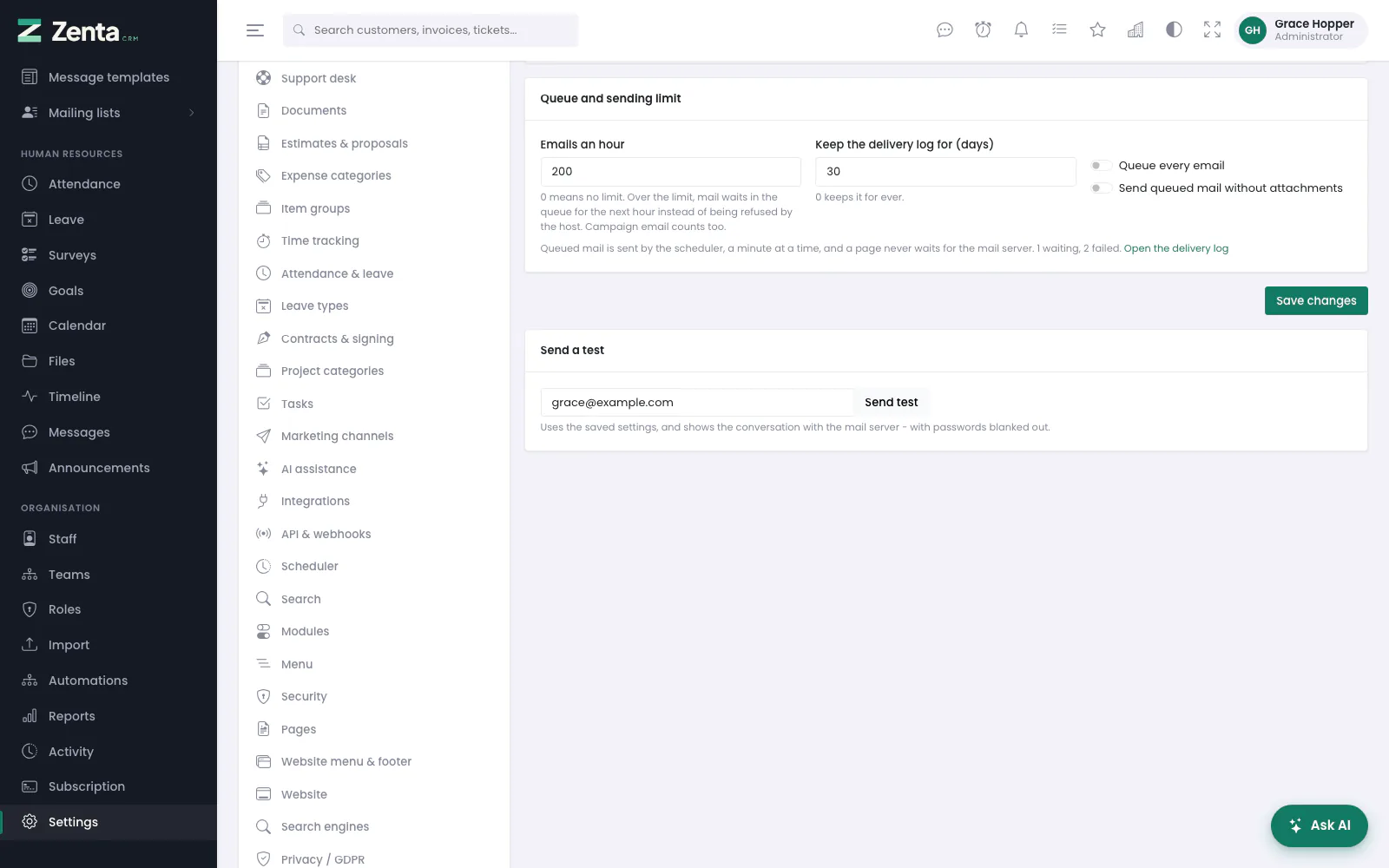 Queue and sending limit, and the test card below it.
Many shared hosts refuse mail above a certain number an hour — and simply lose what they refuse. Set Emails an hour to your host's limit and anything over it waits in the queue for the next hour instead; 0 means no limit. Campaign email counts towards the same limit.
Queue every email sends nothing while a page is loading: each message is stored and handed to the mail server by the scheduler, a minute later. Pages that send mail get faster, and a slow mail server stops being anybody's problem. It needs the cron entry — see The scheduler. The card says how many messages are waiting and how many failed, with a link to the delivery log.
Send queued mail without attachments leaves PDFs and other files off queued mail, for hosts that limit message size. The log marks each message that lost its attachments.
Keep the delivery log for (days) prunes the log after that many days; 0 keeps it for ever.
Sending a test
Under Send a test, type an address (your own is filled in) and press Send test. It uses the saved settings — save first — and shows the whole conversation with the mail server, with password lines blanked out. When something is wrong it says which step the server refused, in the server's own words — which is most of the way to fixing it. A message that went says Sent to … Check the inbox, and the spam folder.
The delivery log
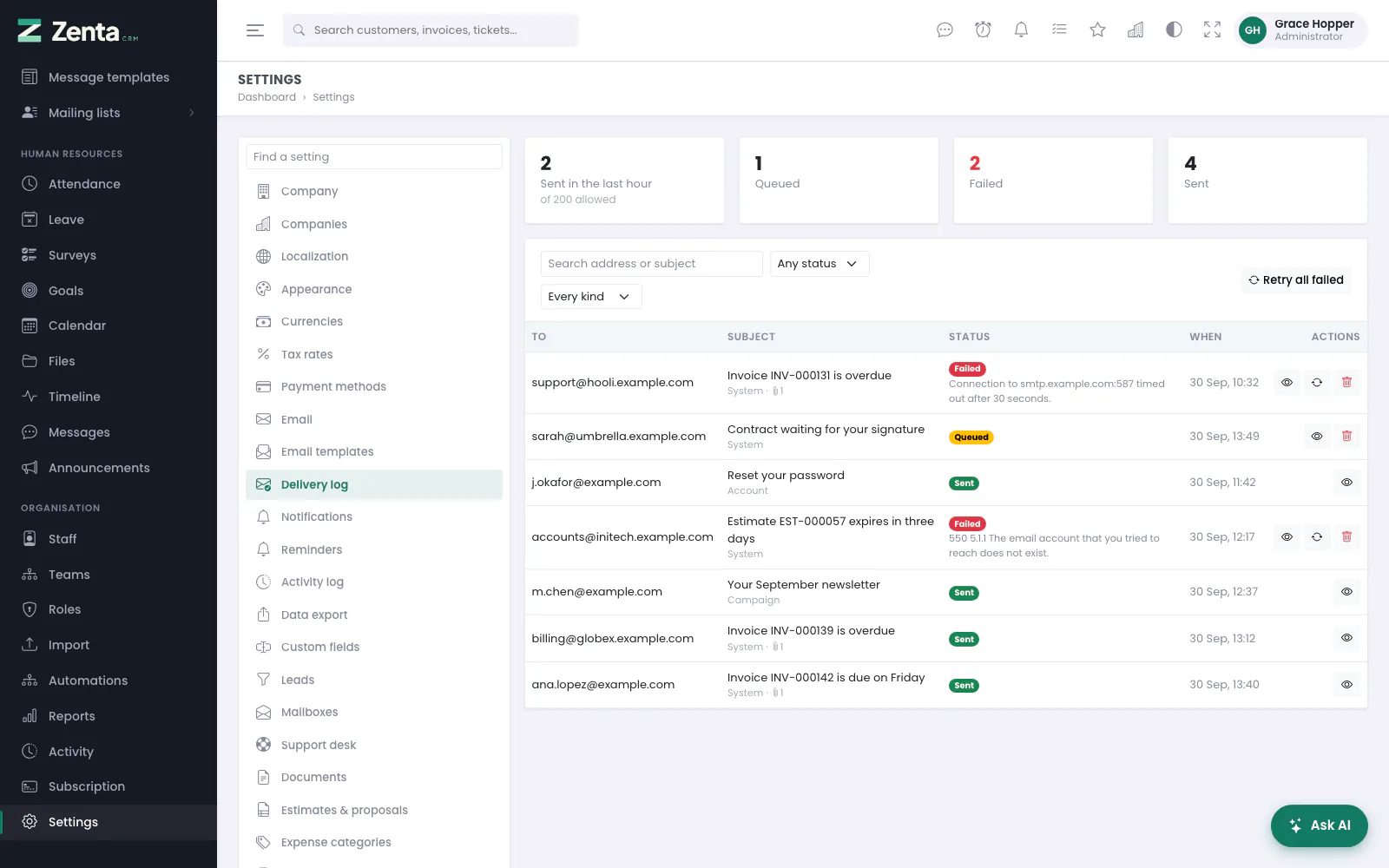 The delivery log: counts at the top, then every message, newest first.
Settings → Delivery log lists every message this workspace has sent or tried to send. Across the top: how many were Sent in the last hour (against the hourly limit, or no hourly limit), and how many are Queued, Failed and Sent — click one to list just those.
Each row shows who it went To, the Subject with its kind (System, Campaign or Account) and a paperclip with the number of attachments ((not attached) when they were left off), the Status — for a failure, the mail server's reason under it — and When. Filter with Search address or subject, Any status and Every kind.
| Button | What it does |
|---|---|
| Details | Opens the message: to, copy to, status, kind, when it was written and sent, attempts, the error, and the text while the log still holds it. The text of a sent message is not kept. |
| Retry | On a failed message, after you confirm: puts it back in the queue, to go with the next run. Only a failed message that still has its text can be tried again. Fix whatever made it fail first. |
| Remove | On a message not yet sent, after you confirm: takes it out of the queue so it is never sent. |
| Retry all failed | Above the list, when anything has failed: puts every failed message that can be retried back in the queue, and says how many. |
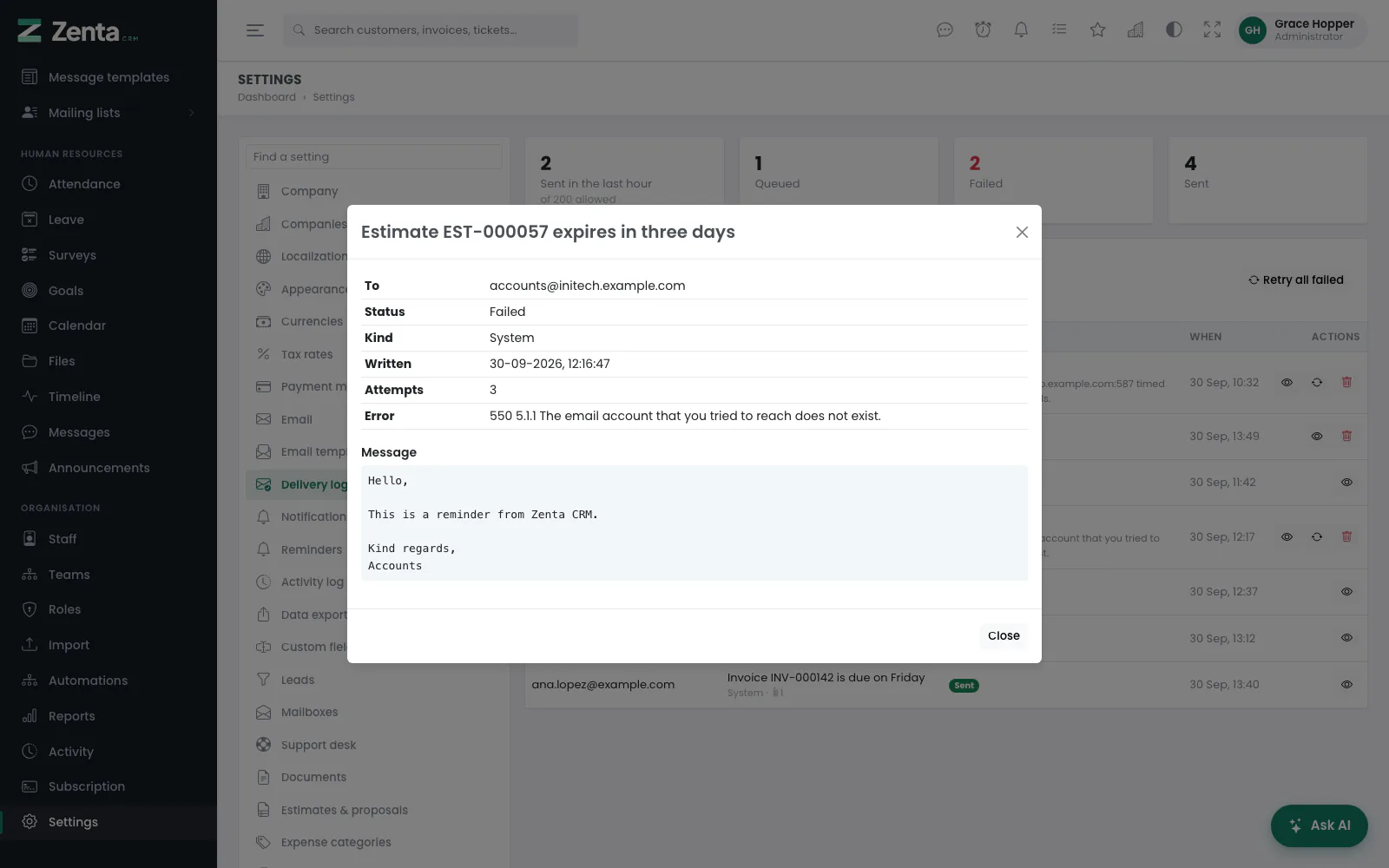 A failed message opened with Details: the reason, and its text while the log still holds it.
Retrying and removing need Settings → edit; looking needs Settings → view.
Email templates
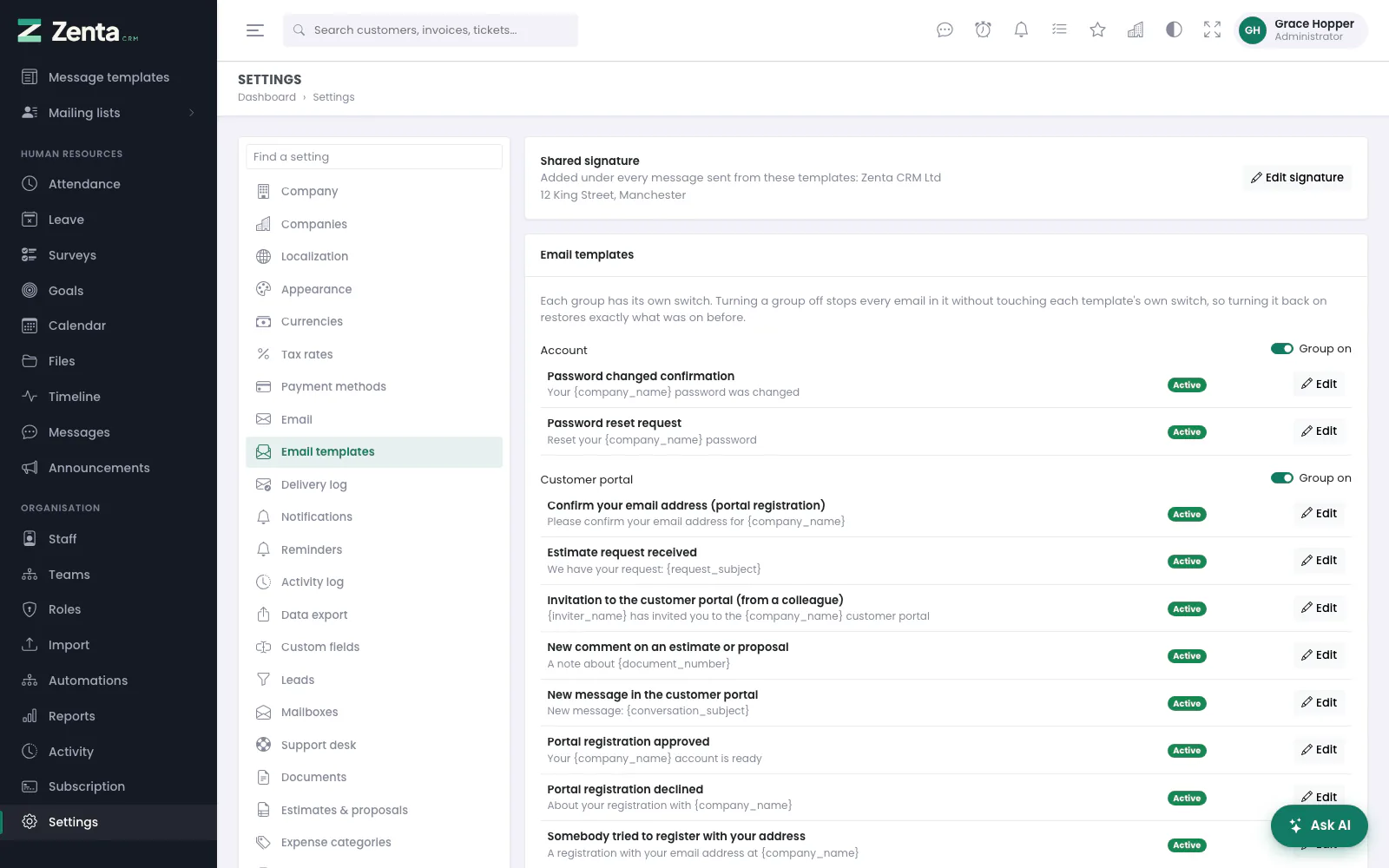 Email templates, by group. Each group has its own switch.
Every automatic email is a template you can edit, under Settings → Email templates. They are listed by group (Account, Customer portal, Marketing, Privacy, Reminders, Staff, Support…), each with its subject and a badge: Active, Off, Design when it was composed in the email builder, or Group off.
Each group heading has its own switch. Turning a group off stops every email in it; each template keeps its own switch as it was, so turning the group back on restores exactly the templates that were on before. A template whose group is off is marked Group off in the list and says so at the top of its editor.
The top of the page shows the Shared signature added under every email sent from a template, with Edit signature taking you to Settings → Email, where it is set.
Editing a template
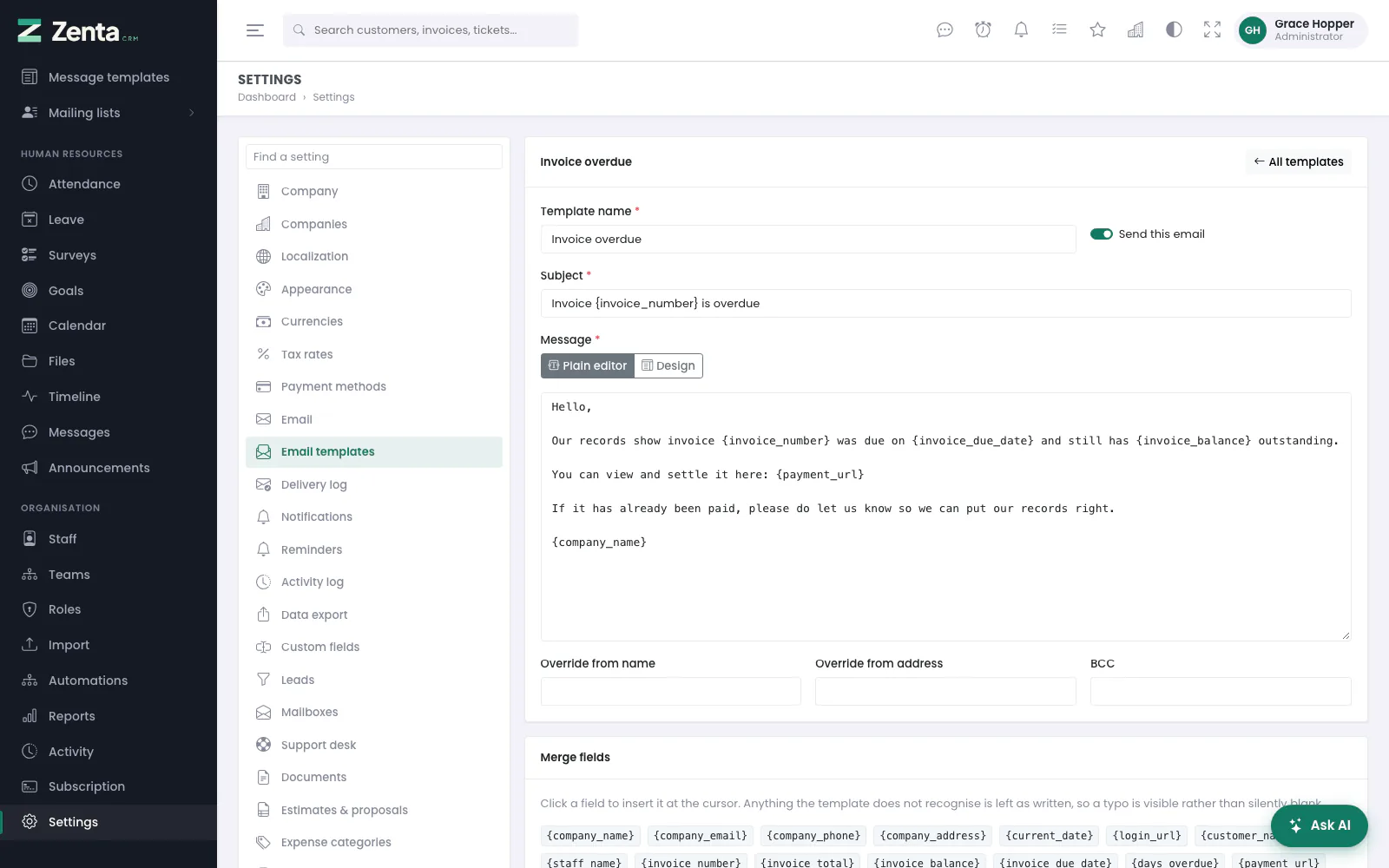 Editing a template. The merge fields it understands are listed below the form.
Press Edit on a template.
| Field | What it does |
|---|---|
| Template name | Required. How it is listed. |
| Send this email | The template's own switch. Off, this email is not sent. |
| Subject | Required. Merge fields work here too. |
| Message | Required. Written in the Plain editor, or composed in blocks with Design — see The email builder. |
| Override from name, Override from address | Optional. Send this one email from a different name or address than the one under Settings → Email. |
| BCC | Optional. A copy of this email to one address. |
Under the form, Merge fields lists the ones this template
understands, such as {company_name}, {invoice_number} or
{payment_url}. Click one to put it at the cursor. A field the template
does not recognise is left as written, so a typo shows rather than going silently
blank. Press Save template; you are taken back to the list.
All templates goes back without saving.
The email builder
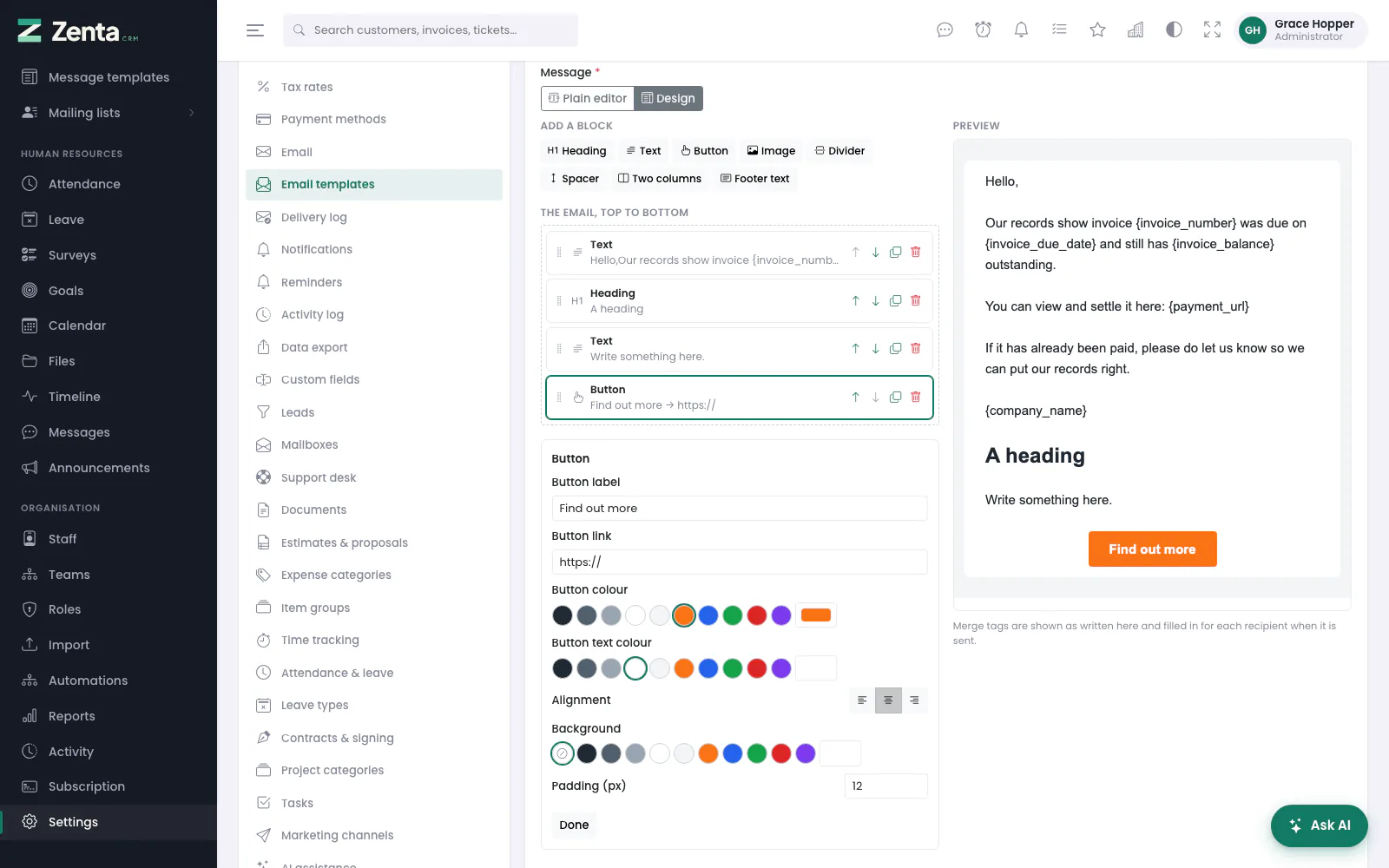 The email builder: blocks on the left, the settings of the chosen block under them, the preview on the right.
Campaign emails and email templates can be written in the plain editor, or composed from blocks. Above the message box, choose Design. What was already written becomes the first text block.
- Click a block under Add a block — heading, text, button, image, divider, spacer, two columns or footer text — or drag it into The email, top to bottom.
- Drag blocks up and down the list to reorder them, or use the arrow buttons beside each one. The copy and bin buttons duplicate and remove a block.
- Click a block to change it: its words, alignment, text and background colours (from a small palette, or any colour with the picker) and padding; a button's label, link and colours; an image's address, description, link and width. Done closes its settings.
- Watch the Preview beside the list, then save the campaign or template as usual.
In a text block, select words and use B, I
and the link button to make them bold, italic or a link. The merge tags
beside the editor go wherever the cursor is, including into a block's text
or a button's link — for example a campaign button pointing at
the unsubscribe link, or a reminder button pointing at {payment_url}.
The preview shows merge tags as written; they are filled in for each recipient when
the email is sent.
For an image, paste its address or press Upload an image (PNG, JPG,
GIF or WEBP, up to 2 MB). Uploads are stored in
public/uploads/email-images, in a folder per workspace under a random
name, because the recipient's mail program has to load the image from a public
address — so the folder must be reachable from the web, as it is for logos.
What is sent is ordinary email HTML laid out with tables, which Outlook, Gmail and Apple Mail all display the same way. The blocks are saved with it, so the email opens in the builder again next time. Pressing Plain editor leaves the builder, after you confirm: the email stays as it is, as HTML, but is no longer edited in blocks; for a template, saving it that way makes it a plain-text template again.
javascript: links and any style that
could load something or position content over a page are removed, while the
table layout and ordinary inline styles are kept. Merged values — a
subscriber's name, a customer's company — are escaped, so nothing typed into
a sign-up form can end up as markup in your email.
Uploading images needs permission to create or edit campaigns, or Settings → edit. Text-message campaigns always use the plain editor.
The error log
When mail fails for a reason the delivery log does not explain, the application's own log may: Settings → Error log, described in Troubleshooting.
Addresses on this page
For reference and for anyone scripting against the panel. Everything here needs somebody signed in to the workspace whose role allows it; anybody else is refused.
| Method | Address | What it does |
|---|---|---|
GET | admin/settings/email | The email settings. |
PUT | admin/settings/email | Saves the sender, how mail is sent, and the queue and log settings. |
POST | admin/settings/email/test | Send test: sends one message with the saved settings and returns the mail server conversation. At most ten a minute. |
GET | admin/settings/email/oauth/connect | Save, then connect the mailbox: sends you to Google or Microsoft to sign in. |
GET | admin/settings/email/oauth/callback | Where Google or Microsoft send you back; stores the connection and returns to the settings. Used by the page itself. |
POST | admin/settings/email/oauth/disconnect | Disconnect: forgets the mailbox and goes back to the server's own settings. |
GET | admin/settings/email-log | The delivery log, with status, kind and q filters. |
GET | admin/settings/email-log/{id} | Details of one message, in a pop-up. |
POST | admin/settings/email-log/{id}/retry | Retry: puts a failed message back in the queue. |
POST | admin/settings/email-log/retry-failed | Retry all failed. |
DELETE | admin/settings/email-log/{id} | Remove: takes an unsent message out of the queue. |
GET | admin/settings/email-templates | The email templates, by group. |
PATCH | admin/settings/email-templates/groups | A group's switch: group and enabled. Used by the page itself. |
GET | admin/settings/email-templates/{emailTemplate}/edit | The template editor. |
PUT | admin/settings/email-templates/{emailTemplate} | Save template. |
POST | admin/email-builder/images | Upload an image in the email builder; returns its public address. Used by the page itself. |