Languages
Languages, time zones and date formats: for the workspace, for each member of staff, and for each customer.
Zenta CRM ships in English, Spanish, French, German and Portuguese, all complete. Everything about language, time and dates is on one screen: Settings → Localization. Each member of staff can then choose their own language and time zone, and each customer gets documents in theirs.
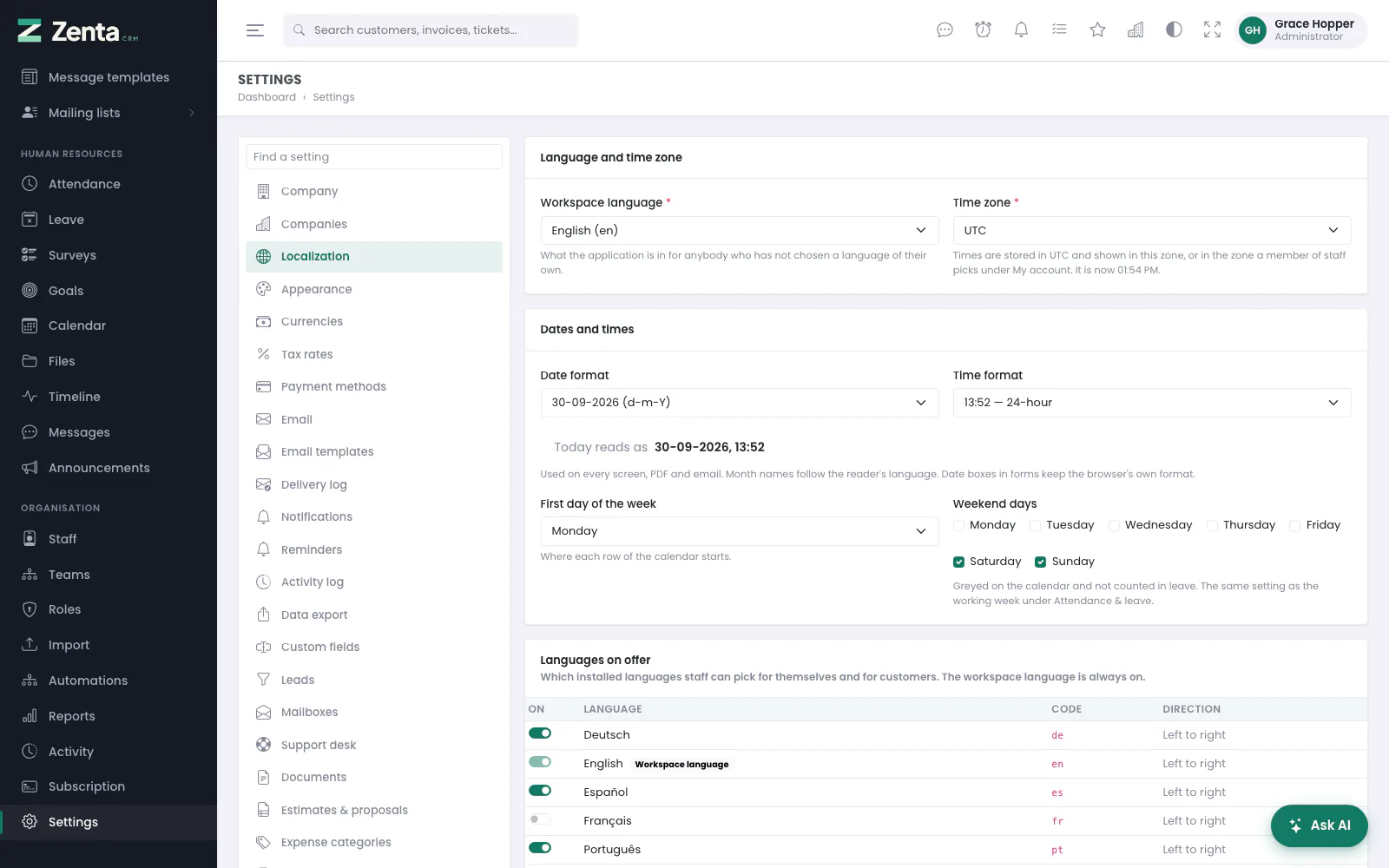 Language, time zone, formats, weekend and the languages on offer, on one screen.
The screen has three cards — Language and time zone, Dates and times and Languages on offer — saved together with Save changes at the foot.
The workspace language and time zone
Workspace language is what the application is in for anybody who has not chosen a language of their own, and what every customer without a language of their own receives. Time zone is where your business keeps its clock. Under the field you can see the current time in the zone you picked, so a wrong choice is obvious before you save.
Date and time formats
Pick a date format (for example 11/09/2026,
09/11/2026, 2026-09-11 or 11 Sep 2026) and a
time format, 24-hour or 12-hour. Each option shows today written that
way, and the Today reads as line under them shows the pair together as you
change them.
The formats apply everywhere a date is shown: lists, record pages, the portal, the
public payment page, PDFs and the dates filled into email templates. Month names
follow the reader's language, so 11 Sep 2026 reads
11 sep. 2026 to a Spanish reader. Date boxes in forms keep the browser's
own date picker.
| What is shown | Which time zone |
|---|---|
| A date on its own: invoice date, due date, deadline, leave | None. A date is the same day everywhere and is never moved. |
| A moment on screen: when something was sent, a shift, an event | The reader's own time zone if they chose one under My account, otherwise the workspace's. |
| A moment on a PDF or in an email to a customer | Always the workspace's, whoever sends it. |
First day of the week and the weekend
First day of the week (Monday, Saturday or Sunday) decides where each row of the calendar starts. Weekend days are the days nobody works: the calendar greys them, and leave requests do not count them.
Which languages are on offer
The Languages on offer table lists every language installed in the
lang/ folder, with a switch for each. Only the languages switched on can
be chosen by staff for themselves or given to a customer. Turn off a translation you
have not finished, or one for a market you do not serve.
- The workspace language is always on; its switch is locked.
- Until you save this table the first time, every installed language is on, so an upgrade does not hide a language somebody already uses.
- A member of staff or a customer whose language you turn off is not changed. They get the workspace language until you turn it back on.
Your own language and time zone
Every member of staff can choose for themselves: open the menu under your name at the top right and choose My account.
- Choose a Language, or leave it on Workspace default to follow the workspace.
- Choose a Time zone, or leave it on Workspace default.
- Press Save changes. The page reloads in your language.
This affects only you. A colleague in Madrid can read the application in Spanish while one in Dhaka sees every time in Dhaka time, in the same workspace. Reminder emails sent to you (a task coming due, a contract you manage that is expiring) use your language too.
A customer's language
On the customer form, Language sets the language that customer reads. Leave it on Workspace default to use the workspace language. It decides:
- The client portal their contacts sign in to.
- PDFs of their invoices, estimates, proposals and credit notes, whether you download one, email it from the list, bundle it into a zip, or they download it from the portal. The printed headings (Invoice, Due date, Subtotal…), month names and text direction all follow.
- Emails that go to them: the covering message when you email documents from a list, and the automatic reminders (invoice due and overdue, estimate expiring, contract awaiting signature). The template text is yours and stays as you wrote it; the dates filled into it and any wording around it follow the customer's language.
If you switch off a language a customer already has, the customer keeps it on their record (the form shows it as not offered) and receives the workspace language until you switch it back on.
Right to left
The layout follows the language each person is reading. A member of staff who chose Arabic, Hebrew, Farsi or Urdu gets a right-to-left layout, and so does a portal contact whose company has one of those languages. Everybody else in the same workspace keeps left-to-right. PDFs and emails follow the language they are written in, so an Arabic customer's invoice is laid out right to left.
Always lay pages out right to left, at the bottom of the languages table, forces right-to-left for every language. The table's Direction column says which way each installed language reads. You do not need it for the languages above; it is there for a translation Zenta CRM does not recognise as right-to-left.
Adding your own language
The strings live in lang/ as JSON, one file per language.
| Step | What to do |
|---|---|
| 1 | Run php artisan zenta:lang:extract de — replace de with your language code. It writes lang/de.json with every string in the product. |
| 2 | Open it in any text editor. Each line is "English": "English" — replace the value on the right. |
| 3 | The language appears in the settings dropdown as soon as the file exists. |
":count invoice overdue" has :count
replaced with a real number when it is shown. Leave it exactly as it is,
wherever it belongs in your sentence. Drop it and the sentence loses its
number.
Strings with a | in them have a singular and a plural form:
":count day|:count days". Keep both halves and the bar
between them, in that order.
After you edit a view
Run the extract command again. Strings already translated keep their
translations; only new ones are added, seeded with the English so they
are easy to spot. Add --prune to drop strings no longer
used anywhere.
Sign-in and password messages
A handful of messages — a rejected login, a password reset — come from
Laravel's own files rather than the JSON. Copy
lang/es/auth.php and lang/es/passwords.php to
a folder named for your language and translate those too. Do not
put keys like auth.failed into the JSON file: a JSON
translation takes priority over a PHP one, and the result is the literal
text "auth.failed" shown to somebody who mistyped their password.
What is not translated
- Your own content. Customer names, invoice line descriptions, notes, terms, knowledge-base articles and email templates are your words, and are stored once.
- Currency follows each document's own currency, as it should: a French customer invoiced in dollars is invoiced in dollars.
Addresses on this page
For reference and for anyone scripting against the panel. Everything here needs somebody signed in to the workspace whose role allows it; anybody else is refused.
| Method | Address | What it does |
|---|---|---|
GET | admin/settings/localization | The Localization screen (the localization group of admin/settings/{group}; see Settings). |
PUT | admin/settings/localization | Saves the language, time zone, formats, first day of the week, weekend and the languages on offer. |