Invoices and money
Invoices, credit notes and subscriptions, and the tax rates and currencies they are written in.
The usual path
Estimate → accepted → Invoice → Payment. Every step carries the lines, taxes and totals forward, so nothing is retyped and nothing drifts. Taking the money itself — recording payments, refunds, batch payments and online gateways — is on Taking payments.
Estimates and proposals
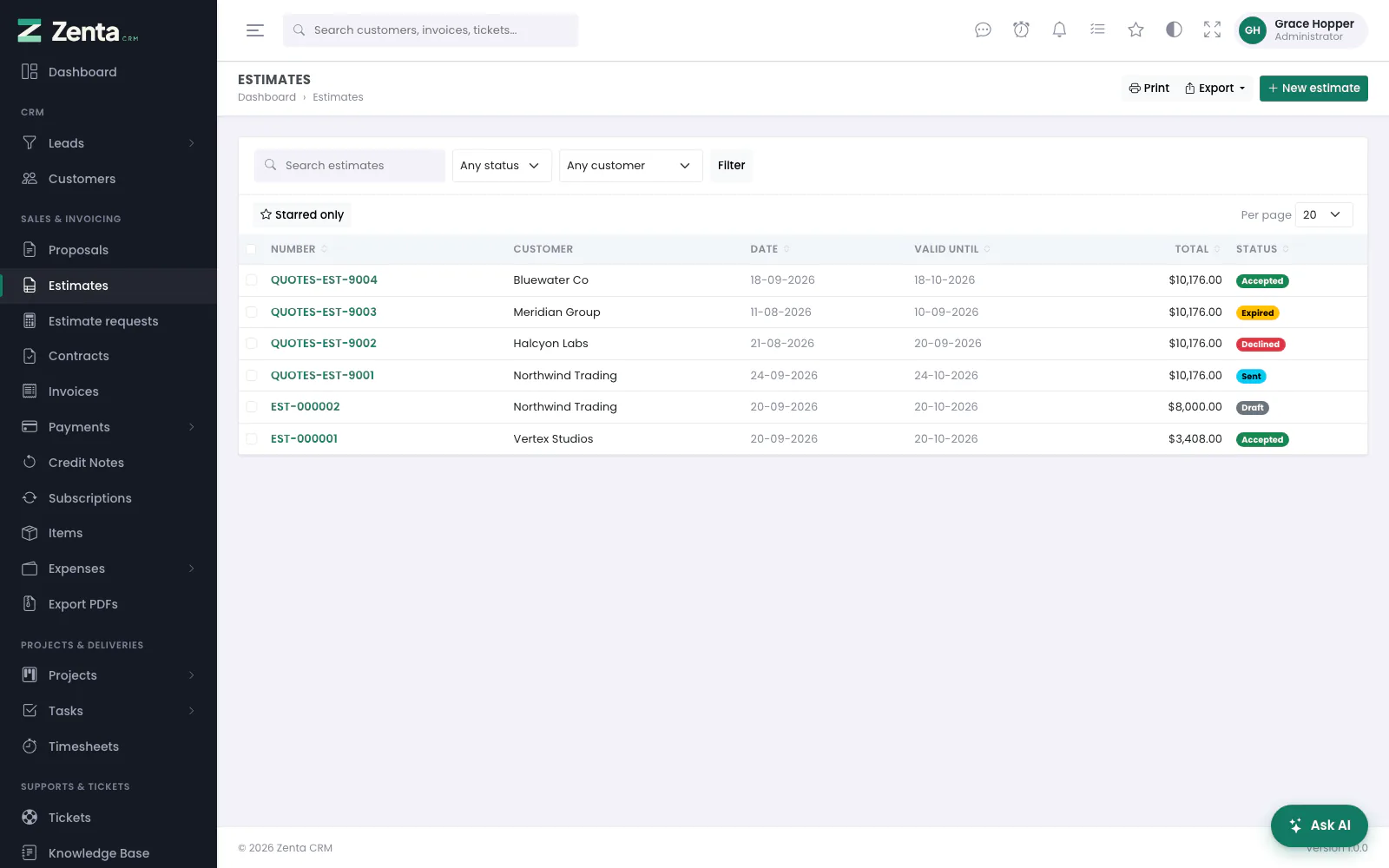 Estimates, with what each is worth and whether the customer has decided.
An estimate is a priced quote with line items. A proposal is a longer document — a covering pitch with pricing inside it. Both can be sent, accepted or declined, and both convert to an invoice in one step. They have a page of their own: Estimates and proposals.
Turn on When an estimate is accepted, raise the invoice automatically under Settings → Estimates & proposals and accepting an estimate raises a draft invoice for you.
Invoices
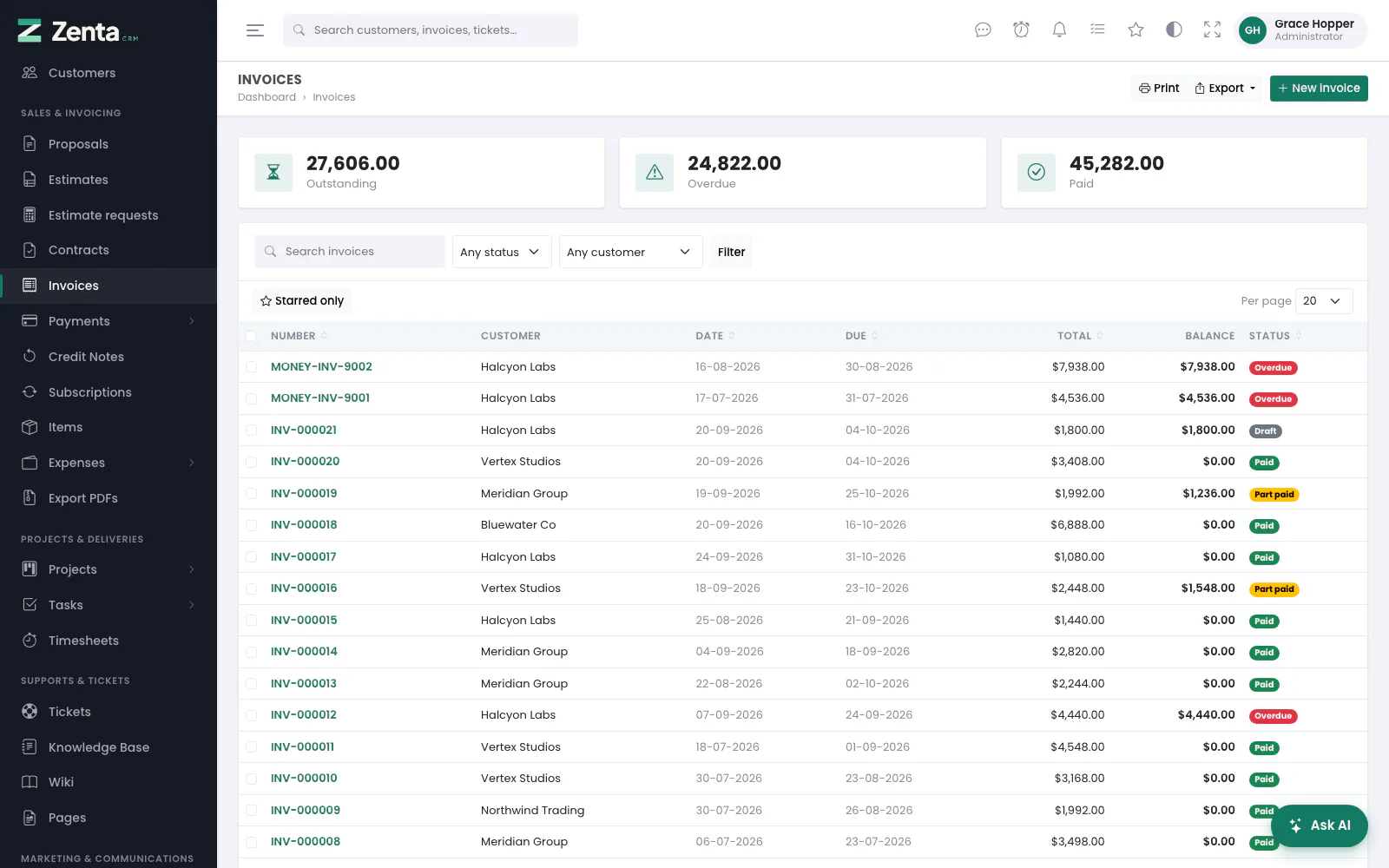 The invoice list: what is outstanding, what is overdue, and what has been paid.
Sales & invoicing → Invoices. Every invoice you are allowed to see — a role limited to its own customers sees only theirs, here and in the totals.
- Outstanding, Overdue and Paid — what is still owed on invoices that have gone out, the part of that past its due date, and the value of invoices paid in full. They count every invoice you can see, not only the ones the filter shows, and they add amounts together whatever their currency.
- Search invoices matches the number, the reference or the customer's name. Any status and Any customer narrow the list; press Filter.
- Number, Date, Due, Total and Status sort the list; Starred only, Per page and saved filters work as on every list (see Finding things).
- Balance is the total less what has been paid or credited.
Tick invoices to act on several at once: Download PDFs, Email to the customer (see PDFs and sending documents) and Delete. Print and Export take the list as filtered (see Exporting).
An invoice's status follows its balance rather than being set by hand:
| Status | When |
|---|---|
| Draft | Not sent yet. Freely editable, cannot be paid, never chased. |
| Sent | Issued, nothing paid. |
| Part paid | Some money received or credit applied. |
| Paid | Settled in full. |
| Overdue | Past its due date with a balance outstanding. |
| Cancelled | Withdrawn. Cannot be paid and is not counted as owed. |
Writing an invoice
 A new invoice: who it is for, when it is due, and the lines.
New invoice opens the form. It starts as a draft dated today, due fourteen days later (the Due after on Settings → Documents), with you as the sale agent, and with the note and terms set there already filled in.
| Field | What it does |
|---|---|
| Customer | Required. Who is billed. |
| Invoice date / Due date | The first is required. The due date cannot be earlier than the invoice date; leave it blank for an invoice with no due date, which is then never overdue. |
| Currency | Starts on the base currency. The lines are in whatever you choose here. The currency's exchange rate at that moment is stored on the invoice, and taken again if you change its currency later, so reports convert it to the base currency at the rate it was written at. |
| Sale agent | The member of staff credited with it, or Unassigned. |
| Reference | Your own reference or the customer's order number, up to 60 characters. Searchable. |
| Project | Only while the Projects module is on. Files the invoice on that project's Sales tab. |
| Issued by | Only once the workspace has a second company (see Companies): which of them the invoice is raised as. |
| Note to customer / Terms & conditions | Printed on the invoice. |
| Internal note | Never shown to the customer. |
Any custom fields you have added to invoices appear on the form too (see Customising). Press Create invoice; the number is given out at that moment, and you land on the invoice's page.
The lines
Add line adds an empty line; Add from item library... adds one filled in from an item — its name, description, rate and taxes, which you can then change. Each line has a Description (required), an optional longer description, Qty, Rate, a Tax and a Second tax. The removes a line; remove the last one and an empty line takes its place, because an invoice needs something to charge for.
Under the lines: a Discount as a percentage or a Fixed amount, and an Adjustment (positive or negative) for rounding or a one-off. The totals update as you type; the server works them out again when you save.
How the totals are worked out
- Each line is quantity × rate.
- The discount is applied to the subtotal, and spread across the lines in proportion.
- Tax is worked out per line, on the discounted amount, and rounded per line.
- Any adjustment is added last.
Each line keeps its own copy of the tax's name and rate, so changing or deleting a tax rate later never restates an invoice already written.
Per-invoice controls
 This invoice: the switches that make one invoice behave differently from the rest.
Four things on an invoice that are nobody else's business, all under This invoice at the foot of the form:
| Setting | What it does |
|---|---|
| Ways they may pay | Narrows this invoice to certain payment methods. Nothing selected means whatever the workspace offers. |
| Send it on | A date and time in the future. Write it today, and the scheduler marks it Sent when the moment arrives (it checks every fifteen minutes). Only a draft is published this way; leave it blank to send it yourself. |
| They may pay part of it | The payment page lets the customer choose how much to pay, up to what is owed, instead of always charging the whole balance (see Part payments). The invoice page says so. |
| Do not chase this one | No due or overdue reminders (see Reminders). For the invoice everybody already knows about, or the one being disputed. |
Whatever is switched on is repeated in a line at the top of the invoice's page, so somebody wondering why no reminder went out does not have to open the form to find out. A customer can also be taken off online payment altogether — see Leads and customers. Their invoices then say This customer does not pay online, and show your offline instructions instead of a Pay button.
Editing an invoice
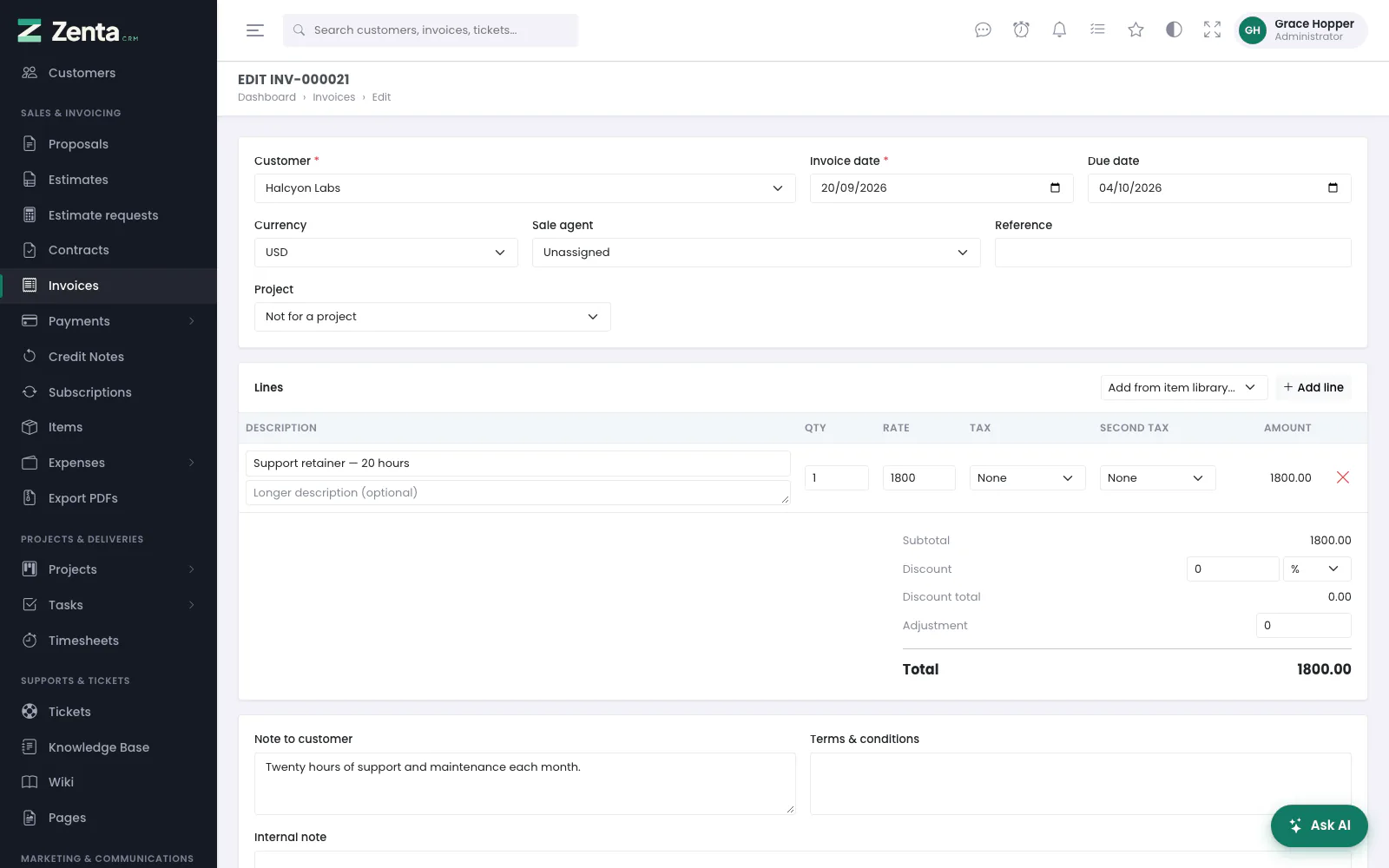 Editing a draft: the same form, filled in.
Edit on the invoice's page opens the same form; press Save changes. Once a payment has been recorded against an invoice its lines can no longer be saved — the form says This invoice has payments recorded against it. Remove them before editing the lines. Otherwise the payments would point at an amount the customer never agreed to.
The invoice's page
 One invoice: the document, what has been paid, and what is still due.
The invoice as the customer sees it, with Paid and Balance due under the total. When credit has been applied the two are shown apart, as Payments received and Credit applied, so the balance is always explainable. On the right, Payments lists each one with its method and reference, and any refunds against it.
| Button | What it does |
|---|---|
| Star, Remind me | Star the invoice for yourself, or set yourself a reminder about it (see Working together). |
| Opens the invoice as a PDF in a new tab. | |
| E-invoice | Downloads it as UBL XML — see below. Not on a draft. |
| Edit | The form above. |
| Status | Draft, Sent or Cancelled — see below. |
| Payment link | Copies the link a customer can pay at without an account (see Taking payments). Only while there is something to pay and it is neither a draft nor cancelled. |
| Credit note | Starts a credit note with this invoice's customer, currency, company and lines. Not on a draft. |
| Record payment | Money received by hand — see below. Only while there is a balance and it is not a draft. |
Any workflows your automations offer to run by hand appear beside them (see Automations).
Changing the status
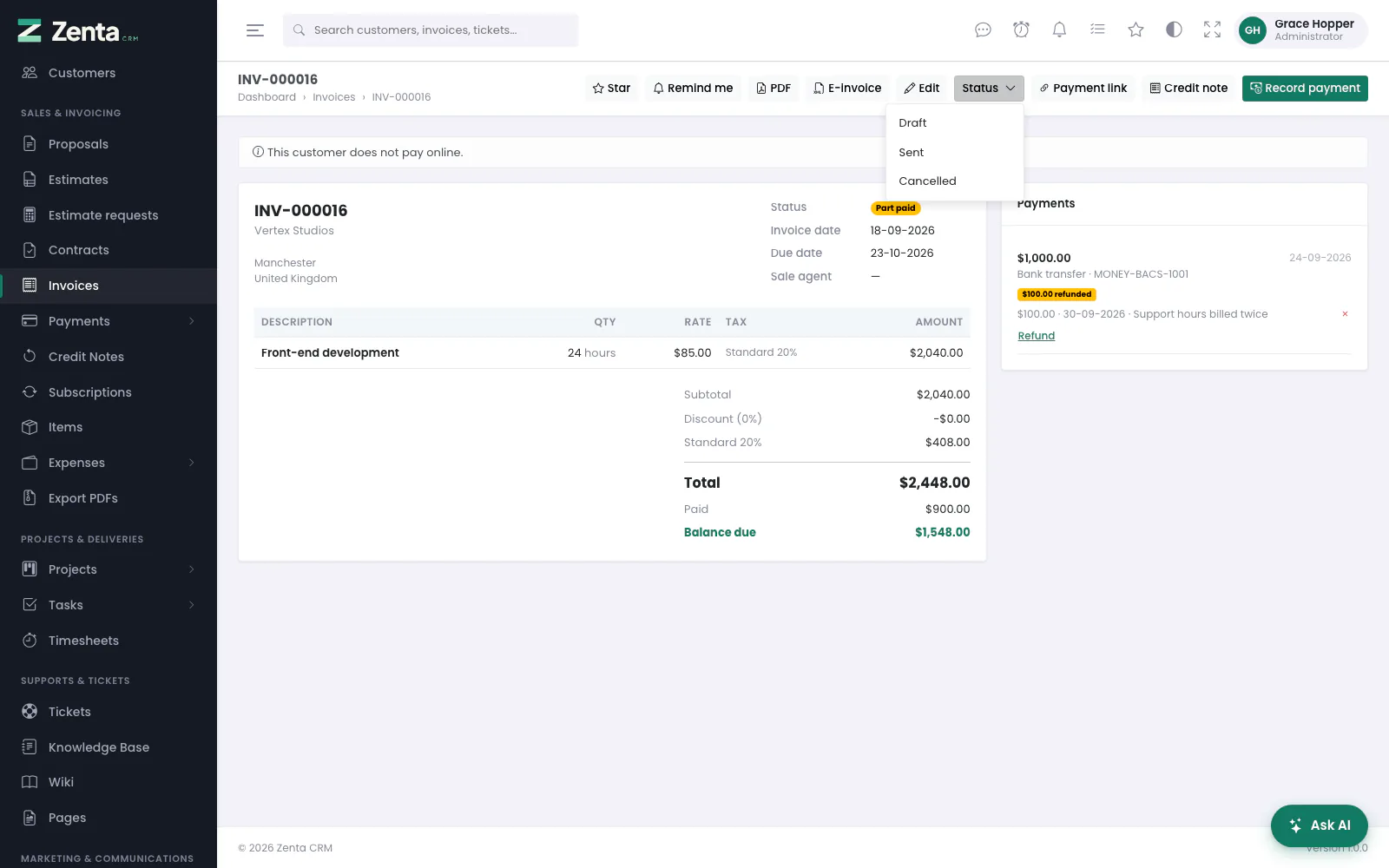 The Status menu: the three states you set by hand.
Status offers Draft, Sent and Cancelled; the rest follow the balance. Marking it Sent hands the status back to the balance — an invoice with money against it becomes Part paid or Paid straight away — and the first time it happens the customer's contacts who may see invoices are sent a New invoice notice, as your notification settings allow (see Notifications). Draft takes it back out of circulation; Cancelled withdraws it.
Recording a payment
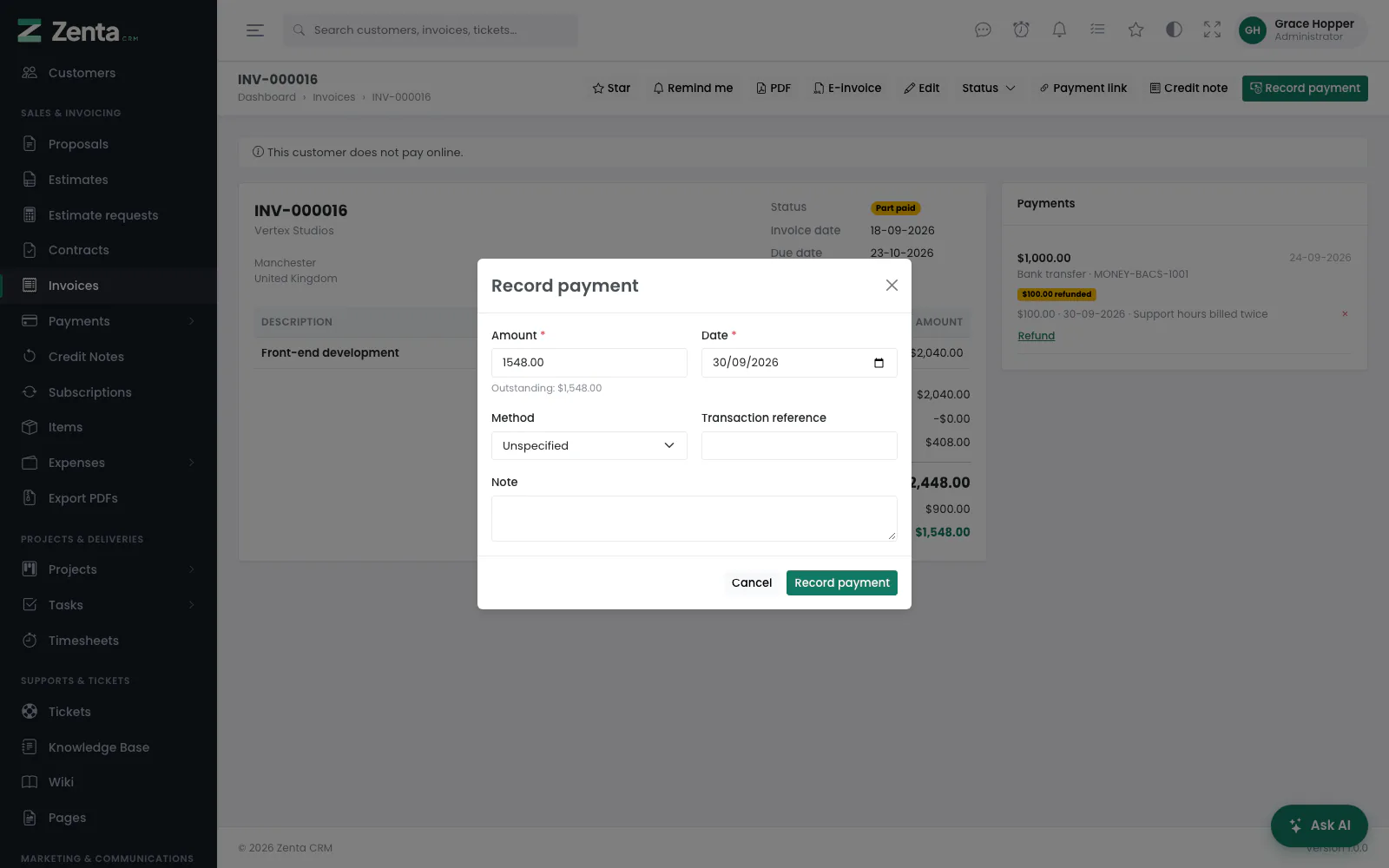 Record payment: what arrived, when, and how.
Record payment on a sent invoice. The Amount starts at the outstanding balance and cannot be more than it; pick the Date, the Method (or Unspecified), a Transaction reference and a Note, plus any custom fields for payments. Press Record payment. A draft refuses: Send the invoice before recording a payment against it. Removing and refunding payments is on Taking payments.
Deleting invoices
Tick them on the list and press Delete in the strip that appears. The invoice's own page has no delete button. You need the permission to delete invoices.
E-invoicing
E-invoice on an invoice downloads it as UBL 2.1 following EN 16931 — the European semantic standard, in the syntax nearly every member state accepts and the one Peppol carries. It is what your customer's accounting system reads so nobody has to retype the invoice.
What this does and does not do.
It produces a valid EN 16931 UBL invoice, which is the interoperable thing to produce. It does not sign the document, send it to a Peppol access point, or claim conformance to one country's national profile — Italy's FatturaPA and France's Factur-X are variants with their own rules. Your accountant or Peppol provider takes the file from here.
A draft has no e-invoice: an EN 16931 document needs a real invoice number.
The amount in words
The invoice PDF can print the total spelled out under the figures — "Four thousand two hundred fifty dollars and sixty cents". A convention with a reason behind it: a figure can be altered by one stroke of a pen and a sentence cannot, and several jurisdictions expect it. It is off by default; switch it on with Write the total out in words on the PDF on Settings → Documents.
It is written in the customer's own language where your server has PHP's
intl extension, and in English otherwise. The currency's name is
what gets spelled out, so name your currencies as you would say them aloud —
"Pound" rather than "Pound Sterling". The pennies are spelled with the currency's
Subunit name (see Currencies), or "cents" when
it has none.
Credit notes
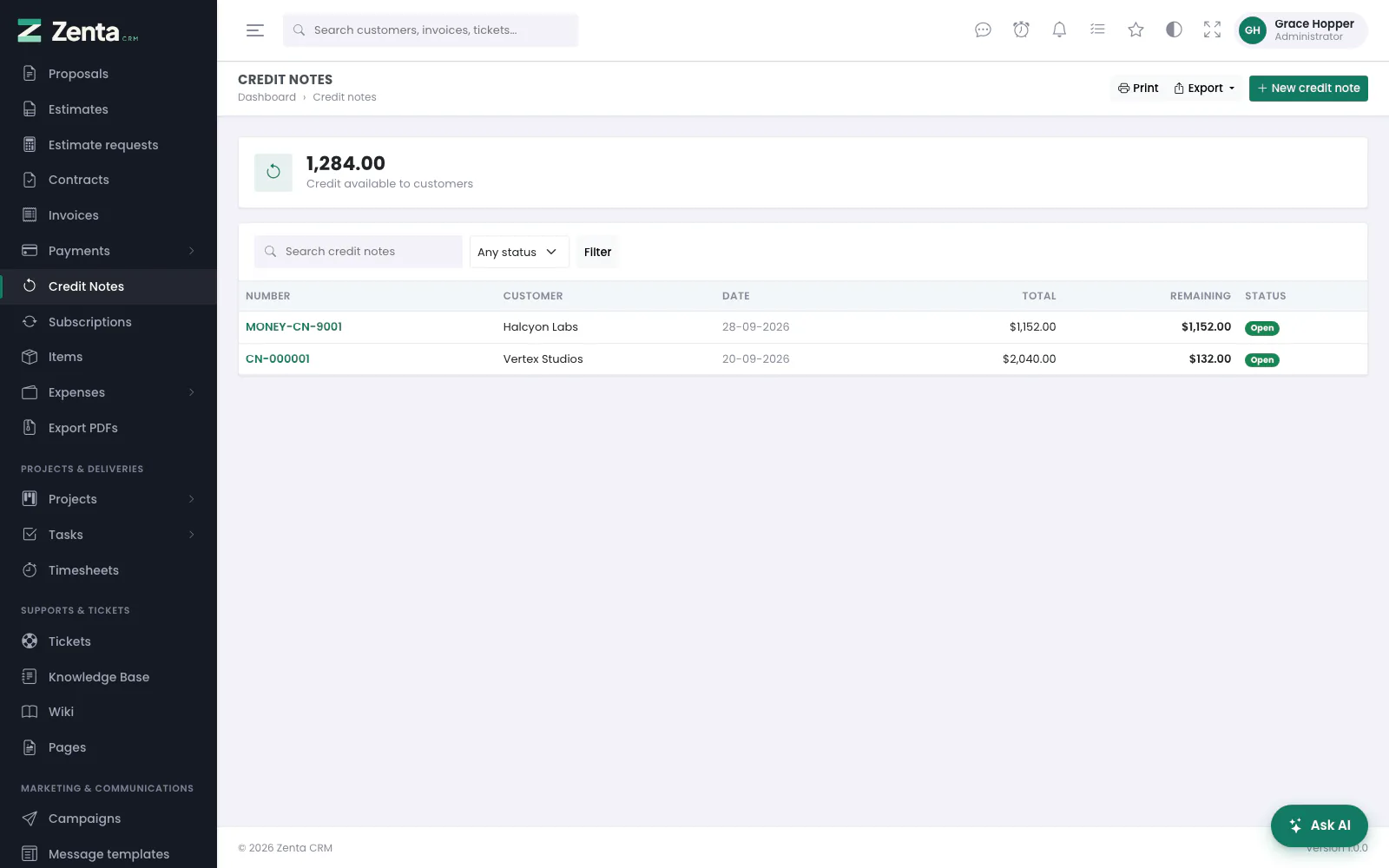 Credit notes, with how much of each is left to use.
Sales & invoicing → Credit Notes. A credit note records money owed back to a customer: a cancelled day's work, a returned item, an overcharge. The figure at the top, Credit available to customers, adds up what is left on every open note you can see. Search by number, reference or customer, and filter by status:
| Status | When |
|---|---|
| Open | Some or all of the credit is still to be used. |
| Closed | All of it has been applied or refunded. Set by itself. |
| Void | Withdrawn by hand. Nothing more can be done with it. |
Print and Export work as on the other lists: the export (CSV or Excel) gives each note's number, customer, date, currency, subtotal, tax, total, used, remaining, status and reference, follows the search and filter on screen, and needs the Credit notes → export permission (see Exporting).
Writing a credit note
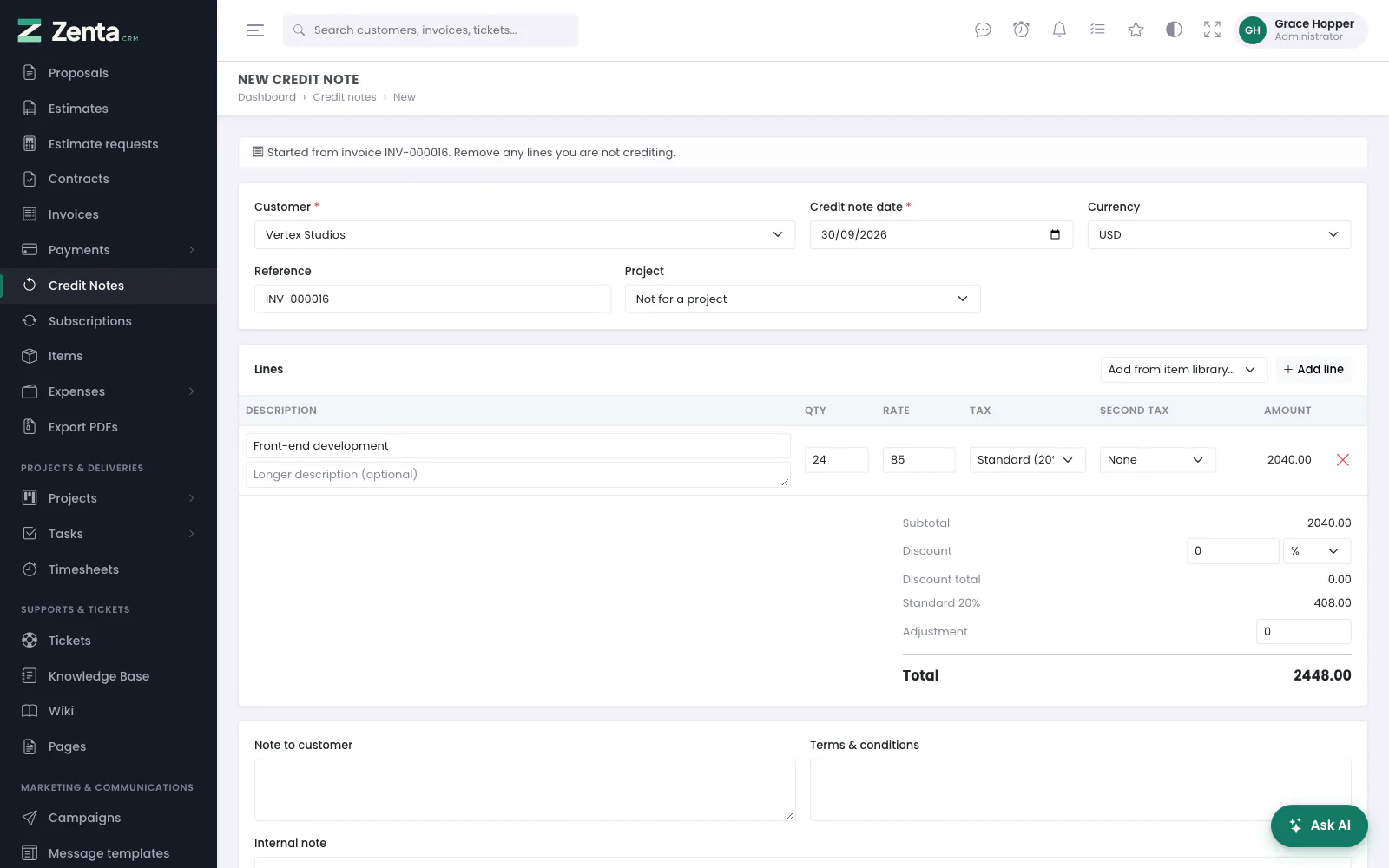 A credit note started from an invoice: its customer, currency and lines, ready to trim.
New credit note on the list, or Credit note on an invoice. Started from an invoice, it arrives with that invoice's customer, currency, issuing company, discount and lines, and the invoice number as its Reference; the banner says Started from invoice …. Remove any lines you are not crediting. Only an invoice you could open yourself is copied.
The form is the invoice's: Customer, Credit note date, Currency, Reference, Project, the lines, discount and adjustment, and the notes. Press Create credit note. It is numbered and opens as Open.
The credit note's page
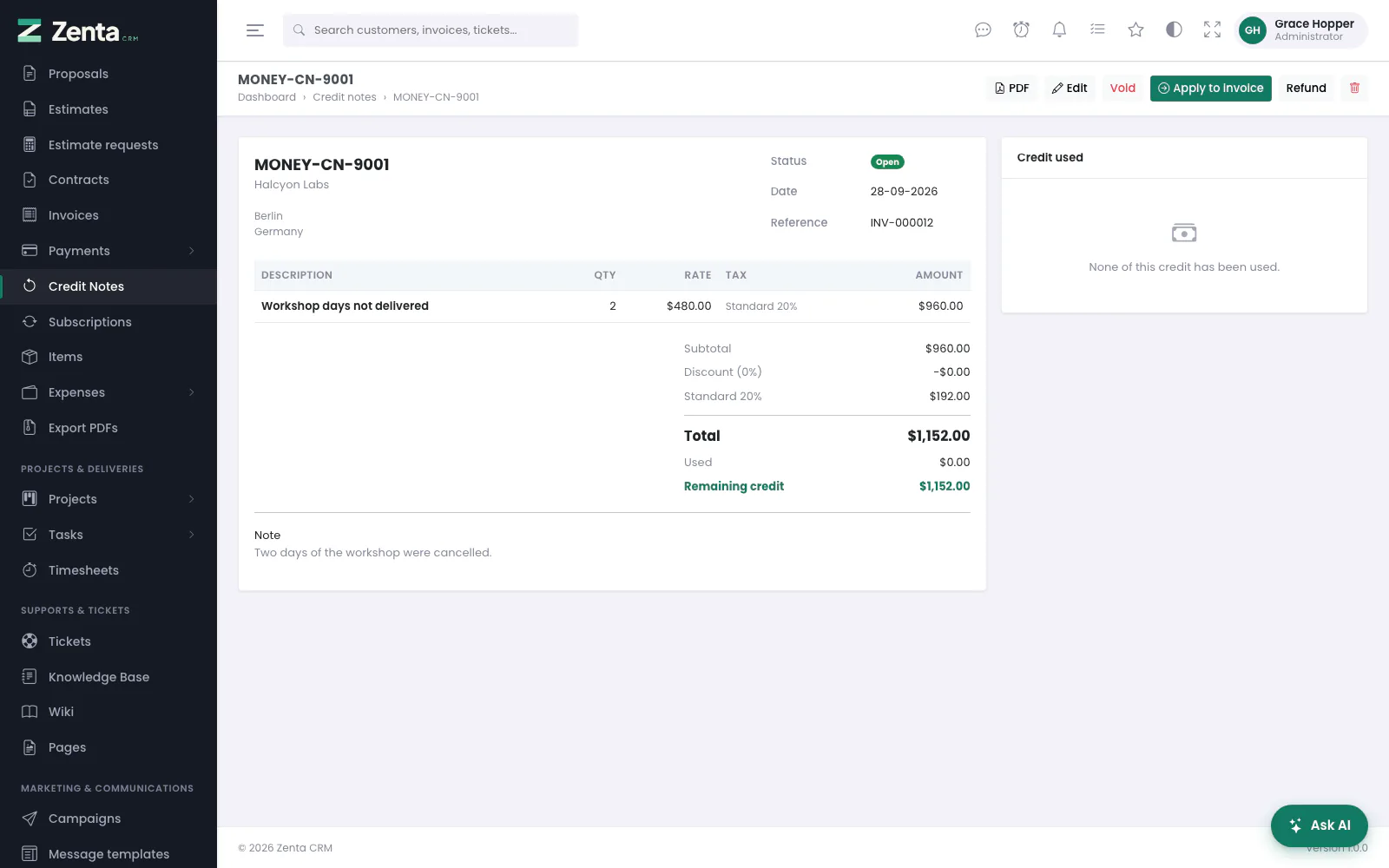 A credit note with nothing used yet: edit it, void it, apply it or refund it.
The note, with Used and Remaining credit under the total, and Credit used on the right. The buttons:
- PDF — the credit note as a PDF.
- Edit — the same form; press Save changes. Offered only while none of the credit has been used and the note is not void, because changing the lines would change the total under entries already recorded.
- Void — after a confirmation (A voided credit note can no longer be used.), marks it void. Also only while none of it has been used.
- Apply to invoice and Refund — spending the credit, below. Offered while credit remains; Apply to invoice only when the customer has an unpaid invoice.
- Delete — see below. Only while none of the credit has been used.
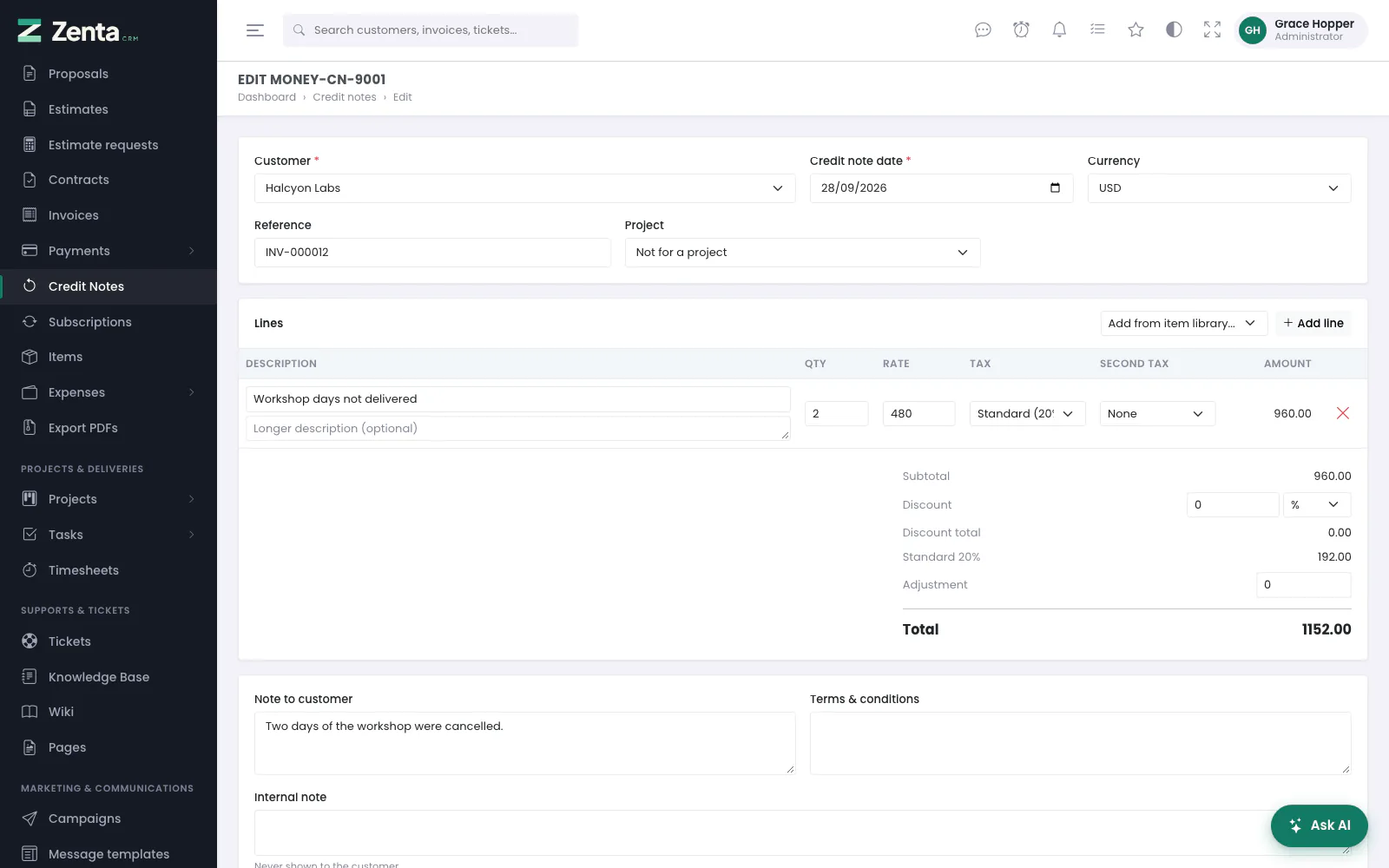 Editing a credit note nothing has been taken from yet.
Applying credit to an invoice
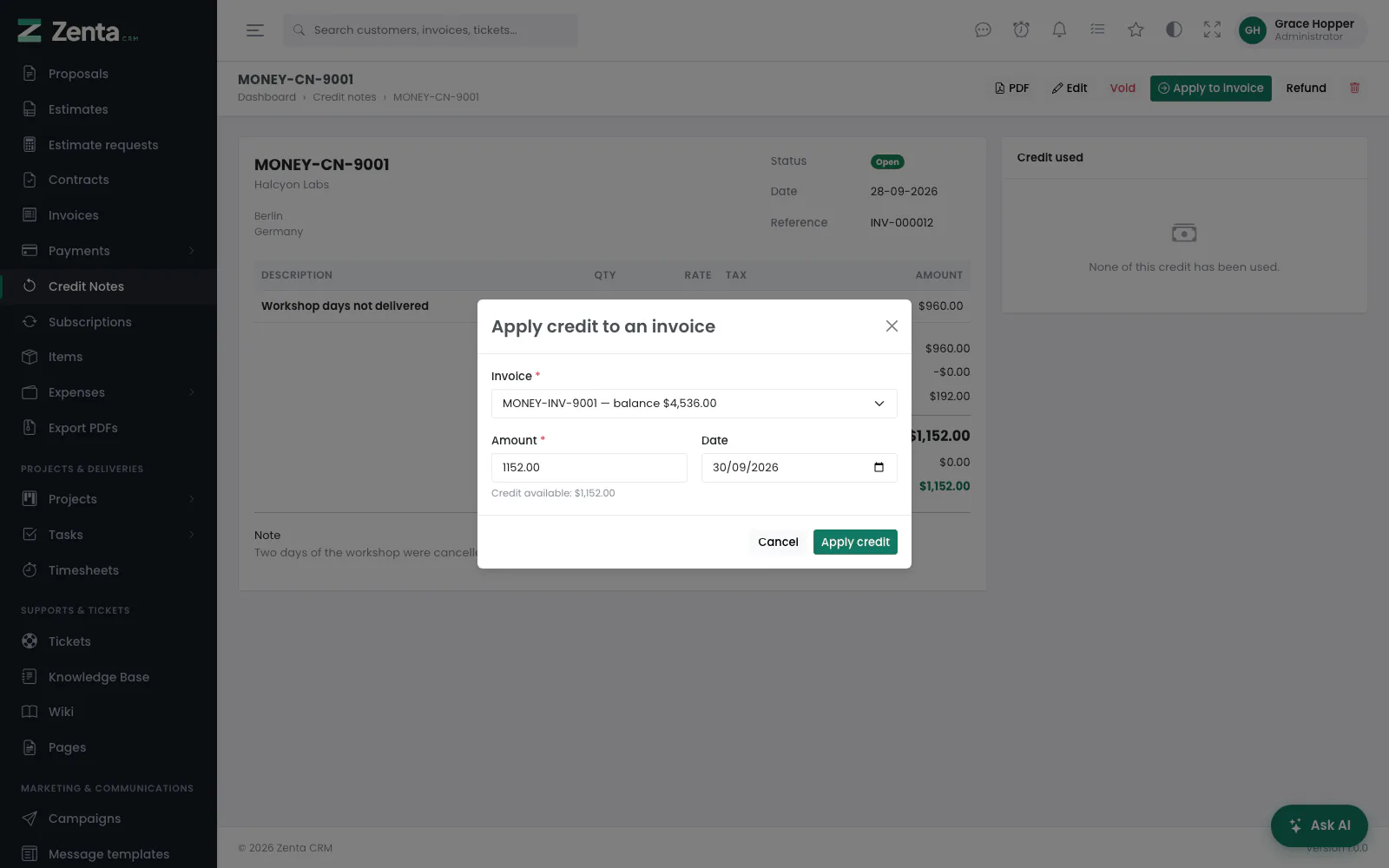 Apply credit: which of the customer's unpaid invoices, and how much.
Apply to invoice lists the same customer's unpaid invoices with their balances. The Amount fills in as whichever is smaller, the invoice's balance or the credit left; pick a Date and press Apply credit. The invoice's balance falls exactly as if it had been paid, and its page shows the credit under Credit applied, linked back to the note. Refused: more than the credit left, more than the invoice owes, an invoice belonging to another customer, a draft invoice, or a void note.
Refunding credit
 Refund credit: money handed back rather than set against an invoice.
When the customer wants the money rather than a discount on the next bill: Refund, then the Amount (up to what is left), the Date, Refunded via and a Note, and Record refund. This writes down that you paid it back; the money itself goes back your own way.
Undoing a use of the credit
 A credit note partly applied: each use listed, each one removable.
Every application and refund is listed under Credit used. Remove on one, then confirm: the credit goes back on the note and any invoice it was applied to owes that amount again.
Deleting a credit note
The button at the top of the note deletes it after a confirmation (Delete this credit note?) and takes you back to the list. It needs the permission to delete credit notes, and is offered only while none of the credit has been applied or refunded. A note that has been used is refused — Credit has already been used from this note. Remove those entries first, then delete it. — because the invoices it credited would otherwise stay credited from a note nobody could see. Voiding is usually the better choice for a note entered by mistake, because it keeps the number sequence whole.
Subscriptions (recurring invoices)
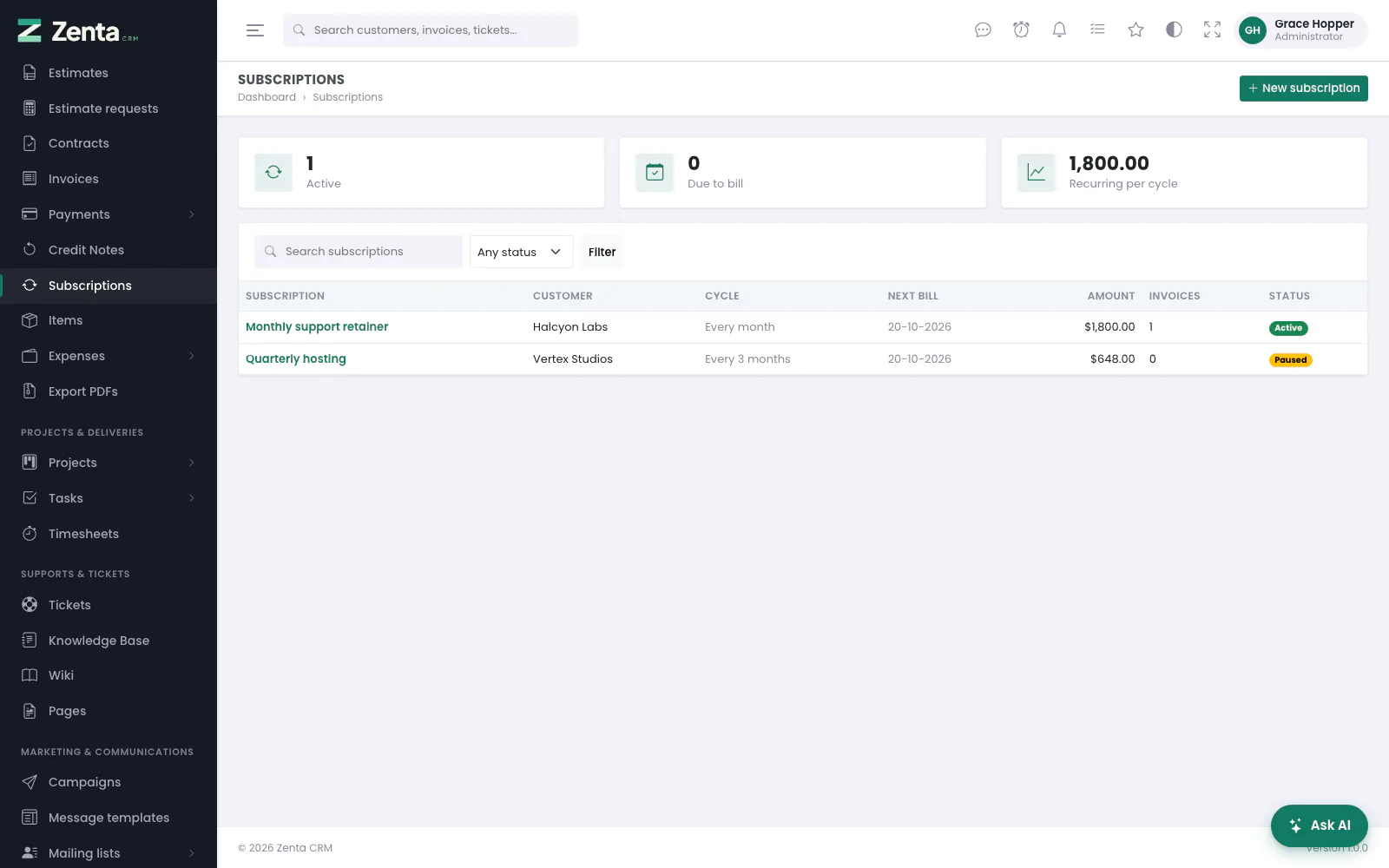 Subscriptions: how often each bills, when it next does, and what it has raised.
Sales & invoicing → Subscriptions. A subscription raises an invoice on a schedule — every so many days, weeks, months or years — with an optional end. The cards show how many are Active, how many are Due to bill today, and what the active ones add up to per cycle (Recurring per cycle; different cycles and currencies are added together as they stand). Search by name or customer, filter by status, and the list is in order of Next bill.
| Status | What it means |
|---|---|
| Draft | Set up, not billing yet. |
| Active | Billing on its schedule. |
| Paused | Not billing; keeps its next date for when it resumes. |
| Cancelled | Stopped for good; its next date is cleared. |
| Completed | Reached its end date or its number of cycles. Set by itself. |
Setting one up
 A new subscription: the schedule on top, what it bills underneath.
| Field | What it does |
|---|---|
| Name | Required, e.g. Monthly retainer. |
| Customer | Required. Who is billed. |
| Project | Optional, while the Projects module is on. |
| Bill every | A number from 1 to 365 and day(s), week(s), month(s) or year(s). |
| First bill | Required. The date of the first invoice. |
| Stop after | An end date. Blank runs indefinitely. |
| Number of cycles | Or stop after this many invoices. Blank is unlimited. |
| Currency | What the invoices are in. |
| Payment terms (days) | Required. Each invoice is due this many days after it is dated. |
| Issue invoices as sent | On: each invoice goes out as Sent. Off: it is raised as a draft for somebody to look at first. |
| Description | Appears as the note on each generated invoice. |
| Issued by | Only with more than one company. |
Then the lines, exactly as on an invoice. Press Create subscription. It starts as a draft: nothing is billed until you make it active.
The subscription's page
 One subscription: its schedule, what it bills, and the invoices it has raised.
Schedule shows the cycle, the first bill, the end, the cycles completed, when it last invoiced, the payment terms and whether invoices go out as sent or draft. What gets billed is the lines and the total per cycle; Invoices raised lists every invoice it has made. While it is active a line at the top says when the next invoice is due.
- Status — Draft, Active, Paused or Cancelled. Making it active for the first time sets the first invoice for the First bill date. Pausing keeps the next date, so a paused subscription whose date has already passed is due the moment it is resumed.
- Bill now — appears when an active subscription's next bill date has arrived. After a confirmation it raises the invoice straight away, moves the schedule on, and opens the new invoice. It needs the permission to create invoices.
- Edit — the same form; press Save changes. Editing never moves the next bill date, so rewording a subscription does not bill the customer again.
- Delete — see below.
 Editing a subscription.
How billing runs
Once a day, at 02:00, the scheduler raises an invoice for every active subscription that is due, so it needs the cron entry from Installation. Each invoice is dated on the scheduled day rather than the day the scheduler got to it, and the next date is worked out from the schedule, so the billing day stays put.
Billing stops when the next invoice would fall after the end date, not when today passes it. That is what stops a subscription raising one last invoice it should not have. A subscription that has run its course is marked Completed.
The lines are copied onto each invoice with their tax names and rates, so a later change to a rate does not restate invoices already raised.
Deleting a subscription
The button on the subscription's page deletes it after a confirmation (Delete this subscription? The invoices it raised are kept.); it needs the permission to delete subscriptions. To stop one billing while keeping its history on screen, set it to Cancelled instead: it never bills again, and the invoices it raised stay as they are either way.
Settings → Documents
 Settings, Documents: how each kind of document is numbered, and what a new invoice, estimate or proposal starts with.
Settings → Documents. How invoices, estimates, proposals and credit notes are numbered, and what a new one starts with. Opening it needs Settings → view; saving needs Settings → edit. One Save changes at the foot stores the whole screen.
Numbering
One row per kind of document — Invoices, Estimates, Proposals, Credit notes:
| Column | What it does |
|---|---|
| Prefix | Printed before the number, up to 20 characters (INV-, EST-, PRO- and CN- as shipped). May be blank. |
| Format | Number only; Year, then number (2026/000042); Number, then year (000042-26); Number, then month and year (000042/09/2026). |
| Digits | How many digits the number is padded to with zeros, 1 to 10 (6 as shipped). |
| Start again each year | Counts from 1 on the first document of each calendar year. Pair it with a format that shows the year, or two documents would share a number — the screen says so under the table. |
| Looks like | An example drawn from what is saved, so it changes after Save changes. |
New invoices, estimates and proposals
| Setting | What it does |
|---|---|
| New invoices → Due after … days | The due date a new invoice is given, counted from today, 0 to 365 (14 as shipped) — including one converted from an estimate or proposal or raised from a project's hours. It can still be changed on each invoice. |
| Write the total out in words on the PDF | Off as shipped. See The amount in words. |
| Note to the customer / Terms (invoices) | Filled in on every new invoice, where they can still be changed. Up to 5,000 characters each. |
| New estimates → Valid for … days | How long a new estimate stays open before it expires (30 as shipped). |
| Note to the customer / Terms (estimates) | The same for every new estimate. |
| New proposals → Open for … days | How long a new proposal stays open (30 as shipped). |
What a customer may do with an estimate or proposal, and what happens when they accept one, is on the neighbouring screen, Settings → Estimates & proposals (see Estimates and proposals).
Tax rates
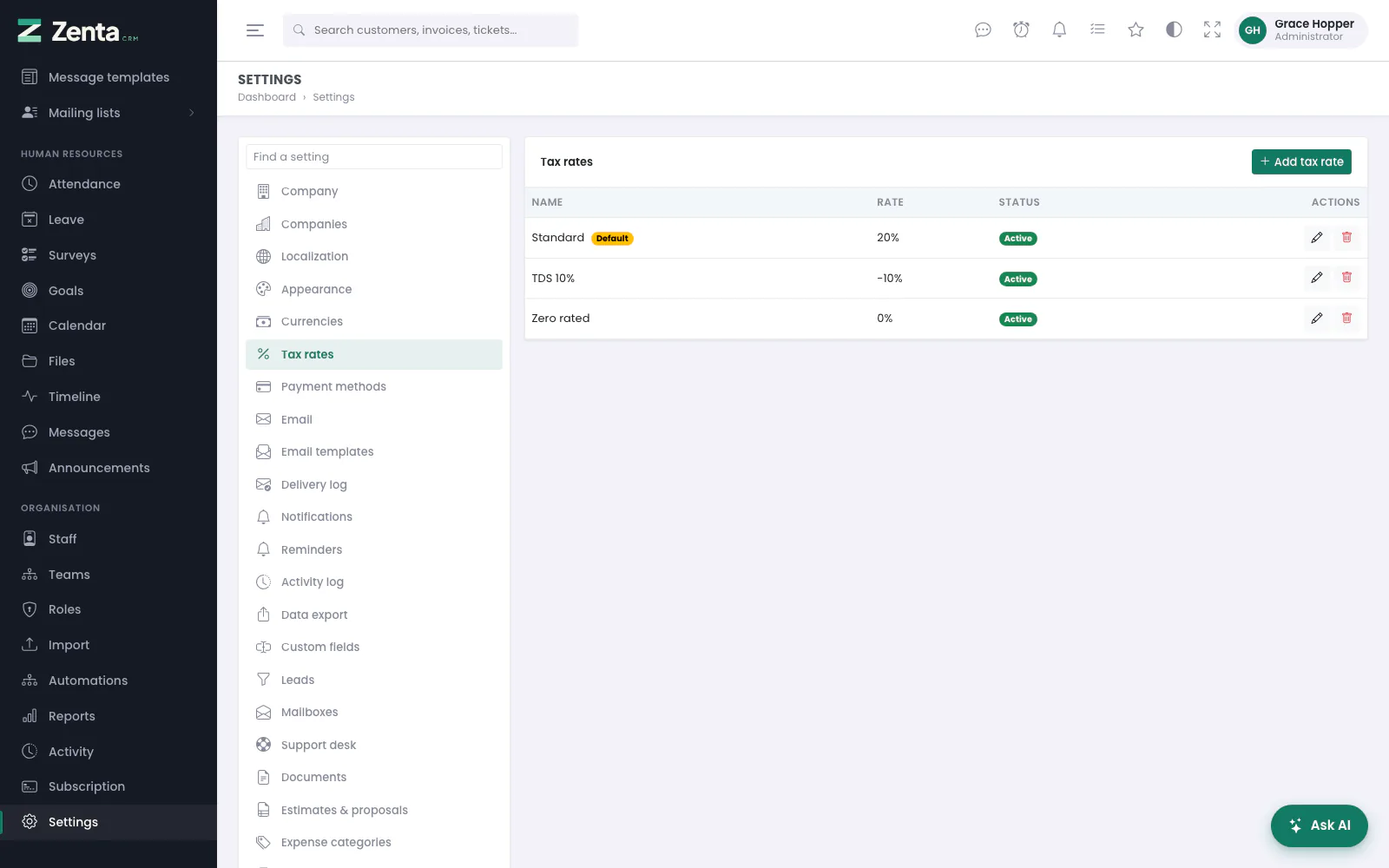 Settings, Tax rates: every rate lines can carry.
Settings → Tax rates. The rates offered on every line, item and expense. The list shows each Name, its Rate and whether it is Active; the default rate is badged Default and listed first.
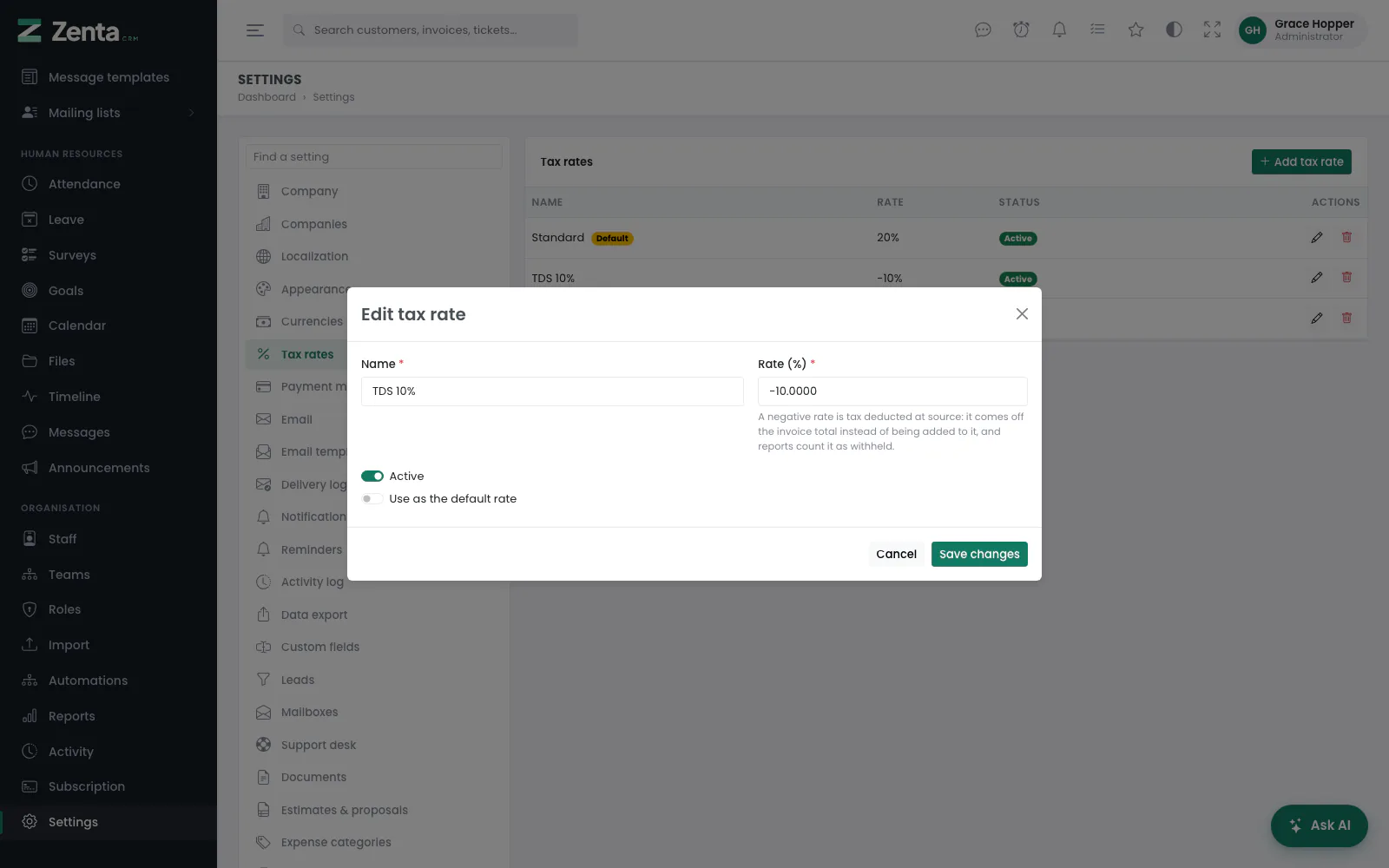 Editing a rate. A negative rate is tax deducted at source.
Add tax rate, or the on a row:
| Field | What it does |
|---|---|
| Name | Required and unique, e.g. VAT. This is what is printed on the document. |
| Rate (%) | Required, from −100 to 100, to four decimal places. A negative rate is tax deducted at source: it comes off the invoice total instead of being added to it, and reports count it as withheld. |
| Active | Only active rates are offered on new lines, items and expenses. Switch one off rather than deleting it when it stops applying. |
| Use as the default rate | Marks this one Default and takes the mark off any other. Unticking it on the default rate leaves the workspace with no default. The default rate starts selected on each new, empty line of a document; a line filled from the item library carries the item's own tax. |
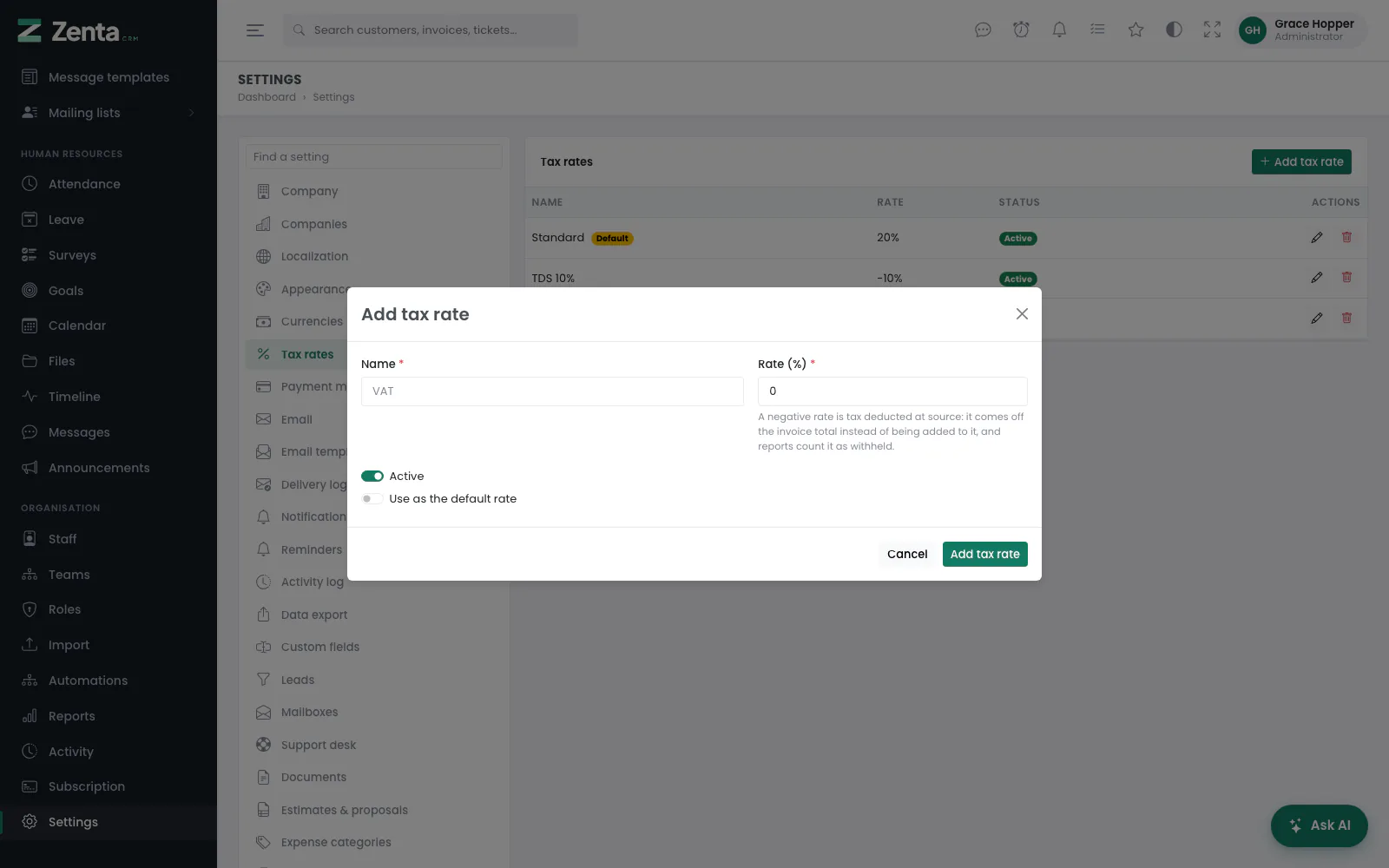 Adding a tax rate.
Press Add tax rate or Save changes. The removes a rate after a confirmation. Documents already written keep their own copy of its name and rate; items and expenses that used it are left with no tax.
Currencies
 Settings, Currencies: the base currency and the others you invoice in.
Settings → Currencies. Every currency a document can be written in, with an Example of how it prints and its Rate. One is the Base: the default on new documents, and the one every rate is measured against.
 Editing a currency: its code, how it is printed, and its rate.
Add currency, or the on a row:
| Field | What it does |
|---|---|
| Name | Required, e.g. Euro. The name spelled out when the total is printed in words. |
| ISO code | Required: three letters, unique in the workspace (EUR). |
| Symbol and Symbol position | Required. Before amount gives $1,234.50; After amount gives 1,234.50€. |
| Subunit name | Optional: one of the currency's smaller units, in the singular (cent, penny). Used when an amount is written in words. |
| Exchange rate | How much of this currency one unit of the base currency is worth — 0.92 for euros against a dollar base. The base currency's is always 1: its box is greyed out, and saving the base keeps it at 1. Each new document takes the rate of its currency at the moment it is written, so changing a rate here does not revalue documents already written. |
| Decimal separator, Thousand separator, Decimal places | How amounts are printed: one character each, and 0 to 6 places. |
| Make this the base currency | Not shown on the base itself. Moves the base here and sets this currency's rate to 1. The rates of the others are not recalculated, so check them afterwards. |
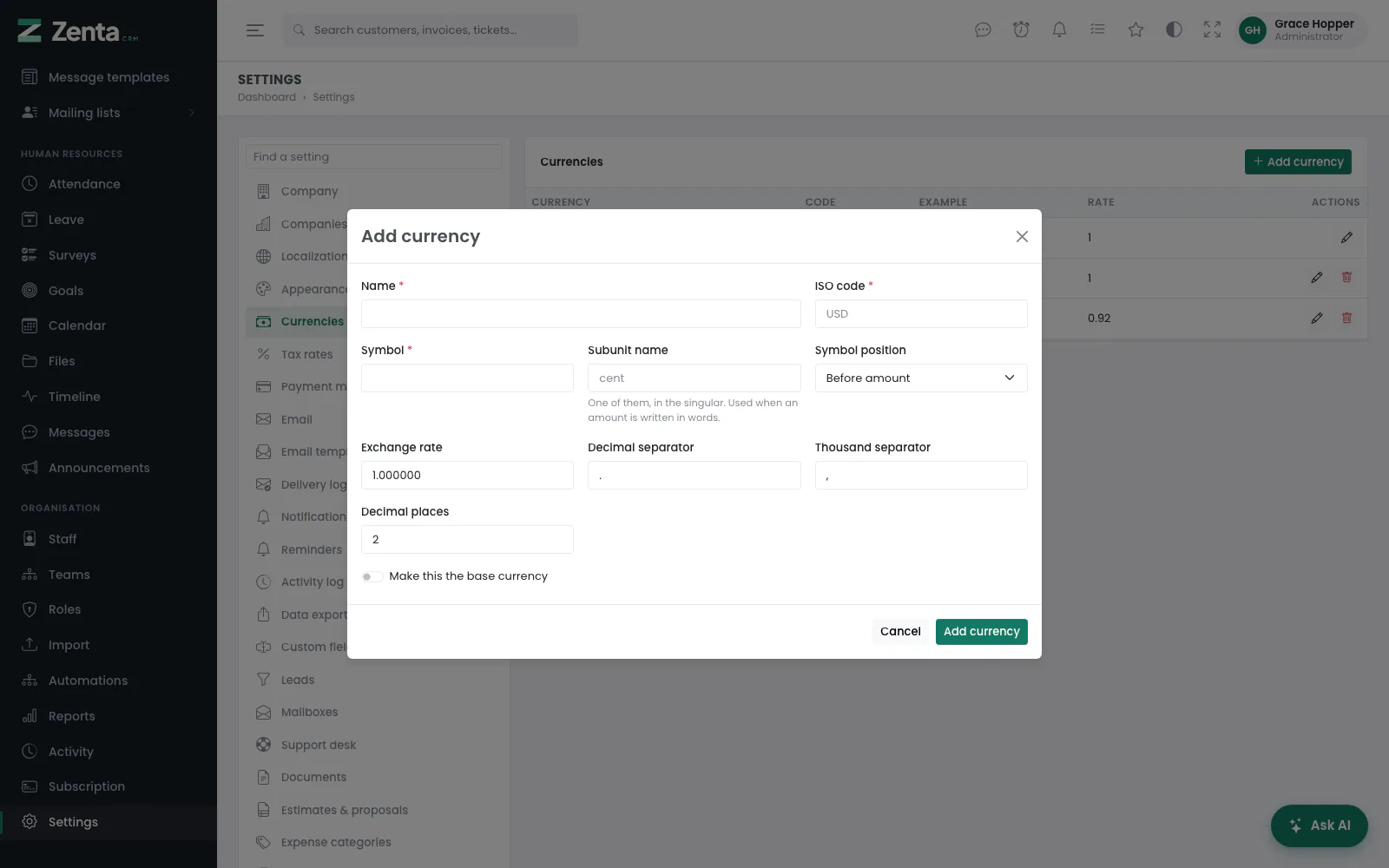 Adding a currency.
Press Add currency or Save changes. The very first currency a workspace adds becomes its base whatever the switch says.
The removes a currency after a confirmation. The base has no delete button, and is refused anyway — Set another currency as the base before removing this one. Documents written in a removed currency are left without a currency, so remove only one nothing was ever written in.
Addresses on this page
For reference and for anyone scripting against the panel. Everything here needs somebody signed in to the workspace whose role allows it; anybody else is refused.
| Method | Address | What it does |
|---|---|---|
GET | admin/invoices | The invoice list, with q, status and customer filters. |
GET | admin/invoices/create | The new-invoice form. ?customer= picks the customer in advance. |
POST | admin/invoices | Creates the invoice as a draft. |
GET | admin/invoices/{invoice} | The invoice's page. |
GET | admin/invoices/{invoice}/edit | The edit form. |
PUT | admin/invoices/{invoice} | Saves the invoice. Refused once payments are recorded against it. |
DELETE | admin/invoices/{invoice} | Deletes one invoice. The screens delete through the list's bulk Delete instead. |
PATCH | admin/invoices/{invoice}/status | Sets the status to draft, sent or cancelled. |
POST | admin/invoices/{invoice}/payments | Records a payment against the invoice. |
GET | admin/invoices/{invoice}/e-invoice | Downloads the invoice as UBL 2.1 XML. Refused on a draft. |
GET | admin/credit-notes | The credit note list, with q and status filters. |
GET | admin/credit-notes/create | The new-credit-note form. ?invoice= starts it from an invoice; ?customer= picks the customer. |
POST | admin/credit-notes | Creates the credit note. |
GET | admin/credit-notes/{credit_note} | The credit note's page. |
GET | admin/credit-notes/{credit_note}/edit | The edit form. |
PUT | admin/credit-notes/{credit_note} | Saves the credit note. Refused once any credit has been used. |
DELETE | admin/credit-notes/{credit_note} | Deletes a credit note (the on its page). Refused once any credit has been used. |
POST | admin/credit-notes/{credit_note}/apply | Applies credit to one of the customer's invoices. |
POST | admin/credit-notes/{credit_note}/refund | Records credit refunded to the customer. |
PATCH | admin/credit-notes/{credit_note}/void | Voids the note. Refused once any credit has been used. |
DELETE | admin/credit-notes/{credit_note}/entries/{entry} | Removes one application or refund and restores the credit. |
GET | admin/subscriptions | The subscription list, with q and status filters. |
GET | admin/subscriptions/create | The new-subscription form. ?customer= picks the customer. |
POST | admin/subscriptions | Creates the subscription as a draft. |
GET | admin/subscriptions/{subscription} | The subscription's page. |
GET | admin/subscriptions/{subscription}/edit | The edit form. |
PUT | admin/subscriptions/{subscription} | Saves the subscription without moving its next bill date. |
DELETE | admin/subscriptions/{subscription} | Deletes a subscription (the on its page); the invoices it raised are kept. |
PATCH | admin/subscriptions/{subscription}/status | Sets the status to draft, active, paused or cancelled. |
POST | admin/subscriptions/{subscription}/bill | Raises the next invoice now, if the subscription is due. |
GET | admin/settings/documents | Settings → Documents: numbering, and what a new invoice, estimate or proposal starts with. |
PUT | admin/settings/documents | Saves Settings → Documents. |
GET | admin/settings/taxes | The tax rates. |
GET | admin/settings/taxes/create | The add-rate form (a pop-up). |
POST | admin/settings/taxes | Adds a tax rate. |
GET | admin/settings/taxes/{tax}/edit | The edit form (a pop-up). |
PUT | admin/settings/taxes/{tax} | Saves a tax rate. |
DELETE | admin/settings/taxes/{tax} | Removes a tax rate. |
GET | admin/settings/currencies | The currencies. |
GET | admin/settings/currencies/create | The add-currency form (a pop-up). |
POST | admin/settings/currencies | Adds a currency. |
GET | admin/settings/currencies/{currency}/edit | The edit form (a pop-up). |
PUT | admin/settings/currencies/{currency} | Saves a currency, and makes it the base when asked. |
DELETE | admin/settings/currencies/{currency} | Removes a currency other than the base. |