Working together
Announcements, messages, the timeline, files, the calendar, goals, surveys and reminders.
Everything under Human Resources in the menu that is not attendance or leave (those are on Attendance and leave). They are separate screens because they answer separate questions, and it is worth knowing which is which before you pick one.
| When you want to… | Use |
|---|---|
| Tell everybody something, once | Announcements |
| Talk to one person or a few | Messages |
| Say something the team can reply to | Timeline |
| Keep a document where people can find it | Files |
| Put something in the diary | Calendar |
| Set a target and watch it | Goals |
| Ask a lot of people the same questions | Surveys |
| Be nudged about one record, later | Reminders |
Each has its own module in Roles and permissions, so a role can be given the timeline but not the files, say. Messages is the exception: it has nothing to grant for reading (see below).
Announcements
 Announcements: each notice with its importance, audience, author, and whether it is scheduled or finished.
Human Resources → Announcements. A notice to everybody, one team, or one role. Each shows its importance (Notice, Warning or Urgent), Shown on every page if it is a banner, Scheduled if it has not started yet and Finished once it has stopped, then who it is for and who wrote it.
Everybody sees the notices addressed to them that are showing now. Somebody who can write announcements sees the whole board, including those aimed at other teams and those not started yet.
Writing one
 Edit announcement. Saving shows it again to everyone who had closed it.
Press Write an announcement (it needs the Create ability):
- Title (required) and Importance: Notice, Warning or Urgent.
- Message (required, up to 5,000 characters).
- Who sees it: Everybody, One team or One role, then the Team or Role. Choosing one team or role without picking which makes it go to everybody.
- Show from and Stop showing — leave the first blank to show it straight away and the second blank to keep it up.
- Show it above every page — see below.
- Let people close it — on by default.
Press Post it. The button on a notice opens the same form (Save changes, needs Edit); the button removes it after you confirm (needs Delete).
The banner
 An announcement shown above every page, with the cross that closes it.
With Show it above every page on, the notice rides above the interface for everybody it is addressed to, from its start to its end. With Let people close it on, it has a cross; closing it hides it for that person only. Leave the banner off and the notice only appears on the announcements screen.
These are a workspace's own notices. If you are running this as a SaaS, the ones you write in the tenant admin area (see Announcements) are a different thing entirely and appear in the same strip, urgent first. At most four are shown at once.
Messages
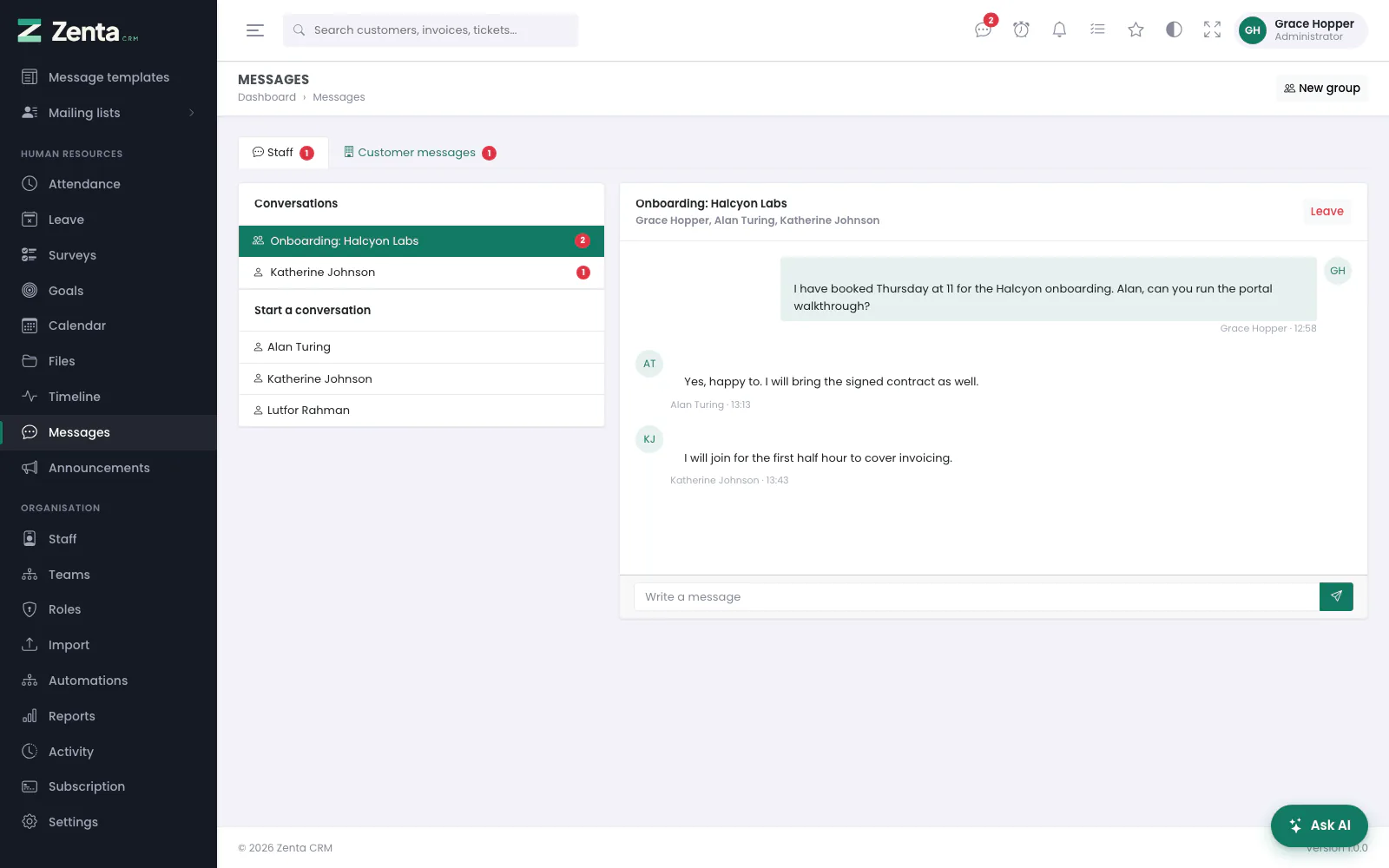 Messages: your conversations, the colleagues you can start one with, and the open thread.
Human Resources → Messages, or the speech-bubble icon in the top bar, which carries a count of conversations with something new in them. Two tabs: Staff, private conversations between colleagues, and Customer messages, threads customers started from the portal.
Talking to colleagues
- Conversations lists the ones you are in, with a count of unread messages. Click one to open it.
- Start a conversation lists the colleagues you may write to. Click a name and confirm to open your conversation with them; if the two of you already have one, it reopens, so a conversation with a colleague is one continuous history rather than a pile of two-message threads.
- New group at the top: give it a Name (required), tick Who is in it (at least one person; you are always in it) and press Start it.
- Type in Write a message (up to 5,000 characters) and press the send button.
- Leave, on a group, takes you out of it after you confirm, and you stop receiving its messages. A one-to-one conversation cannot be left. When the last person leaves a group, it is deleted.
 New group conversation.
What the Messages module in a role decides is who somebody may start a conversation with: anybody on the staff, only the people who share a team with them, or nobody. Without its Create ability they can only reply, and the page tells them so. Answering in a conversation you are already in is never refused.
New messages arrive by the page asking every eight seconds rather than over a websocket. A websocket needs a service you would have to sign up for; this works on the shared hosting this product is built to run on, with nothing to configure.
Customer messages
 Customer messages: a thread a customer started from the portal, marked as one the customer can read.
The Customer messages tab lists threads, under From the customer portal, that you are in. Each is marked Customer can read this and names the customer. Reply in Write to the customer (up to 10,000 characters), attach up to ten files under the workspace's upload rules if you need to, and press Send. As with staff messages, nobody can read a customer's thread with somebody else. Who customers may write to, and whether they can at all, is set under Settings → Customer portal; see Talking to customers.
Timeline
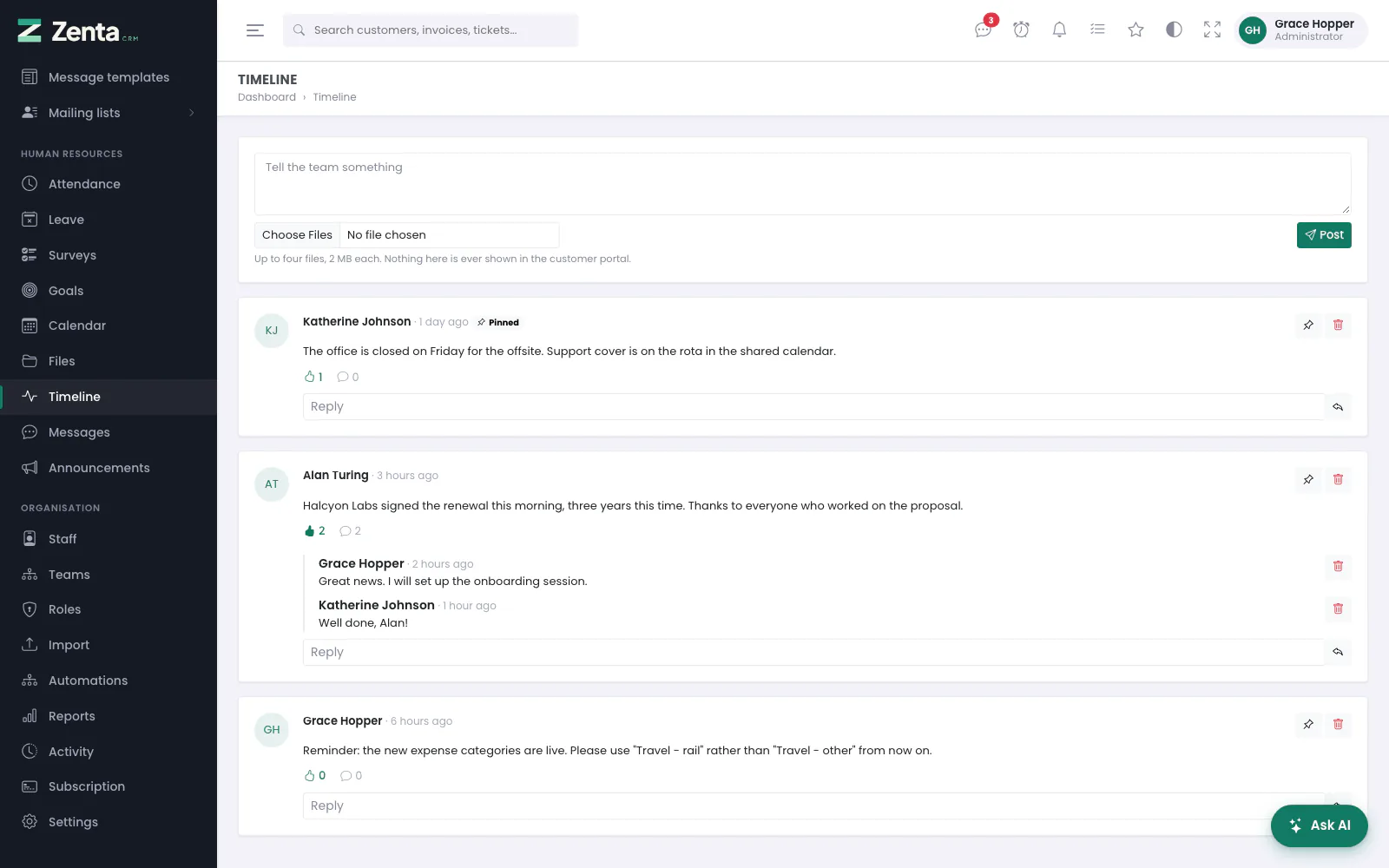 The timeline: a post box, a pinned post, reactions and replies.
Human Resources → Timeline. A feed for the whole team, pinned posts first. Nothing here ever reaches the customer portal.
- Posting: write in Tell the team something, attach up to four files if you like, and press Post. With voice notes switched on (see Formatting and voice notes) a recording can be the whole post.
- Reacting: the button, after you confirm, adds your reaction; pressing it again takes it back. The number beside it is how many people reacted.
- Replying: type in the Reply box under a post (up to 2,000 characters) and press the send button beside it.
- Pinning: pins a post to the top, or unpins it. It needs the Edit ability.
- Removing: on a post removes it and its replies; on a reply, just the reply. Both ask first.
You can always remove your own post or reply. Removing somebody else's needs the Delete ability on the timeline module, which is the moderating grant and is not given out by default. With the Their teams scope, somebody sees only the posts written by people who share a team with them, and their own.
Files
 Files: folders first, then the files in this folder, with New folder, Add from and Upload.
Human Resources → Files. A shared set of folders, up to eight deep, starting from a home folder called Files. Click a folder to open it and Up one level (or the trail at the top) to go back. Each row shows the Size (or, for a folder, how many files it holds), who added it and when. Click a file's name to download it.
Folders
 New folder: a name, and whether it belongs to a customer.
- New folder creates a folder inside the one you are in: a Name (required, up to 120 characters) and Belongs to a customer — Internal, nobody outside sees it, or a customer. Press Create.
- The button on a folder renames it (Rename).
- The button removes a folder, after you confirm.
A folder has to be emptied before it can be removed (Empty the folder before removing it.). The database would happily take the whole subtree and every file in it; making you empty it first means a mis-click costs a click rather than a quarter's paperwork. The home folder cannot be renamed or removed at all, so an upload always has somewhere to land.
Uploading, and sharing with a customer
 Uploading into a customer's folder, with the switch that lets the customer see the files.
Upload puts up to ten files at a time into the folder you are in, each within the size and types allowed under Settings → Uploads (the window says what those are). Press Upload.
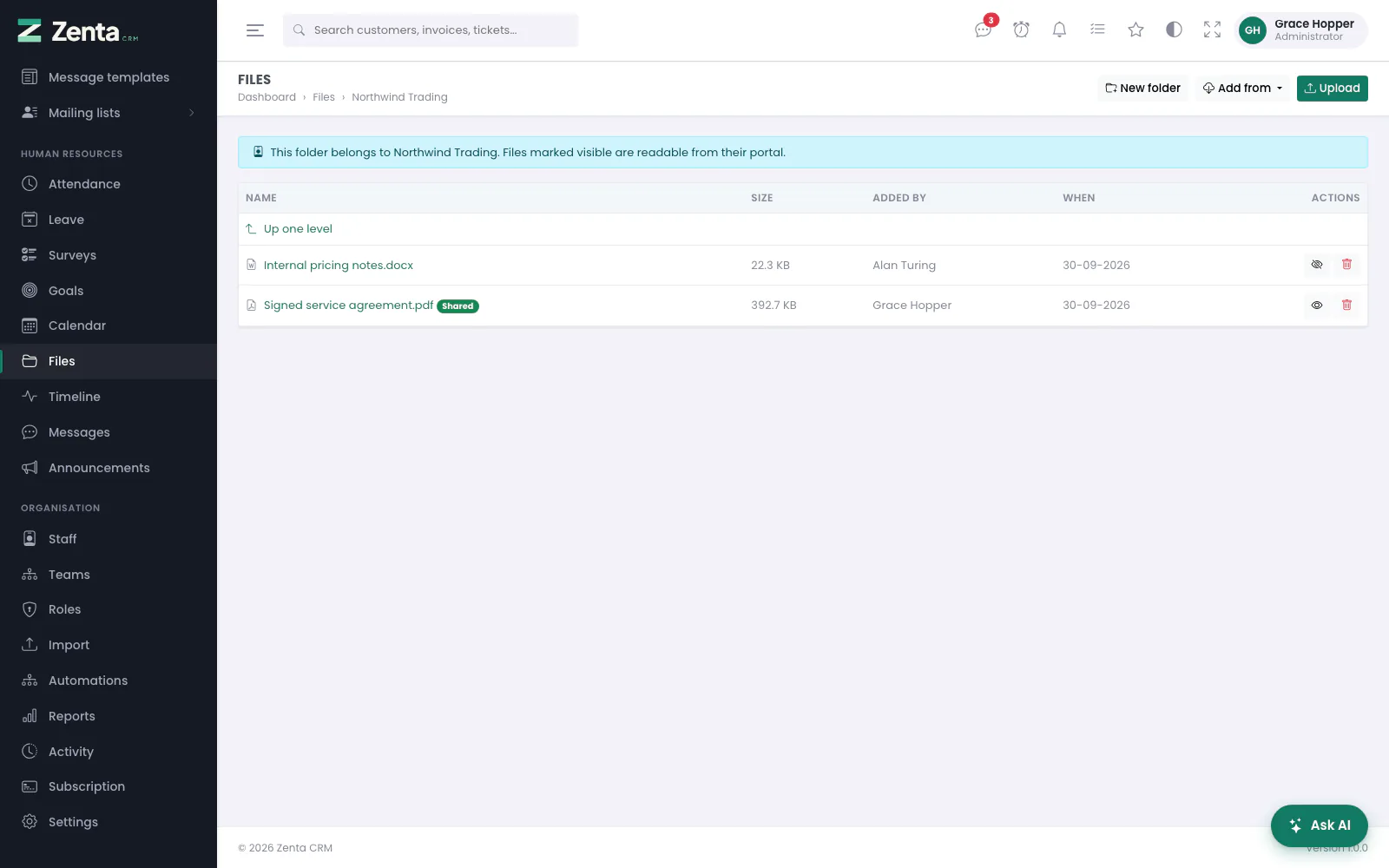 A customer's folder: one file shared with the customer, one kept internal.
A folder that belongs to a customer says so at the top, and only there can individual files be shared with that customer through their portal. The upload window then has a Let customer see these switch, off by default. Afterwards, the button on a file lets the customer see it, or hides it again, after you confirm; a shared file carries a Shared badge. Files in any other folder are internal and have no such button.
Adding from Google Drive or Dropbox
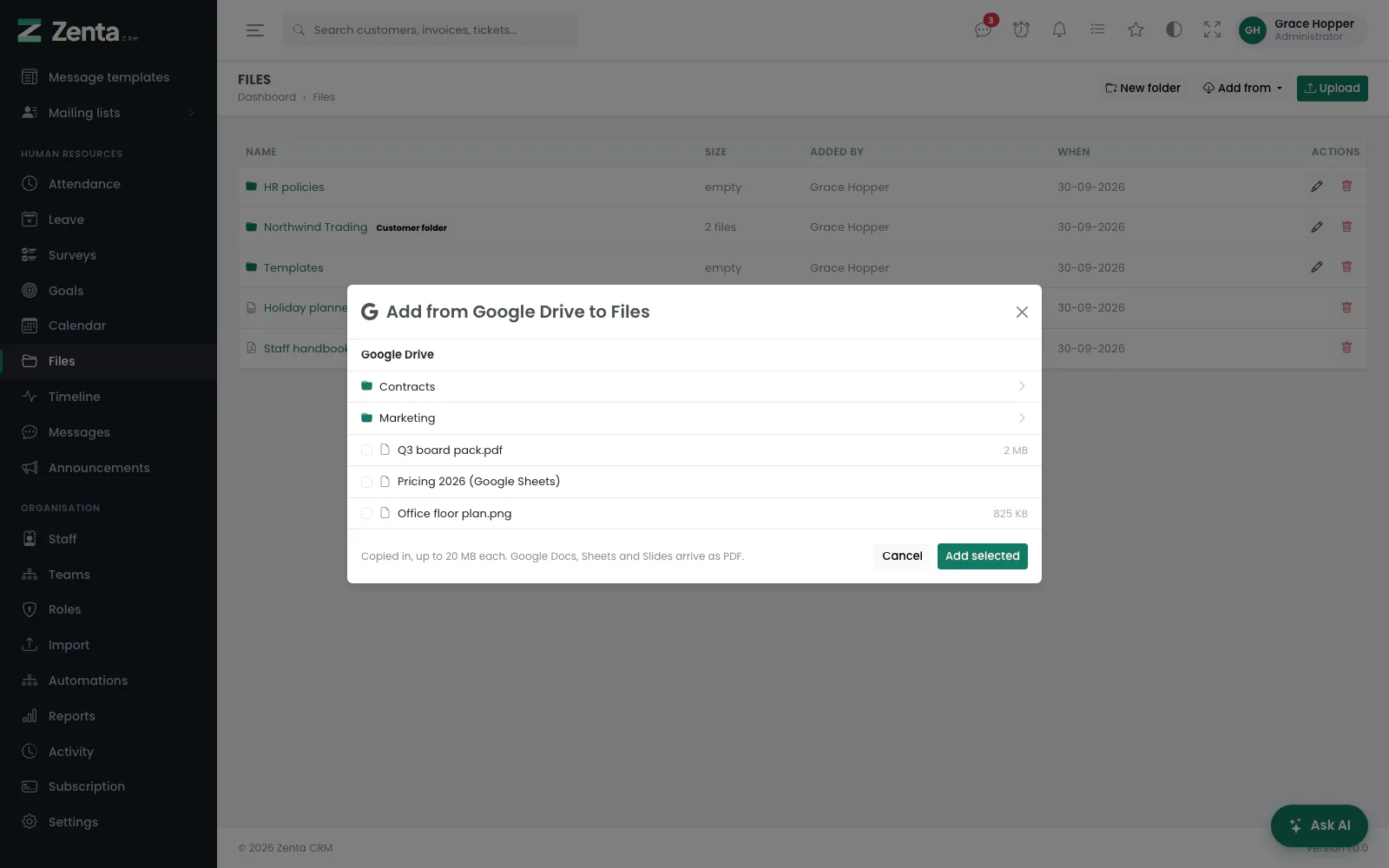 Add from Google Drive: open a folder, tick files, and they are copied in.
When Google Drive or Dropbox is connected under Settings → Integrations (see Integrations), an Add from menu appears beside Upload. Pick the service, click through its folders, tick up to ten files and press Add selected. Each file is copied into the folder you are in — it is a copy, not a link — up to 20 MB each and under the same upload rules as a file from your computer. Google Docs, Sheets and Slides arrive as PDF. In a customer's folder the same Let customer see these switch is offered. If one file cannot be copied the rest still are, and you are told which failed.
The button on a file removes it permanently, after you confirm. Creating folders and uploading need Create on files; renaming and sharing need Edit; removing needs Delete.
Calendar
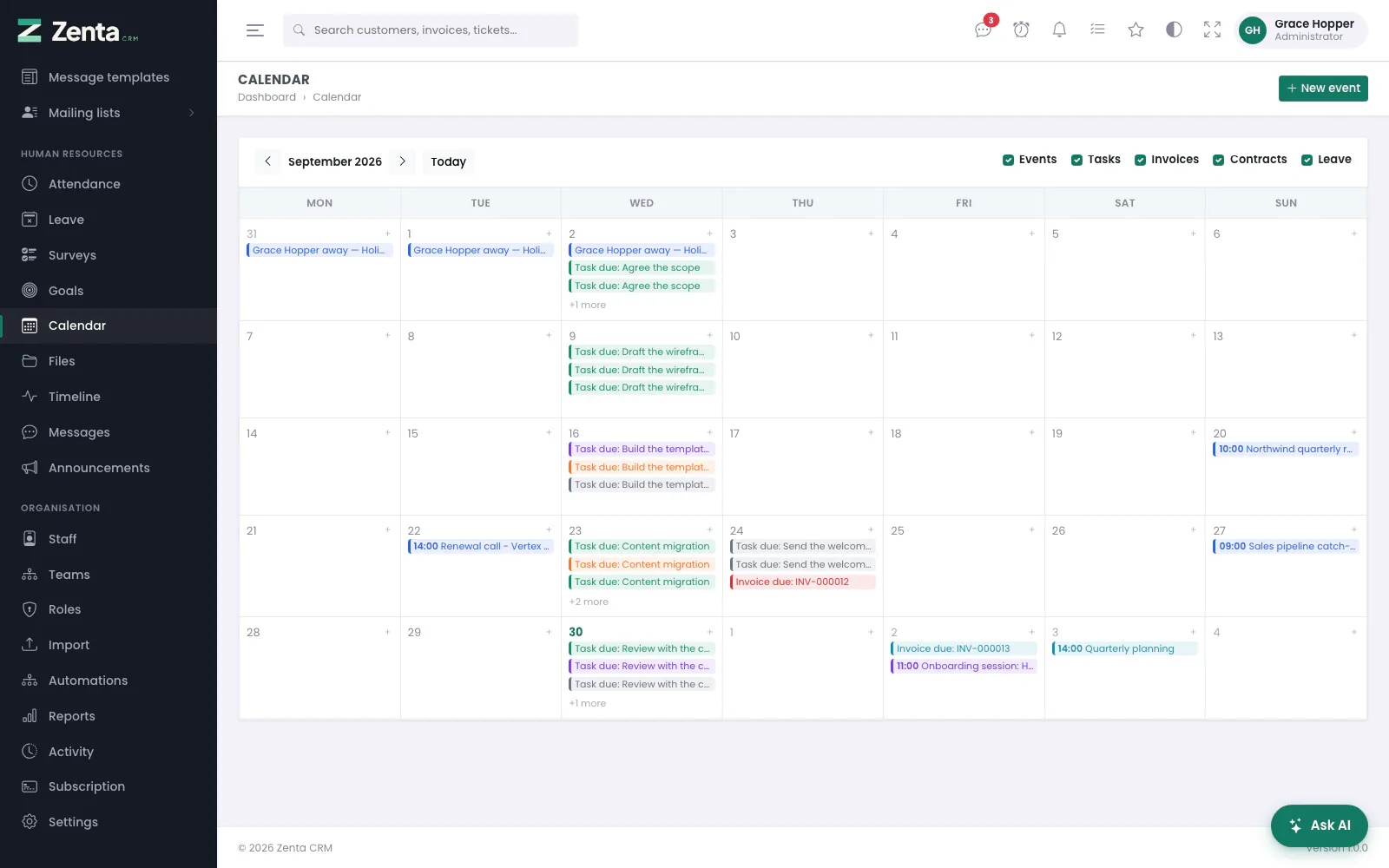 The calendar: a month of your events, tasks due, invoices due and leave, with each source ticked on or off.
Human Resources → Calendar. A month at a time, in whole weeks starting on the first day of the week set under Settings → Localization, with the non-working days greyed. The arrows move a month back or forward and Today comes back to this month. It shows your own events plus anything else with a date on it: tasks that are due, invoices that are due, contracts ending and approved leave. Untick Events, Tasks, Invoices, Contracts or Leave at the top to quieten it down. When Google Calendar is connected under Settings → Integrations there is a Google source too.
Only the events are records of their own. The rest are read off the records that already hold those dates, so a task you move moves on the calendar too — there is no second copy to go out of step. Each source is also filtered by your own permissions: the calendar is a second window onto records you can already see, never a way round the scope on them. A day with more than three entries shows +2 more and so on.
Adding an event
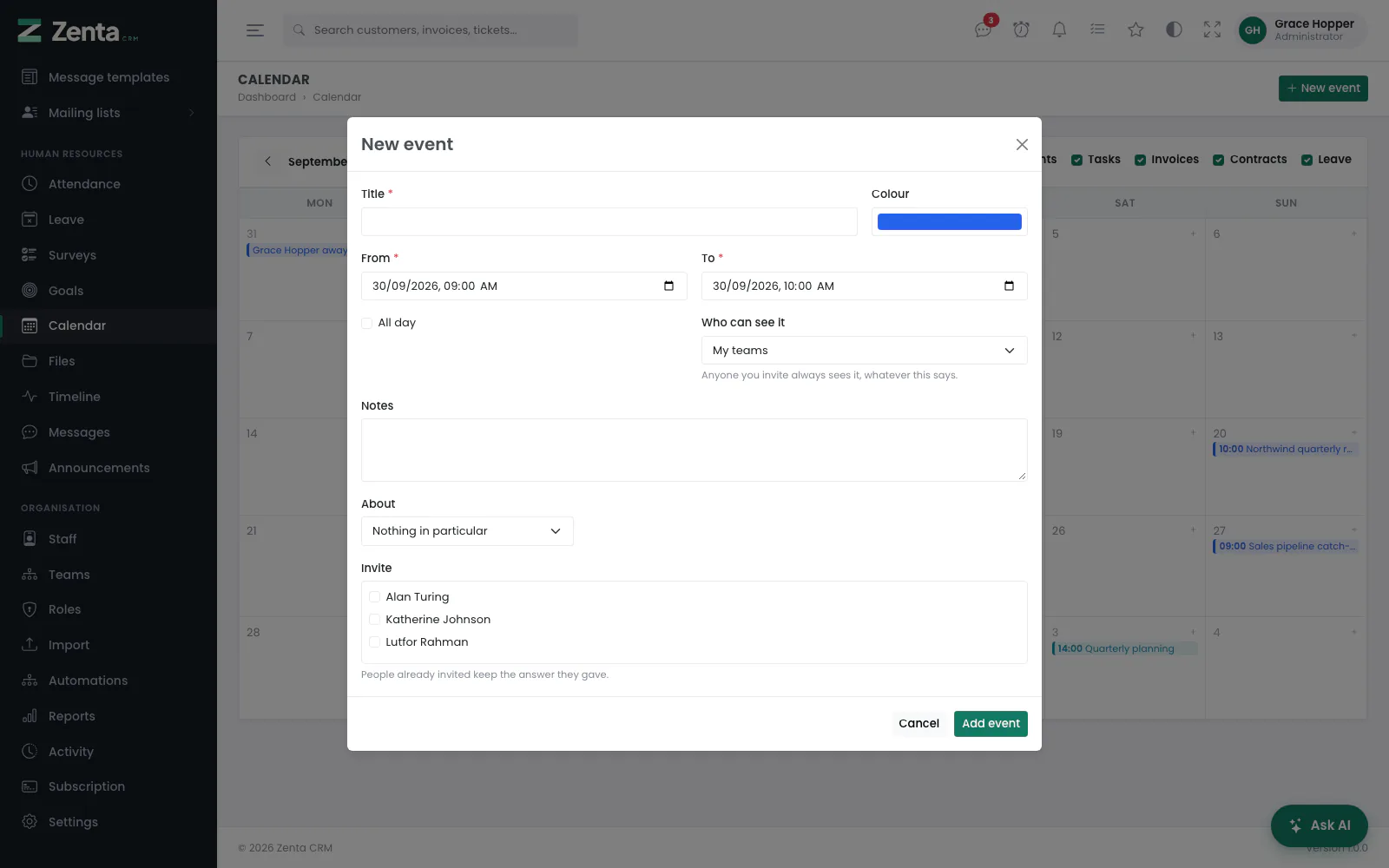 New event.
Press New event, or the + in a day's corner to start on that day (it needs the Create ability on the calendar):
- Title (required) and Colour.
- From and To (required), or tick All day to cover whole days.
- Who can see it: Only me, My teams or Everybody. Anyone you invite always sees it, whatever this says.
- Notes.
- About: Nothing in particular, A customer, A project or A lead, then Which one.
- Invite: tick colleagues. They see the event and can accept or decline it.
Press Add event. Any custom fields you have added for events appear on the form too.
Opening, changing and answering an event
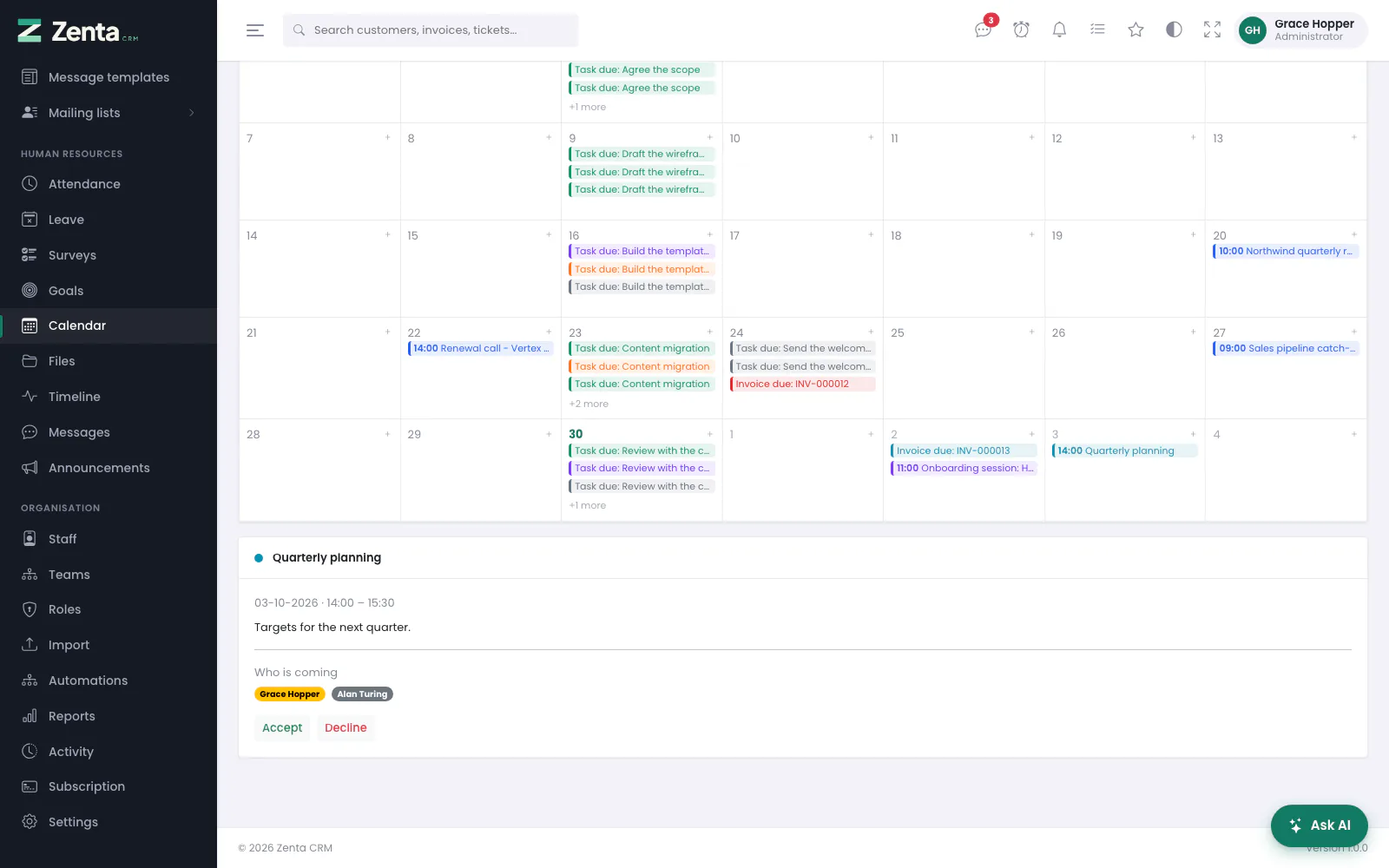 An event you are invited to, opened under the calendar, with Accept and Decline.
Click an event to open it under the calendar: when it is, its notes, what it is about, and Who is coming — green for accepted, grey for declined, amber for not answered yet. If you are invited, Accept and Decline record your answer after you confirm.
 Edit event: only the person who created the event can change it.
On your own event, opens Edit event (press Save changes) and removes it after you confirm.
Re-saving an event keeps the answers people have already given — somebody who accepted last week is still accepted after you move the time. Taking somebody off the invitation list removes them from it.
Goals
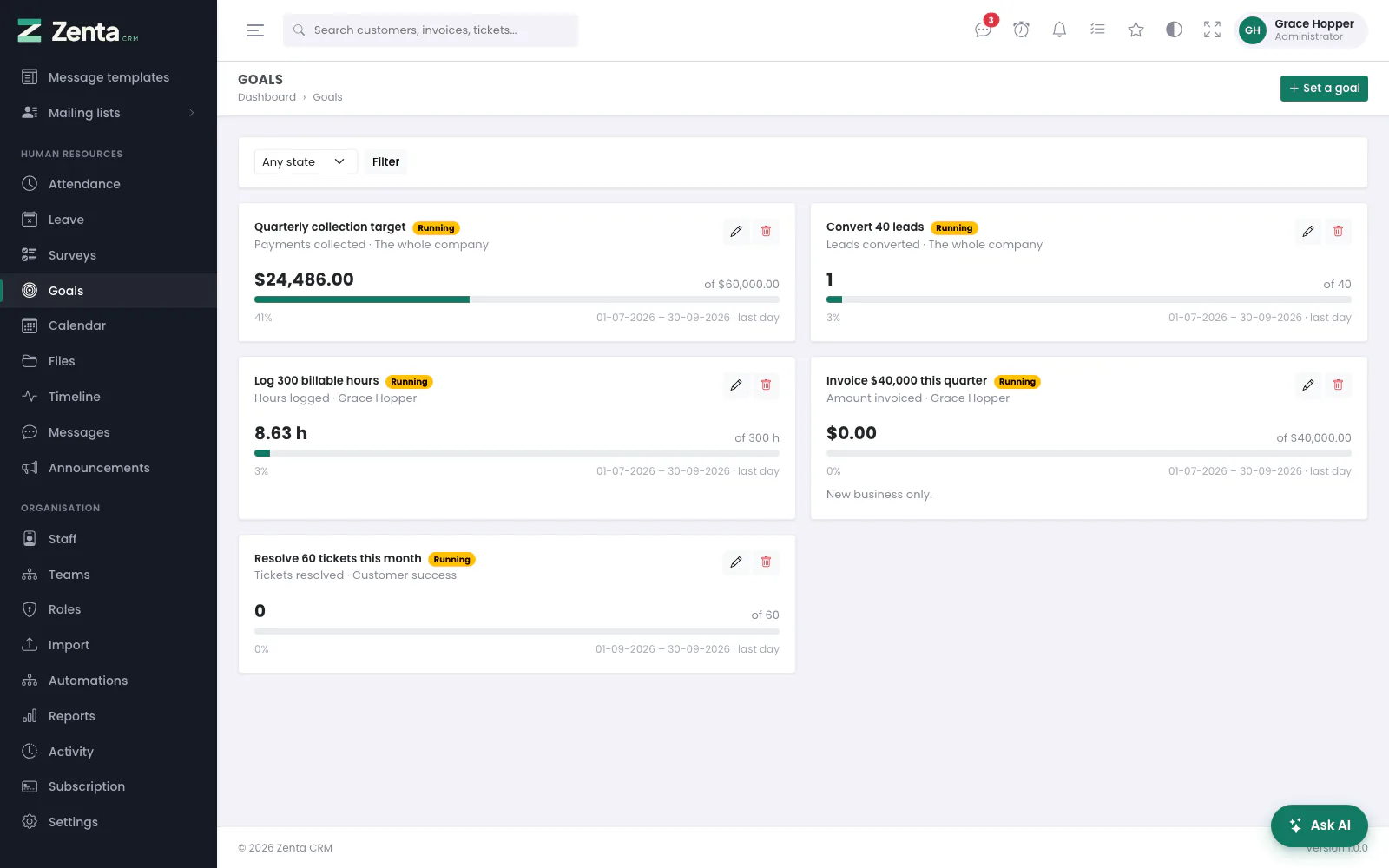 Goals: each one's progress, counted from the records, with its window and how many days are left.
Human Resources → Goals. Each goal shows its state (Running, Achieved, Missed or Not started), what is counted and whose goal it is, the figure so far against the target, a progress bar, its dates and how many days are left. Filter by state and press Filter. Somebody who can set goals sees every goal; everybody else sees the ones they have a stake in — their own, their team's and the company's.
Setting a goal
 Edit goal: what is counted, the target, the window, and whose goal it is.
Press Set a goal (it needs the Create ability):
- Title (required).
- What is counted: amount invoiced, payments collected, new customers, leads added, leads converted, proposals accepted, estimates accepted, contracts signed, tasks completed, hours logged or tickets resolved.
- Target (required, more than zero) and From / To — this month to begin with.
- Whose goal it is: The whole company, One person or One team, then who.
- Notes.
Press Set it. The button on a goal opens the same form (Save changes, needs Edit) and removes it after you confirm (needs Delete).
Progress is counted from the records themselves every time the page is opened, never from a stored running total. Eleven kinds of record feed those numbers, and a cached figure would only need one of them to forget to update it for every goal to be quietly wrong with nothing to show for it.
Money collected has refunds inside the window taken off it, so a target cannot be hit
by taking a deposit and handing it straight back. A running goal is marked achieved the
moment its target is met: when it is saved, whenever the Goals page is opened, and
every hour by the scheduler (zenta:goals:stamp, see
The scheduler). From then on it stays achieved even if a
refund or a cancelled invoice later brings the figure down, because it happened.
Surveys
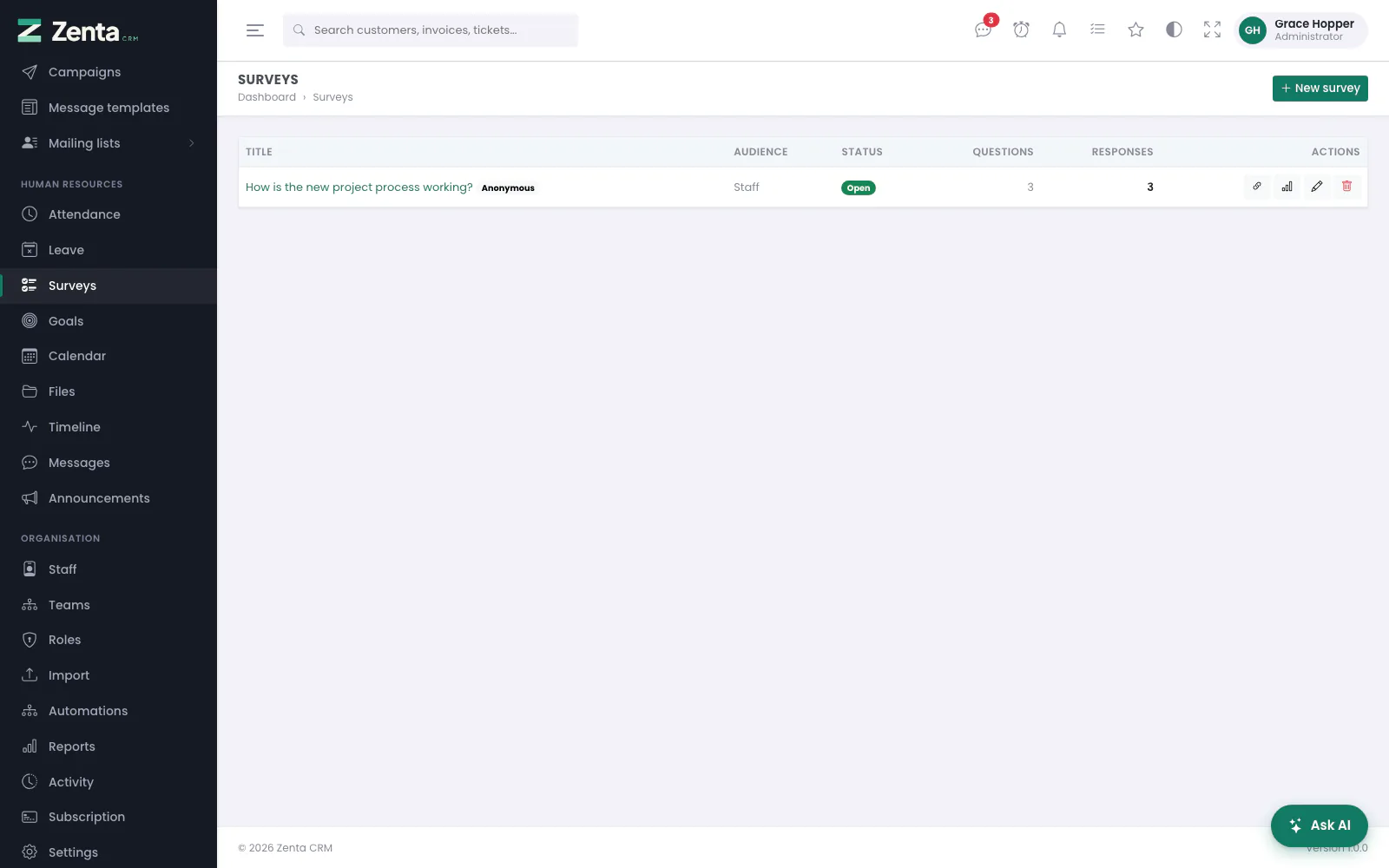 Surveys: each one's audience, status, questions and responses, with the link, results, edit and remove buttons.
Human Resources → Surveys. Each survey shows who is being asked, its status, how many questions and responses it has, and an Anonymous badge if answers are anonymous. The buttons on a row copy the survey's link, open its results, open it for editing, and remove it. Removing asks first, and says how many responses go with it.
Creating a survey
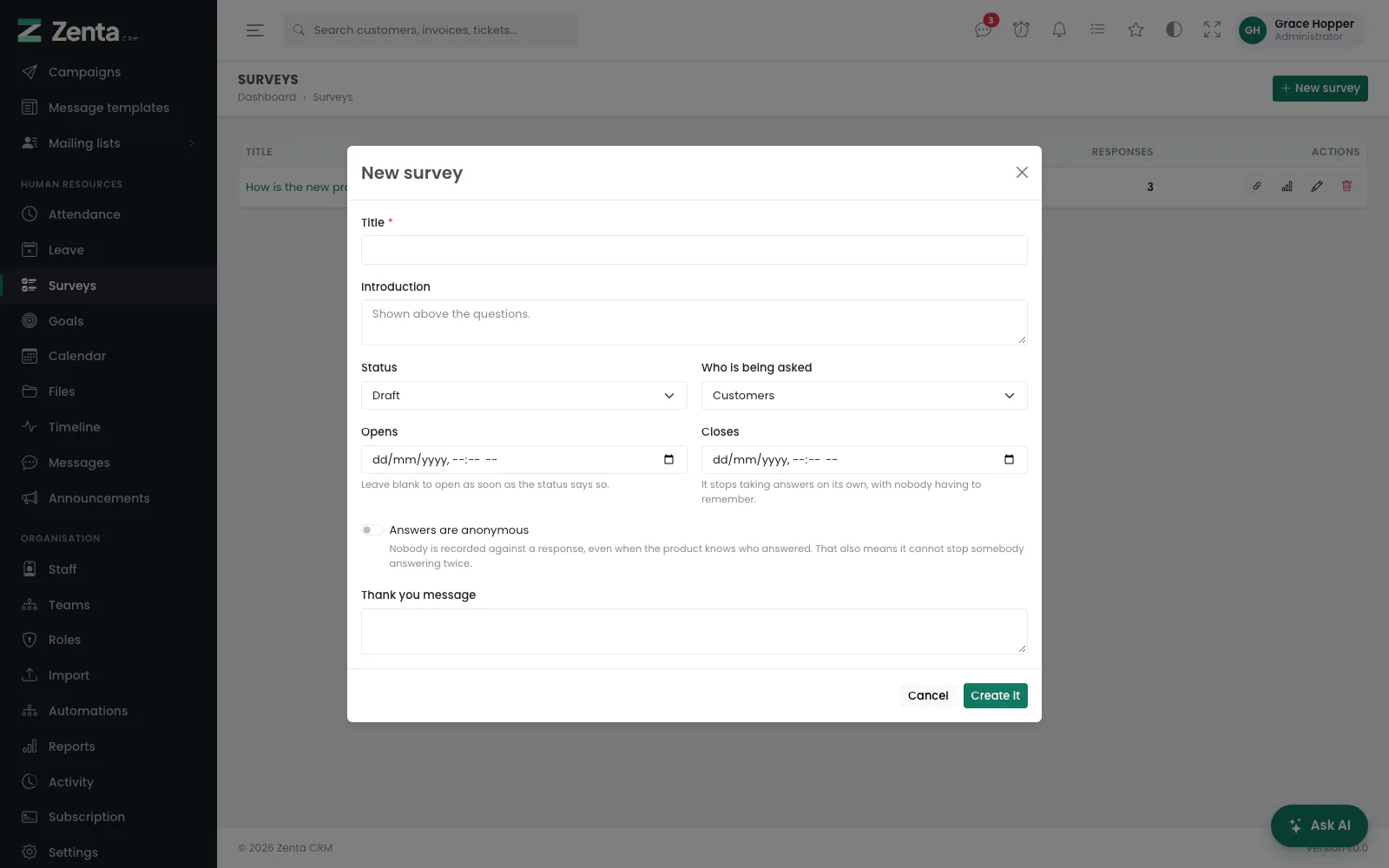 New survey: the settings. Questions are added on the next screen.
Press New survey (it needs the Create ability):
| Setting | What it does |
|---|---|
| Title | Required. |
| Introduction | Shown above the questions. |
| Status | Draft, Open or Closed. A survey with no questions cannot be opened. |
| Who is being asked | Staff, Customers or Anyone with the link. It decides who may answer: a staff survey only somebody signed in as staff of this workspace, a customer survey only a contact signed in to the client portal. Anybody else who opens the link is told who it is for (This survey is for our staff. Sign in to answer it., or … for our customers. Sign in to the client portal to answer it.) with a Sign in link, and an answer sent anyway is refused. |
| Opens / Closes | It starts and stops taking answers on its own, with nobody having to remember. Leave Opens blank to open as soon as the status says so. |
| Answers are anonymous | Nobody is recorded against a response, even when the product knows who answered. |
| Thank you message | Shown after somebody answers. |
Press Create it. You are taken to the survey's own page to add the questions.
The survey's page: settings, link and questions
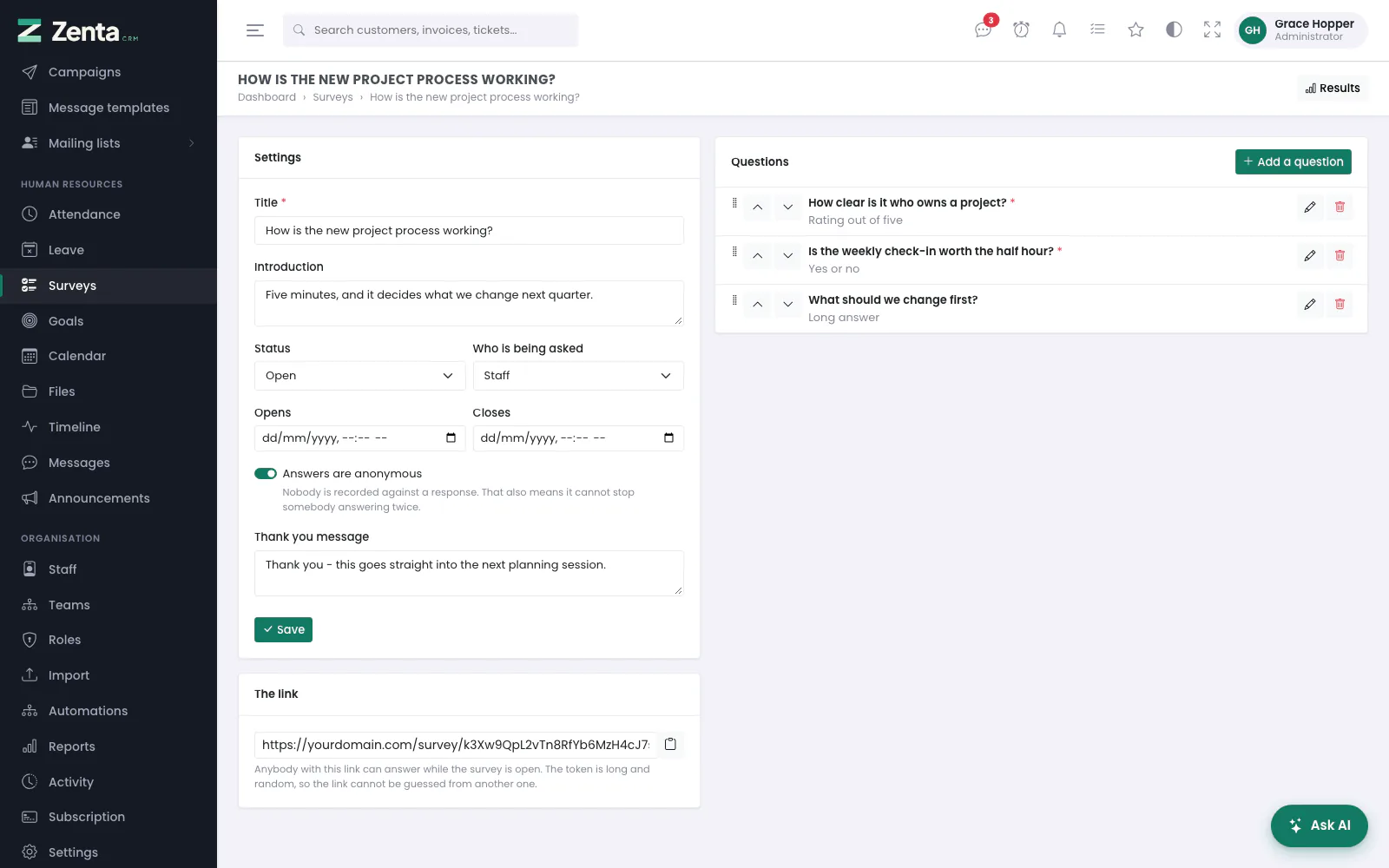 A survey's page: its settings and link on the left, its questions on the right.
The same settings on the left, saved with Save. Under them, The link, with a button to copy it. While the survey is open, anybody with the link can answer a survey for Anyone with the link without signing in; a survey for staff or for customers asks them to sign in first. The token in that link is long and random rather than the survey's number, so one link never leads to the survey next door, and a survey still in draft cannot be read through a leaked link at all. A member of staff who is signed in and answers a survey that is not anonymous is recorded by name, and can only answer once.
 Adding or editing a question: the wording, the kind of answer, and whether it is required.
On the right, the Questions, in the order they are asked. To change the order, drag a question by its handle or use the Move up and Move down arrows beside it; the new order is saved as it moves (this needs the Edit ability). Press Add a question:
- Question (required, up to 1,000 characters).
- Kind of answer: Short answer, Long answer, Pick one, Pick several, Rating out of five or Yes or no.
- Options, for Pick one and Pick several: one per line, at least two. With fewer, the question is saved as a short answer instead of a dead end.
- An answer is required.
Press Save question. The button on a question opens it as Edit question; removes it after you confirm, together with any answers already given to it. Changing questions needs the Edit ability.
Results
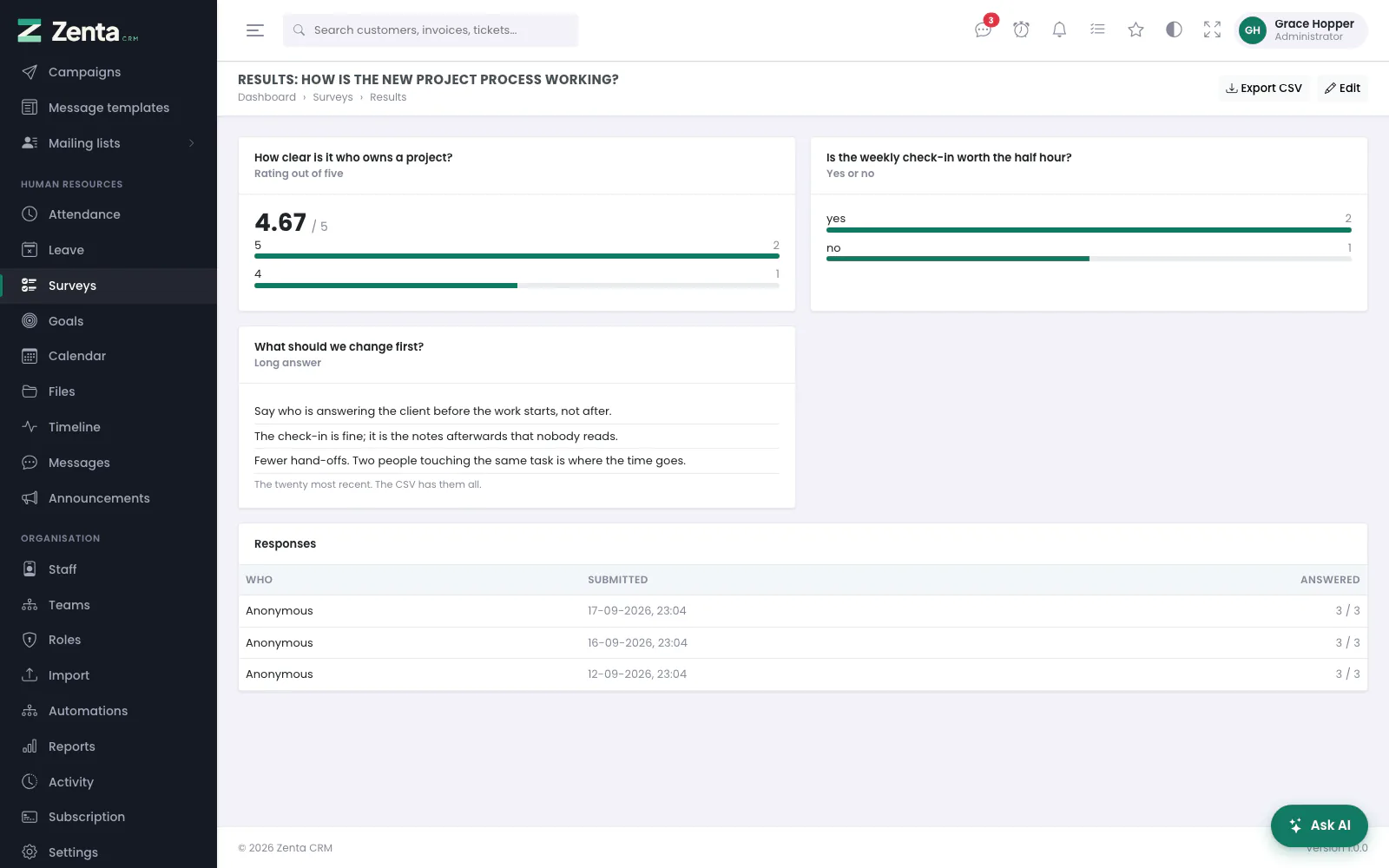 Results: a tally per question, an average for ratings, written answers, and every response.
Results (on the survey's page or the list) shows a tally per question and an average for ratings, the twenty most recent written answers, and every response with who gave it (or Anonymous), when, and how many questions they answered. The tally counts the stored answer text rather than an option key, so renaming an option afterwards does not silently reassign answers people already gave — the old wording shows as its own line, which is the truth.
Export CSV downloads every response, one row per response: when it was submitted, who gave it (or Anonymous), and one column per question. It opens cleanly in Excel, accented characters included.
Reminders
Open any customer, lead, invoice, estimate, proposal, contract, project, task or ticket and press Remind me. Pick a date, write a line, and optionally send it to a colleague instead of yourself.
Due reminders are counted on the alarm-clock icon in the top bar, which opens the Reminders page, where each can be cleared or put off by an hour, four hours, tomorrow, three days or a week. An email is only sent if you asked for one — a reminder is going to be in front of you anyway, and an unasked-for email is how people learn to ignore the next one. See Reminders for the whole of it.
Only the person being reminded can clear, put off or remove one — including whoever set it for them. A reminder in your list that a colleague can silently delete is worse than no reminder.
Formatting and voice notes in comments
 Settings, Comments: rich text and voice notes, both off by default.
Settings → Comments has two switches, both off by default. Press Save after changing them (it needs the Edit ability on settings).
- Rich text in comments — Give ticket replies and timeline posts a formatting toolbar: bold, italics, lists, links and quotes. It needs the formatting editor switched on under Settings → Integrations, and the page warns you when it is off. Customers in the portal keep a plain text box. Formatted messages are cleaned of anything unsafe wherever they are shown, including in the portal, and older plain-text messages look exactly as they did.
- Voice notes in comments — Show a record button on ticket replies (staff and portal) and timeline posts. Record, listen back, then send the form as usual; the recording is attached like any other file and plays in the thread. Recordings stop at five minutes. The page lists the audio types recordings are accepted as.
webm, ogg or m4a must stay on the allowed
list — the Comments page warns you if none is.
The customer portal now also lets customers attach files when they open a ticket or reply, under the same upload rules. Files a member of staff keeps back from the customer are not shown to them.
Addresses on this page
For reference and for anyone scripting against the panel. Everything here needs somebody signed in to the workspace whose role allows it; anybody else is refused.
| Method | Address | What it does |
|---|---|---|
GET | /admin/announcements | The announcements screen. |
GET | /admin/announcements/create | The Write an announcement form, in a pop-up. |
POST | /admin/announcements | Posts an announcement. |
GET | /admin/announcements/{announcement}/edit | The Edit announcement form, in a pop-up. |
PUT | /admin/announcements/{announcement} | Saves changes, and shows it again to everyone who had closed it. |
DELETE | /admin/announcements/{announcement} | Removes an announcement. |
POST | /admin/announcements/{announcement}/dismiss | Closes a banner for the person who pressed its cross. Used by the page itself. |
GET | /admin/messages | Staff messages. ?c= opens a conversation. |
POST | /admin/messages/direct/{user} | Opens, or starts, your conversation with one colleague. |
POST | /admin/messages/group | Starts a group conversation. |
POST | /admin/messages/{conversation} | Sends a message. |
GET | /admin/messages/{conversation}/poll | New messages since the last one the page has. Used by the page itself, every eight seconds. |
DELETE | /admin/messages/{conversation}/leave | Leaves a group conversation. |
GET | /admin/messages/customers | The Customer messages tab. ?c= opens a thread. |
POST | /admin/messages/customers/{conversation} | Replies to a customer, with attachments if any. |
GET | /admin/timeline | The timeline. |
POST | /admin/timeline | Posts to the timeline. |
DELETE | /admin/timeline/{post} | Removes a post and its replies. |
PATCH | /admin/timeline/{post}/pin | Pins or unpins a post. |
POST | /admin/timeline/{post}/react | Adds or takes back your reaction. |
POST | /admin/timeline/{post}/comments | Replies to a post. |
DELETE | /admin/timeline/{post}/comments/{comment} | Removes a reply. |
GET | /admin/files | Files. ?folder= opens a folder. |
POST | /admin/files/folders | Creates a folder. |
PUT | /admin/files/folders/{folder} | Renames a folder. |
DELETE | /admin/files/folders/{folder} | Removes an empty folder. |
POST | /admin/files/folders/{folder}/upload | Uploads files into a folder. |
GET | /admin/files/folders/{folder}/cloud/{provider} | The Add from window for Google Drive (google_drive) or Dropbox (dropbox), in a pop-up. |
POST | /admin/files/folders/{folder}/cloud/{provider} | Copies the ticked files in from Google Drive or Dropbox. |
GET | /admin/files/folders/{folder}/{file} | Downloads a file. |
PATCH | /admin/files/folders/{folder}/{file}/visibility | Shares a file in a customer's folder with the customer, or hides it again. |
DELETE | /admin/files/folders/{folder}/{file} | Removes a file. |
GET | /admin/calendar | The calendar. ?month=YYYY-MM, ?sources[]= and ?event= (open one event). |
GET | /admin/calendar/create | The New event form, in a pop-up. ?on=YYYY-MM-DD starts it on that day. |
POST | /admin/calendar | Adds an event. |
GET | /admin/calendar/{event}/edit | The Edit event form, in a pop-up. |
PUT | /admin/calendar/{event} | Saves changes to your event. |
PATCH | /admin/calendar/{event}/respond | Accepts or declines an invitation. |
DELETE | /admin/calendar/{event} | Removes your event. |
GET | /admin/goals | Goals. ?state= filters them. |
GET | /admin/goals/create | The Set a goal form, in a pop-up. |
POST | /admin/goals | Sets a goal. |
GET | /admin/goals/{goal}/edit | The Edit goal form, in a pop-up. |
PUT | /admin/goals/{goal} | Saves changes to a goal. |
DELETE | /admin/goals/{goal} | Removes a goal. |
GET | /admin/surveys | The surveys list. |
GET | /admin/surveys/create | The New survey form, in a pop-up. |
POST | /admin/surveys | Creates a survey. |
GET | /admin/surveys/{survey}/edit | A survey's page: settings, link and questions. |
PUT | /admin/surveys/{survey} | Saves a survey's settings. |
DELETE | /admin/surveys/{survey} | Removes a survey and its responses. |
POST | /admin/surveys/{survey}/questions | Adds a question. |
PUT | /admin/surveys/{survey}/questions/{question} | Saves changes to a question. |
DELETE | /admin/surveys/{survey}/questions/{question} | Removes a question and its answers. |
POST | /admin/surveys/{survey}/questions/reorder | Saves a new order for the questions (order[], question ids in order). Used by the page itself as a question is dragged or moved. |
GET | /admin/surveys/{survey}/results | A survey's results. |
GET | /admin/surveys/{survey}/export | Downloads every response as a CSV. |
GET | /admin/settings/comments | Settings → Comments. |
PUT | /admin/settings/comments | Saves the two Comments switches. |