The tenant admin panel
Where the super admin runs the platform: every workspace, plan and payment, in one place.
Zenta CRM runs as a single company out of the box. Switched into SaaS mode it becomes a
platform: each customer company gets its own isolated workspace, and the
person who runs the platform — the super admin — looks after
all of them from the tenant admin panel at /tenant/admin. This section
of the documentation covers that panel, one page per menu entry.
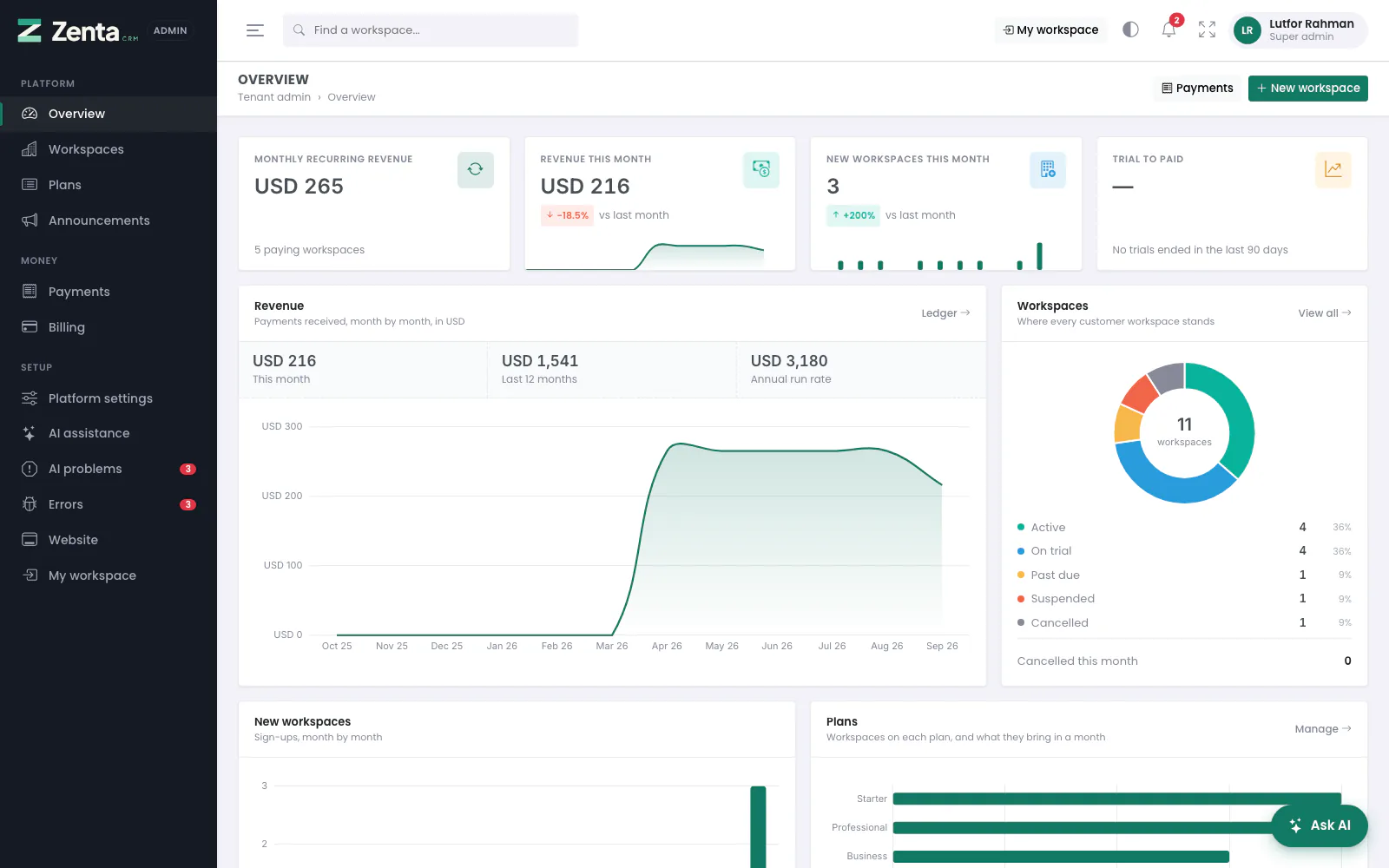 The tenant admin overview: revenue, workspaces and where each one stands.
Turning SaaS mode on
Set this in your .env, then run php artisan config:clear:
TENANCY_ENABLED=trueThe other settings that belong to the server rather than to a screen:
| Setting | What it does |
|---|---|
TENANCY_DEFAULT_TENANT | The platform's own workspace — yours. It is left out of every count and figure in the panel, because it is not a customer. |
TENANCY_CENTRAL_DOMAIN and TENANCY_RESOLVE_SUBDOMAIN | Needed for subdomain addresses (acme.yourdomain.com), with a wildcard DNS record. See Platform settings. |
TENANCY_TRIAL_DAYS | How long a new workspace's free trial lasts, when its plan does not say. |
TENANCY_GRACE_DAYS | How long a workspace keeps working after a payment fails. |
Who gets in
Accounts flagged as super admins. The account the installer creates is one. It is deliberately a flag on the account rather than a permission a role can grant: an administrator runs one workspace, a super admin runs the platform, and if a role could grant it, any customer could give themselves a view of every other customer's account.
- A super admin lands on the panel when they sign in.
- The panel opens only at the platform's own address (
yourdomain.com/tenant/admin), never at a workspace's address. - From their own workspace, the button in the top bar or Tenant admin in the account menu brings them back. Nobody else is shown either.
Finding your way around
The panel uses the same layout as the staff screens, with a menu of its own:
| Menu | Entry | What it is for |
|---|---|---|
| Platform | Overview | How the platform is doing (below). |
| Workspaces | Every customer workspace: create, change, suspend, delete, sign in as one of its people. | |
| Plans | What each plan costs, which modules it includes and what it allows. | |
| Announcements | A message shown above every page in the workspaces you pick. | |
| Money | Payments | The ledger of every payment, from a gateway or recorded by hand. |
| Billing | Your Stripe keys, so workspaces can pay for themselves. | |
| Setup | Platform settings | Sign-up, workspace addresses, the front page headline, legal links and the support address. |
| AI assistance | The platform's one AI connection, and which workspaces may use it. | |
| AI problems | What went wrong in the AI features, in detail. | |
| Errors | Every error nobody caught, anywhere else in the application. | |
| Website | The platform's own front page and blog — the site that sells your plans. | |
| My workspace | Back to your own workspace's staff screens. |
AI problems and Errors carry a red count of what is still open, so a problem is visible from every page of the panel.
Along the top bar:
- Find a workspace… searches workspaces by name or slug and opens the Workspaces list filtered to the matches.
- My workspace goes to your own workspace.
- The half-moon switches between light and dark; the arrows go full screen.
- The bell holds the platform's notices to you — AI problems and errors. It is separate from your workspace's bell. See Notifications.
- Your name opens My account and Sign out.
- Ask AI, bottom right, is the platform's own assistant: it reads and prepares changes to workspaces, plans, billing and the rest of this panel, never anything inside a workspace. It is there once AI is connected. See AI assistance.
The overview
How the platform is doing, on one page. Along the top:
| Figure | What it counts |
|---|---|
| Monthly recurring revenue | What the workspaces that are paying (or late paying) are worth a month: yearly plans at a twelfth, one-off plans not at all. A position today, so it has no arrow. Under it, how many workspaces are paying. |
| Revenue this month | Payments actually received, from the ledger, against last month, with the last twelve months drawn under it. |
| New workspaces this month | Sign-ups, against last month. |
| Trial to paid | Of the trials that ended in the last 90 days, the share now paying. Workspaces still on their trial are not counted, and with no finished trials there is no rate rather than a zero. |
Below them:
| Panel | What it shows |
|---|---|
| Revenue | Payments received month by month, with this month, the last twelve months and the annual run rate. Ledger opens Payments. |
| Workspaces | Where every customer workspace stands — active, on trial, past due, suspended, cancelled — with the share of each, and how many cancelled this month. View all opens Workspaces. |
| New workspaces | Sign-ups, month by month. |
| Plans | How many workspaces are on each plan and what they bring in a month. Manage opens Plans. |
| Trials ending this week | Workspaces whose trial runs out in the next seven days — your to-do list. |
| Needs attention | Workspaces that are past due or suspended: the ones somebody may need to write to. |
| Latest payments and Newest workspaces | The last six of each. |
The Payments and New workspace buttons at the top right open the ledger and create a workspace.
Workspace statuses
Every workspace is in one of five states. The panel colours them the same way everywhere.
| Status | Means |
|---|---|
| Trialing | On a free trial. Full access until the trial ends. |
| Active | Paying, or put on a plan by you. Full access. |
| Past due | A payment failed. Still has access, for the grace period in TENANCY_GRACE_DAYS. |
| Suspended | Nobody can sign in. The data is untouched. They see the reason you gave and your support email. |
| Cancelled | Closed. The data is untouched until the workspace is deleted. |
Addresses on this page
For reference and for anyone scripting against the panel. Everything here needs a signed-in super admin at the platform's own address; anybody else gets 403.
| Method | Address | What it does |
|---|---|---|
GET | tenant/admin | The overview. |
GET | tenant/admin/dashboard | Sends you to the overview; the longer spelling is a courtesy. |