Importing your data
Bringing customers, leads and more in from a spreadsheet: pick the file, check the columns, see what will be merged, then import.
 Import from a spreadsheet: a card for each kind of record you may bring in.
Organisation → Import, in the menu. The page, Import from a spreadsheet, has a card for each kind of record you may bring in; somebody whose role may create none of them does not see the menu item at all.
| Card | Needs the right to create | Treated as the same record when |
|---|---|---|
| Customers | Customers | The company name matches. |
| Leads | Leads | The email address matches. |
| Subscribers | Subscribers | The email address matches, or the phone number when there is none. |
| Contacts | Customers | The email address matches. |
| Expenses | Expenses | The name, date and amount are all the same. |
| Items | Items | The item name matches. |
| Projects | Projects | The name matches within the same customer. |
| Tasks | Tasks | The title matches within the same project. |
| Payments | Payments | Same invoice, date and amount, or the same transaction reference. |
Before you start
- CSV or Excel (.xlsx). Every spreadsheet can save one or the other. From an Excel file only the first worksheet is read.
- The first row must be the column headings.
- Up to 5,000 rows and 8 MB at a time. Split a larger file; a longer one would time out somewhere in the middle on shared hosting, leaving half an import done.
- Blank template, on each card, downloads a CSV with the right headings and nothing else, for starting from scratch.
Three steps, deliberately
1. Read the file
On the card for what you are bringing in, choose your file and press Read the
file. Nothing is written yet. A file that is not CSV or Excel, a file called
.xlsx that is not really a workbook, or one with no headings on its first row
is refused with a message saying which.
2. Check the columns
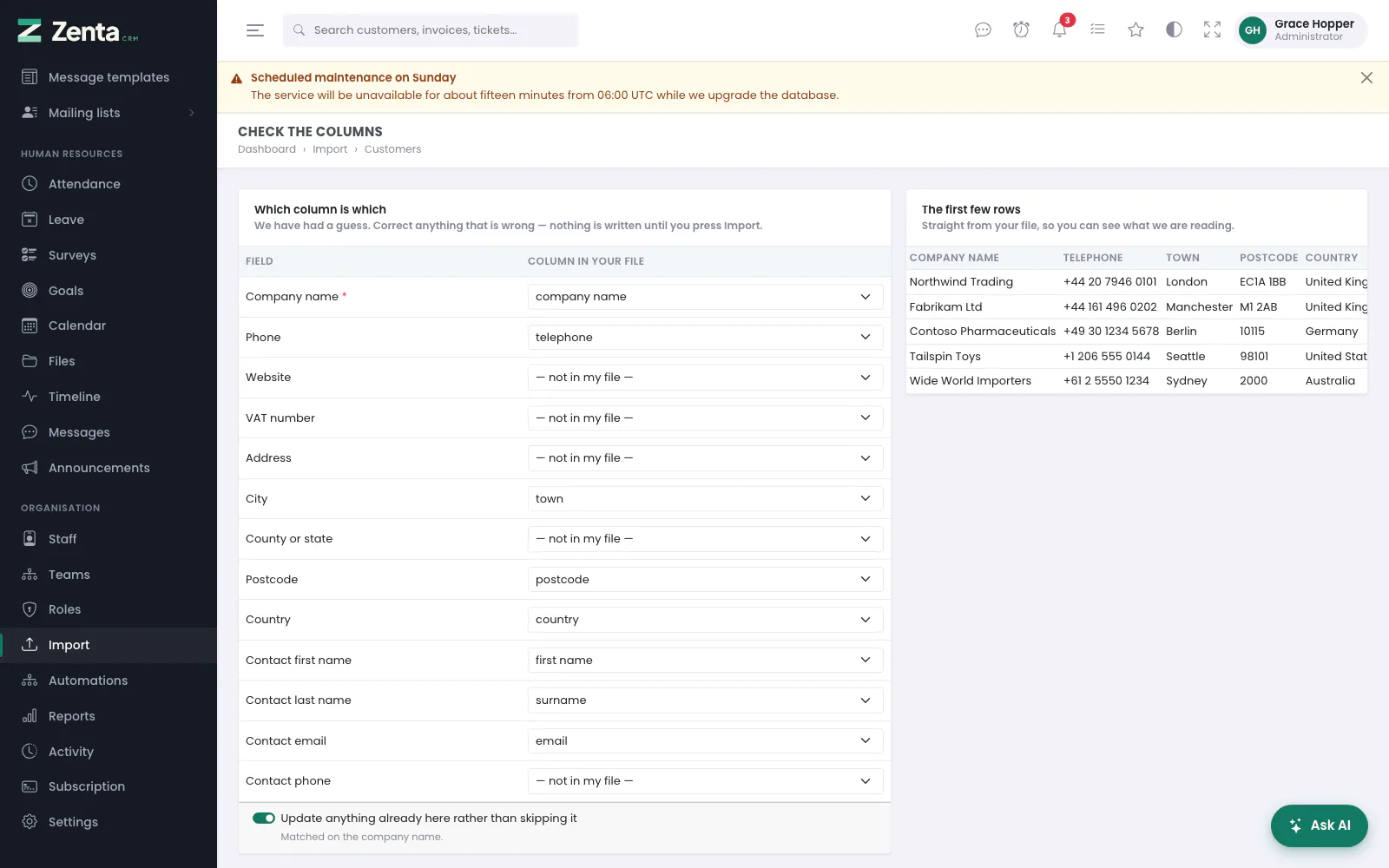 Check the columns: which column of your file goes into which field, and the first rows of the file.
The next screen, Check the columns, shows under Which column is which the column of your file it thinks belongs to each field, and on the right The first few rows straight out of your file. A field marked * is required. Correct anything wrong; set a field to — not in my file — to leave it out.
Leave Update anything already here rather than skipping it on to update records that match ones you already have, or switch it off to bring in only what is new. The line under it says how this kind of record is matched. Then press Check for duplicates. Start again goes back to the cards.
It usually guesses right
The file almost always comes out of the system you are leaving, so common headings are recognised without help: Company Name, Telephone, Town, Postcode, Surname and their usual variants all land where you would expect. A column it does not recognise is simply left unmapped. No column is used twice, so Name cannot end up in both the company and the contact.
3. See what will be merged, then import
The last screen, Before importing, says what the import is about to do, before it does it:
| Reported as | Means |
|---|---|
| New records | Nothing here matches them. They will be created. |
| Will be updated | They match something you already have, and their details will be overwritten with what is in the file. With the update switch off this says Will be skipped: they are left exactly as they are. |
| Repeated in your file | Your own file lists the same record more than once. The later row wins — usually a mistake in the export it came from. |
Under What matched, a table lists each matching row: its Row number, what is In your file, what it Matches, and What happens — Updated, Left alone or Repeated. On a long file only the first 2,000 rows are checked, and the screen says so; the whole file is still imported.
You can change the update switch on that screen and press Check again as often as you like. Nothing is written until you press Import N rows.
Afterwards
You are taken back to the Import page, which says Customers import finished (or whichever kind it was) with a summary such as 120 added, 14 updated, 3 skipped. A row missing something required — a customer with no company name — is left out and the rest of the file still goes in; the rows left out are listed with their Row number and Why, so you can fix those few and import them again.
Customers and their contacts together
A customer row carrying a contact first name, last name and email creates the contact alongside the company. The first contact on a company becomes its primary one.
Leads
A Pipeline stage column matching one of your pipeline stages puts the lead there; anything else, or nothing, puts it in your first stage. A Source that does not exist yet is created rather than refused — a source is only a label.
Amounts survive however they were written: £1,250.50, 1.250,50
and 1250.5 all arrive as the same number.
Leads with no email address are never merged. Two people called John Smith are two leads; only an address makes a row the same person twice.
Subscribers
Subscribers go onto mailing lists. Name the list in a List column and each row lands on that list, made if it does not exist; a row without one lands on a list called Imported. A row needs an email address or a phone number. Somebody who has unsubscribed stays unsubscribed, whatever the file says. See Marketing campaigns.
Contacts, expenses, items, projects, tasks and payments
| Type | Refers to | Notes |
|---|---|---|
| Contacts | A customer, by company name or ID number | A contact stays with the customer they already belong to; an address used by a member of staff is never turned into a contact. |
| Expenses | A category by name (created if new), a customer and a payment method by name | |
| Items | A group by name (created if new), a tax by name (must exist) | |
| Projects | A customer by name | Status and billing type can be written as they read on screen, such as "In progress". |
| Tasks | A project and a status by name, an assignee by staff email | An unknown status starts the task in your first status. |
| Payments | An invoice by its number | A match only has its method, reference and note updated. |
Anything a row names has to be something the importer can see: somebody limited to their own customers cannot add contacts to a colleague's by typing its name. Payments follow the same rules as recording one by hand — not against a draft, and never more than is still owed. A row that cannot be imported is left out with the reason, and the rest of the file goes in.
Excel files and dates
Upload an .xlsx file as it is; there is no need to save it as CSV first. The first worksheet is read, its first row is the headings, and numbers and dates come through as values — a date cell arrives as that date, whatever format it was shown in. Formulas are read as the value they last worked out to.
2026-09-30, in the
date format chosen under Settings → Localization, or written out
("30 September 2026"). A date like 03/04/2026 in any other order is refused
rather than guessed, because guessing would put it in the wrong month.
Your file afterwards
The upload is kept in a private folder on the server, never in a public one, and deleted the moment the import finishes. One abandoned halfway through is deleted the next time anybody uploads a file, once it is a day old. It holds your entire customer list, and it does not sit on the server.
Addresses on this page
For reference and for anyone scripting against the panel. Everything here needs somebody signed in to the workspace whose role allows it; anybody else is refused.
| Method | Address | What it does |
|---|---|---|
GET | admin/imports | The Import page, and the result of the last import. |
GET | admin/imports/{type}/template | Downloads a blank CSV with that type's headings. |
POST | admin/imports/{type} | Uploads the file and reads its headings. |
GET | admin/imports/{type}/map | Check the columns. |
POST | admin/imports/{type}/preview | Before importing: what will be created, updated or skipped. |
POST | admin/imports/{type}/run | Runs the import. |