PDFs and sending documents
Open or download one document as a PDF, zip up the ones you ticked or a whole quarter by filter, or email them to the customer.
Invoices, estimates, proposals, credit notes and contracts can all be turned into a PDF. It carries your logo, your company details and your terms, in the currency the document was raised in. Everything on this page works through the same record scope as the lists: what you can download is exactly what you could already open, and a document outside that is answered as if it did not exist.
One document
- PDF on an estimate's or a proposal's page opens the PDF in a new browser tab, where you can read, print or save it.
- Download PDF on a contract's page downloads it as a file.
- Invoices and credit notes have their own PDF buttons (Sales and invoicing).
The file is named after the kind of document and its number — for example
estimate-est-000123.pdf — so it can be found again in a downloads
folder. It needs the view right for that kind of document.
The ones you ticked
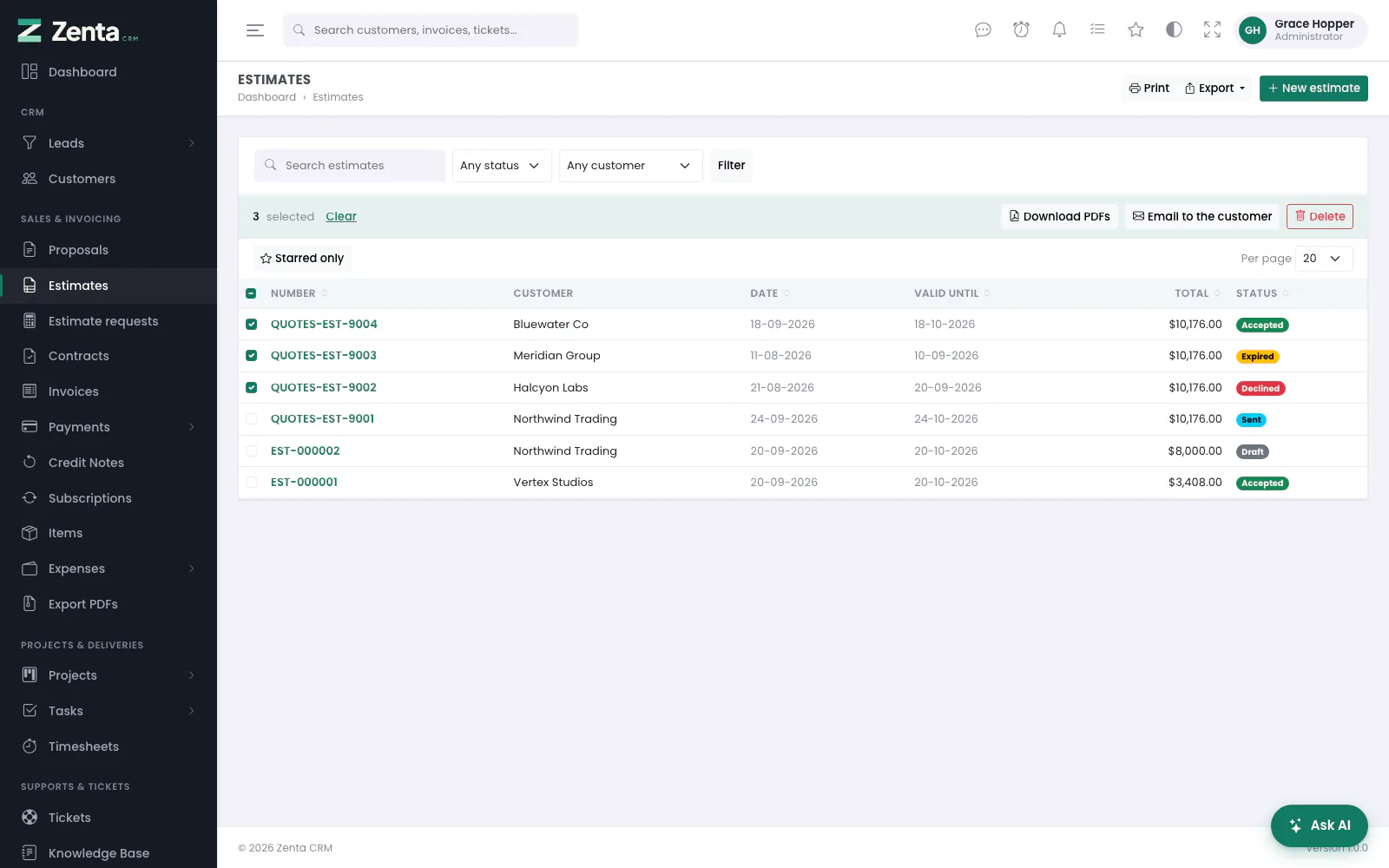 Three estimates ticked, and the bar offering Download PDFs, Email to the customer and Delete.
On the invoice or estimate list, tick the rows and a bar appears above them.
- Download PDFs returns a single zip, one PDF per document, named after the kind and today's date. Up to a hundred at a time; past that, filter the list down or use Export PDFs. It needs the view right.
- Email to the customer sends each one to every active contact at that customer with a valid email address, with the PDF attached. It needs the edit right, because sending tells the customer something and stamps the record: a draft that is emailed is marked as sent, because it now has been.
The covering email is short — the document is attached, reply with any questions — and it is written in the customer's own language, like the PDF. When the document was issued by a second company it is signed off with that company's name. When it is done you are told how many messages went, and how many documents had nobody to send to; a customer with no contact carrying an email address is reported rather than silently skipped.
Export PDFs: a whole quarter at once
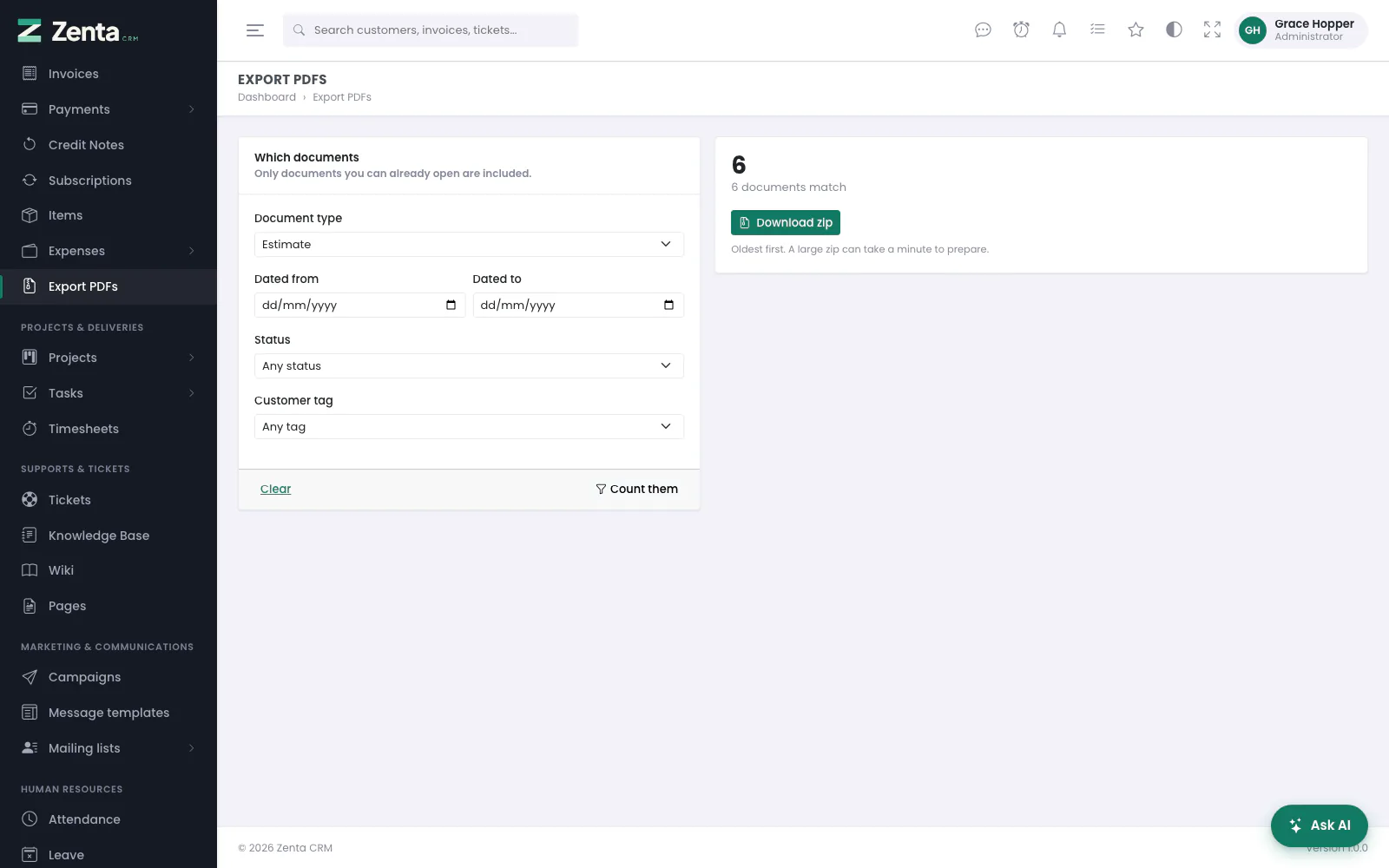 Export PDFs: choose the documents by type, date, status and customer tag, then count them and download the zip.
The accountant's request at the end of a quarter — "every invoice from July to September, as PDFs" — is two hundred ticks on a list. Sales & Invoicing → Export PDFs makes it a date range and a button. The same screen is under Export → PDFs in a zip… on the invoice, estimate, proposal, credit note and contract lists, already set to that kind of document — which is how somebody who cannot see invoices reaches it.
 Export on the estimates list, with PDFs in a zip… at the foot.
- Choose the Document type: invoices, estimates, proposals, credit notes or contracts — only the kinds you may view are offered. Changing it reloads the screen.
- Narrow it with Dated from and Dated to (the document's own date; a contract's start date), Status (not for contracts, whose state is worked out from their dates and signatures rather than stored), Customer tag, and for invoices Paid with — invoices with at least one payment recorded that way. Contracts in the trash are never included.
- Press Count them. The right-hand side says how many documents match. Clear takes the filters off.
- Press Download zip. The PDFs are the same ones the PDF buttons give, oldest first. A large zip can take a minute to prepare.
Documents carry no tags of their own, so the tag filter uses the tags on each document's customer; a proposal addressed to a lead rather than a customer is left out when a tag is chosen. The screen needs the view right for at least one of the five kinds, and asking for a kind you may not view is refused rather than swapped for another. The sidebar entry itself is shown to people who can view invoices.
zip.
Sending one to a customer
Customers can download their own copy from the portal — every invoice, estimate and proposal they can see has a Download PDF button, unless you have switched that off for estimates and proposals (Settings → Estimates & proposals). Drafts are not listed there and cannot be reached by guessing an address either.
What appears on a PDF
- Your logo, from Settings → Company — or the issuing company's, when a second company raised it. Embedded in the file rather than linked, so it still appears on a server that cannot reach itself over the network.
- The line items, with the tax names as they were when the document was raised — renaming a tax next year does not restate last year's invoice. On an estimate or proposal, an optional line is marked Optional — taken or Optional — not taken.
- Custom fields you have marked Show on PDF documents.
- The signature, if the document was signed. See E-signature.
A PDF is written in the customer's own language (see Languages): the headings, month names and text direction follow it, whoever downloads or sends the document. Dates use the workspace's date format and time zone.
Contract PDFs
A contract's page has Download PDF, and so does the contract in the customer portal. The PDF shows the issuing company and the customer side by side, the type, start and end dates and value, the custom fields marked for PDFs, the agreed wording, and — once the contract is signed — every signature with the name, date and IP address it was signed from.
Staff need Contracts: view, and see only the contracts their scope lets them open. In the portal a contact can download their own company's contracts, but not one that is hidden from the client or in the bin. Many contracts at once, as a zip, come from Export PDFs (Export → PDFs in a zip… on the contracts list).
Addresses on this page
For reference and for anyone scripting against the panel. Everything here needs somebody signed in to the workspace whose role allows it; anybody else is refused.
| Method | Address | What it does |
|---|---|---|
GET | admin/pdf/{kind}/{id} | One document's PDF, shown in the browser. kind is invoice, estimate, proposal, credit_note or contract. |
GET | admin/pdf/{kind}/{id}/download | The same PDF as a file download. |
POST | admin/pdf/{kind}/bulk | The ticked documents (ids[], up to 100) as one zip. Used by the list's bulk bar. |
POST | admin/pdf/{kind}/email | Emails the ticked documents (ids[], up to 100) to their customers. Used by the list's bulk bar. |
GET | admin/document-pdfs | The Export PDFs screen, with kind, from, to, status, tag and method. |
POST | admin/document-pdfs | Downloads one part of the matching documents as a zip. |