Running a team
What the shipped Manager role can do: everyone's attendance and leave, the staff list, announcements, the wiki, and the rest of the day-to-day.
Every workspace starts with a Manager role: Runs the team day to day, without access to system settings. This page is for somebody who holds it — what they can do that an employee cannot, and where it stops. Like every role except Administrator, it can be renamed and changed, so if your screens differ from this page, your administrator has changed it (see Roles and permissions).
The Manager role, as shipped
| Module | Abilities | Scope |
|---|---|---|
| Staff | View, Create, Edit | All records |
| Teams | View, Create, Edit | All records |
| Attendance | View, Create, Edit | All records |
| Leave | View, Create, Edit, Approve | All records |
| Announcements | View, Create, Edit, Delete | All records |
| Team timeline | View, Create, Edit | All records |
| Internal wiki | View, Create, Edit | All records |
| AI assistance | Use the AI features, Use the assistant | All records |
| Calendar | View, Create | All records |
| Goals | View | All records |
| Messages | Create | All records |
Compared with the Employee role (see The Employee role, as shipped), a manager sees everybody's attendance and leave instead of only their own, may correct shifts and answer leave requests, runs the staff list and the teams, writes announcements and the wiki, pins timeline posts, and reads the activity log. Nothing else is added: no customers, no sales, no projects.
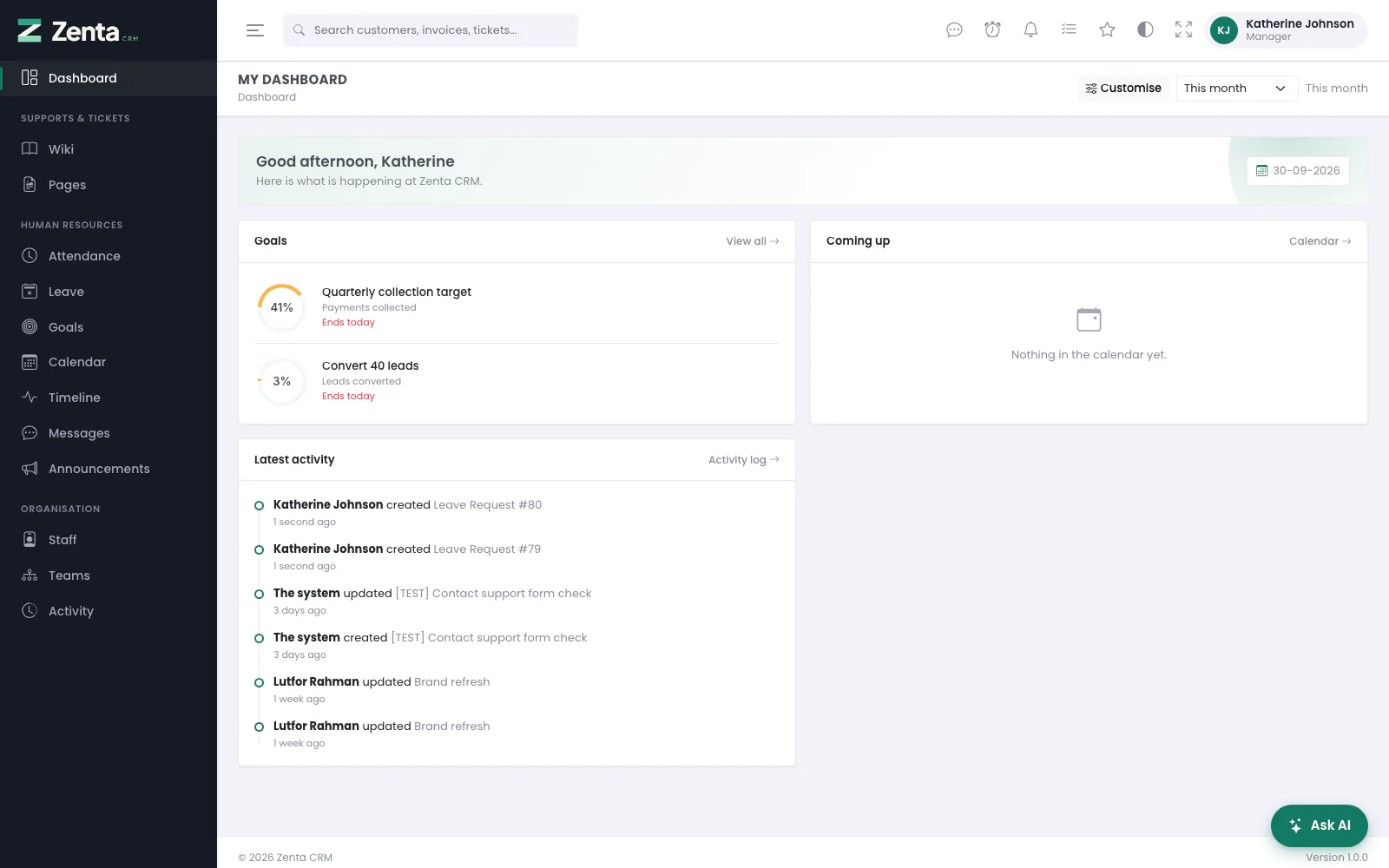 A manager's panel: the Human Resources screens, the wiki, and under Organisation the staff list, teams and the activity log, with the Latest activity panel on the dashboard. Nothing about customers or money.
Everyone's attendance
 Attendance seen by a manager: every person's hours for the month and every shift, each with a pencil to correct it, and no bin.
Human Resources → Attendance is the screen everybody uses to clock in (see Clocking in and out). With All records, a manager's copy also shows Hours in the month for every person, every shift in the list, and every person in the filter. Pick a month and a person and press Filter to look at one of them. The full description of the screen is on Attendance and leave.
Correcting a shift
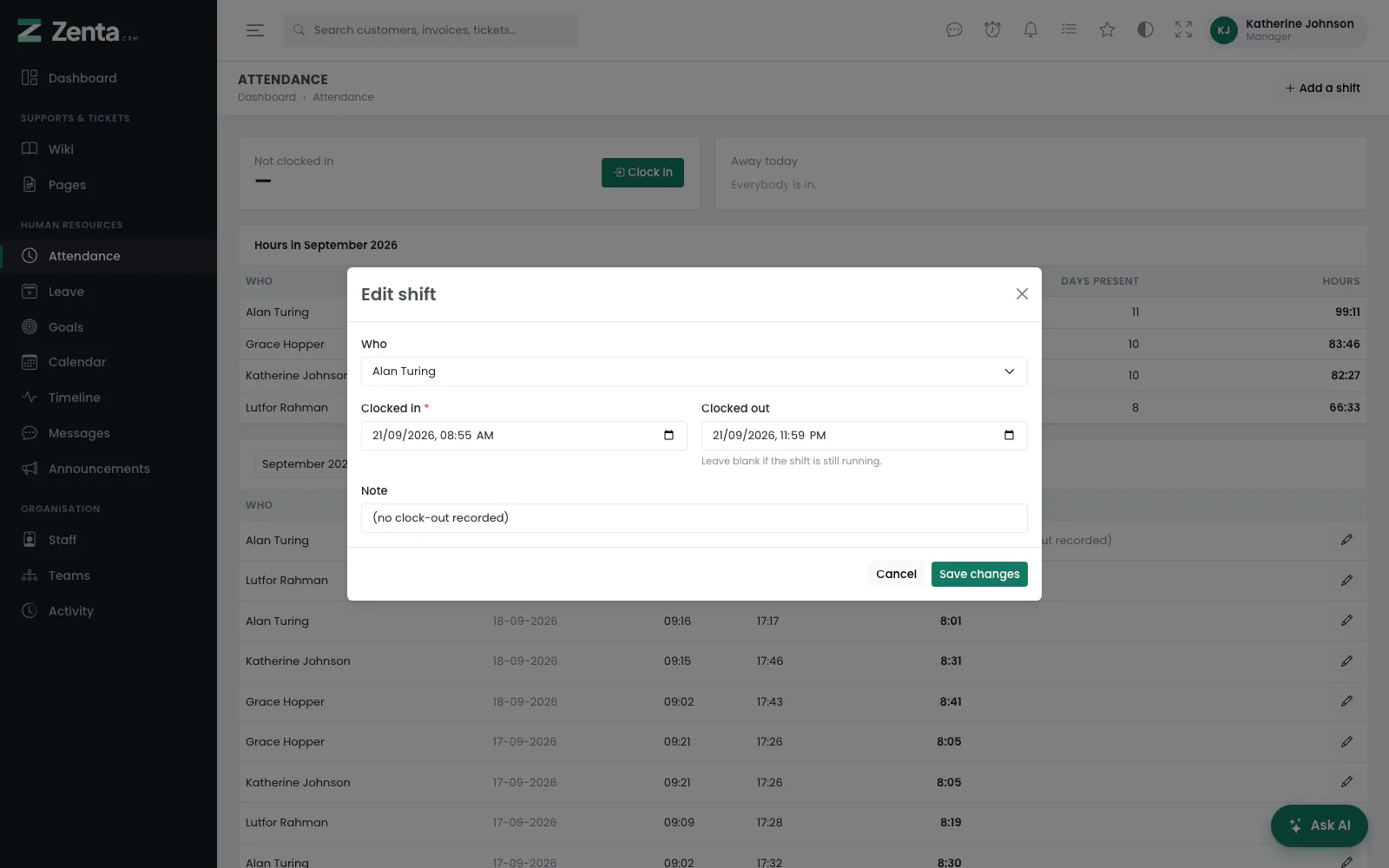 Edit shift, opened on a colleague's shift that was never clocked out. There is no Delete: the role does not hold it.
The most common job is a shift somebody forgot to clock out of, which the scheduler closes at the limit and marks (no clock-out recorded) (see Shifts nobody clocked out of).
- Press at the end of the shift's row. Edit shift opens.
- Correct Clocked in or Clocked out. Clocked out must be after Clocked in; leave it blank if the shift is really still running.
- Replace the Note with what happened, so the next person to read it knows it was corrected.
- Press Save changes.
Add a shift at the top records a shift that was never clocked at all. Because a manager holds Edit, the button is always there for them, and its Who field lists every active member of staff; for everybody else the button depends on a setting. A shift a manager types in for somebody else is marked Added by a manager in the list.
What a manager cannot do here: remove a shift (the role has no Delete on attendance, so there is no and no Delete in the dialog), export the list, or change the rules in Settings → Attendance & leave.
Approving and declining leave
 Leave seen by a manager: approve and decline on colleagues' pending requests, but not on her own; 3 requests waiting counts hers too.
Human Resources → Leave. The manager's own balance is at the top, as for everybody (see Asking for leave). Below it:
- A button such as 3 requests waiting under Away today, which filters the list to pending requests. It counts every pending request, your own included.
- Every request in the workspace, with Who, Type, From, To, Days and Status. Filter by status, person and type.
On a request's row:
| Button | What it does for a manager |
|---|---|
| Approves a pending request after you confirm (Approve 5 day(s) for Alan Turing?). Your name appears under the status: by … | |
| Declines a pending request after you confirm (Decline this request?). The status becomes Declined. | |
| Withdraws anybody's request, pending or approved, until its last day has passed. | |
| Edits a colleague's request, even one already answered. Your own only while it is still pending. |
Request leave gains a Who field for a manager, so you can book leave for a colleague — somebody off sick who phoned in, say. A type that needs approval still starts as Pending. A manager cannot delete a request (no Delete), export the list, add a leave type from the form (the + needs permission to edit settings), or change allowances and the working week. The details of every button are on Attendance and leave.
The staff list
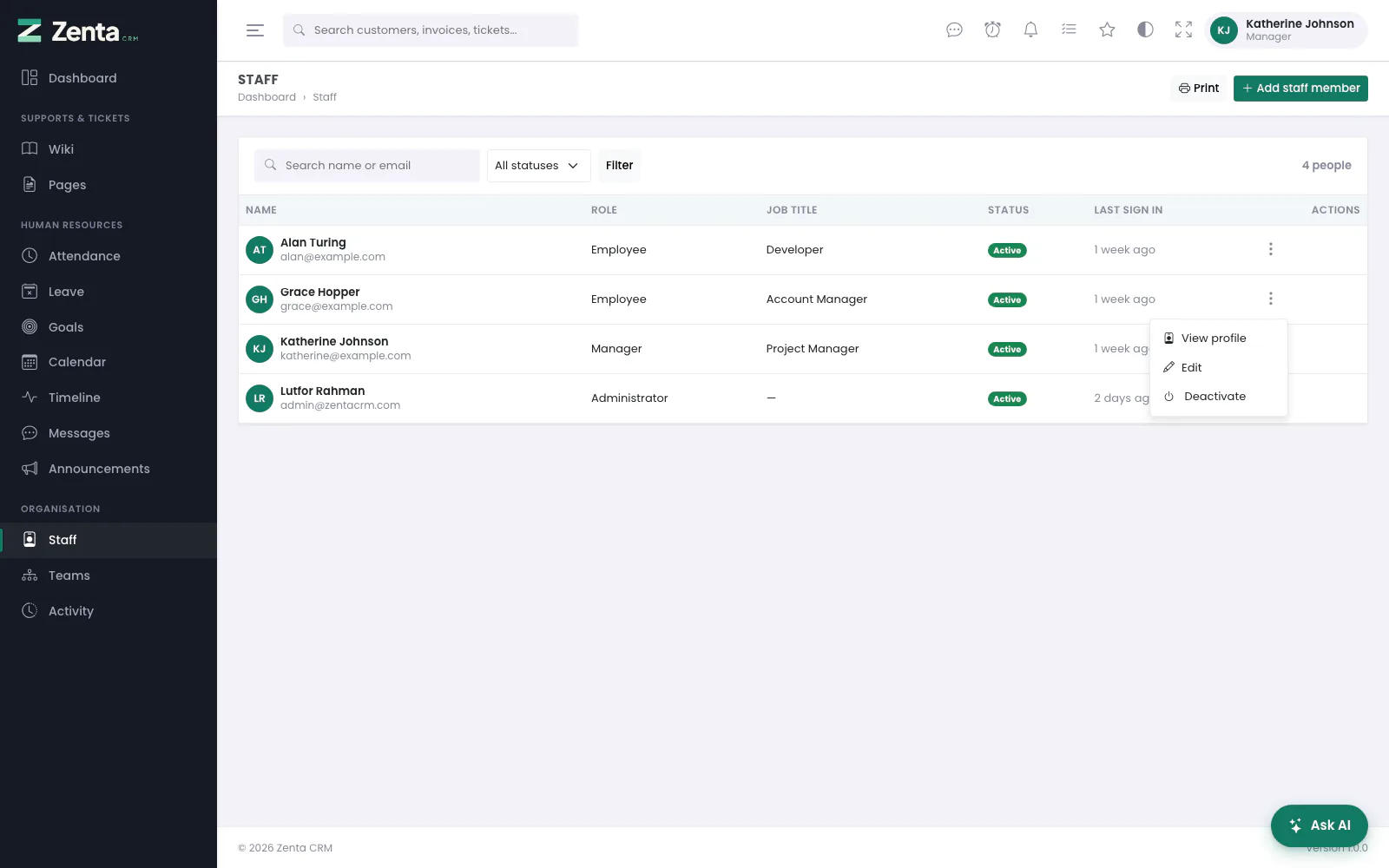 Organisation, Staff for a manager: every member of staff, Add staff member, and a row menu with View profile, Edit and Deactivate only.
Organisation → Staff lists everybody who can sign in to the panel, not only the manager's own team (the scope is All records). The screen is described on Roles and permissions. With View, Create and Edit a manager can:
- Add staff member — name, email address, phone, job title, role, password, teams, bio. The manager sets the password and passes it on; nothing is emailed. The Role list does not offer Administrator.
- Edit somebody who is not an administrator, from the row menu or their profile: name, phone, job title, role (any but Administrator), teams, bio and whether they are active. Their Email address is read-only and there are no password boxes.
- Deactivate or Reactivate somebody from the row menu, or Terminate and Reinstate on their profile. Not themselves, not an administrator, and never the workspace owner.
- Open anybody's profile, with their projects and tasks as far as the manager's own scope for those reaches — by default, none.
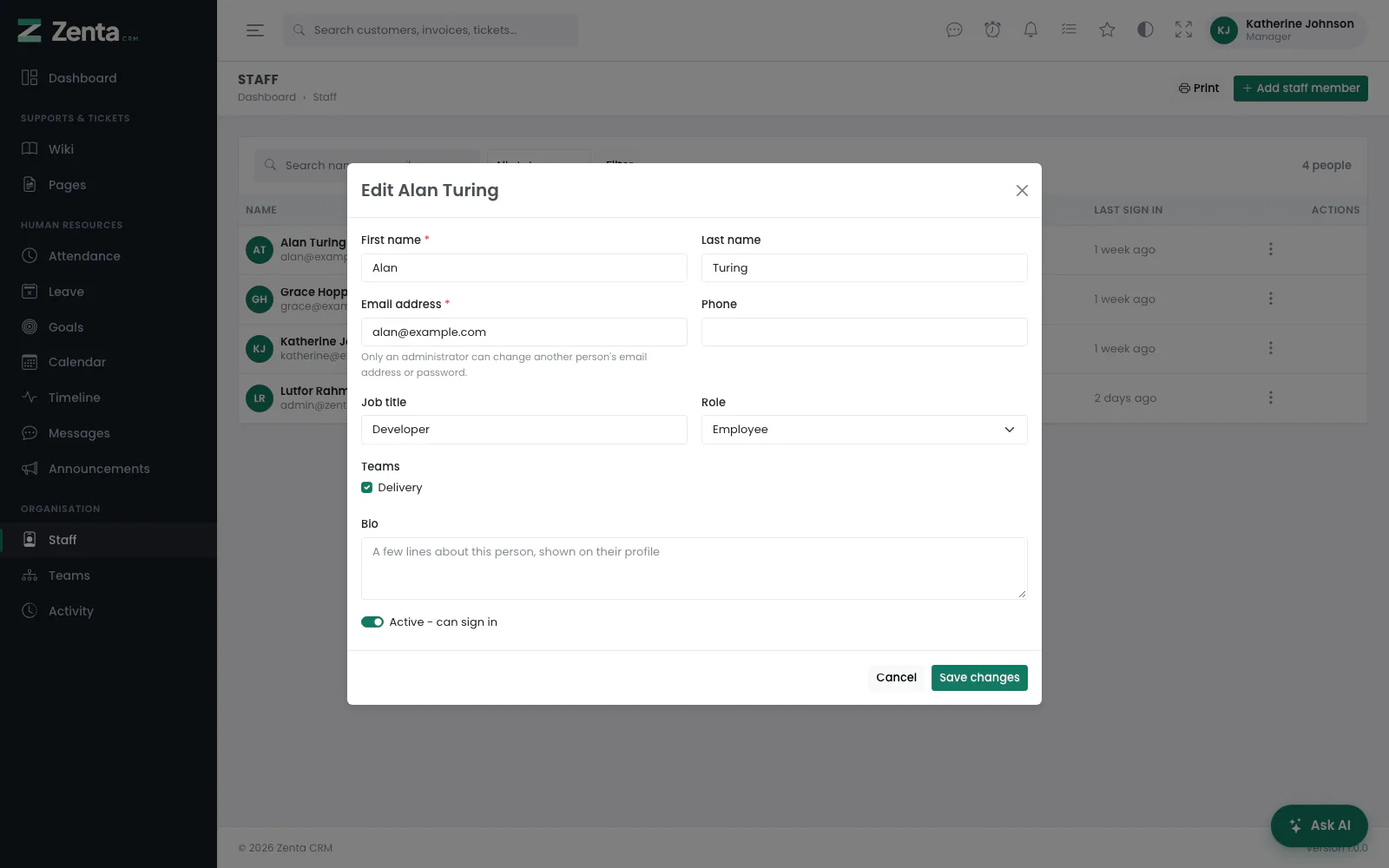 Edit dialog as a manager sees it: the email address read-only, no password boxes, the Role list and the Teams boxes, and no link to override this person's permissions.
What a manager does not have on the staff screens:
- Delete — not in the row menu. Deactivating keeps the person's history anyway.
- Permissions — the per-person overrides, the Overridden badge and Override permissions for this person under Role all need permission to edit roles.
- Roles — not in the menu; a manager cannot see or change what a role allows.
- Assign on a profile — it needs Edit on tasks or on projects.
- Print is there; Export is not.
Teams
 Organisation, Teams for a manager: New team and the pencil to edit, but no bin, because the role has no Delete on teams.
Teams are what give meaning to every scope called Their teams, including an employee's view of the staff list, and to announcements, goals and calendar events addressed to one team. The Manager role holds View, Create and Edit on the Teams module, so a manager has Organisation → Teams: New team makes one (a Name, a Description and the Members to tick), and changes its name or who is on it. Removing a team needs Delete, which the role does not hold. A person's teams can also be ticked in the Teams boxes of the staff dialog, shown once the workspace has teams. The screen is described in full under Teams.
Writing announcements
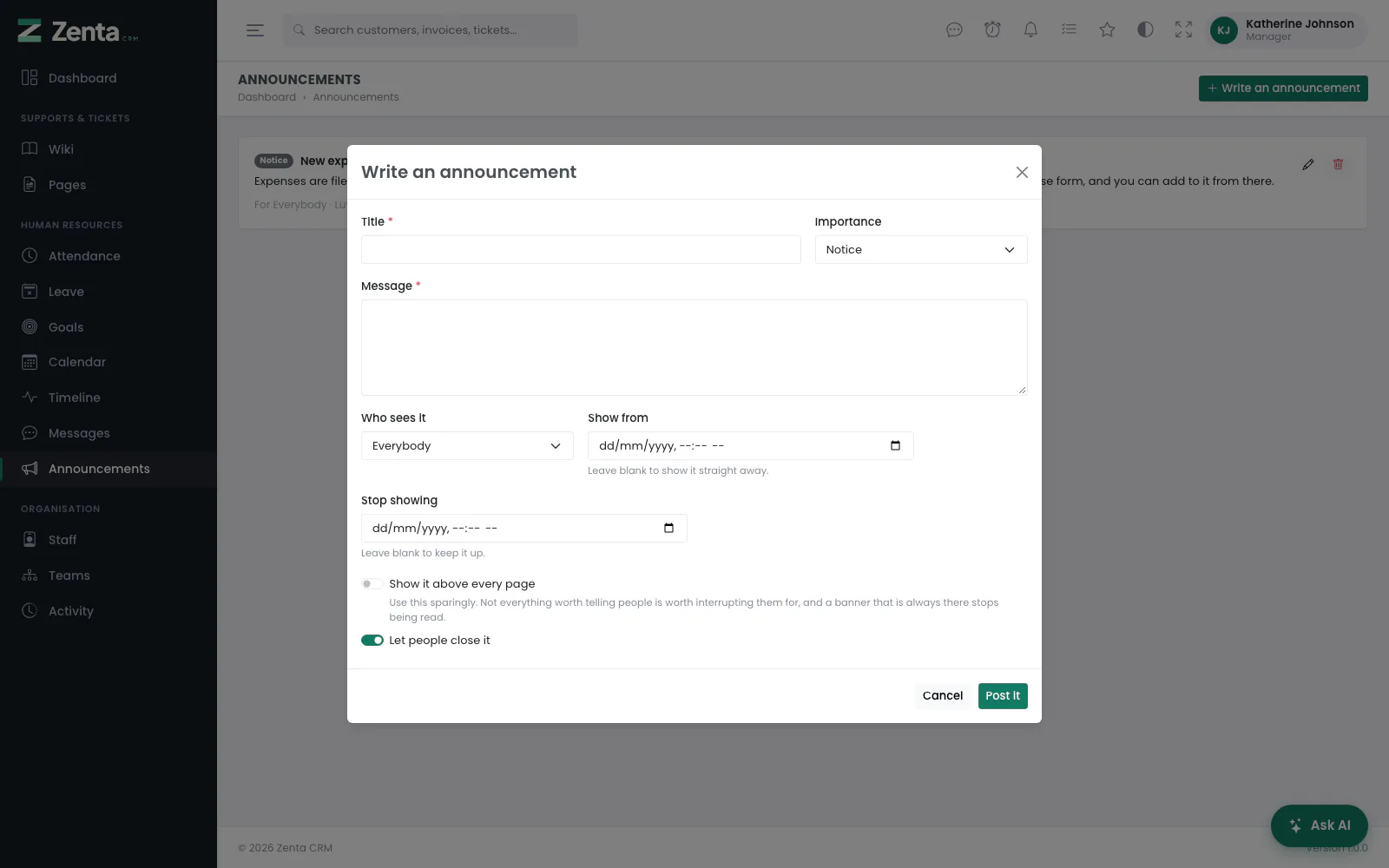 Write an announcement: title, importance, message, who sees it, when, and whether it rides above every page.
Human Resources → Announcements. A manager holds all four abilities, so they see the whole board — including notices aimed at other teams or roles and those not started yet — and can Write an announcement, edit one with and remove one with , whoever wrote it. Who sees it is Everybody, One team or One role. Press Post it. Every field, and when to use the banner, is on Working together.
Writing the wiki
 A wiki page seen by a manager: Edit, Page under this one, the + above the page list, and the page's History.
The wiki is how a business tells itself how things are done, so the person running the team writes it. A manager has New page (and above the Pages list), Edit, Page under this one, and History with Restore on each earlier version. A page saved with Ready for colleagues to read switched off is a draft: managers and anybody else who may edit the wiki see it; employees do not.
There is no Delete this page for a manager — the role has no Delete on the wiki. See Tickets and knowledge base for writing a page.
The timeline, calendar, goals and messages
| Screen | What a manager has |
|---|---|
| Timeline | Posting, replying and reacting, like everybody, plus to pin a post to the top (Edit). Removing somebody else's post needs Delete, which the role does not hold; your own you can always remove. |
| Calendar | The same as an employee: your own events, events shared with you or your teams, and the dates of records you can open. A manager cannot see a colleague's Only me events or change anybody else's event — nobody can. |
| Goals | View only: the goals you have a stake in — your own, your team's and the company's. No Set a goal; seeing every goal and setting them needs Create. |
| Messages | Start a conversation with anybody on the staff. A manager cannot read conversations they are not in; nobody can. |
| Activity | Under Organisation: the workspace's log of who created, changed or deleted what, for every member of staff, with the Latest activity panel on the dashboard. It needs View on staff with All records, which is why employees, whose staff scope is Their teams, do not have it. Take a manager's staff scope down to Their teams and they lose it too. Purge old entries is for administrators only (see The activity log). |
The screens are described on Working together, and the employee's side of them on Your working day.
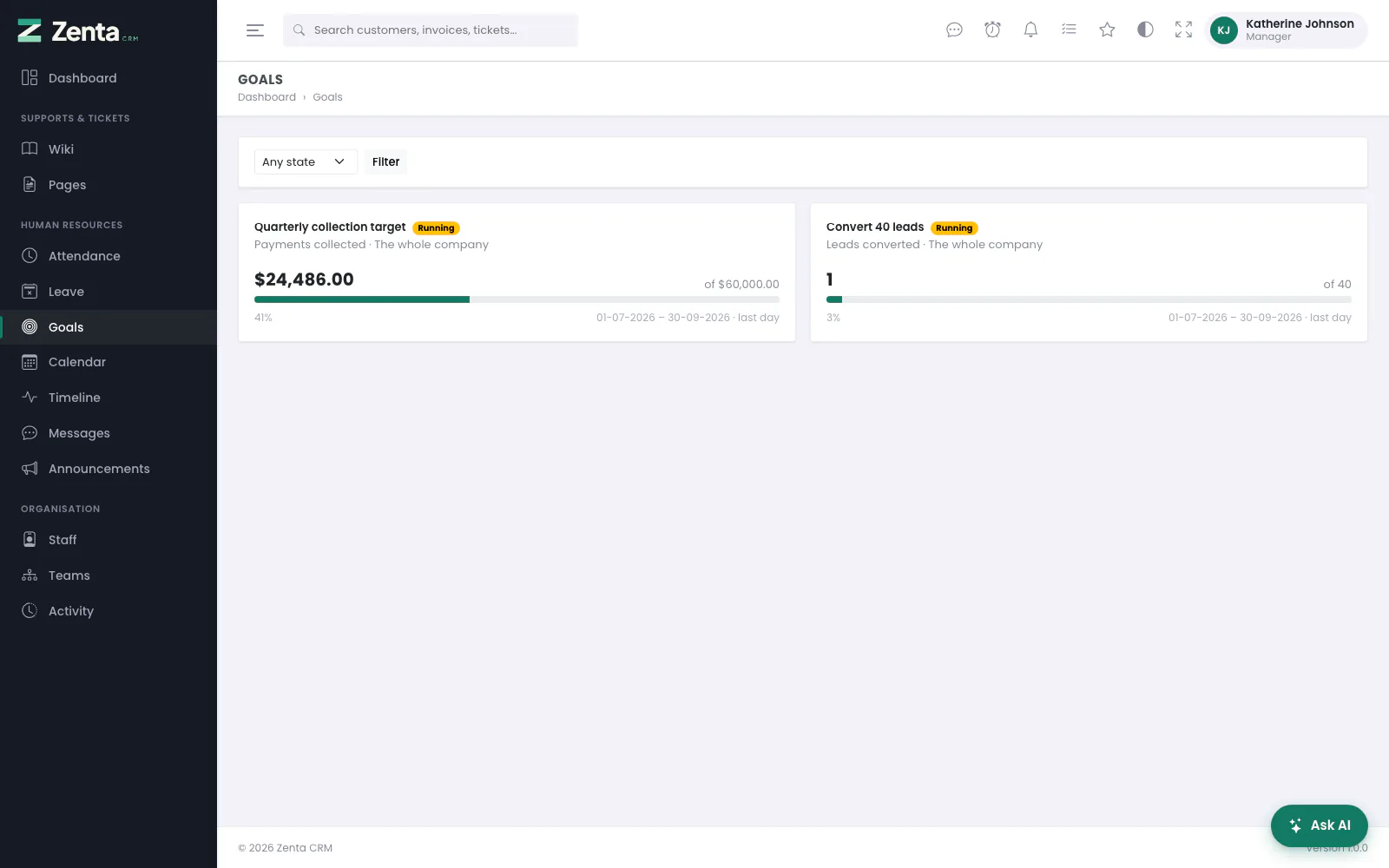 Goals for a manager on View only: the company's goals, and no Set a goal.
What a manager does not get by default
| Not included | What that means |
|---|---|
| Leads, customers, estimates, invoices and every other sales module | None of CRM or Sales & Invoicing is in the menu. |
| Projects, tasks, timesheets | No Projects & Deliveries, and no Assign on a staff profile. |
| Support tickets and the knowledge base | Only Wiki and Pages under Supports & Tickets. |
| Files and surveys | Not in the menu. Files are off for everybody until an administrator decides what the folder tree is for. |
| Campaigns and mailing lists, automations, reports | Not in the menu. |
| Roles & permissions | No Roles screen, no per-person Permissions. |
| Settings | No Settings: leave types and allowances, the working week, typed-in shifts and everything else stay with the administrator. |
| Writing AI agents | The AI help and the assistant, yes; Write agents, no (see Agents you write yourself). |
| Delete and Export | No Delete on staff, teams, attendance, leave, the wiki or the timeline, and no Export anywhere. |
| An administrator's powers over staff | No Administrator role to hand out, no changing another person's email or password, and no changing an administrator's account. |
| Setting goals | Goals are View only. |
Any of these can be added — to the Manager role for all managers, to a new role, or to one person as an override (see Your own work for how the customer and delivery modules then look).
Addresses on this page
For reference and for anyone scripting against the panel. Everything here needs somebody signed in to the workspace whose role allows it; anybody else is refused.
| Method | Address | What it does |
|---|---|---|
GET | admin/attendance | Everybody's attendance; ?month=YYYY-MM and ?user= filter it. |
GET | admin/attendance/create | The Add a shift dialog, with Who for a manager. |
POST | admin/attendance | Saves a typed-in shift. |
GET | admin/attendance/{entry}/edit | The Edit shift dialog. |
PUT | admin/attendance/{entry} | Saves a corrected shift. |
GET | admin/leave | Every leave request; ?status=pending for those waiting. |
GET | admin/leave/create | The Request leave dialog, with Who for a manager. |
POST | admin/leave | Saves a request, for you or a colleague. |
GET | admin/leave/{leave}/edit | The Edit request dialog. |
PUT | admin/leave/{leave} | Saves an edited request. |
PATCH | admin/leave/{leave}/decide | Approves or declines somebody else's pending request. |
PATCH | admin/leave/{leave}/cancel | Withdraws a request. |
GET | admin/staff | The staff list. |
GET | admin/staff/create | The Add staff member dialog. |
POST | admin/staff | Creates a member of staff. |
GET | admin/staff/{user} | A member of staff's profile. |
GET | admin/staff/{user}/edit | The Edit dialog. |
PUT | admin/staff/{user} | Saves it; what a manager may not change is kept as it was. |
PATCH | admin/staff/{user}/toggle | Deactivates or reactivates somebody; refused on an administrator, and deactivating the workspace owner is refused. |
GET | admin/teams | Organisation → Teams. |
GET | admin/teams/create | The New team dialog. |
POST | admin/teams | Creates a team. |
GET | admin/teams/{team}/edit | The Edit team dialog. |
PUT | admin/teams/{team} | Saves a team and its members. |
GET | admin/announcements | The announcements board. |
GET | admin/announcements/create | The Write an announcement dialog. |
POST | admin/announcements | Posts an announcement. |
GET | admin/announcements/{announcement}/edit | The Edit announcement dialog. |
PUT | admin/announcements/{announcement} | Saves it. |
DELETE | admin/announcements/{announcement} | Removes an announcement. |
GET | admin/wiki/create | A new wiki page. |
POST | admin/wiki | Saves a new page. |
GET | admin/wiki/{page}/edit | Edits a page. |
PUT | admin/wiki/{page} | Saves the edit, keeping the previous version in the history. |
POST | admin/wiki/{page}/revisions/{revision}/restore | Puts an earlier version back. |
PATCH | admin/timeline/{post}/pin | Pins or unpins a timeline post. |
GET | admin/goals | The goals you have a stake in. |
GET | admin/activity | The workspace's activity log. |