Leads and customers
Where work comes from, and who it is for: leads, the pipeline, web-to-lead forms, customers, contacts, notes, files and the vault.
A lead is somebody who might become a customer. A customer is a company (or a person) you work for, with the people at it as its contacts. A lead becomes a customer when you convert it, and the lead is kept as the record of where that customer came from.
Leads
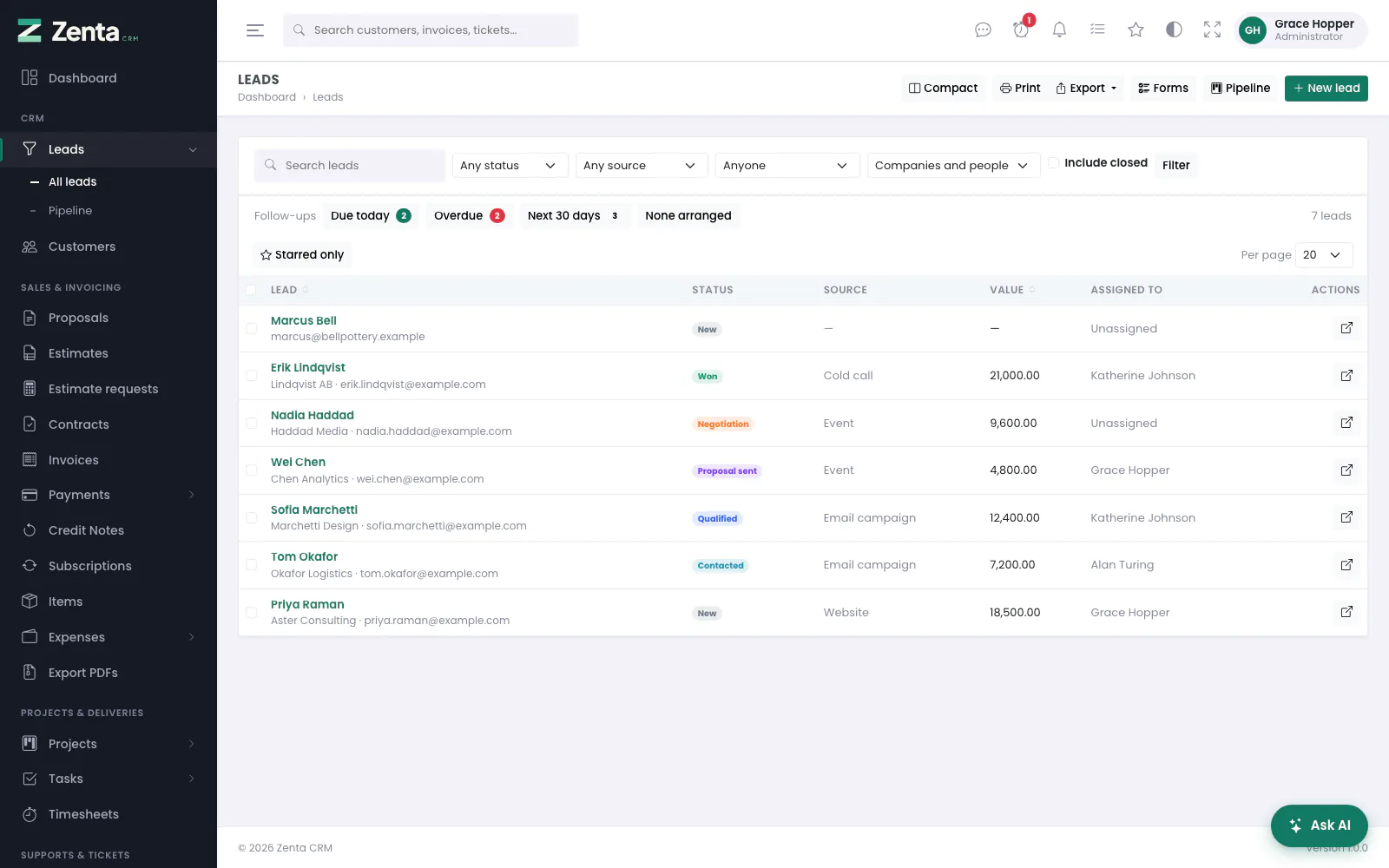 The lead list: filters, the follow-up chips, and each lead with its status, source, value and owner.
Leads in the menu opens the list. Search by name, company, email or phone, and narrow it with Any status, Any source, Anyone (the owner, or a colleague added to the lead) and Companies and people, then press Filter. Converted, lost and junk leads are left out unless you tick Include closed; Clear puts every filter back.
The buttons above the list: Compact (see below), Export (the rows the filters show, see Exporting), Forms (the web-to-lead forms), Pipeline (the board) and New lead. Tick rows to act on several leads at once.
Follow-ups
Chase again on puts a date on a lead. The Follow-ups chips above the list filter by it: Due today, Overdue, Next 30 days (each with a count of open leads) and None arranged. Press a chip again to take the filter off.
The compact list
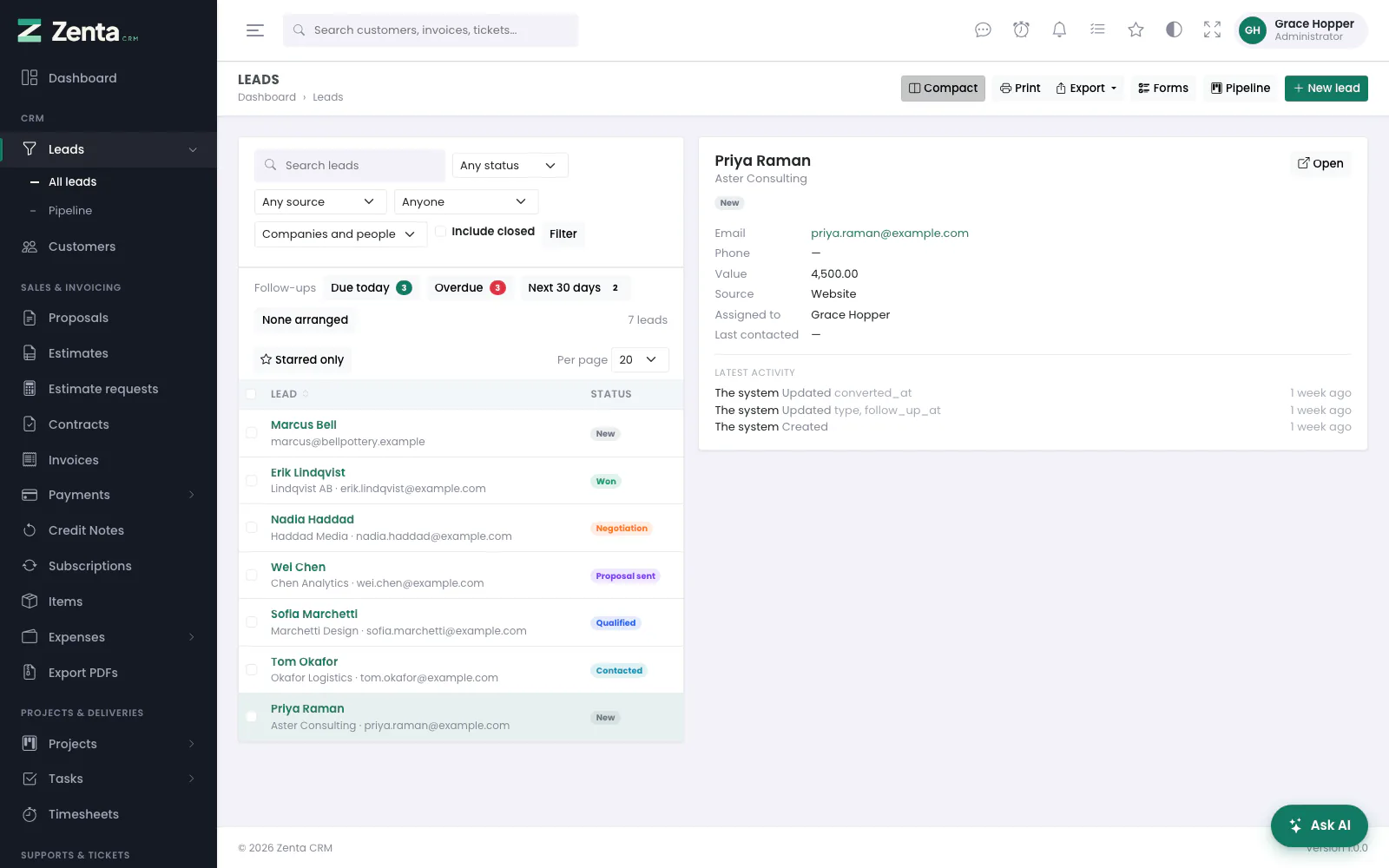 The compact layout: a narrow list on the left, the chosen lead on the right.
Compact narrows the list and shows the lead you click in a pane beside it: its status, email, phone, value, source, owner, when it was last contacted, the start of its description, its two latest notes and its latest activity. The up and down arrow keys move through the list; Enter opens the full page, and so does Open. The choice is remembered for you; press Compact again to go back to the full list. The pane shows only leads you could open anyway.
The pipeline board
 The pipeline: one column per status, open leads only.
Pipeline shows the open leads as cards in one column per status, each with its owner and value, and a count at the head of the column. Drag a card to another column to move the lead to that status; it is saved at once. Dragging needs permission to edit leads. List goes back to the list, and the button opens Settings → Leads.
Under Settings → Leads you can order each stage's cards — in the order people drag them, newest, oldest or highest value first — and cap how many a stage shows. A stage holding more says so (12 more in this stage) and links to the list filtered to that status, rather than stopping quietly at thirty and looking like the whole truth. The order in use is written above the board.
Adding and editing a lead
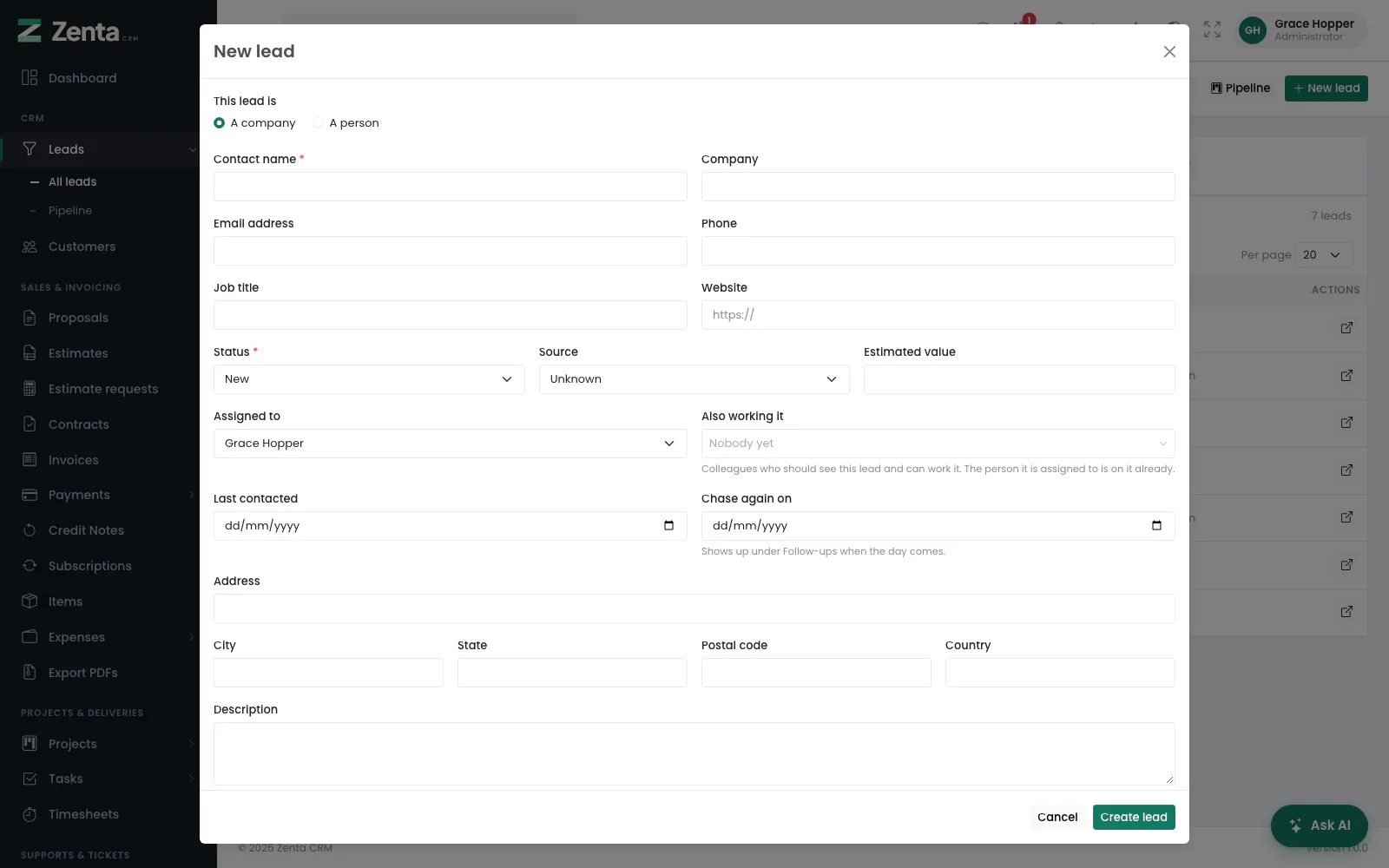 A new lead. The duplicate warning appears at the top while you type.
New lead on the list or the board opens the form; Edit on a lead's page opens the same form filled in. Press Create lead or Save changes.
| Field | What it is for |
|---|---|
| This lead is | A company (the default) or A person. |
| Contact name | Required. The person you are talking to. |
| Company, Email address, Phone, Job title, Website | How to reach them. The website must be a full address (https://...). |
| Status | Required. The stage of the pipeline. A new lead starts in the first one. |
| Source | Where it came from, or Unknown. This is what the source report counts. |
| Estimated value | What the work might be worth. Shown on the list and the board, and used by the board's "highest value first" order. |
| Assigned to | The owner. You, when you create a lead. |
| Also working it | Up to 20 colleagues who work the lead with the owner. |
| Last contacted, Chase again on | Dates. The second drives the follow-up chips. |
| Address, City, State, Postal code, Country | Carried to the customer when the lead is converted. |
| Custom fields | Any custom fields you added for leads. |
| Description | Free text. A web-to-lead form puts answers it has nowhere else to put here. |
| Visible to the whole team | On by default. Turn it off to keep the lead private: only whoever created it, its owner, the colleagues working it and administrators see it. |
 Editing a lead, with a colleague under "Also working it".
When you change a lead's email address, proposals already sent to the old address follow it to the new one, and the message after saving says how many were moved. Otherwise the next reminder or share link would go to an address the person has told you they no longer use.
A company or a person
A lead is a company by default, and can be a person instead. It is shown on the lead's page and can be used to filter the list, and it decides what the lead becomes when it is converted: a lead marked A person becomes a person customer, not a company named after them.
Who is on a lead
A lead has one owner, the person answerable for it, and any number of colleagues under Also working it. Somebody added that way sees the lead — even a private one — and it appears under their name in the list. The owner is still the single answer to "whose is this?", which is what the reports and the permission scopes read.
Duplicate leads
While somebody types a lead, anything already on file that looks like it is shown at the top of the form — leads, and optionally customers and their contacts — with a link to each. Which fields count is yours to choose under Settings → Leads: email, phone, company, name, website. With none ticked the check is off and the form says nothing.
The choice matters more than it looks. A business with one contact per company wants company in the list; one with six people at each client emphatically does not, or every new contact at a client you already know gets flagged.
It warns, and never refuses.
A real duplicate and a genuine second enquiry from the same address look identical from here, and only the person typing knows which it is. Blocking the save would make the honest case impossible and teach everybody to work around the check.
A phone number is compared by its digits, so +44 20 7946 0000 and
020 7946 0000 are recognised as one number. A website is compared without
http:// or www. Only records the person typing could open are
shown, so the check cannot be used to find out who holds a private lead.
The lead page
 A lead opens on its profile, with a tab for each kind of record.
A lead opens on its Profile and has tabs for Proposals, Estimates, Contracts, Tasks, Files, Reminders, Notes and Activity. Only the tab you are looking at is loaded, so a lead with a long history costs one tab's work to open. The profile shows the AI score panel when AI assistance is on, Lead details, Where it came from, and the consents and privacy tools while the GDPR tools are on.
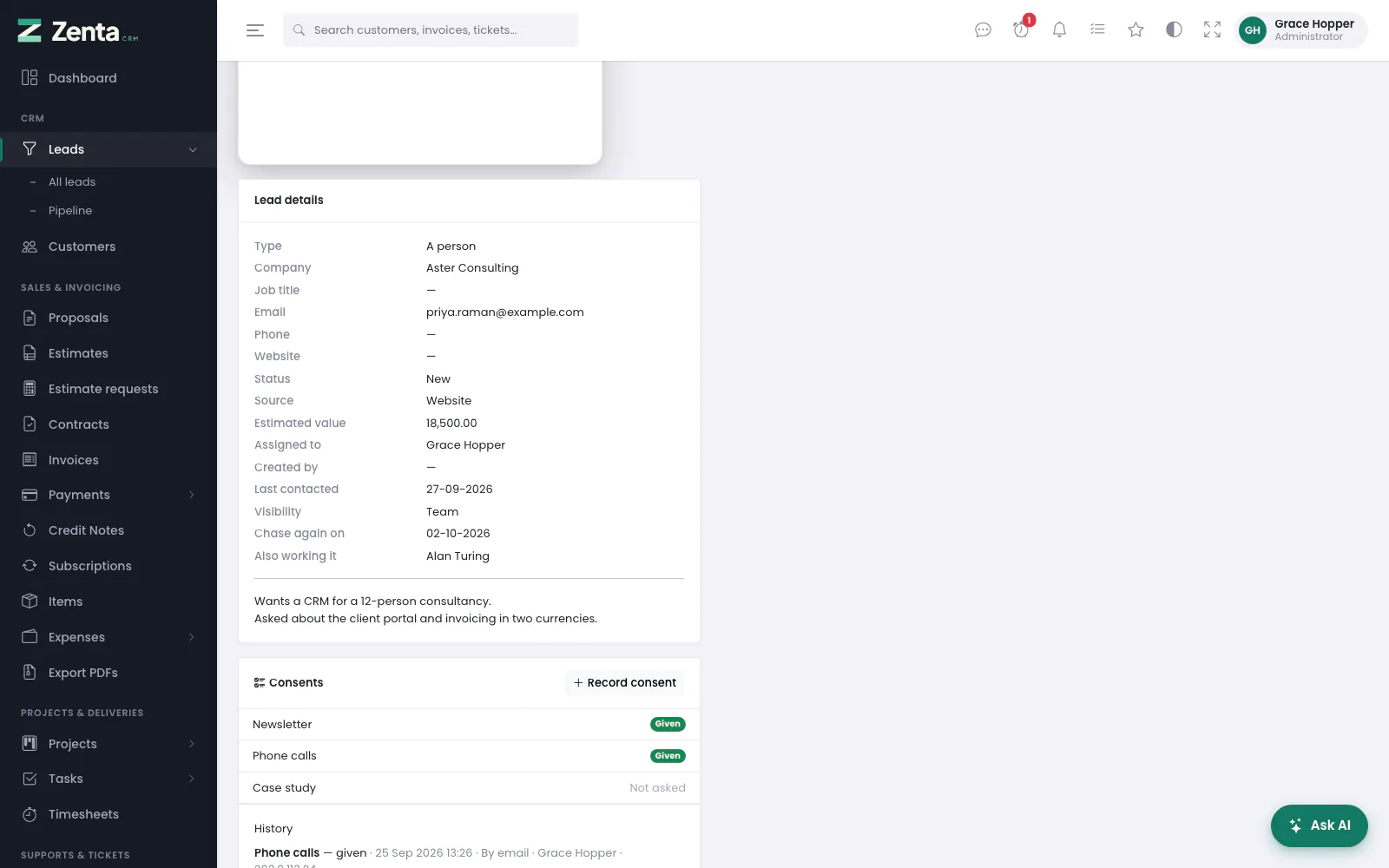 Lead details: every field, the follow-up date, who else works it, and the description.
Estimates and contracts belong to a customer, so before a conversion those tabs show what a lead can have — an estimate request — and say where to go instead. Quote a prospect with a proposal, which can go to a lead directly. After a conversion, the account's estimates and contracts appear there too.
The buttons at the top: Star, Remind me (see Reminders), Edit, Convert to customer, and the menu.
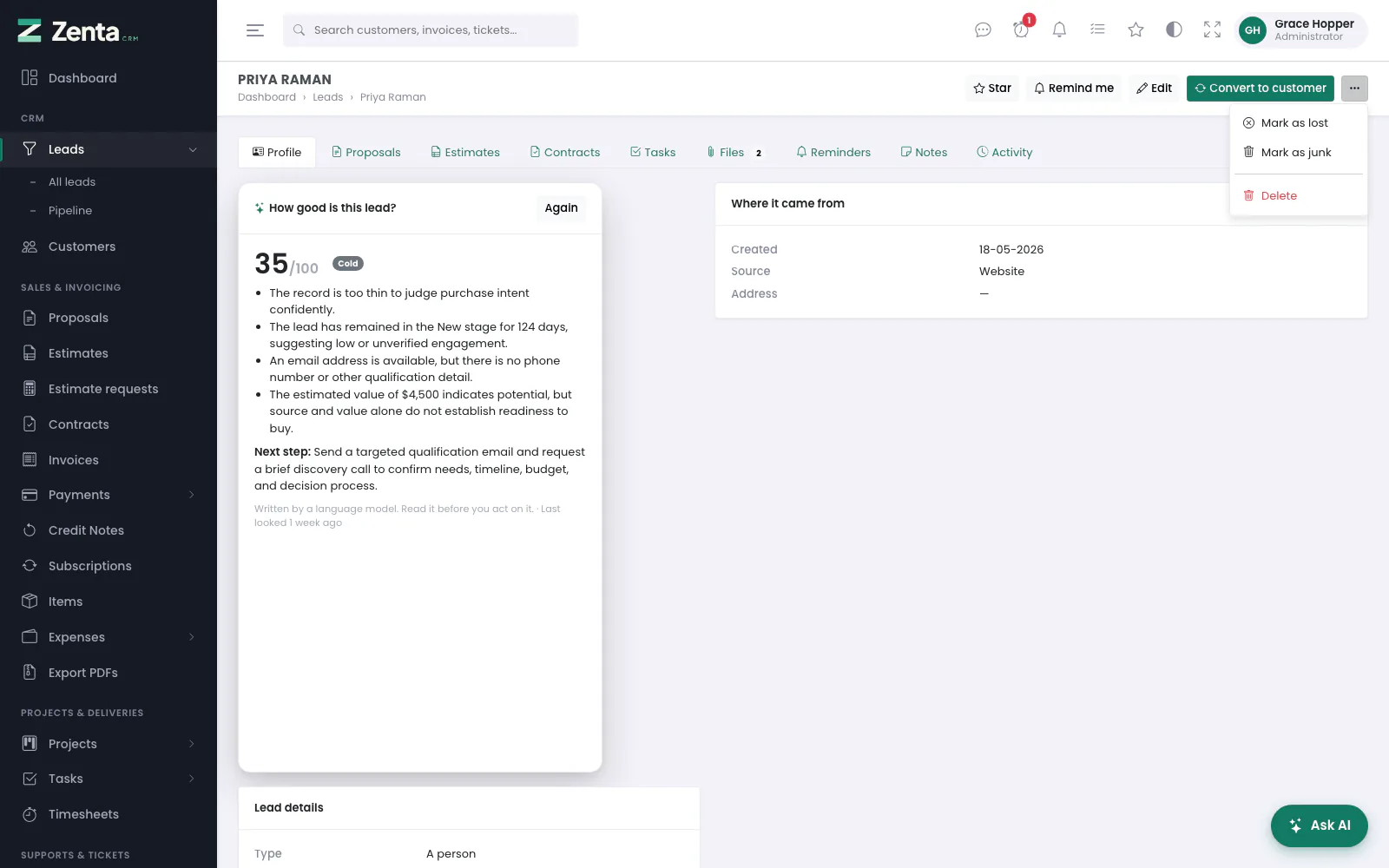 The menu on a lead: lost, junk and delete.
Lost and junk
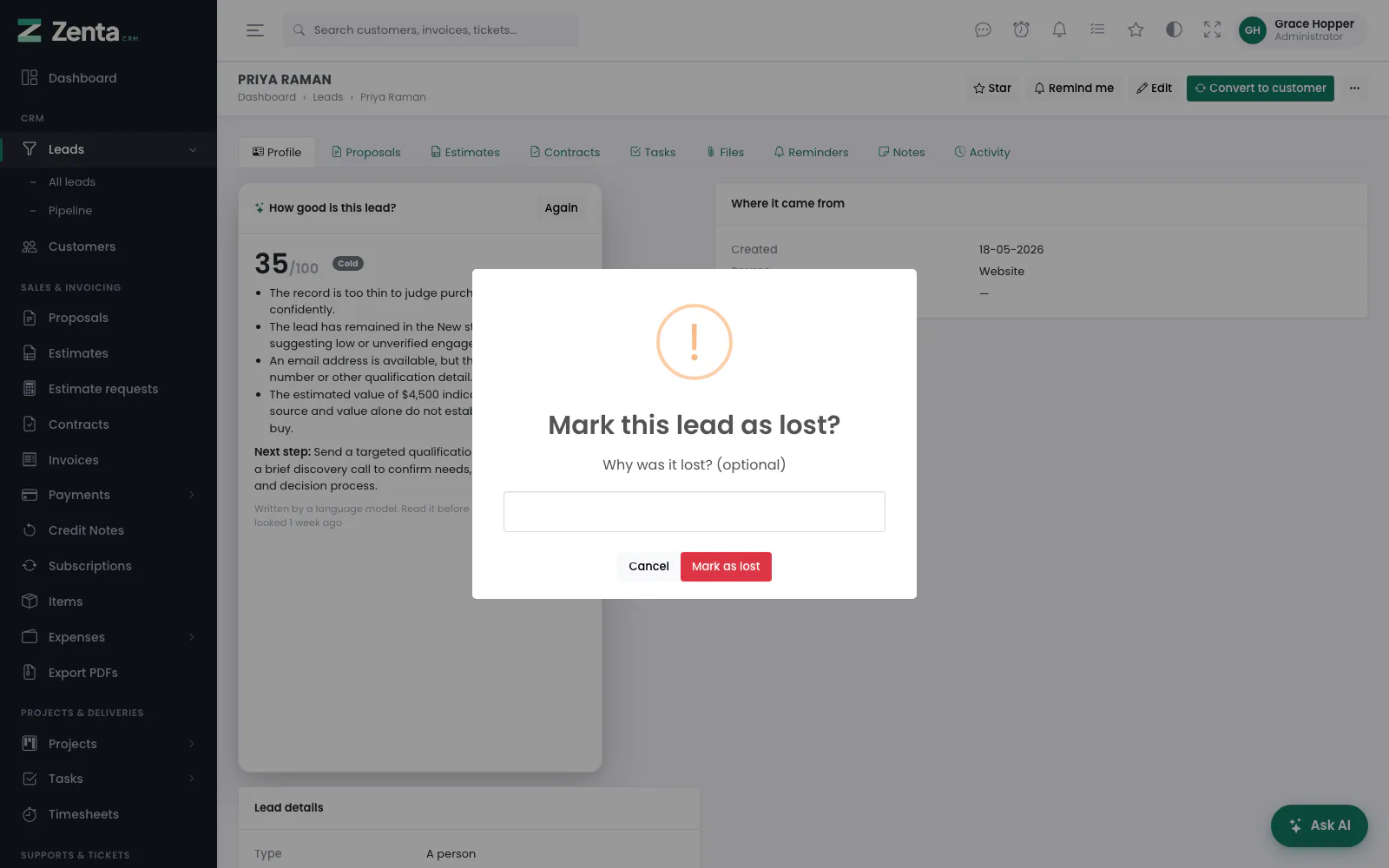 Mark as lost asks why; the answer is shown on the lead.
Mark as lost first asks Mark this lead as lost?, with a box for Why was it lost? (optional); press Mark as lost. The lead stays in the reporting and its page shows a Marked as lost. banner with the reason after it, which is what somebody reopening it later wants to know. Mark as junk takes it out of the pipeline entirely. Keep the two apart and your conversion rate stays honest — junk was never really a lead. Both drop the lead off the board and out of the list (tick Include closed to see it). The same menu then offers Reopen lead and Restore lead to undo either. Both need permission to edit leads.
Deleting a lead
Delete, at the foot of the same menu, removes the lead after you confirm, and takes you back to the leads list. It needs the Delete permission for leads, and not the Edit one: a role that may delete leads but not edit them gets the menu with Delete alone. A lead that was converted leaves its customer untouched: the customer keeps its own note of where it came from (see below).
Notes
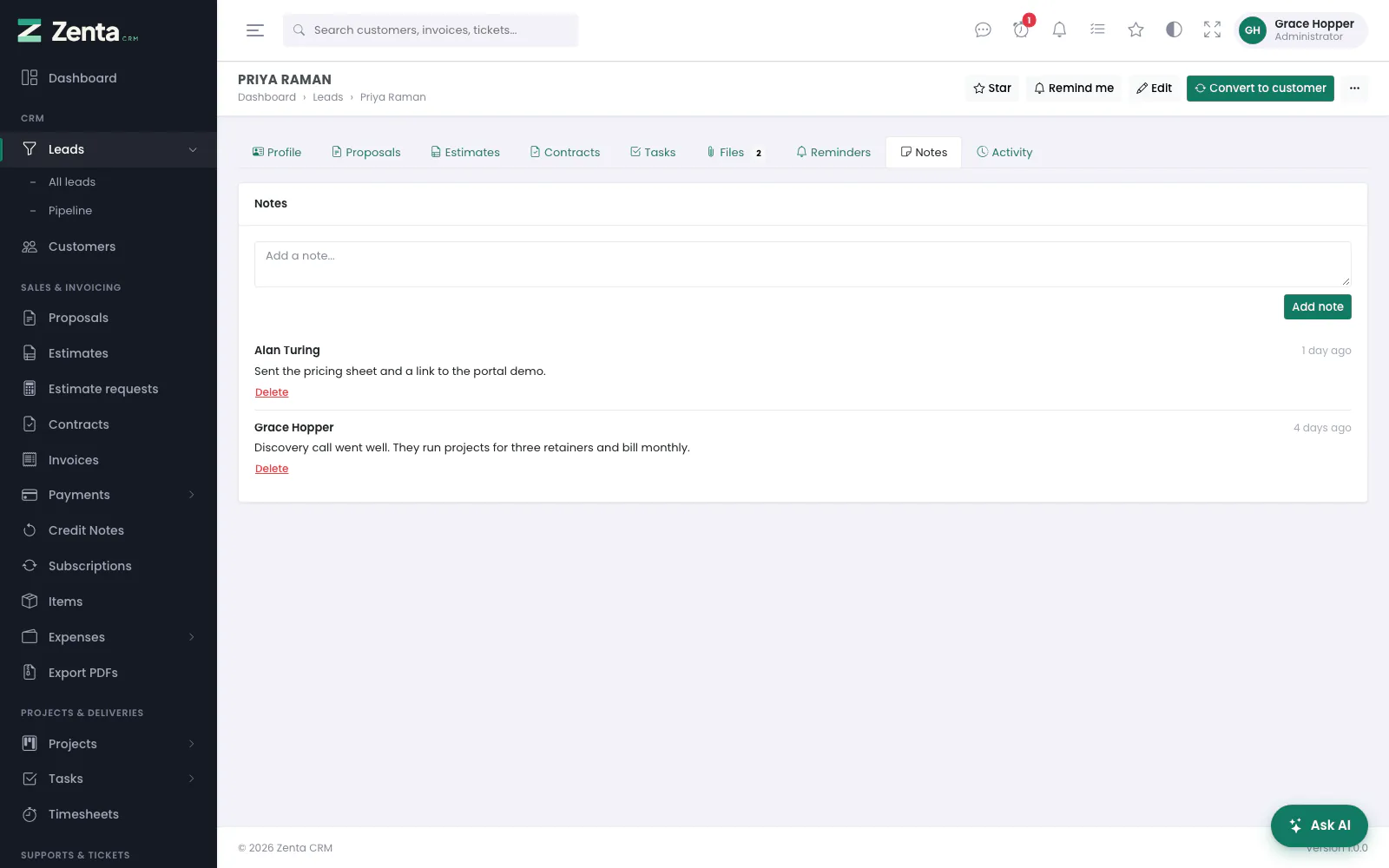 Notes on a lead, newest first.
The Notes tab on a lead or a customer is a running log. Type in Add a note... and press Add note; each note shows who wrote it and when. Anybody who can open the record can add a note to it. Delete under a note removes it after you confirm; you can delete your own notes, and an administrator can delete anybody's. When a lead is converted, its notes are copied to the new customer.
Files
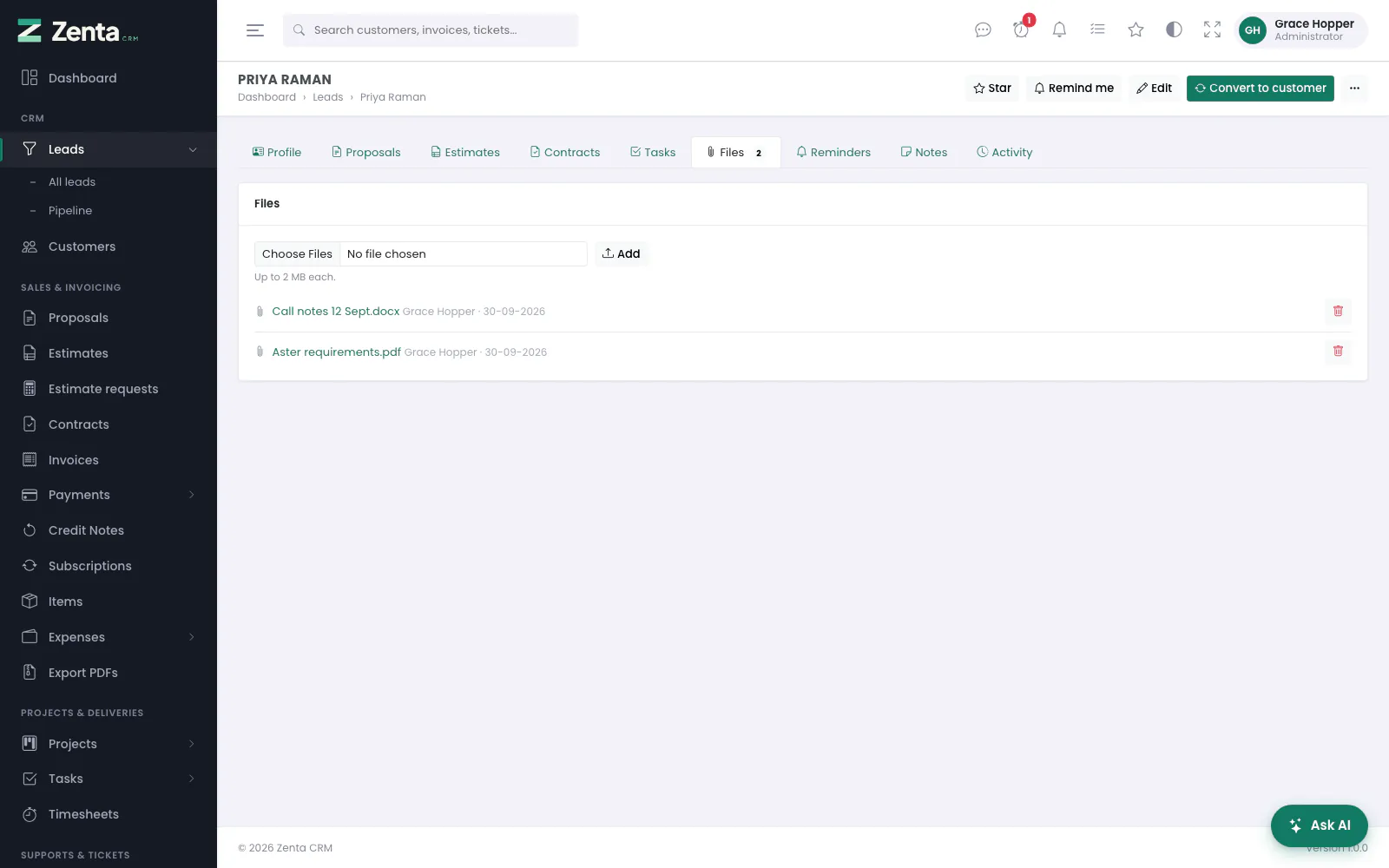 Files kept against a lead.
The Files tab keeps documents against a lead: the brief they sent, the notes from a call. Choose up to ten files and press Add; each is checked against the same allowed types and size limit as every other upload (the limit is shown under the box, and set under Settings → Uploads). If one is refused you are told which and why. Click a name to open it; the button removes it after you confirm. Adding and removing files needs permission to edit leads. Customers have the same tab.
Converting a lead
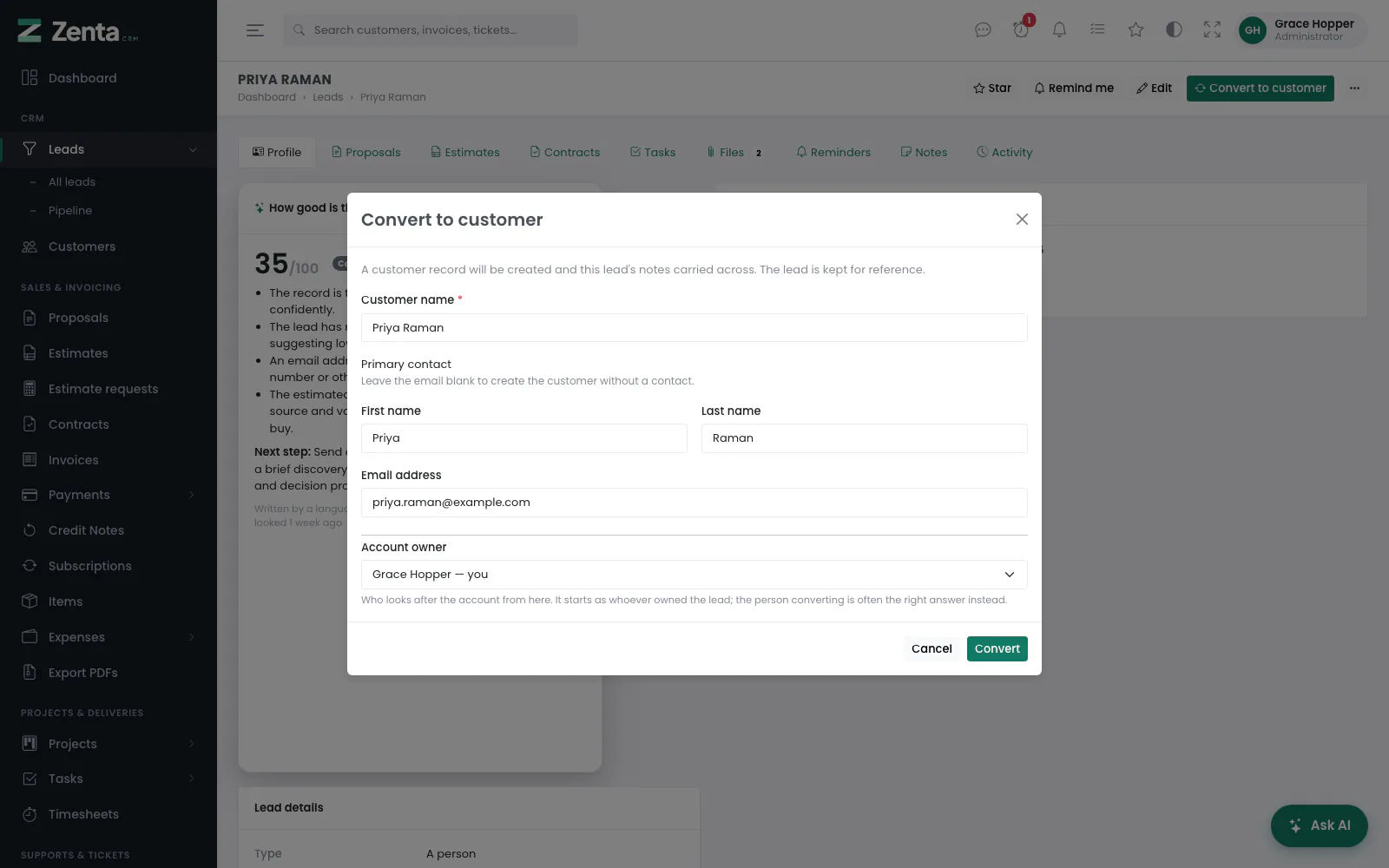 Converting a lead: the customer name, the primary contact and the account owner.
Convert to customer on a lead's page opens a short form:
| Field | What happens |
|---|---|
| Customer name | Required. Starts as the lead's company, or its name when there is no company — and always its name for a lead marked A person, which becomes a person customer. |
| First name, Last name, Email address | The primary contact. Leave the email blank to create the customer without a contact. An address already used by somebody in the workspace is not reused: the customer is created without that contact. |
| Account owner | Who looks after the account from here. It starts as whoever owned the lead; the person doing the converting is often the right answer instead. |
Press Convert. The customer is created as a company, or as a person when the lead is marked A person, with the lead's phone, website and address, the contact gets the lead's job title and phone, the lead's notes are copied across, and you are taken to the new customer. Files stay on the lead. The lead is marked converted and not deleted — it stays as the record of where that customer came from, which is what makes the source report meaningful. It needs permission to create customers, and a lead can be converted only once.
The customer keeps a note of where it came from: when the lead was first seen, the status it reached, and who brought it in. That is a snapshot taken on the day, not a live reading — the lead can later be deleted, anonymised for a privacy request or have its status renamed, and none of that should change the answer to "where did this account come from".
Privacy on a lead
While the GDPR tools are on, a lead's profile carries its Consents, with Record consent, and a Privacy card with Export its data and Anonymise. These are described under Privacy and GDPR.
Where leads come from
- Added by hand
- Imported from a spreadsheet, with duplicates shown before anything is written (see Importing)
- A web-to-lead form you publish — see below
- An email address the CRM reads — see below
- The public Request an estimate form (see Client portal settings)
- Posted to the REST API by your website's contact form
Web-to-lead forms
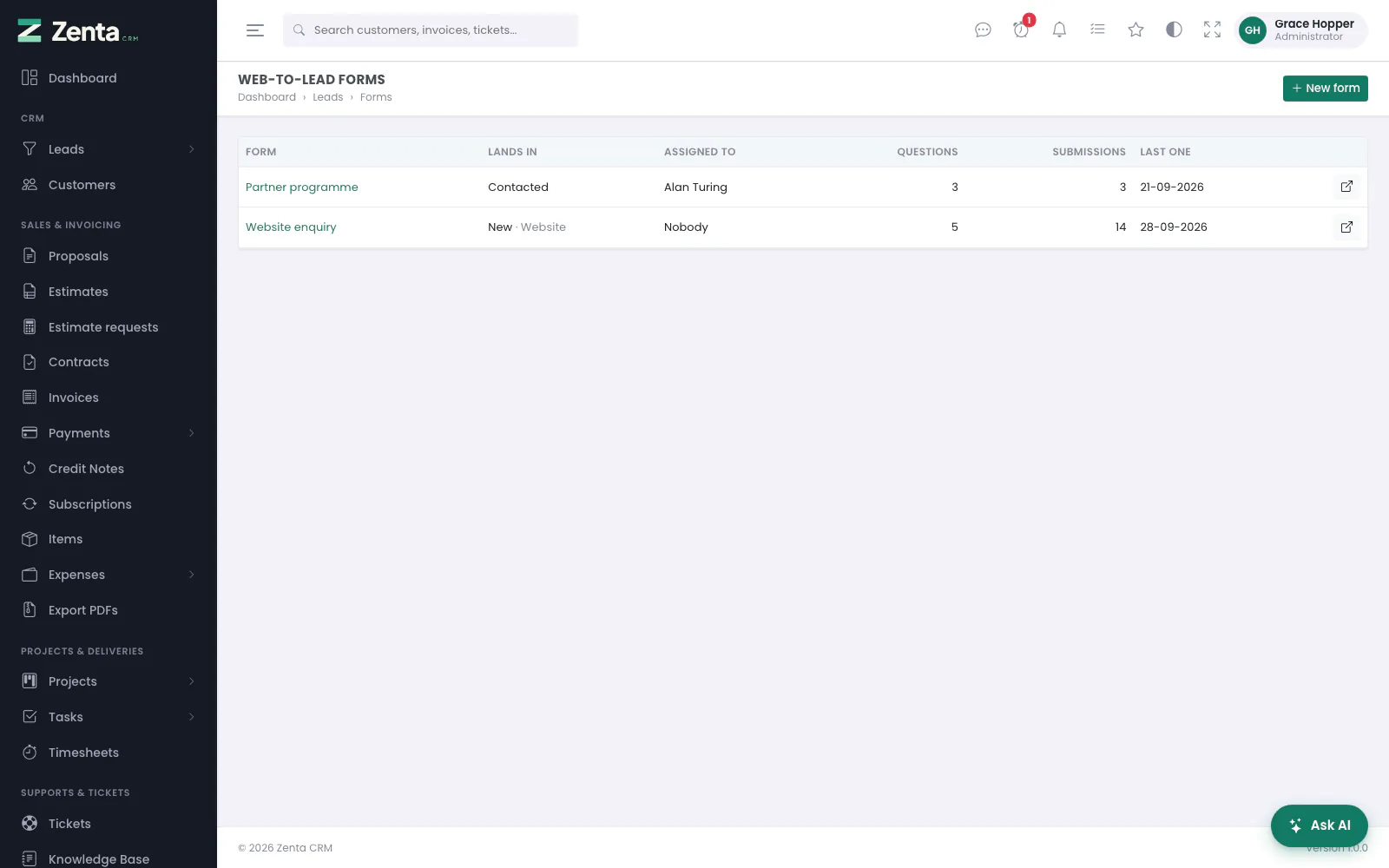 The forms, where each one sends its leads, and how many it has collected.
Leads → Forms builds forms you can publish. Each one gets a link and an iframe snippet to paste into your own website. The list shows each form's name (Off when it is not accepting submissions), the status and source its leads land in, who they are assigned to, how many questions it has, how many submissions it has taken and when the last one arrived. The button opens a live form in a new tab.
Creating a form
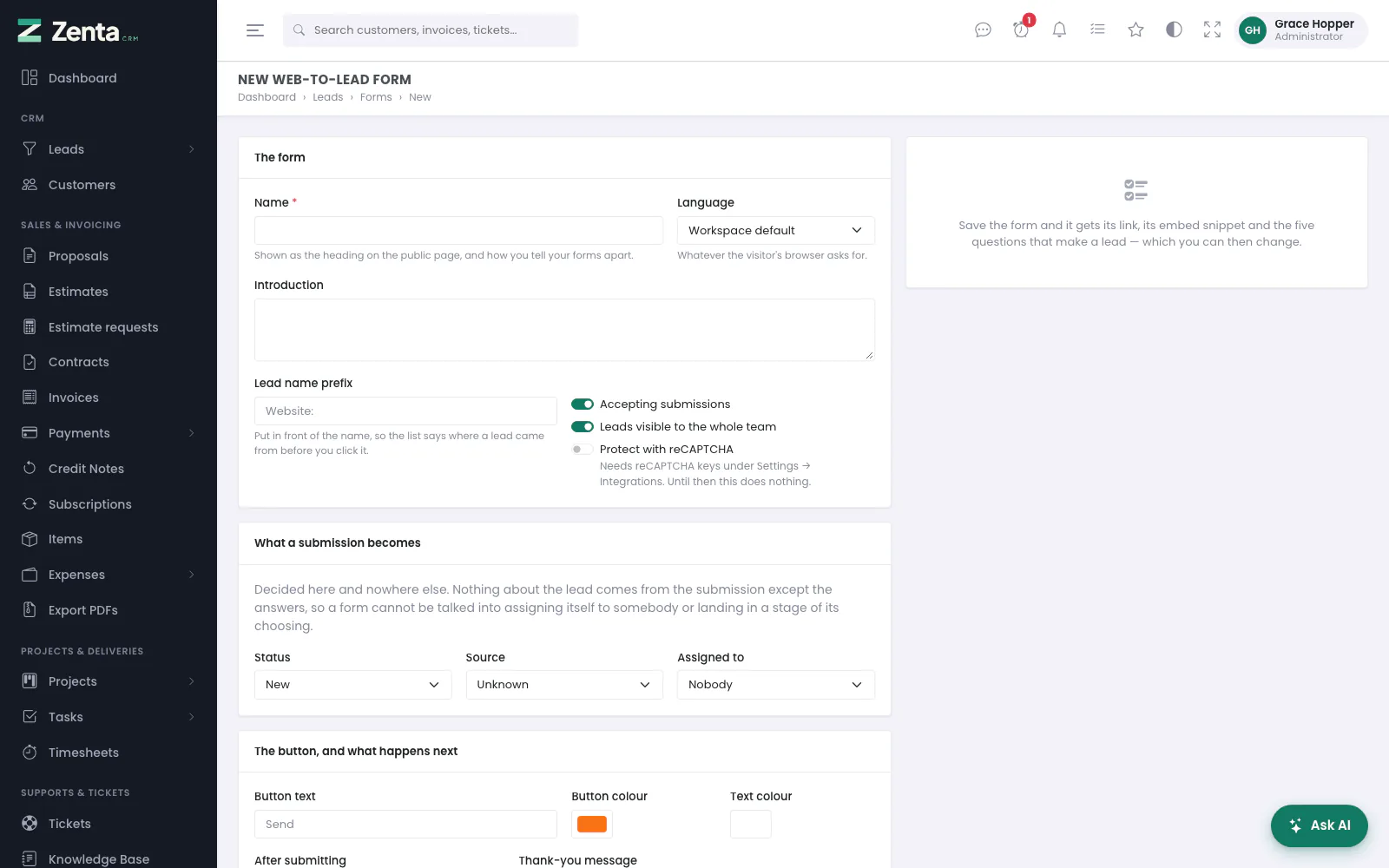 A new form. Its link, snippet and questions appear once it is saved.
Press New form, fill in the settings below and press Create form. The form is saved with the five questions that make a lead — Your name, Email address (both required), Phone, Company and How can we help? — and opens for editing, where you can relabel, reorder, require or remove them. Creating a form needs permission to create leads; changing one needs permission to edit them.
| Setting | What it does |
|---|---|
| Name | Required and unique. The heading on the public page, and how you tell your forms apart. |
| Language | The page is drawn in it whatever the visitor's browser asks for. Workspace default otherwise. |
| Introduction | A paragraph above the questions. |
| Lead name prefix | "Website:" in front of the name, so the list says where a lead came from before you click it. |
| Accepting submissions | Off, the link answers "not found". |
| Leads visible to the whole team | Off, the leads it creates are private. |
| Protect with reCAPTCHA | Per form. Needs keys under Settings → Integrations; until then it does nothing. |
| Status, Source, Assigned to | Where the lead lands and whose it is. First stage, Unknown and Nobody when left alone. |
| Button text, Button colour, Text colour | So it does not look borrowed on your own page. |
| After submitting | Show a thank-you message (the Thank-you message), or Send them to a page of yours (Send them to, an http:// or https:// address). |
Nothing about the lead comes from the submission except the answers.
The status, the source, the assignee and whether the lead is visible to the team are read from the form's own settings. A public endpoint that let a caller choose its own assignee, or drop a lead into "Won", would be a gift to anybody who read the HTML.
Editing a form
 A form being edited: its settings on the left, the link, snippet and questions on the right.
Click a form's name to open it. Change the settings and press Save changes. On the right:
- Publishing it — the Link (with a button to open it) and the Embed in your website snippet to copy into a page of your site. While the form is switched off it says the link answers "not found".
- Questions — the questions in the order the visitor sees them. Drag one by its handle, or use the Move up and Move down arrows beside it; the new order is saved as it moves, with no button to press.
 One question: what it is labelled, where the answer goes, and how it is asked.
Add opens an empty question; the button on a question opens it filled in. Press Save question. The button removes a question after you confirm.
| Field | What it does |
|---|---|
| Label | Required. What the visitor reads. |
| The answer is | Which field of the lead it fills: Contact name, Email address, Phone, Company, Job title, Website, Description, or A question of our own. |
| Asked as | Text, Long text, Email address, Phone, Number, Date, Choose one or Tick box. |
| Keep the answer in | For a question of your own: a custom field on leads, or The lead's description. |
| Choices | For Choose one: one per line. |
| Placeholder, Help text | Hints shown in and under the box. |
| Required | The form cannot be sent without it. |
A question of your own goes into a custom field on leads when you point it at one, and into the lead's description when you do not — so nothing a visitor typed is ever silently dropped. Behind every form there is a throttle, a honeypot field no person can see, and reCAPTCHA if you asked for it.
Deleting a form
Delete at the top of a form removes it after you confirm, and its link stops working. The leads it produced are ordinary leads and stay. It needs the Delete permission for leads.
Leads from an email address
Settings → Lead mailboxes watches an address over IMAP and turns what arrives into leads. Useful when you cannot configure your mail server to pipe messages in: hand over an address and a password instead.
Test the connection logs in and lists the folders your server reports, so you pick the folder rather than guessing whether yours wants "INBOX.Leads" or "INBOX/Leads". Each mailbox carries its own check interval, so one address can be read every five minutes and another every hour.
What happens to each message
| If it is | Then |
|---|---|
| From a blocked sender, domain or phrase | Nothing. Your own blocklists, one entry per line. |
| Automatic — a bounce, an out-of-office, a no-reply | Nothing. Nobody wrote it. |
| From somebody who is already a customer | A task for whoever owns the account, not a second record of a customer you already have. |
| From an address that already has an open lead | Added to that lead as a note, and somebody is told they have written again. |
| Anything else | A new lead, in the status and source the mailbox names. |
Every one of those decisions is written to a log on the same screen, so "why did that email not become a lead" always has an answer. The message body is not kept there — a log holding every enquiry in full would be a second copy of the mailbox with none of its access control.
This needs PHP's OpenSSL extension, which nearly every host has. Without it the screen says so rather than failing quietly at midnight.
Settings → Leads
 Settings → Leads: duplicates, the board, and who hears about new leads.
Three cards, saved together with Save changes. Opening the page needs permission to view settings; saving needs permission to edit them.
| Card | Setting | What it does |
|---|---|---|
| Duplicate leads | Email address, Phone number, Company, Contact name, Website | The fields the lead form compares while somebody types (see Duplicate leads). None ticked switches the check off. |
| Look at customers and their contacts as well | A lead for somebody who is already a customer is the expensive kind of duplicate. | |
| The pipeline board | Order the cards in each stage | In the order people arrange them, Newest first, Oldest first or Highest value first. Anything but the first means dragging within a stage no longer sticks, because the order is worked out again on the next page load. Dragging between stages always works. |
| Cards shown per stage | 0 to 200; 0 shows every card. | |
| Who hears about new leads | When leads are imported | Roles or named staff members to tell. One notification per import, saying how many were created and how many updated — not one per row. |
| When a lead already on file writes again | A second email from an address that already has a lead. Usually the moment somebody should pick the phone up. |
Notifications go to the bell, and by email to anybody who has that switched on. Nobody is chosen as shipped.
Customers
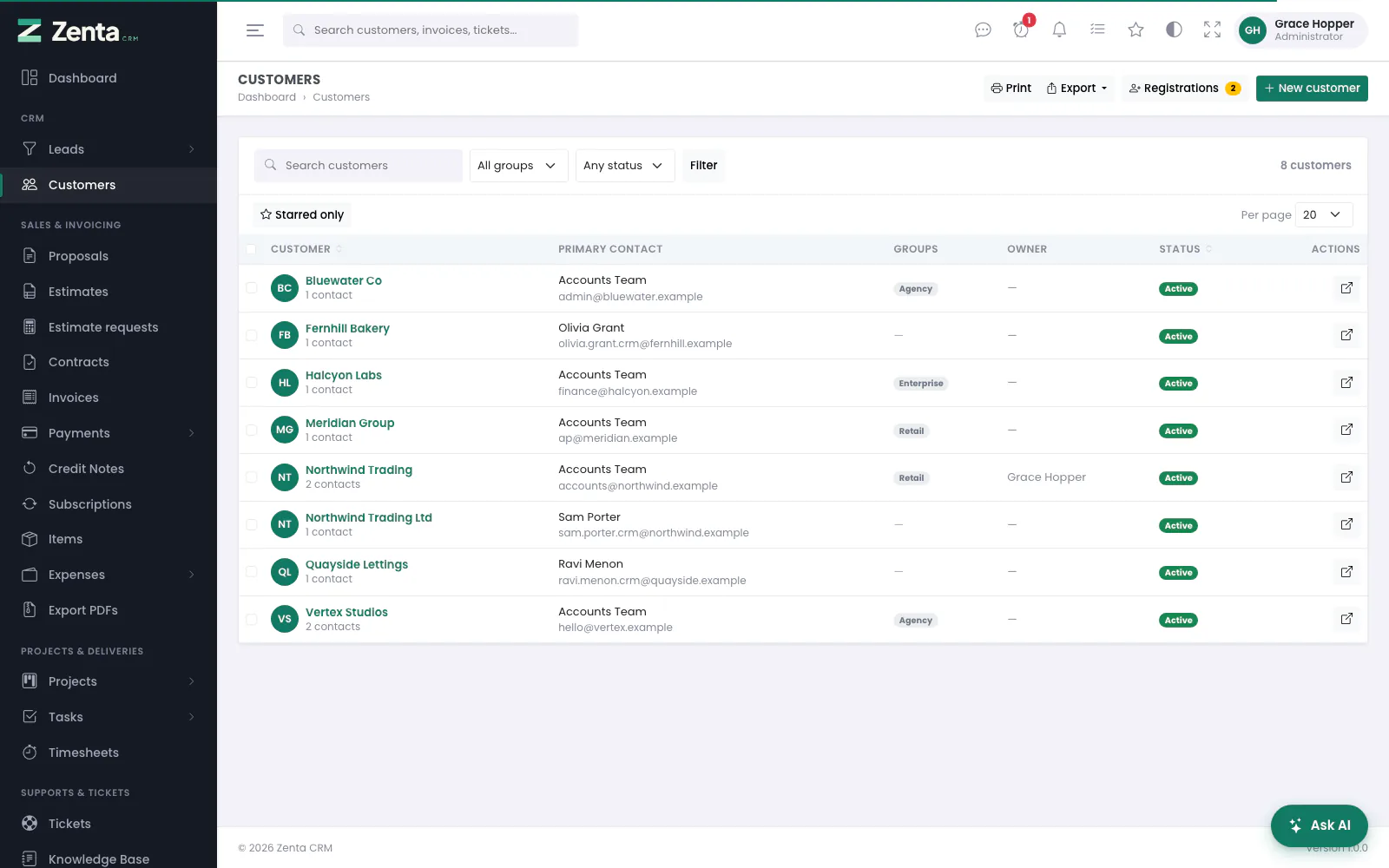 The customer list, with each one's primary contact, groups, owner and status.
A customer is a company — or a person, when you work for somebody directly. Everything else hangs off it: contacts, invoices, projects, tickets, files and notes, each on its own tab.
Customers in the menu opens the list. Search, pick a group under All groups or Active / Inactive under Any status, and press Filter. The buttons above: Export (the customers the filters show, and their contacts — see Exporting), Registrations (the portal registration queue, shown while self-registration is on or anybody is waiting — see Client portal settings) and New customer.
Adding and editing a customer
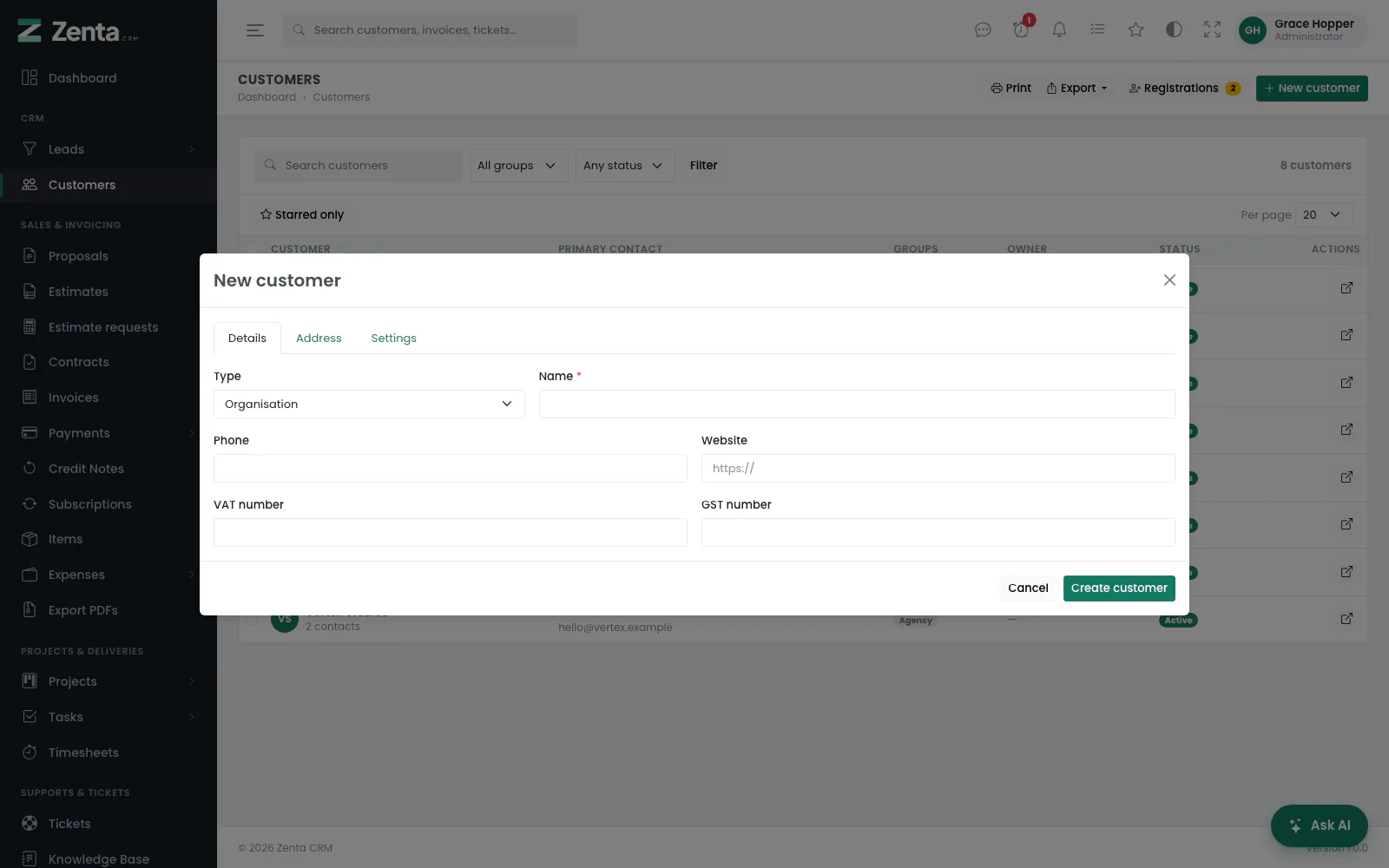 A new customer: the Details tab.
New customer opens the form; Edit on a customer's page opens it filled in. It has three tabs. Press Create customer (you are then taken to the new customer) or Save changes.
| Tab | Fields |
|---|---|
| Details | Type (Organisation or Person), Name (required), Phone, Website, VAT number, GST number, and any customer custom fields. |
| Address | The Billing address and the Shipping address, each with address, city, state, postal code and country. |
| Settings | Account owner; Currency (or Use the company default); Language — their portal, PDFs and emails are in it; Groups; Internal notes; Also on the account (up to 20 colleagues); Not sold to this customer; Active; Can pay invoices online. |
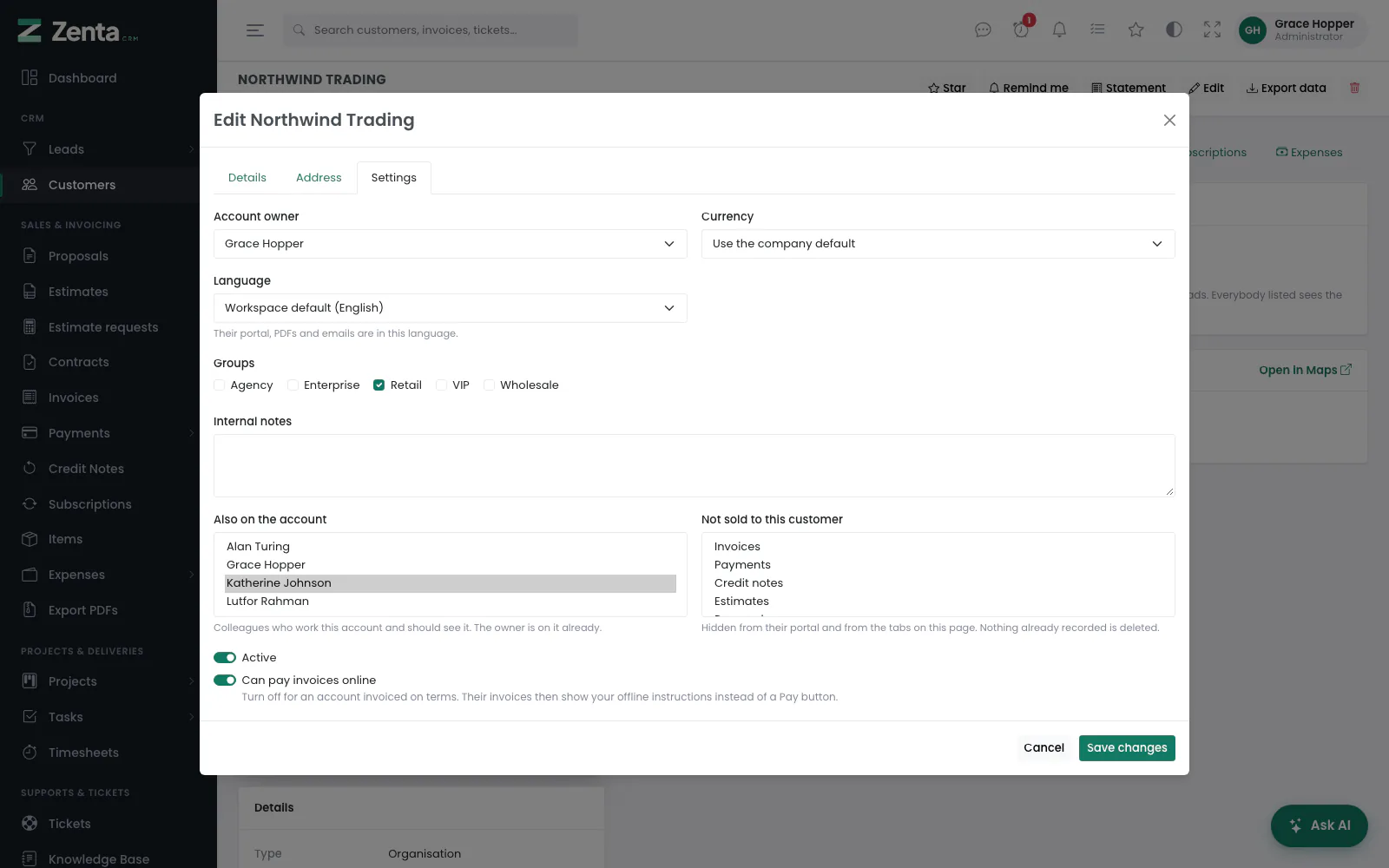 The Settings tab: who looks after the account, its language and currency, and what it is sold.
The customer page
 One customer: who looks after it, where it is, and a tab for each kind of record.
A customer opens on its Profile and has a tab for each kind of record: contacts, the statement, invoices, payments, credit notes, estimates, proposals, contracts, subscriptions, expenses, projects, tasks, tickets, files, the vault, reminders, notes and activity. You see the tabs your role allows, for modules that are switched on and sold to this customer, and each tab lists only the records your own scope for that kind reaches: somebody who may open the customer but sees only their own invoices gets an Invoices tab with their own invoices on it, and the Payments tab follows the invoices. Only the tab you are looking at is loaded, so a customer of eight years costs one tab's work to open.
 The rest of the profile: the customer's details and address.
A customer converted from a lead says so at the top, with when the lead was first seen, the status it reached and who brought it in, and a link to the lead.
The buttons at the top: Star, Remind me, Statement (the account statement report, for people who may view reports), Edit, Export data (while the GDPR tools are on; see Privacy and GDPR) and the delete button.
Deleting a customer
The button removes the customer after you confirm and takes you back to the list. It needs the Delete permission for customers. A customer that has invoices cannot be deleted, from its page or in bulk, because the invoices must be kept with it: mark it inactive instead (untick Active), or anonymise the people at it under Privacy.
Who looks after an account
A customer has one owner — the single answer to "whose account is this?" — and any number of colleagues under Also on the account. Both count as working the account: the customers scope Their own records, and the Their clients scope on invoices, credit notes, estimates, estimate requests, proposals, contracts, subscriptions, expenses, projects, tasks and tickets, take in the owner and everybody listed alike. So putting somebody on an account is what actually gives them access to it and to its records.
What a customer is sold
Not sold to this customer withholds modules from one account. A support-only retainer does not need a Projects tab that will never have anything in it, and their portal should not offer one either.
Paying online
Can pay invoices online is per customer. Turn it off for an account invoiced on terms: their invoices then show your offline instructions instead of a Pay button, and the public payment page refuses a card even if somebody posts to it directly. The invoice is still payable — by transfer, as agreed.
Contacts
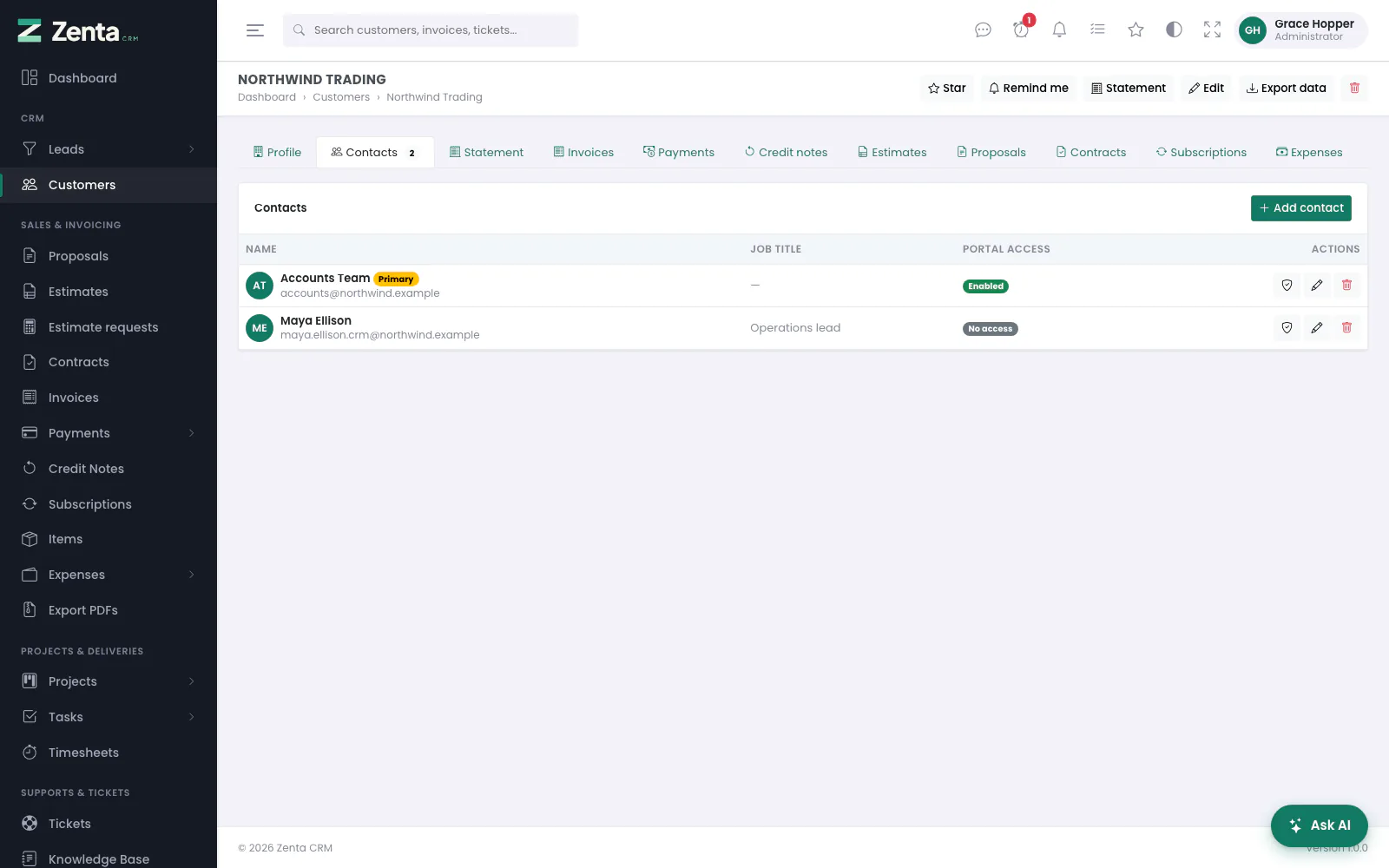 The people at a customer, with their portal access.
Contacts are the people at a customer. Email addresses live here rather than on the company, because an address belongs to a person. The Contacts tab lists them with their job title and Portal access: Enabled, No access, or — for somebody who registered in the portal — Email not confirmed or Waiting for approval. The primary contact is marked Primary.
Adding and editing a contact
 Adding a contact.
 A contact: their details, a portal password, and what they may see in the portal.
Add contact on the tab, or the button on a contact. Press Add contact or Save changes. It needs permission to edit customers.
| Field | What it does |
|---|---|
| First name, Email address | Required. The email must not already be used by anybody else in the workspace. |
| Last name, Phone, Job title | Optional. |
| Password, Confirm password | Setting one lets the contact sign in to the customer portal at /portal. When editing, leave them blank to keep the current password. |
| What they can see in the portal | Switches for Invoices, Estimates, Proposals, Contracts, Projects, Support tickets, Files and Messages. Not shown for the primary contact, who always sees everything the customer is sold. The same switches the primary contact sets under My account → Contacts in the portal. |
| Primary contact | A customer has one. Ticking it here takes it off whoever had it. The first contact is always primary. |
| Active | Untick to stop somebody using the portal without removing them. |
| Custom fields | Any contact custom fields. |
See The customer portal and Getting into the portal for what a contact sees there.
Revoking portal access
Revoke portal access, at the foot of a contact who can sign in, clears their password after you confirm. They can no longer sign in; their details are kept, and setting a new password gives access back.
Removing a contact
The button on a contact removes them after you confirm. If they were the primary contact, the longest-standing remaining contact becomes primary, so the customer is not left without one. To remove a person's details for a privacy request, anonymise them instead (the button, while the GDPR tools are on; see Privacy and GDPR).
Customer notes and files
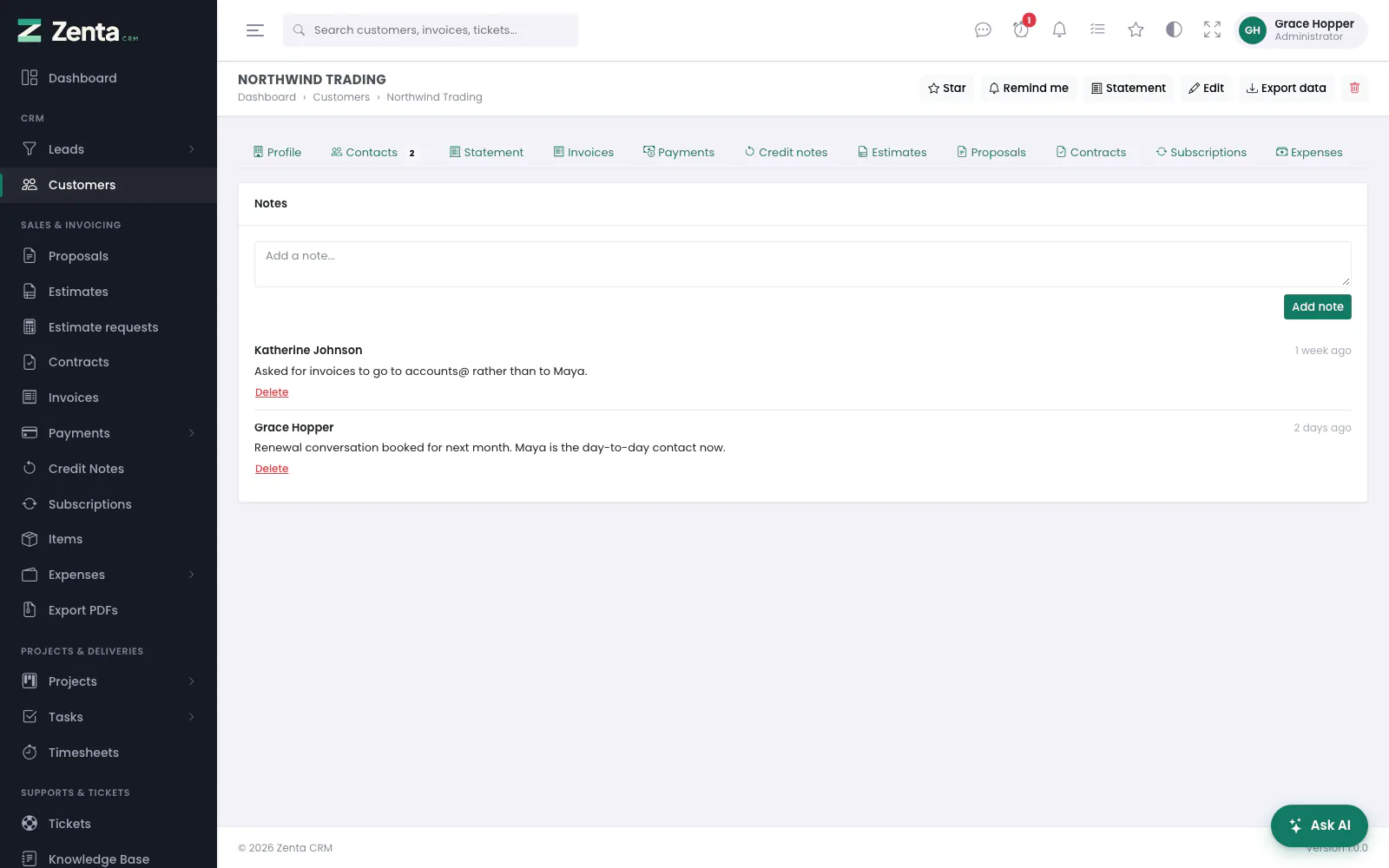 Notes on a customer.
The Notes and Files tabs on a customer work exactly as on a lead (see Notes and Files above): add a note, delete your own; add up to ten files at a time, open or remove them. Files need permission to edit customers.
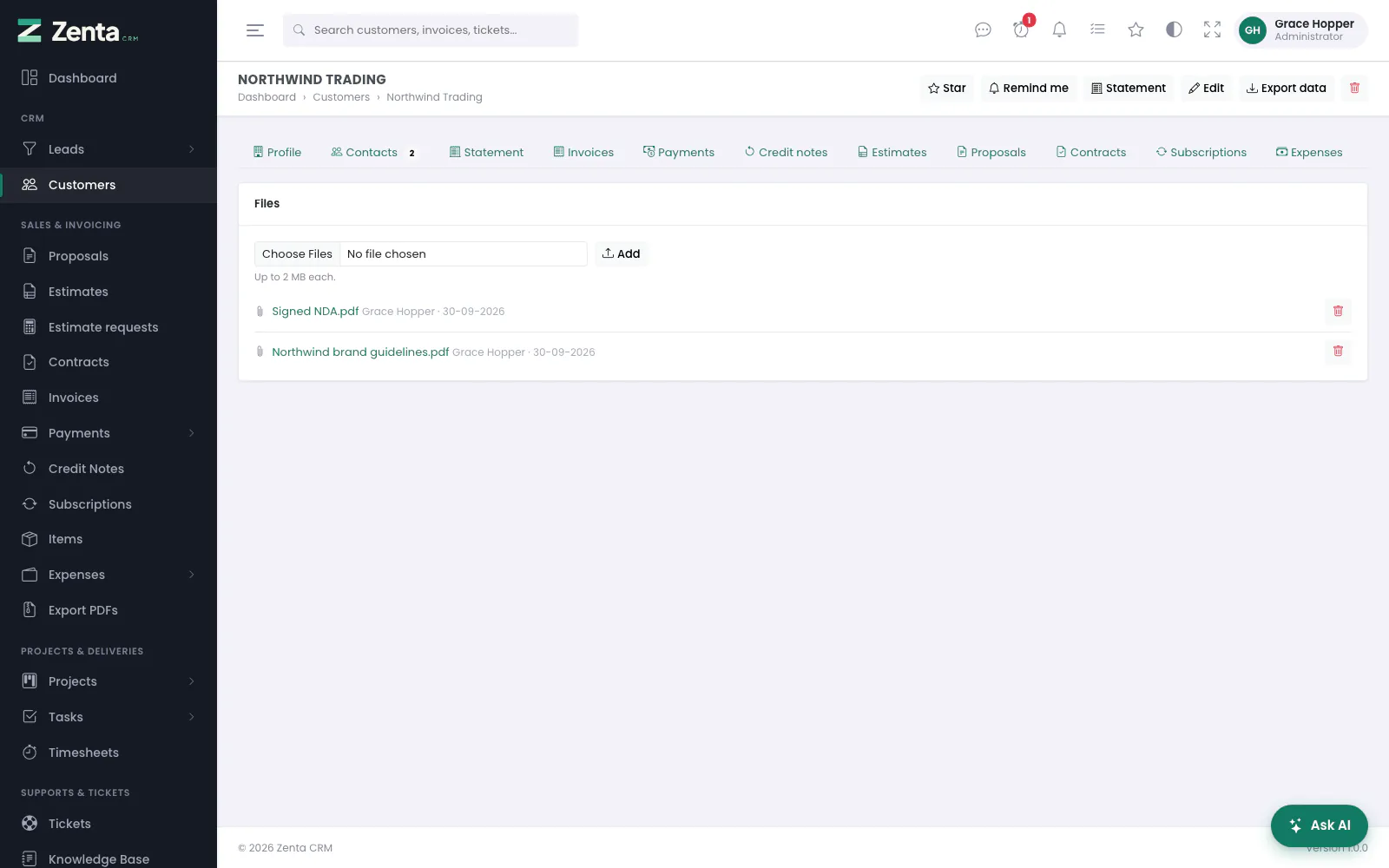 Files kept against a customer.
The customer vault
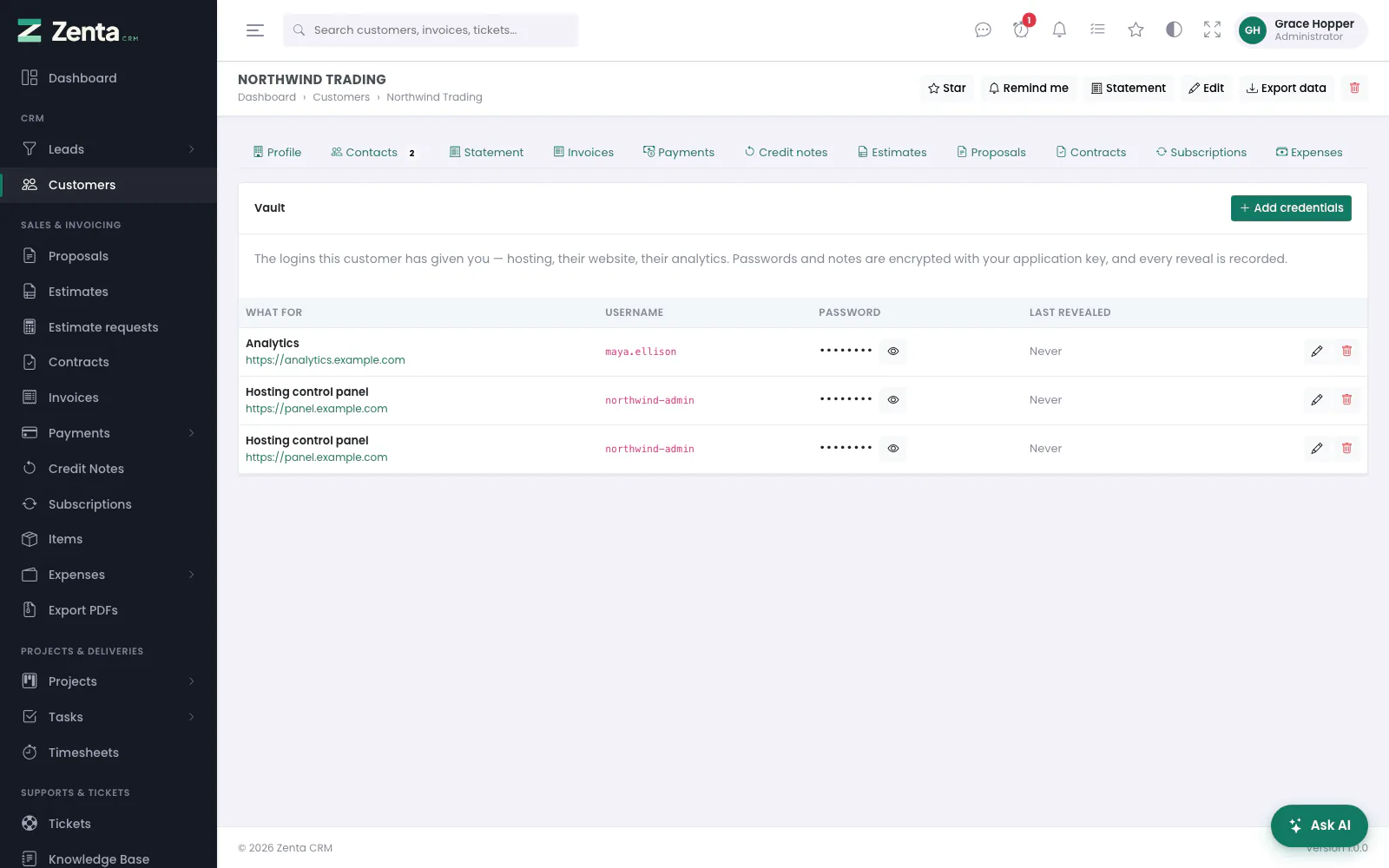 The vault: logins for this customer, with the password hidden until somebody reveals it.
Every agency has this problem and solves it badly. The hosting login, the WordPress admin, the analytics account and the FTP details for each client end up in a shared spreadsheet, in somebody's password manager, or in the body of an email from four years ago. The Vault tab keeps them beside the customer they belong to.
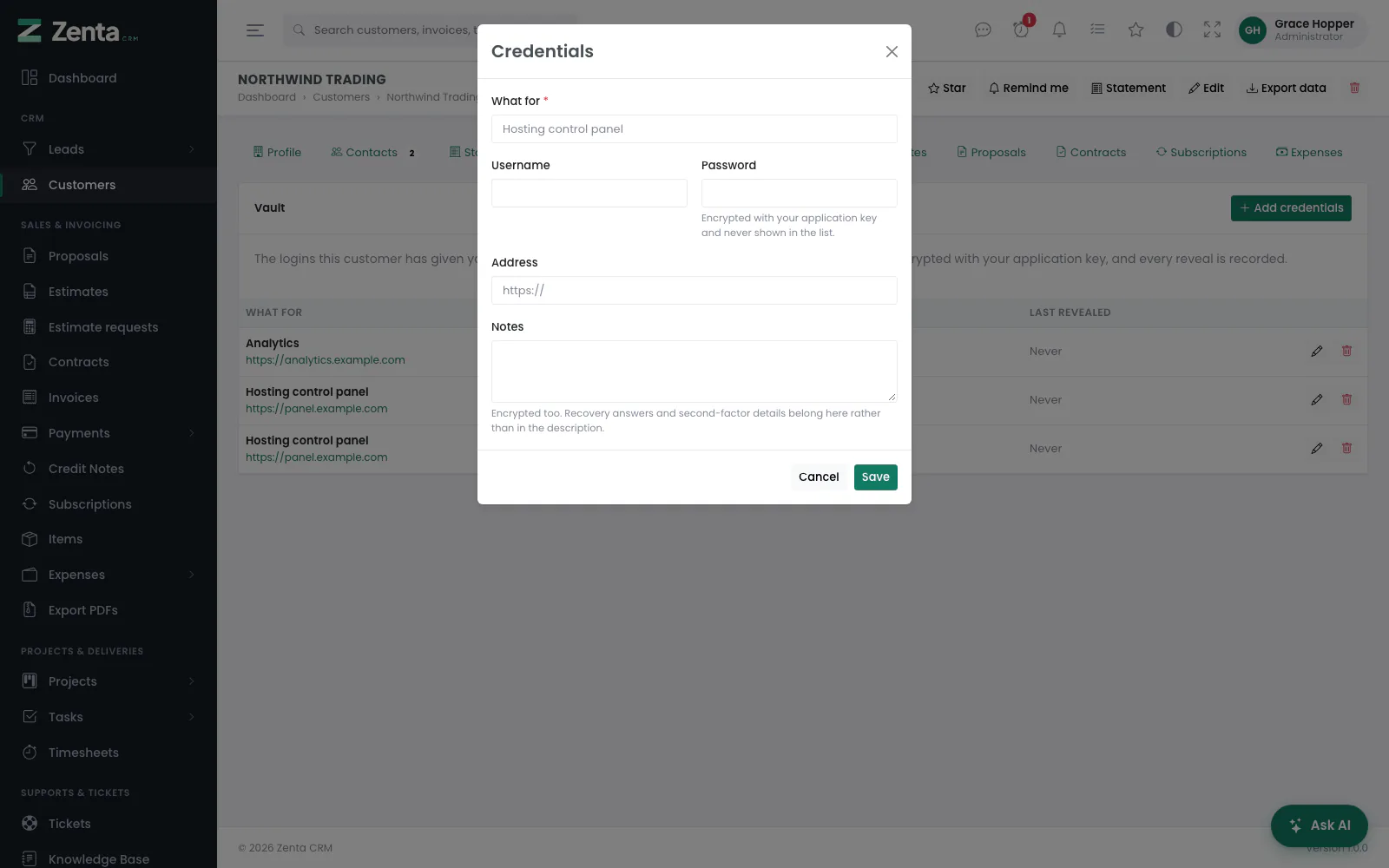 Adding a login to the vault.
- Add credentials opens the form: What for (required), Username, Password, Address (an
http://orhttps://link) and Notes. Press Save. - The button beside a password shows it, and records that you did (Last revealed).
- The button edits an entry. The password box starts empty: leave it blank to keep the password already saved.
- The button removes an entry after you confirm.
| What happens | Why |
|---|---|
| Passwords and notes are encrypted with your application key | A database taken on its own is not a set of working logins. |
| The list never carries a password | It says whether one is stored. The secret leaves the server only when somebody presses the reveal button on that one entry. |
| Every reveal is recorded | Not who opened the customer — who took the password out, and when. That is the question asked after something goes wrong at a client. |
| The activity log never spells one out | Both the password and the notes are redacted there, because the activity log is the one table never purged in full. |
“This password was saved under a different application key”
The vault can only read what was encrypted with the APP_KEY in your
.env. If that key has changed since an entry was saved — a reinstall, or
.env copied from another server — revealing the password shows this message
instead. Nothing else can recover it: press , type the password
(and any notes) in again and save, and the entry works as before. Keep a copy of your
APP_KEY with your backups so a restore does not end here.
The vault is its own permission.
Not an ability on "customers". The person who chases invoices needs the customer list and has no business with a client's server password — and a vault that came free with the customer list would be one. Grant Customer vault under Organisation → Roles to the people who actually do the work: View to reveal, Create, Edit and Delete for the rest.
The customer map
A customer's page shows their address with an Open in Maps link. That link costs nothing and loads nothing of Google's.
To embed an actual map instead, save a Google API key under Settings → Integrations and tick Show a map on the customer page. Both are needed, and both are off as shipped: embedding puts an iframe of Google's on a page holding a customer's address, which is a decision for you rather than one to make on your behalf.
Roles: cloning and the read-only preset
On Organisation → Roles every role has a Clone button. It makes a copy called "Copy of name" (numbered if that name is taken) with the same permissions, and opens it in the editor so you can adjust it. A copy is never a system role. Cloning the Administrator role gives an ordinary role that holds every permission, which you can then trim; the unrestricted flag itself is never copied.
New read-only role opens the editor with the View box ticked on every module and nothing else. Inside the editor, the Read-only button does the same to the role you are editing. Both leave out the Organisation group (staff, roles, teams and settings), so a read-only person can see the business's work but not who may do what. A module set to "No access" is moved to the first scope that shows something.
Limiting a role to customer groups or departments
Some modules have an extra, optional limit under their tick boxes:
| Limit | Modules | What it does |
|---|---|---|
| Only these customer groups | Customers, invoices, estimates, proposals, contracts, projects, tickets | Only customers in one of the ticked groups, and only records that belong to such a customer. |
| Only these departments | Tickets | Only tickets in one of the ticked departments. |
Open the limit with the small arrow and tick the groups or departments. If you tick none, there is no limit. The limit comes on top of the records dropdown ("All records", "Their clients"...): it can only narrow what somebody sees, never widen it. It applies everywhere at once: the list, the record's own page (someone outside the limit gets "not found"), search, bulk actions, exports and the API.
Permissions for one person
When one person needs something a little different from their role, you don't need a new role for them. Open Organisation → Staff, open the ⋮ menu next to the person and choose Permissions. The staff edit dialog links to the same page.
- Each module shows what the role gives in small grey text ("Role: View, Edit · All records").
- Switch Override on for a module to unlock its boxes, then tick what this person should have: actions, which records, and any group or department limit.
- Press Save permissions. The module now shows an amber Overridden badge, and so does the staff list.
An override replaces the role for that one module only, and everything else keeps following the role. If you switch Override on and tick nothing, the module is taken away from this person whatever their role allows. Switch Override off and save to go back to the role.
Team permissions: timeline and messages
The Team timeline module now has a Their teams choice. With it, a person sees only the posts written by people who share a team with them, plus their own. They also can't react to, reply to or remove any other post.
Messages now has its own module, which decides who a person may start a conversation with. It never affects reading or replying.
| Setting | They can start a conversation with |
|---|---|
| Start conversations, All records | Anybody on the staff (as before) |
| Start conversations, Their teams | Only people who share a team with them |
| No access, or "Start conversations" unticked | Nobody. They can still answer anyone who writes to them |
Existing roles were given "anybody" when you upgraded, so nothing changes until you decide otherwise.
Leave, Attendance and Timesheets set to Their teams show the records of the person's teammates. Anybody who can record these for others (leave approvers, attendance editors, timesheet loggers) can only do so for people within that same reach. The staff pickers list only those people.
Addresses on this page
For reference and for anyone scripting against the panel. Everything here needs somebody signed in to the workspace whose role allows it; anybody else is refused.
| Method | Address | What it does |
|---|---|---|
GET | admin/leads | The lead list, with q, status, source, assignee, type, follow_up and show_closed filters. |
GET | admin/leads/kanban | The pipeline board. |
GET | admin/leads/create | The new-lead form (opens in a pop-up). |
POST | admin/leads | Creates a lead. |
POST | admin/leads/duplicates | Looks for leads, customers and contacts matching what is being typed. Used by the lead form itself. |
GET | admin/leads/{lead} | A lead's page; ?tab= picks the tab. |
GET | admin/leads/{lead}/peek | One lead for the compact list's side pane. Used by the page itself. |
GET | admin/leads/{lead}/edit | The edit form (opens in a pop-up). |
PUT | admin/leads/{lead} | Saves a lead. |
DELETE | admin/leads/{lead} | Deletes a lead. |
PATCH | admin/leads/{lead}/move | Moves a lead to another status. Used by the board when a card is dropped. |
PATCH | admin/leads/{lead}/lost | Marks a lead lost, or reopens it. |
PATCH | admin/leads/{lead}/junk | Marks a lead junk, or restores it. |
GET | admin/leads/{lead}/convert | The conversion form (opens in a pop-up). |
POST | admin/leads/{lead}/convert | Converts a lead into a customer. |
POST | admin/leads/{lead}/files | Adds files to a lead. |
DELETE | admin/leads/{lead}/files/{attachment} | Removes a file from a lead. |
POST | admin/notes | Adds a note to a lead or a customer. |
DELETE | admin/notes/{note} | Deletes a note. |
GET | admin/lead-forms | The web-to-lead forms. |
GET | admin/lead-forms/create | The new-form page. |
POST | admin/lead-forms | Creates a form with its five starting questions. |
GET | admin/lead-forms/{form}/edit | A form's page: settings, link, snippet and questions. |
PUT | admin/lead-forms/{form} | Saves a form's settings. |
DELETE | admin/lead-forms/{form} | Deletes a form. |
POST | admin/lead-forms/{form}/regenerate | Gives a form a new address; the old link stops working. |
POST | admin/lead-forms/{form}/fields | Adds a question. |
PUT | admin/lead-forms/{form}/fields/{field} | Saves a question. |
DELETE | admin/lead-forms/{form}/fields/{field} | Removes a question. |
POST | admin/lead-forms/{form}/fields/order | Saves the order of the questions. Used by the page itself when one is dragged or moved with the arrows. |
GET | admin/settings/leads | Settings → Leads. |
PUT | admin/settings/leads | Saves the lead settings. |
GET | admin/customers | The customer list, with q, group and status filters. |
GET | admin/customers/create | The new-customer form (opens in a pop-up). |
POST | admin/customers | Creates a customer. |
GET | admin/customers/{customer} | A customer's page; ?tab= picks the tab. |
GET | admin/customers/{customer}/edit | The edit form (opens in a pop-up). |
PUT | admin/customers/{customer} | Saves a customer. |
DELETE | admin/customers/{customer} | Deletes a customer that has no invoices. |
GET | admin/customers/{customer}/contacts/create | The new-contact form (opens in a pop-up). |
POST | admin/customers/{customer}/contacts | Adds a contact. |
GET | admin/customers/{customer}/contacts/{contact}/edit | The contact form (opens in a pop-up). |
PUT | admin/customers/{customer}/contacts/{contact} | Saves a contact. |
DELETE | admin/customers/{customer}/contacts/{contact} | Removes a contact. |
PATCH | admin/customers/{customer}/contacts/{contact}/revoke | Clears a contact's password, so they can no longer sign in to the portal. |
POST | admin/customers/{customer}/files | Adds files to a customer. |
DELETE | admin/customers/{customer}/files/{attachment} | Removes a file from a customer. |
POST | admin/customers/{customer}/vault | Adds an entry to the vault. |
PUT | admin/customers/{customer}/vault/{entry} | Saves a vault entry. |
POST | admin/customers/{customer}/vault/{entry}/reveal | Returns one password and records who revealed it. Used by the page itself. |
DELETE | admin/customers/{customer}/vault/{entry} | Removes a vault entry. |