Public pages
What anyone can open without signing in: the knowledge base, the support and estimate forms, surveys, lead forms, mailing-list pages, your own pages, the blog and the front page.
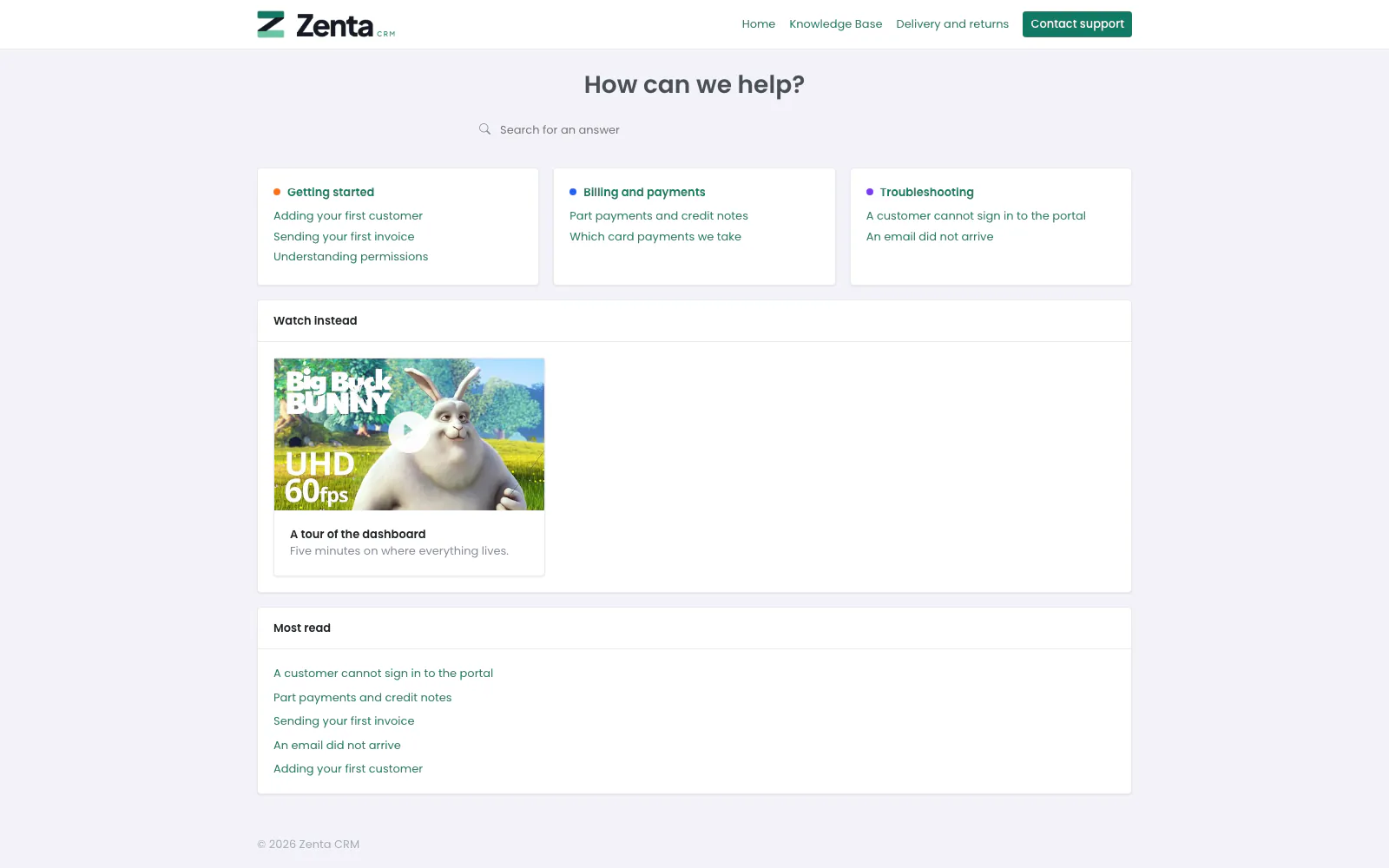 The public knowledge base: categories, a video, and the most-read articles.
Most of Zenta is behind a sign-in. These pages are not: they are for your customers before they have an account, for visitors to your website, and for people who follow a link you sent them. Every one of them is switched off, or answers "not found", until the business turns on the feature behind it, and each is set up on a CRM admin screen that is linked below rather than described again here.
| Page | Address | Open while | Set up in |
|---|---|---|---|
| Knowledge base | /knowledge-base | The Knowledge base module is on and Show the knowledge base to visitors who are not signed in is ticked | Knowledge base |
| Contact support | /support | The Support tickets module is on and Let anyone open a ticket from the public form is ticked | How the desk behaves |
| Request an estimate | /request-estimate | The Estimates module is on and Offer a public "Request an estimate" form is ticked | Estimate requests |
| A survey | /survey/… | The Surveys module is on and the survey is not a draft | Surveys |
| A lead form | /lead-form/… | The form is active | Web-to-lead forms |
| Signing up to a mailing list | /subscribe/… | The Marketing module is on and the list lets people sign themselves up | Sign-up forms |
| Confirming and unsubscribing | /confirm-subscription/…, /unsubscribe/… | Always, even with Marketing switched off | Unsubscribing |
| Your own pages | /p/… | The page is published and its audience is Public website | Pages and the website menu |
| The front page, pricing and the blog | /, /pricing, /blog | The website is published | Writing the front page |
robots.txt and sitemap.xml | /robots.txt, /sitemap.xml | robots.txt always; the sitemap only while search engines may index the site | Search engines |
The addresses shown with … end in a long random code that the
business's link or email carries. That code is the whole of the permission: nobody has
to sign in, and a code that is wrong, or belongs to something switched off, simply
answers "not found".
The bar at the top
The knowledge base, the forms and your own pages share a plain layout with a bar at the top: your name on the left (it leads to the knowledge base), and on the right the links set under Settings → Website menu & footer — the knowledge base, pages marked for the menu, your own links — and a Contact support button while the support form is open. Each link only appears while its module is on. The business can hide this bar altogether under Settings → Appearance → Sign-in page, for pages linked from a website with a menu of its own. The front page, pricing and the blog use the website's own header and footer instead.
The knowledge base
/knowledge-base opens with the heading the business chose (How can we
help? as shipped) and a search box. Below it:
- The categories, each with up to six of its articles and, when it has more, All N articles.
- Watch instead — the video gallery, up to twelve videos. A video only loads when somebody presses play.
- Most read — the five articles read most often.
Typing in Search for an answer and pressing Enter replaces all of that with up to 25 matching articles, or Nothing matched. Try a different word, or ask us directly.
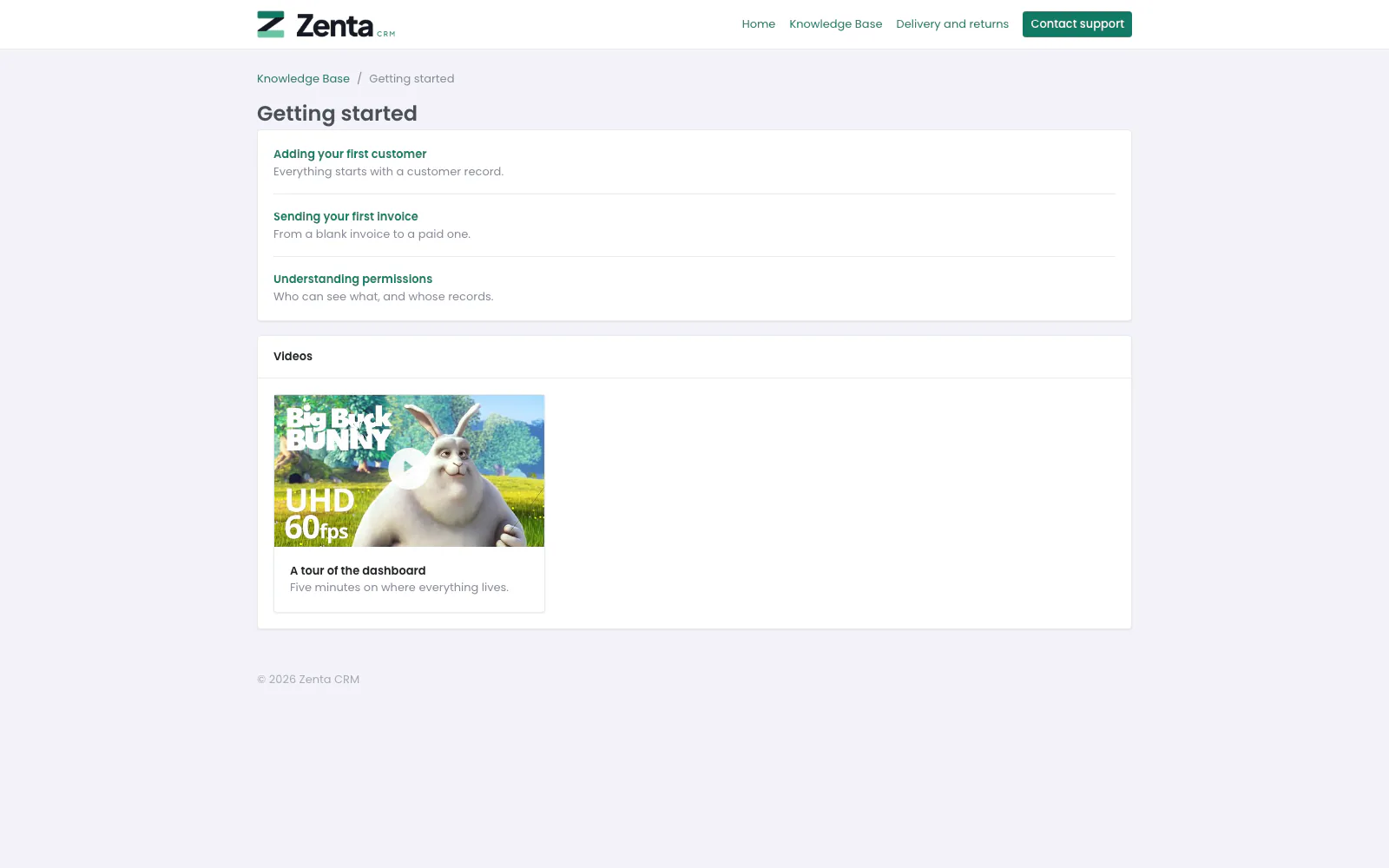 A category: its articles with their one-line descriptions, and its videos.
A category's page lists its articles, twenty to a page, each with its short description, and the category's videos under them.
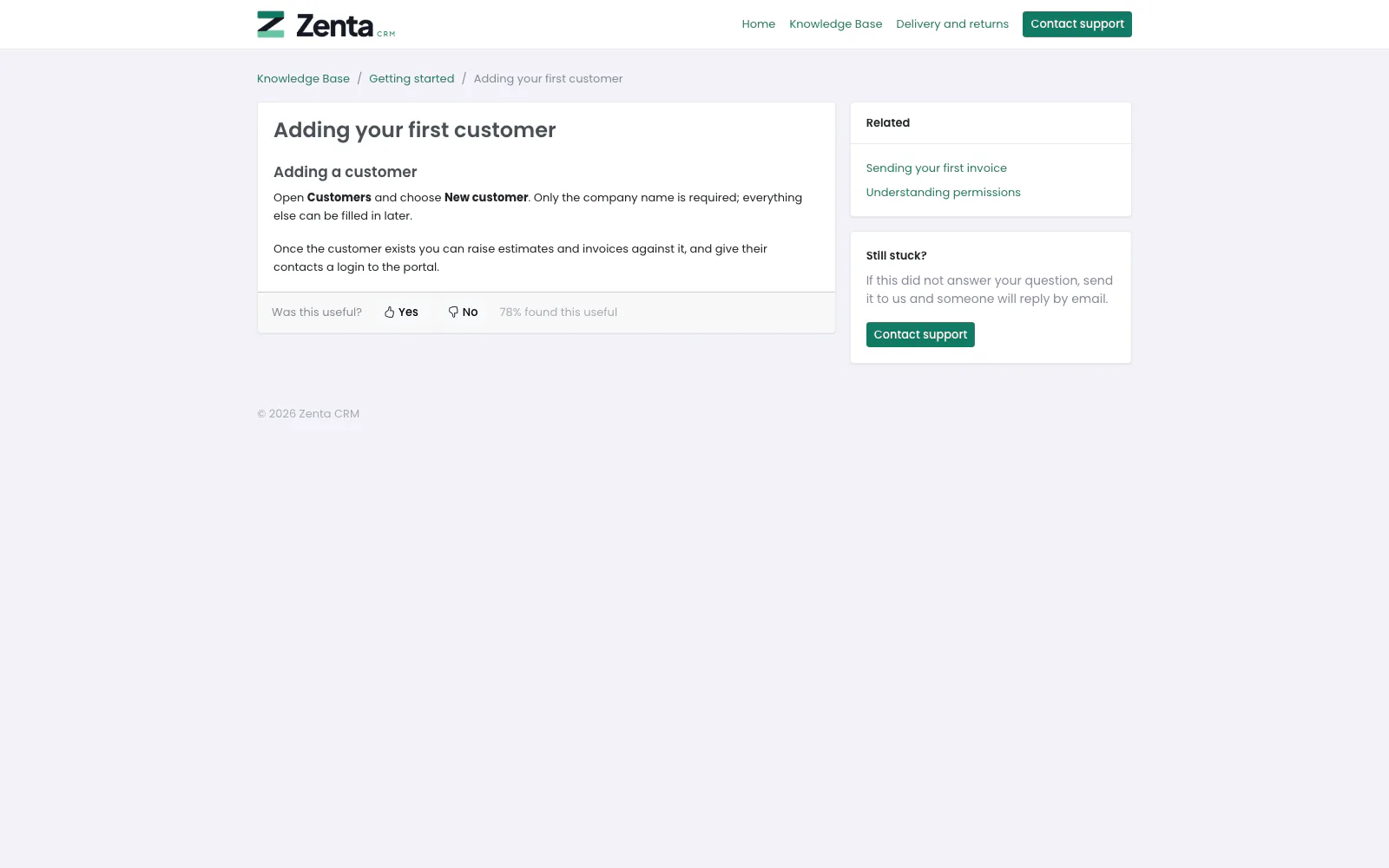 An article, with the question under it, related articles and the way to ask for help.
An article's page shows the article, and beside it up to five Related articles from the same category and, while the support form is open, a Still stuck? card with a Contact support button. Every visit counts towards the article's views.
Was this useful? Unless the business has switched the question off, each article ends with Yes and No, and the share of readers who found it useful. Each reader has one vote: pressing the other button changes it, and pressing the same one again says You have already told us. A signed-in reader is recognised by their account and anybody else by their network and browser, and no address is stored against the vote. The answers feed the support report.
Contact support
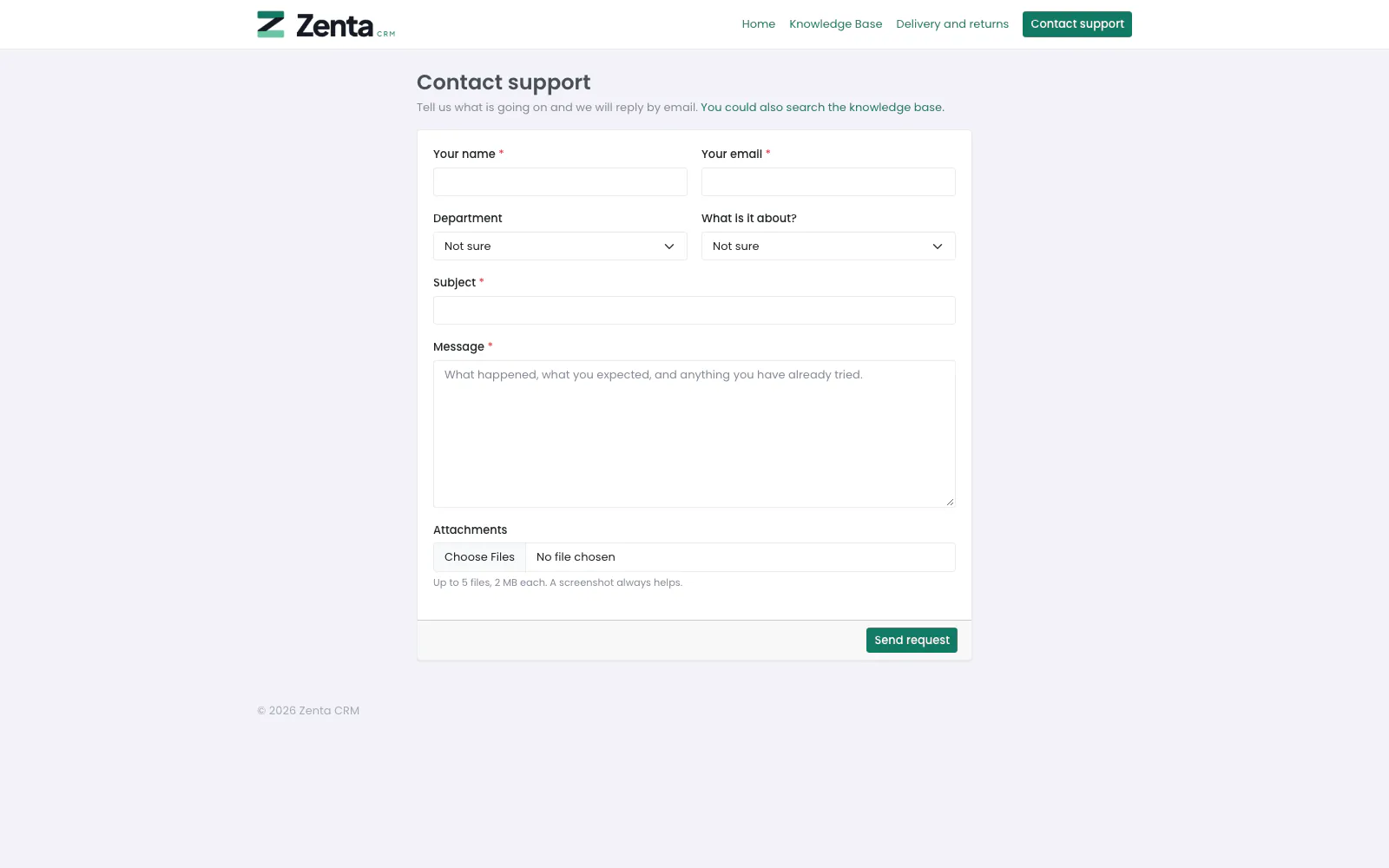 The public support form, for people without a portal sign-in.
/support lets anybody open a support ticket without an account. It links
to the knowledge base first, in case the answer is already there.
From a stranger, the ticket is never filed against a customer on the strength of the address typed in: staff are offered the match and file it themselves. A contact who is signed in to the portal is different: their ticket goes straight to their company and appears under Support in their portal.
| Field | What it does |
|---|---|
| Your name and Your email | Required. Filled in already for somebody who is signed in. The reply comes to this address. |
| Department | One of the support departments, or Not sure for the default one. |
| What is it about? | One of the support services, or Not sure. |
| Subject and Message | Required. |
| Attachments | Up to five files, within the business's upload settings but never more than 10 MB each from the public form. |
Press Send request. The form clears and says Thanks — your request is ticket #00012. We will be in touch by email. The ticket opens with the business's default status and a Medium priority. If the business acknowledges new tickets, an email arrives with the ticket's number.
A ticket from this form is never filed against a customer on the strength of the address typed into it — anybody can type anybody's address. It keeps the name and address it was sent with, and staff can attach it to the matching contact once they are satisfied it is them (Filing a public-form ticket against a contact). A customer with a portal sign-in should use Support in the portal instead, where the ticket is theirs from the start and they can follow it.
One address may send ten a minute. For a captcha as well, tick the support form under Settings → Integrations → reCAPTCHA.
Request an estimate
 The public "Request an estimate" form.
/request-estimate is the portal's estimate
request for people who are not customers yet, with a link for those who are:
Already a customer? Sign in to the portal instead. It asks for Your
name and Your email (required), Company and
Phone (optional), then the same questions as the portal:
What would you like us to quote for?, Tell us about it,
Budget, Wanted by, any questions the business added
(The estimate request form), and up to five
Attachments of at most 10 MB each.
Press Send request: the form clears and says Thank you - we have your request and will be in touch by email., and the Estimate request received email carries the reference. Each request opens a lead, or joins the open lead with the same email address, and appears in Sales → Estimate requests marked Public form. It has no customer yet: staff convert the lead, or pick the customer on the estimate form.
Surveys
 A survey anyone may answer, marked anonymous.
A survey is answered from the link the business shares (the survey's own page gives it). The page shows the survey's title and description, a note when Answers to this survey are anonymous — nobody is recorded against them., and the questions: a line or a box of text, one choice, several choices, a rating from 1 to 5, or yes/no. Questions marked with a red star must be answered. Press Send my answers.
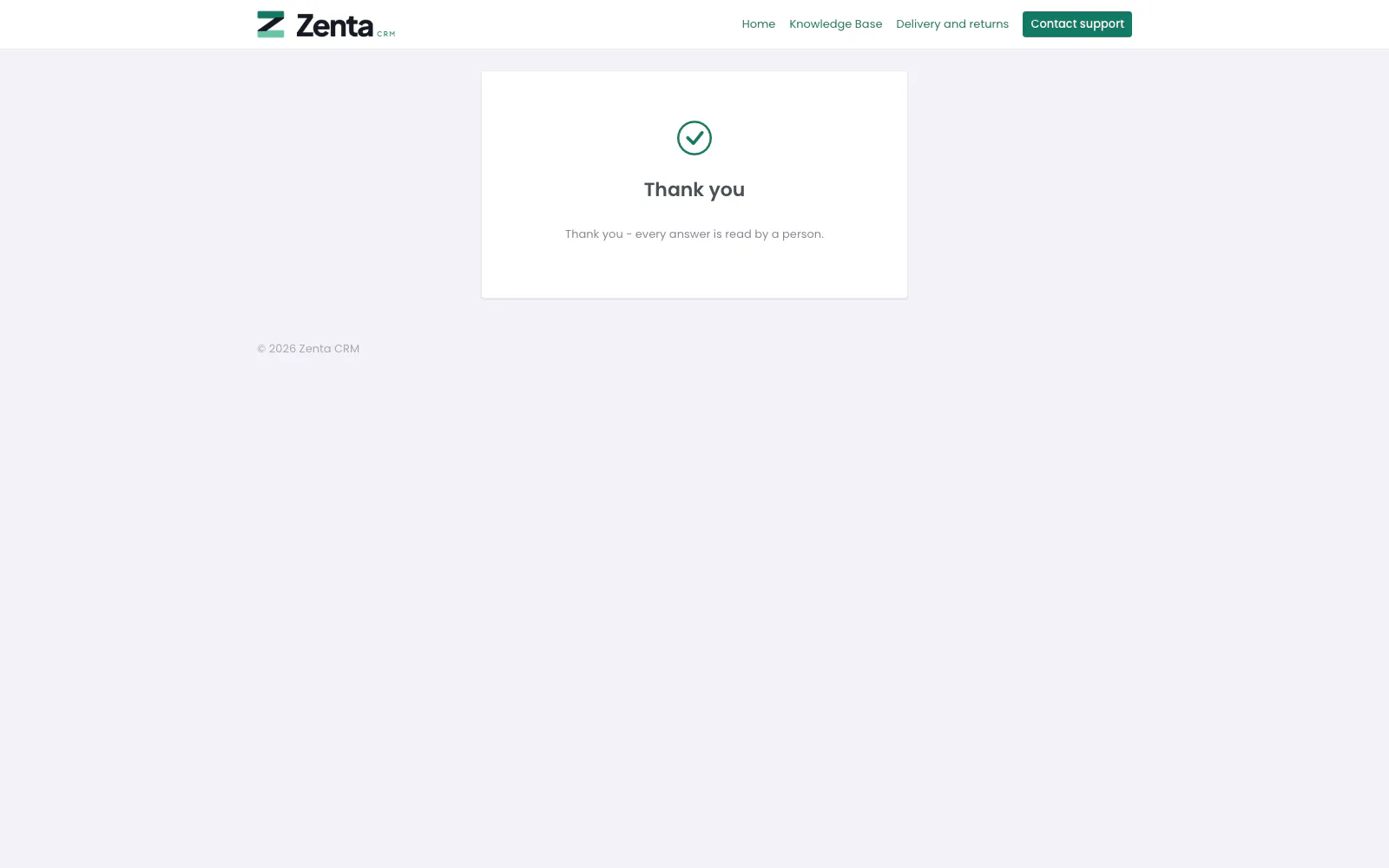 After answering: the survey's own thank-you message.
The thank-you page shows the survey's own message, or Your answers have been recorded. Instead of the questions, the page may say why it cannot be answered:
- This survey has closed., or that it opens or closed on a date the business set;
- This survey is for our customers. Sign in to the client portal to answer it. (or …for our staff), with a Sign in link, when the survey is not open to anyone;
- You have already answered this one. Thank you. for a signed-in person who has.
A survey still in draft answers "not found", so a leaked link shows nothing before it is published.
Lead forms
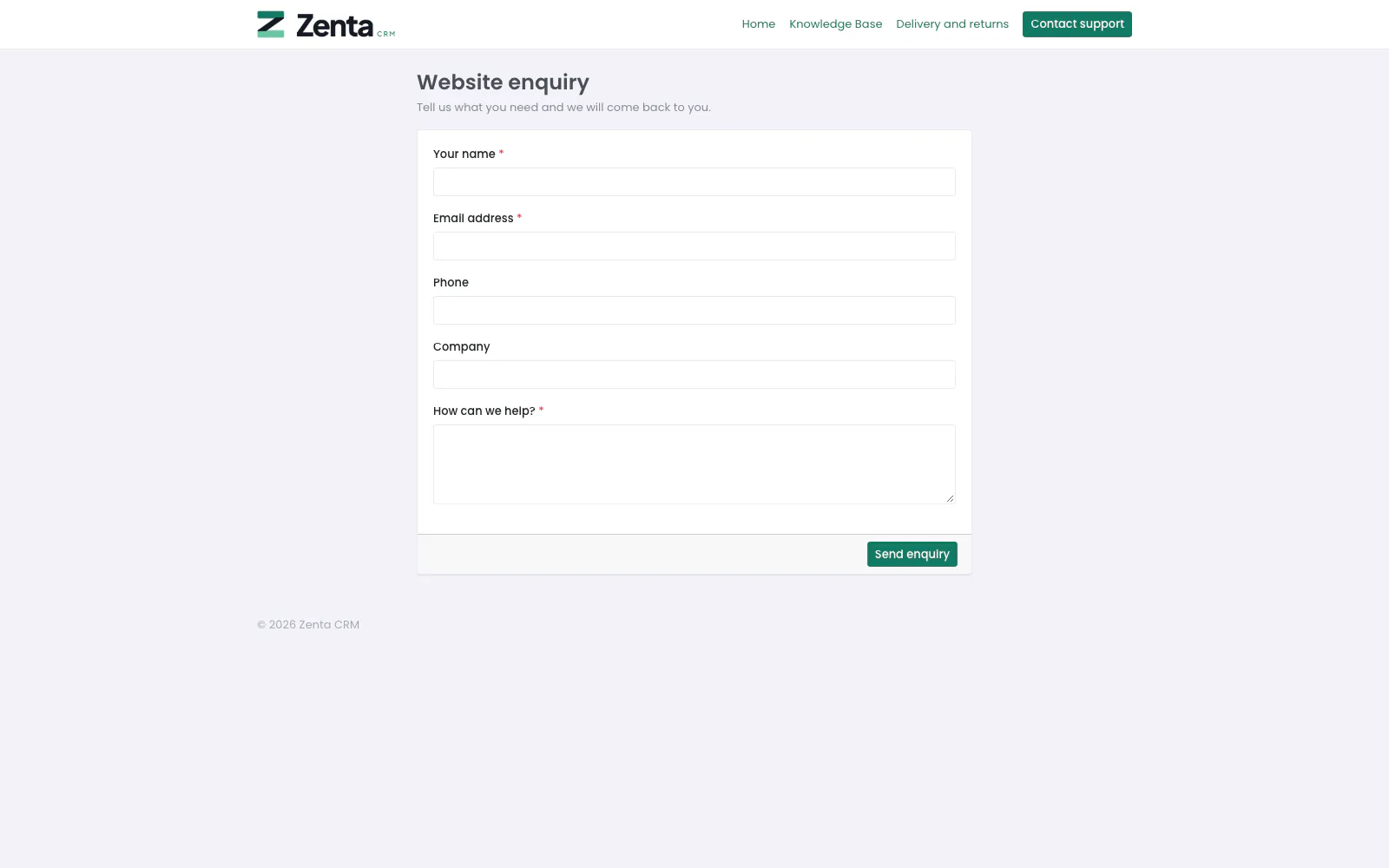 A web-to-lead form: its title, its introduction and the questions the business chose.
A lead form is a page of questions the business built (Web-to-lead forms): its name as the title, its introduction, and exactly the questions it was given, in the form's own language whatever the visitor's browser asks for. The button's words and colours are the form's too. Sending it opens a lead and tells the business; the visitor then sees the form's thank-you message (Thank you — we have your details and will be in touch. unless it was changed), or is taken to the address the form names.
A hidden field catches bots, one address may send five a minute, and reCAPTCHA is asked for when the form requires it or the business ticked lead forms under Settings → Integrations. A form that is switched off answers "not found".
Mailing lists: signing up, confirming, leaving
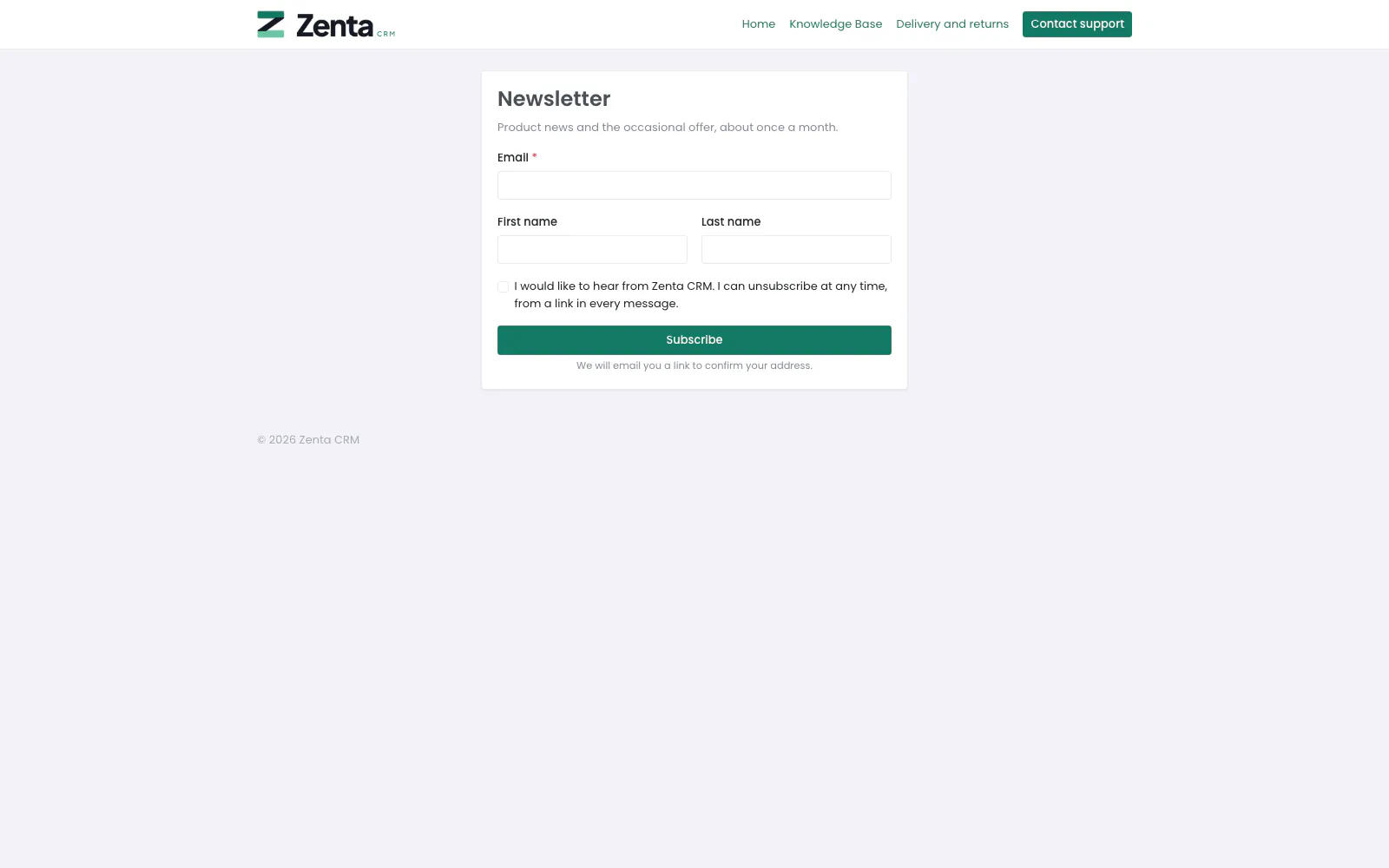 Signing up to a mailing list. This list asks new sign-ups to confirm their address.
A list that lets people sign themselves up has a page of its own: the list's name and description, Email (required), First name, Last name, a Mobile number when the list collects one, and a box to tick saying I would like to hear from …, without which the form is refused (Please tick the box to say you would like to hear from us.). Press Subscribe. The same form can be put on the business's own website; either way one address may send ten a minute.
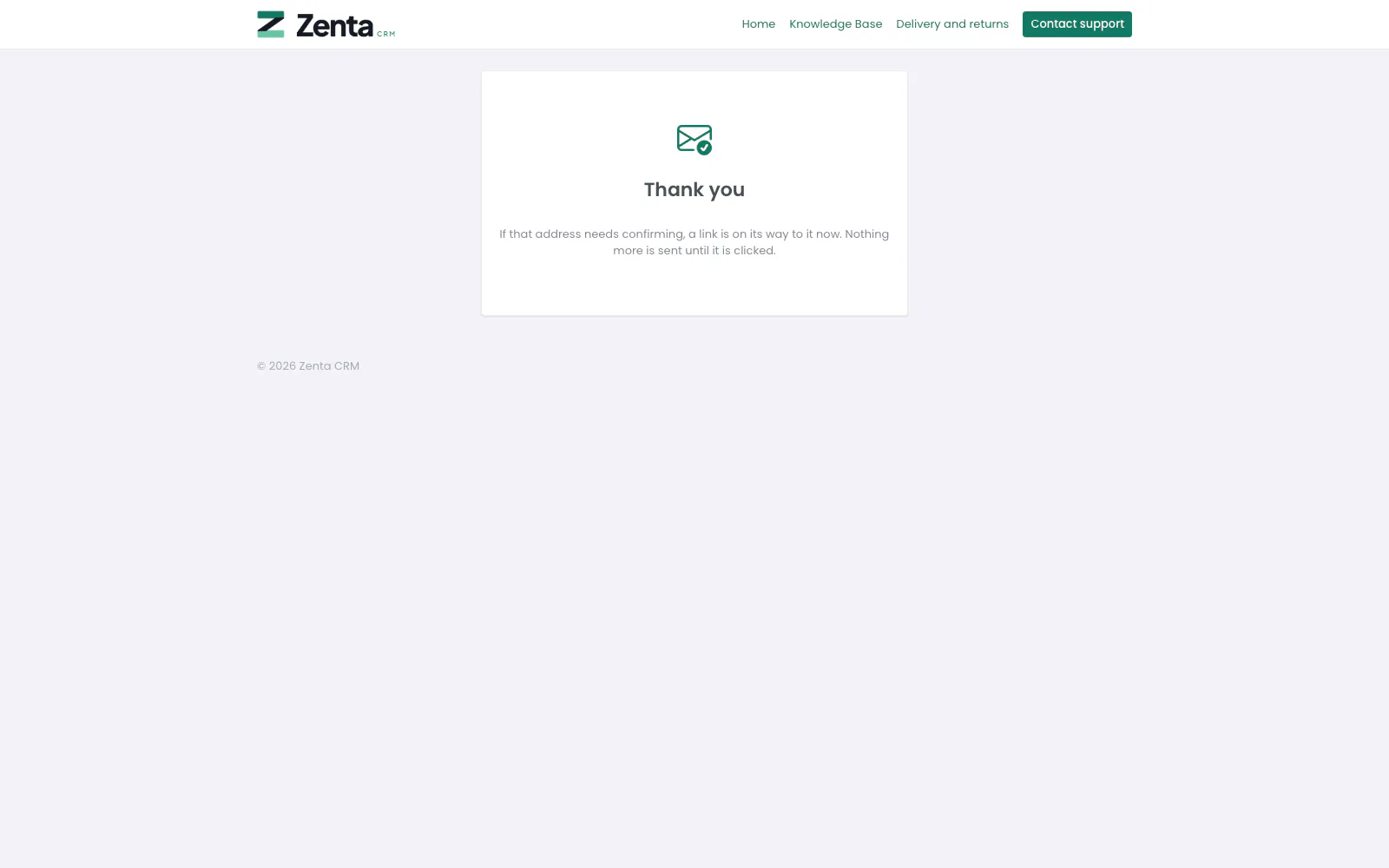 After signing up to a list that asks for confirmation.
The thank-you page says the same whatever happened — new, already on the list, or once unsubscribed — so nobody can use it to find out whether an address is on the list. On a list that asks new sign-ups to confirm, it says a link is on its way.
 Confirming a sign-up from the link in the email.
The confirmation email's link opens Confirm your subscription, and nothing happens until the person presses Yes, subscribe me; the page then says You are subscribed. A button rather than the link itself, because mail scanners open every link in a message and would otherwise confirm addresses nobody meant to confirm.
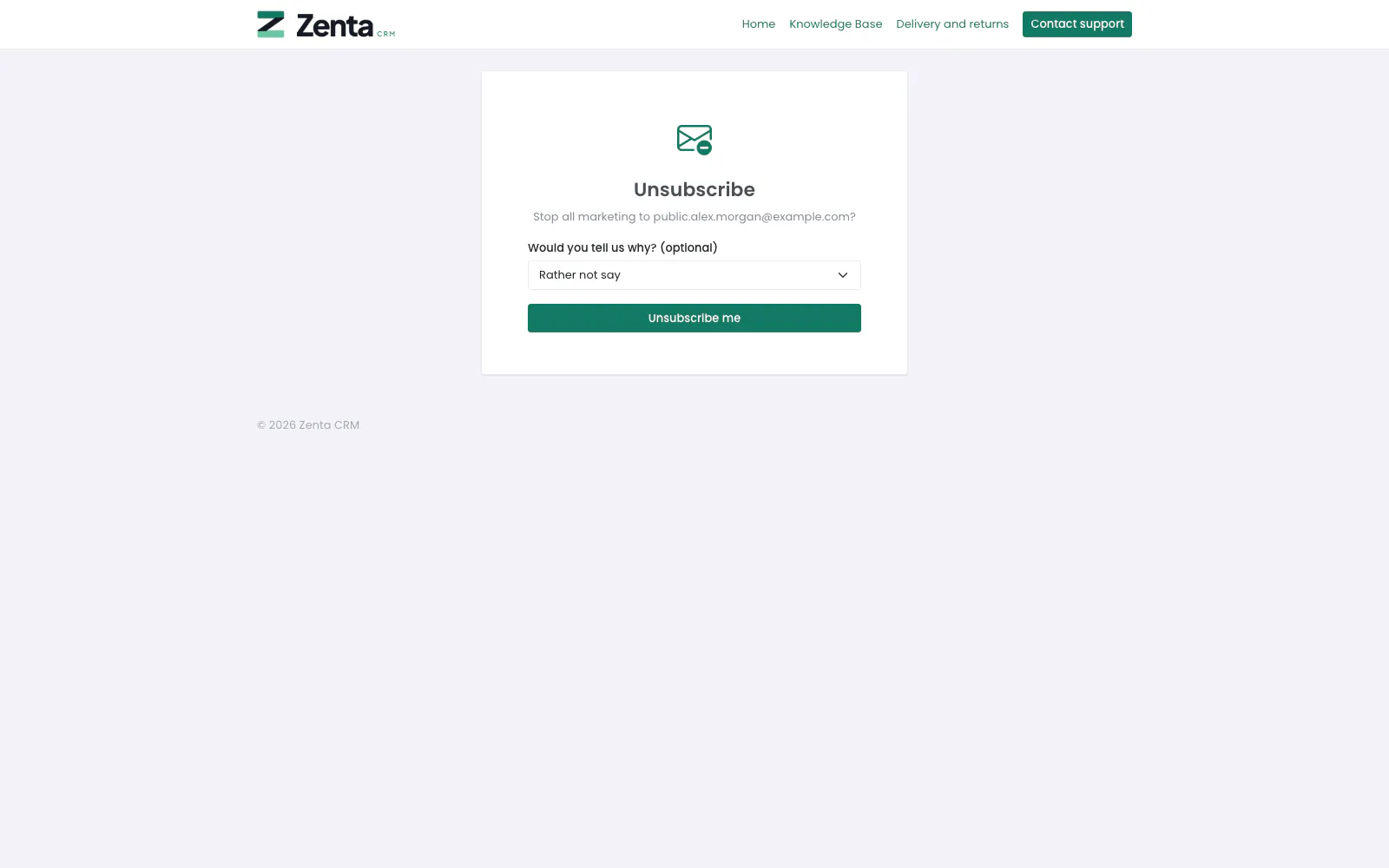 Unsubscribing from the link in a campaign email.
The unsubscribe link in every campaign opens Unsubscribe: Stop all marketing to …?, an optional reason (Too many messages, No longer relevant to me, I never signed up, Something else, or Rather not say), and Unsubscribe me. The page then says You have been unsubscribed: no more marketing by email, text or WhatsApp, while messages about an account, such as invoices, carry on. The same address takes the one-click unsubscribe a mail client sends from its own button. Confirming and unsubscribing keep working even if the business switches Marketing off, because a link in mail already sent must go on working.
Your own pages
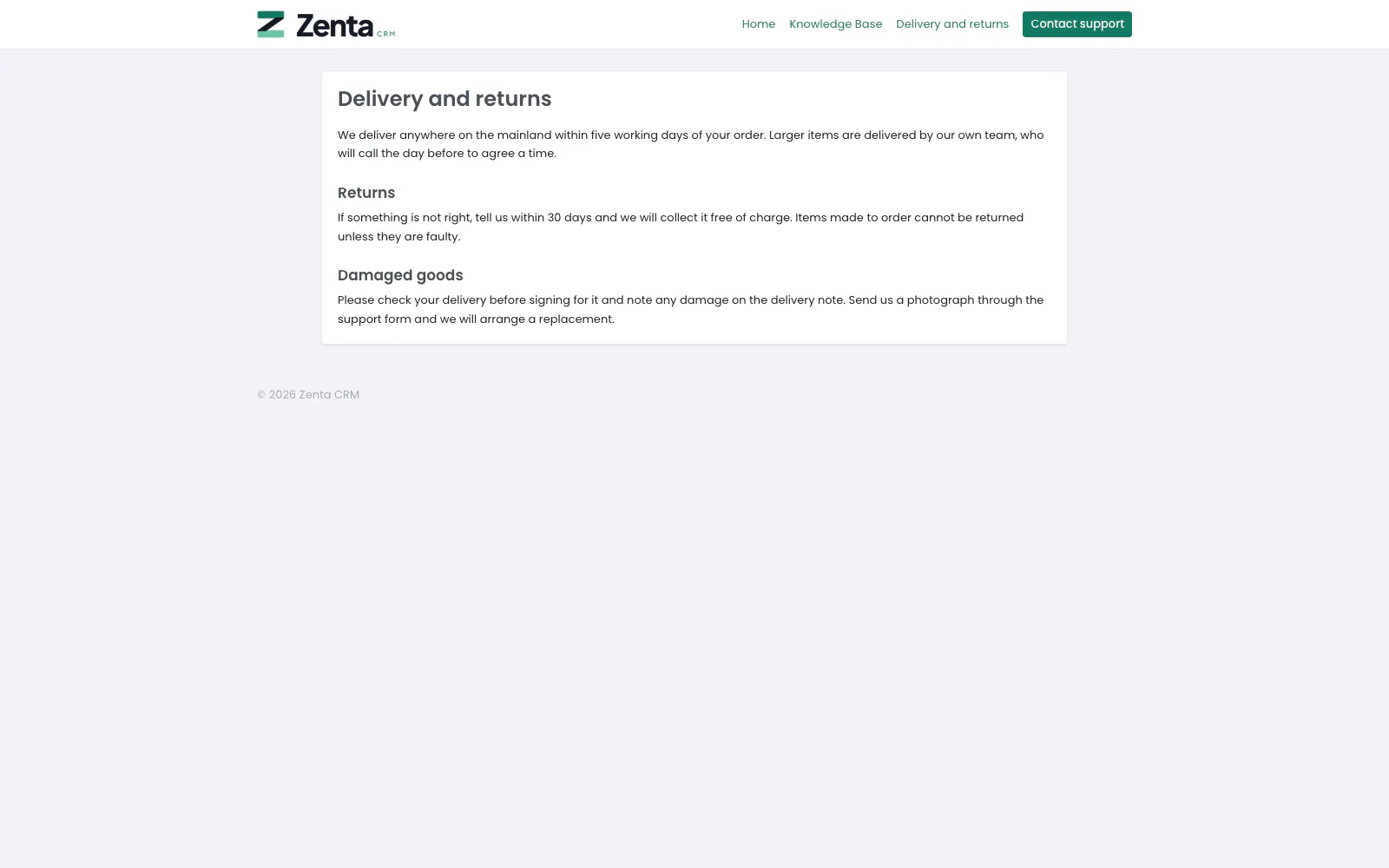 A page of the business's own, published to the public website and shown in the menu.
/p/ followed by the page's address shows a page the business wrote under
Settings → Pages — delivery terms, a privacy
policy, about us — while it is published and its audience is Public
website. A page for the portal or for staff is never shown here; its address
answers "not found".
The front page, pricing and the blog
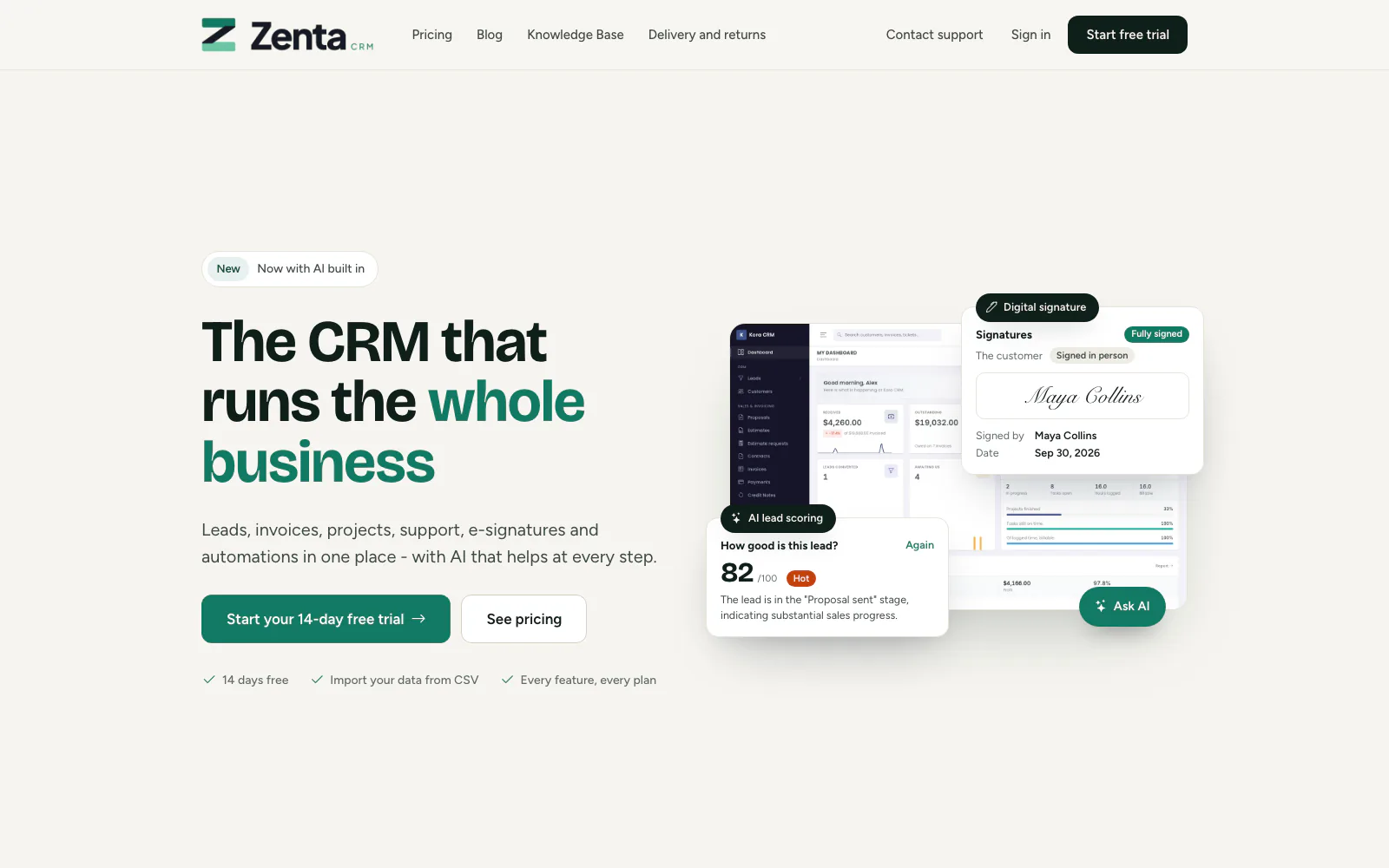 The front page of the platform's own site.
While the website is published (Settings →
Website), the root address shows the front page the business built from sections,
or the ready-made page until it has built one, with the three latest blog posts at the
foot unless that is switched off. While it is not published, the root address goes
straight to the sign-in page (or, for somebody already signed in, to their own home
page). Staff who can see Settings can look at an unpublished front page by adding
?preview to the address.
 Pricing, on the platform's own site only.
/pricing lists the platform's public plans. While companies may sign
themselves up, each plan has Start free trial (or Get
started for a plan with no trial); otherwise Contact us, which
opens the support form. It exists only on the platform's own site, the one that sells the product: a
customer workspace's website has no plans to sell, so there it answers "not found". The
plans themselves are set in Plans.
 The blog: the published posts, newest first.
/blog lists the published posts, ten to a page, newest first, each with its
date, title and excerpt. A post dated in the future appears on that date; a draft never
does. The blog answers "not found" while the website is not published.
 A post, with the three most recent others under it.
A post shows its title, date and author, its cover picture if it has one, the post itself, and More writing: the three most recent other posts.
robots.txt and sitemap.xml
Both are written by the application as they are asked for, from the settings under Search engines.
/robots.txtalways answers. It always disallows/admin,/portal,/tenant/admin,/api,/installand/uploads; while indexing is off it disallows everything; it adds the business's extra rules; and while indexing and the sitemap are both on it names the sitemap./sitemap.xmlanswers "not found" unless indexing and the sitemap are both on. It lists the front page (and pricing, on the platform's own site), the blog and its published posts while the website is published; the knowledge base, its categories and its articles while the knowledge base is public and its module is on; and every published public page: at most 2,000 of each.
Addresses on this page
For reference and for anyone scripting against the panel. Anyone can open these without signing in. Each is refused, or shows nothing, while the feature behind it is switched off.
| Method | Address | What it does |
|---|---|---|
GET | knowledge-base | The knowledge base, with q to search. Also open to anybody signed in while it is kept from the public. |
GET | knowledge-base/category/{group} | A category, by its address. |
GET | knowledge-base/{article} | An article, by its address. Counts a view. |
POST | knowledge-base/{article}/vote | Yes / No under an article (helpful). Used by the page itself; answers 404 while the question is switched off. |
GET | support | The Contact support form. |
POST | support | Opens a ticket from the form. Ten a minute from one address. |
GET | request-estimate | The Request an estimate form. |
POST | request-estimate | Files a request against a lead. Five a minute from one address. |
GET | survey/{token} | A survey. A survey for staff or customers opens, but can only be answered signed in. |
POST | survey/{token} | Records the answers and goes to the thank-you page. A closed survey answers 410. |
GET | survey/{token}/thank-you | The survey's thank-you page. |
GET | lead-form/{token} | A lead form. |
POST | lead-form/{token} | Opens a lead from the form. Five a minute from one address. |
GET | subscribe/{token} | A mailing list's sign-up form. |
POST | subscribe/{token} | Signs somebody up; also the target of the form copied onto another website. Ten a minute from one address. |
GET | subscribe/{token}/thanks | The page after signing up. |
GET | confirm-subscription/{token} | Confirm your subscription. Open even while Marketing is switched off. |
POST | confirm-subscription/{token} | Yes, subscribe me. |
GET | unsubscribe/{token} | The Unsubscribe page. Open even while Marketing is switched off. |
POST | unsubscribe/{token} | Unsubscribe me, with an optional reason; also a mail client's one-click unsubscribe. |
GET | p/{slug} | A published page whose audience is Public website. |
GET | blog | The blog, ten posts to a page. |
GET | blog/{post} | One published post, by its address. |
GET | / | The front page while the website is published; otherwise a redirect to sign in. |
GET | pricing | The plans, on the platform's own site only. |
GET | robots.txt | The robots file. Always answers. |
GET | sitemap.xml | The sitemap, while indexing and the sitemap are both on. |