Privacy and GDPR
Consent, data exports, corrections, erasure and removal requests — off until you switch them on.
Switching it on
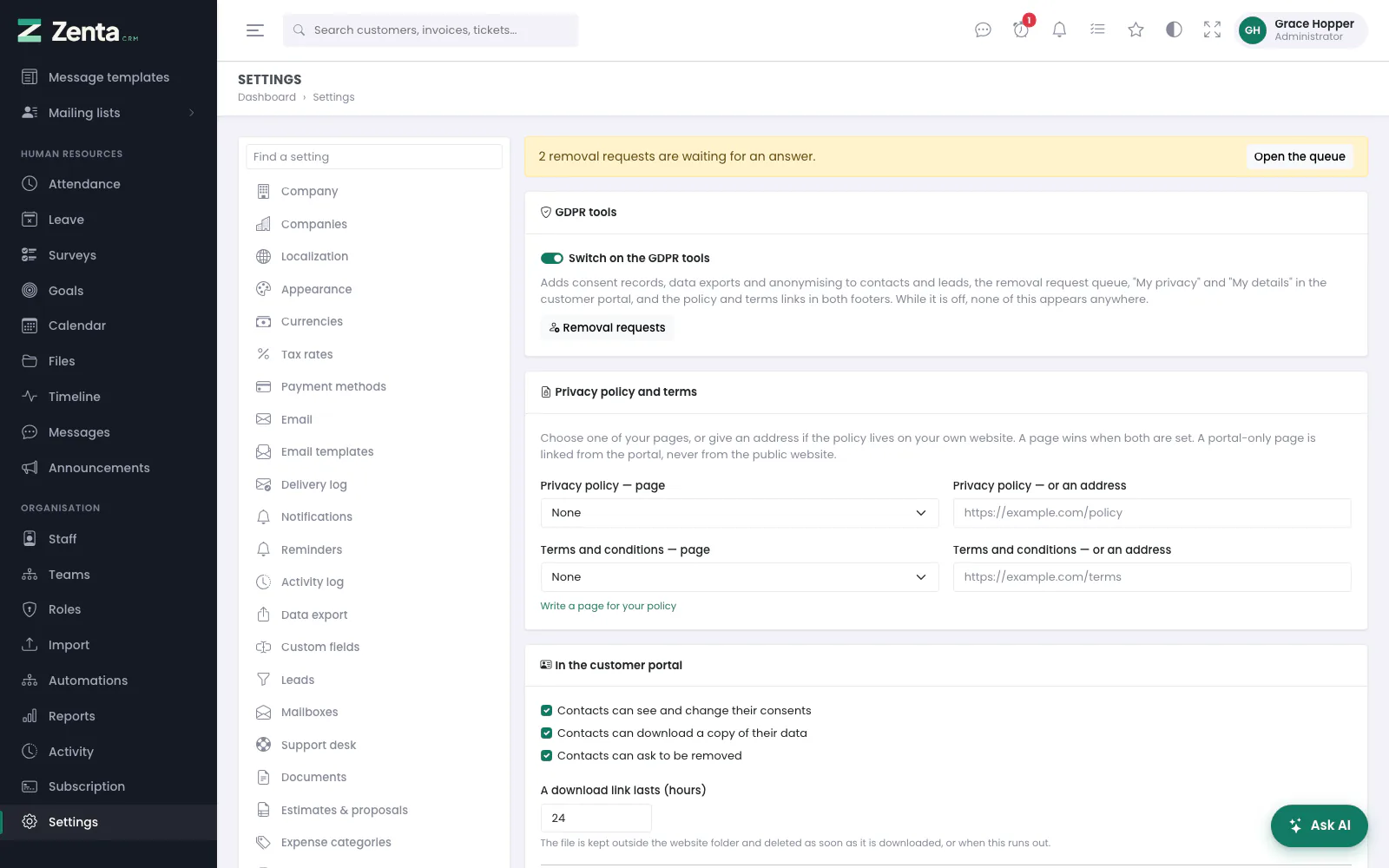 Settings → Privacy / GDPR: the switch, the policy and terms, and what a contact may do in the portal.
The GDPR tools are off when you install. While they are off nothing on this page appears anywhere — not to your staff, not in the portal, not on the public site — and the privacy screens on contacts and leads answer "not found". Switch them on at Settings → Privacy / GDPR with Switch on the GDPR tools, and press Save privacy settings. Opening the page needs permission to view settings; saving needs permission to edit them.
| Setting | What it does |
|---|---|
| Switch on the GDPR tools | Adds consent records, data exports and anonymising to contacts and leads, the removal request queue, My privacy and My details in the portal, and the policy and terms links in both footers. |
| Privacy policy — page / or an address | One of your pages, or the address of a page on your own website. A page wins when both are set. |
| Terms and conditions — page / or an address | The same, for your terms. |
| Contacts can see and change their consents | Adds their consents to My privacy in the portal. |
| Contacts can download a copy of their data | Adds Prepare my data to My privacy. |
| Contacts can ask to be removed | Adds Ask to be removed to My privacy. |
| A download link lasts (hours) | 1 to 168. How long a contact's prepared copy can be collected. |
| Ask people who register for the portal to accept the terms | See Terms on portal registration. |
While removal requests are waiting, a banner at the top of the page says how many, with Open the queue; the Removal requests button under the switch opens it too.
Privacy policy and terms
While the tools are on, the policy and the terms are linked from the footer of the public pages and of the customer portal. A page visible only in the portal is linked from the portal and not from the public site. Write a page for your policy opens a new page.
Consent
Consent purposes
 Consent purposes, how many answers each has, and whether it is still asked.
At the foot of the settings page, Consent purposes lists what you ask permission for — "Newsletter", "Phone calls", "Case study" — with how many answers each has had and whether it is Asked or Retired.
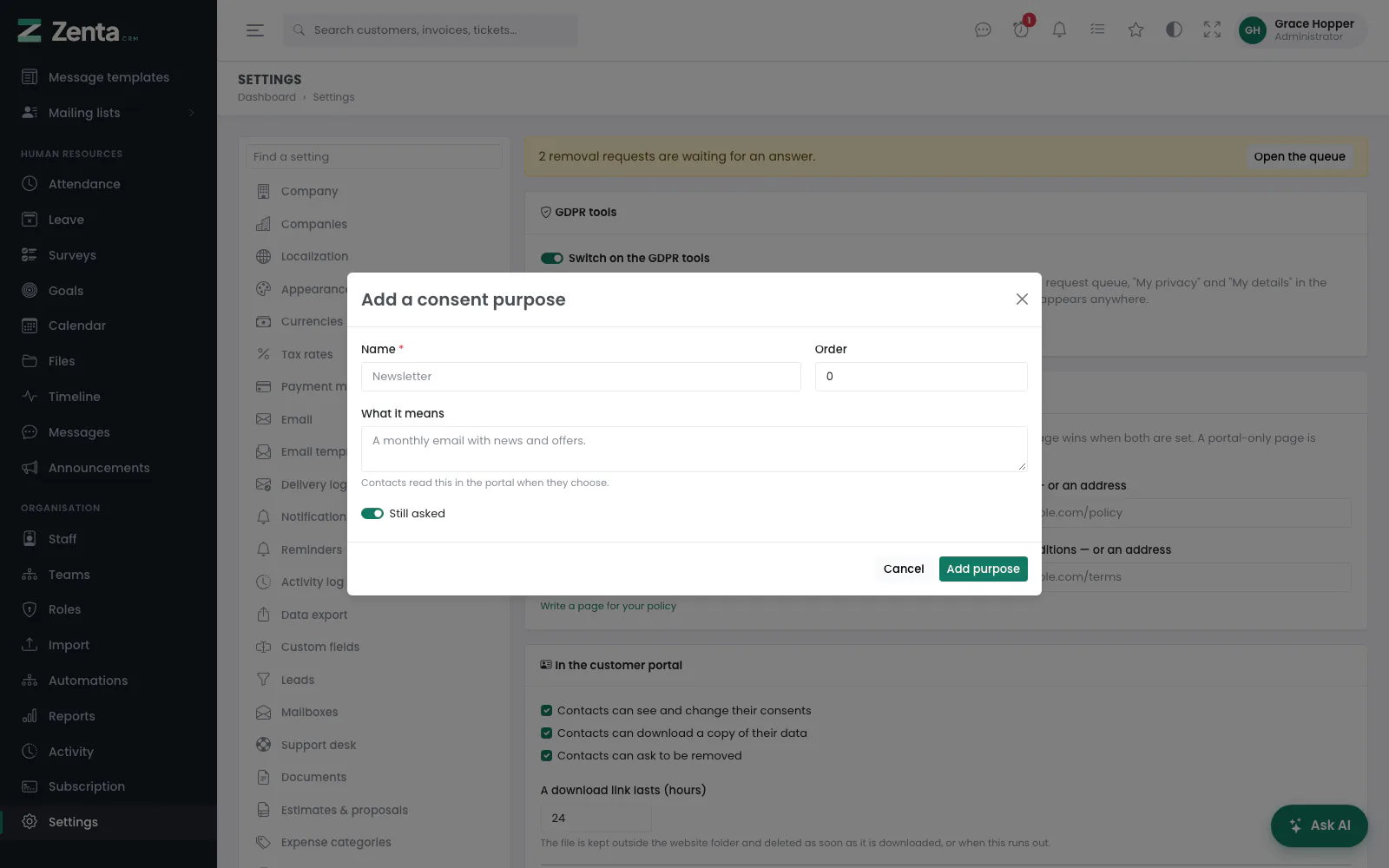 Adding a consent purpose.
 Editing a consent purpose: Delete is there while nobody has answered it.
- Add a purpose opens the form: Name (required), Order, What it means (contacts read this in the portal when they choose) and Still asked. Press Add purpose.
- The button on a purpose opens the same form filled in; press Save changes.
- Delete, in that form, removes a purpose after you confirm — only while nobody has answered it. A purpose somebody has answered is part of their consent history: untick Still asked to retire it instead. A retired purpose stays on each person's record, marked Retired, and is no longer offered when recording consent.
Recording consent
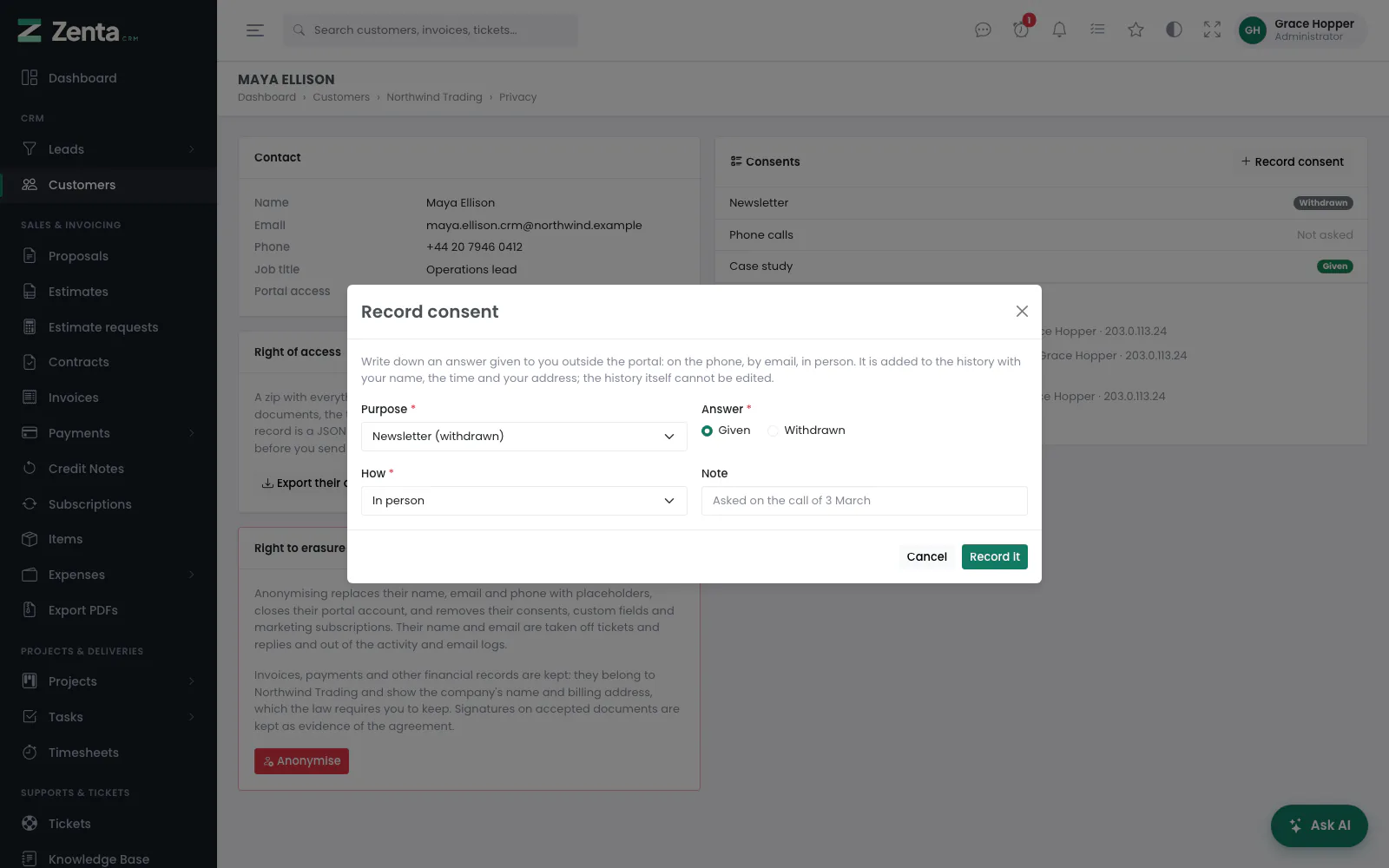 Recording a contact's answer given outside the portal.
- On a customer's Contacts tab, the button beside a contact opens their Privacy page. On a lead, the Consents card is on the profile, under the lead's details.
- Press Record consent to write down an answer given on the phone, by email, in person or on a form: the Purpose, the Answer (Given or Withdrawn), How (In person, By email, By phone, On a form or Other) and an optional Note.
- Press Record it. An answer that is the same as the one already on record changes nothing, and you are told so.
Every change is kept as history — when, how, by whom and from which IP address — and the history cannot be edited. Staff cannot record an answer as coming from the portal. Recording consent needs permission to edit customers (for a contact) or leads (for a lead). An anonymised person cannot be given new consents.
 The same form, opened from a lead.
If you allow it, contacts can also see and change their own answers in the portal under My privacy; those changes are recorded as "In the customer portal".
A contact's Privacy page
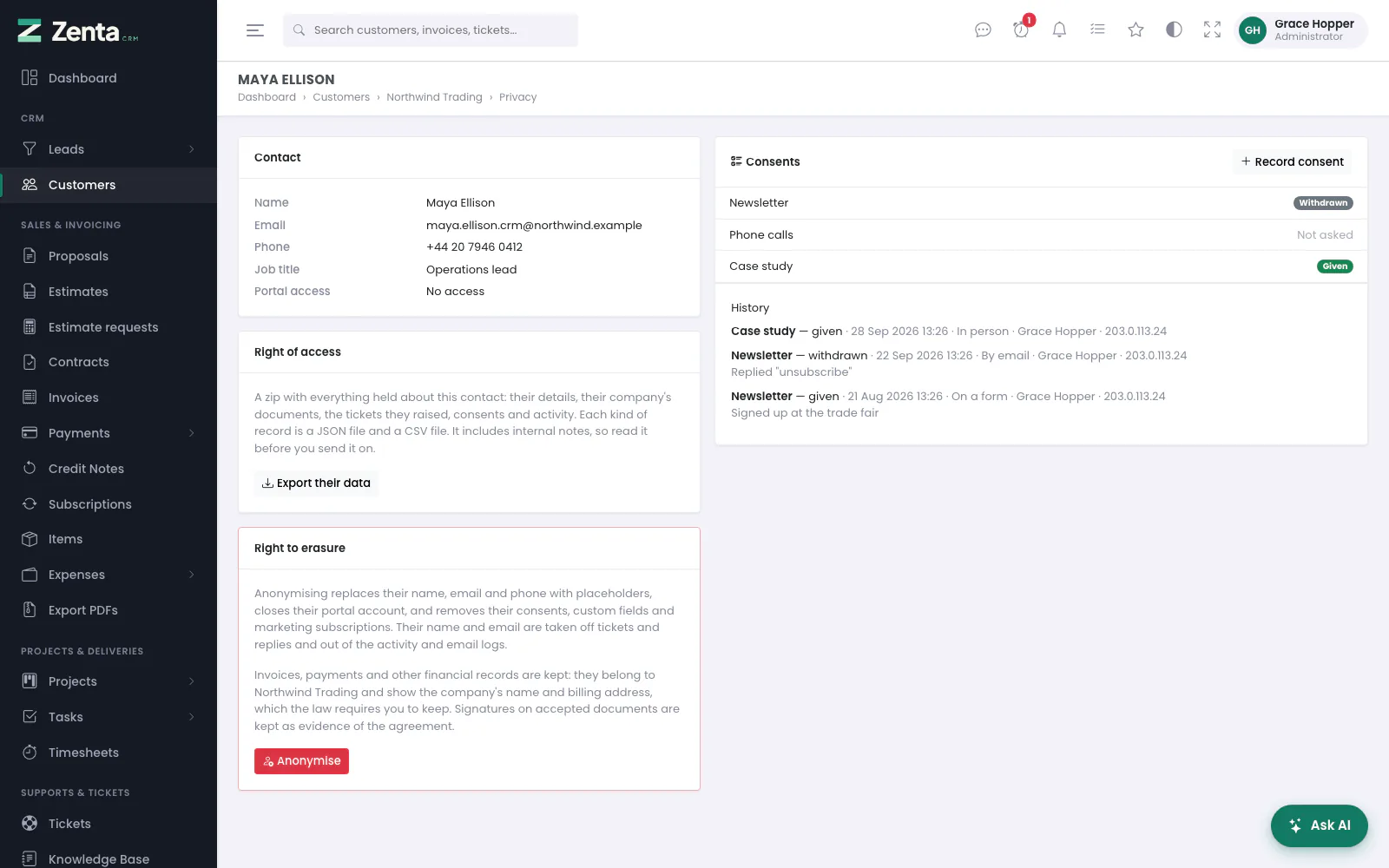 One contact's Privacy page: their details, export, erasure and consents.
The button beside a contact opens a page with the contact's details and portal access, a Right of access card with Export their data, a Right to erasure card with Anonymise, and their Consents with the full history. Where somebody lacks the permission for a button, the card says which permission it needs. Opening the page needs permission to view customers.
Right of access and data portability
Export their data on a contact's Privacy page, Export data at the top of a customer's page and Export its data on a lead's profile each download a zip file. Inside, every kind of record is in two files: JSON, for moving the data to another service, and CSV, which opens in a spreadsheet.
 A lead's consents and its Privacy card: export and anonymise.
| Export | What is in it |
|---|---|
| Contact | Their profile, their company, the company's invoices, payments, estimates, proposals, contracts and projects as the portal shows them, the tickets they raised with the replies, their consent history, activity entries about them, and their privacy requests. |
| Customer | The company, all its contacts, all its invoices, payments, estimates, proposals, contracts, projects, tickets and replies, notes, the contacts' consents and the activity entries about all of them. |
| Lead | The lead, proposals sent to it, its notes, its consents and its activity entries. |
Passwords, payment-link tokens and drawn signature images are never included. Staff exports include internal notes and private ticket notes, because an access request covers them too — read the export before you send it on. Exporting needs the Export permission for customers or leads, and only works for records the person can already see. The file is deleted from the server as soon as it has been sent.
If you allow it, contacts can press Prepare my data under My privacy in the portal. Their copy contains what they can already see in the portal, plus their profile, consents and activity — never your internal notes. The file is kept outside the website folder, can be downloaded once, and is deleted as soon as it is downloaded or when the link runs out (24 hours unless you change it). An hourly scheduled job deletes any that were never collected.
Rectification
Contacts can correct their name and phone number under My privacy → My details in the portal. The correction is recorded in the activity log. Their email address is shown but cannot be changed there: it is how they sign in and where invoices and password resets go, and changing it on the strength of a signed-in session alone would let anyone at an unattended computer redirect all three. Change it for them from the contact's record when they ask.
Right to erasure: anonymising
Anonymise on a contact's Privacy page or a lead's profile replaces the person's details with placeholders. It cannot be undone, and asks you to confirm. It needs the Delete permission for customers or leads. After a contact is anonymised you are taken back to the customer, where they are marked Anonymised; a lead shows when it was anonymised.
| Removed | Kept, and why |
|---|---|
| Name, email, phone, job title and (for a lead) company, website, address and description; portal access and open sessions; custom field values; consent records; marketing-list subscriptions; for a lead, its notes, files, reminders and AI summaries, and the recipient details on proposals sent to it. Their name and email are taken off tickets and replies, and the old values are wiped from activity entries and the email delivery log. | Invoices, payments, credit notes and estimates, which belong to the customer (the company) and show its name and billing address — tax law requires you to keep them. Signatures on accepted documents, as evidence of the agreement. The text of support tickets, as your support history. A customer the lead was converted into, which is a separate record. |
The anonymisation itself is written to the activity log. A customer that has invoices can no longer be deleted — from its page or in bulk — because the invoices must be kept with it; anonymise the people at it instead.
Removal requests from the portal
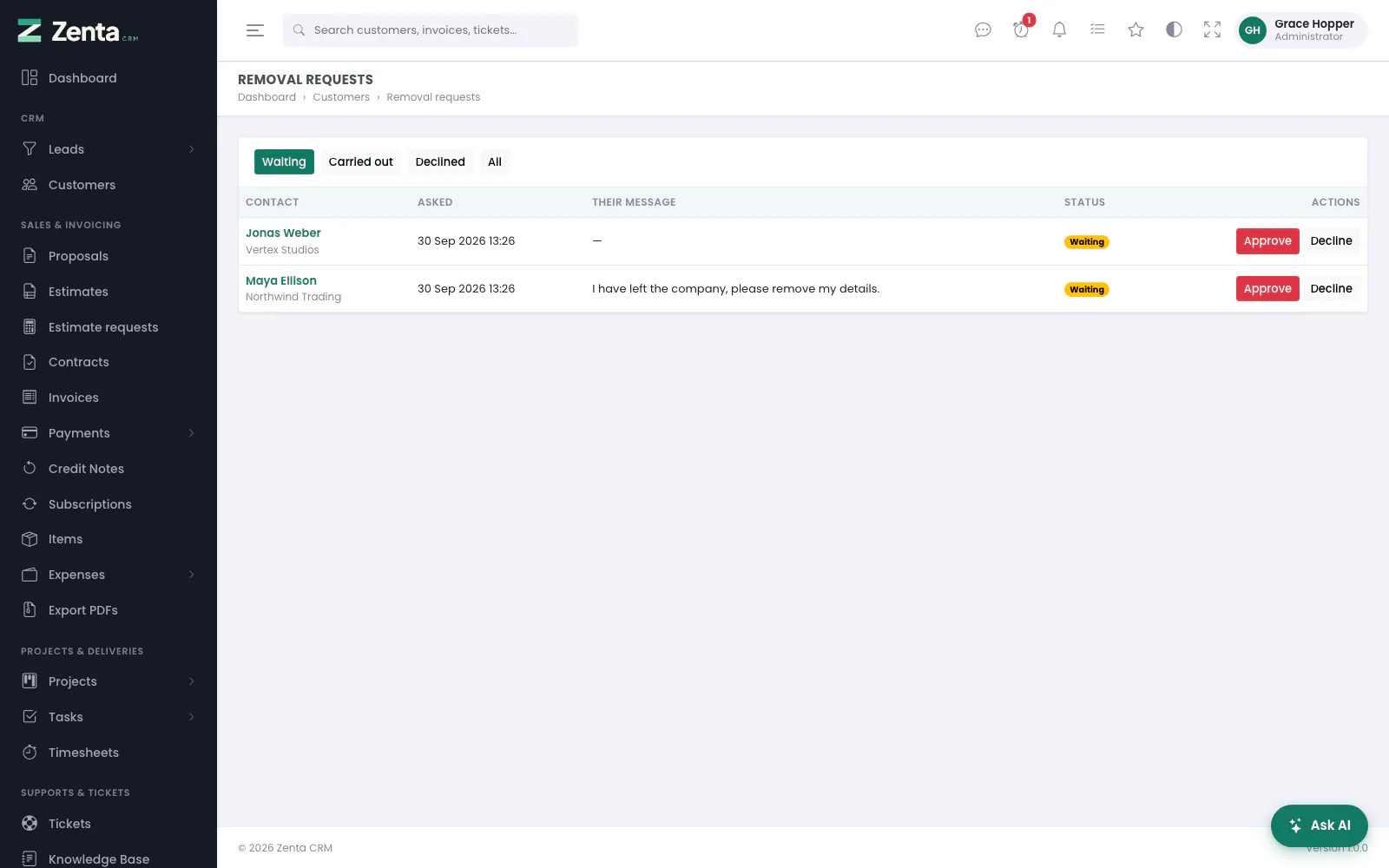 Removal requests waiting for an answer.
If you allow it, contacts can press Ask to be removed under
My privacy. Requests wait in Removal requests, opened
from Settings → Privacy / GDPR (the address is
/admin/privacy-requests). It lists the contact (linked to their Privacy
page) and their company, when they asked, their message and the status, filtered by
Waiting, Carried out, Declined and
All. You see the requests from customers you can see; opening the queue
needs permission to view customers.
- Approve asks you to confirm, then emails the contact that it is done, using the Removal request carried out template, and anonymises them.
- Decline asks Why (at least five characters) and Decline and tell them emails that reason, word for word, using the Removal request declined template. The contact also sees the reason under My privacy and can ask again later.
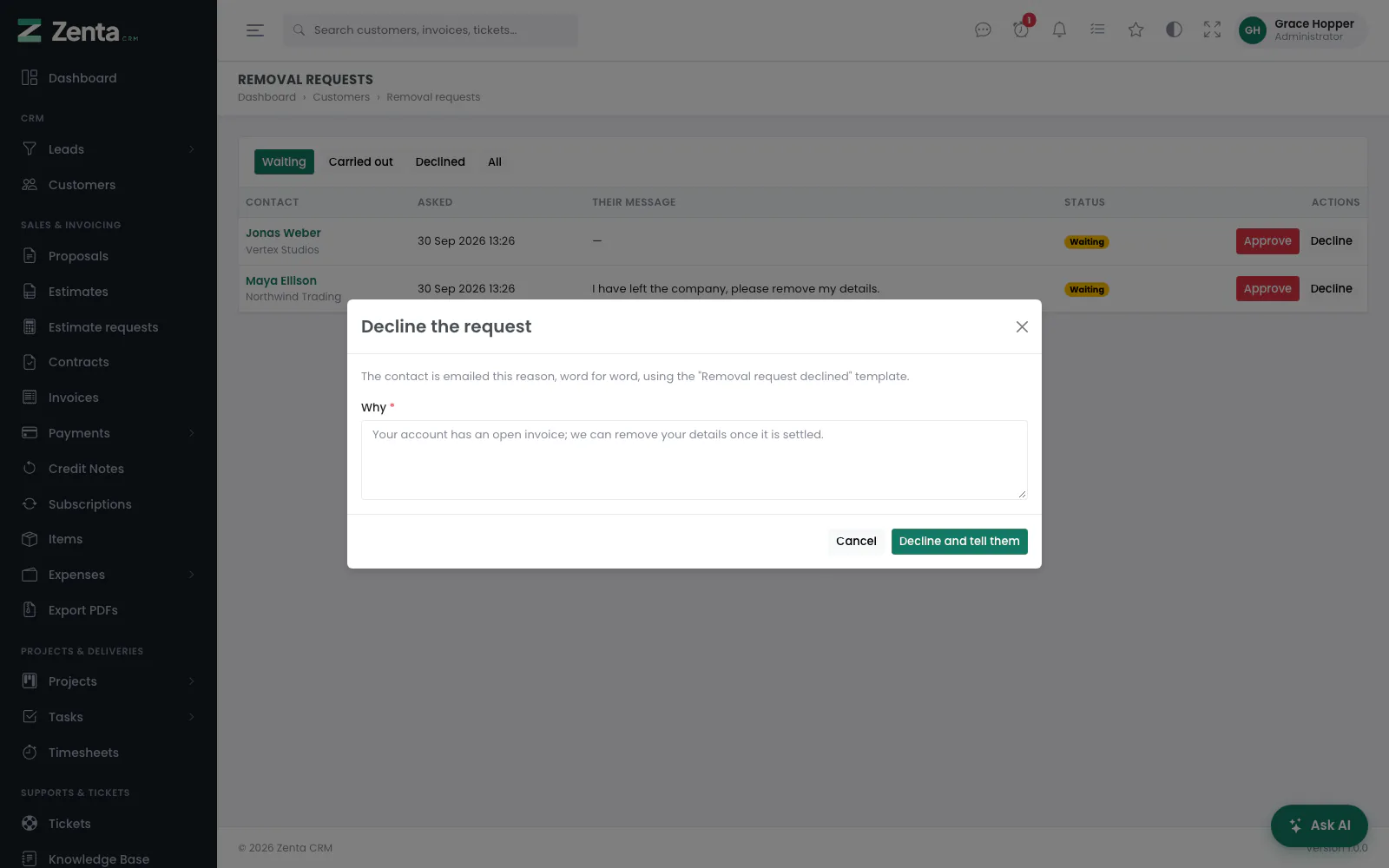 Declining a removal request: the reason is emailed to the contact.
Both templates can be edited under Settings → Email templates, in the Privacy group. Answering a request needs the Delete permission for customers. A request that has been answered cannot be answered again.
Terms on portal registration
Ask people who register for the portal to accept the terms is stored with the other privacy settings for the portal's self-registration form: when that form is in use, it shows an "I accept the terms and conditions" box linked to your terms page or address, and refuses a registration without it. Contacts you add yourself are not asked. See Client portal settings for self-registration.
Addresses on this page
For reference and for anyone scripting against the panel. Everything here needs somebody signed in to the workspace whose role allows it; anybody else is refused.
| Method | Address | What it does |
|---|---|---|
GET | admin/settings/privacy | Settings → Privacy / GDPR. |
PUT | admin/settings/privacy | Saves the privacy settings. |
GET | admin/settings/privacy/purposes/create | The new-purpose form (opens in a pop-up). |
POST | admin/settings/privacy/purposes | Adds a consent purpose. |
GET | admin/settings/privacy/purposes/{purpose}/edit | The purpose form (opens in a pop-up). |
PUT | admin/settings/privacy/purposes/{purpose} | Saves a consent purpose. |
DELETE | admin/settings/privacy/purposes/{purpose} | Removes a purpose nobody has answered. |
GET | admin/customers/{customer}/contacts/{contact}/privacy | A contact's Privacy page. |
GET | admin/customers/{customer}/contacts/{contact}/privacy/consent | The Record consent form for a contact (opens in a pop-up). |
POST | admin/customers/{customer}/contacts/{contact}/privacy/consent | Records a contact's consent. |
GET | admin/customers/{customer}/contacts/{contact}/privacy/export | Downloads everything held about a contact, as a zip. |
POST | admin/customers/{customer}/contacts/{contact}/privacy/anonymise | Anonymises a contact. |
GET | admin/customers/{customer}/privacy-export | Downloads everything held about a customer, as a zip. |
GET | admin/leads/{lead}/privacy/consent | The Record consent form for a lead (opens in a pop-up). |
POST | admin/leads/{lead}/privacy/consent | Records a lead's consent. |
GET | admin/leads/{lead}/privacy/export | Downloads everything held about a lead, as a zip. |
POST | admin/leads/{lead}/privacy/anonymise | Anonymises a lead. |
GET | admin/privacy-requests | The removal request queue, with a status filter (pending, approved, declined, all). |
POST | admin/privacy-requests/{privacyRequest}/approve | Carries out a removal request: tells the contact and anonymises them. |
GET | admin/privacy-requests/{privacyRequest}/decline | The decline form (opens in a pop-up). |
POST | admin/privacy-requests/{privacyRequest}/decline | Declines a removal request and emails the reason. |