Expenses
What the business spends: one-off expenses, the standing ones that come round every month, and the categories they are filed under.
The expense list
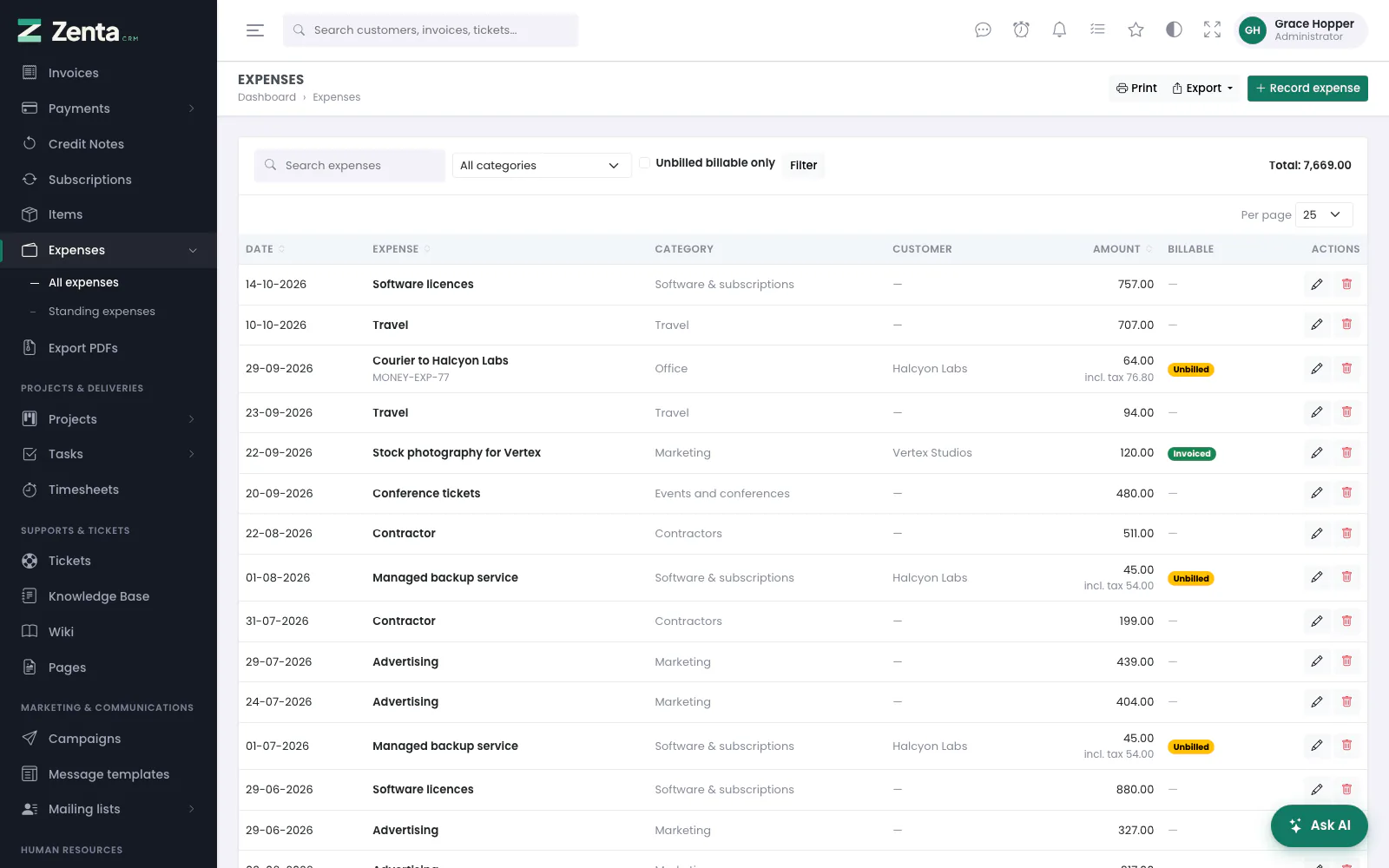 Expenses, newest first, with the ones to charge on to a customer marked.
Sales & invoicing → Expenses. Every expense you are allowed to see: the Date, the Expense (with its reference underneath), its Category, the Customer it was for, the Amount — with incl. tax and the total underneath when it carries tax — and whether it is Billable:
| Badge | Means |
|---|---|
| Unbilled | Marked billable to the customer, and no invoice has charged for it yet. |
| Invoiced | An invoice has charged the customer for it. |
| — | The business's own cost. |
Search expenses matches the name, reference or description. All categories narrows to one category, and Unbilled billable only leaves just the expenses still waiting to be charged on — the list to work through before invoicing a customer. Press Filter. Date, Expense and Amount sort the list; Print and Export take it as filtered (see Exporting).
Total at the right adds up the amount, before tax, of every expense you can see — it does not follow the filter.
Recording an expense
 Record expense: what was spent, on what, and whether the customer pays for it.
Record expense opens the form in a pop-up. It needs the permission to create expenses.
| Field | What it does |
|---|---|
| Name | Required. What it was, e.g. Train to Leeds. |
| Date | Required. Today by default. The expense counts in the month of this date. |
| Amount | Required, more than zero. Before tax: any tax chosen below is added on top. |
| Category | Where it is filed, or Uncategorised. The beside it adds a new category without leaving the form (for those who may change settings). |
| Paid with | The payment method it was paid by, or Unspecified. |
| Tax / Second tax | Active tax rates. The rate is copied onto the expense, so changing the tax later does not restate what was paid. |
| Customer | Who it was spent for, or Not customer related. |
| Project | Only while the Projects module is on. Files it on that project's Sales tab. |
| Reference | A receipt or order number, up to 60 characters. Searchable. |
| Description | Anything else worth knowing. |
| Receipt | A PDF, PNG, JPG or WebP, within the limits set under Settings → Uploads (see Security). |
| Billable to customer | Marks it as money to charge on. It shows as Unbilled until an invoice charges for it. |
Custom fields you have added to expenses appear on the form too. Press Record expense.
Editing and deleting
 Editing an expense. The receipt link appears once one has been attached.
The on a row opens the same form; press Save changes. Once a receipt is attached, View current receipt opens it; choosing a new file replaces it and the old one is deleted.
The deletes an expense after a confirmation (Delete this expense?). Editing and deleting need their own permissions, and a role limited to its own records can only touch those.
Standing expenses
 Standing expenses: the rent, the hosting, the licences, and when each next comes round.
The rent, the hosting, the software licences. A standing expense is a template; each time it comes round, the CRM records an ordinary expense that behaves like any other — editable, deletable, filed under its category. The template itself never appears in the expense list or the reports, because it is money nobody has spent yet.
Sales & invoicing → Expenses → Standing expenses (the Expenses menu entry opens into All expenses and Standing expenses). For each template: its name and category, Every how often, Next when it next comes round, the Customer, how many expenses it has Recorded, and the Amount. A template switched off by hand is badged Paused; one that has run its course (its number of expenses reached, or its end date passed) is badged Finished; one that bills its customer is badged Bills the customer. It needs the permission to see expenses.
 A standing expense switched off by hand reads Paused, and has no button to record it now.
Setting one up
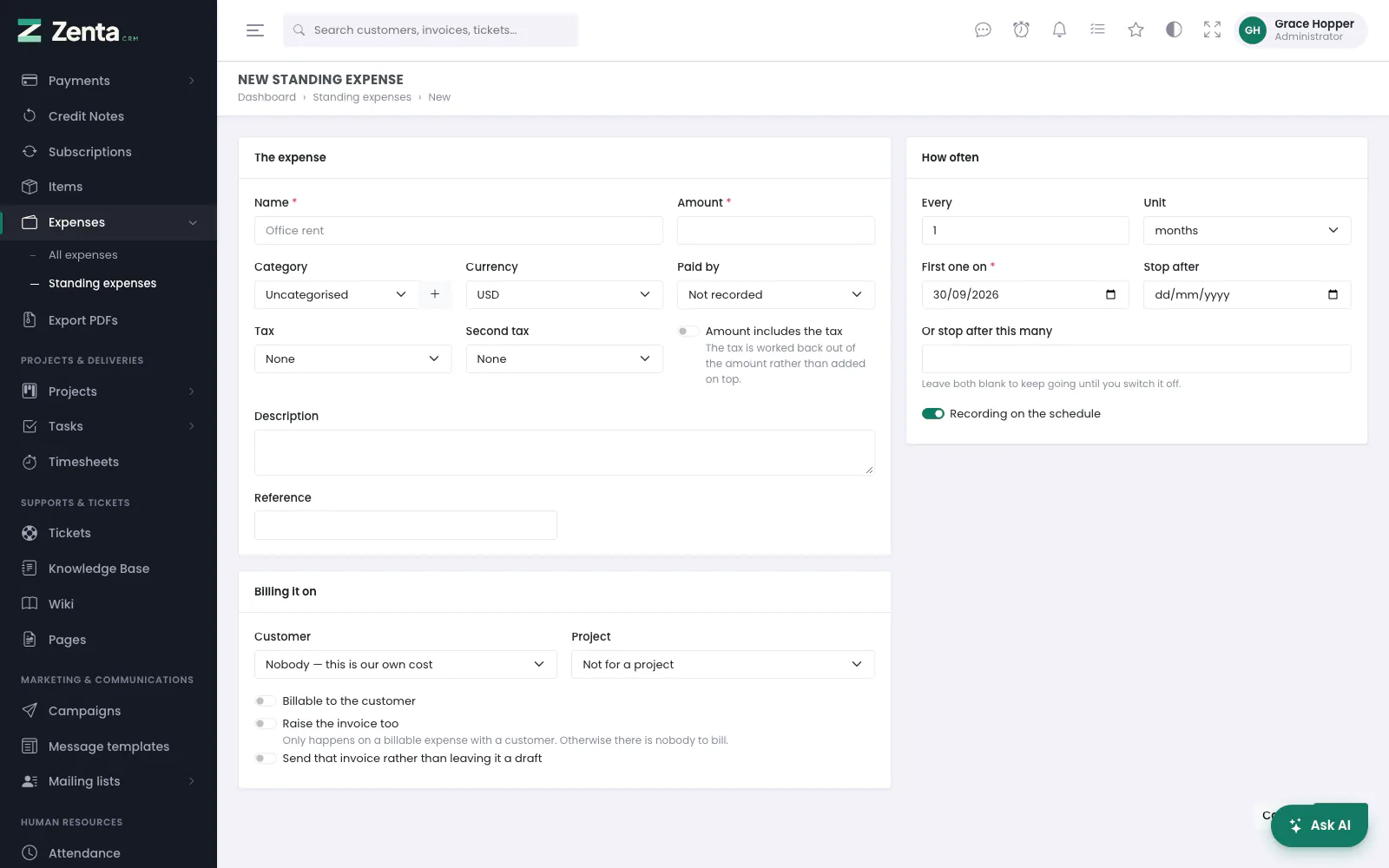 A new standing expense: the expense, who it is billed on to, and how often.
New standing expense (the permission to create expenses). The expense is the same as a one-off — Name and Amount required, Category, Currency, Paid by, Tax, Second tax, Description and Reference — plus:
| You choose | What happens |
|---|---|
| Amount includes the tax | The tax is worked back out of what you typed rather than added on top. |
| Customer and Project | Under Billing it on. Nobody — this is our own cost for the rent. |
| Billable to the customer | Each expense it records is billable, as on a one-off. |
| Raise the invoice too | Bills the customer for it in the same breath, at cost with the same taxes. Only happens on a billable expense with a customer; otherwise there is nobody to bill. |
| Send that invoice rather than leaving it a draft | Or leave it a draft for somebody to look at first. |
| Every and Unit | How often: every 1 to 52 days, weeks, months or years. |
| First one on | Required. The date of the first expense. |
| Stop after, or Or stop after this many | An end date, or a number of expenses. Leave both blank to keep going until you switch it off. A finished template switches itself off. |
| Recording on the schedule | Off pauses it: nothing is recorded, and the list badges it Paused. |
Press Create. The message says when the first one will be recorded.
When the amount already includes the tax
Amount includes the tax works the tax back out of what you typed rather than adding it on top. Which way round it is depends on whose receipt you are copying from, and getting it wrong is the quiet kind of mistake that compounds every month on a standing expense.
With Raise the invoice too as well, the invoice line is priced at the amount before tax and the taxes are added on top, as on any invoice line — so the customer's total is the amount you typed, and the tax is charged once.
The invoice it raises
One line, priced at what the expense cost before tax, with the same taxes on it, so an expense passed on at cost reaches the customer's invoice as the same number the business paid. The line reads Category — Name (the category is left out when there is none), the invoice is dated and due on the expense's date, and the expense is marked Invoiced so it is never offered for billing again. The expense and its invoice are recorded together or not at all.
Editing, recording now, and deleting
 A standing expense being edited: next run, how many so far, and when it last ran.
The name on the list opens the template for editing, with Next, Recorded so far and Last recorded underneath the schedule. Press Save changes. Until the first expense has been recorded, changing First one on moves the first run with it; after that it does not move the next date. Switching a finished template back on — after raising its number of expenses or moving its end date later — schedules it again, from its first date if that is still ahead or from today.
The on an active template's row (Record it now) asks Record … now? and records the one that is due without waiting for the overnight run. It records only what has come round: a template whose next date is still ahead answers Nothing is due on this one yet.
Delete at the top of the edit page removes the template after a confirmation. Everything it recorded stays. Those are expenses that were actually paid, and removing them would rewrite last quarter's figures because somebody cancelled a subscription.
Expense categories
 Settings, Expense categories: how spending is grouped, and how much is filed under each.
Settings → Expense categories. How spending is grouped on the expense list and in every report that totals it. The list shows each Name, its Description and how many Expenses — one-off and standing — are filed under it. Seeing the list needs the permission to view settings; changing it, the permission to edit them.
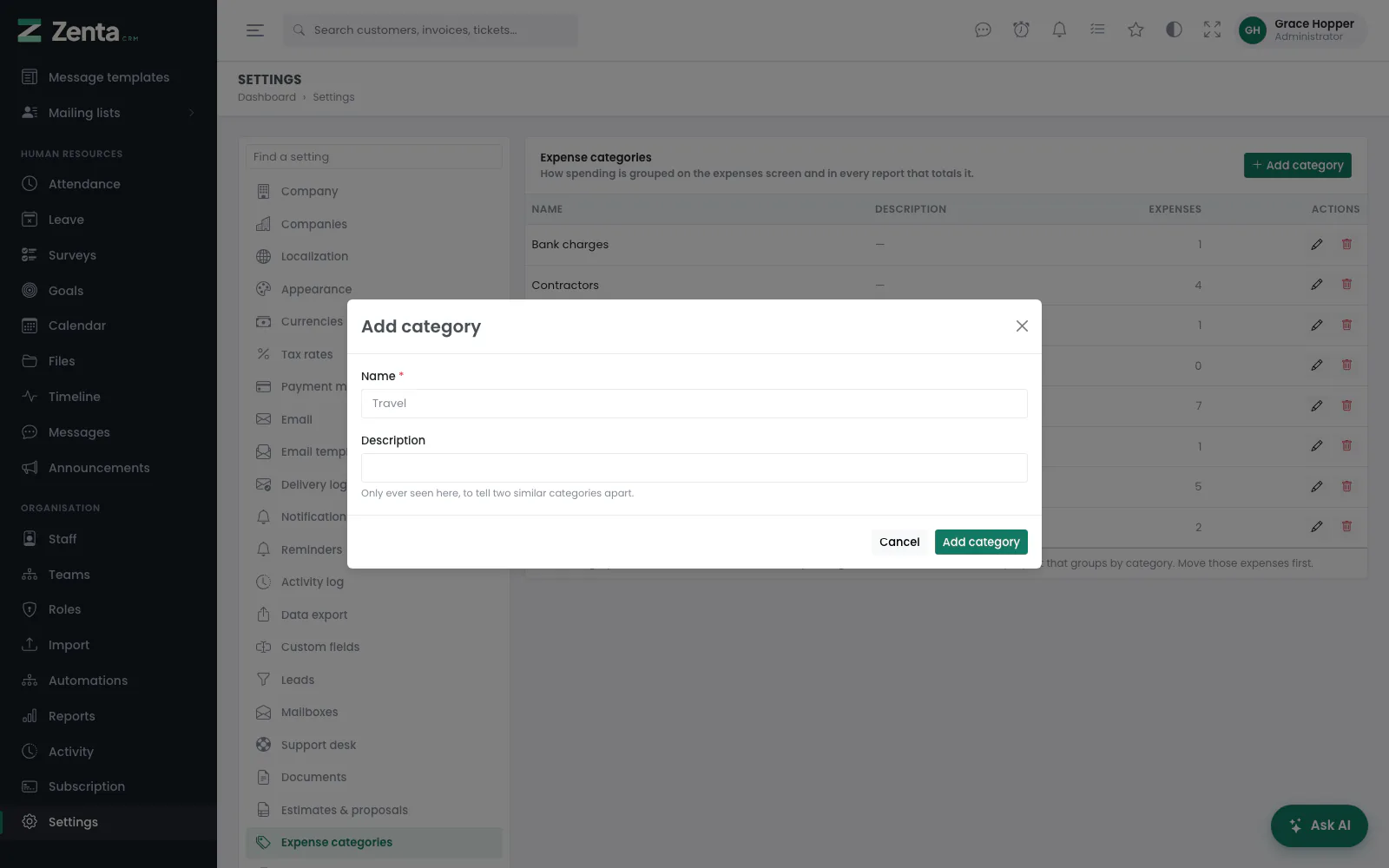 Adding a category.
Add category, or the on a row, opens a pop-up: Name (required, unique, up to 100 characters) and Description (Only ever seen here, to tell two similar categories apart). Press Add category or Save changes. Renaming a category renames it everywhere, in reports for past months too.
 Editing a category.
The removes a category after a confirmation — but only once nothing is filed under it. While expenses or standing expenses use it, the answer is Expenses are filed under this category. Move them first, then remove it. Otherwise that spending would quietly leave every report that groups by category.
Addresses on this page
For reference and for anyone scripting against the panel. Everything here needs somebody signed in to the workspace whose role allows it; anybody else is refused.
| Method | Address | What it does |
|---|---|---|
GET | admin/expenses | The expense list, with q, category and billable_only filters. |
GET | admin/expenses/create | The record-expense form (a pop-up). |
POST | admin/expenses | Records an expense, with its receipt. |
GET | admin/expenses/{expense}/edit | The edit form (a pop-up). |
PUT | admin/expenses/{expense} | Saves an expense; a new receipt replaces the old one. |
DELETE | admin/expenses/{expense} | Deletes an expense. |
GET | admin/recurring-expenses | The standing expenses. |
GET | admin/recurring-expenses/create | The new-standing-expense form. |
POST | admin/recurring-expenses | Creates a standing expense. |
GET | admin/recurring-expenses/{recurring_expense}/edit | The edit form. |
PUT | admin/recurring-expenses/{recurring_expense} | Saves a standing expense. |
DELETE | admin/recurring-expenses/{recurring_expense} | Deletes the template; the expenses it recorded stay. |
POST | admin/recurring-expenses/{recurringExpense}/run | Records the expense that is due now, and its invoice if the template raises one. |
GET | admin/settings/expense-categories | The expense categories. |
GET | admin/settings/expense-categories/create | The add-category form (a pop-up). |
POST | admin/settings/expense-categories | Adds a category. |
GET | admin/settings/expense-categories/{category}/edit | The edit form (a pop-up). |
PUT | admin/settings/expense-categories/{category} | Saves a category. |
DELETE | admin/settings/expense-categories/{category} | Removes a category nothing is filed under. |