Projects in the portal
What a customer may see and do with a project: tasks, comments, files, milestones, a Gantt chart and feedback.
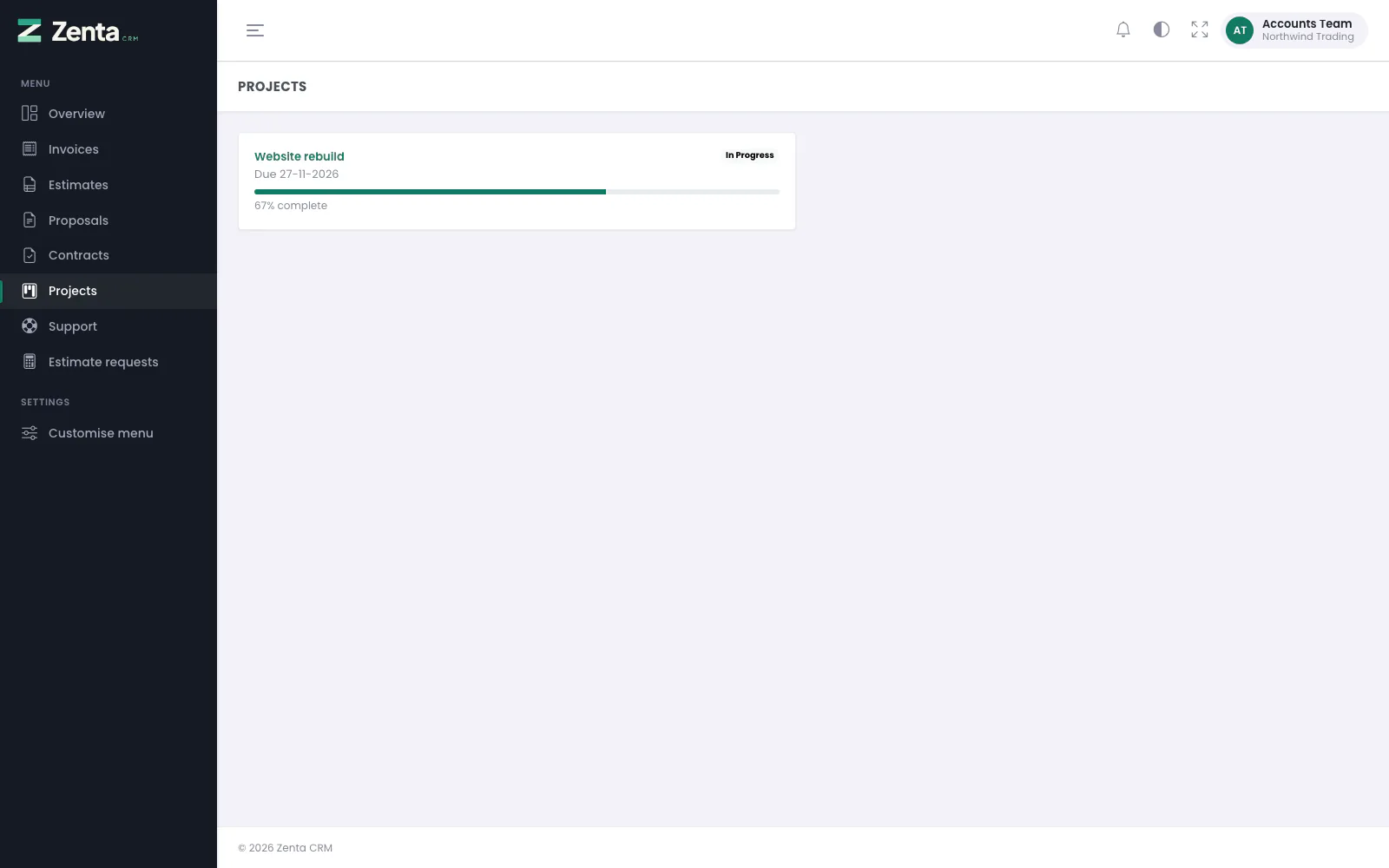 Projects as the customer sees them.
What a customer may see and do with a project
A project in the portal is a set of tabs, and every one of them is behind a switch. The switches live in two places: the defaults, under Settings → Customer portal → Projects, which every project follows, and each project's own set, on its edit screen, for the projects that need to differ. Nothing is shown to a customer unless a switch says so, and a switch only counts while everything it depends on is on as well — commenting on tasks, for instance, needs reading task comments.
The switches
| Group | Switch | What it lets a customer do |
|---|---|---|
| Project | See the overview | The description, status, start date and deadline. |
| See the progress bar | The percentage on the project and in the project list. | |
| See the project value and billing type | Fixed price or hourly, and the figure. | |
| See who is working on it | The staff on the project. | |
| See the total time logged | Hours booked against the project (needs the Timesheets module). | |
| See the activity feed | A history built only from what they may already see. | |
| See milestones | The milestone list with progress. | |
| See the Gantt chart | The timeline of milestones and tasks. | |
| Tasks | See tasks marked visible to the customer | The task list and each task's page. |
| Add tasks | A customer adds a task, which lands in your first open status. | |
| Edit tasks they added themselves | Title, details, dates and milestone — only on their own tasks. | |
| See who each task is assigned to | Assignees on the list and on the task. | |
| See task checklists | The checklist, read-only. | |
| See the time logged on each task | Hours on the task itself. | |
| Read task comments | Every comment except the internal ones. | |
| Comment on tasks | Post a comment, and delete their own again. | |
| See files attached to task comments | Files on comments they can read. | |
| Attach files to their task comments | Files go through the usual upload rules. | |
| Files | See project files shared with the customer | The Files tab and downloads. |
| Upload files | What they send arrives on the project, already shared. | |
| Comment on files | A short thread under each file. | |
| Delete files they uploaded themselves | Their own uploads only — never yours or a colleague's. | |
| Feedback | Leave feedback | A rating and a comment, when feedback is switched on. |
| Projects | Request a new project | A workspace-wide switch: there is no project yet to set it on. |
Setting the defaults
- Go to Settings → Customer portal and find the Projects card.
- Tick what customers should be able to see and do on a project by default.
- Put the tabs in the order you want them, with the arrow buttons, and switch off any tab you never want shown.
- Decide whether customers may rate their projects, and whether only finished ones.
- Save. Every project that has not been given its own switches follows this straight away.
A tab is drawn only when it is switched on here and the project allows what it shows. A project that shares nothing simply says so; the customer never meets an empty page of tabs. Opening a tab a project does not share — by typing the address, say — answers "not found", so the switch is enforced on the page, not only in the menu.
One project on its own terms
- Open the project and choose Edit.
- In the Customer portal card, turn on Give this project its own switches.
- The switches start from your defaults; change what this project needs and save.
- Turning it off again puts the project back on the defaults, whatever they later become.
Tasks from the customer
With Add tasks on, the portal's task list gets an Add a task button. The customer gives a title, details, dates and, if they can see milestones, a milestone. The task is created on the project in your first status that is not a completed one, marked visible to the customer and recorded as theirs — the project page says who added it — and everyone on the project is notified. They can edit their own task afterwards if Edit tasks they added themselves is on; they can never edit yours.
Comments on tasks
Every task now has a comment thread, on the staff page as well as in the portal. Staff can attach files to a comment, and can mark a comment internal: an internal comment, and everything attached to it, stays on the staff side for good and is never sent to the portal, whatever the project's switches say. A comment can be made internal (or shared again) after the event, and its files follow it. A customer's own comment cannot be made internal — they wrote it, and they would still see it.
Files on a project
A project has a Files tab of its own. Upload one or more files, and decide per file whether the customer sees it — the eye button switches that at any time. Files a customer sends arrive here already shared and marked as theirs. Each file has a short comment thread, and a staff comment on a file can be internal in the same way as on a task. Deleting a file removes its comments with it.
In the portal, the Files tab lists what has been shared, lets the customer send files back if Upload files is on, and lets them delete their own uploads if Delete files they uploaded themselves is on. Every upload goes through the allowed types and size limit under Settings → Uploads.
Taking a file back
A customer can also remove a file they attached to a support ticket — until somebody on your side writes after it. Once you have replied, the file is part of an answered conversation and the button is gone. Only their own file, never a colleague's, and the message they wrote stays either way.
The Gantt chart
Projects have a Gantt tab, on the staff side and — where the switch allows — in the portal. Milestones are diamonds on their due date, tasks are bars from start date to due date in their status colour, finished tasks are faded, and today is a red line. It is drawn by the server with no chart library and no script at all, so it prints and works in any browser; a long project scrolls sideways inside its own box. A task with only one date is drawn as that day, and anything with no dates is listed without a bar, which is usually the reminder that it needs one.
The activity feed
The portal's Activity tab is a plain history of the project: tasks added and completed, comments, files shared. It is built from the records the customer can already open rather than from the staff activity log, so it can never leak a rate change or a note that was meant for your own team.
Customer feedback
Switch feedback on under Settings → Customer portal → Projects, and optionally keep it back until a project is finished. Each contact can leave one rating out of five with a comment, and can change it until somebody replies. Your reply is shown to them under their rating, and fixes what they wrote.
Staff see feedback on the project's Feedback tab, with the project's average, and every rating together under Projects → Customer feedback — filtered by stars or by "waiting for a reply", with the workspace average and a breakdown per star. Feedback you remove can be left again by the customer, so removal is for the occasional rating left by mistake rather than for tidying away criticism.
Letting customers ask for a project
With Request a new project on, the portal's project list gets a Request a project button. The customer gives a name, a description and a date they need it by; the project is created against their company as Not started, with nobody on it, and your administrators are notified. The project page says who asked for it and when. Take it up in the usual way: add members, agree the figures, set it to In progress.
Addresses on this page
For reference and for anyone scripting against the panel. Everything here needs a customer contact signed in to the portal; the addresses that open without signing in are marked.
| Method | Address | What it does |
|---|---|---|
GET | portal/projects | The contact's projects, when the customer may see projects. |
GET | portal/projects/request | The form for asking for a new project, when the business takes requests. |
POST | portal/projects/request | Sends the request to the business; ten an hour. |
GET | portal/projects/{project} | A project's overview. |
GET | portal/projects/{project}/{tab} | One of the project's tabs (tasks, milestones, files, discussions, activity) that the project lets the customer see. |
GET | portal/projects/{project}/tasks/create | The form for adding a task, when the project allows it. |
POST | portal/projects/{project}/tasks | Adds a task to the project. |
GET | portal/projects/{project}/tasks/{task} | A task the customer may see, with its comments. |
GET | portal/projects/{project}/tasks/{task}/edit | The form for changing a task the contact added. |
PUT | portal/projects/{project}/tasks/{task} | Saves a task the contact added. |
POST | portal/projects/{project}/tasks/{task}/comments | Comments on a task. |
DELETE | portal/projects/{project}/tasks/{task}/comments/{comment} | Removes one of the contact's own comments. |
POST | portal/projects/{project}/files | Uploads files to the project, when the project allows it. |
GET | portal/projects/{project}/files/{file} | Downloads a file the customer may see. |
DELETE | portal/projects/{project}/files/{file} | Removes a file the contact uploaded. |
POST | portal/projects/{project}/files/{file}/comments | Comments on a file. |
POST | portal/projects/{project}/feedback | Rates the project and says how it went, while feedback is open. |