Talking to us
Support tickets, messages to the people who look after you, and asking for an estimate, from the customer portal.
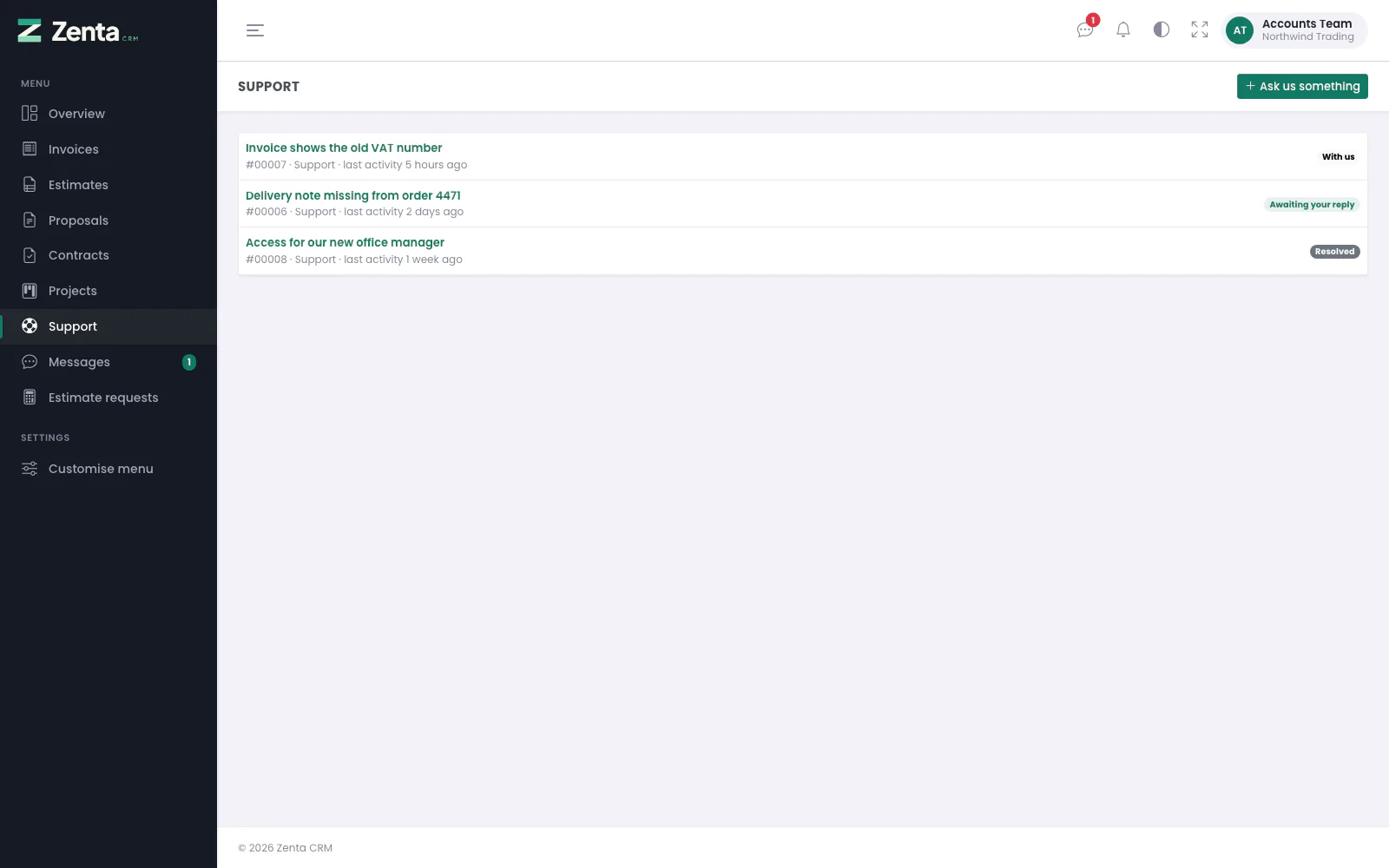 Support in the portal: every ticket your company has open with us, and whose turn it is.
Three pages of the portal are for talking to the business rather than reading documents: Support, Messages and Estimate requests. Each is in the portal's menu when the business offers it and your account is allowed to use it. What you see is always your own company's: a contact never sees another customer's tickets, conversations or requests.
| Menu entry | What it is for | Shown when |
|---|---|---|
| Support | Something that needs fixing or answering, followed until it is done. | The Support tickets module is on (Settings → Modules). |
| Messages | A conversation with the people who look after you, or with colleagues at your own company. | The business has switched on at least one of the Messages switches, and the Messages module is on. |
| Estimate requests | Asking to be quoted for something, and seeing where the request has got to. | Customers may request an estimate from the portal is ticked (Estimate requests) and the Estimates module is on. |
Your company's primary contact can also untick Support tickets, Messages or Estimates for an individual colleague (see Getting into the portal). A contact without one of them does not see the entry, and opening its address says You do not have access to this part of the portal. Your primary contact can give it to you. Estimate requests go with the Estimates permission.
Support tickets
Support lists your company's tickets, whichever of your colleagues opened them, twenty to a page with the most recently active first. Each row shows the subject, the reference (such as #00005), the department and how long ago anything last happened. The badge on the right says where it stands:
- With us — you wrote last; the business owes you an answer.
- Awaiting your reply — the business has answered and is waiting for you.
- The status's own name, such as Resolved or Closed, once the ticket is closed.
A ticket that staff merged into another ticket, or archived, is no longer listed.
Asking something new
 Opening a ticket: what it is about, who should see it, how urgent it is, and the details.
Press Ask us something.
| Field | What it does |
|---|---|
| What is it about? | Required. The ticket's subject, up to 191 characters. |
| Who should see it? | One of the business's support departments, or Not sure, which files it under the default department. |
| How urgent is it? | The business's own priorities; starts on the default one. |
| Tell us what is happening | Required. The first message of the conversation. |
| Attachments | Up to five files. The size per file and the types accepted are the business's upload settings, and the form says the size. |
Press Send it. The ticket's page opens with Thank you — we have your message. The ticket is always filed against your own company and your own name, taken from your sign-in, never from the form. If the business writes back the moment a ticket arrives (its Acknowledge a new ticket email, see How the desk behaves), you also get an email with the ticket's number and a link back to this page.
A ticket's page
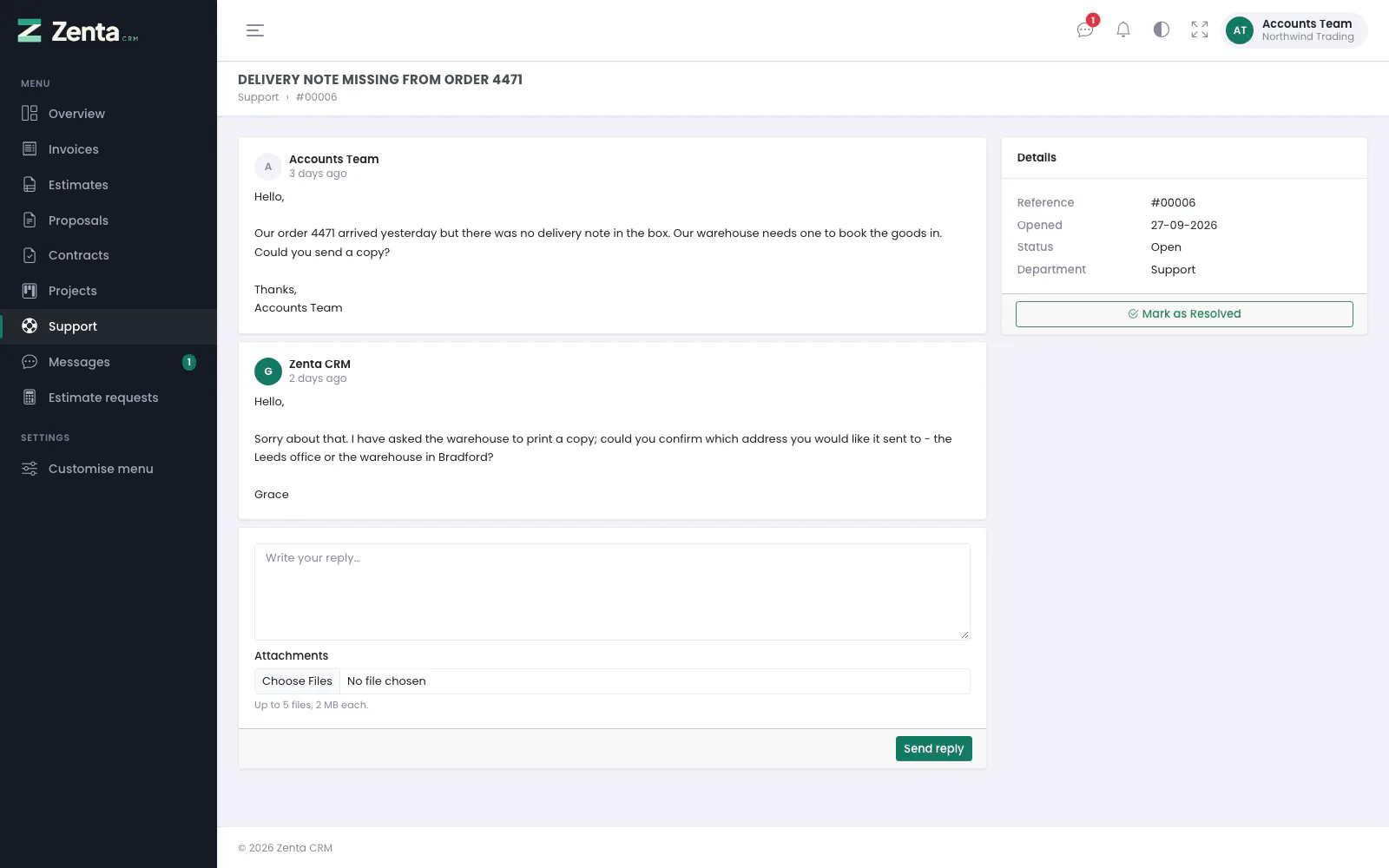 A ticket waiting for the customer: the conversation, the reply box, and the Details card.
The conversation reads top to bottom. The business's answers are signed with the business's name rather than the person who wrote them. Only what was written for you is shown: staff private notes, and files a member of staff kept back, never appear in the portal.
The Details card on the right shows the Reference, when it was Opened, its Status and its Department, and under it any buttons the business lets you press (see below).
To answer, write in the box under the conversation, add up to five Attachments if you need to, and press Send reply. The page reloads with Reply sent. When the business has switched on voice notes (Formatting and voice notes in comments), a record button appears under the box too, and a recording can be the whole reply.
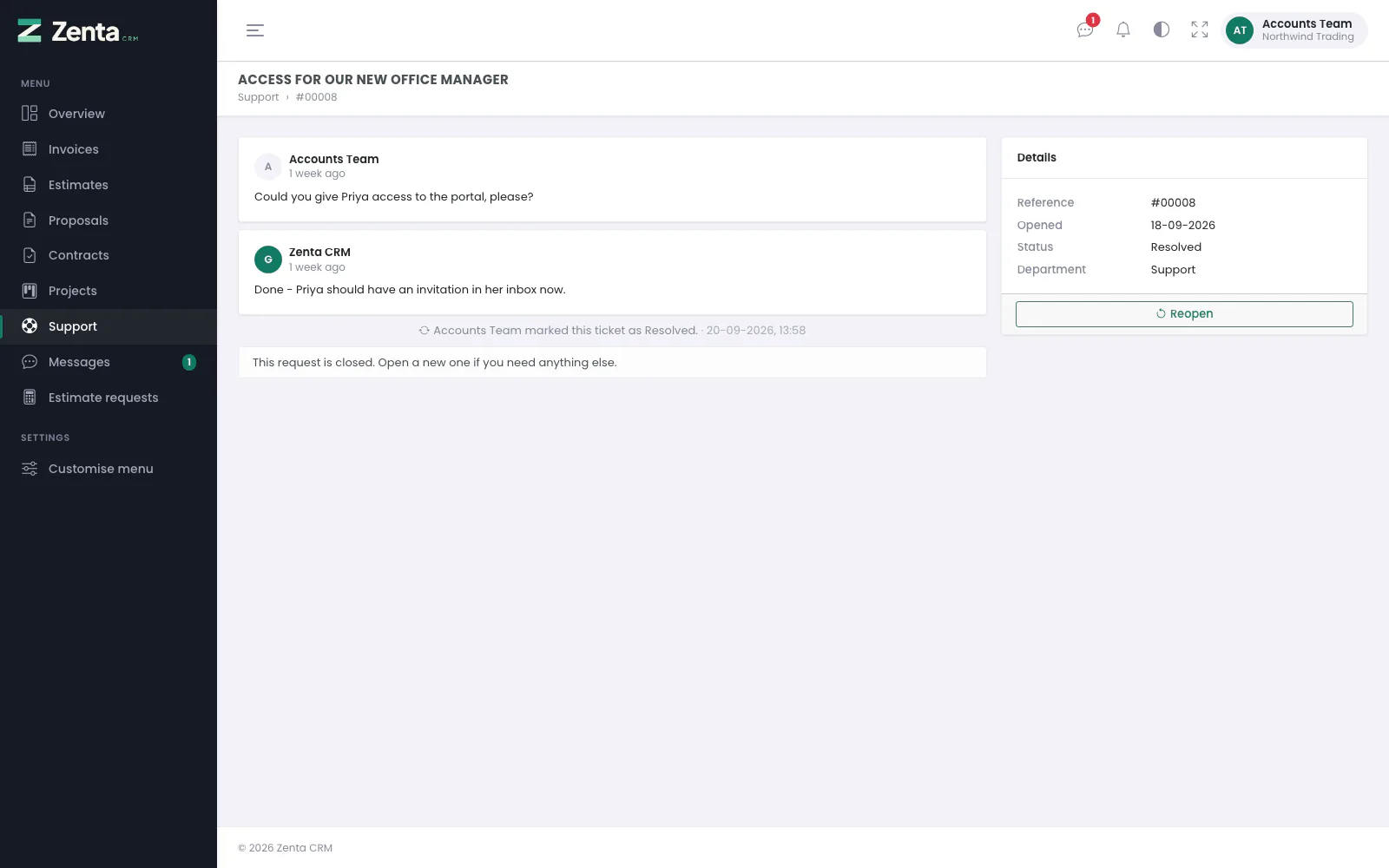 A resolved ticket: the note left when the customer marked it resolved, and the Reopen button.
A closed ticket keeps its conversation. Whether you can still write on it depends on its status: if the status is set to reopen when the customer replies, the reply box stays and your reply moves the ticket back to the business's first open status. Otherwise the box is replaced by This request is closed. Open a new one if you need anything else.
Marking a ticket resolved, and reopening it
The business decides whether you may do this. Under Settings → Customer portal → Tickets it ticks the statuses a customer may set, and each ticked status becomes a button on the Details card:
- a closing status (for example "Resolved" or "Closed") is offered as Mark as Resolved (the status's own name) while the ticket is open;
- an open status (for example "Open") is offered as Reopen once the ticket is closed.
An open status is never offered on a ticket that is already open, so you cannot move a ticket between the business's own working states. With nothing ticked there are no buttons, and a merged or archived ticket never has any. Pressing one asks you to confirm (Mark this request as Resolved? or Reopen this request?).
The change is written into the conversation as a line of its own ("Accounts Team marked this ticket as Resolved."), shown on the staff side with a Status change badge. Whoever looks after the ticket — the assignee, or the department's members when the department notifies its members — is told in the bell. Closing raises the same Ticket closed event as closing it from the staff side, so automations and webhooks written for it run too.
Taking back a file you sent
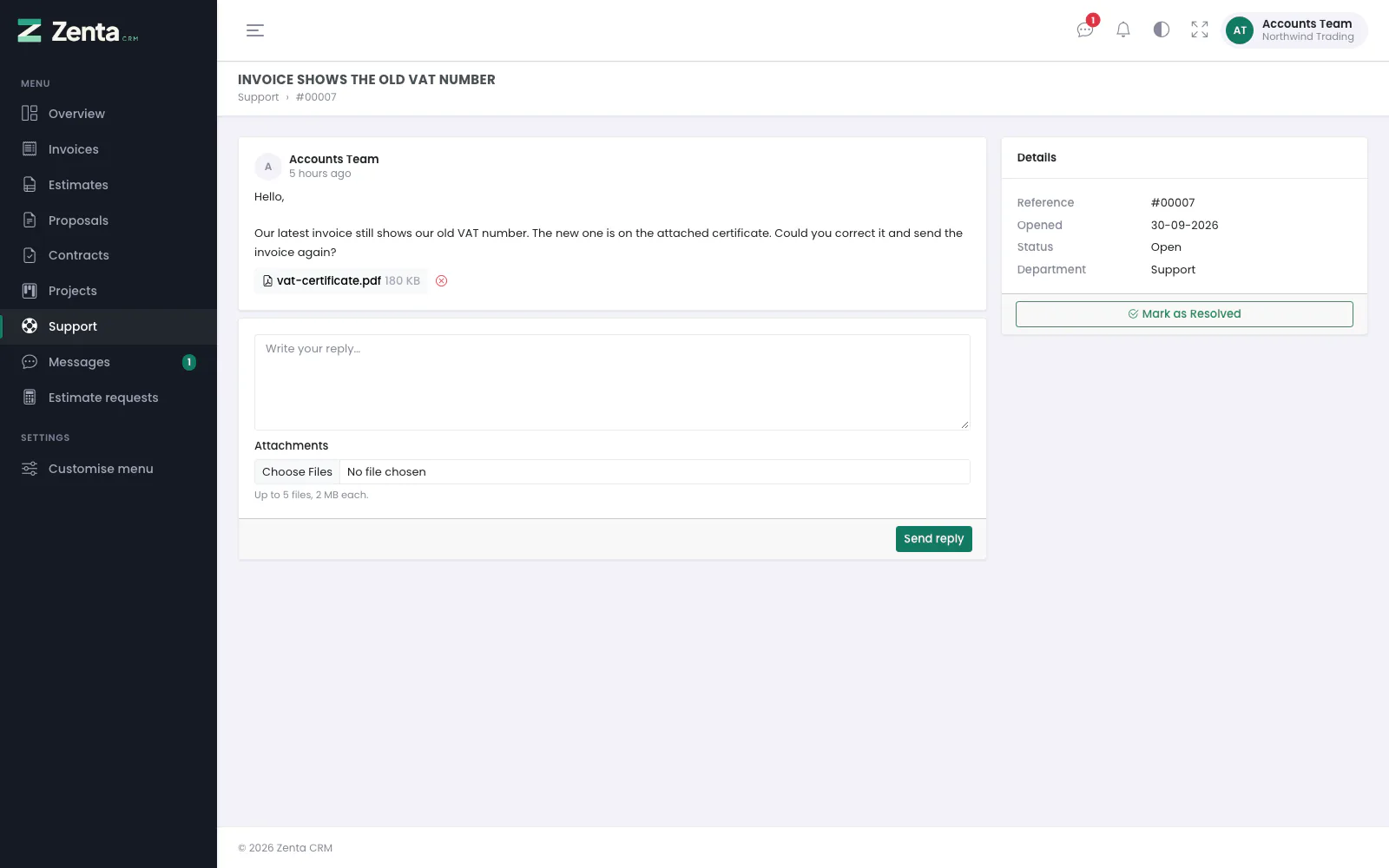 The customer's own file on a ticket nobody has answered yet, with the button to remove it.
Sent the wrong file? A file you attached yourself has a red beside it until somebody at the business writes after it — a reply or a private note. Press it and confirm (Remove vat-certificate.pdf?), and the file goes; the text of your message stays. After the business has written, the button is gone, because their answer may be about that file. Files a colleague sent can only be removed by that colleague.
Messages
 Messages: a conversation with the account manager, and a new one from a colleague.
Messages is for writing to the people who look after your account, and to colleagues at your own company, without opening a ticket. It is there only while the business has switched it on; which people you can write to is the business's choice too (see Messages in the portal settings).
The list shows the conversations you are in, most recent first: the subject, who else is in it (a headset when the business is in it, people when it is only your colleagues), and when the last message arrived. A red 1 new badge counts messages you have not read yet. The same count is on Messages in the menu and on the button in the top bar, which opens this page.
Emails about messages. Unless you say otherwise, each new message for you is also emailed to you (the New message in the customer portal email), with the start of the message and a link; the conversation and its files are read in the portal. The line at the foot of the page says which way it is set: Stop these emails switches them off and Email me about messages switches them back on. It is your own setting and changes nothing for your colleagues.
Writing a new message
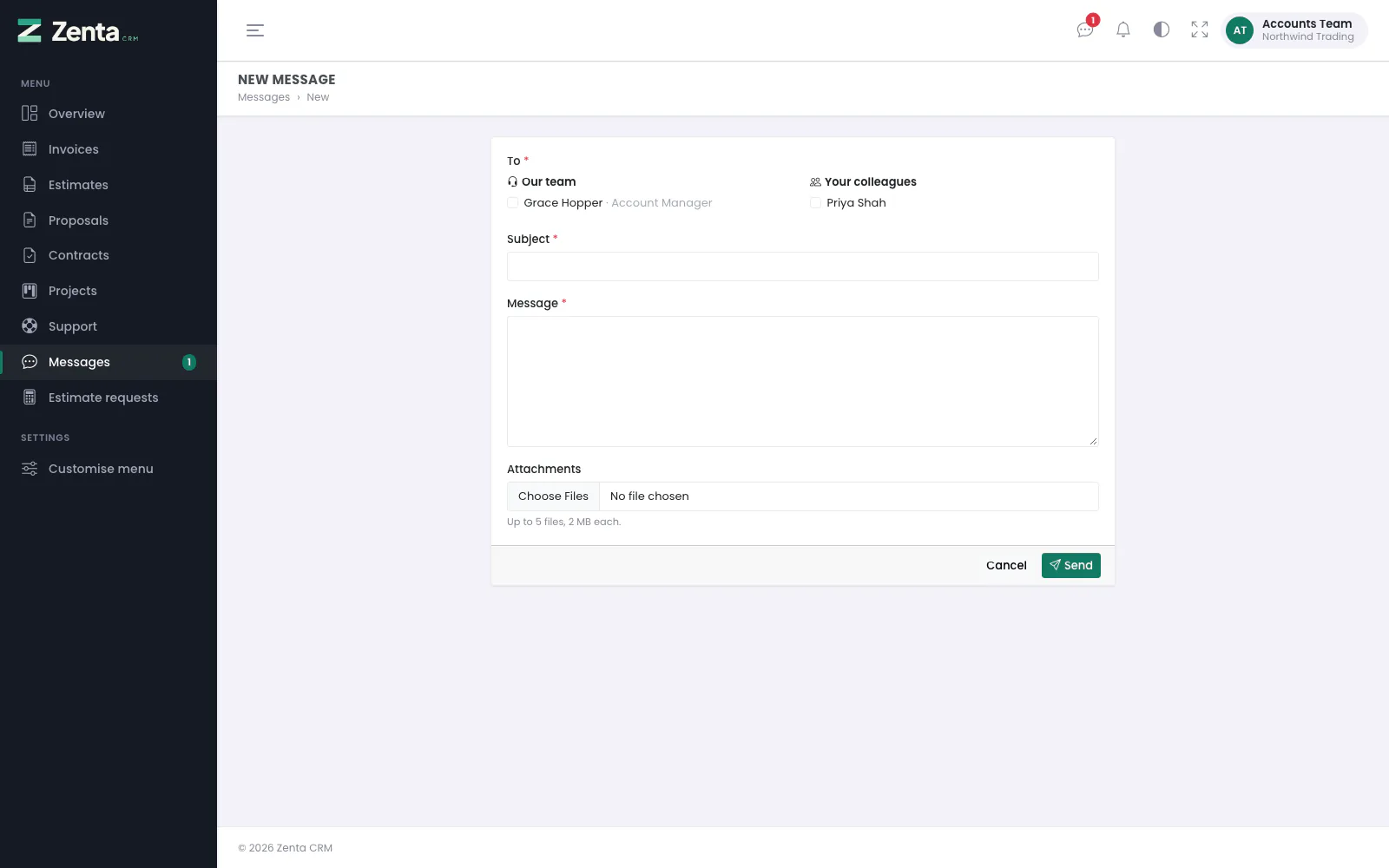 A new message: the business's people on the left, colleagues on the right.
Press New message. The button is only there when there is somebody you may write to.
| Field | What it does |
|---|---|
| To | Required: tick one or more people (up to twenty). Under Our team are the business's staff you may write to — either the people who look after your company (your account manager and the members of your company's projects) or a list the business chose for every customer. Under Your colleagues are the other contacts at your company who can sign in to the portal and are allowed to use Messages. |
| Subject | Required, up to 191 characters. |
| Message | Required. Plain text, up to 10,000 characters; line breaks are kept. |
| Attachments | Up to five files, within the business's upload settings. |
Press Send; the new conversation opens with Message sent. Everybody ticked is in it from then on. Who you may write to is checked again when you send: if even one of the people ticked is not somebody you may write to, the whole message is refused with You cannot write to some of these people. rather than going to fewer people than you think.
A conversation
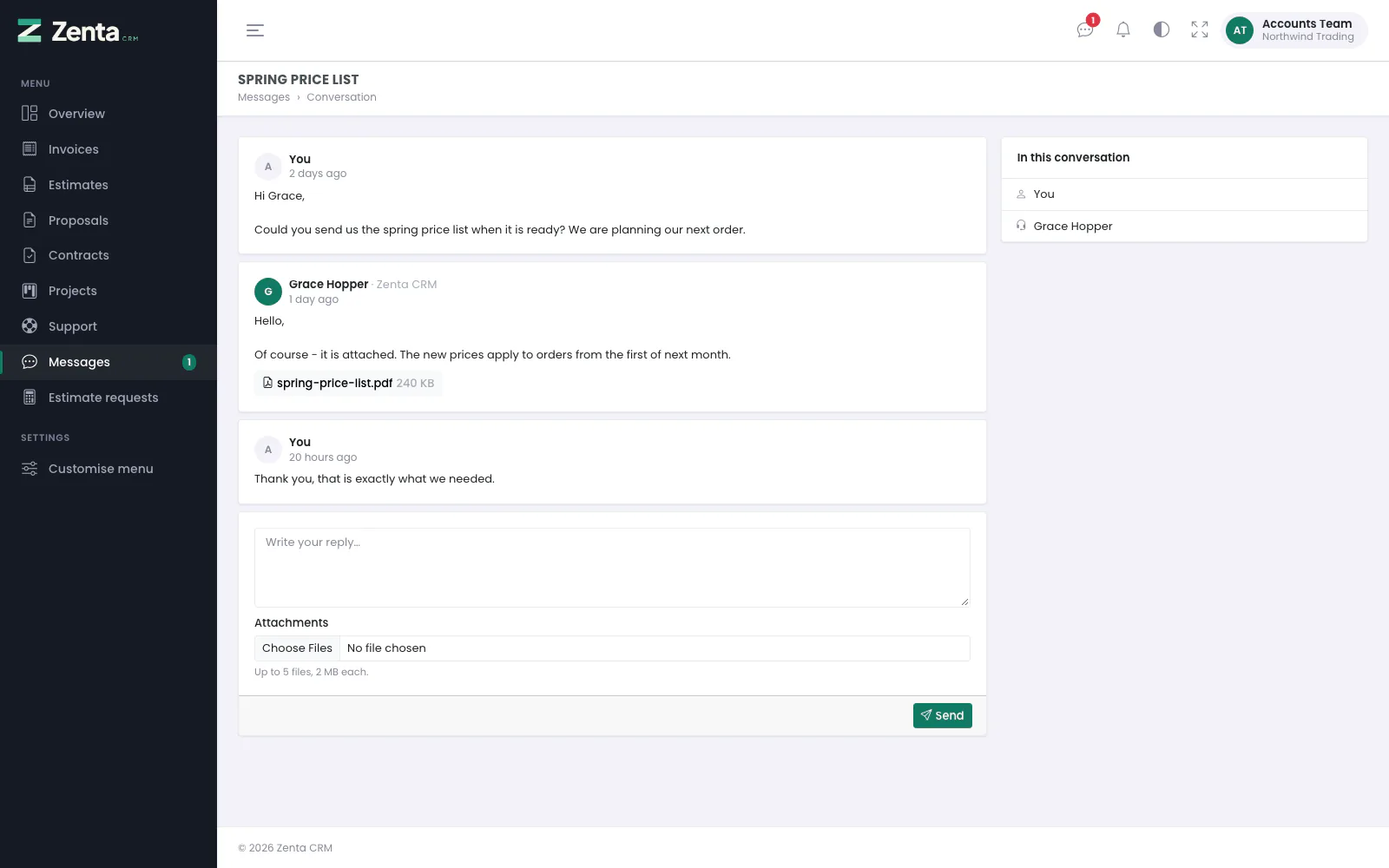 A conversation with the account manager, with the price list she attached.
Messages read top to bottom. Yours are marked You; a member of staff's carry their name and the business's name. In this conversation on the right lists everybody in it. Opening the conversation marks it read.
Write in the box at the foot, add up to five Attachments, and press Send. The others are told: staff in their bell, your colleagues by email unless they have stopped those emails. If the business later switches the kind of conversation off (writing to staff, or writing to colleagues), the box is replaced by Replies to this conversation are switched off. You can still read it.
Estimate requests
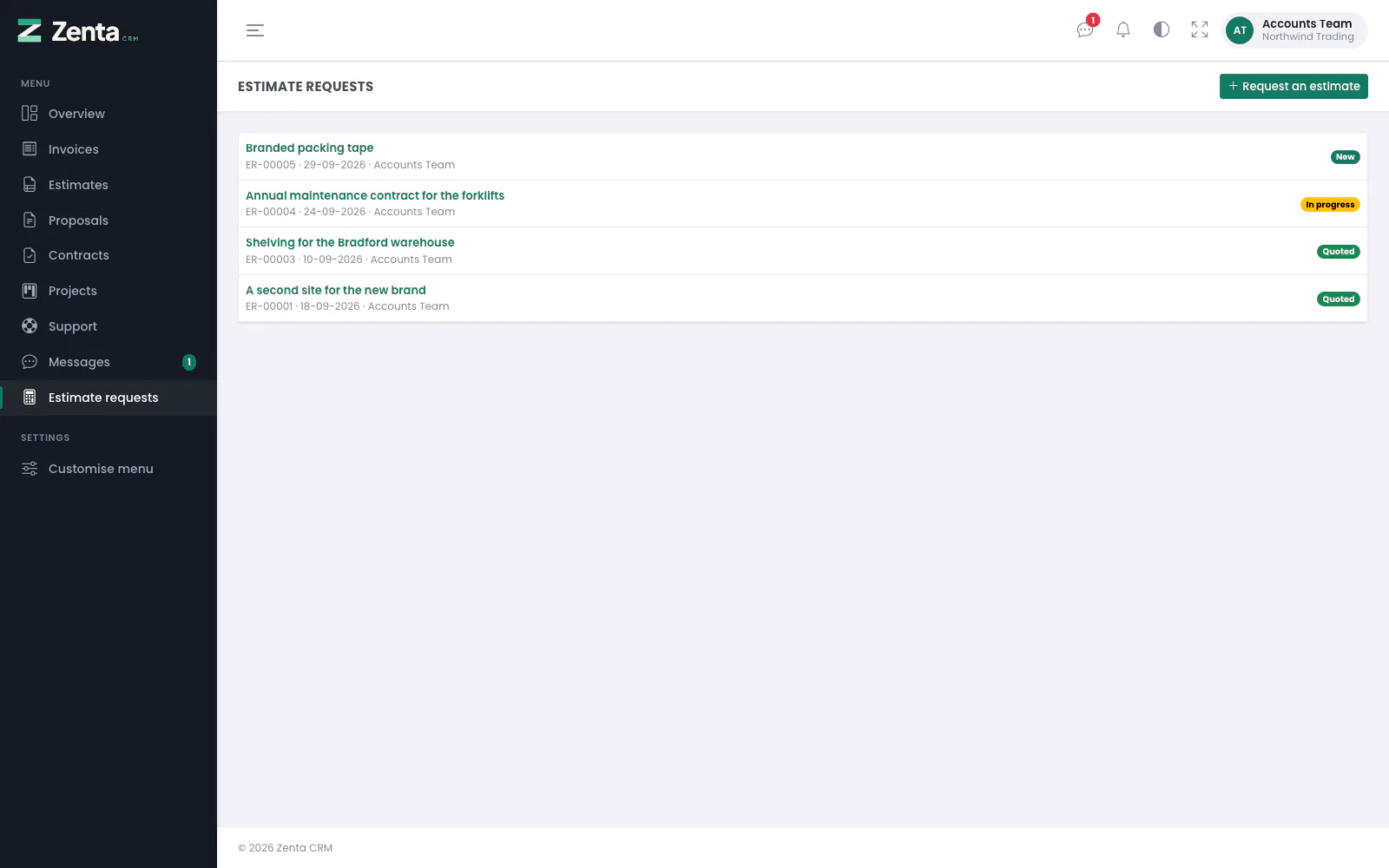 Estimate requests: every request from the company, newest first, with its status.
Estimate requests lists every request your company has sent, newest first: the subject, its reference (such as ER-00005), the date, who asked, and a status badge. The four stages as shipped are New, In progress, Quoted and Declined; the business can rename them or add its own (Estimate request statuses).
Asking for an estimate
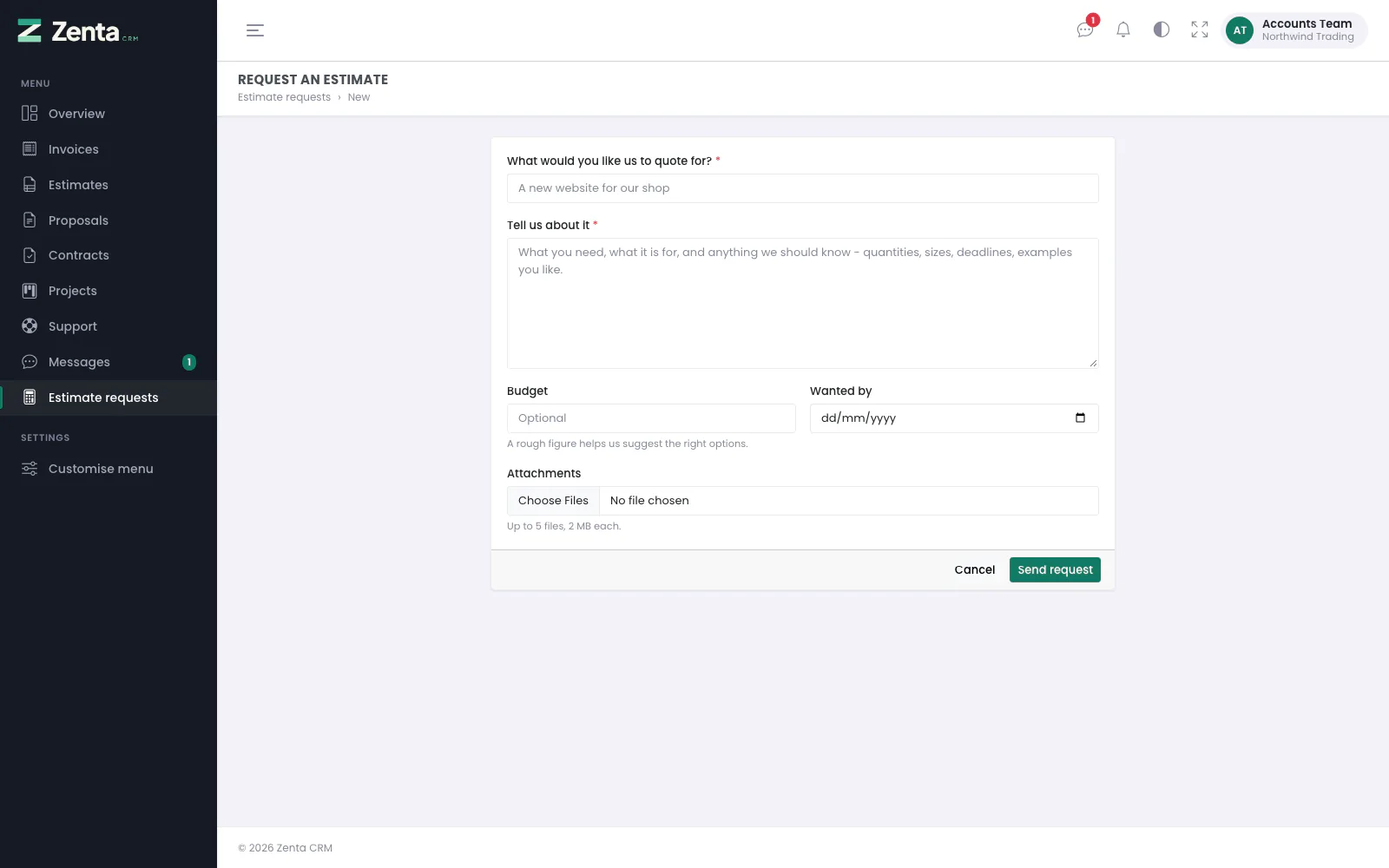 Requesting an estimate from the portal.
Press Request an estimate.
| Field | What it does |
|---|---|
| What would you like us to quote for? | Required, up to 191 characters. |
| Tell us about it | Required. Plain text, up to 10,000 characters. |
| Budget | Optional. A rough figure. |
| Wanted by | Optional. Today or later. |
| The business's own questions | Any questions the business added to the form (The estimate request form) come between the description and the attachments, marked with a red star when they must be answered. |
| Attachments | Up to five files, within the business's upload settings. |
Press Send request. The request's page opens with Thank you - we have your request and will be in touch., and you are emailed its reference (the Estimate request received email). Your name, email address, phone number and company are taken from your account, not typed in.
A request's page
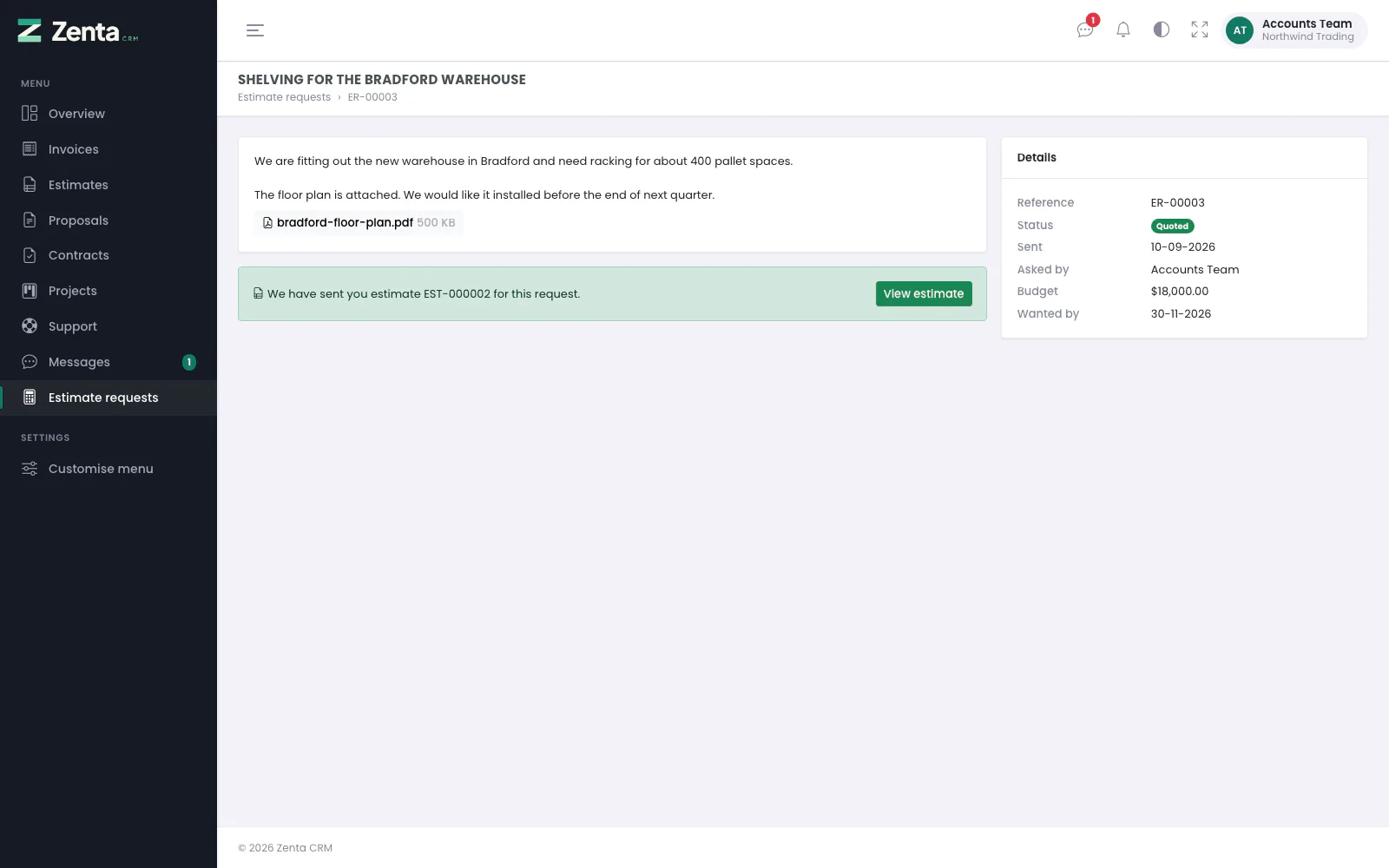 A quoted request, with the estimate that was sent for it.
The description, your answers to the business's own questions, and the files you sent are on the left; the Details card shows the Reference, Status, when it was Sent, who Asked by, and the Budget and Wanted by date if you gave them. Once the business has written an estimate for the request and sent it to you, a green bar says We have sent you estimate EST-000002 for this request. with a View estimate button, which opens it under Estimates to accept, decline or sign. An estimate still being written is not linked.
For the business: where requests go
Staff see requests under Sales → Estimate requests, read through the Estimates permission and its scope ("own" is the requests assigned to them; "own clients" adds requests from customers they manage). From a request:
- Assign it to a member of staff (needs Estimates → Edit); they are notified in the bell.
- Set its status; the customer sees it in the portal.
- Press Create estimate (needs Estimates → Create). The new estimate opens with the customer, the assignee as sales agent, the request's reference, and one line describing what was asked for, priced at the budget if one was given. Saving it links the two and marks the request Quoted.
New requests go to the member of staff chosen under Estimate requests in the portal settings, or else to the customer's account manager; with nobody to give a request to, the administrators are told instead. The staff side is described in full under Estimate requests. People who are not customers yet can ask through the public Request an estimate form.
Addresses on this page
For reference and for anyone scripting against the panel. Everything here needs a customer contact signed in to the portal; the addresses that open without signing in are marked.
| Method | Address | What it does |
|---|---|---|
GET | portal/tickets | Support: the company's tickets, twenty to a page. |
GET | portal/tickets/create | The Ask us something form. |
POST | portal/tickets | Opens a ticket with its first message and up to five attachments. |
GET | portal/tickets/{ticket} | A ticket's page. Another company's ticket answers 404. |
POST | portal/tickets/{ticket}/reply | Sends a reply, with attachments or a voice note. |
POST | portal/tickets/{ticket}/status | Marks the ticket resolved or reopens it, with a status the business allows (ticket_status_id); any other answers 403. |
DELETE | portal/tickets/{ticket}/attachments/{attachment} | Removes a file the contact sent, until staff have written after it. |
GET | portal/messages | Messages: the conversations the contact is in. |
GET | portal/messages/create | The new-message form. ?to[]= (a user id) ticks somebody in advance. |
POST | portal/messages | Starts a conversation. Refused whole if anyone ticked is not allowed. |
POST | portal/messages/preferences | Stop these emails / Email me about messages (emails 0 or 1). |
GET | portal/messages/{conversation} | A conversation, marked read on opening. One the contact is not in answers 404. |
POST | portal/messages/{conversation}/reply | Adds a message to the conversation. |
GET | portal/estimate-requests | Estimate requests: the company's requests. |
GET | portal/estimate-requests/create | The Request an estimate form. |
POST | portal/estimate-requests | Sends a request. |
GET | portal/estimate-requests/{estimateRequest} | A request's page, with a link to its estimate once sent. |