First-run setup
Fifteen minutes of setup that saves a lot of correcting later.
Everything here is under Settings. None of it is required to start, but each one is easier to set now than to change once you have data.
Company details
 Company details. These print on every document and PDF.
Your name, address, VAT number and logo. These appear on every invoice, estimate and proposal you send, so it is worth getting right first.
Logos accept PNG and JPG. SVG is deliberately not accepted: an SVG is a document that can carry scripts, and a logo is not worth that risk.
Currencies
One currency is the base. Every report converts into it, so it should be the currency you think in.
Other currencies carry a rate relative to the base. When you raise an invoice in a second currency, the rate that applies that day is stored on the invoice and stays there. That is deliberate: an invoice raised last March was worth what it was worth last March, and last month's report should not change because you updated a rate today.
Taxes
Add the rates you charge. One can be the default, which is then pre-selected on new document lines.
Discounts are applied before tax, and spread proportionally across the lines. That is the normal treatment in most jurisdictions, and it means the tax figure reflects what is actually being charged.
Numbering
Invoices, estimates, proposals and credit notes each have their own prefix, format and number of digits, under Settings → Documents (see Sales). Each can also start again from 1 every year.
Email templates
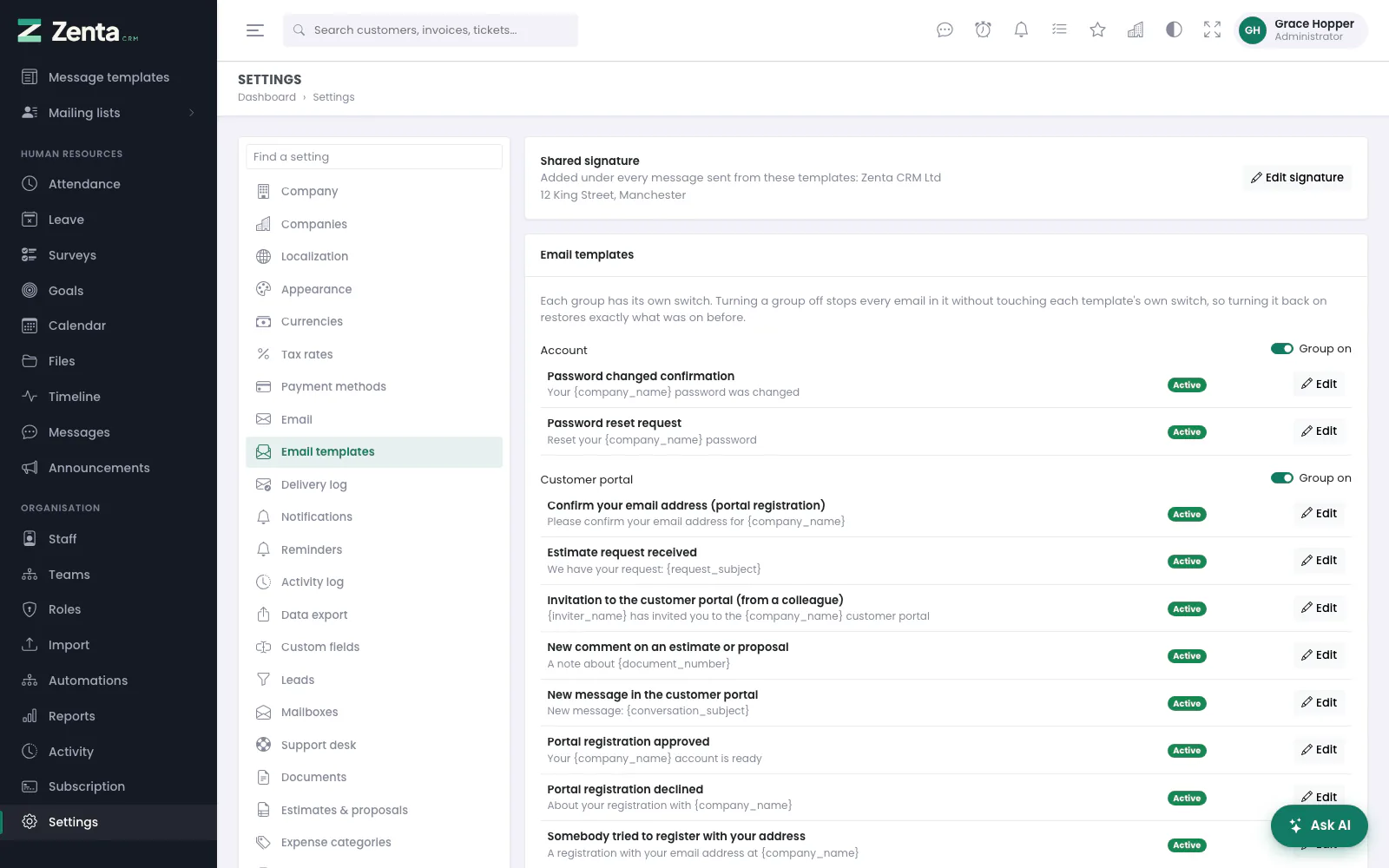 The email templates, grouped by what sends them.
Every automatic email is a template you can edit, under Settings → Email templates. Each one lists the merge fields it understands. Templates can be switched off individually if you would rather send something by hand.
Your team
Add people under Staff. Each person gets a role, and the role decides what they can do — see Roles and permissions, which is worth reading before you invite anyone.