Errors and notifications
Every error nobody caught, in detail, and the bell that tells you about them.
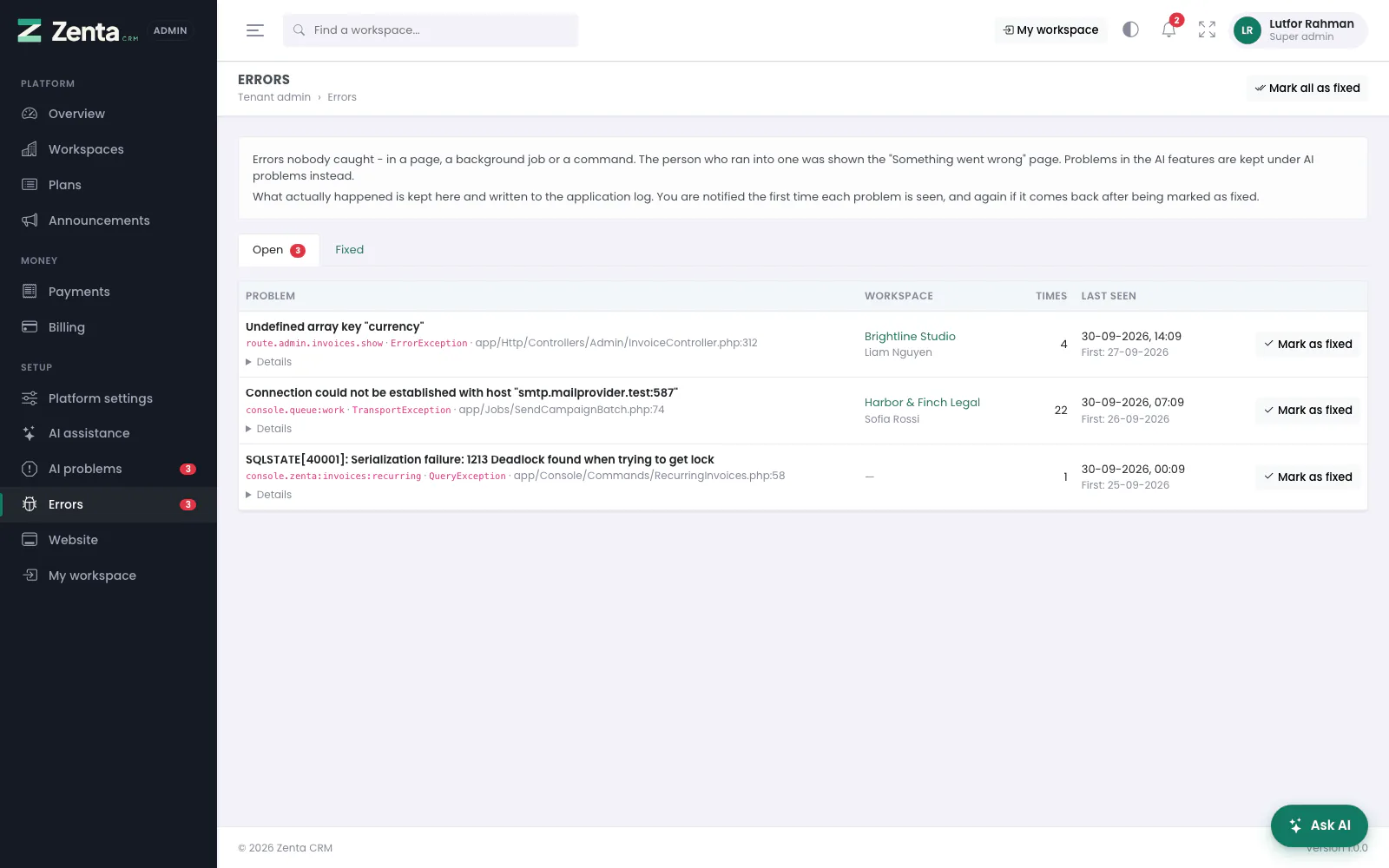 Errors: what broke, where, in which workspace and how often.
Errors
Tenant admin → Errors lists every error nobody caught — in a page, a background job or a command. The person who ran into one was shown the Something went wrong page and nothing more; this is what actually happened. Problems in the AI features are kept under AI problems instead.
It is the same screen as AI problems:
- Problem — the message, then where it came from:
route.and the page's name for a page (route.admin.invoices.show),console.and the command for a scheduled command or a queued job (console.queue:work), orbrowserwhen a page's JavaScript failed in somebody's browser; then the exception and the file and line. Details opens the context (such as the address that was opened) and the stack trace. - Workspace and the person, when there was one. An error in a scheduled command belongs to no workspace.
- Times, Last seen and when it was first seen. The same error is one row with a count.
- Open and Fixed tabs; Mark as fixed on a row or Mark all as fixed at the top. One that comes back afterwards opens again and is told about again.
storage/logs.
See Troubleshooting.
Notifications
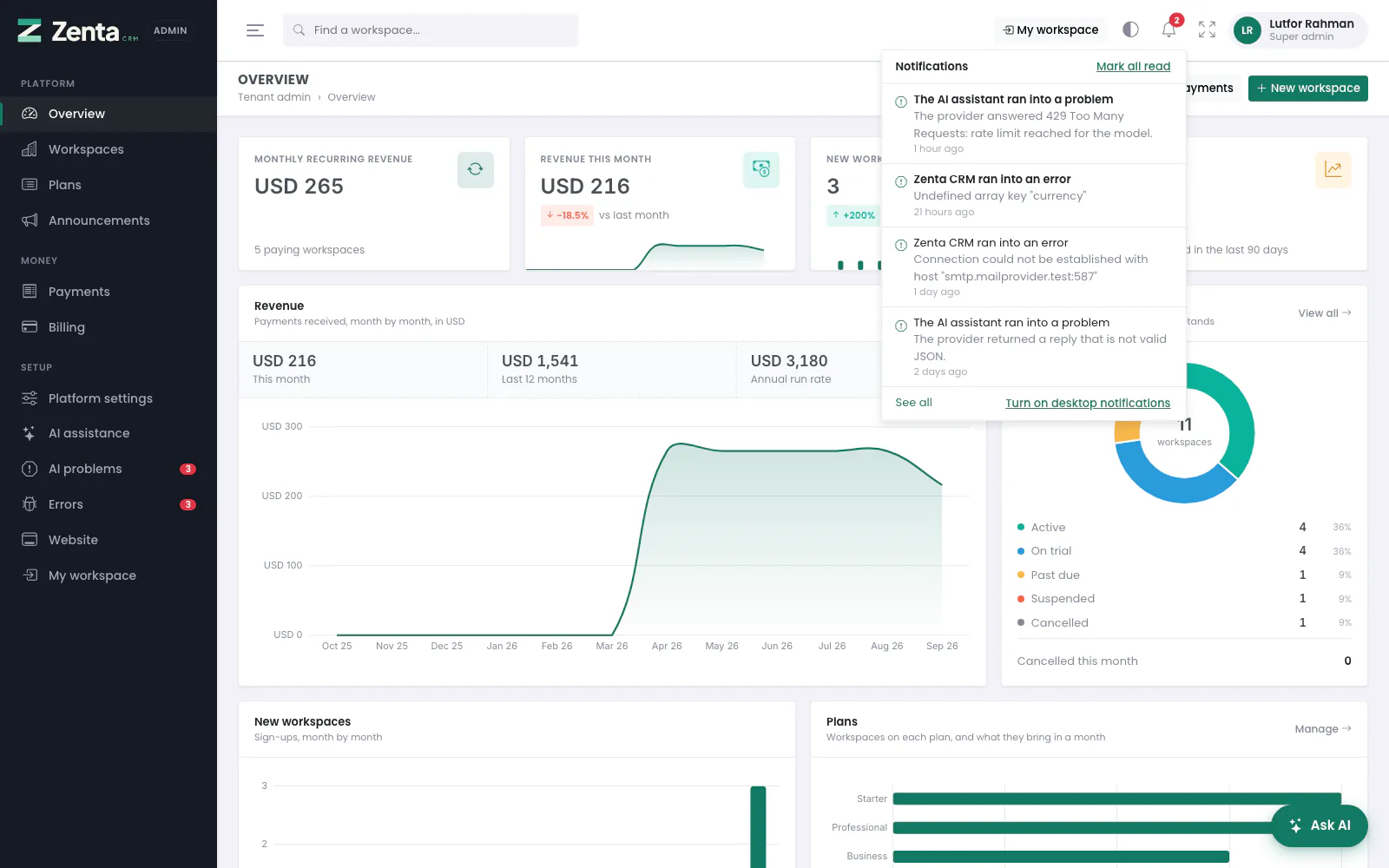 The tenant admin bell: the platform's notices to you, separate from your workspace's.
The bell in the panel's top bar holds the platform's notices to you: an AI problem, an error nobody caught. It is separate from your workspace's own bell, which holds your work there. Each notice is sent the first time a problem is seen, and again if it comes back after being marked fixed — never once per occurrence — and it is emailed to every super admin as well.
A notice reads The AI assistant ran into a problem or Zenta CRM ran into an
error (with your product name from config/zenta.php), with the message
under it.
- The red badge counts what you have not read. New notices appear without reloading the page.
- Clicking a notice marks it read and opens the problem.
- Mark all read, at the top of the dropdown, clears the count.
- See all opens the full list.
- Turn on desktop notifications asks your browser to show new notices even when the tab is in the background.
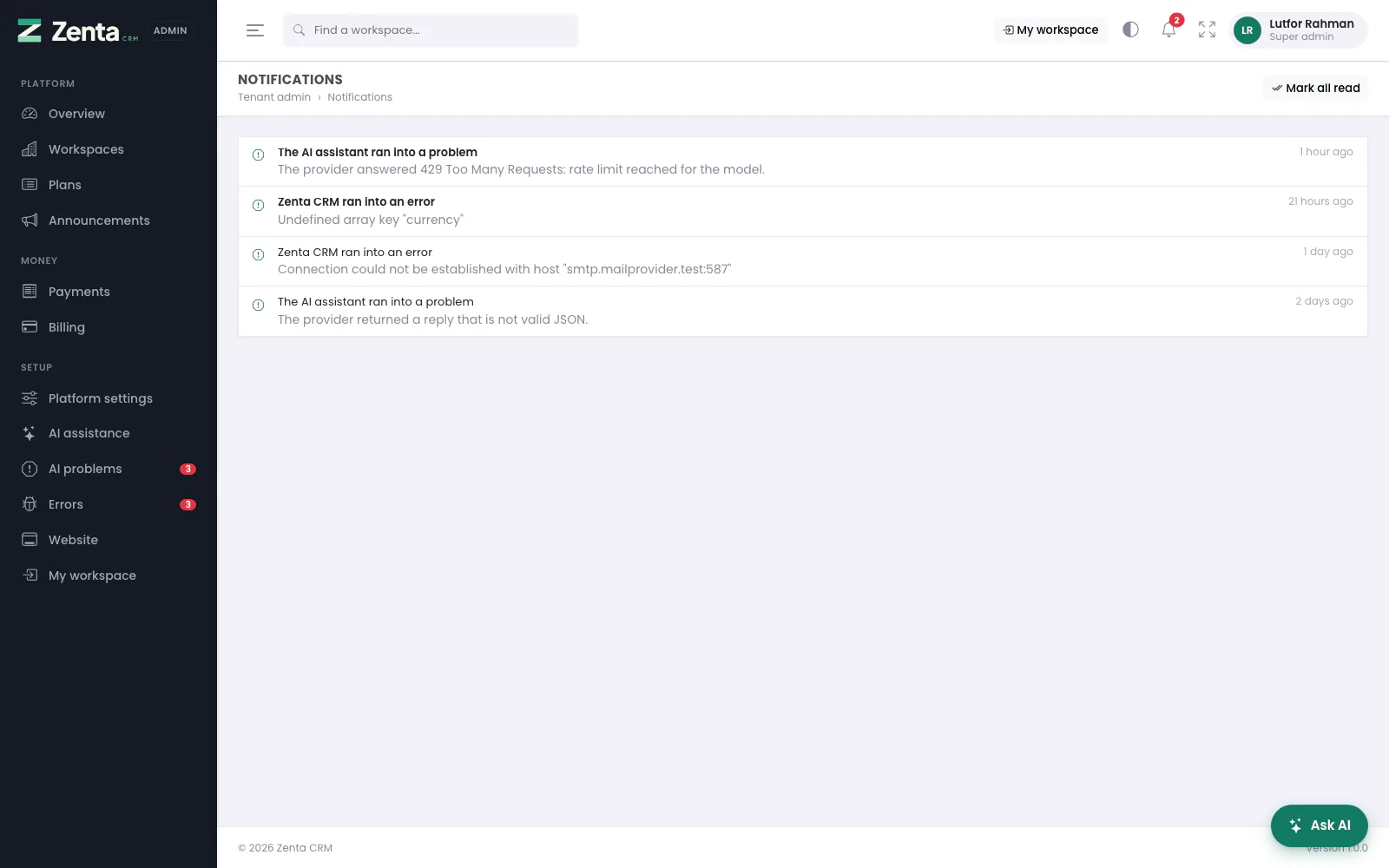 Every notice, newest first.
The full list is at Notifications, from the bell: every notice, newest first, with unread ones highlighted. Mark all read clears the count.
Addresses on this page
For reference and for anyone scripting against the panel. Everything here needs a signed-in super admin at the platform's own address; anybody else gets 403.
| Method | Address | What it does |
|---|---|---|
GET | tenant/admin/errors | Errors; ?show=resolved for the Fixed tab. |
POST | tenant/admin/errors/{error}/resolve | Marks one as fixed. |
POST | tenant/admin/errors/resolve | Marks every open error as fixed. |
GET | tenant/admin/notifications | Every notice. |
GET | tenant/admin/notifications/feed | What the bell polls for new notices (used by the page itself). |
POST | tenant/admin/notifications/{id}/read | Marks one read. |
POST | tenant/admin/notifications/read-all | Marks every notice read. |
POST | tenant/admin/notifications/pusher-auth | Lets the bell listen for live notices when Pusher is set up (used by the page itself). |