Attendance and leave
Who is at work, who has asked to be away, and who said yes.
Two screens under Human Resources in the menu, and two settings pages behind them. They answer different questions and it is worth being clear which is which: Attendance records what actually happened — this person was at work between these two moments. Leave records an agreement about an absence, usually before it happens.
The attendance screen
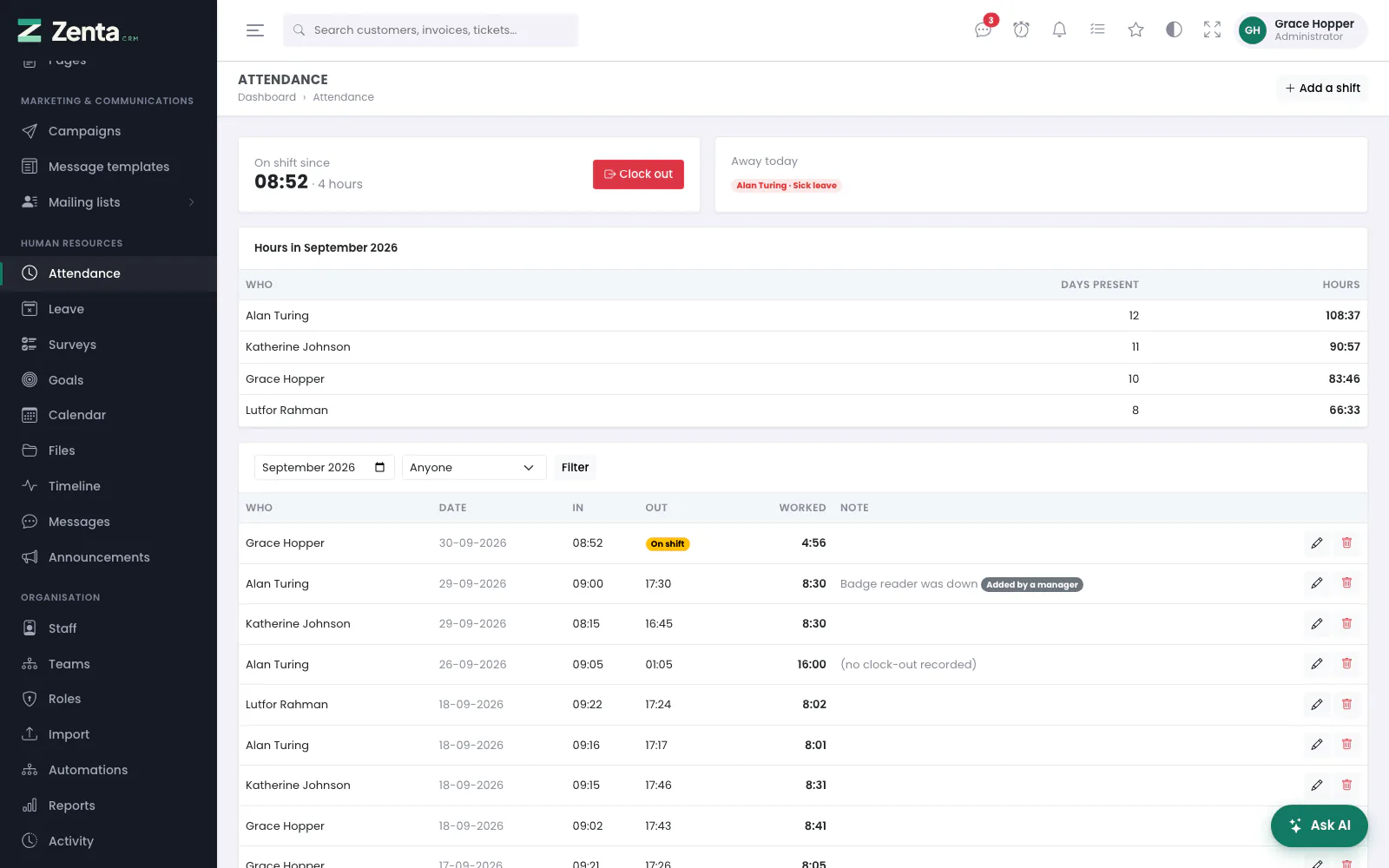 Attendance: your own clock, who is away today, hours for the month and every shift.
Human Resources → Attendance. From the top:
- Your clock. Not clocked in, or On shift since the time you clocked in and how long ago that was, with the Clock in or Clock out button beside it.
- Away today — everybody with approved leave covering today, in the colour of their leave type, or Everybody is in. This strip is the whole company's, whatever your scope.
- Hours in the month — one line per person: Days present (distinct days with a finished shift, so two shifts in one day count once) and Hours. A shift that is still running is not counted until it is closed.
- The shifts — pick a month and a person (or Anyone) and press Filter. Each row shows Who, Date, In, Out (or an On shift badge), Worked and the Note. A shift somebody typed in for another person carries an Added by a manager badge. Fifty shifts to a page.
The people in the filter, the totals and the list only ever include the people whose attendance your role lets you see (see Who sees what).
Clocking in and out
Press Clock in when you start and Clock out when you stop. The button needs the Create ability on attendance. A person can only have one shift open at a time — pressing the button twice, or in two browser tabs, gives you one shift and a message saying You are already clocked in.
A night shift belongs to the day it started. Clock in at 22:00 on Tuesday and out at 03:00 on Wednesday, and the shift is filed under Tuesday, which is how the person who worked it would describe it.
Shifts nobody clocked out of
Somebody who leaves on Friday without clocking out would otherwise still be on shift on Monday, and every hours total they appear in would be wrong until a human noticed. Every hour, the scheduler closes shifts left open past Close a shift left open after in Settings → Attendance & leave — sixteen hours by default. It only runs if the scheduler's cron job is set up (see The scheduler).
The shift is closed at the limit, not at the moment it was noticed, and (no clock-out recorded) is added to its note. That is deliberate: you get a plausible shift and a visible flag, rather than a number the software invented and presented as fact. Correct it by hand if you know what actually happened. Set the limit to 0 to switch this off.
Adding, correcting and removing a shift
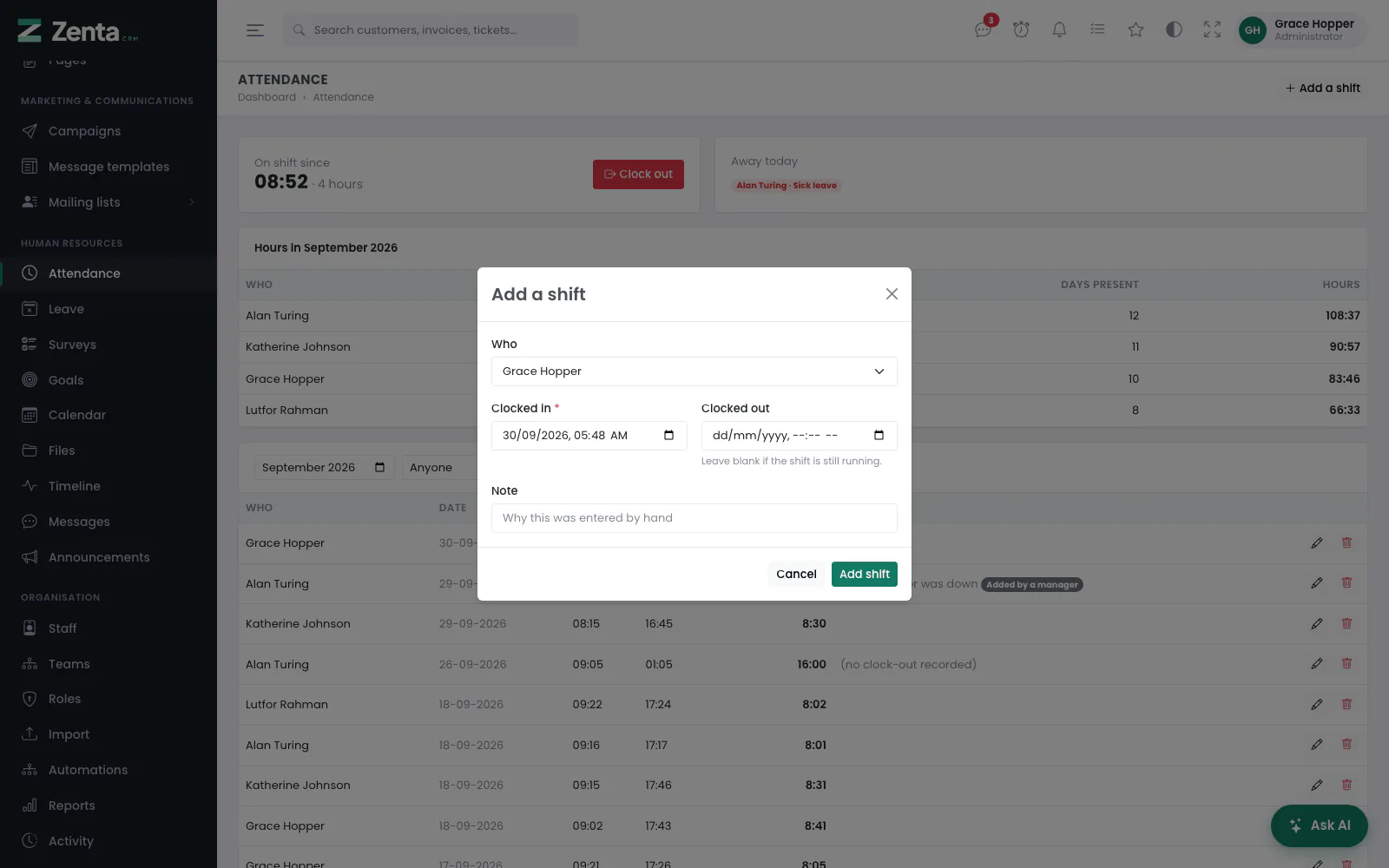 Add a shift: who, when they clocked in and out, and why it was typed in.
Add a shift at the top of the screen opens the form:
- Who — only shown to somebody with the Edit ability on attendance, and it lists only active staff within their scope. Everybody else records shifts against themselves.
- Clocked in (required) and Clocked out, both a date and a time in your own time zone. Leave Clocked out blank if the shift is still running; if you fill it in, it must be after the clock-in.
- Note — up to 191 characters. The placeholder says what it is for: Why this was entered by hand.
Press Add shift.
Anyone with Edit on attendance can add or correct a shift for anybody in their scope. Whether ordinary staff can type in a shift they forgot to clock is a switch in Settings → Attendance & leave — Let staff type in a shift they forgot to clock — and it is off to begin with, so the Add a shift button is hidden from them. Self-reported hours is a decision an employer makes, not one the software should make for them.
 Edit shift, with Delete at the bottom left.
To correct a shift, press the button on its row (it needs Edit). The same fields open under Edit shift; press Save changes. To remove a shift, press on its row, or Delete in the edit window, and confirm: This shift will be removed permanently. Removing needs the Delete ability.
Settings → Attendance & leave
 Settings, Attendance & leave: the working week, the shift limit, typed-in shifts and the leave year.
| Setting | What it does |
|---|---|
| The working week | The days that count when a leave request is measured in days, Monday to Friday to begin with. Untick everything and Monday to Friday is used. The calendar greys the other days. |
| Close a shift left open after | Hours, 0 to 168. See Shifts nobody clocked out of. 0 switches it off. |
| Let staff type in a shift they forgot to clock | Off by default. See Adding a shift. |
| The leave year begins in | The month allowances start counting from. See Balances and the leave year. |
Press Save. Leave types and allowances takes you to the next page.
Leave types
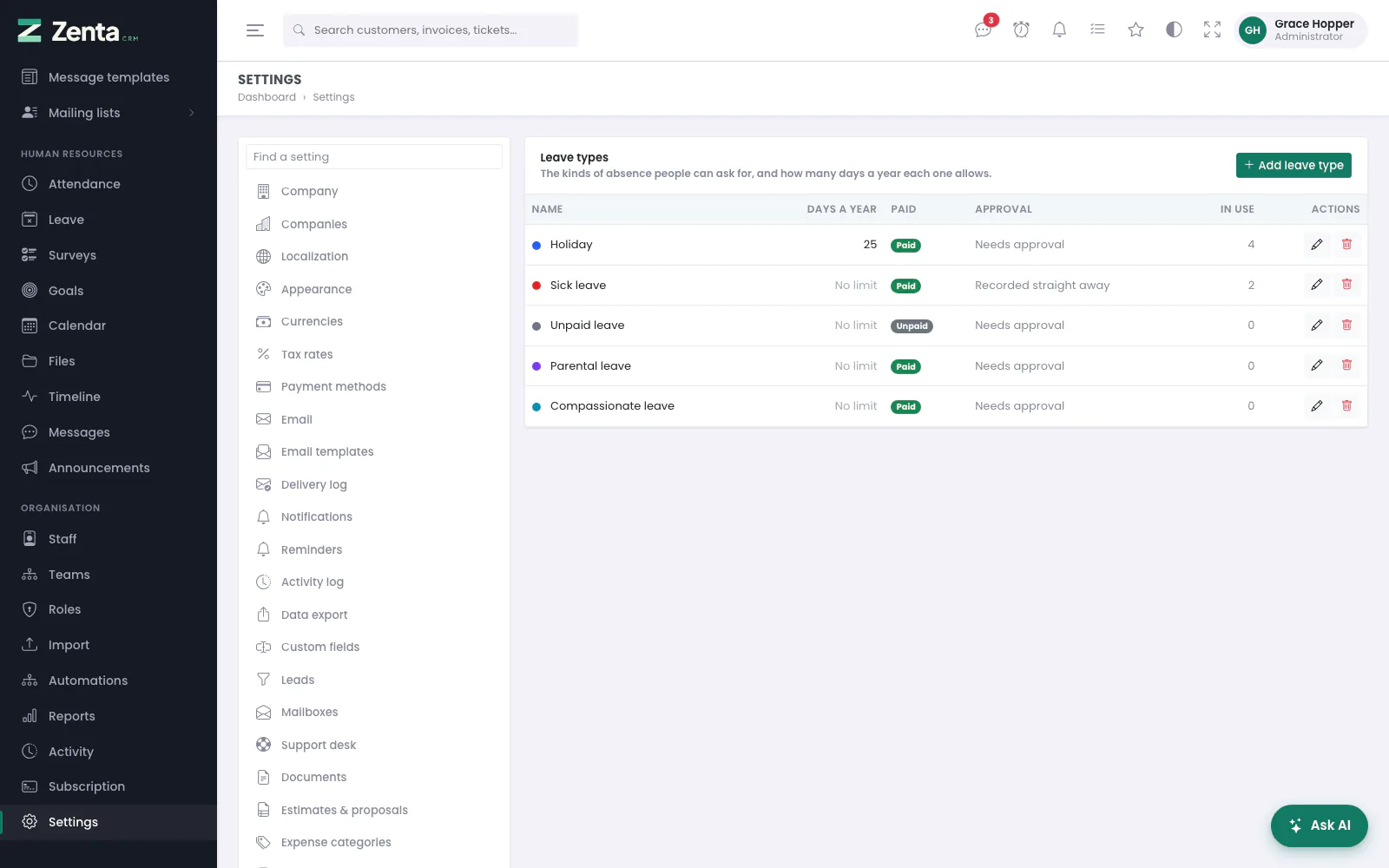 Settings, Leave types: each type's allowance, whether it is paid, whether it needs approval, and how often it has been used.
Settings → Leave types. Five are set up for you: Holiday, Sick leave, Unpaid leave, Parental leave and Compassionate leave. Sick leave is Recorded straight away; the rest need approval, and only Unpaid leave is unpaid. The list shows each type's Days a year (or No limit), Paid, Approval and In use — how many requests have been made against it. Anybody who can see the settings can see this page; adding, changing and removing types needs the Edit ability on settings.
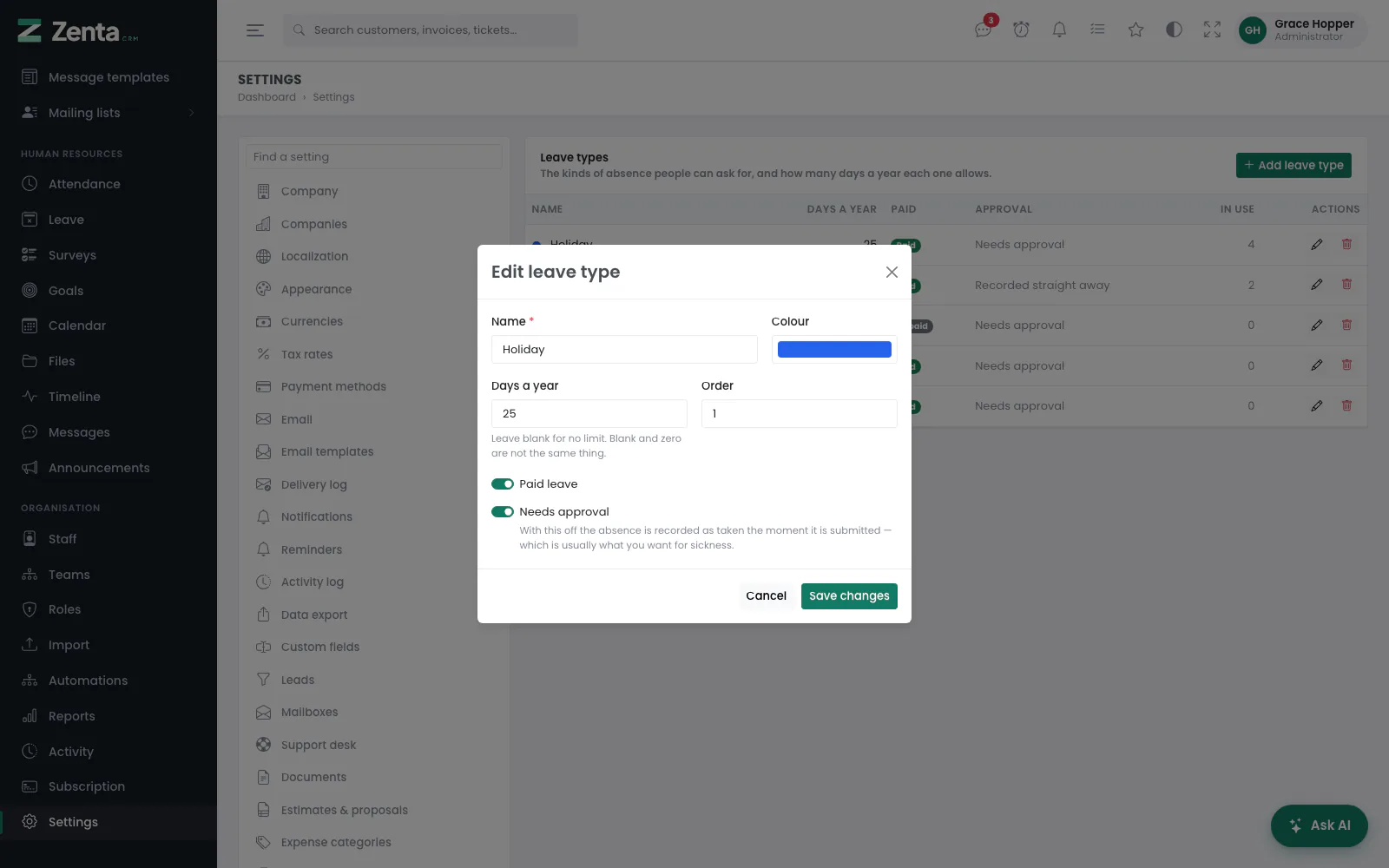 Edit leave type.
Add leave type opens the form; the button on a row opens the same form for that type.
- Name (required, up to 100 characters, and not the same as another type's).
- Colour — used for the dot beside the type and on the calendar and the Away today strip.
- Days a year — 0 to 366, halves allowed.
- Order — 0 to 999; lower comes first in the lists.
- Paid leave and Needs approval switches. With Needs approval off, a request is recorded as taken the moment it is submitted.
Press Add leave type or Save changes.
The button removes a type, after you confirm. A type that has been used cannot be removed: you are told This leave type is in use and cannot be removed. Removing it would take every request recorded against it too, and somebody's holiday history is not collateral for tidying a settings list. Rename it instead.
The leave screen
 Leave: your balance, who is away today, what is waiting, and every request you can see.
Human Resources → Leave. From the top:
- Your balance for the current leave year: each type, the days Taken and the days Left (or No limit). A negative figure is shown in red.
- Away today, as on the attendance screen. Somebody who can approve leave also sees a button such as 3 requests waiting, which filters the list to pending requests.
- The requests — filter by status (Pending, Approved, Declined, Withdrawn), person and type, then press Filter. Each row shows Who, Type, From, To, Days and Status, with who answered it underneath. Thirty to a page.
Print and Export at the top print or download the list as it is filtered (see Exporting and printing).
Requesting leave
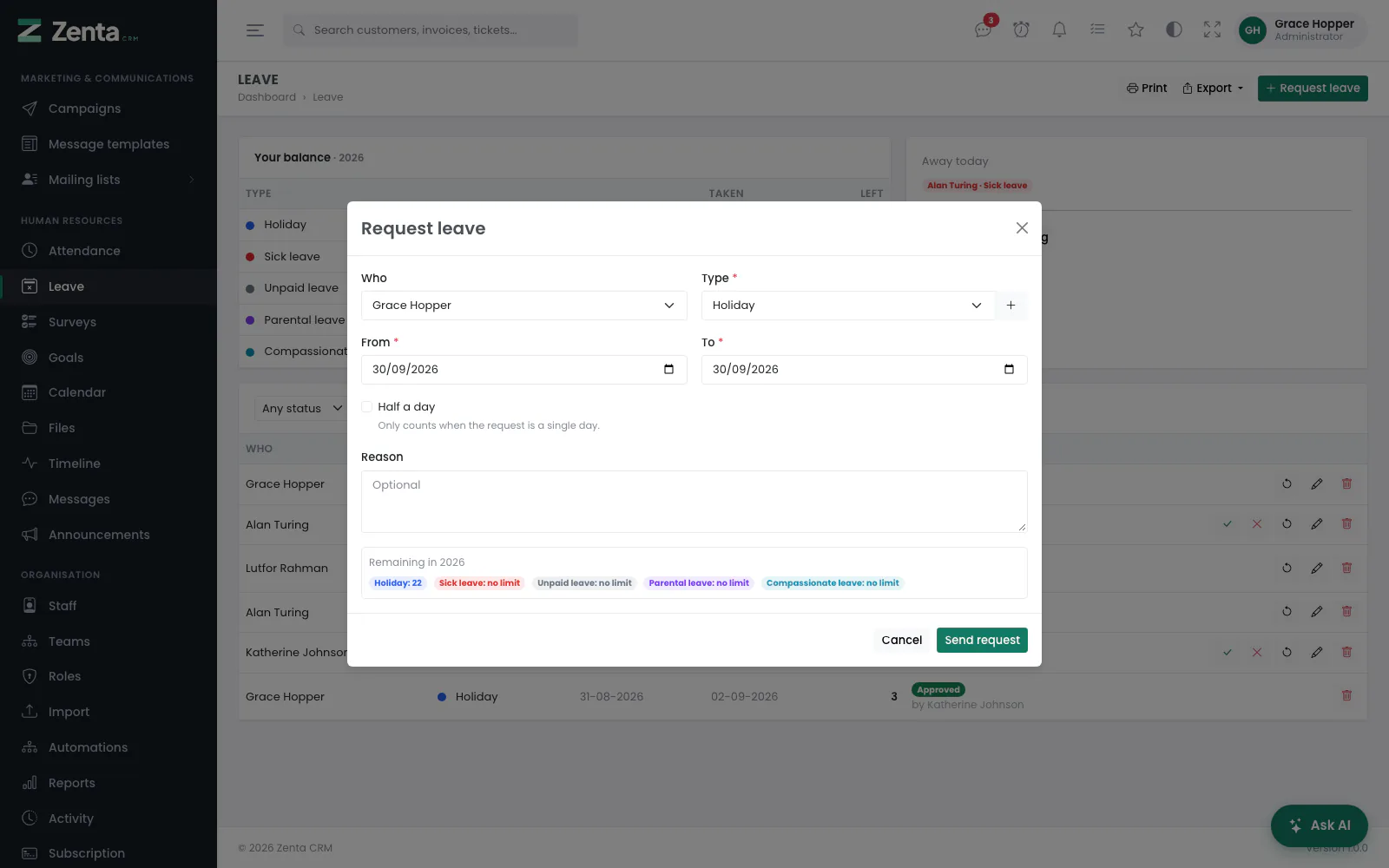 Request leave, with what is left of each allowance at the bottom.
Press Request leave (it needs the Create ability on leave).
- Who — only shown to somebody who can approve leave, who may book it for anybody in their scope. Everybody else requests for themselves.
- Type (required). A type that needs no approval says no approval needed beside its name. Somebody who can edit settings has a + button here to add a type without leaving the form.
- From and To (required; To cannot be before From).
- Half a day — only counts when the request is a single day.
- Reason — optional, up to 2,000 characters.
- Check Remaining in the leave year at the bottom, then press Send request.
A type that needs approval starts as Pending; one that does not is recorded as approved straight away, which is usually what you want for sickness — making somebody wait for a manager to approve the flu they already had is theatre.
Approving, declining and withdrawing
The buttons at the end of a request's row are:
| Button | What it does | Who sees it |
|---|---|---|
| Approves a pending request after you confirm (Approve 5 day(s) for Alan Turing?). Your name is recorded under the status. | Somebody with Approve, on anybody's request but their own. | |
| Declines a pending request, after you confirm. | The same. | |
| Withdraws it, after you confirm. The status becomes Withdrawn. Offered on a pending request, and on an approved one until its last day has passed — leave already taken cannot be taken back (This request can no longer be withdrawn.). | The person who asked, and anybody with Approve. | |
| Opens Edit request, the same form as above; press Save changes. On a pending request; somebody who can approve can also edit a colleague's answered one — never their own, which would be approving their own leave. | Somebody with Edit, on their own request, or anybody's if they can approve. | |
| Removes the request for good, after you confirm. It is shown on answered requests too. | Somebody with Delete. |
 Edit request: the same form, opened from a pending request.
Once a request has been answered, the person who made it can no longer edit it — otherwise an approved fortnight could quietly become a month without anybody looking at it again. Only somebody who can approve may still edit it. For a different set of dates, the person withdraws the approved request (while it is not yet over) and makes a new one.
How days are counted
Working days only, and the working week is yours to set in Settings → Attendance & leave. Sunday to Thursday is the ordinary week across much of the Middle East and a four-day week is no longer unusual anywhere, so guessing Monday to Friday would silently miscount every request a buyer outside that assumption ever files.
The count is worked out on the server and stored on the request. Two reasons: the browser cannot be trusted with it, and changing the working week next year must not retroactively change what somebody took this year.
Half a day only applies to a single-day request. Asking for half of a fortnight is not a thing anybody means, so it is ignored on longer ranges.
Balances and the leave year
A balance is an allowance minus the approved days inside the current leave year. Pending, declined and withdrawn requests do not count against it.
The leave year does not have to start in January. Plenty of employers run entitlement from April or July, so The leave year begins in sets the turnover month, and the balance is labelled with the window it covers — 2026 when it is a calendar year, 2026/27 when it is not. A balance quoted without saying which twelve months it covers is worse than no balance at all.
Who sees what
Attendance and leave each have a scope in Roles & permissions:
| Scope | Sees |
|---|---|
| All records | Everybody's attendance or leave. |
| Their teams | Anyone sharing a team with them. |
| Their own records | Only their own. This is the default. |
| No access | The module is hidden entirely. |
The abilities are View, Create, Edit, Delete and Export, and leave adds Approve. Out of the box, Employee can see their own records, clock themselves in and ask for their own leave; Manager sees everybody's, can correct shifts and can approve leave. Both are ordinary roles you can change.
Addresses on this page
For reference and for anyone scripting against the panel. Everything here needs somebody signed in to the workspace whose role allows it; anybody else is refused.
| Method | Address | What it does |
|---|---|---|
GET | /admin/attendance | The attendance screen. ?month=YYYY-MM and ?user= filter it. |
POST | /admin/attendance/clock-in | Clock in (the Clock in button). |
POST | /admin/attendance/clock-out | Clock out (the Clock out button). |
GET | /admin/attendance/create | The Add a shift form, in a pop-up. |
POST | /admin/attendance | Saves a shift typed in by hand. |
GET | /admin/attendance/{entry}/edit | The Edit shift form, in a pop-up. |
PUT | /admin/attendance/{entry} | Saves changes to a shift. |
DELETE | /admin/attendance/{entry} | Removes a shift. |
GET | /admin/leave | The leave screen. ?status=, ?user= and ?type= filter it. |
GET | /admin/leave/create | The Request leave form, in a pop-up. |
POST | /admin/leave | Saves a new request: pending, or approved if the type needs no approval. |
GET | /admin/leave/{leave}/edit | The Edit request form, in a pop-up. |
PUT | /admin/leave/{leave} | Saves changes to a request. |
PATCH | /admin/leave/{leave}/decide | Approves or declines a request (decision is approved or rejected). |
PATCH | /admin/leave/{leave}/cancel | Withdraws a request. |
DELETE | /admin/leave/{leave} | Removes a request. |
GET | /admin/settings/leave-types | Settings → Leave types. |
GET | /admin/settings/leave-types/create | The Add leave type form, in a pop-up. |
POST | /admin/settings/leave-types | Saves a new leave type. |
GET | /admin/settings/leave-types/{type}/edit | The Edit leave type form, in a pop-up. |
PUT | /admin/settings/leave-types/{type} | Saves changes to a leave type. |
DELETE | /admin/settings/leave-types/{type} | Removes a leave type nobody has used. |