Contracts and signing
Writing a contract, contract types and templates, who signs and how, signing in person, and what is recorded with each signature.
A contract in Zenta CRM is prose with a headline value, a date range and a signature — not a priced breakdown. Contracts are under Sales & Invoicing → Contracts; their types and the signing wording are under Settings → Contracts & signing, and the signing half of that applies to estimates and proposals as well (E-signature).
The contracts list
 Contracts: the four figures, both charts by type, and the list with who is still to sign.
Along the top, four figures for the contracts you can see:
- Active — every contract not in the trash.
- Ending within 30 days and Expired.
- Contract value — the total value of every contract not in the trash.
Below them, Contracts by type (how many of each) and Contract value by type (what each is worth), drawn in each type's own colour. Both are drawn from the same records the list is showing you, so binned contracts are on neither, and contracts with no type at all are counted together as No type at the end rather than dropped.
The list shows Subject, Customer, Type, Value, Period (open ended when there is no end date), Signatures (Not needed, Complete, or Waiting on the customer, us, or both) and Status.
- Search contracts and Any type, then tick Ending soon, Expired or Trash if you want only those, and press Filter. Trash shows only binned contracts; without it, binned ones are left out.
- Subject and value sort; Starred only and Per page are remembered for you.
- Print and Export take the filters you have set (Exporting). Export → PDFs in a zip… opens the Export PDFs screen set to contracts, filtered by start date, with the trash left out (PDFs).
- Templates opens the contract templates; the arrow beside New contract lists them under New from template.
The status badge says where each contract stands, the first that applies:
| Badge | Meaning |
|---|---|
| Trashed | Moved to the trash. |
| Expired | The end date has passed. |
| Ending soon | Runs out within thirty days. |
| Signed | Everybody who had to sign has. |
| Partly signed | One side has signed and the other has not. |
| Not started | Its start date is still in the future. |
| Active | Running, and none of the above. |
Expiry comes before signature on purpose: somebody scanning the list is looking for what needs doing, and an agreement running out next week needs doing whether or not it was signed.
Writing a contract
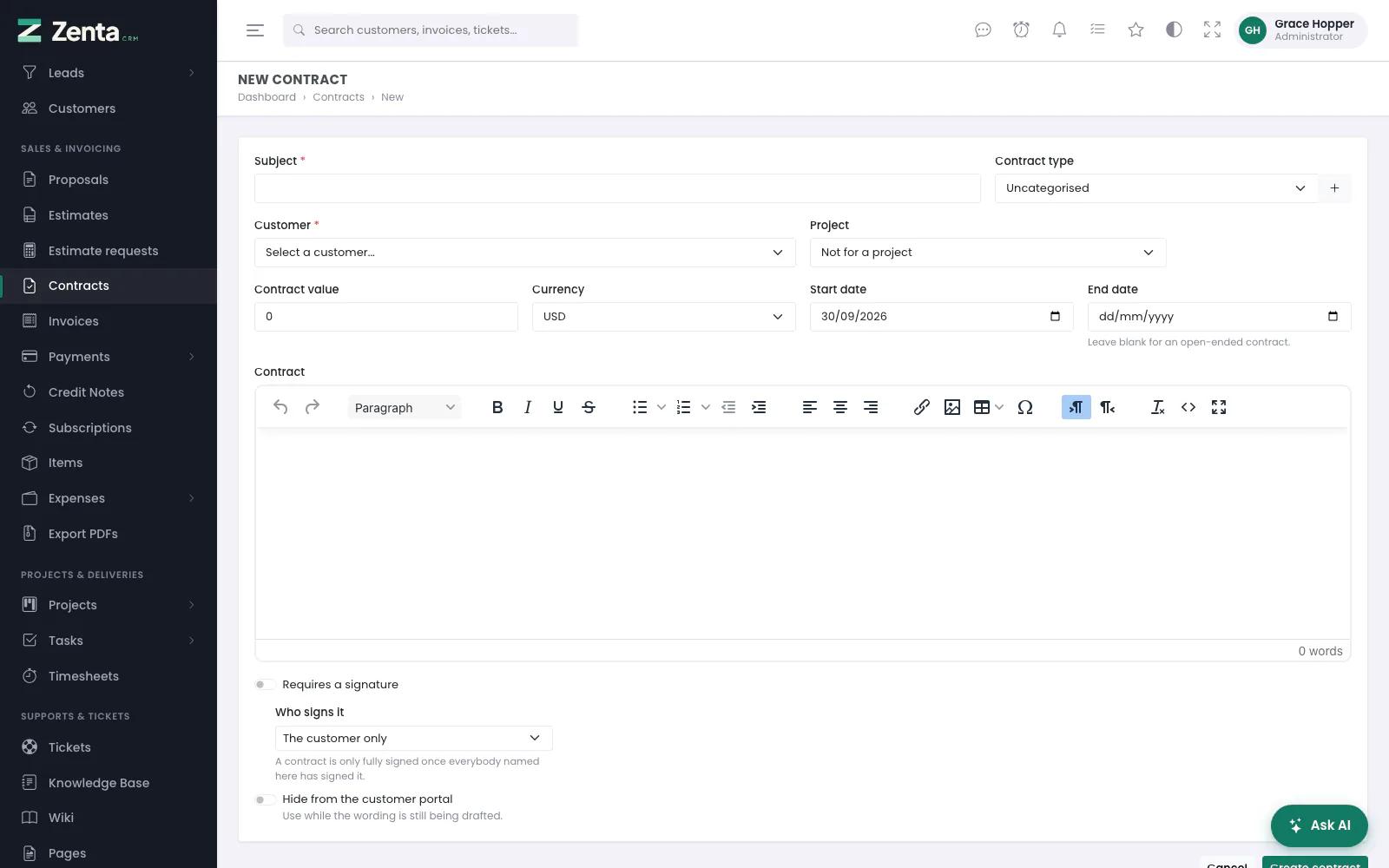 A new contract: subject, type, customer, value and dates, the wording, and who signs it.
Press New contract.
| Field | What it is for |
|---|---|
| Subject | Required. What the list and the customer see. |
| Contract type | Optional; Uncategorised otherwise. The + beside it adds a type without leaving the form. |
| Customer | Required. |
| Project | Optional: shows the contract on that project's Contracts tab. |
| Contract value and Currency | The headline value, used on the list, the figures and the chart. |
| Start date / End date | The start is today unless you change it. Leave the end blank for an open-ended contract; it cannot be before the start. |
| Issued by | Only once the workspace has a second company (Companies). |
| Contract | The wording, in the formatting editor. |
| Requires a signature and Who signs it | See Who signs. Both start from your defaults on the Settings screen. |
| Hide from the customer portal | Use while the wording is still being drafted (Hiding, binning and expiry). |
Custom fields you have added to contracts appear too. Press Create contract and you land on its page.
Editing a contract
 Editing a contract that nobody has signed yet: the wording, who signs it, and whether the customer can see it.
Edit on the contract's page opens the same form; press Save changes. The button is only there until somebody signs, and the form itself is refused for a signed contract (This contract has been signed. Create a new one rather than altering the agreed wording.), so an old link to it does not let anybody edit the wording and only find out on saving.
A contract's page
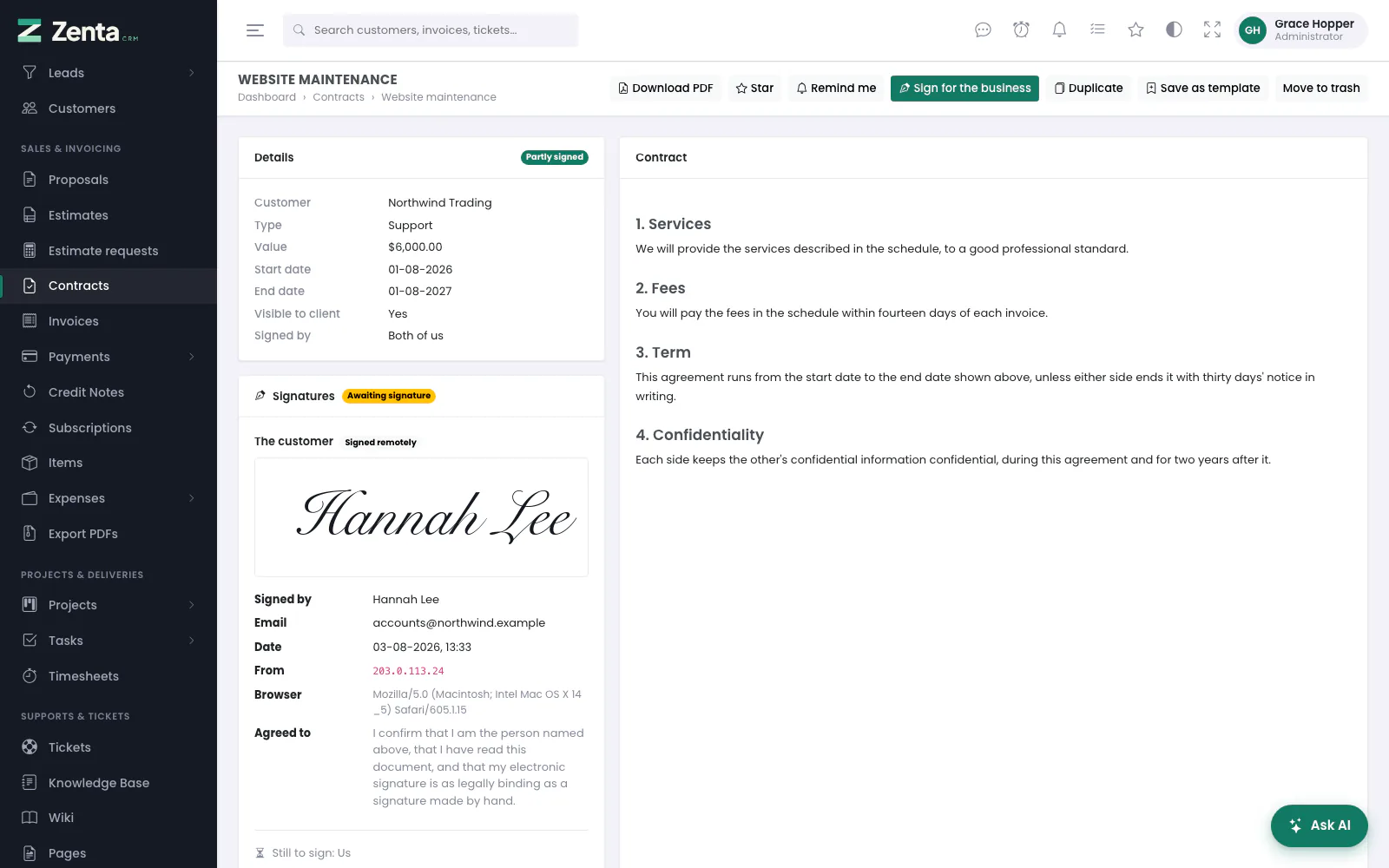 A contract the customer has signed and we have not: Partly signed, the signature record, and Sign for the business.
Details on the left (customer, type, value, dates, Visible to client, who has to sign, the issuing company and custom fields), the Signatures below them, and the wording on the right. A banner says when it is in the trash, has expired, ends soon, or was fully signed. Along the top:
| Button | What it does |
|---|---|
| Download PDF | The contract as a PDF, with its signatures (Contract PDFs). |
| Star / Remind me | For yourself (Reminders). |
| Edit | Until somebody signs. Needs edit. |
| Sign in person | While the customer still has to sign, the contract has not expired, and in-person signing is allowed. Needs edit. See Signing in person. |
| Sign for the business | While we still have to sign and the contract has not expired. Needs Sign for the business. See below. |
| Duplicate | After Make an unsigned copy of this contract?, creates the copy and opens it for editing (Templates, "new from" and duplicating). |
| Save as template | Asks for a template name (below). |
| Move to trash / Restore | Bins the contract, or brings it back. Needs edit. |
| Delete | Only on a contract in the trash. After Delete this contract? It leaves the trash too. it is deleted: gone from every list, the trash included, and you are taken back to the list. Needs delete. |
The trash is how a contract is put away; deleting is offered only from there, so a contract always waits in the trash before it can be deleted. There is no screen for bringing back a deleted contract.
Contract types
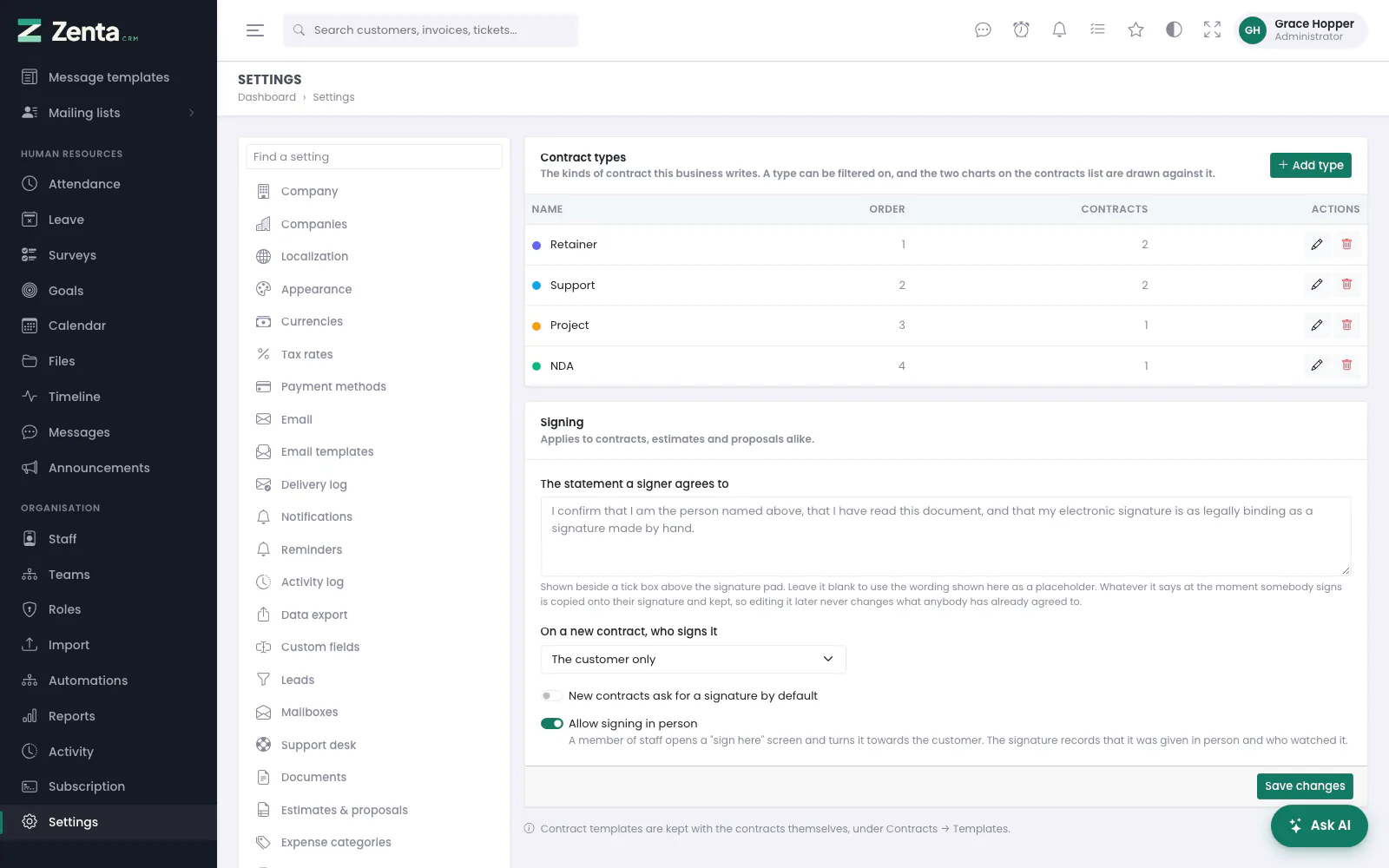 Settings → Contracts & signing: the contract types, with how many contracts each has, and the signing settings.
Set the kinds of contract your business writes under Settings → Contracts & signing: a name, a colour and an order. The colour is not decoration — it is what both charts on the contracts list are drawn in, so "Retainer" is the same shade wherever it appears. The table shows each type's Order and how many Contracts are filed under it.
 Add contract type: a name, a colour and an order.
- Press Add type.
- Give it a Name (unique, up to 100 characters), pick a Colour, and give it an Order (0–999) if you care where it sits in the list.
- Press Add type. The type then appears on the contract form, in the Any type filter on the list, and on both charts.
 Edit contract type, opened from the pencil beside a type.
The pencil beside a type opens Edit contract type; press Save changes. The removes a type after a confirmation — but not one that contracts are filed under (Contracts are filed under this type. Move them first, then remove it.). Otherwise those contracts would quietly drop out of the type filter and off both charts, which looks exactly like contracts that have been deleted. Templates that used a removed type simply lose it.
Templates, "new from" and duplicating
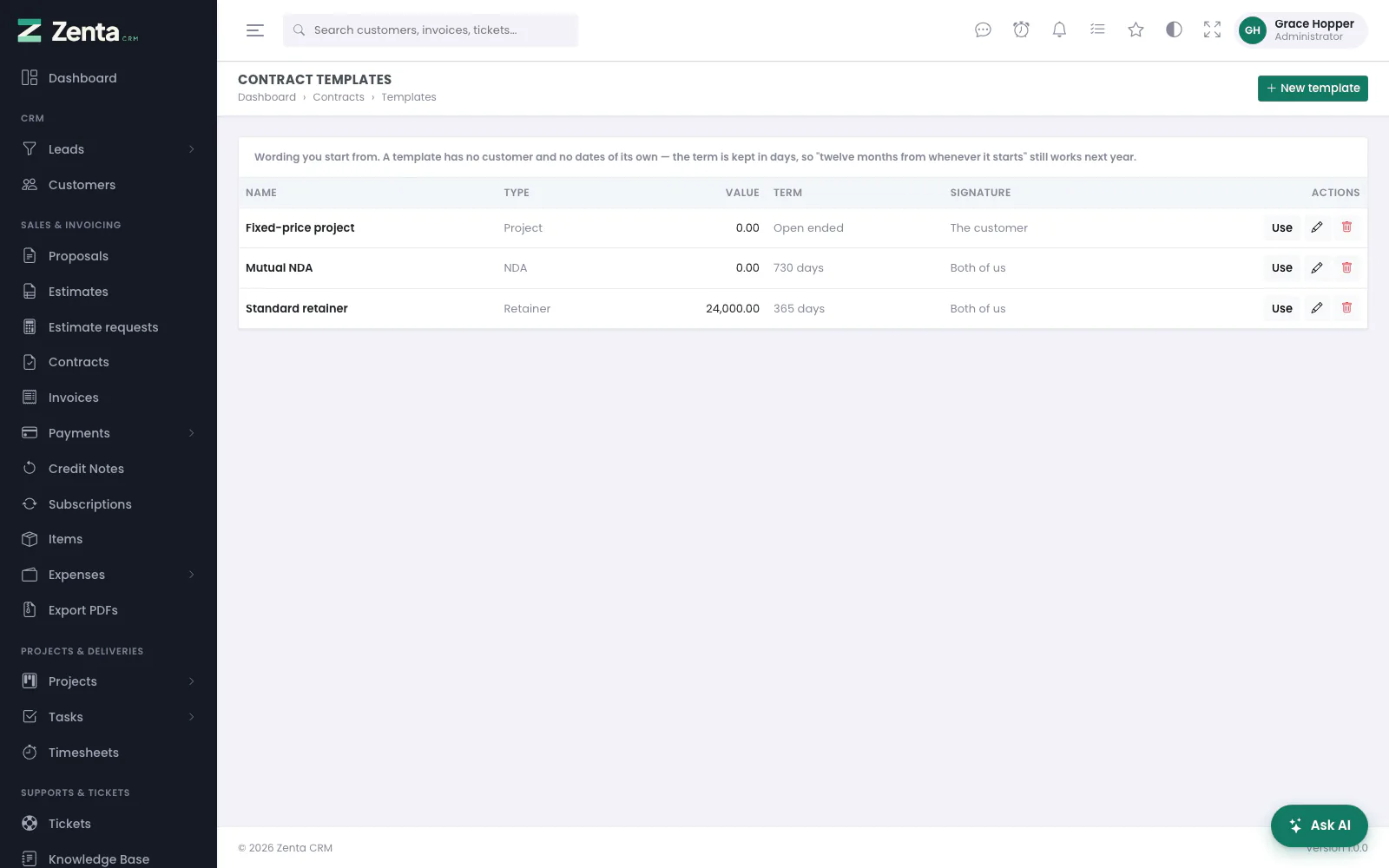 Contract templates, with their type, value, term and who signs, and Use to start a contract from one.
Most businesses write the same three or four contracts over and over. Contracts → Templates keeps that wording so nobody starts from a blank page. The list shows each template's Name, Type, Value, Term and Signature; beside each, Use starts a contract from it, the pencil edits it and the removes it after Remove …? Removing a template does not touch contracts already made from it.
 A new contract template.
Press New template:
| Field | Note |
|---|---|
| Template name | Required and unique. Also used as the subject of a contract started from it. |
| Contract type | Optional. |
| Default value | Editable on every contract made from it. |
| Term, in days | Not fixed dates. 365 means "a year from whenever it starts", so a template written this year still works next year. Blank means open ended; at most 3650. |
| Who signs it and Contracts from this template ask for a signature | See Who signs. |
| Wording | Written in the same editor as a contract. |
Press Save template. The pencil on the list opens the same form as Edit contract template; press Save changes.
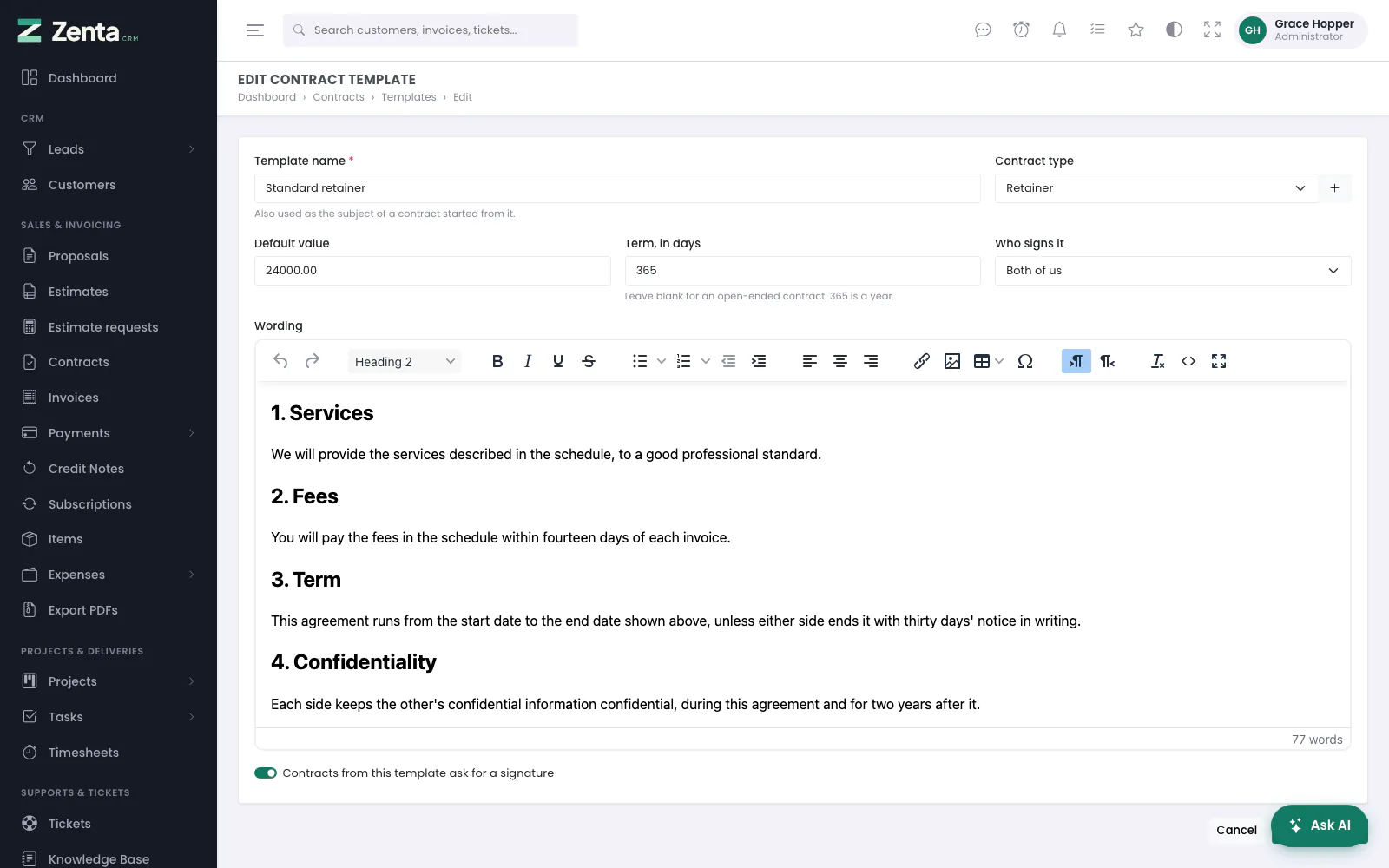 Editing a template: a year-long retainer that both sides sign.
There are three ways to avoid retyping:
- New from template — the arrow beside the New contract button, or Use on the templates list. The contract form opens already filled in, with the dates worked out from today and the customer still to be chosen.
- Save as template — on a contract you have already written. Give it a Template name and press Save template. The wording, type, value, term and who signs are kept; the customer and the actual dates are not.
- Duplicate — a fresh copy of this contract for the same customer, named Copy of …. Nothing about the original's history comes with it: no signature, no signing date. The copy starts hidden from the customer portal so you can look at it before they do, and opens for editing.
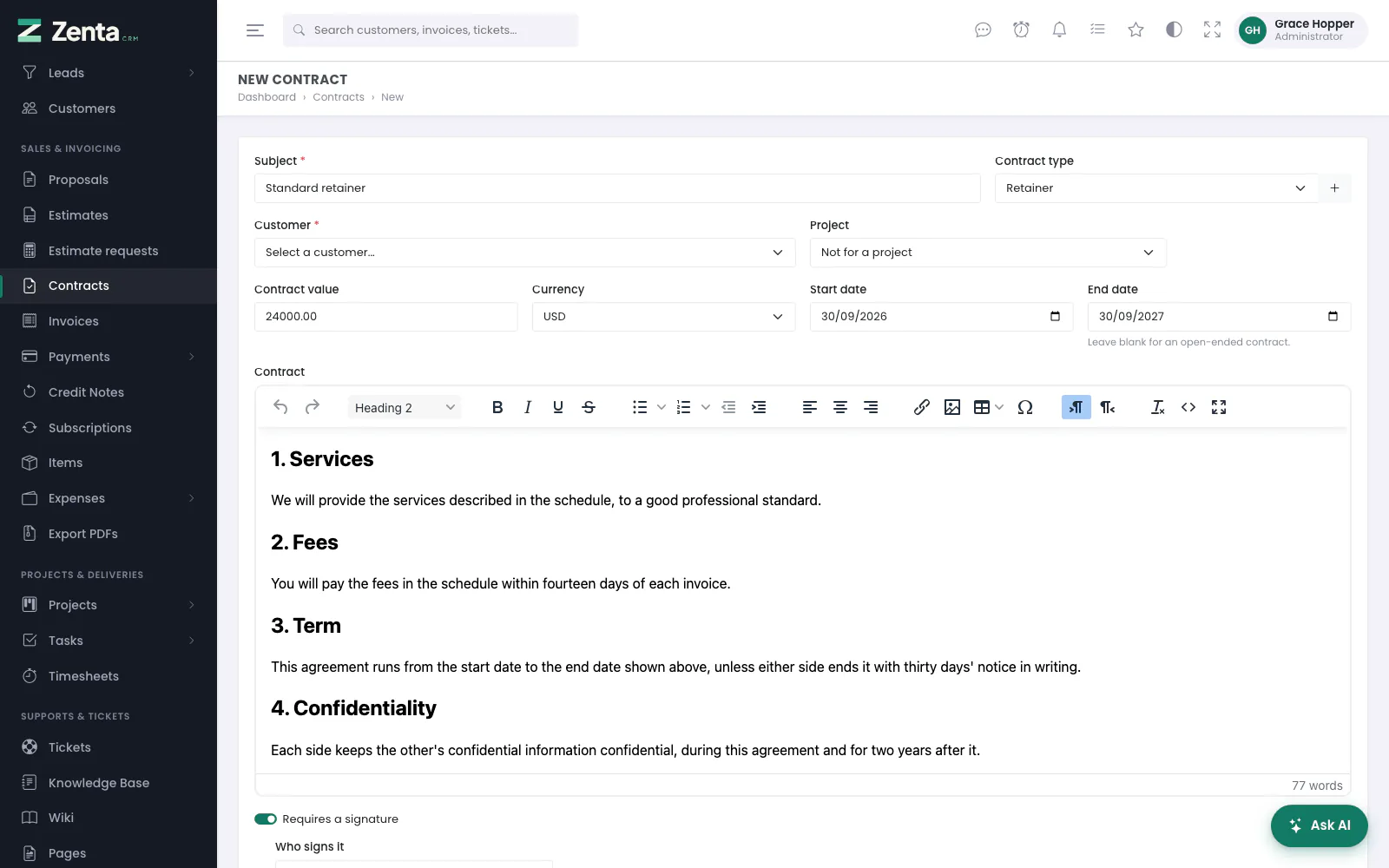 A contract started from the Standard retainer template: the wording, type and value filled in, and the end date a year from today.
 Save as template, from a contract's page.
Who signs
Tick Requires a signature on a contract and then choose Who signs it:
| Choice | What happens |
|---|---|
| The customer only | The usual case. The portal shows them a signature pad; the contract is finished when they sign. |
| Us only | Nothing is asked of the customer, and they are never chased for it. A member of staff with the right to sign for the business signs it. |
| Both of us | Either side can go first. The contract is Partly signed until the other has signed too, and fully signed only when nobody is outstanding. |
The contract page and the list both say who has signed and who is still to. The defaults for new contracts are set under Settings → Contracts & signing (below).
Signing for the business
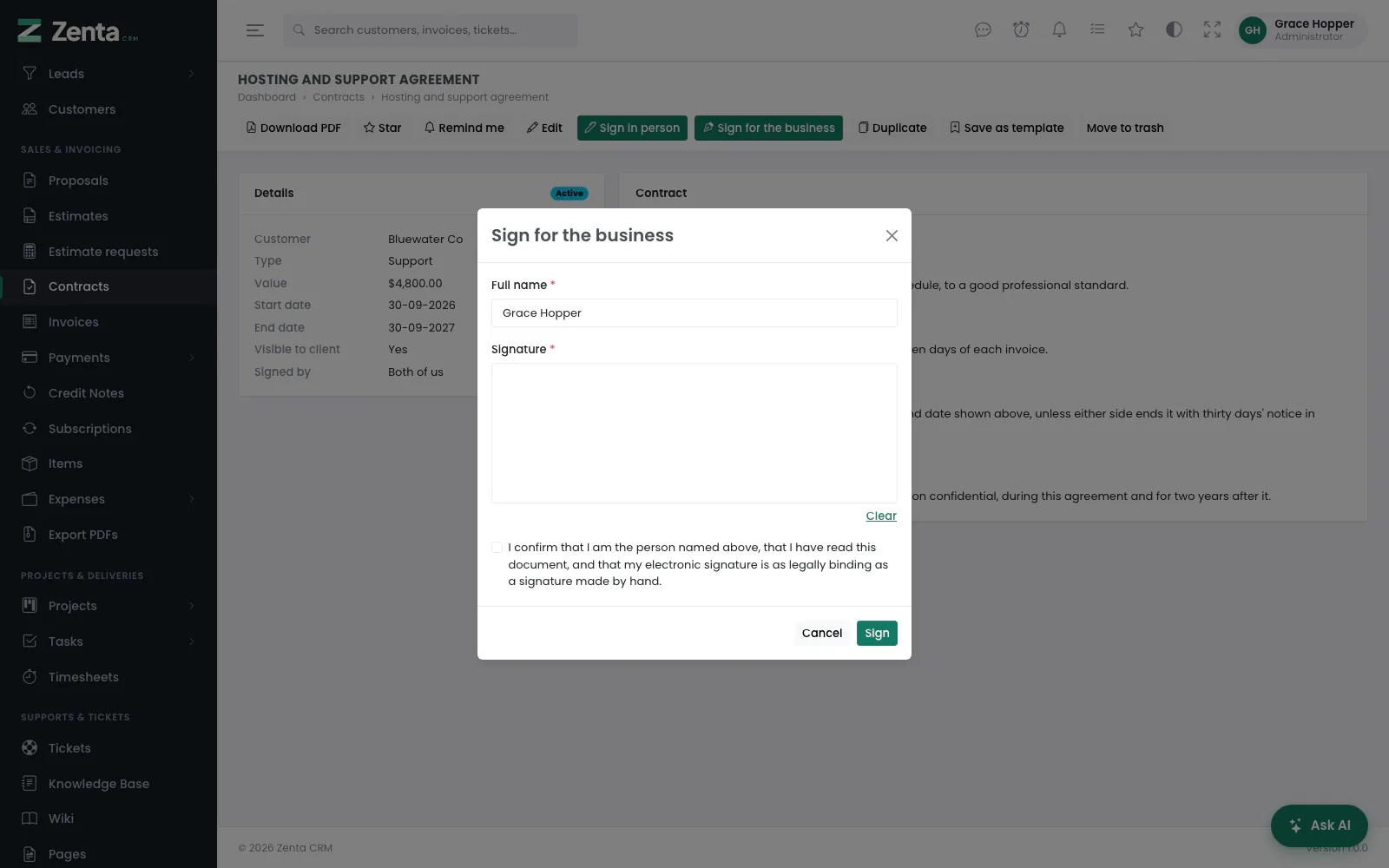 Sign for the business: the signer's full name, a signature (or the saved one), and the statement to confirm.
Signing on the company's own behalf is a separate permission from editing a contract — Sign for the business, under Staff → Roles. Plenty of people write the contract; far fewer are authorised to put the company's name to it, and a role that may do the first should not get the second by accident.
- Press Sign for the business on the contract.
- Check the Full name (your own name is filled in).
- Draw in the Signature box (Clear starts again) — or, if you have saved a signature, leave Use my saved signature ticked.
- Tick the statement and press Sign.
Anybody with that right can draw their signature once on My account and reuse it. A saved signature can only be drawn by the person it belongs to — an administrator editing somebody's staff record cannot put one there for them. A business signature is recorded against the member of staff who gave it, with their account's email.
Signing in person
 Sign in person: the agreement and a pad, to turn towards the customer.
When the customer is in the room, press Sign in person on the contract. That opens a screen with the agreement and a pad on it — and none of the contract's own buttons — to turn towards them. The note at the top says whose signature it will be and who is witnessing it. They type their Full name, draw in the box, tick the statement and press Sign and agree. Back to the contract leaves without signing.
A signature given that way is recorded as given in person, with the member of staff who was signed in as the witness, alongside the date and the address it came from. It is kept distinct from a signature given remotely through the portal: a dispute about one is a different argument from a dispute about the other.
The signing settings
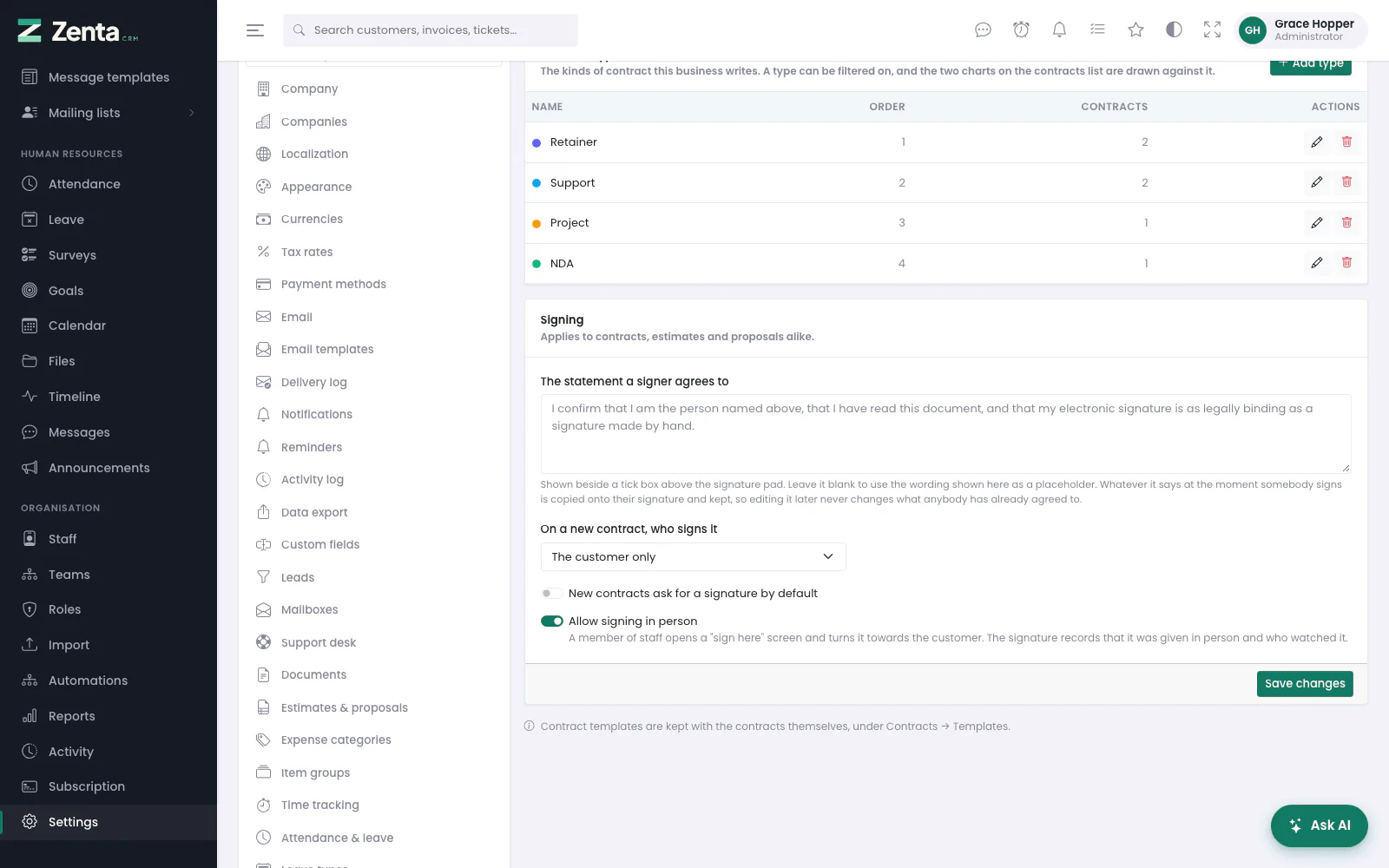 The Signing half of the Settings screen: the statement, who signs a new contract, and the two switches.
The Signing half of Settings → Contracts & signing applies to contracts, estimates and proposals alike. Press Save changes when you are done.
| Setting | What it does |
|---|---|
| The statement a signer agrees to | Shown beside a tick box above every signature pad. Plain text, up to 2000 characters. Blank uses the default wording shown as a placeholder. |
| On a new contract, who signs it | Preselects Who signs it on the contract form. Shipped as The customer only. |
| New contracts ask for a signature by default | Preticks Requires a signature. Off as shipped. |
| Allow signing in person | The Sign in person button and screen. On as shipped. |
Identity and the legal wording
Before anybody signs anything — contract, estimate or proposal — they have to type their full name and tick the statement. Left blank, the statement reads:
I confirm that I am the person named above, that I have read this document, and that my electronic signature is as legally binding as a signature made by hand.
Whatever it says at the moment somebody signs is copied onto their signature and kept there. Editing the wording afterwards changes what the next person agrees to and nothing at all about what anybody has already agreed to.
What each signature records
 A fully signed contract: the signature, who signed, from where, who witnessed it, and the wording they agreed to.
| Field | Why |
|---|---|
| The drawing | A PNG of what was drawn, kept in your own database beside the document. |
| Which side signed | The customer, or us — and whether it was Signed remotely or Signed in person. |
| Signed by | The name typed by the signer. A drawn signature alone rarely says whose it is. |
| Read from the account they were signed in as, never from a box they typed it into. Signed in person, it is the customer's primary contact's. | |
| Witnessed by | For an in-person signature, the member of staff who was signed in. |
| Date | When it was given. |
| From and Browser | The IP address and browser, observed rather than supplied, which is the whole reason to keep them. |
| Agreed to | The statement, word for word as it stood at that moment. |
All of it is on the contract page and on the contract's PDF, so the document you hand to a solicitor carries both signatures rather than whichever was most recent. Under the signatures, Still to sign names anybody outstanding.
Hiding, binning and expiry
A contract has two switches for keeping it away from the customer, and both are honoured everywhere rather than only on the page you set them on.
| Switch | Where it applies |
|---|---|
| Hide from the customer portal (on the form) | Out of the portal list, its page, its PDF and the customer's own data export; not chased for a signature. Still on every staff screen. |
| Move to trash (on the page) | All of the above, and out of the staff list, the global search, the calendar, reminders, list exports, the figures and both charts. It is still there — the Trash filter on the list is how you find it, and Restore on its page brings it back. |
Ending soon and Expired are tick boxes on the filter bar, and the two counts sit in the figures above the list, so "what is running out" is one click rather than a sort. On an expired contract the signing buttons disappear, and a signature is refused whether it comes from the portal or from staff (This contract has expired. Create a current one to sign.).
Scheduling work around documents
The automation builder (Automations) can act on the whole life of a contract, an estimate and a proposal. Use these to schedule a renewal conversation, raise a task for the account manager, or send a reminder.
| Trigger | When it fires |
|---|---|
| Contract has started | Its start date has arrived. |
| Contract about to expire | Its end date is approaching. Add a condition on Days until expiry to say how far ahead. |
| Contract has ended | Its end date has passed. |
| Contract fully signed | The last outstanding signature has been given — not the first. |
| Estimate sent / accepted / declined / about to expire | As they happen. |
| Proposal sent / accepted / declined / about to expire | As they happen. |
A contract rule can also be narrowed on its status, its type, its value, who has to sign it, how many signatures are still outstanding, and how many days ago it started. Each of the date-based triggers fires once per contract unless you switch repeat on — so a daily sweep does not raise the same task every morning.
Addresses on this page
For reference and for anyone scripting against the panel. Everything here needs somebody signed in to the workspace whose role allows it; anybody else is refused.
| Method | Address | What it does |
|---|---|---|
GET | admin/contracts | The contracts list, with q, type, expiring, expired and trashed filters. |
GET | admin/contracts/create | The new-contract form. ?template= fills it from a template, ?customer= picks the customer. |
POST | admin/contracts | Creates a contract. |
GET | admin/contracts/{contract} | A contract's page. |
GET | admin/contracts/{contract}/edit | The edit form. Refused (409) once anybody has signed. |
PUT | admin/contracts/{contract} | Saves an edit. Refused (409) once anybody has signed. |
DELETE | admin/contracts/{contract} | Deletes a contract (the on a trashed contract's page). |
PATCH | admin/contracts/{contract}/trash | Moves it to the trash, or restores it. |
POST | admin/contracts/{contract}/duplicate | Makes an unsigned, hidden copy. |
POST | admin/contracts/{contract}/save-as-template | Saves its wording, type, value and term as a template called name. |
GET | admin/contracts/{contract}/sign-in-person | The sign-in-person screen. |
POST | admin/contracts/{contract}/sign | Records the customer's signature given in person. |
POST | admin/contracts/{contract}/countersign | Records the business's signature, drawn or use_stored. |
GET | admin/contract-templates | The templates list. |
GET | admin/contract-templates/create | The new-template form. |
POST | admin/contract-templates | Creates a template. |
GET | admin/contract-templates/{template}/edit | The edit form. |
PUT | admin/contract-templates/{template} | Saves a template. |
DELETE | admin/contract-templates/{template} | Removes a template. |
GET | admin/settings/contracts | Settings → Contracts & signing. |
PUT | admin/settings/contracts/signing | Saves the Signing half of that screen. |
GET | admin/settings/contract-types/create | The Add contract type form, in a pop-up. |
POST | admin/settings/contract-types | Adds a type. |
GET | admin/settings/contract-types/{type}/edit | The Edit contract type form, in a pop-up. |
PUT | admin/settings/contract-types/{type} | Saves a type. |
DELETE | admin/settings/contract-types/{type} | Removes a type that no contract uses. |