Tickets and knowledge base
Answering customers, and answering them once: the ticket queue, the support desk's settings, mail into tickets, the internal wiki and the knowledge base.
Tickets
Tickets arrive six ways:
- Opened by staff on a customer's behalf, with New ticket
- From the public form at
/support, for people with no portal sign-in - From a customer contact in the portal (see the portal's side of tickets)
- By email, through the mail pipe
- By email, read out of a mailbox over IMAP
- Through the REST API
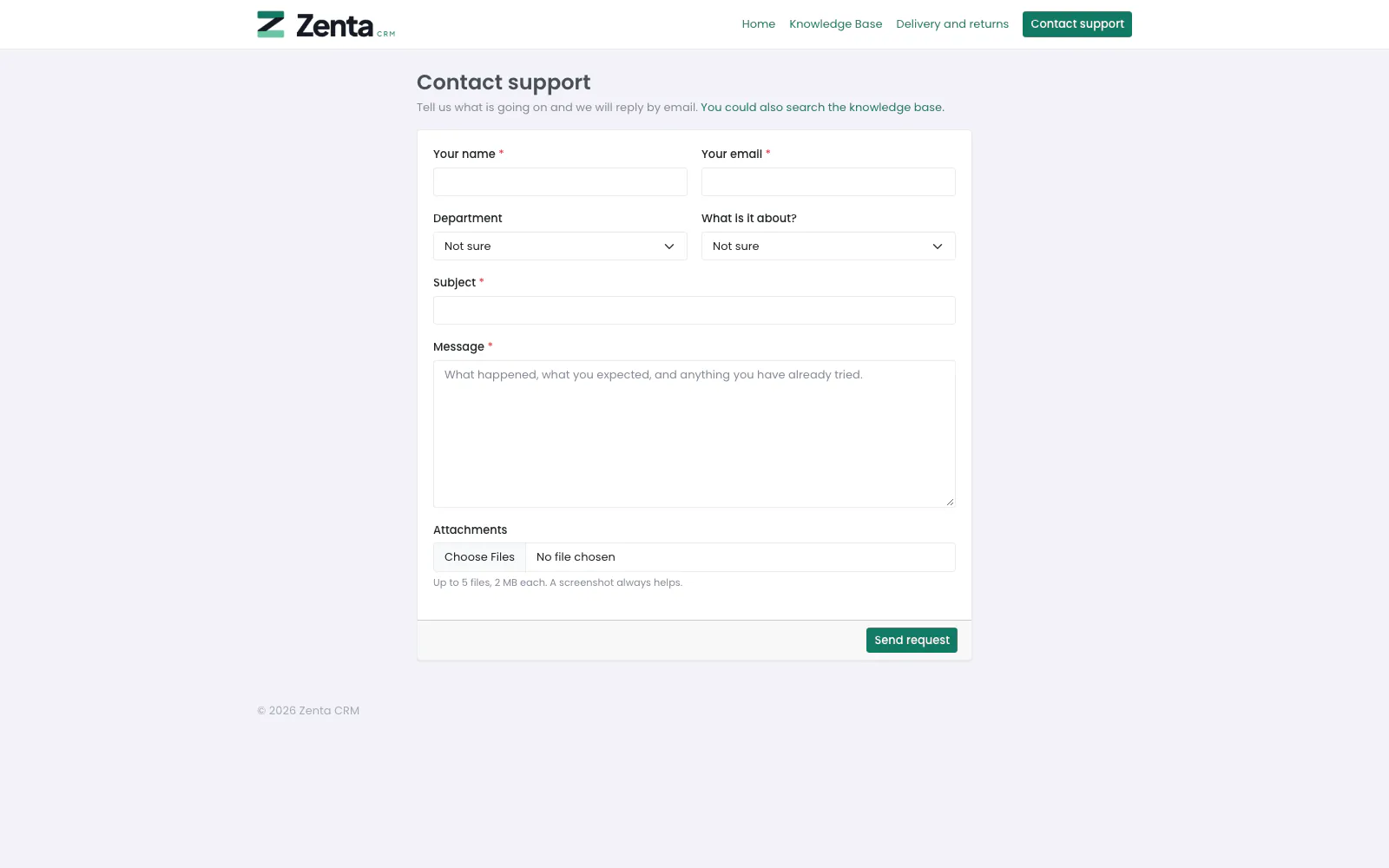 The public support form, for people who have no portal sign-in.
Everything on this page needs the matching permission: Tickets, Knowledge base and Wiki each have View, Create, Edit and Delete, and the support desk's lists and mailboxes are under Settings (View to look, Edit to change). A role whose tickets are limited to its team's, the ones assigned to it or its own (see Permissions) sees only those, in the queue, in the counts and in every action below.
The queue
 The ticket queue, longest-waiting first, with the four counts along the top.
Tickets in the menu. The queue is sorted by who has been waiting longest — a ticket nobody has answered at all comes first — and a ticket waiting on a reply from you carries a Waiting on us badge, so the thing most likely to become a complaint is at the top. Click #, Subject or Last activity to sort by that instead.
Along the top, four counts of open tickets, each a link to that list:
- Open — everything in a status that does not count as closed.
- Awaiting our reply — open, and the last word was the customer's (or nobody's yet).
- Unassigned and Assigned to me.
Each row shows the number, the subject with who opened it and the service (an envelope means it arrived by email), the customer, department, priority, who it is assigned to, when it last moved and its status. The priority is shown by the name and colour you gave it under Priorities, so a renamed or added priority reads as you wrote it; the compact layout's pane does the same. Merged and archived tickets are not in the queue.
Finding tickets
- Search by subject, number or email.
- Filter by status, department, priority, who it is assigned to (Assigned to me, Unassigned or a colleague) and tag, then press Filter. Clear takes the filters off.
- Open only hides closed tickets; Archived shows the archive instead of the queue.
- Starred only, Per page, saved filters, Print and Export work as they do on every list.
Tick rows to act on several at once: Assign to, Change status, Change priority, Move to a department, Add a tag, Archive, Take out of the archive and Delete. Assign to accepts only this workspace's staff.
The compact layout
 Compact: a narrow queue on the left, the chosen ticket on the right.
Compact narrows the queue to the number, subject and status and shows the chosen ticket in a pane beside it: its status and priority, who opened it, the department, who it is assigned to, when it was opened, the latest three messages and the latest activity. The up and down arrow keys move through the list; Enter opens the full page, as does Open in the pane. The choice is remembered for you alone. The pane checks exactly what the full page checks, so it never shows a ticket you could not open.
Opening a ticket
 A new ticket: the message on the left, where it is filed on the right.
Press New ticket.
| Field | What it does |
|---|---|
| Start from a template | Only there when you have ticket templates. See Ticket templates. |
| Subject and Message | Required. The message becomes the first entry in the thread, exactly as a customer's first message would. |
| Attachments | Up to ten files, each within the workspace's upload size. |
| Department | Starts on the department marked as the one where unmatched tickets land. The beside it adds a department without leaving the form. |
| Status and Priority | Start on the status and priority marked for new tickets. |
| Service | What the ticket is about, from your list of services, or Not specified. |
| Contact | One of your customers' contacts, which settles the customer and the address together (the Customer is set from the contact when you save); or Someone without an account, which shows Their name and Their email instead. |
| Customer | The company it is filed against. |
| CC | Other addresses to copy, separated by commas. |
| Assigned to | A colleague, or Nobody yet. |
| Related project | Puts the ticket's logged hours on that project too. |
| Tags | Separated by commas. |
Custom fields you have added for tickets appear under the message. Press Open ticket.
A ticket's page
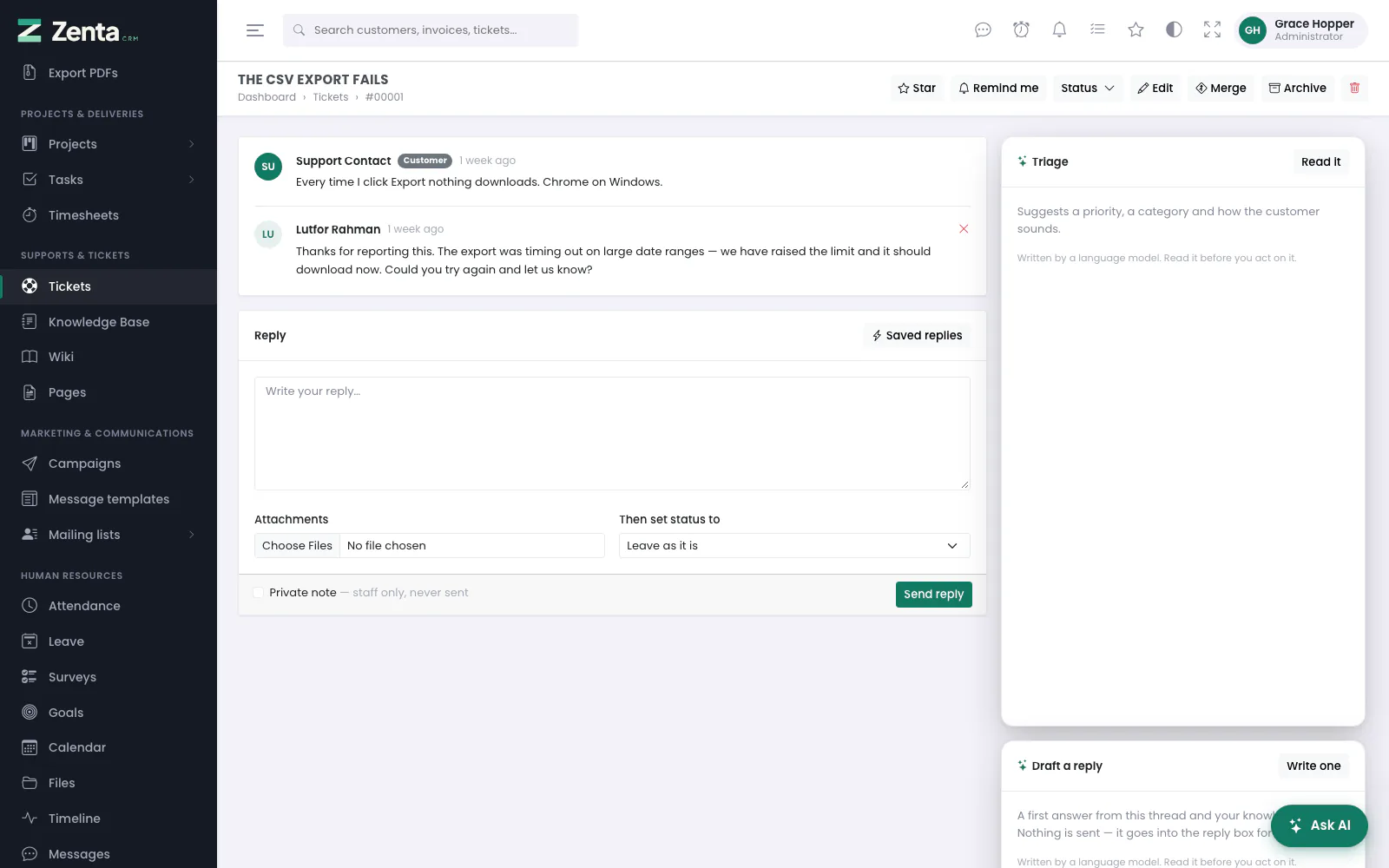 A ticket: the conversation, the reply box, and the buttons along the top.
The conversation reads top to bottom. A customer's messages are badged Customer, a private note Private note, and a status the customer set from the portal Status change.
Replying
- Saved replies drops one of your saved replies into the box — added after whatever you have already written, never in place of it. Only replies for this ticket's department, or for every department, are offered.
- A voice note can be recorded instead of, or as well as, writing, when voice notes are switched on for comments.
- Attachments — up to ten files.
- Then set status to — move the ticket in the same step, or Leave as it is.
- Private note — staff only, never sent.
Press Send reply.
Whoever answers an unassigned ticket first becomes its owner. A deliberate hand-off is never undone by a colleague chipping in: it only ever fills an empty assignment. A status you pick in Then set status to is applied last, so it always wins.
Private notes
A private note sits in the thread so the conversation reads in order, but never leaves the building. It does not mark the customer as answered, does not reopen anything, and files attached to it are never downloadable by the customer.
Removing a message
With the Delete permission, the beside any message but the first removes it from the thread, after you confirm. The first message cannot be removed — a ticket with no question makes no sense; delete the whole ticket instead.
The buttons along the top
| Button | What it does |
|---|---|
| Star, Remind me | As on every record: keep it in your starred list, or set yourself a reminder about it. |
| Status | Moves the ticket to another status at once, without writing anything. |
| Edit | Opens the ticket's details. See Editing a ticket. |
| Merge | Folds this ticket into another. See Merging. |
| Archive / Unarchive | Takes the ticket out of the queue without closing or deleting it, or puts it back. Archived tickets are under the Archived filter. |
| Deletes the ticket and the whole conversation, after you confirm. Needs the Delete permission. |
The right-hand column
 Further down the right-hand column: a public-form ticket whose address matches a contact, the details, who it is assigned to and logged time.
- Triage and Draft a reply — the AI helpers, when AI is set up. Triage suggests a priority, a category and how the customer sounds; Draft a reply writes a first answer from the thread and your knowledge base and puts it in the reply box for you to edit. Nothing is sent. See AI assistance.
- Details — the number, who opened it and their email, customer, department, service, priority, when it was opened, where it came from (Admin, Portal, Email or Form), its status, and the project and CC addresses when it has them.
- Assigned to — change it here and it is saved straight away.
- Tags — each one a link to the queue filtered by it.
- Logged time — see below.
Filing a public-form ticket against a contact
A ticket from the public form carries only the address somebody typed. When that address belongs to a contact here, the ticket says so — but files nothing, because anybody can type anybody's address into a public form. If you are satisfied it is them, press File it against them and confirm: the ticket moves to that contact and their company, and the contact can see it in the portal from then on. Only the contact whose address the ticket was opened with can be chosen.
None of this is needed when a contact sends the form while signed in to the portal: they are known, so the ticket goes straight to them and their company, marked as from the Portal.
Logged time
Time goes against a ticket exactly as it goes against a task: Log time on the ticket, or pick the ticket on a timesheet entry. The workspace's rounding, its h:mm or decimal display, "billable and not yet invoiced" and the grouped timesheet report all apply without a second set of rules — a support hour and a project hour are the same hour to whoever is paying for it. Each entry shows who logged it, when, whether it is billable or already invoiced, and a pencil to edit it.
A ticket attached to a project puts its hours on that project too, so Invoice this project catches them.
Editing a ticket
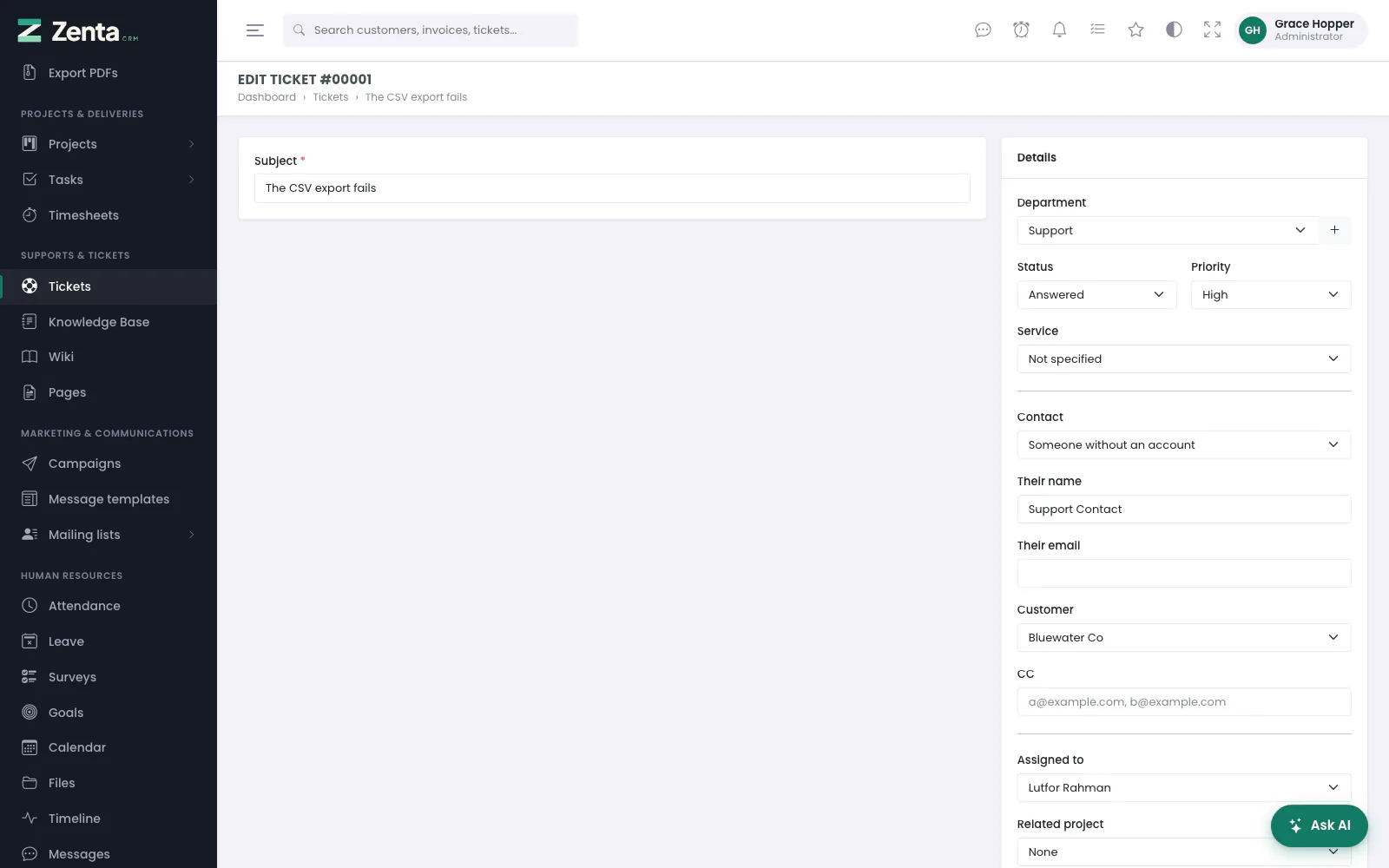 Editing a ticket: the subject and where it is filed. The conversation is not edited here.
Edit opens the same fields as a new ticket, less the message and the attachments — those belong to the thread. Change the subject, department, status, priority, service, contact, customer, CC, assignee, project, tags or custom fields and press Save changes.
Merging
 Merge this ticket: choose the ticket everything moves into.
When somebody writes in twice, merge one ticket into the other: Merge, choose the ticket under Move everything into (the latest fifty in the queue are offered) and press Merge. The messages, files and logged time move across; the original is closed and stays behind pointing at its new home, so the number it was quoted still works, and an email reply to the old number lands in the new ticket. A ticket cannot be merged into itself, or into one that has itself been merged away.
The support desk's settings
 The Support desk screen, under How the desk behaves: departments, statuses, priorities, services, saved replies and ticket templates.
How the desk behaves, and the lists behind it, are on one screen: Settings → Support desk (in the settings list, after Mailboxes). At the top is How the desk behaves; the lists come under it. Each list has a to add an entry and a on each row to change it; every entry opens in a small window with Delete at its bottom left. Changing them needs Settings → Edit.
Departments
 A department: its inbox address, its members, and whether it is the default.
 New department: the plus on the Departments list.
| Field | What it does |
|---|---|
| Name | Required. |
| Inbox address | Mail piped to this address opens tickets in this department. Each address can belong to one department only. |
| Members | The staff who work it. Hold Ctrl or Cmd to pick several. |
| Order | Where it sits in the lists. |
| Tell members about new tickets | On as a new department starts. |
| Where unmatched tickets land | The default department, for new tickets and for mail sent to an address no department claims. Only one department can be the default; ticking it here takes it off the other. |
Press Add department or Save changes. Deleting a department keeps its tickets; they are simply no longer in a department.
Statuses
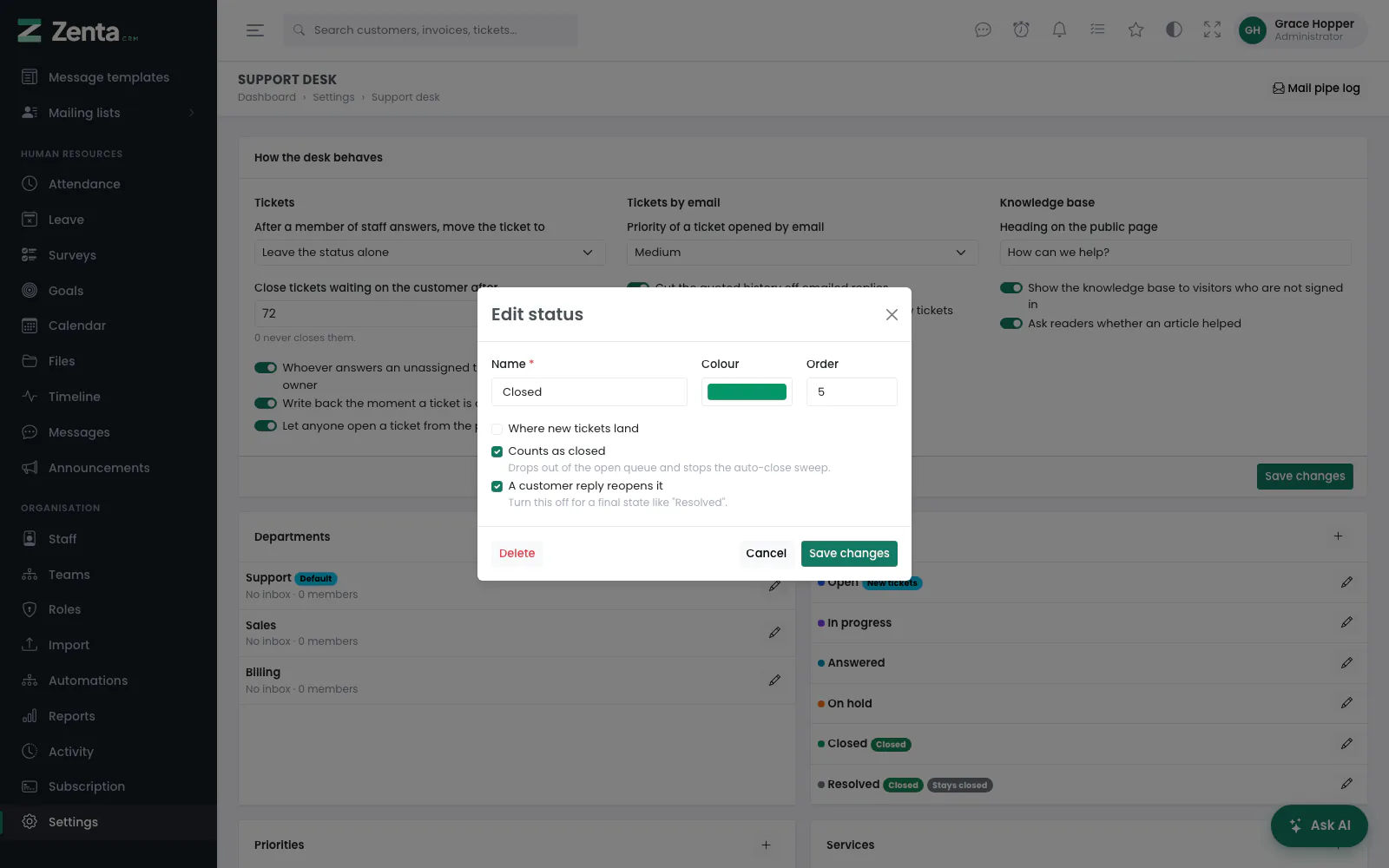 A status and its three switches.
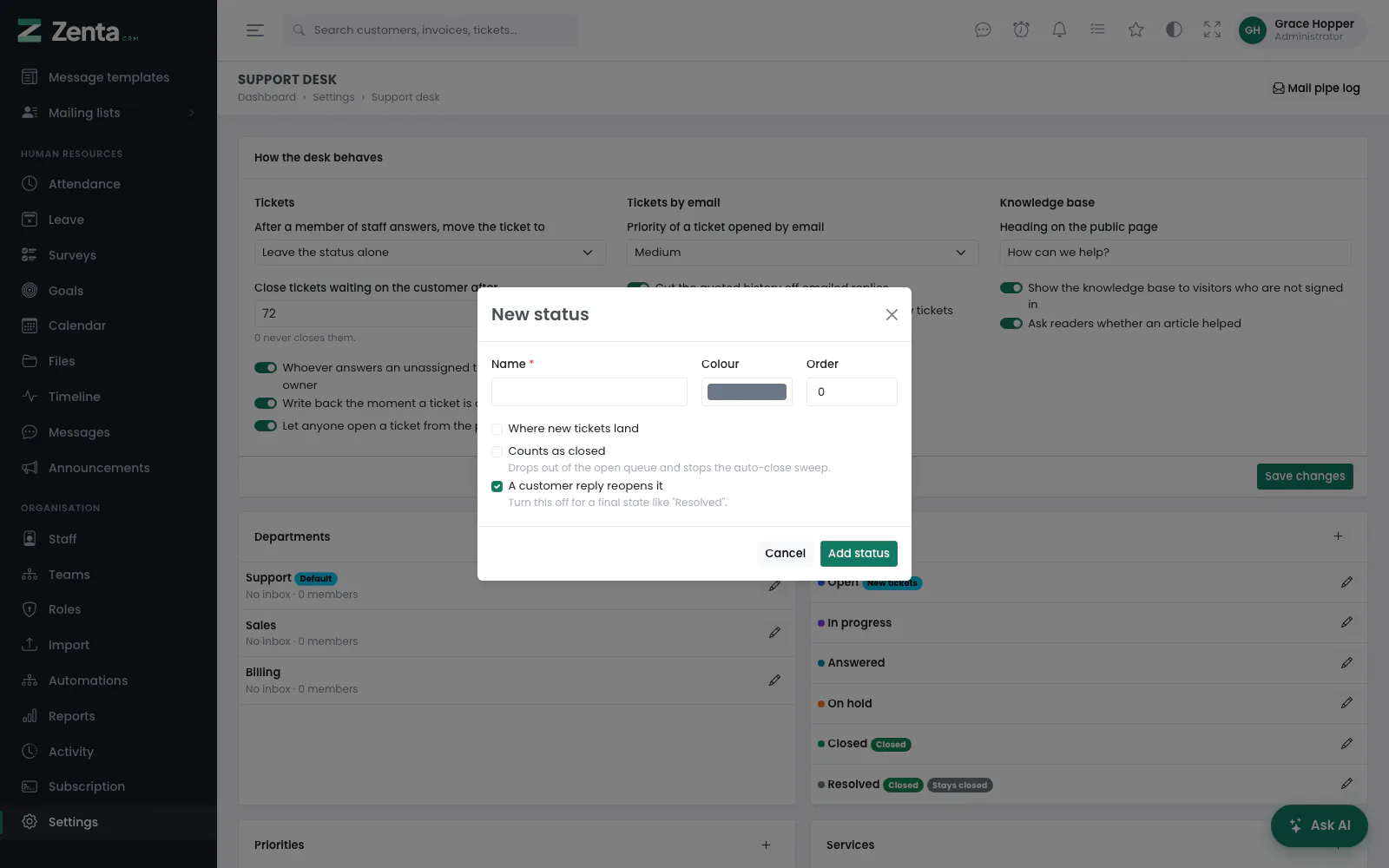 New status: a customer reply reopens it unless you untick it.
Each status has a Name, a Colour and an Order, and three switches. The last two, together, are what make statuses useful:
| Switch | Effect |
|---|---|
| Where new tickets land | The status a new ticket starts on. Only one status can be this. |
| Counts as closed | Drops out of the open queue and stops the auto-close sweep. |
| A customer reply reopens it | A follow-up brings the ticket back to the first open status, at the top of the queue. On as a new status starts. |
That is the difference between Closed and Resolved in the statuses you start with. Both are closed; only Closed comes back when the customer writes again, and the list marks Resolved Stays closed.
Deleting a status leaves its tickets without one, and at least one status that does not count as closed has to remain — otherwise a ticket would have nowhere open to go.
Priorities
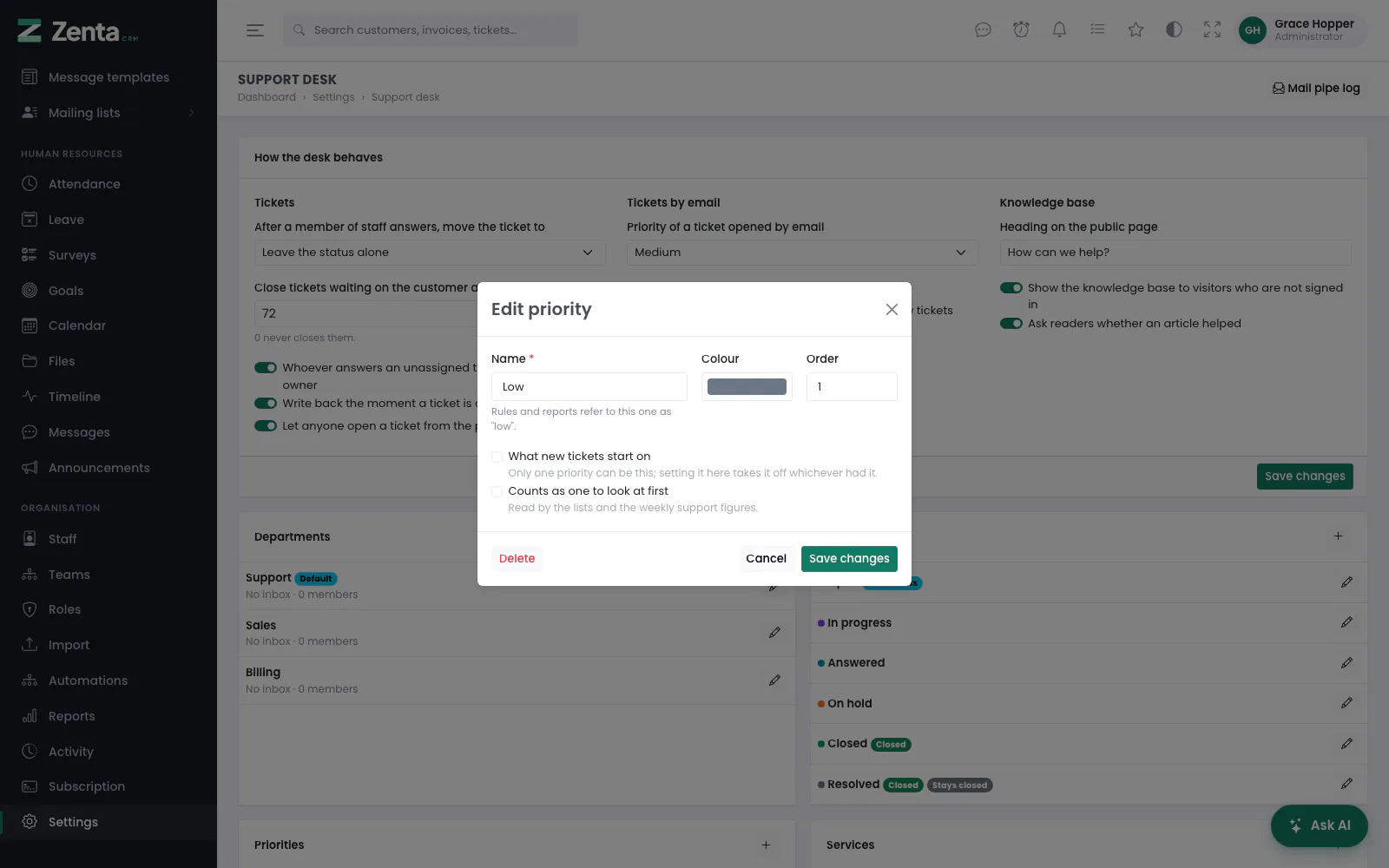 A priority. The line under the name is the fixed handle rules and reports use.
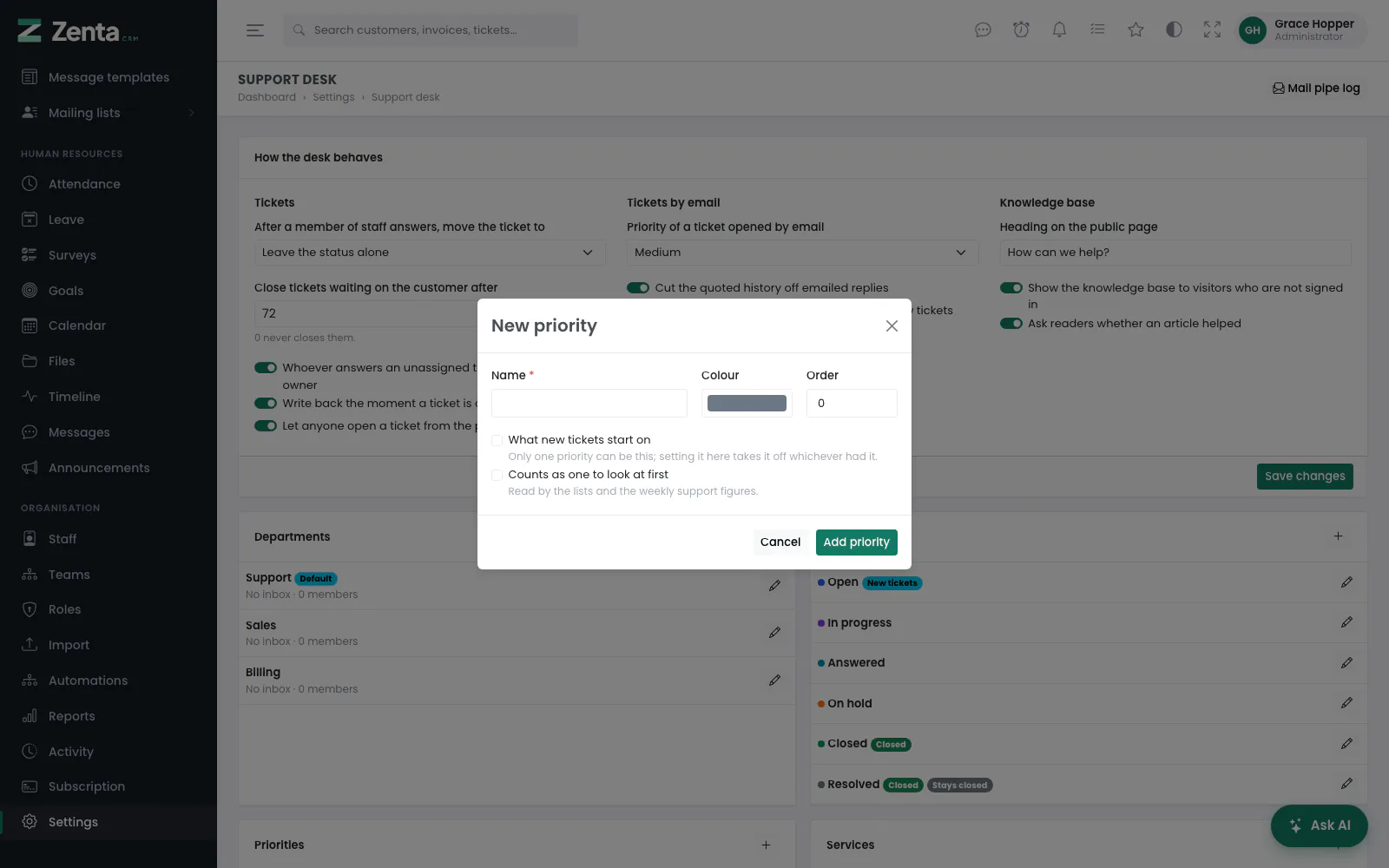 New priority. Its slug is made from the name when it is saved, and never changes after.
Priorities are rows you define, not four words the software chose. Each one has a
Name, a Colour (a colour code such as
#dc3545; anything else is refused, and the same goes for a status's colour),
an Order and two
switches: What new tickets start on (only one priority can be this;
setting it takes it off whichever had it) and Counts as one to look at
first, which the lists and the weekly support figures read.
urgent goes on matching. The edit window shows the slug under the name so you
know what to write rules against.
Deleting one moves its tickets to the first priority left in the list rather than leaving them without one, and the last priority cannot be deleted — a new ticket has to be able to be something.
Services
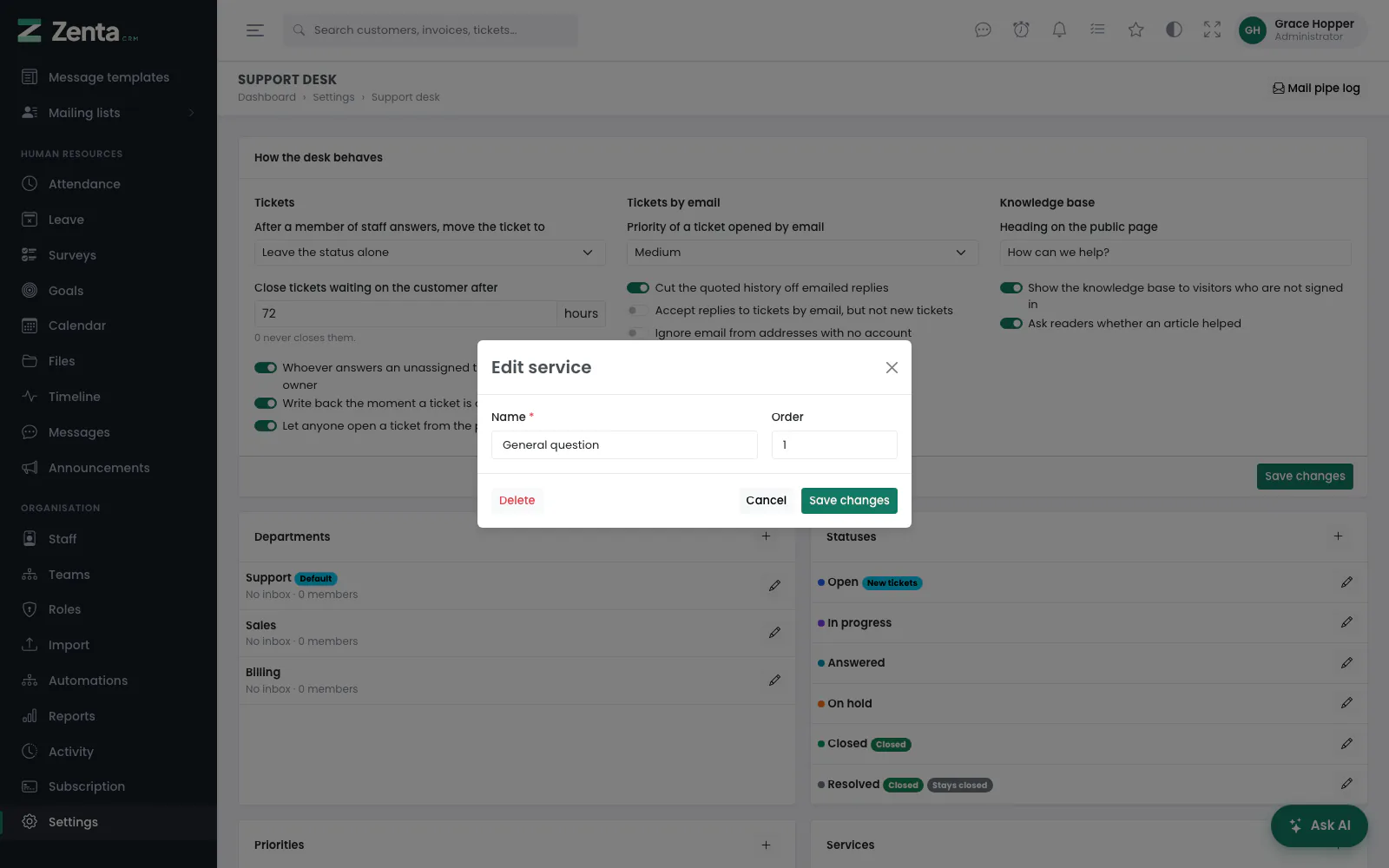 A service: a name and a place in the list.
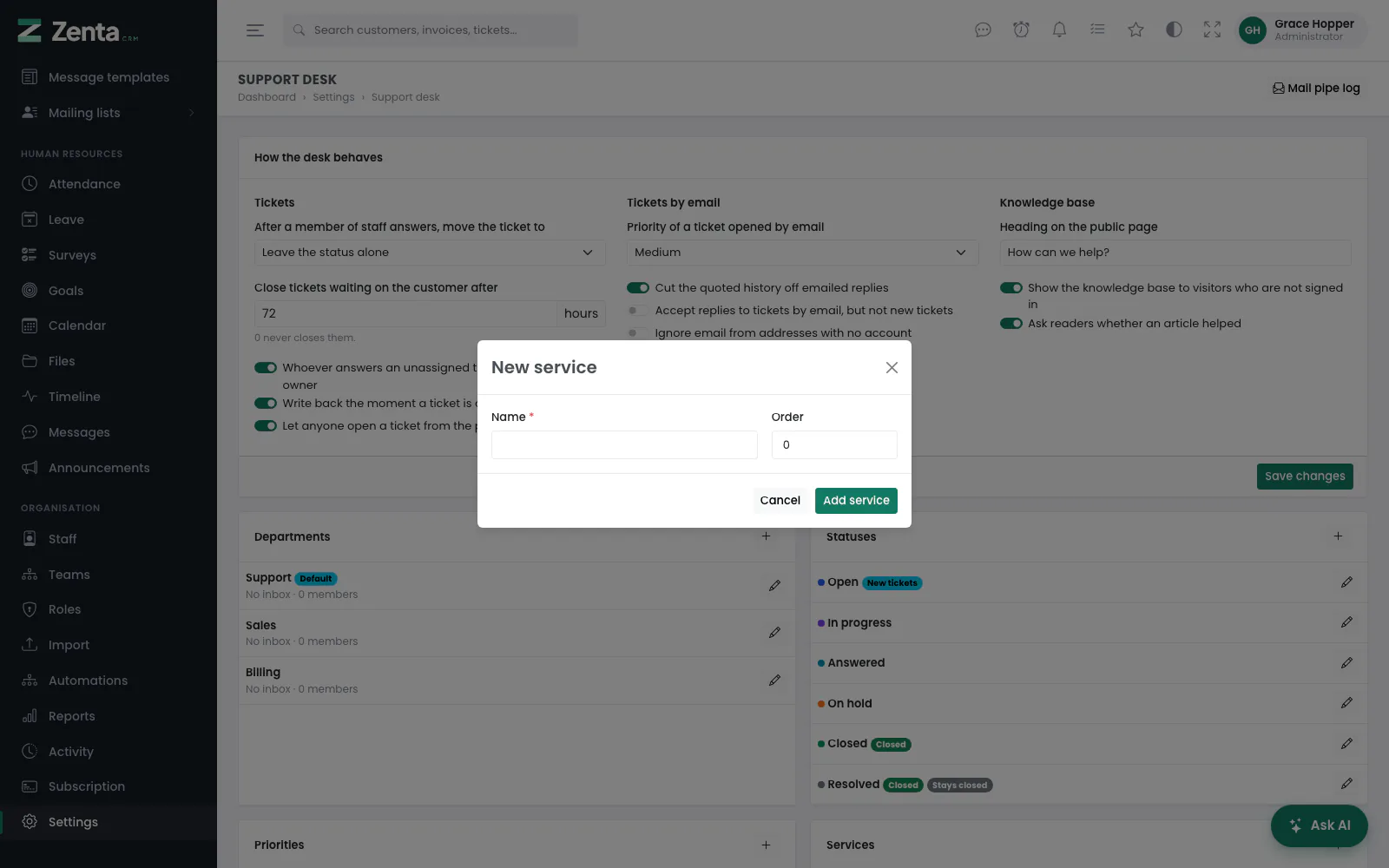 New service.
What a ticket is about — Billing question, Technical problem — with a Name and an Order. The queue can be filtered by it and a mailbox can file its tickets under one. Deleting a service leaves its tickets without one.
Saved replies
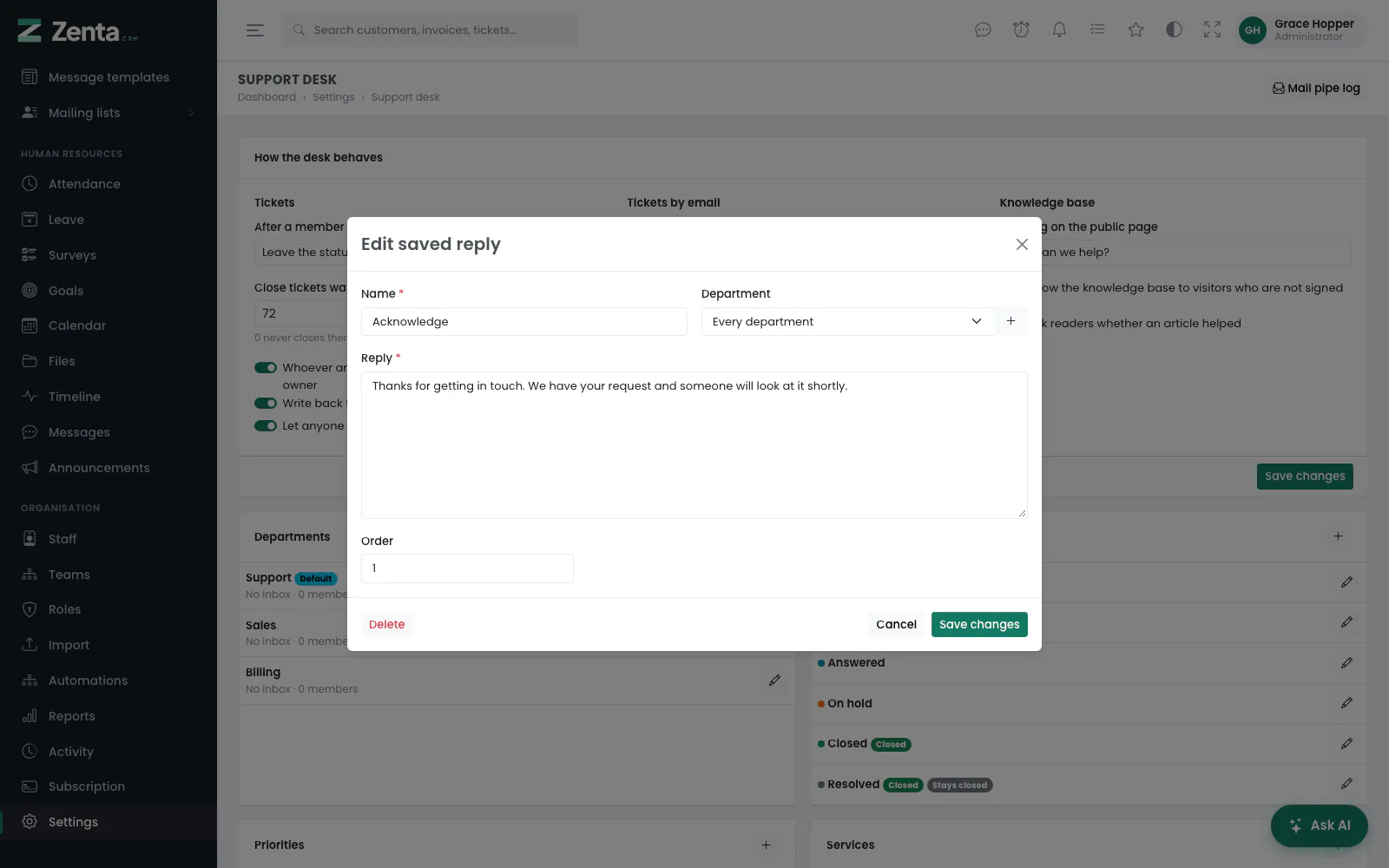 A saved reply, offered in every department or only one.
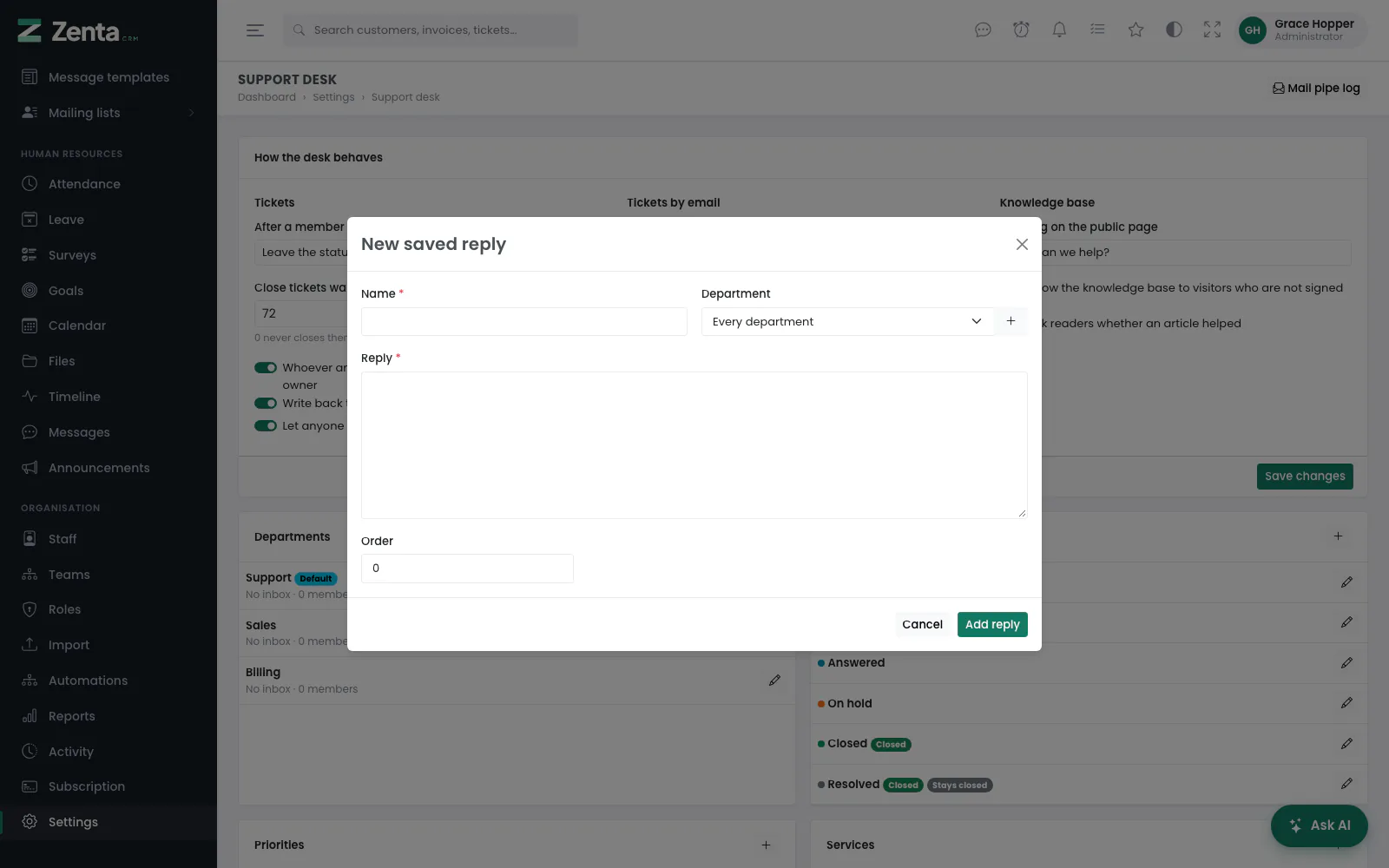 New saved reply.
The answers you give again and again, dropped into a reply with Saved replies on a ticket. Each has a Name (what staff see in the list), the Reply itself, an Order, and a Department: Every department, or one department whose tickets alone are offered it. Press Add reply or Save changes; Delete removes it.
Ticket templates
 A ticket template: the opening, and where the ticket is filed.
 New ticket template: every filing field starts as Leave as it is.
A template is a saved opening: a subject, a first message, and optionally the department, service and priority to file it under. It is the mirror image of a saved reply — a saved reply answers a ticket, a template starts one — and it is for the work a desk raises on its own account: scheduled maintenance, an onboarding checklist, a recurring audit.
| Field | What it does |
|---|---|
| Name | Required. What staff see in the picker; it never reaches the customer. |
| Order | Its place in the picker. |
| Subject and Opening message | What the new ticket starts with. |
| Department, Service, Priority | Each can be Leave as it is. |
| Offer this template when opening a ticket | Switch it off to keep a template without offering it. The list marks it Off. |
Pick one from Start from a template at the top of the new-ticket form. It fills in every field you have not touched yet — including the department and priority, which always have something chosen — so choosing a template after typing a subject never wipes it, and a field the template leaves as it is stays as it was. Deleting a template does not touch tickets opened from it.
How the desk behaves
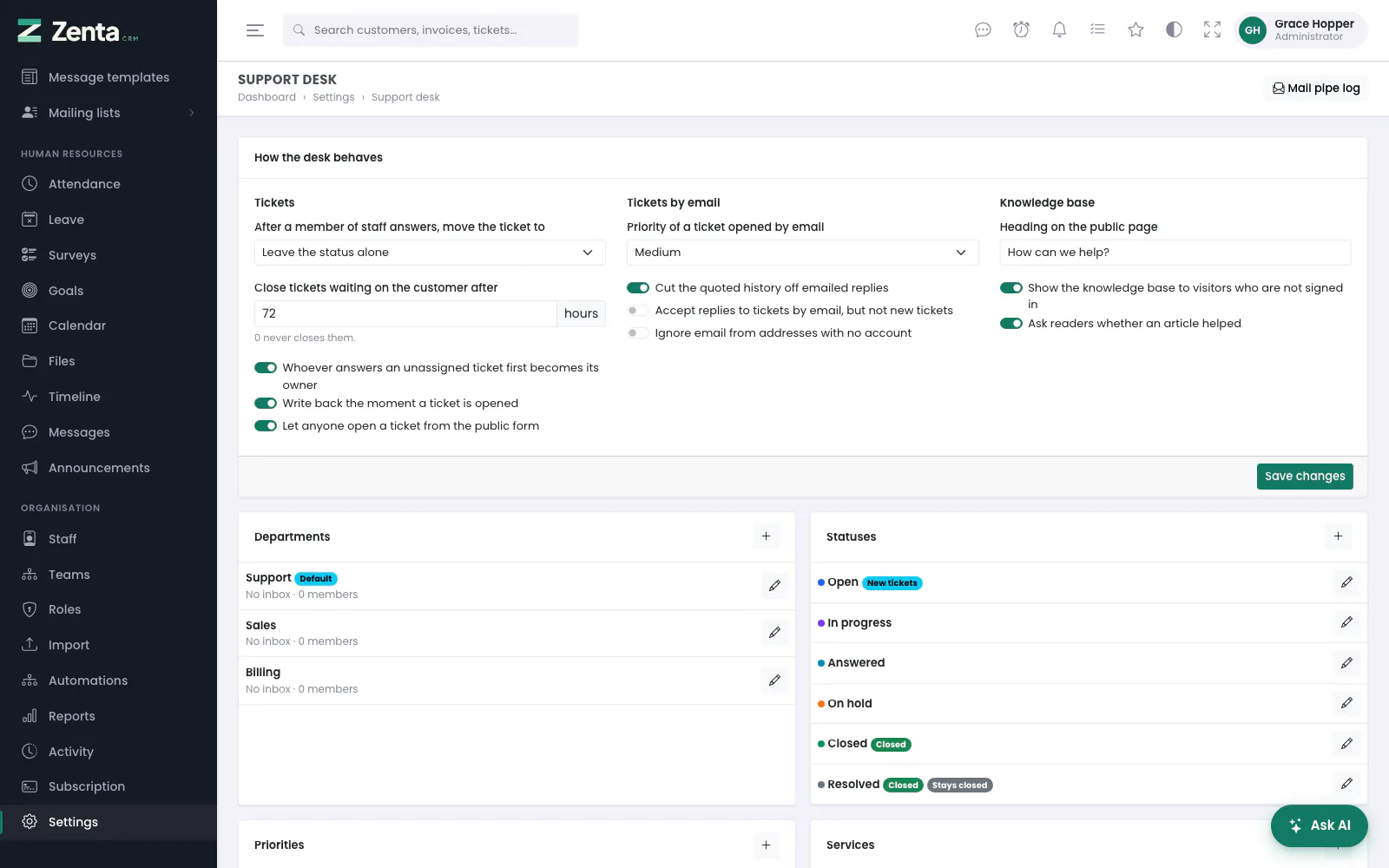 How the desk behaves: tickets, tickets by email, and the knowledge base, with one Save changes.
The card at the top of the Support desk screen. Change what you need and press Save changes at its foot; saving needs Settings → Edit.
| Setting | As shipped | What it does |
|---|---|---|
| Tickets | ||
| After a member of staff answers, move the ticket to | Leave the status alone | A status a ticket moves to whenever staff reply to the customer — one that means "waiting on the customer", say. |
| Close tickets waiting on the customer after … hours | 72 | A scheduled job, run hourly, closes a ticket left this long without a reply from the customer, into the first status that counts as closed. 0 never closes them. Tickets waiting on you are never auto-closed — closing those would hide the backlog rather than clear it. |
| Whoever answers an unassigned ticket first becomes its owner | On | The first member of staff to reply is assigned the ticket. |
| Write back the moment a ticket is opened | On | Whoever opened a ticket from the portal, the public form or by email gets an email back the moment it arrives, quoting the number to use if they reply. A ticket your own staff raised is not acknowledged. The wording is the Acknowledge a new ticket template under Settings → Email templates → Support, so you can promise a response time if you have one to promise. |
| Let anyone open a ticket from the public form | On | The form at /support, for people with no portal sign-in. |
| Tickets by email (the mail pipe) | ||
| Priority of a ticket opened by email | Medium | One of your priorities. |
| Cut the quoted history off emailed replies | On | So a reply reads as a reply and not as the whole thread again. |
| Accept replies to tickets by email, but not new tickets | Off | On, a message that does not reply to an existing ticket does not open one. |
| Ignore email from addresses with no account | Off | On, mail from an address that matches no account in this workspace is ignored. |
| Knowledge base | ||
| Heading on the public page | How can we help? | Required. The heading over the public knowledge base. |
| Show the knowledge base to visitors who are not signed in | On | Off, /knowledge-base is for signed-in people only, and it leaves the sitemap. |
| Ask readers whether an article helped | On | The yes/no question under each article, which feeds the support report. |
Email piping
Mail sent to a support address can open tickets and add replies automatically. It works on essentially any host, because it needs nothing but a mail forwarder.
- Give the department an Inbox address, on the Support desk screen.
- In your control panel, add a forwarder for that address, and choose "pipe to a program".
-
Use this command, with your own path:
On a single-company install/usr/bin/php /home/yourusername/public_html/artisan zenta:tickets:pipe --tenant=1--tenantcan be left off; with more than one workspace it is required, and a message that does not name one is refused rather than guessed at.
A new message lands in the department whose inbox address it was sent to, or the default
department. The sender is matched only against this workspace's own accounts, so the
ticket is never filed against another workspace's customer.
Replies are matched by the ticket number in the subject line —
[#123] — which is why the notification emails put it there. Quoted
history is stripped, so a reply reads as a reply and not as the whole thread again.
Whether email may open new tickets at all, from whom, and at what priority are set in
How the desk behaves. The
command always reports success to the mail server, because a failing pipe makes the
server bounce the message back to whoever wrote in; a failure is logged instead.
The mail pipe log
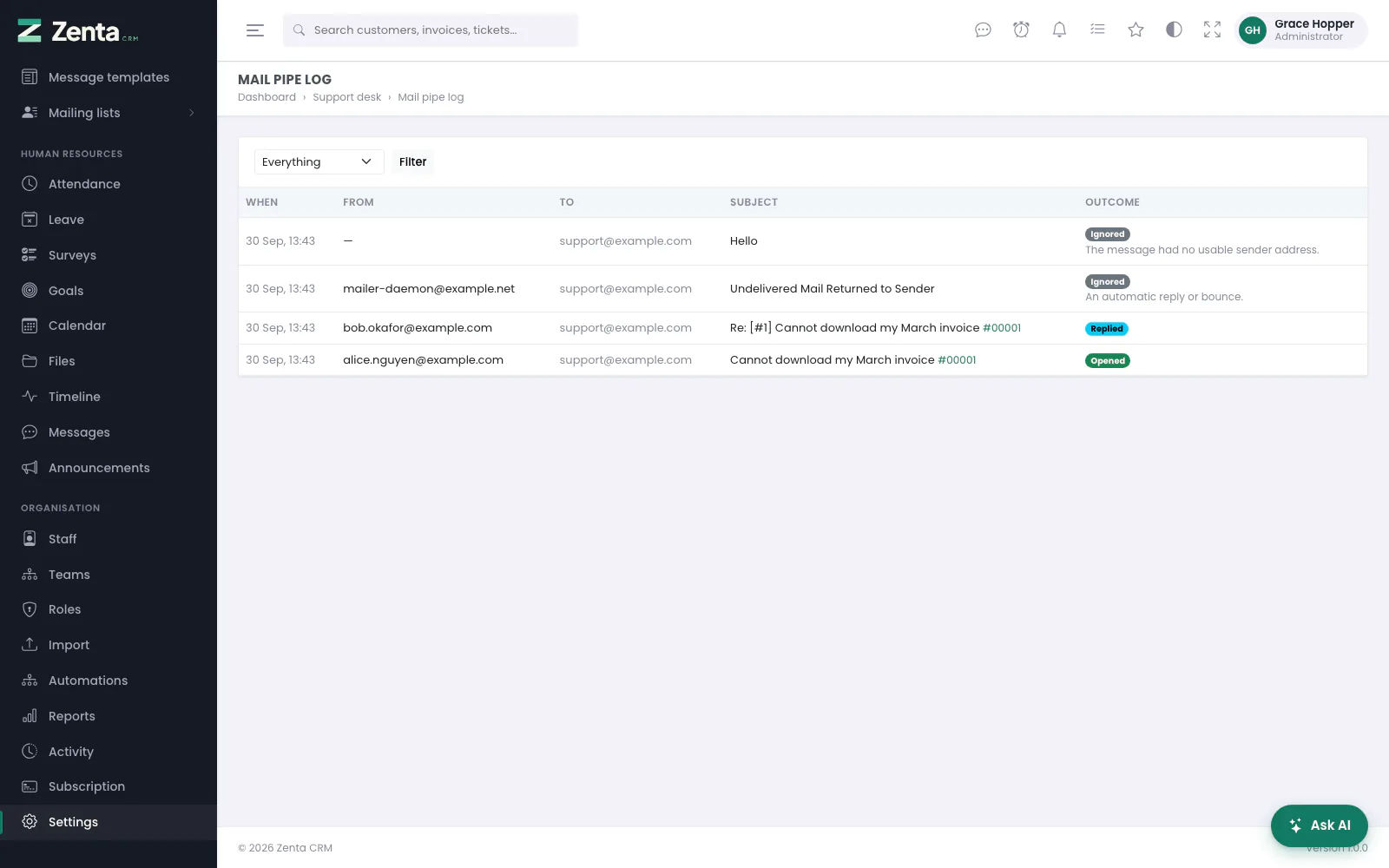 The mail pipe log: every piped message, and what became of it.
Mail pipe log, at the top right of the Support desk screen. Every message that comes through the pipe is logged, whatever happens to it: when, from, to, the subject with a link to the ticket, and the outcome — Opened (a new ticket), Replied (added to one), Ignored or Failed, with the reason under it. Filter by outcome. "Why did my email not open a ticket?" is otherwise unanswerable.
Reading a mailbox instead
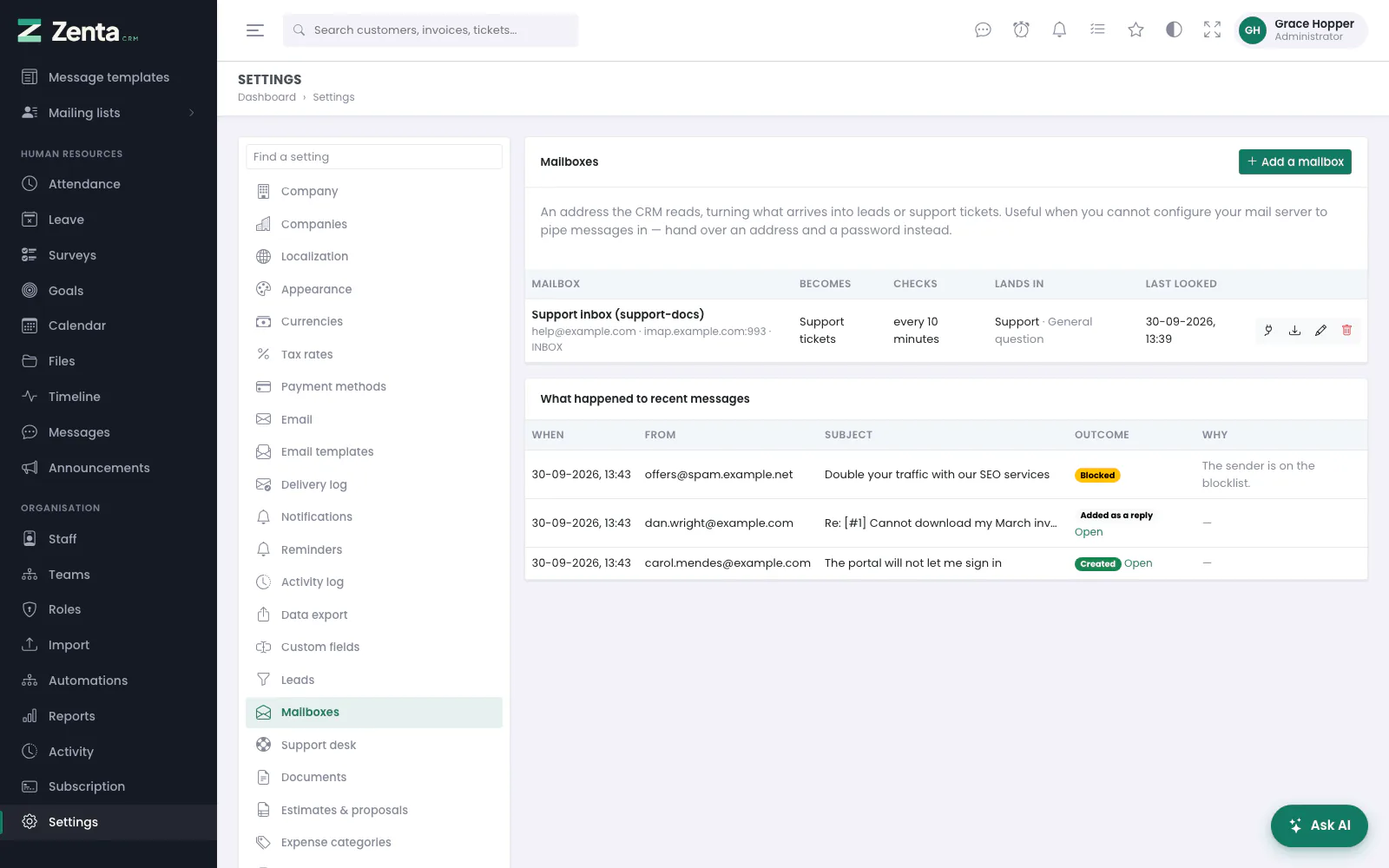 Settings → Mailboxes: the mailboxes being read, and what happened to recent messages.
If you cannot set up a forwarder — most hosted email will not let you — give Zenta CRM the mailbox itself. Settings → Mailboxes reads an address over IMAP and turns what arrives into support tickets or into leads (the lead side is described under Leads).
The list shows each mailbox's name and account, what its messages become, how often it is checked, where they land, when it last looked, and any error from the last attempt. The buttons on each row:
| Button | What it does |
|---|---|
| Test the connection | Connects, signs in and says how many messages are in the folder — and fills the Folder box's suggestions with the folders your server actually reports, so you pick one rather than guess (INBOX.Support and INBOX/Support are both right, depending on the server). |
| Check it now | Reads the mailbox immediately instead of waiting for the schedule, after you confirm, and says how many tickets it opened. |
| Edits the mailbox. | |
| Removes the mailbox after you confirm. Tickets already opened from it are not affected. |
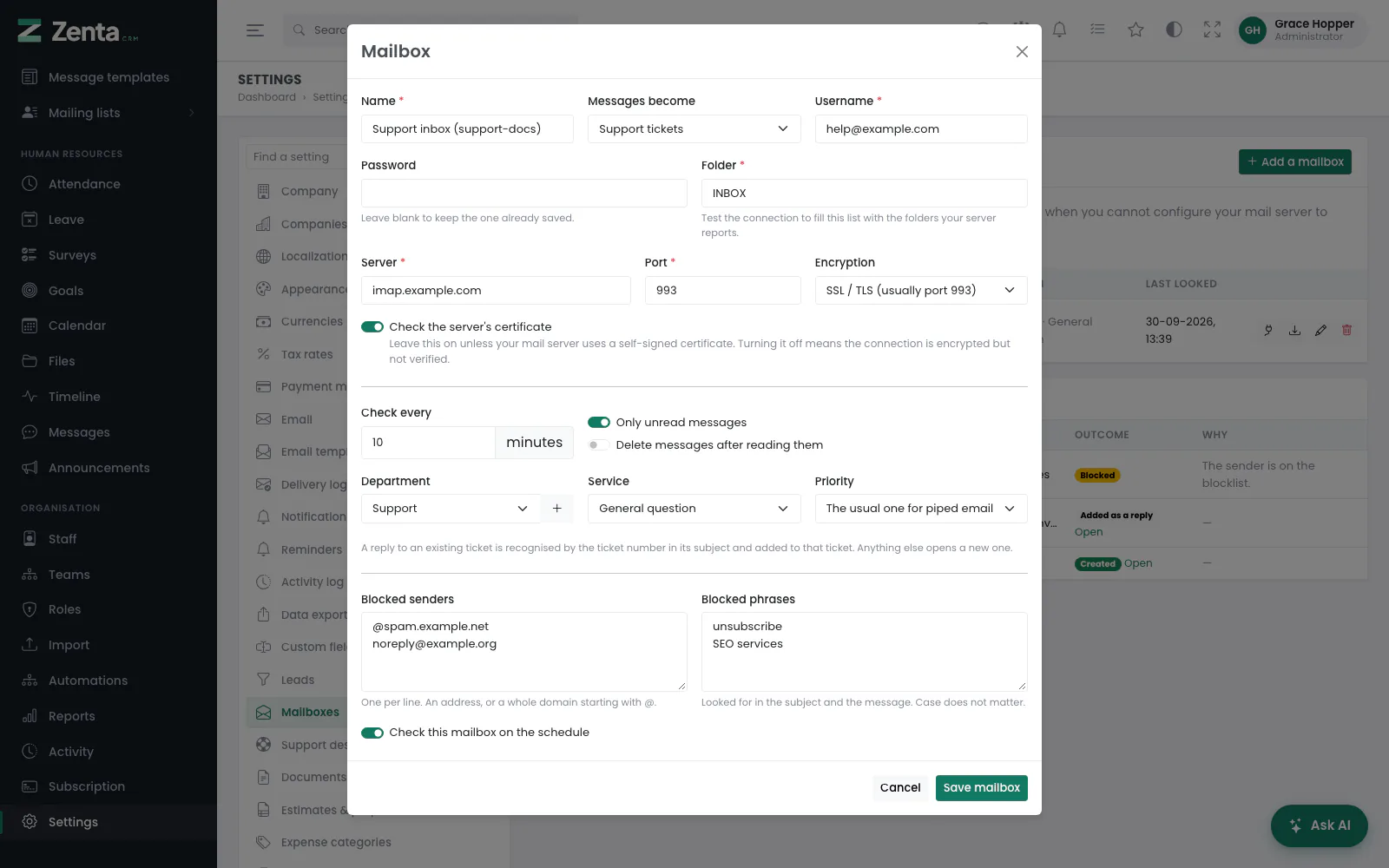 A mailbox whose messages become support tickets.
- Press Add a mailbox.
- Give it a Name and set Messages become to Support tickets.
- Fill in the Username, Password, Server, Port and Encryption (SSL / TLS, usually port 993; STARTTLS, usually 143; or none). Leave Check the server's certificate on unless your mail server uses a self-signed certificate.
- Choose the Folder and how often to look: Check every 5 to 1,440 minutes. Five is the floor because a mailbox checked every minute is a sign-in every minute, which some providers treat as abuse.
- Choose Only unread messages and whether to Delete messages after reading them.
- Choose the Department, Service and Priority its tickets are filed under. Work it out from the address leaves the department to the address the mail was sent to, as the pipe does; The usual one for piped email leaves the priority alone.
- Add any Blocked senders (one per line: an address, or a whole domain starting with
@) and Blocked phrases (looked for in the subject and the message, whatever the case). - Press Save mailbox, then Test the connection, then edit it and switch on Check this mailbox on the schedule.
A mailbox's department, service and priority beat whatever the address would otherwise have chosen, because somebody picked them on purpose. The password is stored encrypted and never shown again; leave it blank when editing to keep the one already saved.
The internal wiki
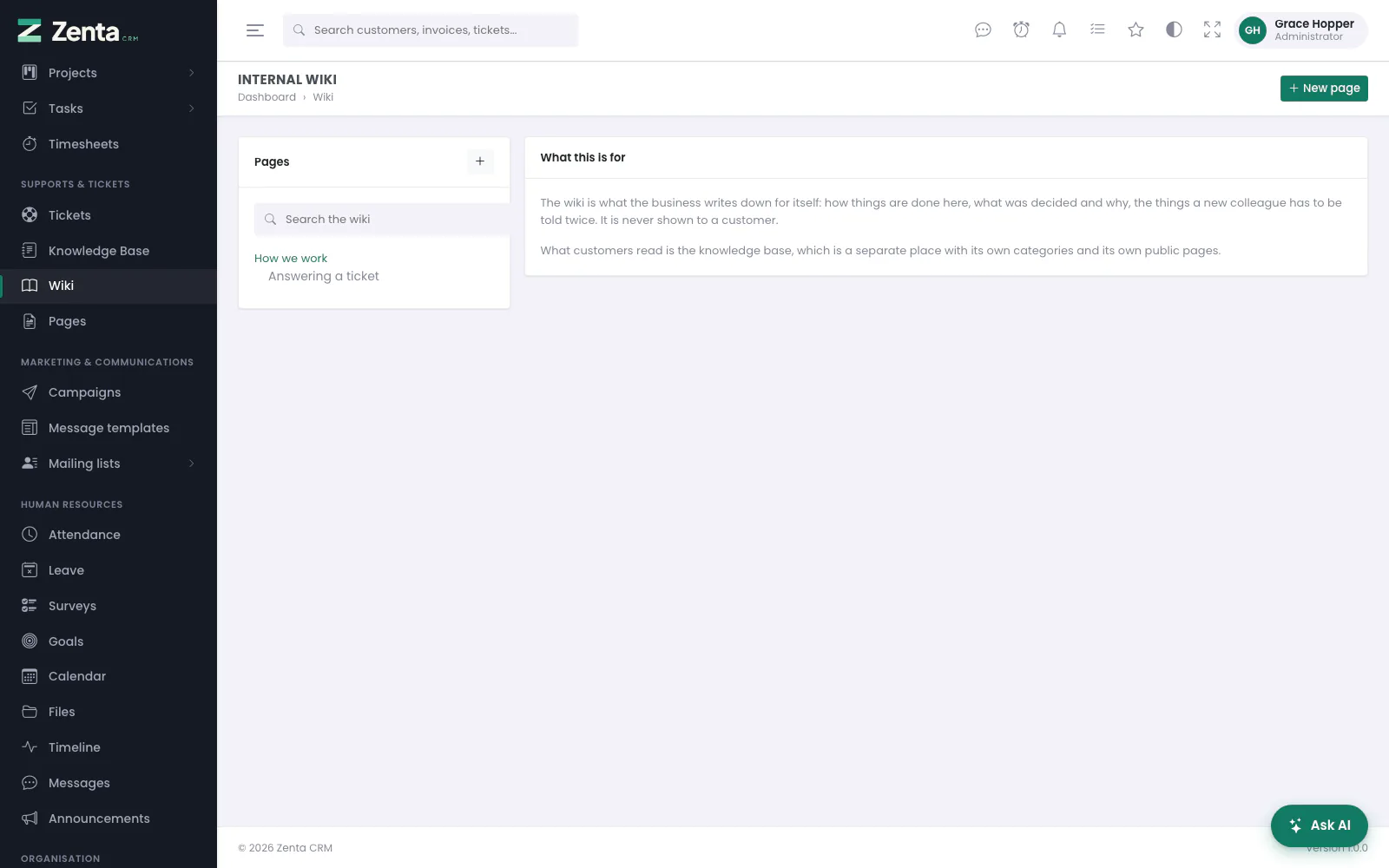 The wiki: what the business writes down for itself. Customers never see it.
The wiki is what the business writes down for itself: how things are done here, what was decided and why, the things a new colleague has to be told twice. It is staff-only, with no public page and no portal page — there is no switch to publish one, on purpose. What customers read is the knowledge base.
Wiki in the menu. The Pages list down the left shows the top-level pages with the pages filed under each; Search the wiki looks in titles and text and lists up to fifty matches.
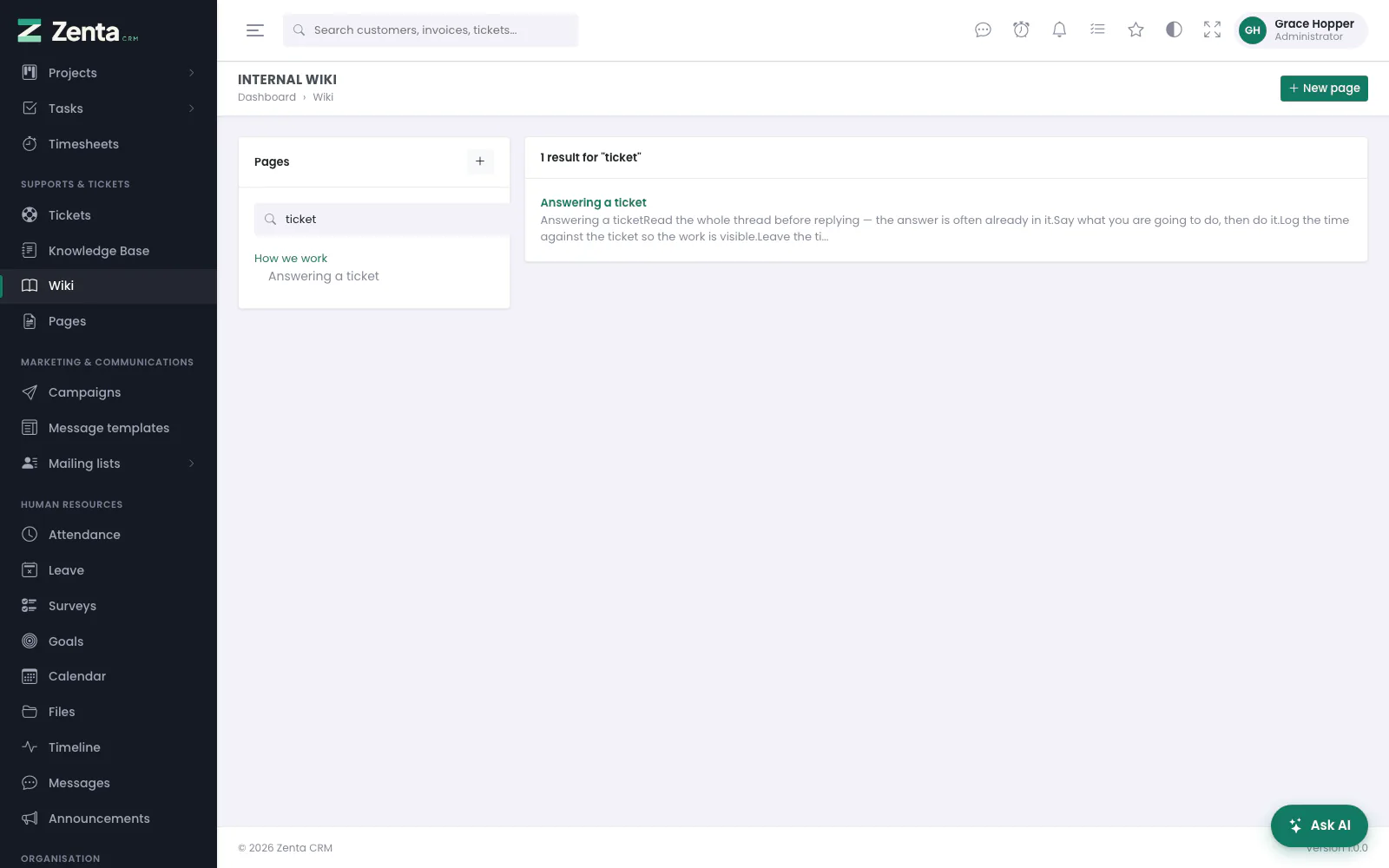 Searching the wiki finds a phrase in the text as well as in the title.
Writing a page
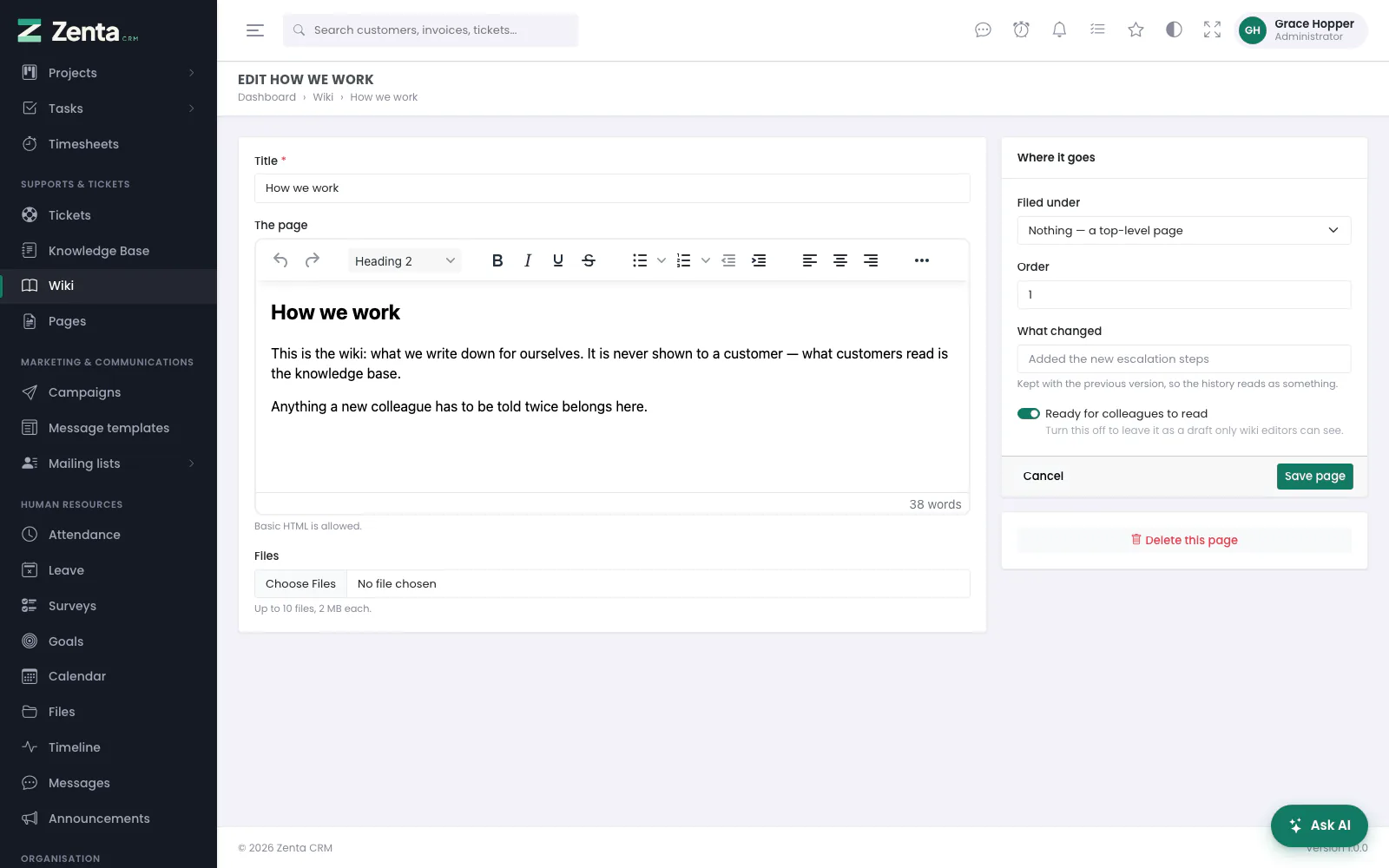 Editing a wiki page. What changed is kept with the version being replaced.
 A new wiki page starts ready for colleagues to read.
New page (or above the list, or Page under this one on a top-level page).
| Field | What it does |
|---|---|
| Title | Required. |
| The page | The writing, in the formatting editor. |
| Files | Up to ten at a time; they are listed under the page. |
| Filed under | A top-level page, or Nothing — a top-level page. The wiki is two levels deep, as the Pages list shows it: only top-level pages are offered, and a page that has pages under it stays at the top (This page has pages under it, so it stays at the top.). |
| Order | Its place among its neighbours. |
| What changed | When editing: a note kept with the previous version, so the history reads as something. |
| Ready for colleagues to read | Off, the page is a draft: visible to whoever may edit the wiki, and to nobody else. |
Press Save page.
History, and putting a version back
 A wiki page: who wrote it, the pages filed under it, and its history.
Every edit keeps a copy of what the page said before, with who changed it, when, and the note of what changed. To those who may edit the wiki, the page lists the last twenty under History; Restore on one puts that version's title and text back after you confirm. What the page said a moment before is kept in the history first, so restoring the wrong one costs nothing.
Deleting a page
Delete this page, on the edit screen, then confirm. The pages filed under it move up a level rather than going with it. Needs the wiki's Delete permission.
Wiki pages turn up in the search box at the top of every screen, matched on the sentence you half remember as well as on the title. Drafts are left out of that — stricter than the wiki's own screens, on purpose — and the wiki's own search finds them.
Knowledge base
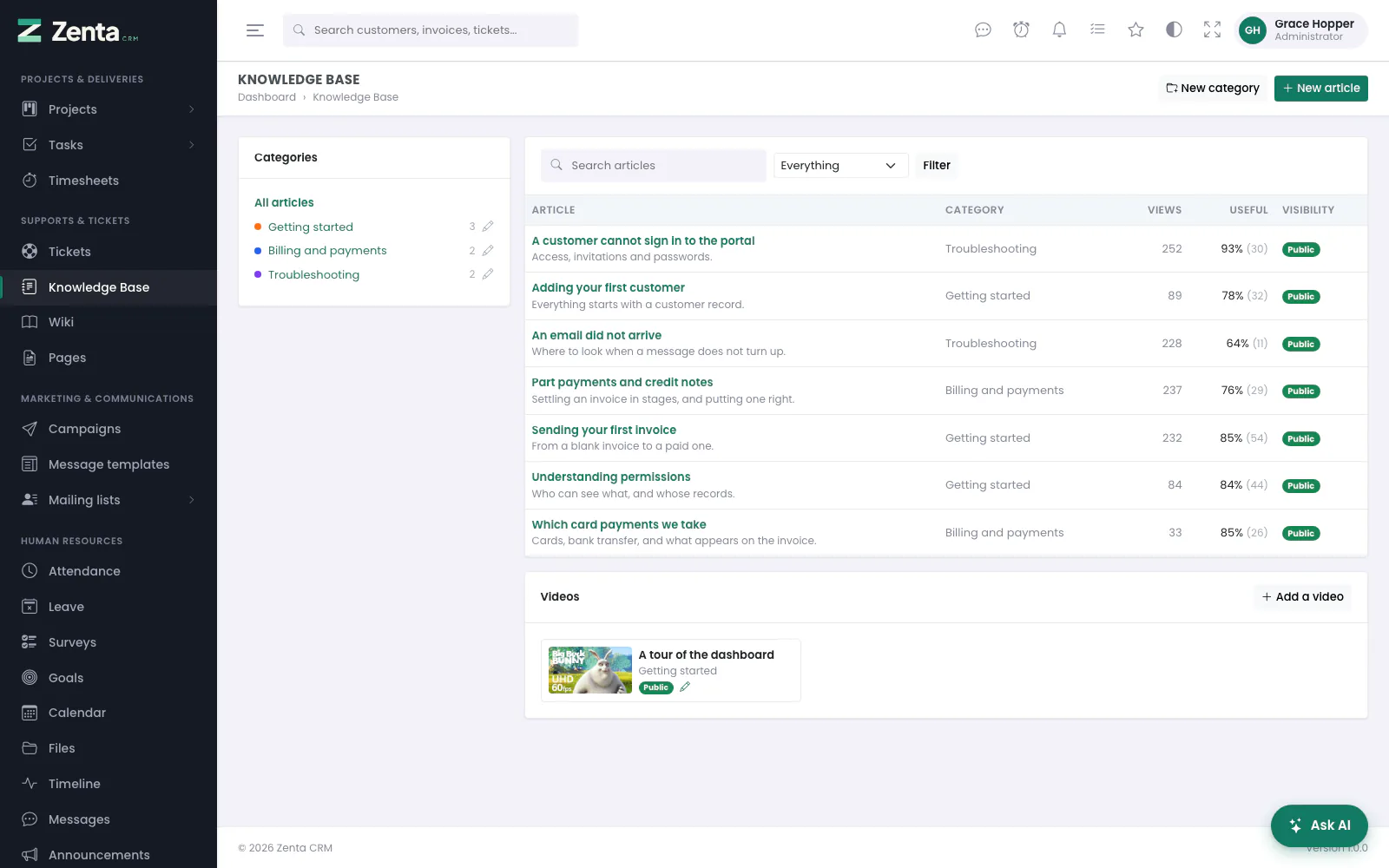 The knowledge base as staff see it: categories, articles with their readership, and videos.
Knowledge Base in the menu. The categories are down the left, with how many articles each holds; click one to see only its articles. Each article shows its category, how many times it was read, the share of readers who found it useful (with how many voted) and whether it is Public, Internal or a Draft. Search the articles, or narrow them to Customer facing, Internal only or Drafts.
Writing an article
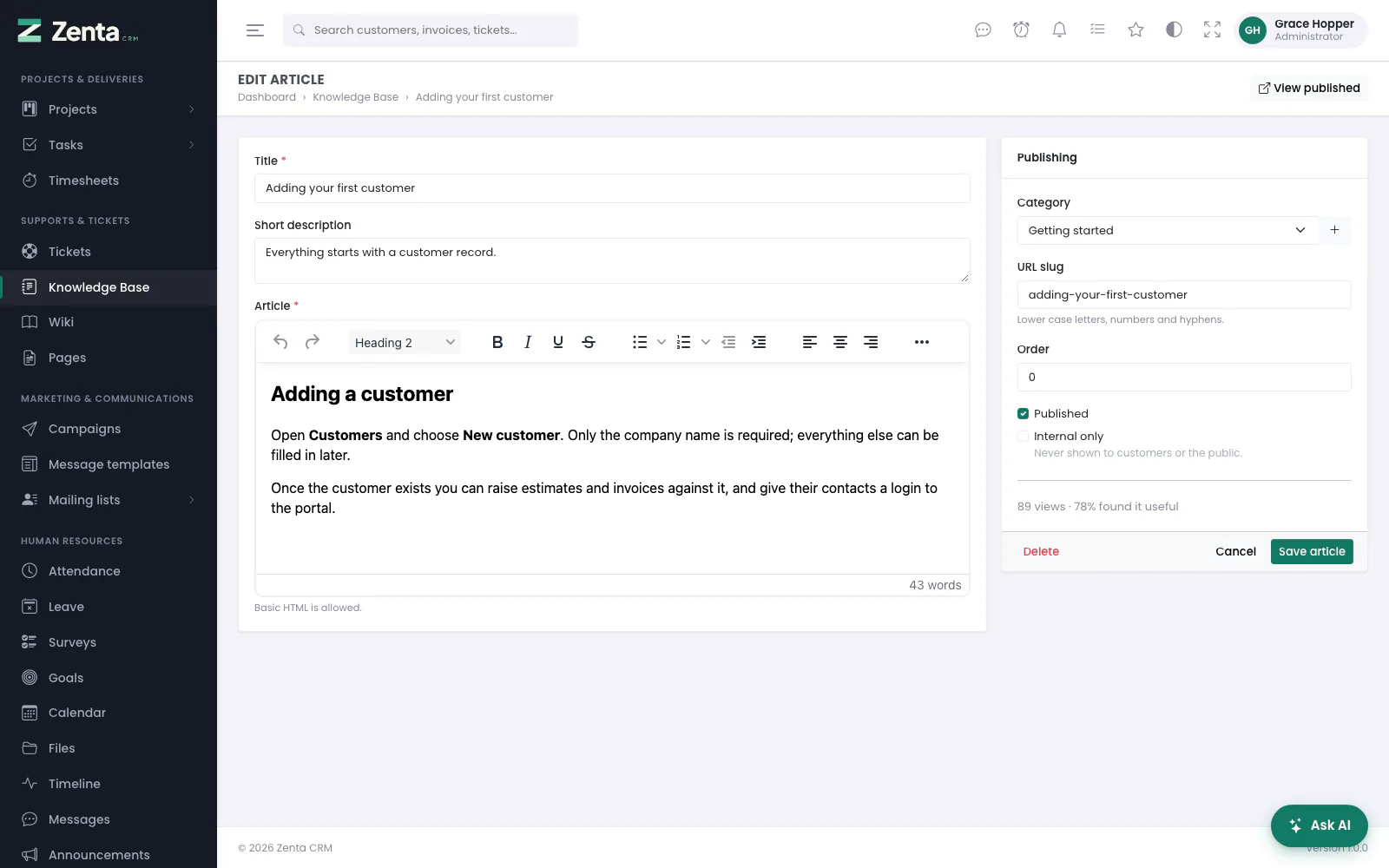 An article, with how often it was read and found useful.
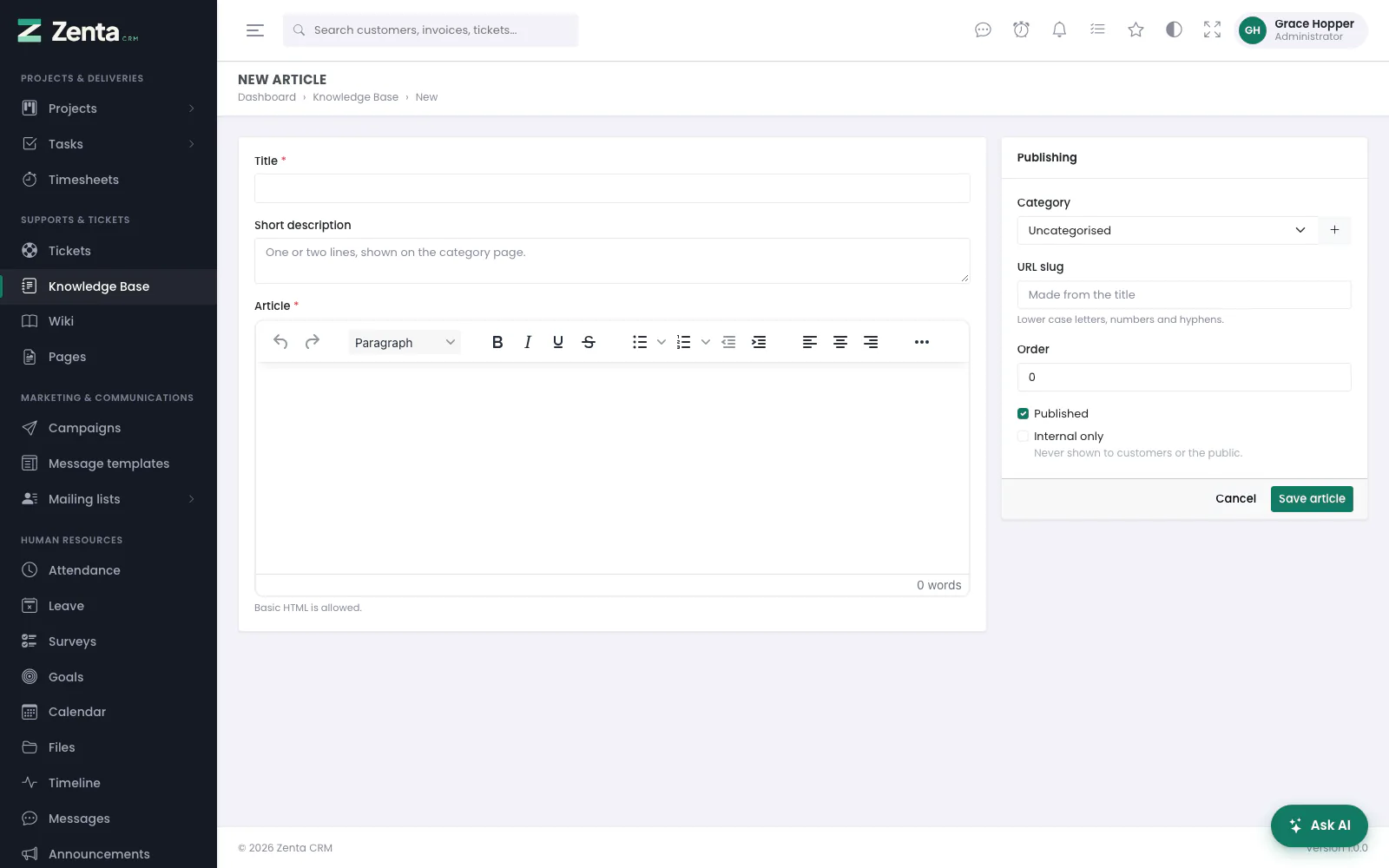 A new article starts published, in no category.
Press New article, or click an article to edit it.
| Field | What it does |
|---|---|
| Title | Required. |
| Short description | One or two lines, shown on the category page. |
| Article | Required. The writing, in the formatting editor. |
| Category | With a to add one on the spot. |
| URL slug | Its address. Made from the title if left blank; lower case letters, numbers and hyphens. |
| Order | Its place in the list. |
| Published | Off, it is a draft. |
| Internal only | Never shown to customers or the public, whatever the public-access setting says. |
Press Save article. A published, public article has View published at the top. Delete, at the bottom of the publishing panel, removes the article after you confirm.
javascript: links are removed. A staff account is not the same thing as a
trusted one.
Categories
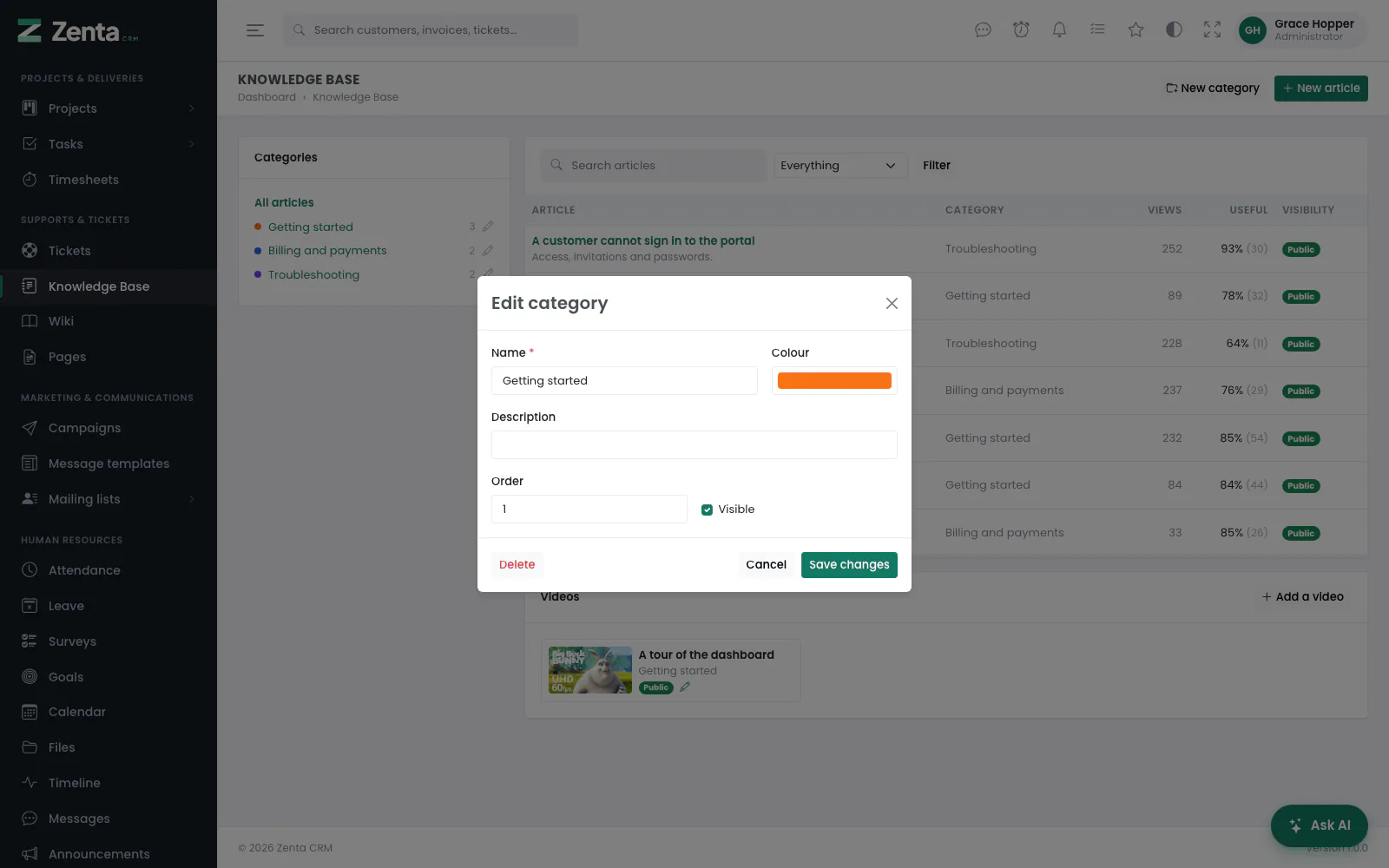 A category: name, colour, description, order and whether the public sees it.
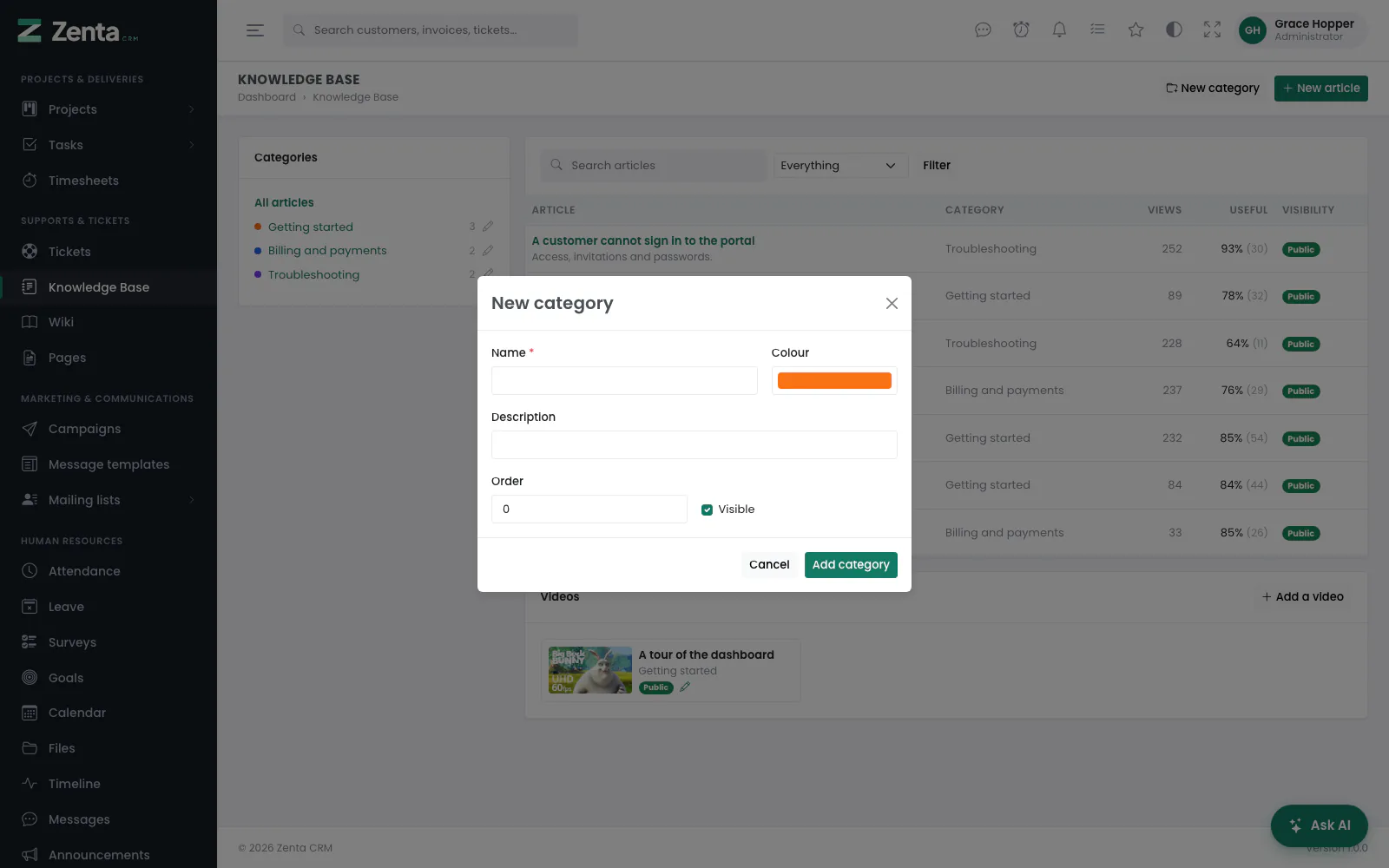 New category.
New category at the top of the knowledge base, or the beside a category. Give it a Name, a Colour, a Description and an Order; untick Visible to hide it from the public knowledge base (the list marks it Hidden). Press Add category or Save changes. Delete removes the category but keeps its articles, which are simply no longer in a category.
Videos
 A video is a link to something hosted elsewhere.
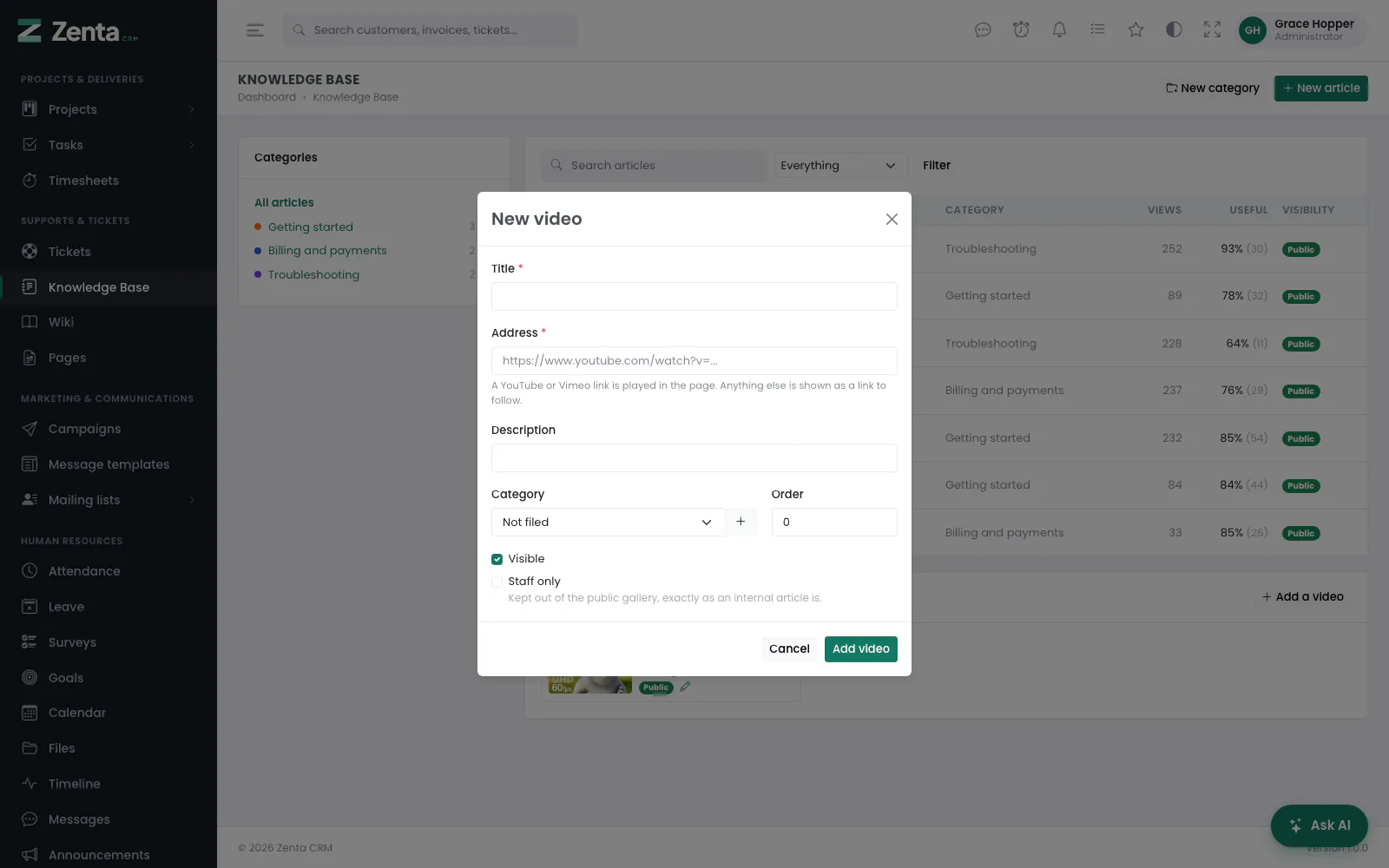 New video.
A knowledge base category holds videos as well as writing, so a subject keeps its written
guide and its five-minute tour together. Add a video, under the
articles: give it a Title, the Address, a
Description, a Category (or Not filed) and an
Order. Paste a YouTube or Vimeo link and it plays in the page; paste
anything else (http or https only) and it is shown as a link to
follow.
Nothing is uploaded, transcoded or streamed by Zenta CRM. A video is a link to something hosted elsewhere, which is what keeps the feature affordable on the shared hosting most installs run on.
Untick Visible to hide a video, or tick Staff only to keep it out of the public gallery, exactly as an internal article is. Delete removes the video from the knowledge base; the video itself, wherever it is hosted, is not touched.
What the public sees
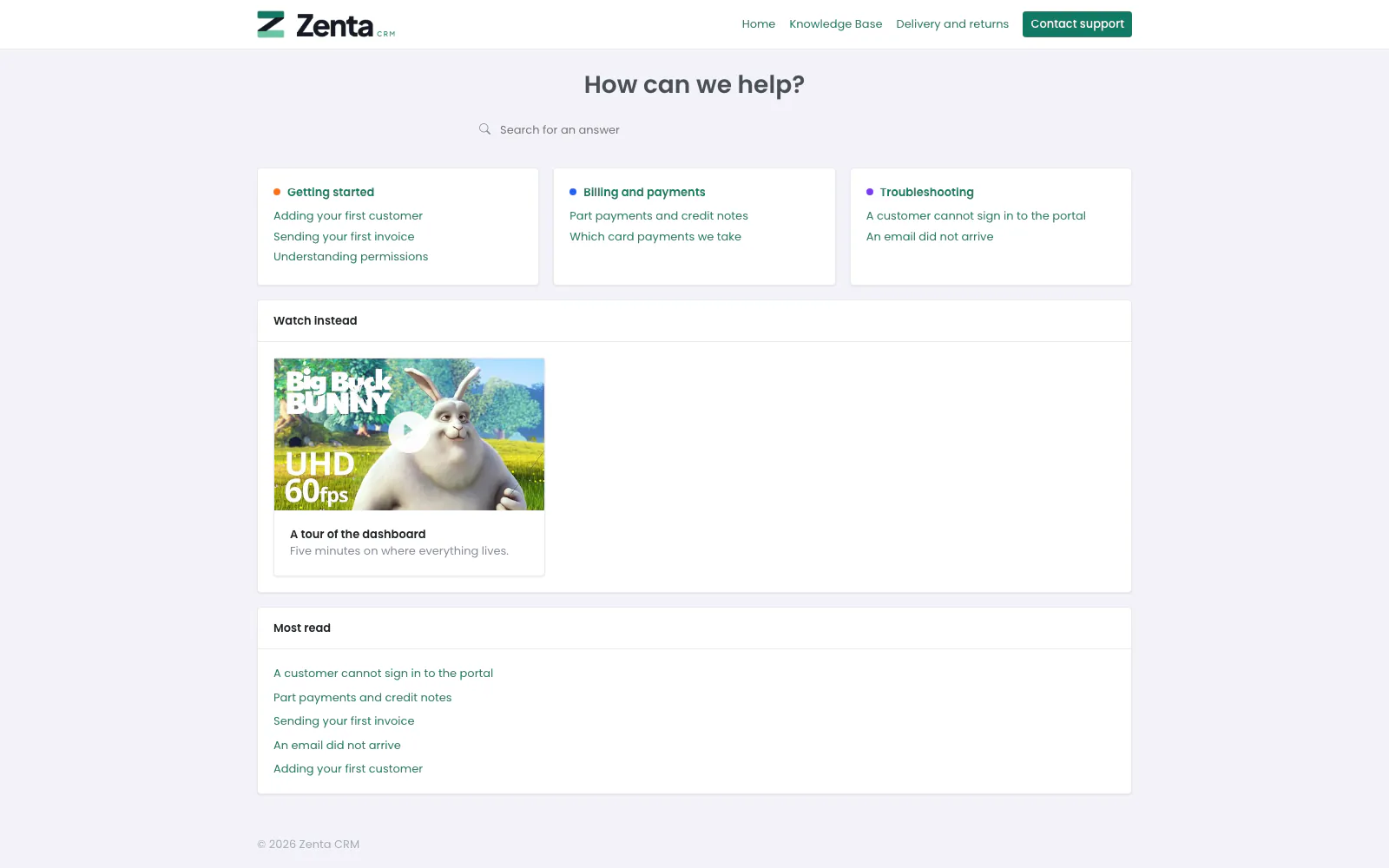 The knowledge base as the public sees it, readable without signing in.
Articles live in categories and are readable at /knowledge-base without
signing in, under the heading set in How the desk behaves, which
is also where the knowledge base can be kept for signed-in people only. Readers can say
whether an article helped (unless that is switched off there too), and
the support report shows which articles are read and which
actually work.
Addresses on this page
For reference and for anyone scripting against the panel. Everything here needs somebody signed in to the workspace whose role allows it; anybody else is refused.
| Method | Address | What it does |
|---|---|---|
GET | admin/tickets | The queue, with q, status, department, priority, service, tag, assignee, open_only and archived filters. |
GET | admin/tickets/{ticket}/peek | One ticket in the compact layout's side pane. Used by the page itself. |
GET | admin/tickets/create | The new-ticket form. ?customer= fills in the customer. |
POST | admin/tickets | Opens a ticket, with its first message and attachments. |
GET | admin/tickets/{ticket} | A ticket's page. |
GET | admin/tickets/{ticket}/edit | The edit form. |
PUT | admin/tickets/{ticket} | Saves the edit form. |
DELETE | admin/tickets/{ticket} | Deletes the ticket and its conversation. |
POST | admin/tickets/{ticket}/replies | Sends a reply or adds a private note, optionally changing the status. |
DELETE | admin/tickets/{ticket}/replies/{reply} | Removes one message (never the first). |
PATCH | admin/tickets/{ticket}/status | The Status button: moves the ticket to another status. |
PATCH | admin/tickets/{ticket}/assign | The Assigned to box: assigns the ticket, or unassigns it. |
PATCH | admin/tickets/{ticket}/archive | Archives the ticket, or takes it out of the archive. |
POST | admin/tickets/{ticket}/merge | Merges this ticket into another. |
POST | admin/tickets/{ticket}/link-contact | Files a public-form ticket against the contact whose address it came from. |
GET | admin/settings/support | The Support desk screen. |
GET | admin/settings/support/pipe-log | The mail pipe log, with a status filter. |
PUT | admin/settings/support/behaviour | Saves How the desk behaves. |
GET | admin/settings/support/departments/create | The new-department window. |
POST | admin/settings/support/departments | Adds a department. |
GET | admin/settings/support/departments/{department}/edit | The edit-department window. |
PUT | admin/settings/support/departments/{department} | Saves a department and its members. |
DELETE | admin/settings/support/departments/{department} | Deletes a department; its tickets are kept. |
GET | admin/settings/support/statuses/create | The new-status window. |
POST | admin/settings/support/statuses | Adds a status. |
GET | admin/settings/support/statuses/{status}/edit | The edit-status window. |
PUT | admin/settings/support/statuses/{status} | Saves a status. |
DELETE | admin/settings/support/statuses/{status} | Deletes a status, unless it is the last open one. |
GET | admin/settings/support/priorities/create | The new-priority window. |
POST | admin/settings/support/priorities | Adds a priority. |
GET | admin/settings/support/priorities/{priority}/edit | The edit-priority window. |
PUT | admin/settings/support/priorities/{priority} | Saves a priority. Its slug never changes. |
DELETE | admin/settings/support/priorities/{priority} | Deletes a priority, moving its tickets to the first one left. Not the last. |
GET | admin/settings/support/services/create | The new-service window. |
POST | admin/settings/support/services | Adds a service. |
GET | admin/settings/support/services/{service}/edit | The edit-service window. |
PUT | admin/settings/support/services/{service} | Saves a service. |
DELETE | admin/settings/support/services/{service} | Deletes a service. |
GET | admin/settings/support/canned-replies/create | The new-saved-reply window. |
POST | admin/settings/support/canned-replies | Adds a saved reply. |
GET | admin/settings/support/canned-replies/{reply}/edit | The edit-saved-reply window. |
PUT | admin/settings/support/canned-replies/{reply} | Saves a saved reply. |
DELETE | admin/settings/support/canned-replies/{reply} | Deletes a saved reply. |
GET | admin/settings/support/templates/create | The new-ticket-template window. |
POST | admin/settings/support/templates | Adds a ticket template. |
GET | admin/settings/support/templates/{template}/edit | The edit-ticket-template window. |
PUT | admin/settings/support/templates/{template} | Saves a ticket template. |
DELETE | admin/settings/support/templates/{template} | Deletes a ticket template. |
GET | admin/settings/mailboxes | Settings → Mailboxes, with the log of recent decisions. |
POST | admin/settings/mailboxes | Adds a mailbox. |
PUT | admin/settings/mailboxes/{mailbox} | Saves a mailbox. A blank password keeps the stored one. |
DELETE | admin/settings/mailboxes/{mailbox} | Removes a mailbox. |
POST | admin/settings/mailboxes/{mailbox}/test | Tests the connection and lists the server's folders. |
POST | admin/settings/mailboxes/{mailbox}/run | Reads the mailbox now. |
GET | admin/wiki | The wiki, with q to search it. |
GET | admin/wiki/create | The new-page form. ?parent= files it under a page. |
POST | admin/wiki | Saves a new page. |
GET | admin/wiki/{page} | A wiki page, with its history. |
GET | admin/wiki/{page}/edit | The edit form. |
PUT | admin/wiki/{page} | Saves a page, keeping the previous version. |
DELETE | admin/wiki/{page} | Deletes a page; the pages under it move up a level. |
POST | admin/wiki/{page}/revisions/{revision}/restore | Puts an earlier version back. |
GET | admin/knowledge-base | The knowledge base, with q, group and visibility filters. |
GET | admin/knowledge-base/create | The new-article form. |
POST | admin/knowledge-base | Saves a new article. |
GET | admin/knowledge-base/{article}/edit | The edit-article form. |
PUT | admin/knowledge-base/{article} | Saves an article. |
DELETE | admin/knowledge-base/{article} | Deletes an article. |
GET | admin/knowledge-base/groups/create | The new-category window. |
POST | admin/knowledge-base/groups | Adds a category. |
GET | admin/knowledge-base/groups/{group}/edit | The edit-category window. |
PUT | admin/knowledge-base/groups/{group} | Saves a category. |
DELETE | admin/knowledge-base/groups/{group} | Deletes a category; its articles are kept. |
GET | admin/knowledge-base/videos/create | The new-video window. |
POST | admin/knowledge-base/videos | Adds a video. |
GET | admin/knowledge-base/videos/{video}/edit | The edit-video window. |
PUT | admin/knowledge-base/videos/{video} | Saves a video. |
DELETE | admin/knowledge-base/videos/{video} | Removes a video. |