Getting into the portal
Signing in, being invited by a colleague, customers registering themselves, a forgotten password, and signing out.
Signing in
 The customer sign-in, at /portal/login. "Create an account" is there only while customers may register themselves.
Customers sign in at /portal/login on the business's address. Type your
Email address and Password and press Sign
in. Tick Keep me signed in on a computer that is yours alone.
You land on the overview, or on the portal page you
were trying to open.
- Continue with Google and Continue with Facebook appear when the business has set them up (see Integrations). They sign in a contact who already has portal access with the same email address; they never create an account.
- Create an account (New here?) appears while the business lets customers register themselves.
/portal/login address.
Somebody who is not signed in and opens /portal, or a link to a page inside
the portal, is sent there too, and taken on to the page they asked for once they have
signed in. The staff sign-in at /login does not accept a customer's email and
password.
When signing in does not work
| You see | Why |
|---|---|
| The usual "credentials do not match" message | A wrong email address or password — or an account that has no portal access: no password set, switched off, or a member of staff. All of these get the same answer, so nobody can find out from outside which addresses have accounts. |
| A message to wait before trying again | Five wrong attempts for the same address from the same computer lock it out for a while. |
| The customer portal is closed at the moment. Please contact us if you need anything. | The business has switched off Allow customers to sign in. The message stays on the sign-in page, Google and Facebook refuse too, and anybody already signed in is signed out on their next click. Nothing is deleted. |
| The Check your inbox page | You registered and have not yet opened the confirmation link (shown only once the password is right). |
| Your registration is waiting for approval. We will email you as soon as it is approved. | The business approves new registrations by hand, and has not yet. |
Each attempt, successful or not, is recorded in the business's login history. Both portal forms also carry a box people never see; a bot that fills in every box is turned away without being told why. reCAPTCHA can be added on top, for the forms ticked under Integrations ("Customer portal sign-in" and "Customer portal registration").
/portal/login, staff at /login, and neither
can use the other's. A member of staff who opens a portal page is sent to their own
dashboard; a contact who tries an /admin address is refused.
Who may get in
A contact can sign in once they have a password, are switched on, and, if they registered themselves, have finished registering. There are three ways to get a password:
- The business sets one on the contact's record (Customers → the customer → Contacts, under Portal access), and tells the contact.
- A primary contact invites a colleague from My account → Contacts. The colleague chooses their own; see below.
- The customer registers, while the business allows it; see Registering yourself.
The switches that decide this are on the Access card of Settings → Customer portal:
| Switch | What it does |
|---|---|
| Allow customers to sign in | On as shipped. Off closes the portal to everybody, as described above. |
| Allow customers to register themselves | Off as shipped. Adds Create an account to the sign-in page. Only works while signing in is allowed. |
| Require email verification | On as shipped. A new registration is emailed a link, and cannot sign in until it is opened. The link works for 1 to 168 hours (48 as shipped). |
| Require approval by staff | Off as shipped. New registrations wait in a queue until a member of staff approves or declines them. |
Invited by a colleague
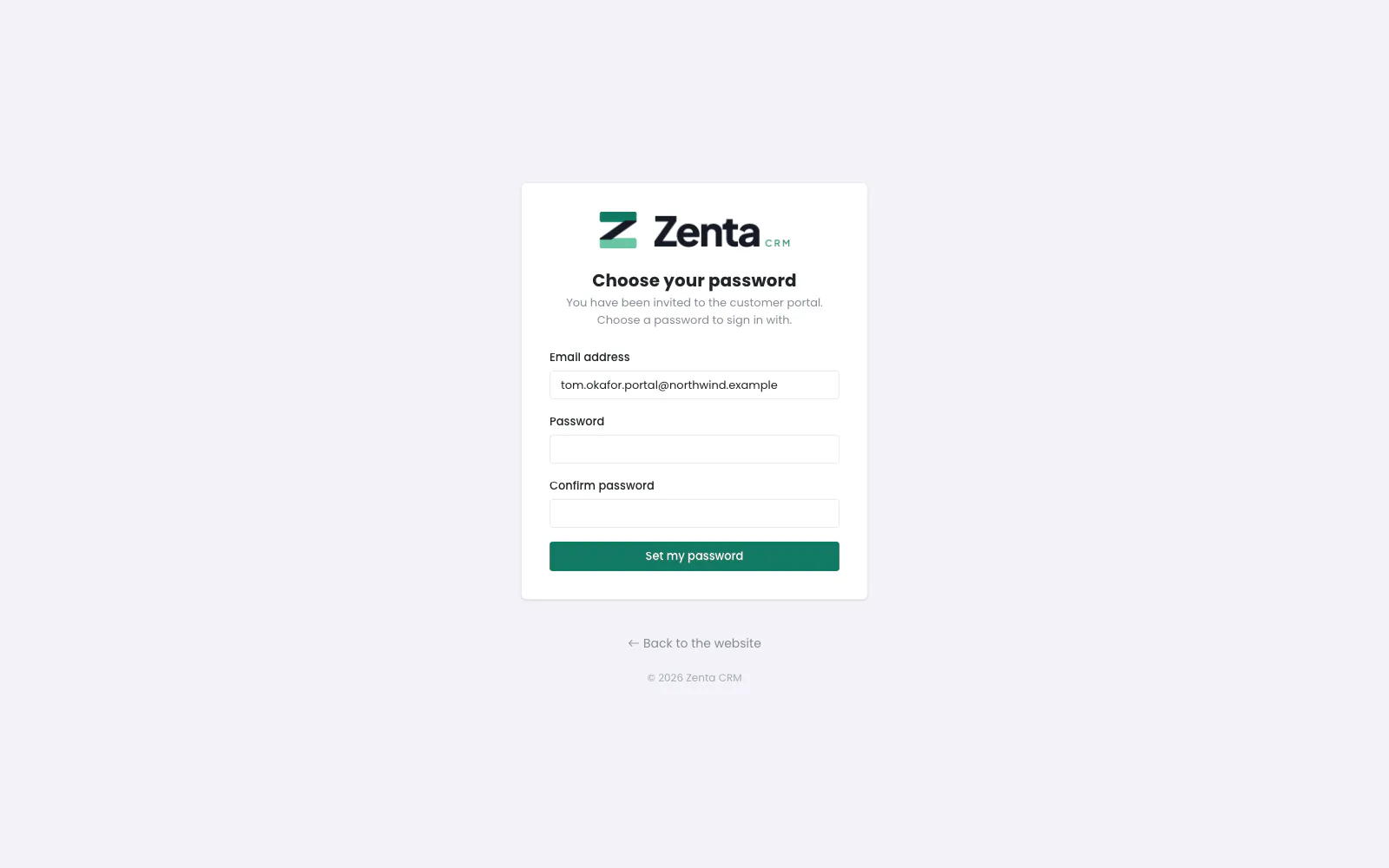 Choose your password: the page the invitation link opens.
When a primary contact adds you under My account → Contacts, you are emailed Invitation to the customer portal. Its link opens Choose your password, with your Email address already filled in.
- Type a Password (at least eight characters) and again under Confirm password.
- Press Set my password. You are taken to the sign-in page: Your password is set. You can sign in now.
The link works once and for three days. An old, used or mistyped link — or one for a contact who has since been switched off — is answered This link is not valid any more. Ask whoever invited you to send it again.; Send again on their Contacts list emails a fresh one. Opening the link also confirms that the email address is yours.
Registering yourself
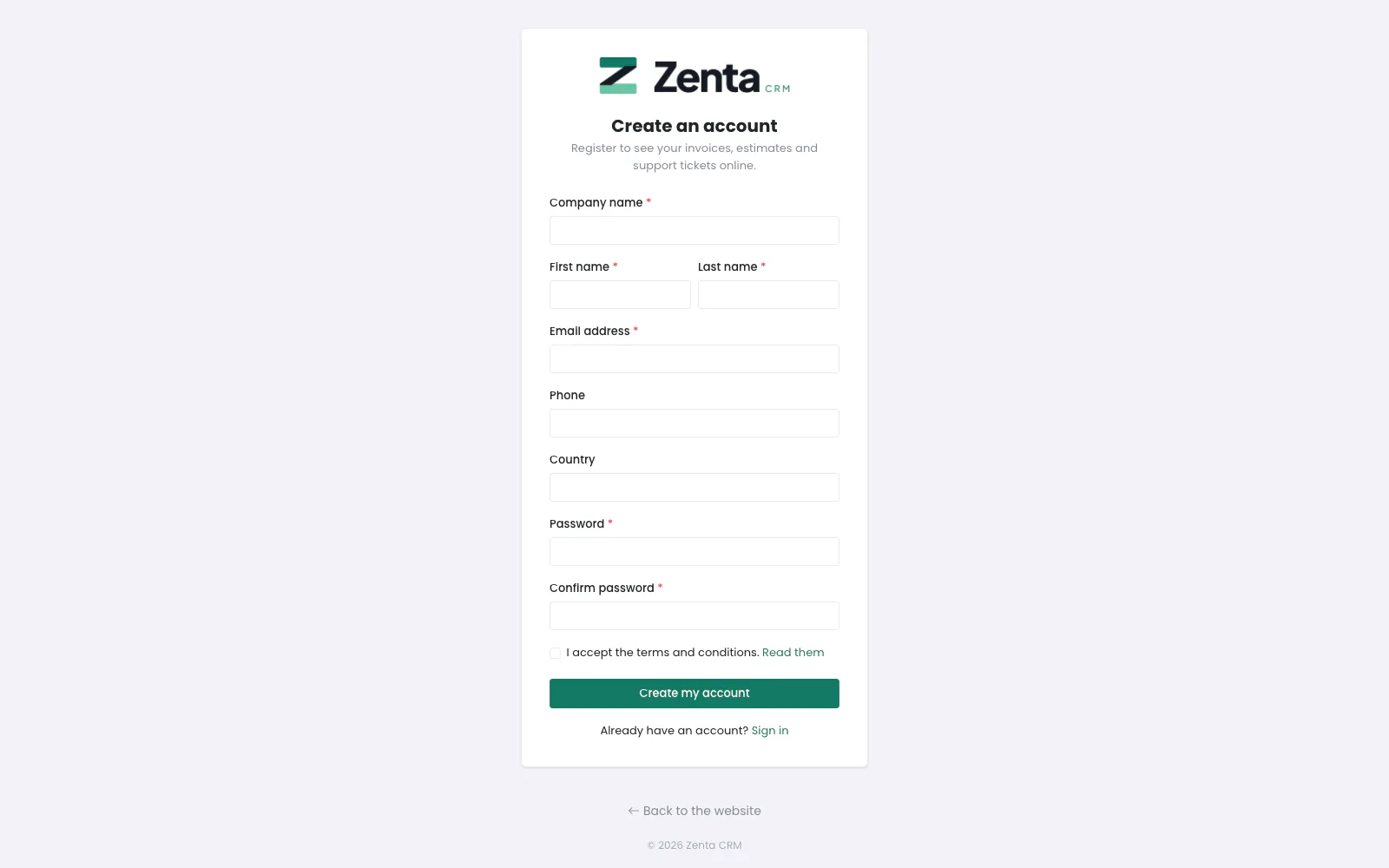 Create an account, here asking for a company name, phone and country, with the terms to accept.
While the business allows it, Create an account on the sign-in page
opens /portal/register; otherwise that address answers "not found". The form
always asks for First name, Last name, Email
address, Password and Confirm password. The
business chooses on the Sign-up form card
whether it also asks, or requires, company name, phone, website, VAT number, address,
city, state / region, postcode and country; its own
custom fields marked visible to the client are
added too. When Privacy / GDPR asks for the terms
to be accepted, an I accept the terms and conditions. box (with
Read them) must be ticked. Press Create my account.
- A new customer is created with you as its primary contact. Without a company name, the customer is you, under your own name.
- With verification on, you see Check your inbox and are emailed Confirm your email address. Open the link in it.
- With approval on, the registration then waits for the business. You see Thank you, your email address is confirmed. We will email you as soon as your account has been approved., and are emailed again when it is approved or declined.
- Otherwise you are told You can sign in now. Sign in at
/portal/loginwith the password you chose.
 Check your inbox: where a new registration lands, with a button to send the link again.
Check your inbox says how many hours the link works. If nothing arrives, look in the spam folder, or type the address and press Send the link again: If that address is waiting to be confirmed, a new link is on its way. A link that has run out, or was not copied in full, opens This link has run out with the same button. A link that has already been used takes you to the sign-in page: Your email address is already confirmed.
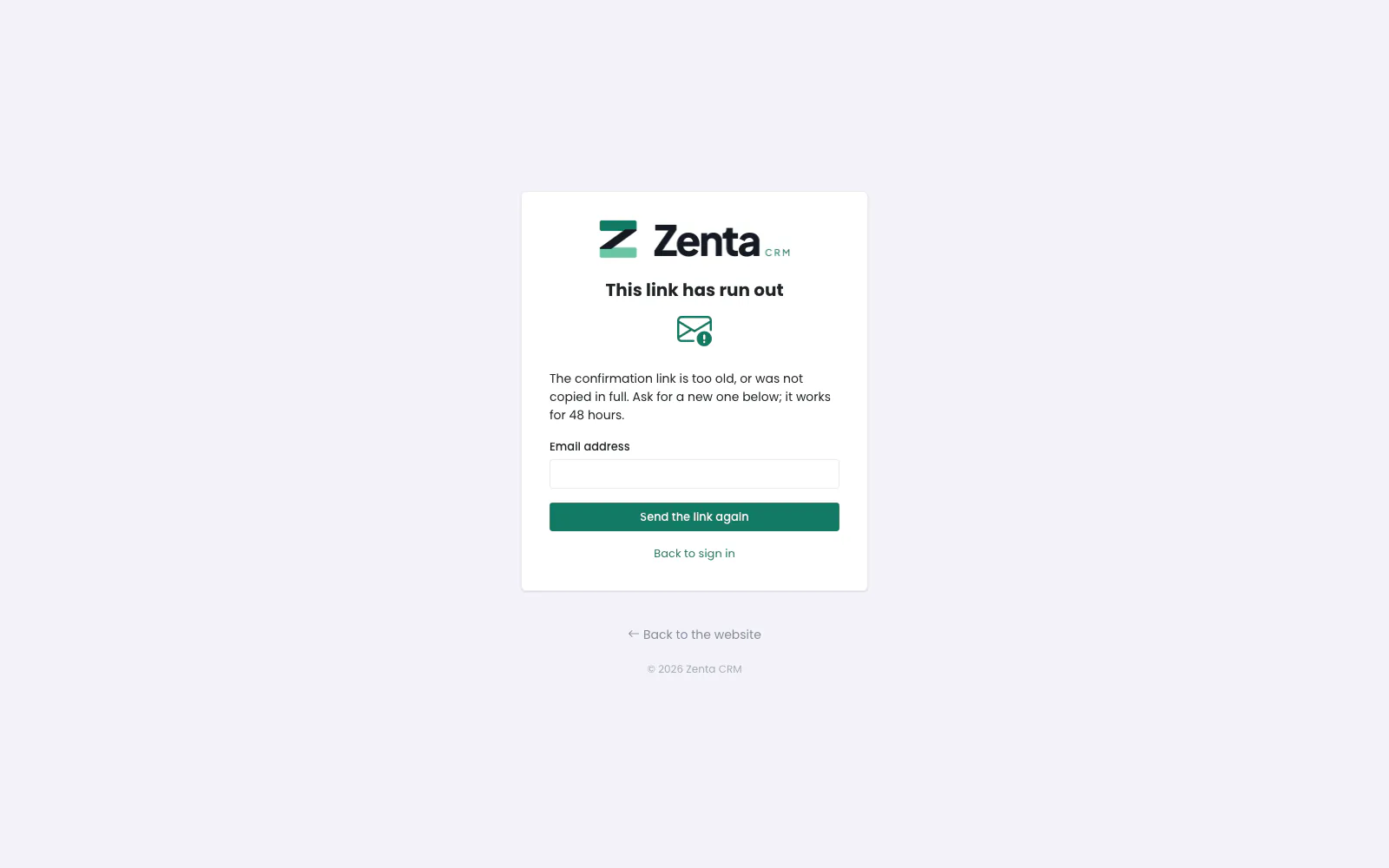 A confirmation link that has run out: ask for a new one.
The registration queue
For the business: Customers → Registrations lists every registration, filtered by Waiting for approval, Email not confirmed, Approved and Declined, and needs the "create customers" permission.
| Action | What happens |
|---|---|
| Approve | The contact can sign in, and is emailed the "Portal registration approved" template with a link to the portal. |
| Decline | You give a reason, which is emailed word for word ("Portal registration declined"). The contact and the customer the registration created are then removed — unless the customer has been invoiced or given other contacts since. A registration that never confirmed its address can be declined without a reason, and nobody is written to. |
The registration stays on the list as the record of who asked and what was decided. The queue is described in full under Portal registrations.
A forgotten password
- On the sign-in page, press Forgot password? beside Password.
- On Reset your password, enter your email address and press Send reset link. The page says If that address belongs to an account, a reset link is on its way. whether or not it does, so nobody can use it to find out who has an account.
- Open the link in the email within 60 minutes, choose a new password, type it again, and save. You are taken back to the portal sign-in: Your password has been reset. Please sign in.
It is the same page staff use (Resetting a password); Back to sign in on it returns you to the portal. No email is sent for a contact who has been switched off. The business can also set a new password on the contact's record (Customers → the customer → Contacts → edit, under Portal access), and a contact can sign in with Google or Facebook where the business has set them up.
A colleague who was invited and never chose a password is different: the primary contact presses Send again on the Contacts list. Once signed in, anybody can choose a new password under My account → Password.
Signing out
Open the menu under your name at the top right and choose Sign out. You are taken back to the portal sign-in page.
The emails
Five templates are added under Email templates, in the Customer portal group, and can be reworded there: Confirm your email address, Portal registration approved, Portal registration declined, Somebody tried to register with your address and Invitation to the customer portal.
What a contact can do once inside — My account, colleagues and what each may see, privacy — is on Your account and privacy.
Addresses on this page
For reference and for anyone scripting against the panel. Everything here needs a customer contact signed in to the portal; the addresses that open without signing in are marked.
| Method | Address | What it does |
|---|---|---|
GET | portal/login | The customer sign-in page. Opens without signing in. |
POST | portal/login | Signs a contact in. Opens without signing in. |
POST | portal/logout | Sign out. |
GET | portal/register | The Create an account form, while registration is allowed (404 otherwise). Opens without signing in. |
POST | portal/register | Sends the registration. Opens without signing in. |
GET | portal/register/check-your-inbox | Check your inbox. Opens without signing in. |
POST | portal/register/resend | Send the link again. Opens without signing in. |
GET | portal/register/verify/{registration}/{hash} | The confirmation link in the email; signed and timed. Opens without signing in. |
GET | portal/password/set/{token} | Choose your password, from an invitation. Opens without signing in. |
POST | portal/password/set | Saves the chosen password. Opens without signing in. |