Time tracking
Timers and their rules, logging time without one, timesheets that group and total, and reminders about work.
Settings → Time tracking
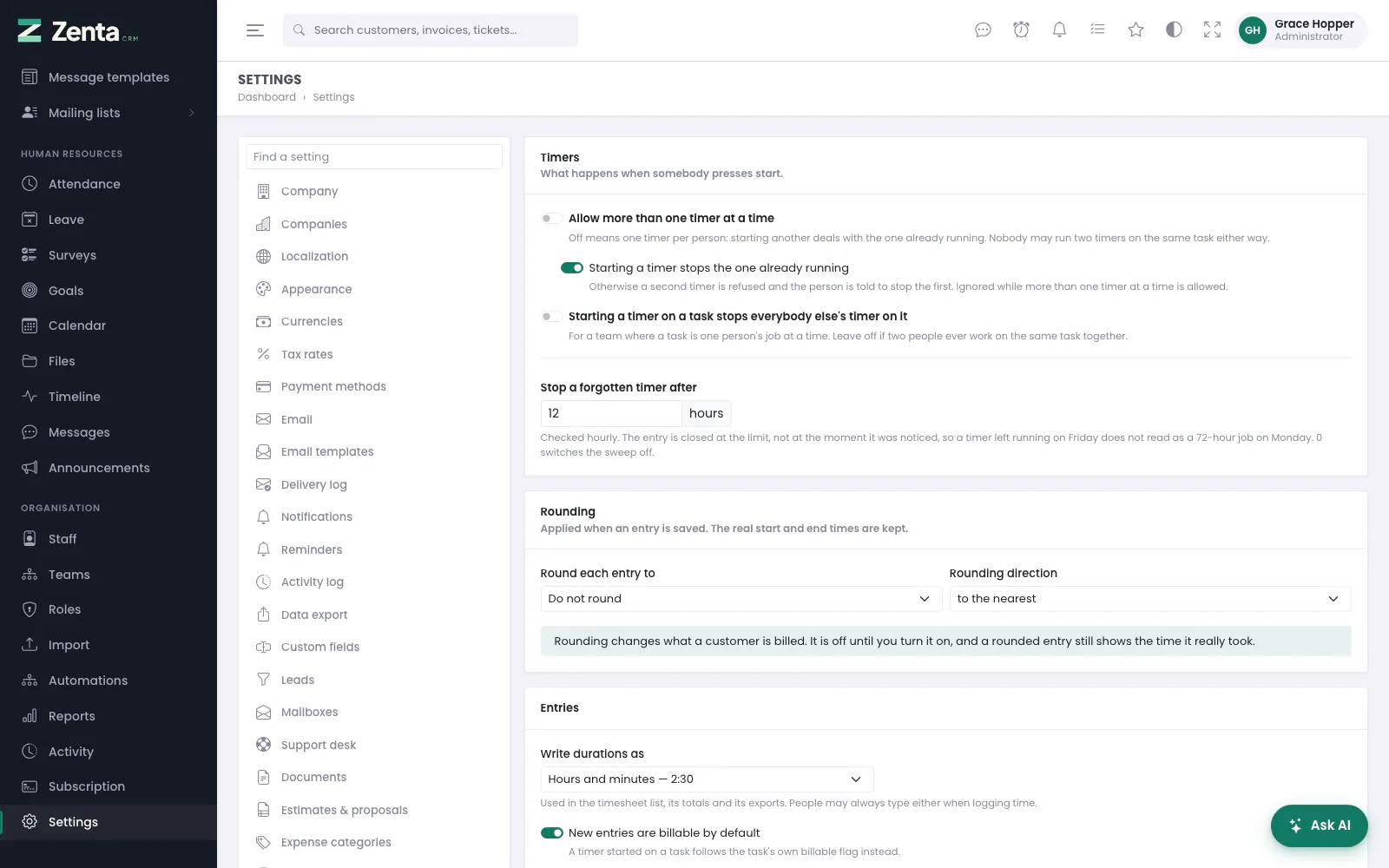 Settings → Time tracking: timers, rounding and how durations are written.
One screen for everything about timers and durations. It also holds the two settings that used to have no home of their own — whether starting a timer stops the one already running, and when a forgotten timer is closed. Viewing it needs permission to view settings; Save changes needs permission to edit them.
| Setting | What it does |
|---|---|
| Allow more than one timer at a time | Off (the default) means one timer per person. On, somebody can run a timer on two jobs at once — useful where one machine or process runs unattended. |
| Starting a timer stops the one already running | On by default. Only matters while the setting above is off. On, the first timer is stopped for you; off, the second one is refused and you are told to stop the first. |
| Starting a timer on a task stops everybody else's timer on it | For a team where a task is one person's job at a time; it makes a handover one click. Leave it off if two people ever work on the same task together. |
| Stop a forgotten timer after N hours | 12 hours to begin with, up to 168. Checked hourly. The entry is closed at the limit, not at the moment it was noticed, so a timer left running on Friday does not read as a 72-hour job on Monday — and certainly not on a customer's invoice. The entry's note says it was stopped automatically. 0 switches the sweep off. |
| Round each entry to | Do not round, 1, 5, 6 (tenths of an hour), 10, 15 or 30 minutes. Applied when an entry is saved. |
| Rounding direction | To the nearest, always up, or always down. |
| Write durations as | Hours and minutes (2:30) or decimal hours (2.50). Used in the timesheet list, its totals and its exports. |
| New entries are billable by default | Whether the Billable box starts ticked on a new entry. A timer started on a task follows that task's own billable flag instead. |
Timers
The timer lives on the server, not in the browser. Press Start timer on a task and the elapsed time counts up on the button, which becomes Stop timer; close the laptop, reload, or open the task on your phone and the same timer is still running with the same elapsed time. Press Stop timer on the task, or Stop beside the running entry on the Timesheets list, to close it. Only the person who started a timer can stop it, and starting one needs permission to create timesheets.
Pressing start twice on one task — a double click, or a second tab — never produces two overlapping entries: the second press is refused (Your timer on this task is already running.). What happens when you already have a timer running on another task depends on the settings above: by default the first one is stopped for you.
Logging time without a timer
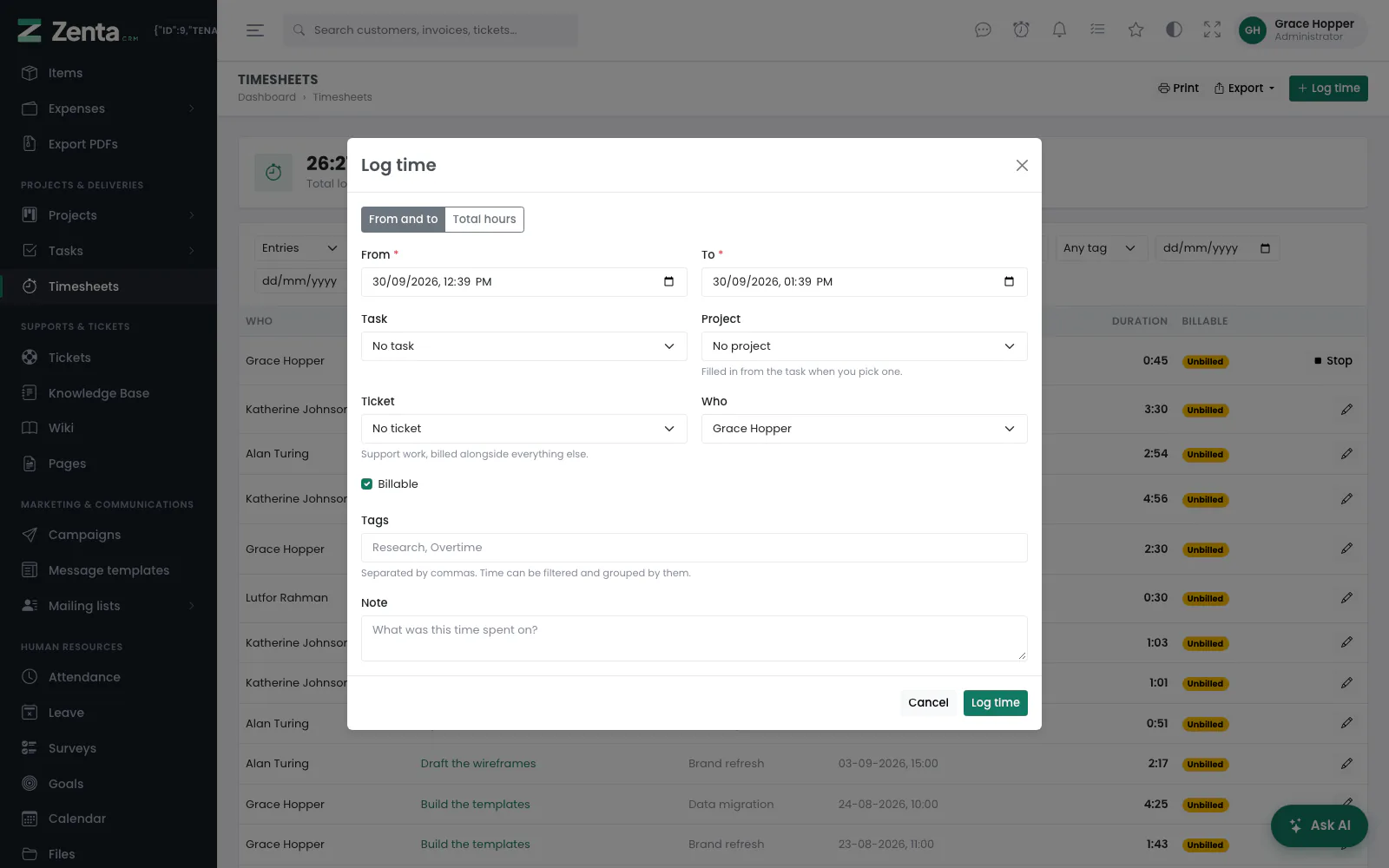 Log time: from and to, or a total for a day, against a task, project or ticket.
Log time, on a task or on the Timesheets page, opens a dialog that offers two ways of saying the same thing:
- From and to — the start and end of a session, as before.
- Total hours — a day and how long it took. Type it however you think of it:
2.5,2,5,2:30,2h 30mor45m.
A typed total is stored against the day it was worked, and the list marks it Typed and shows the date rather than inventing a start time it cannot know. It counts towards every total, report and invoice exactly like a timed entry.
The rest of the dialog:
| Field | What it does |
|---|---|
| Task | The task the time was spent on. Opened from a task, it is already chosen. Lists only the tasks you could open: your task scope, without other people's private tasks. |
| Project | Filled in from the task when you pick one; time can also be logged against a project with no task. Lists only the projects you could open. |
| Ticket | Support work, billed alongside everything else. Only for people who may view tickets. |
| Who | Whose time it is. Only shown to people whose timesheet permission reaches beyond their own records, and only offers the people within that scope; everybody else always logs their own time. |
| Billable | Starts ticked or not according to New entries are billable by default. |
| Tags, Note | See Tags and notes. |
Custom fields set up for timesheets appear at the foot. Press Log time. Needs permission to create timesheets.
Changing or deleting an entry
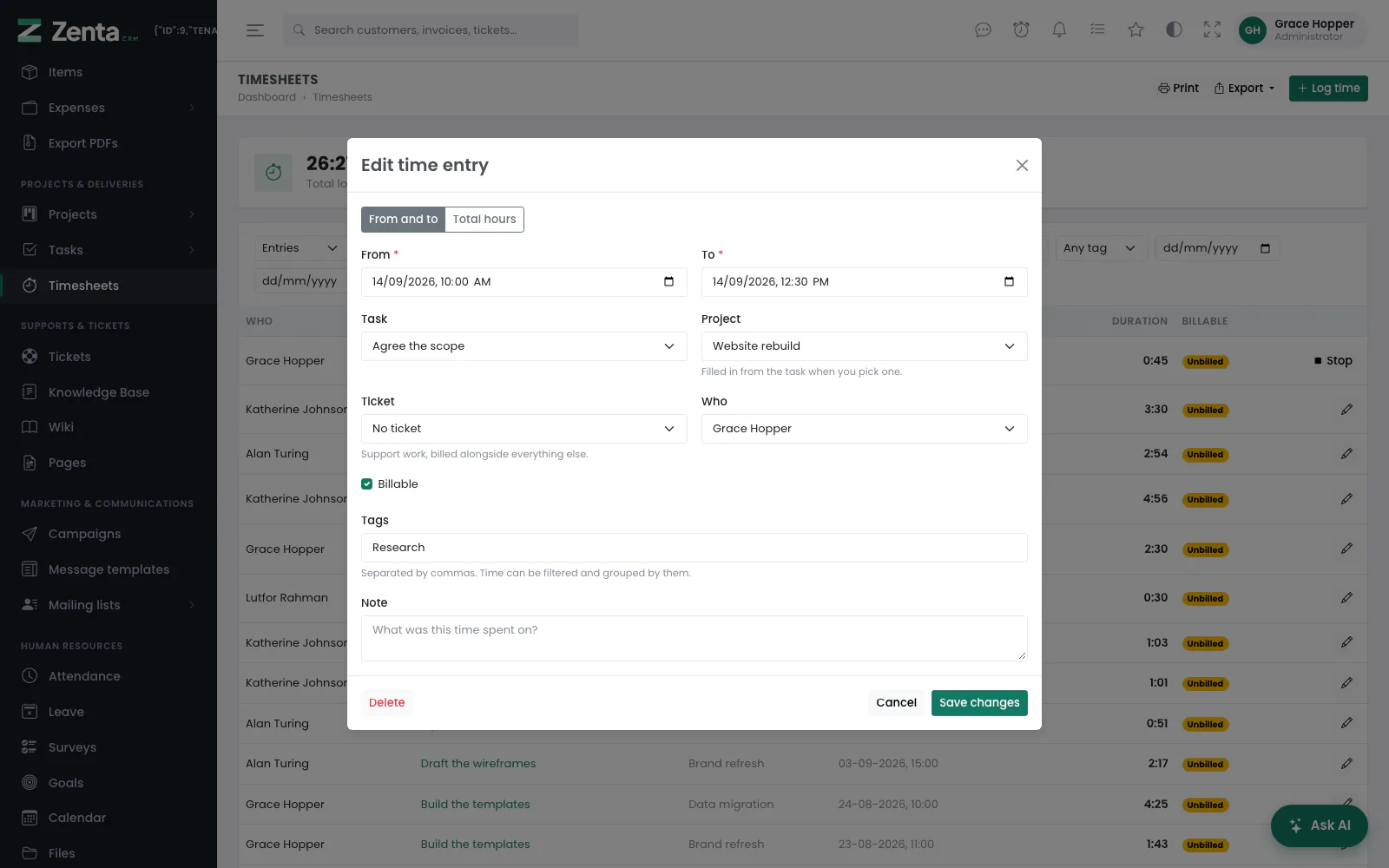 Edit time entry: the same fields, with Delete at the bottom left while the time has not been invoiced.
The at the end of an entry on the Timesheets list opens Edit time entry; change it and press Save changes. A running timer has no pencil — stop it first. A rounded entry says what it was recorded as and what the time actually worked was.
Delete at the bottom left of the same dialog removes the entry permanently, after asking. Time that has already been invoiced cannot be deleted, and its Billable box can no longer be changed: it is part of an invoice the customer has, and removing it would leave that invoice unexplainable. Editing needs permission to edit timesheets, deleting permission to delete them.
The timesheet list
 Timesheets: the two totals, the filters, then each entry. A running timer has Stop; a typed total is marked Typed.
Timesheets shows every entry you are allowed to see, with two totals above it: everything logged, and the part of it that is billable and not yet on an invoice. Both follow the filters, so they always describe what is on screen.
Each row shows who, the task (with the note under it), the project, when it started, the duration and the billing state — Unbilled for billable time not yet invoiced. A running timer is marked Running, and a total typed in by hand is marked Typed. Custom fields marked to show in lists get a column of their own.
Filter by project, task, person, billable state, tag (once any entry has a tag), and a date range, then press Filter. The project and task filters, like the pickers in the dialog, offer only the projects and tasks you could open. The billable filter offers:
| Choice | Shows |
|---|---|
| Billable, not yet invoiced | Finished, billable work nobody has billed — the money on the table. |
| Already invoiced | Time that has reached an invoice. |
| Billable / Not billable | The flag itself, invoiced or not. |
Grouped views
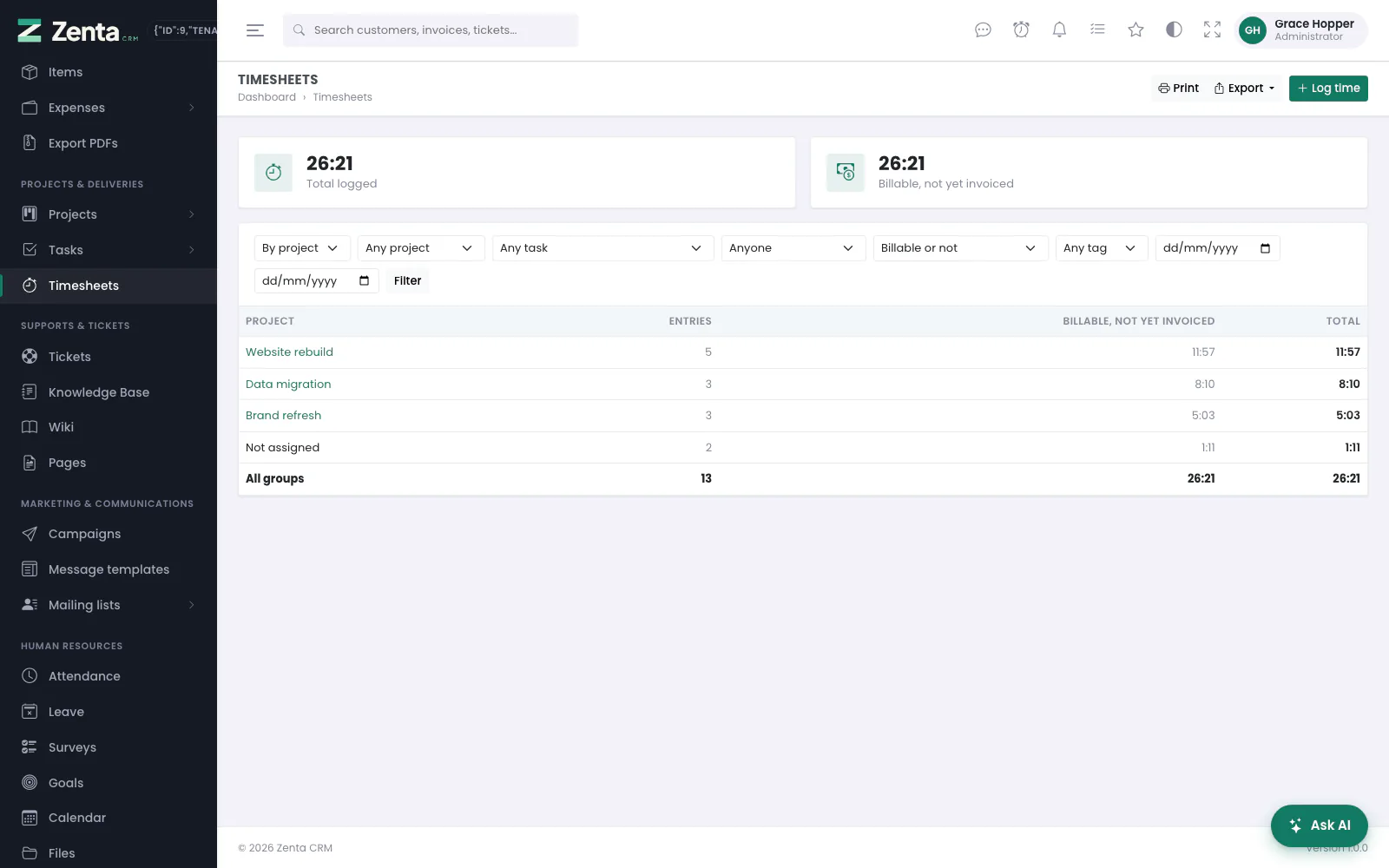 By project: entries, billable time not yet invoiced and the total for each, with a line for all of them.
The first dropdown switches the list between Entries and four summaries: By task, By person, By project and By ticket. Each row is one task, person, project or ticket, with the number of entries, the billable time not yet invoiced, and the total; time with no task, project or ticket is gathered under Not assigned, and the last line, All groups, adds them all up. Every filter applies to the groups as well, so "how much time did Grace put into the website rebuild last month" is two dropdowns and two dates.
Tags and notes
A time entry can carry a note and any number of tags, typed as a comma-separated list ("Research, Overtime"). Tags appear on the entry in the list and in the tag filter, and they come out in the export — which is how time is separated into categories the projects themselves do not describe.
Exporting
The Export button gives the list as CSV or Excel, with the filters and your own record scope applied — the file can never contain a row the page would not have shown you. The columns include the staff member, project, task, start and end, the duration as a decimal number and written in your chosen format, the hours before rounding, whether it was typed as a total, whether it is billable, whether it has been invoiced, its tags and its note.
Reminders about work
Settings → Reminders carries three reminders about a task's deadline, each with its own switch, all to your own staff and never to a customer:
| Reminder | When |
|---|---|
| A task is due | A set number of days before the due date. Once. |
| A task is due today | On the due date itself. Once. |
| A task is overdue | A set number of days after the due date, then optionally again every so often until it is done. |
All three go to everybody the task is assigned to, one message each. A fourth switch — Send task deadline reminders to followers as well — adds the people following the task. It is off by default: a follower asked to be kept informed, not to be chased.
Completing a task stops all three immediately, and "today" is today in the workspace's own time zone rather than the server's.
Billable time not yet invoiced
The last card on the same screen is the one that pays for itself: a weekly list of work that has been done, marked billable, and never put on an invoice.
- Switch on Send the weekly unbilled-time note.
- Tick the days it should go out on — Friday by default.
- Choose who receives it: each person, about their own time, or the people you tick, about everybody's.
The message lists the work grouped by task (or by project, for time logged against no task), with the time against each and a total, written in your chosen duration format. Somebody with no unbilled time is not written to at all.
The wording of all four lives under Settings → Email templates, in the Reminders group, and switching a template off stops that one message without stopping the feature.
A project's own time is also on its Timesheets tab, with what has been logged, what can still be billed and what already has been — see Projects. Unbilled time reaches an invoice through Invoice this project.
Addresses on this page
For reference and for anyone scripting against the panel. Everything here needs somebody signed in to the workspace whose role allows it; anybody else is refused.
| Method | Address | What it does |
|---|---|---|
GET | admin/timesheets | The timesheet list, with group, project, task, ticket, user, billable, tag, from and to. |
GET | admin/timesheets/create | The Log time dialog; ?task=, ?project= or ?ticket= fill it in. |
POST | admin/timesheets | Logs time by hand. |
GET | admin/timesheets/{timesheet}/edit | The Edit time entry dialog. |
PUT | admin/timesheets/{timesheet} | Saves an entry. |
DELETE | admin/timesheets/{timesheet} | Deletes an entry that has not been invoiced. |
POST | admin/tasks/{task}/timer | Starts your timer on a task. |
PATCH | admin/timesheets/{timesheet}/stop | Stops your own running timer. |
GET | admin/settings/time | Settings → Time tracking. |
PUT | admin/settings/time | Saves the time tracking settings. |