Projects
The project list, the project form and every tab of the project page — plus milestones, files, templates, duplicating, invoicing, exporting and categories.
 Projects: how many are in each state, then the list with progress, team, deadline and status.
The project list
Projects → All projects. Four tiles across the top count the projects that are Not started, In progress, On hold and Finished; click one to list only those. Below them, one row per project: its name and number of tasks, the customer, the category, the deadline (with an Overdue badge once it has passed), a progress bar, the first few members of the team and the status.
- Search projects, Any customer and Any category narrow the list; press Filter, and Clear to take the filters off. The category box only appears once there are categories, and only offers the ones you may work with.
- Starred only and Per page sit above the list; the Project, Deadline and Status headings sort it. Both choices are remembered for you.
- Export downloads exactly what the list shows, with your filters and your own record scope applied (see Exporting). Print prints it.
- Templates opens the project templates (below). Customer feedback appears here once customer feedback is switched on for the portal.
- New project needs the Projects create permission.
Cards, covers and labels
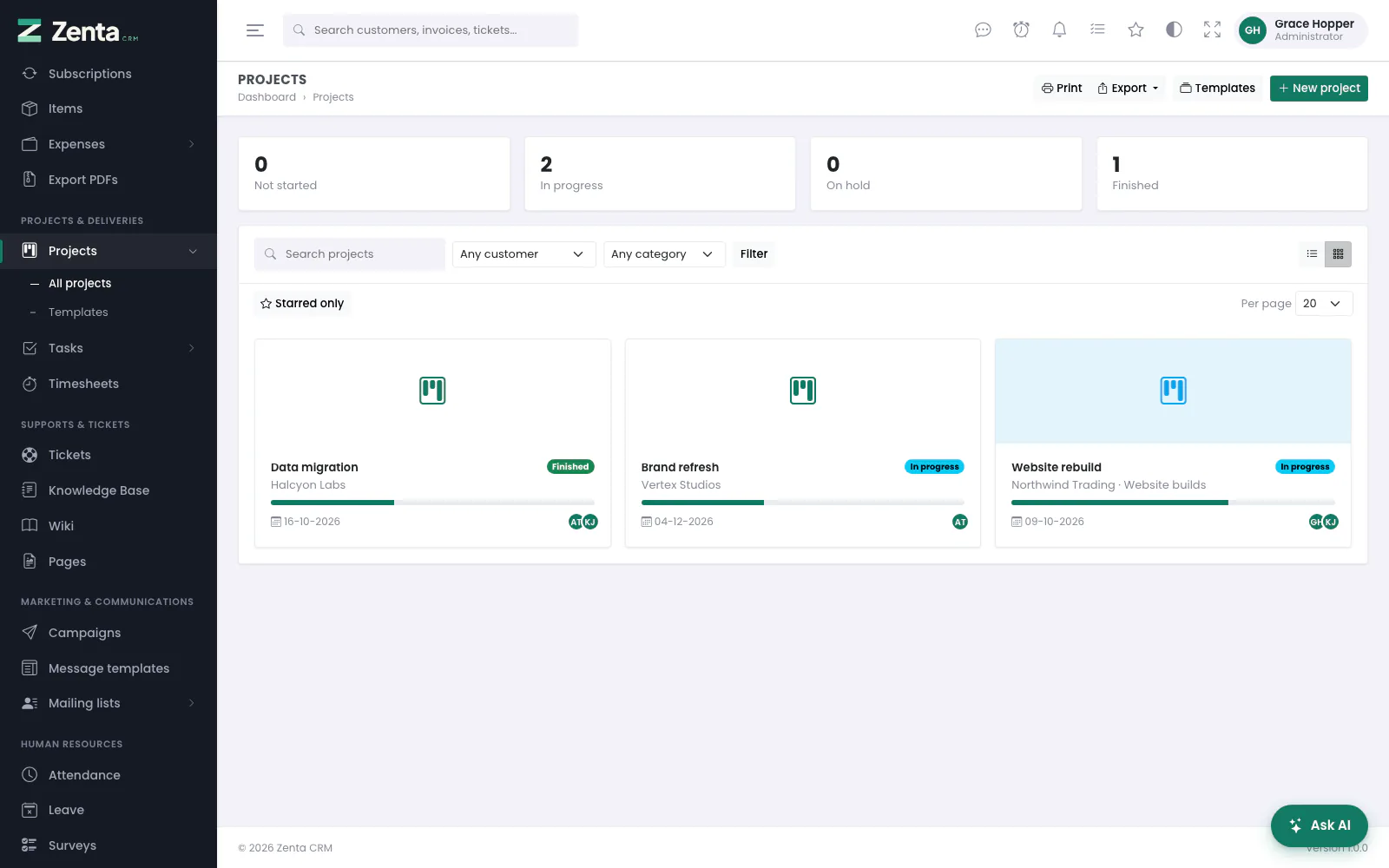 The card layout: cover picture (or the category's colour), customer, category, progress, deadline and team.
The two buttons at the right of the filter bar switch between the table and a grid of cards showing the cover image, customer, category, labels, progress, deadline and status. The choice is remembered against you rather than against the browser, so it follows you to the laptop at home. A project without a cover picture shows its category's colour instead.
Creating and editing a project
 A new project. If the workspace has templates, a line at the top offers to start from one instead.
New project on the list opens the form as a page of its own; so does Edit on a project. When saved project templates exist, the new-project form opens with You have saved project templates. Start from one instead, which is usually the quicker route.
| Card | Fields |
|---|---|
| Project | Name (required); Customer — or Internal project for work with no customer; Category, with a + to add one without leaving the form; Description; Status (Not started, In progress, On hold, Cancelled, Finished); Start date and Deadline, which cannot be before the start; and any custom fields set up for projects. |
| Billing | Billing type (Fixed price, Project hours or Task hours — see Invoicing a project), Fixed price, Rate per hour, Est. hours and Currency. |
| Team | A tick-box for every active member of staff. Members are who the project's deadline reminder and comment notices go to. |
| Progress | Calculate from tasks (on for a new project) works the percentage out from the share of the project's tasks in a completed status. Turn it off to type your own figure into Manual progress (%); it is then never overwritten. |
| Cover image | A picture for the card layout (see below). |
| This project | Hide its tasks from the main task table and Remind the team before the deadline (see Deadline reminders and per-project settings). |
| Customer portal | What this project's customer sees — the workspace defaults, or Give this project its own switches. Described in Projects in the portal. |
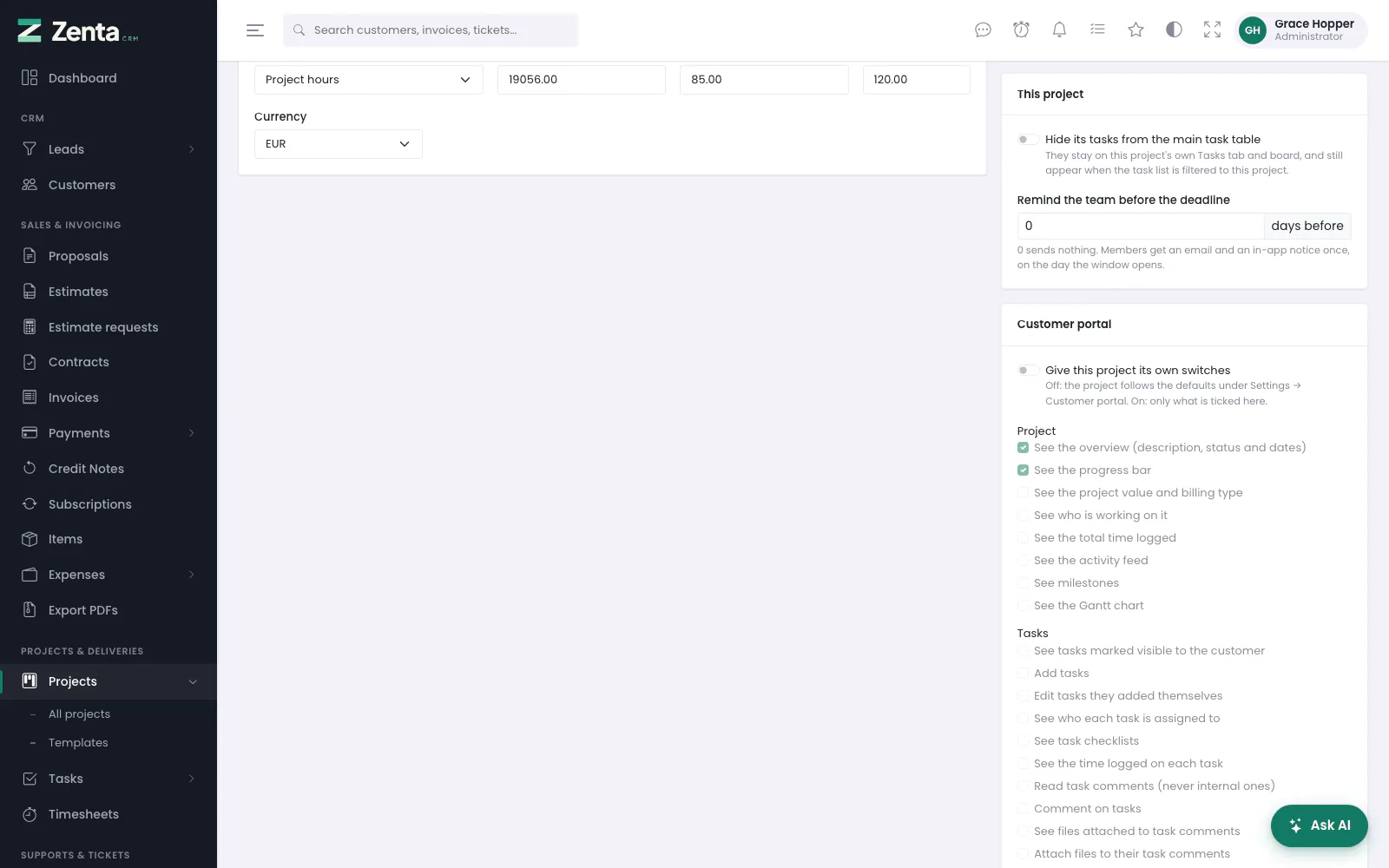 Further down the form: the per-project switches and the Customer portal card.
Press Create project (or Save changes when editing) and you land on the project page. A new project's billing type and its reminder days start from the workspace defaults.
The cover image is checked like every other attachment — the workspace's size limit applies, narrowed to JPG, PNG, WebP and GIF. Replacing one removes the old file from the disk; so does ticking Remove the current picture.
Deleting a project
The red button at the top right of the project page, then confirm (Delete … and all its tasks? Time already logged is kept.). The project leaves the list and you are taken back to it; its tasks go with it and leave the task list and board too. Time logged against the project and its tasks is kept, because it may already be on an invoice. There is no screen for restoring a deleted project, so where a job has simply ended, set its status to Finished or Cancelled instead. Needs the Projects delete permission.
The project page
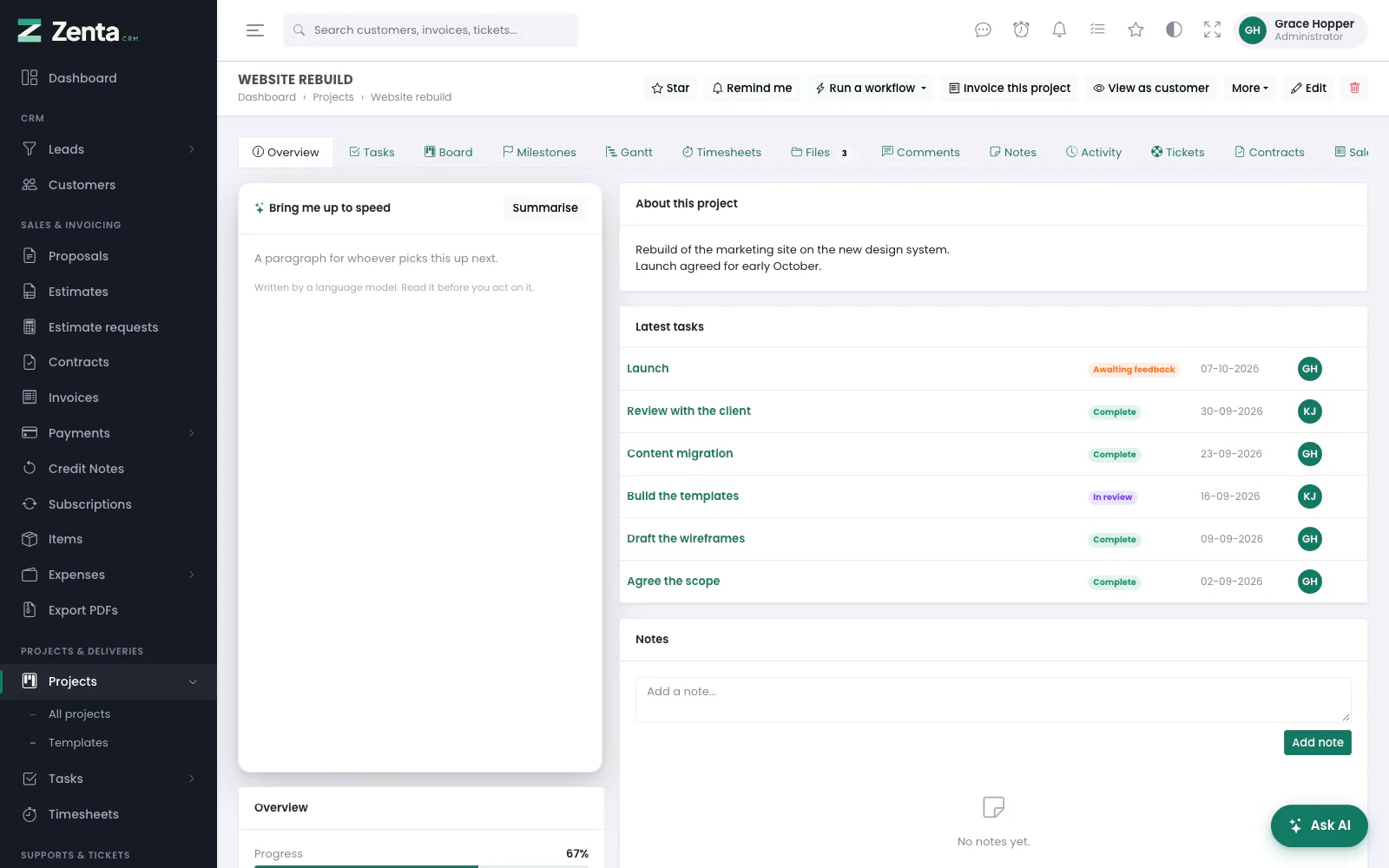 A project's overview: the AI summary, the description, the latest tasks and the notes.
Open a project and everything about it is on one page, as tabs. Only the tab you are looking at is loaded, so a project with two thousand time entries still opens at the speed of its overview.
The buttons along the top:
| Button | What it does |
|---|---|
| Star, Remind me, Run a workflow | The same buttons as on other records: star it for the starred menu, set yourself a reminder about it, run a manual automation against it (see Automations). |
| Invoice this project | Opens the invoice preview (below). Needs the Invoices create permission. |
| View as customer | Only on a project with a customer (below). |
| More | New task (a task already set to this project), Duplicate, Save as template and Export project data. |
| Edit, | The project form, and deleting the project. |
 The More menu: New task, Duplicate, Save as template and Export project data.
A project a customer asked for from the portal carries a line at the top saying who asked and when, until its status moves on from Not started — see Projects in the portal.
| Tab | What is on it |
|---|---|
| Overview | The Bring me up to speed AI summary (where the AI assistant is on and you may use it), the description, the latest ten tasks and the project's notes; beside them progress, customer, category, status, billing, value, dates, estimated and logged hours, tags, the team and the milestones. |
| Tasks | The project's tasks you can open, with their milestone, status, due date, assignees and whether the customer can see each (Shared or Hidden). |
| Board | The same tasks as a kanban board. Drag a card to move it, exactly as on the main task board. |
| Milestones | Each milestone with its due date, how many tasks it holds and how far along it is. |
| Gantt | The timeline: milestones by due date, tasks from start to due date. |
| Timesheets | Every entry, with three figures at the top: logged, billable but not yet invoiced, and already invoiced. |
| Files | Uploads, whether each is shared with the customer, and the short comment thread under each one. The tab shows how many files there are. |
| Comments | A discussion thread on the project itself, with attachments and internal asides. |
| Notes | The same short note timeline that leads and customers have. |
| Activity | This project's lines from the activity log: who changed what, and when. The whole log opens the full activity log. |
| Tickets | Support tickets that name this project, with New ticket for this customer. |
| Contracts | Contracts that name this project, with their value, end date and signature state, and New contract. |
| Sales | Invoices, payments, estimates, proposals, subscriptions, expenses and credit notes raised for the project, each with its own total. |
| Feedback | What the customer rated the project, once feedback is switched on. |
 Lower on the overview: the project's details, its team and its milestones with their progress.
Tasks and Board
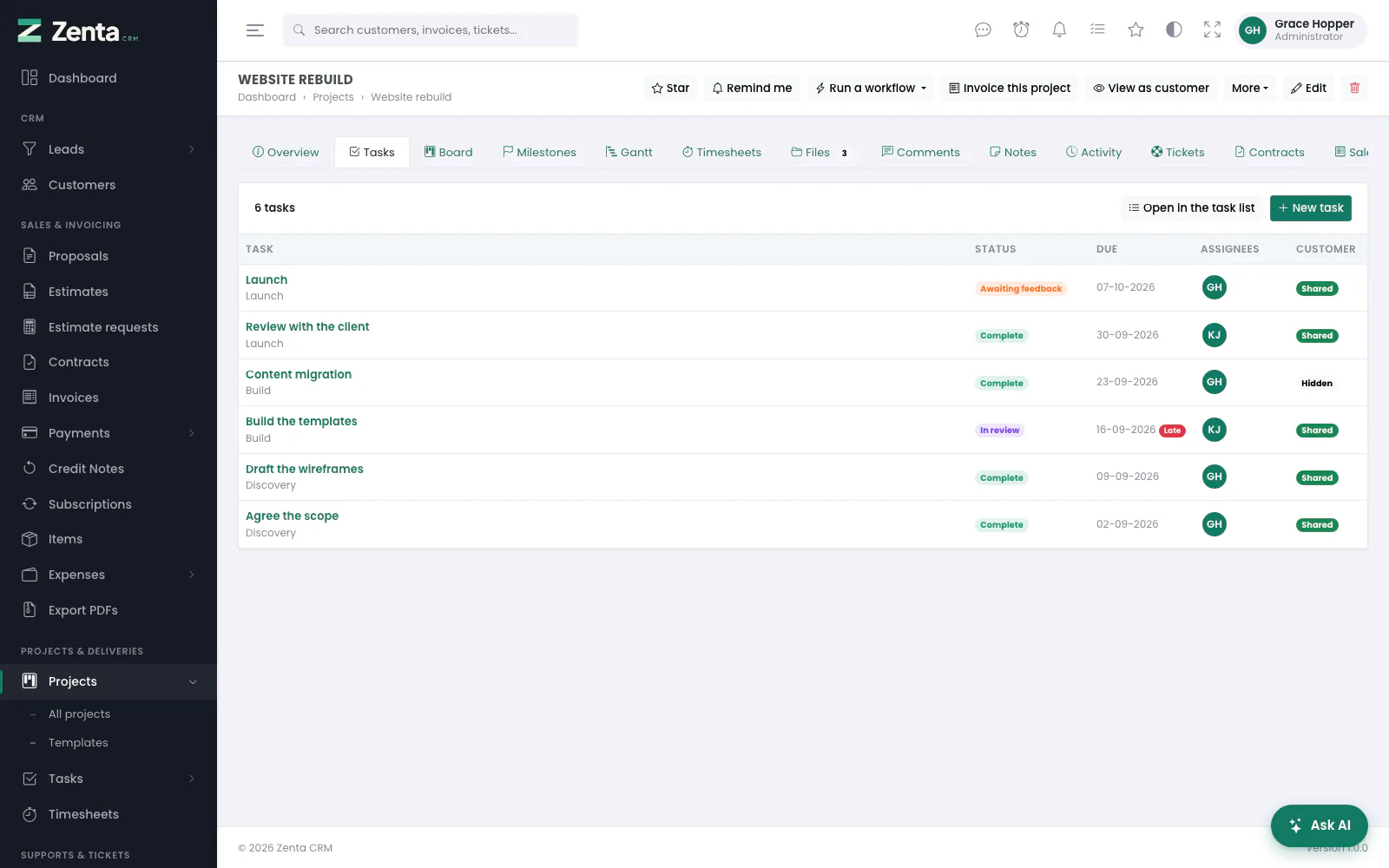 The Tasks tab: each task with its milestone underneath, and whether the customer can see it.
New task opens the task form with this project already chosen; Open in the task list opens the main task list filtered to this project, with its filters, bulk actions and export. The tab and the board list the same tasks the task list would show you: those your own task scope reaches, with private tasks you are not part of left out as everywhere else (see Private tasks). Somebody whose role sees only the tasks assigned to them sees only their own tasks here, even on a project they are on; the overview's latest tasks and the Gantt chart follow the same rule (see Your own work).
 The Board tab: the workspace's task statuses as columns. A padlock marks a task still waiting for another.
The Board tab has one column per task status. With permission to edit tasks, drag a card to another column to change its status; the move is refused, and the card goes back, if the task still waits for an unfinished task and the column is a completed one.
Milestones
 The Milestones tab: due date, number of tasks and progress for each.
A milestone is a named point in the project — "Discovery", "Build", "Launch" — that tasks are grouped under. Its progress is the share of its tasks in a completed status. Milestones appear on the overview, on the Gantt chart as diamonds and in the Milestone box of the task form, which only offers the milestones of the task's own project.
- Add one: New milestone on the Milestones tab, or the + on the Milestones card of the overview. Give it a Name (required), a Colour, a Due date and a Description, and press Add milestone. New milestones go to the end of the list.
- Change one: the beside it, then Save changes.
- Delete one: Delete at the bottom left of the same dialog. Its tasks stay on the project; they simply no longer belong to a milestone.
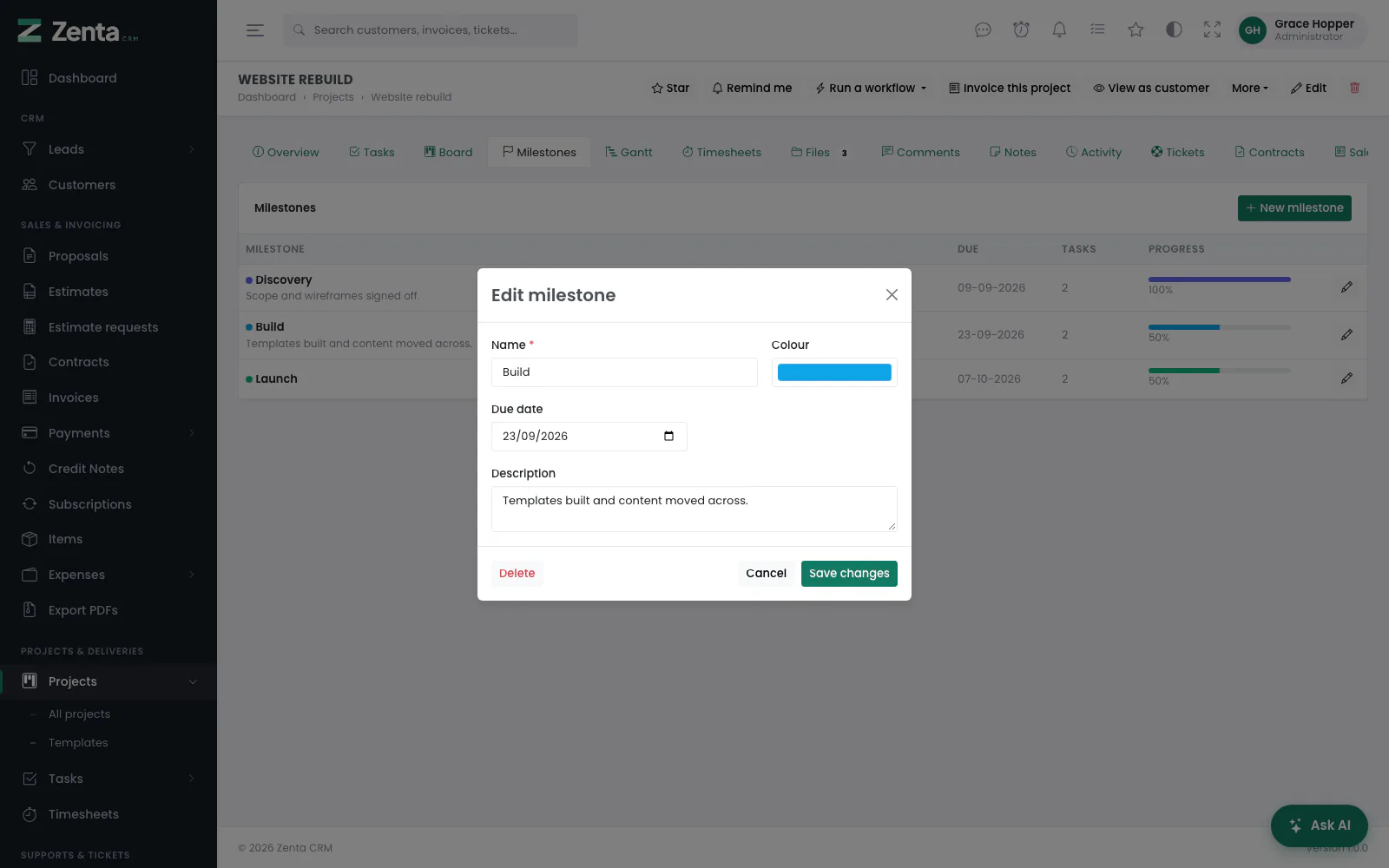 Editing a milestone. Delete removes the milestone and leaves its tasks on the project.
All three need permission to edit projects.
Gantt
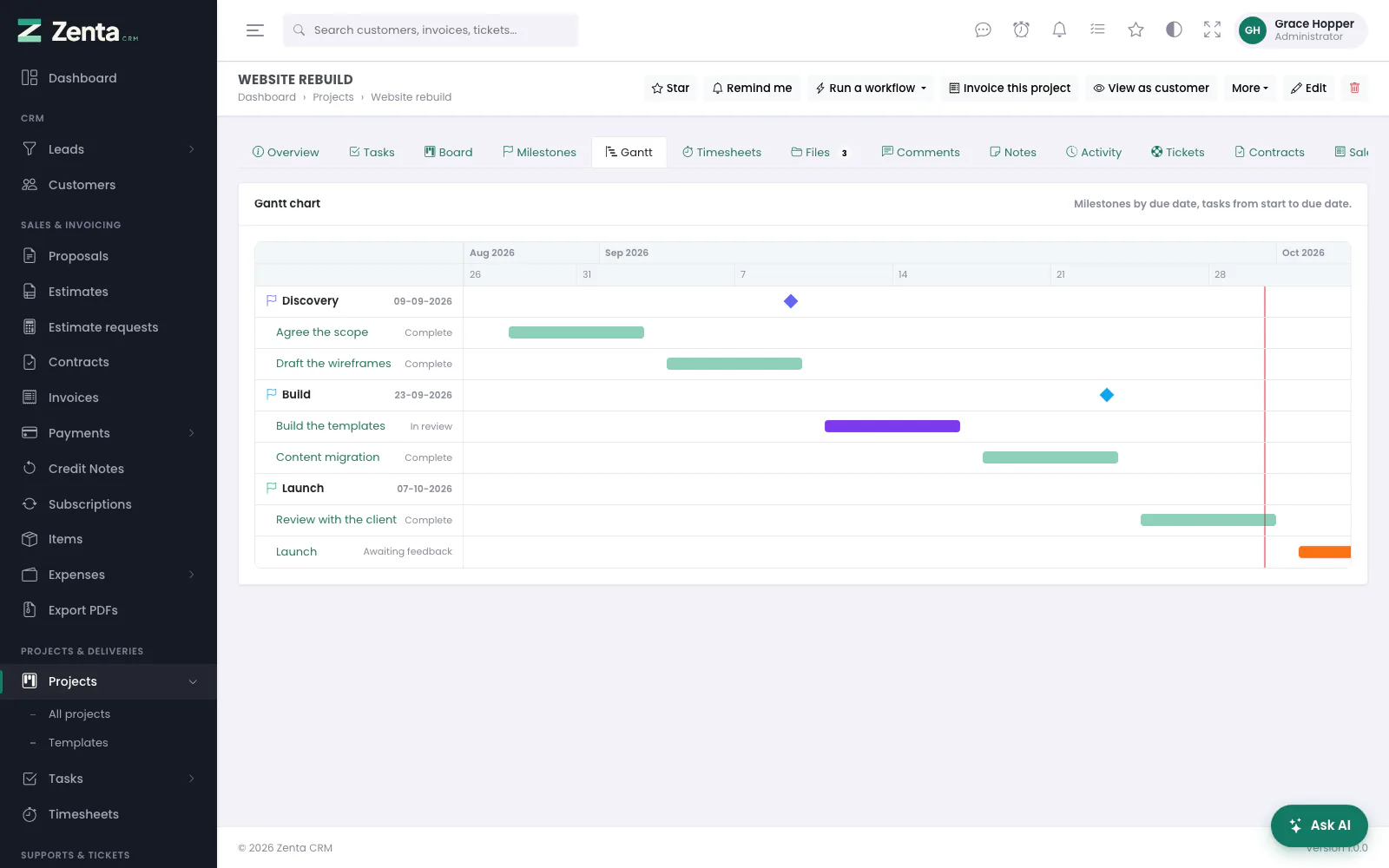 The Gantt tab: each milestone as a diamond on its due date, its tasks as bars from start to due date, today as a red line.
Tasks are grouped under their milestones, each bar in the colour of the task's status, with today marked. Click a task's name to open it. The chart is read-only: dates are changed on the task itself.
Timesheets
 The Timesheets tab: logged, billable but not yet invoiced, and already invoiced, then the entries.
The three figures answer the question a project manager actually asks: how much has gone in, how much of it can still be billed, and how much already has been. The list shows the latest 500 entries; Open in timesheets opens the full timesheet list filtered to this project, where time is logged, edited and exported (see Time tracking).
Files
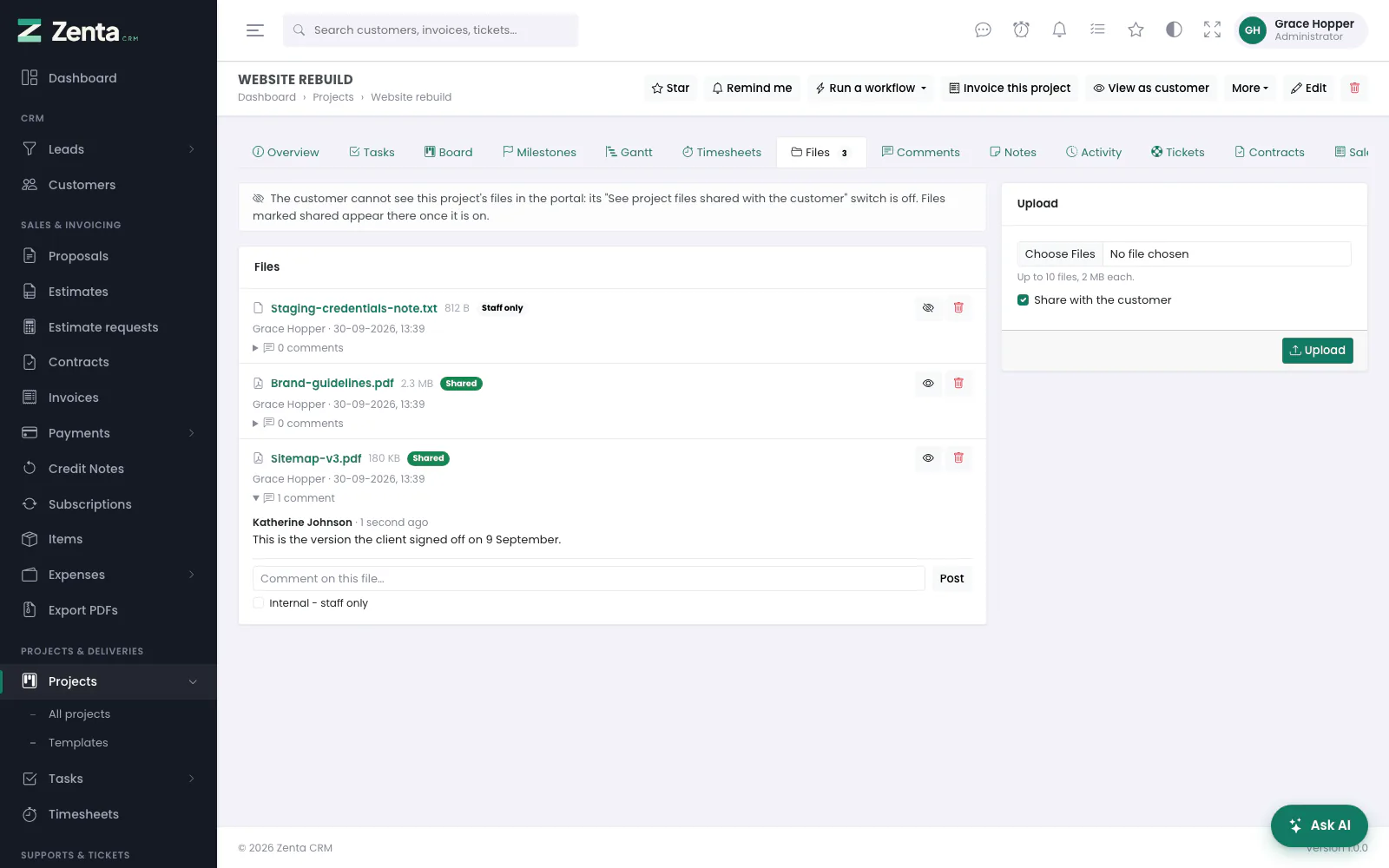 The Files tab: each file shared with the customer or kept to staff, with its own comment thread.
- Upload: choose up to ten files at a time on the Upload card, each within the workspace's upload limit. Share with the customer is ticked to begin with; untick it to keep the files to staff. Press Upload.
- Download: click a file's name.
- Share or hide: the button beside a file switches it between Shared and Staff only, after asking.
- Delete: the button, then confirm. The file is removed permanently.
- Comment on a file: open its comments, type in Comment on this file… and press Post. Tick Internal - staff only to keep a comment on this side.
Uploading, sharing and deleting need permission to edit projects; anybody who can open the project can download and comment. Files a customer uploads from the portal arrive here already shared and marked Customer. A shared file only reaches the portal while the project's See project files shared with the customer switch is on; while it is off, the tab says so at the top. The customer's side is in Projects in the portal.
Comments
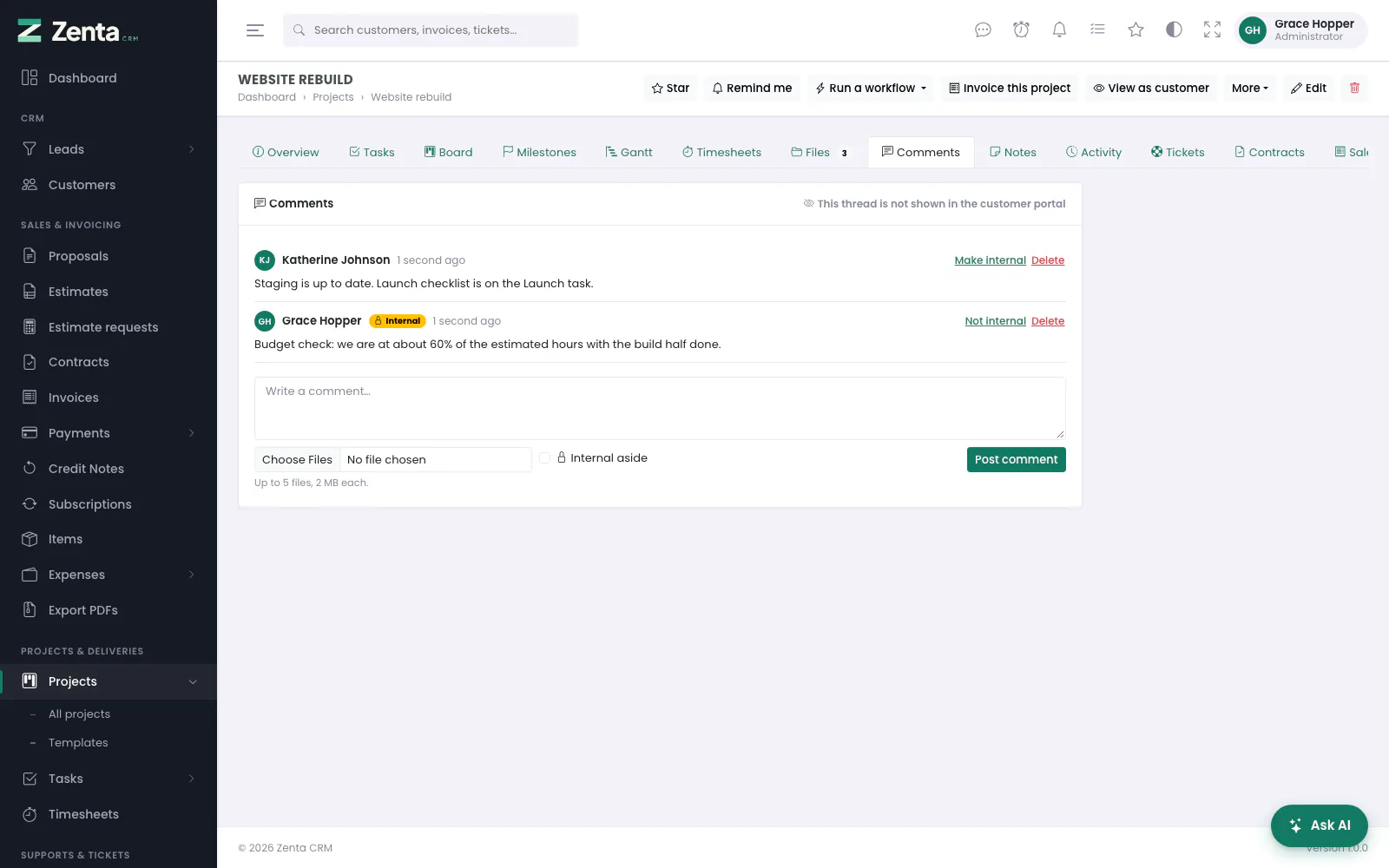 The Comments tab: a staff-only thread. An internal comment is marked, and can be turned back.
The Comments tab is a conversation between staff, with attachments. It is not shown in the customer portal — for a thread the customer takes part in, comment on a task instead. Type in Write a comment…, attach up to five files if you need to, and press Post comment. Everyone on the project's team, and the person who created it, is notified.
A comment can still be marked internal — tick Internal aside before posting, or use Make internal / Not internal afterwards — which is carried through to the project export, so an exported thread says which lines were asides. Delete removes a comment and its files. The author can do both to their own comments; changing somebody else's needs permission to edit projects, and deleting it permission to delete them.
Notes, Activity, Tickets and Contracts
Notes are short reminders for whoever opens the project next — type one and press Add note. For a conversation, use Comments. Activity, Tickets and Contracts list what is already linked to the project; a ticket or contract is linked by choosing the project on its own form.
Sales
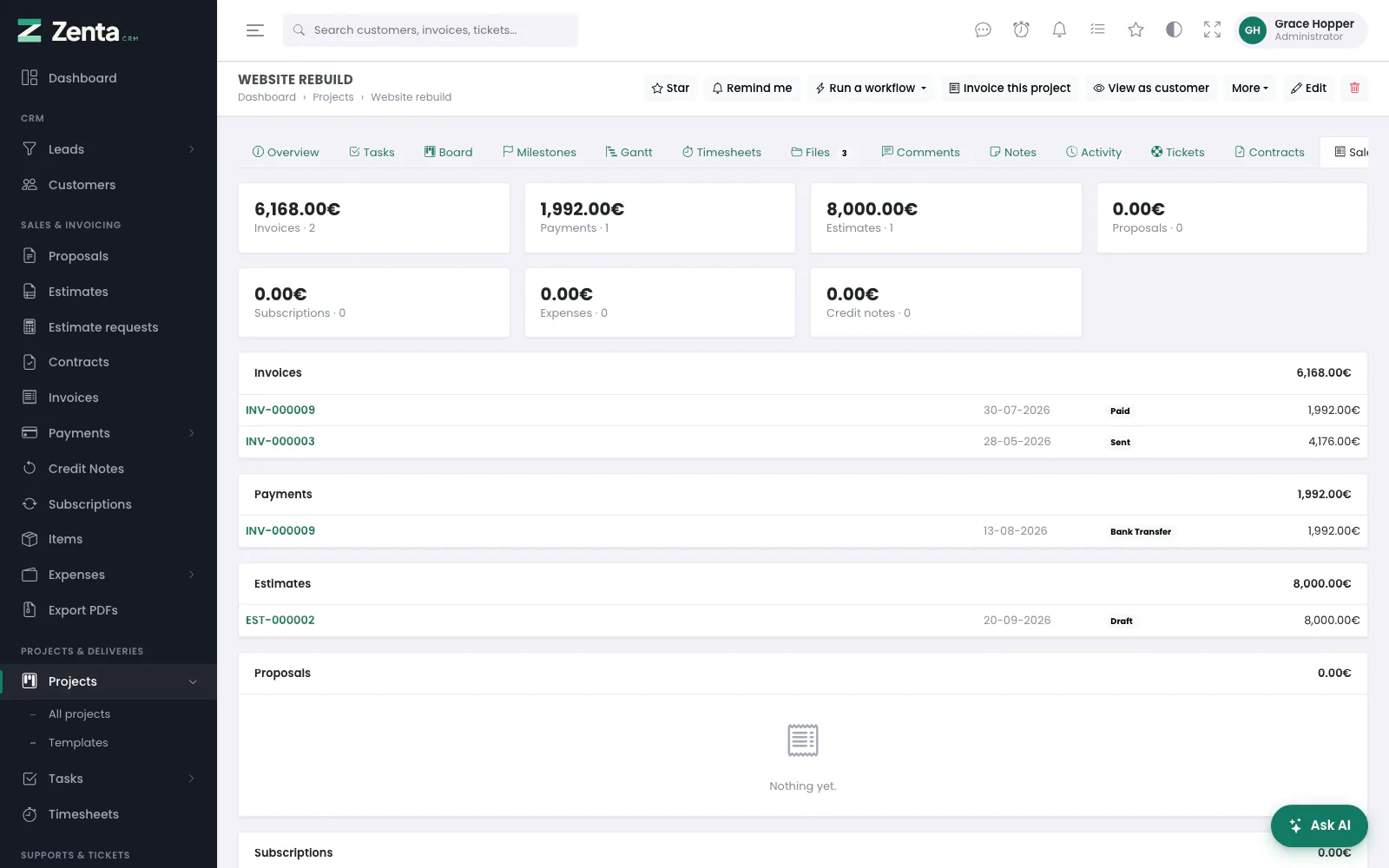 The Sales tab: a total for each kind of record, then the records themselves.
Invoices, estimates, proposals, contracts, credit notes, subscriptions and expenses each have a Project box on their own form. Fill it in and the record appears on that project's Sales or Contracts tab, with its total counted in. Leave it empty and nothing changes — the field is optional everywhere. Payments appear through the invoices they pay.
Feedback
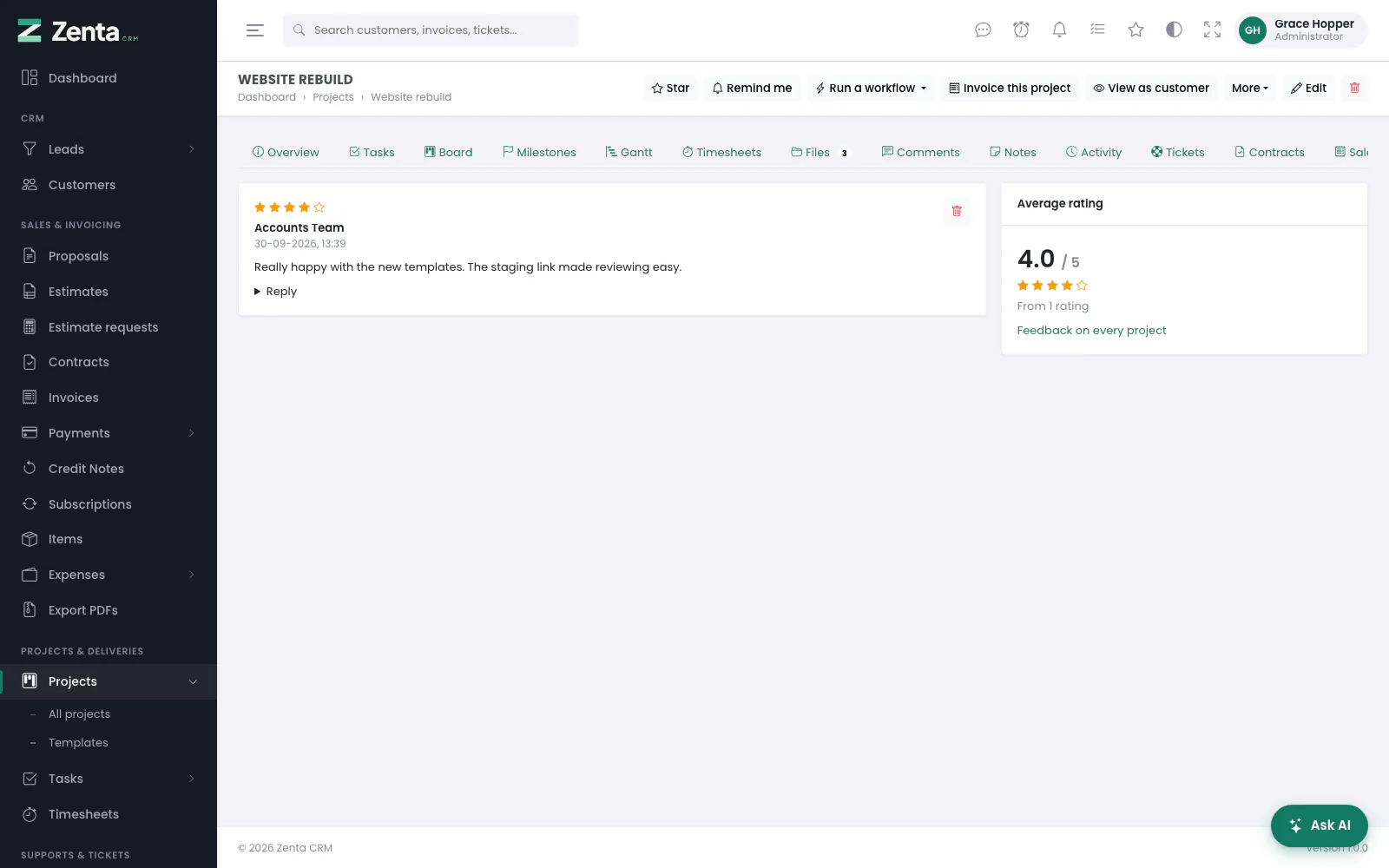 The Feedback tab: each rating with its comment, a reply, and the average.
Once customer feedback is switched on (Settings → Customer portal → Projects), a project's contacts can rate it from one to five stars with a comment. Each rating shows here with the average beside it. With permission to edit projects:
- Reply opens a box under the rating; write your answer and press Save reply. The customer sees the reply in the portal, and can no longer change their feedback once you have replied. Change the reply edits it later.
- The button removes a rating that should not stay. The customer can then leave it again.
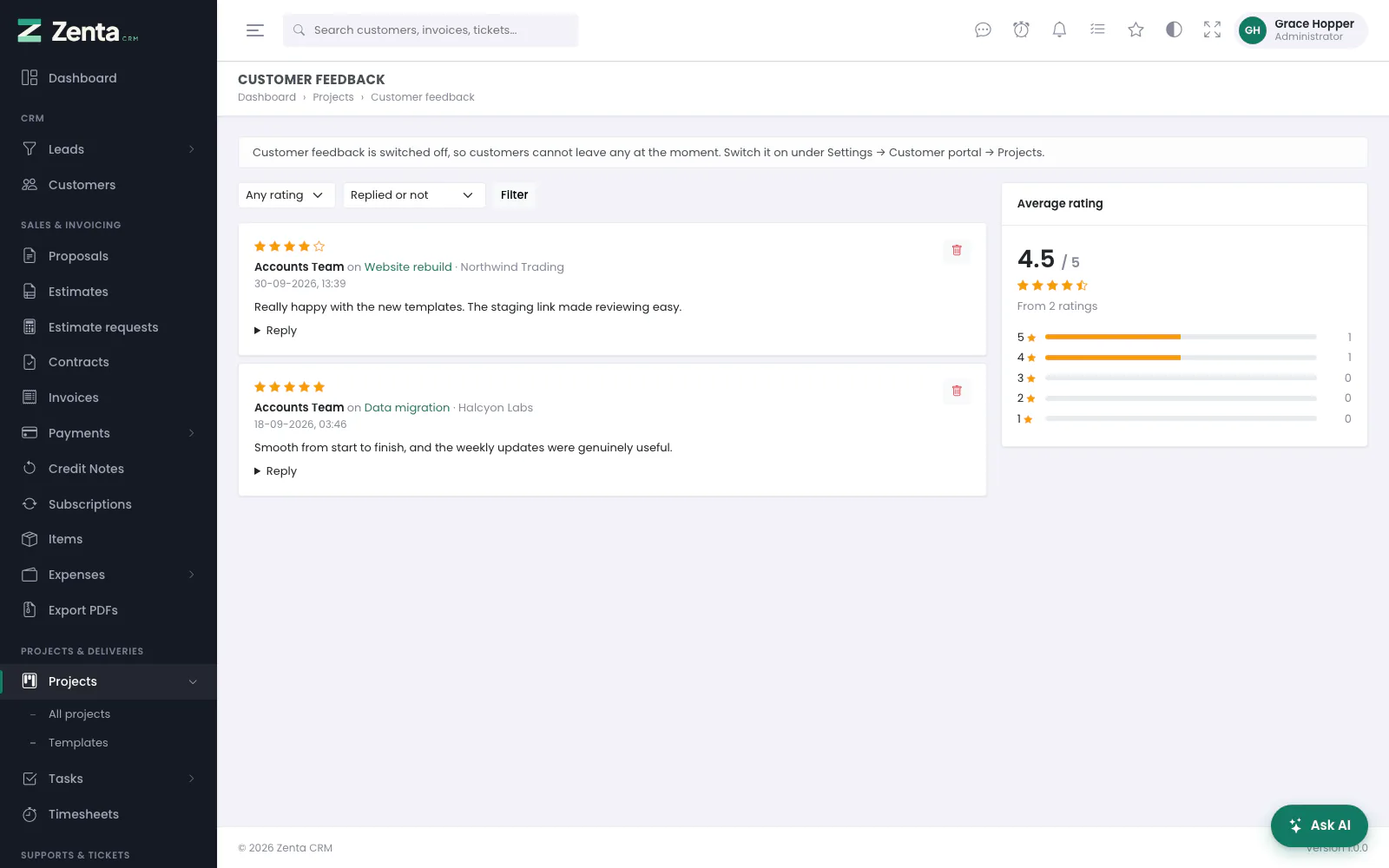 Customer feedback: every project's ratings in one list, with the average and how many of each star.
Customer feedback on the project list (or Feedback on every project on a Feedback tab) gathers the ratings from every project you can see, newest first, with the average and a count of each star rating. Click a star row to list only those ratings, or filter with Any rating and Waiting for a reply. Replies and removals work here exactly as on the tab.
Invoicing a project
 Invoice this project: what the invoice would say, before anything is created.
Invoice this project on the project page shows you what the invoice would say before you commit to it. What it contains depends on the project's billing type (Change the billing type in the dialog opens the project form):
| Billing type | The invoice |
|---|---|
| Fixed price | One line for the agreed total. Time logged against the project is not billed — the price was the price — and no time entry is consumed. |
| Project hours | One line: every billable hour that has not been invoiced yet, at the project's hourly rate. |
| Task hours | One line per task that has unbilled billable time, each at the task's own rate — or the project's, where the task has none. |
Create draft invoice makes a draft invoice for the project's customer and opens it ready to edit. Tax, discount, the wording and the send are all the normal invoice screen. A project with no customer cannot be invoiced, and the dialog says so rather than making half a document; nor can one with no unbilled billable time and no price.
Duplicating a project
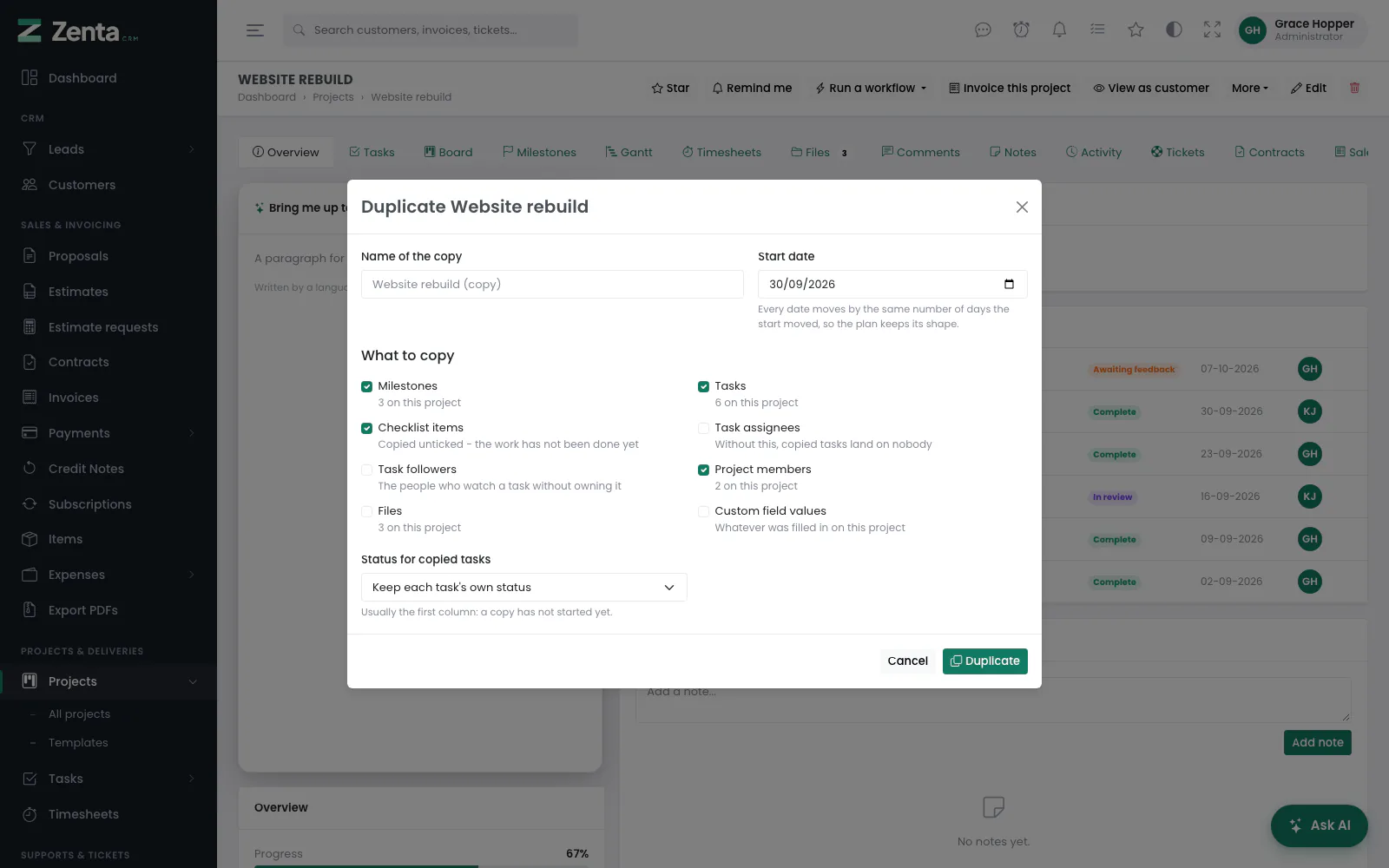 Duplicate: the copy's name and start date, what to copy, and the status the copied tasks start in.
More → Duplicate copies a project, and you choose what comes with it: milestones, tasks, checklist items, task assignees, task followers, project members, files and custom field values. Each box is exact — untick Task assignees and the copied tasks land on nobody, rather than quietly carrying the old team.
- Name the copy. Left blank it is called "the original (copy)".
- Give it a start date. Every other date moves by the same number of days the start moved, so the plan keeps its shape rather than opening with last November's deadlines.
- Tick what to copy.
- Choose a status for copied tasks — usually the first column, since a copy has not started yet — or Keep each task's own status.
- Press Duplicate. You are taken to the new project.
The copy starts as Not started at 0% however far along the original was, checklist ticks are cleared, and copied files are duplicated on the disk as well as in the database, so deleting one project can never take the other's files with it. Needs the Projects create permission.
Project templates
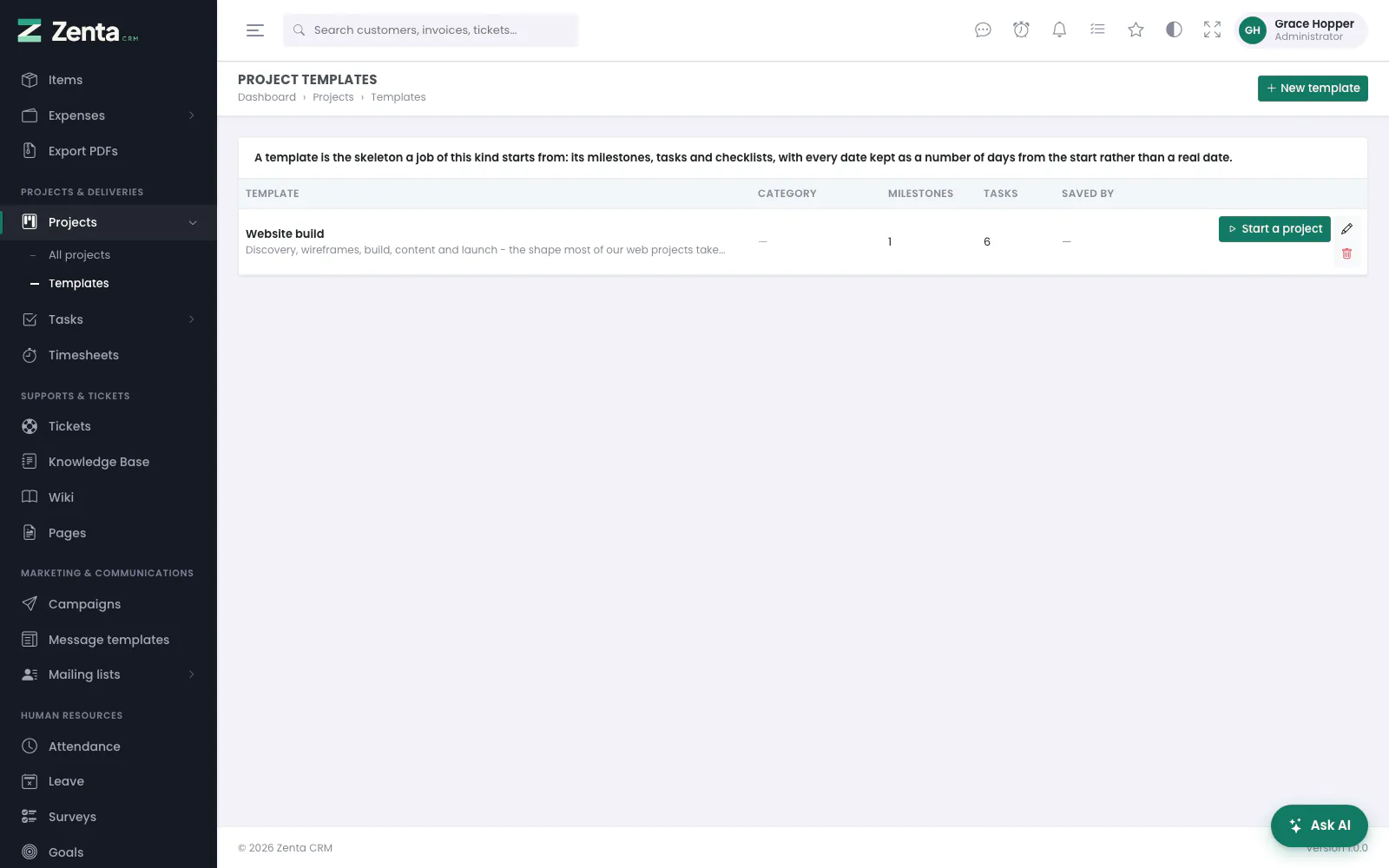 Project templates: each with its category, how many milestones and tasks it holds, and who saved it.
A template is the skeleton a job of a given kind starts from. Find them under Projects → Templates. Anybody who may view projects can see the list; making, changing, starting and deleting templates needs the Projects create permission.
Saving a project as a template
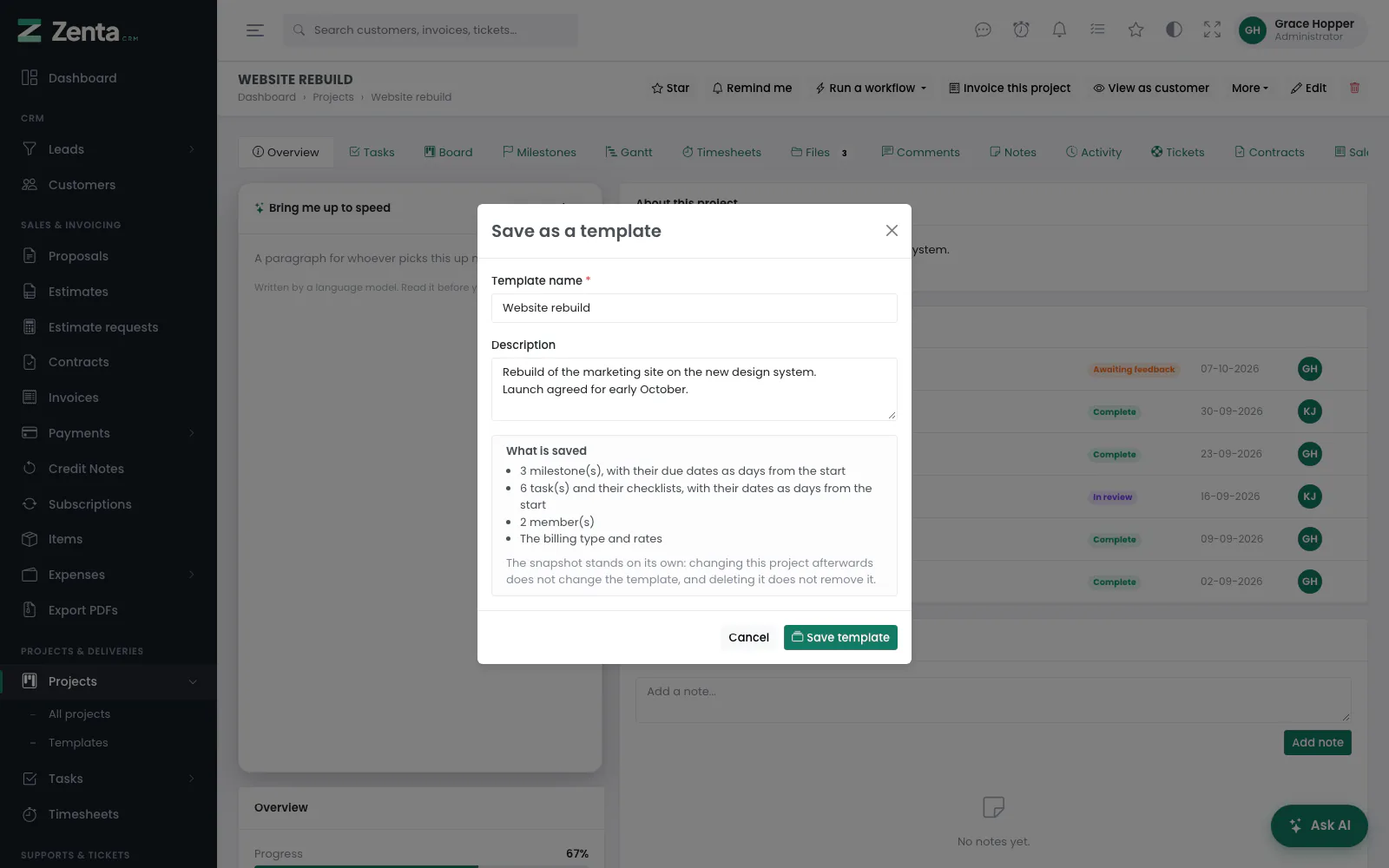 Save as a template: a name, a description, and a summary of what is kept.
The quickest way to make one is from a project that went well: More → Save as template, give it a Template name and a Description, and press Save template. That takes a snapshot of its milestones, tasks, checklists, members, billing type and rates. Dates are kept as a number of days from the start — "kick-off on day 0, first draft on day 10" — which is what stops a template going stale the week after it is saved.
Starting a project from a template
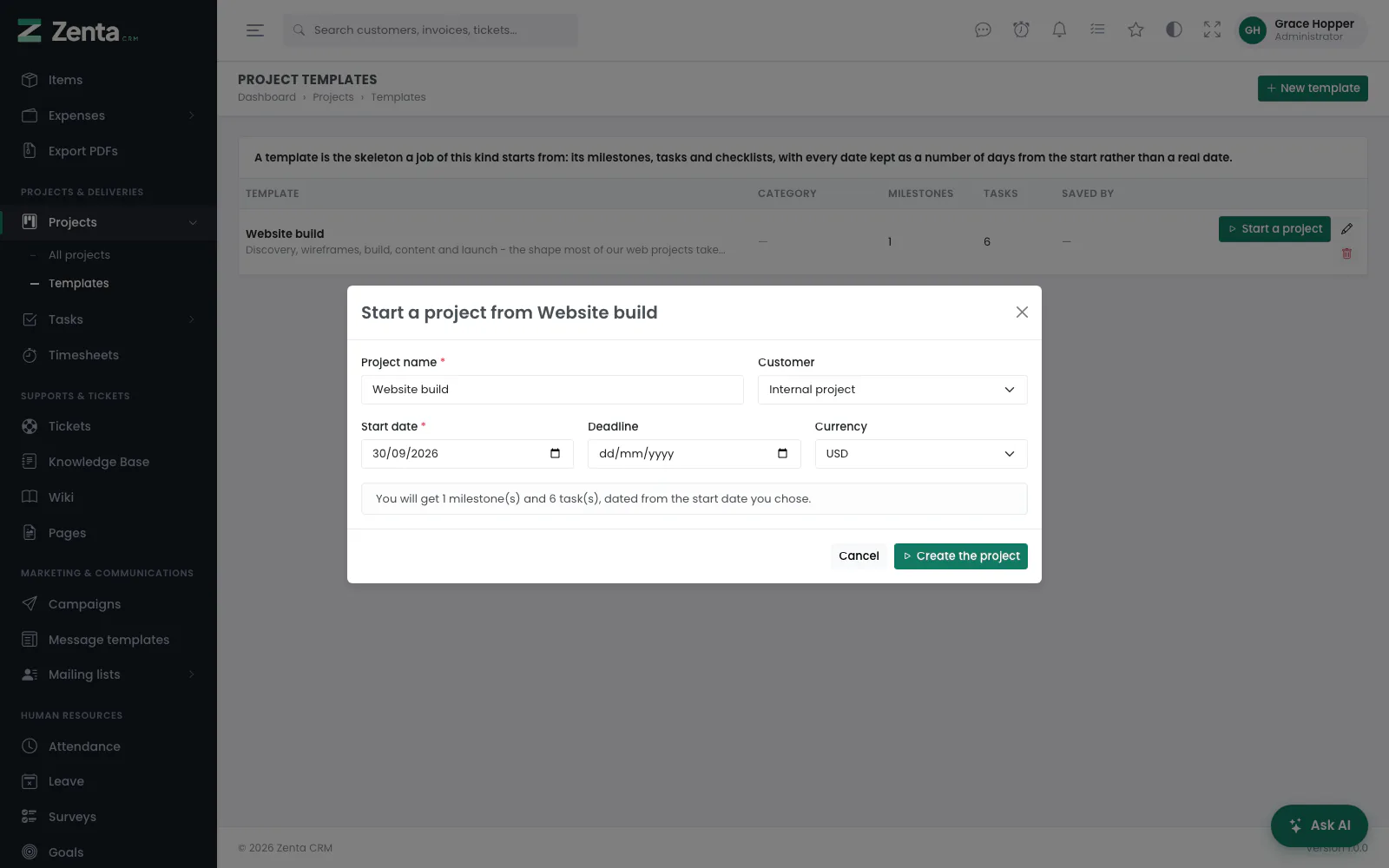 Start a project from a template: name, customer, start date, deadline and currency.
- Open Projects → Templates and press Start a project beside the one you want.
- Name it (it starts as the template's name), pick the customer or leave it as an internal project, and give it a Start date (required). A Deadline and a Currency are optional.
- Press Create the project. The milestones and tasks arrive dated from that start date, the checklists come across unticked, and the members are added — leaving out anyone who has since left.
New, editing and deleting templates
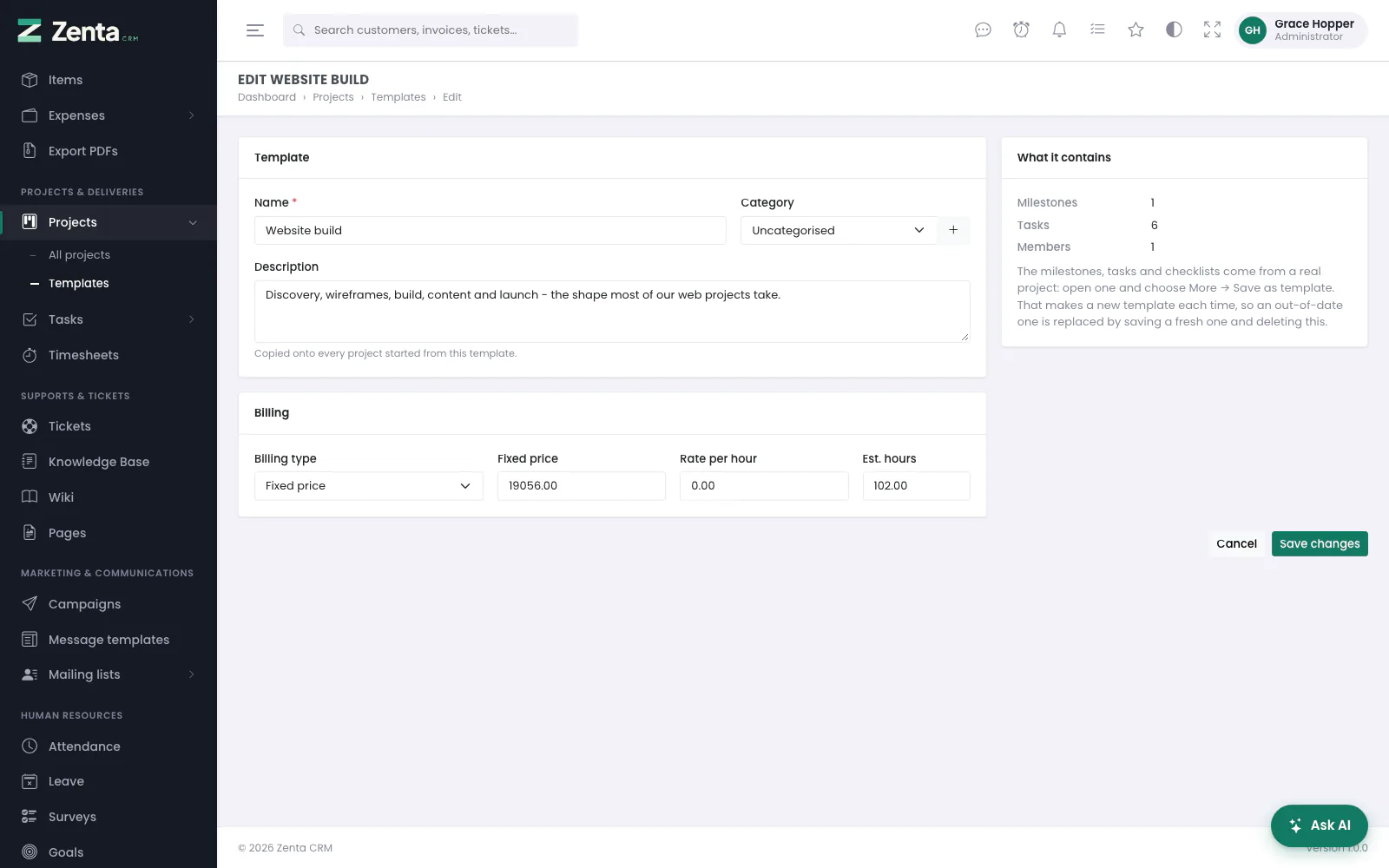 Editing a template: its name, category, description and billing. What it contains is shown on the right.
New template and the beside a template open a form for the parts a template has of its own: Name, Category, Description (copied onto every project started from it), and the billing — Billing type, Fixed price, Rate per hour and Est. hours. Press Create template or Save changes.
The milestones, tasks and members are not edited here: they come from a real project through Save as template, and the What it contains card shows how many there are. A template made with New template starts empty — useful for a standard billing set-up and description, but it creates no tasks.
The button deletes a template after asking. Projects already started from it are not affected.
Exporting a project
More → Export project data downloads one zip holding the project,
its milestones, tasks, checklists, timesheets, comments, a list of its files and a
summary of its invoices and estimates, with a short README.txt. Each set
is written twice: a .json file for moving the data somewhere else, and a
.csv that opens in a spreadsheet.
Files are listed, not included — a project's attachments can run to hundreds of megabytes, and the Files tab is where the files themselves are. Needs the Projects export permission.
Seeing it as the customer does
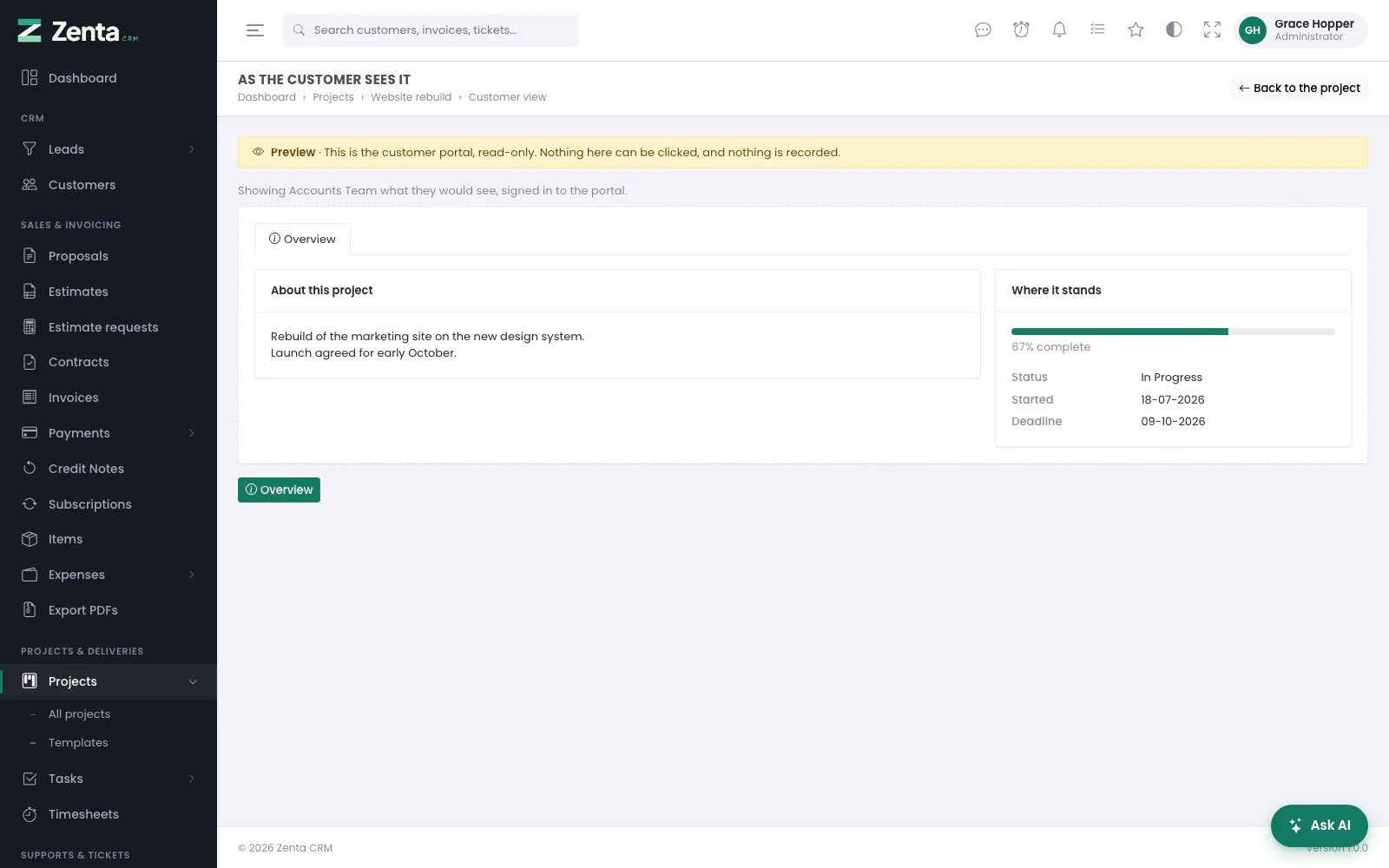 View as customer: the portal's own project page for one contact, read-only, under a preview banner.
View as customer draws the portal's own project page for one of the customer's contacts — the same tabs, the same tasks, the same files, the same forms. Where the customer has more than one contact, a menu at the top switches between them, because two contacts can be allowed different things. Back to the project returns you.
If the contact would see nothing at all, the page says so and tells you where to look: the project's own Customer portal switches, or that contact's portal permissions on their own record.
Project categories
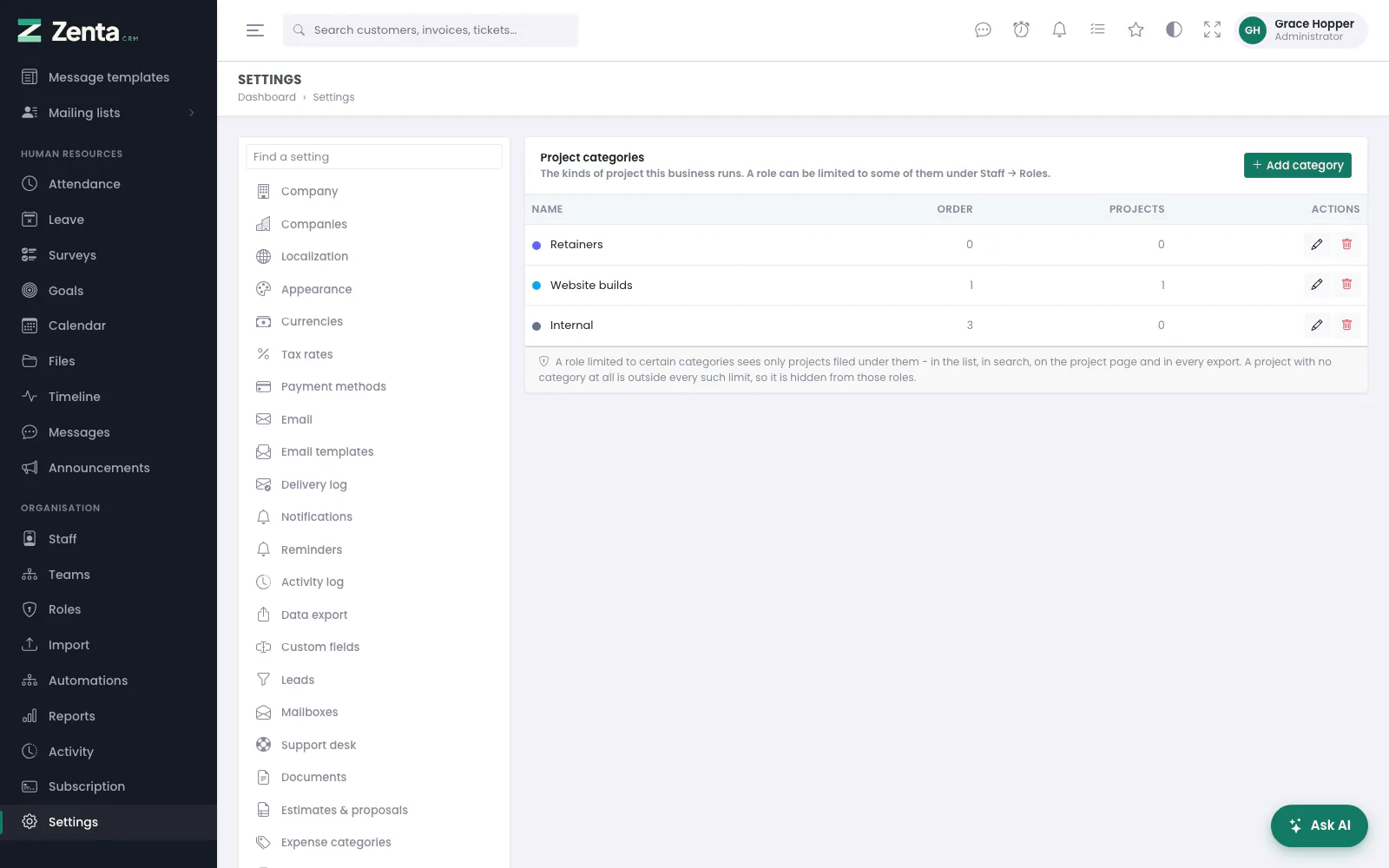 Settings → Project categories: each category with its colour, its place in the order and how many projects use it.
Settings → Project categories holds the kinds of project this business runs — "Retainers", "Website builds", "Internal". A project is filed under one on its own form. Viewing the list needs permission to view settings; changing it needs permission to edit them.
- Add category opens a small dialog: Name (required, and unique in the workspace), Colour and Order (0–999, lowest first). Press Add category.
- The beside a category opens the same dialog to change it; press Save changes.
- The button removes a category after asking — but only one with no projects filed under it (see below).
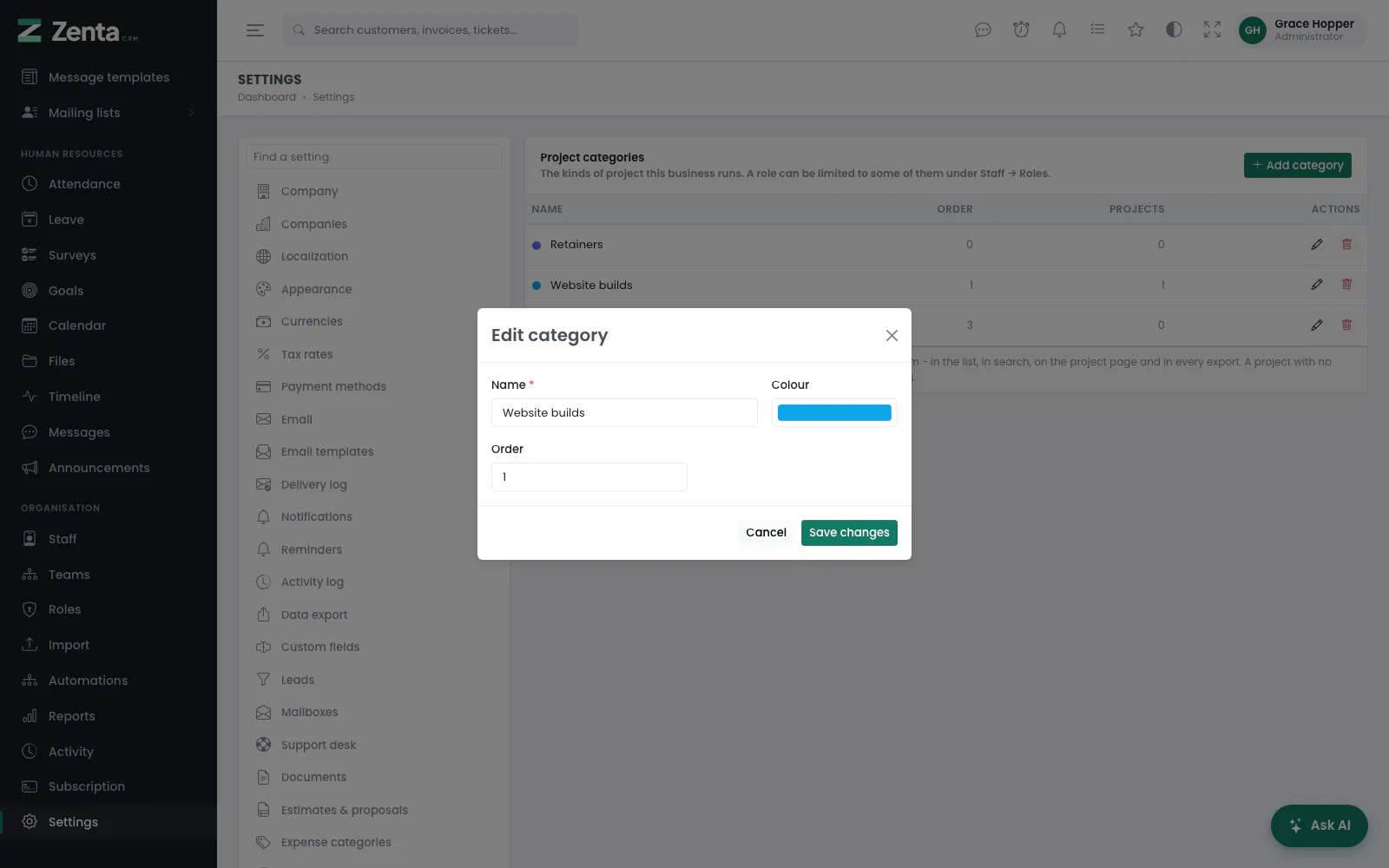 Editing a project category: name, colour and order.
You do not have to come here first. The + beside the category dropdown on the project form adds one without leaving the project you are writing — see Customising.
A category is more than a label: a role can be limited to some of them. Open Staff → Roles, find Projects, and tick Only these project categories. From then on that role's people see only projects in those categories — in the list, in the card view, in global search, on the project page and in every export — and cannot file a new project anywhere else.
Deadline reminders and per-project settings
Each project can remind its own members before its deadline: set Remind the team before the deadline to a number of days before on the project form. Zero — which is what every project starts at unless the workspace default says otherwise — sends nothing. The overview says when a reminder is set.
When the day arrives, everyone on the project gets an email and an in-app notice, once per deadline. Move the deadline and the reminder is armed again; leave it alone and nothing else is sent. It goes to staff, never to the customer. Finished and cancelled projects are left alone, and nothing goes out before the send hour under Settings → Reminders. The wording is yours to change under Settings → Email templates ("Project deadline approaching").
The project form also carries Hide its tasks from the main task table — the switch a buyer wants the first time they set up an internal project with two hundred small tasks on it. Those tasks stay on the project's own Tasks tab and board, and still appear in the task list when it is filtered to that project; they simply stop filling everybody's queue.
What the customer sees of the project is set in the same place: the Customer portal card on the project form, described in Projects in the portal.
Addresses on this page
For reference and for anyone scripting against the panel. Everything here needs somebody signed in to the workspace whose role allows it; anybody else is refused.
| Method | Address | What it does |
|---|---|---|
GET | admin/projects | The project list, with q, status, customer, category and view (table or grid). |
GET | admin/projects/create | The New project form. |
POST | admin/projects | Creates the project. |
GET | admin/projects/{project} | The project page; ?tab= opens a tab. |
GET | admin/projects/{project}/edit | The project form, filled in. |
PUT | admin/projects/{project} | Saves the project form. |
DELETE | admin/projects/{project} | Deletes the project. |
GET | admin/projects/{project}/milestones/create | The Add milestone dialog. |
POST | admin/projects/{project}/milestones | Adds a milestone. |
GET | admin/projects/{project}/milestones/{milestone}/edit | The Edit milestone dialog. |
PUT | admin/projects/{project}/milestones/{milestone} | Saves a milestone. |
DELETE | admin/projects/{project}/milestones/{milestone} | Deletes a milestone; its tasks stay on the project. |
POST | admin/projects/{project}/files | Uploads files to the Files tab. |
GET | admin/projects/{project}/files/{file} | Downloads a project file. |
PATCH | admin/projects/{project}/files/{file}/visibility | Shares a file with the customer, or hides it. |
DELETE | admin/projects/{project}/files/{file} | Deletes a project file. |
POST | admin/projects/{project}/files/{file}/comments | Posts a comment under a file. |
POST | admin/projects/{project}/comments | Posts a comment on the Comments tab. |
PATCH | admin/projects/{project}/comments/{comment}/internal | Marks a project comment internal, or not. |
DELETE | admin/projects/{project}/comments/{comment} | Deletes a project comment and its files. |
GET | admin/projects/feedback | Customer feedback on every project, with rating and replied=no filters. |
POST | admin/projects/{project}/feedback/{feedback}/reply | Saves the reply to a rating. |
DELETE | admin/projects/{project}/feedback/{feedback} | Removes a rating. |
GET | admin/projects/{project}/invoice | The Invoice this project preview. |
POST | admin/projects/{project}/invoice | Creates the draft invoice and marks the time on it invoiced. |
GET | admin/projects/{project}/duplicate | The Duplicate dialog. |
POST | admin/projects/{project}/duplicate | Makes the copy. |
GET | admin/projects/{project}/save-as-template | The Save as a template dialog. |
POST | admin/projects/{project}/save-as-template | Saves the project as a new template. |
GET | admin/projects/{project}/export | Downloads the project's data as a zip. |
GET | admin/projects/{project}/preview | View as customer; ?contact= picks the contact. |
GET | admin/project-templates | The project templates list. |
GET | admin/project-templates/create | The New template form. |
POST | admin/project-templates | Creates a template. |
GET | admin/project-templates/{template}/edit | The template form, filled in. |
PUT | admin/project-templates/{template} | Saves a template. |
DELETE | admin/project-templates/{template} | Deletes a template. |
GET | admin/project-templates/{template}/start | The Start a project dialog. |
POST | admin/project-templates/{template}/start | Creates a project from the template. |
GET | admin/settings/project-categories | Settings → Project categories. |
GET | admin/settings/project-categories/create | The Add category dialog. |
POST | admin/settings/project-categories | Adds a category. |
GET | admin/settings/project-categories/{category}/edit | The Edit category dialog. |
PUT | admin/settings/project-categories/{category} | Saves a category. |
DELETE | admin/settings/project-categories/{category} | Removes a category that no project uses. |