The customer portal
Where your customers see their invoices, accept estimates, follow projects and ask for help: what a contact sees when they sign in, and how it is arranged.
 What a customer sees when they sign in: the overview, with the portal menu down the left.
The customer portal is the business's own area for its customers. Each person at a
customer who may use it — a contact — signs in at
/portal/login with their own email address and password, and sees their own
company's invoices, estimates, proposals, contracts, projects and support requests, and
nothing of anybody else's. How contacts get in is on
Getting into the portal; their own details, colleagues
and privacy are on Your account and privacy.
What a contact never sees:
- Draft invoices and estimates. A draft is the business thinking aloud; it is not yet a claim on anybody.
- Private staff notes on tickets. An aside written for colleagues stays between colleagues.
- Anything a project does not share; see Projects in the portal.
- A part of the portal they have been kept out of by their primary contact or by the business; see What each contact can see.
Finding your way around
The portal is laid out like the business's own staff area. The menu is a sidebar on the left; the three-line button at the top left shrinks it to a rail of icons (remembered per browser), and on a phone or a narrow tablet it folds away into a drawer. Along the top, from the left:
- Messages, with a count of unread ones, while the business has portal messaging switched on; see Talking to us.
- Notifications, the bell.
- light or dark, and full screen.
- Your name and your company. The menu under it has My account and Sign out.
The sidebar and top bar take their colours from the business's theme settings. The footer carries the business's privacy policy and terms, while its privacy tools are on.
The menu
| Entry | What is behind it |
|---|---|
| Overview | The first page. Always there. |
| Invoices | Everything invoiced to the company, the statement, and paying online. See Invoices, quotes and contracts. |
| Estimates, Proposals | Accepting, declining or signing what the business has quoted. See Estimates and Proposals. |
| Contracts | Reading and signing contracts. See Contracts. |
| Projects | Progress, tasks and files, as far as each project shares them. See Projects in the portal. |
| Support | Support requests: raising one and following the conversation. See Talking to us. |
| Messages, Estimate requests | Each while the business has switched it on. See Talking to us. |
| The business's own pages | Pages written for customers, under their own titles; see below. |
| My privacy | While the business's privacy tools are on. See My privacy. |
| Customise menu | Under Settings, while contacts may arrange their own menu. |
An entry is left out when its module is switched off under Settings → Modules, when the contact has been kept out of that part of the portal, or when the business has hidden it. The business sets out the menu — order, names, icons and hidden entries — under Settings → Menu → Customer portal (see Menu). Every portal entry is listed there, including its own pages ticked Show in the portal menu, My privacy and the entries added by portal features; one switched off elsewhere is marked Module off or Switched off. Hiding an entry only takes it off the menu: the page itself still works for anyone given the link, and still shows only their own records.
The overview
The first page after signing in. At the top, a greeting with the contact's first name, Here is where things stand between their company and the business, and the date, then two shortcuts, each shown only to a contact who may use it: Ask us something (a new support request) and Statement. Below comes a grid of panels, each showing only that customer's own records.
 Further down the overview: coming up, open estimates and proposals, projects, tickets, contracts, payments and the company.
| Panel | What it shows |
|---|---|
| At a glance | Up to four figure cards: the amount outstanding (red when any of it is overdue, with how many invoices are), what was paid in the last 12 months (with the change against the twelve months before, a thumbnail of the year and the date of the last payment), how many estimates and proposals are awaiting your decision and what they are worth, and open support tickets (with how many are waiting for the customer's reply). Each card opens the page behind it. |
| Welcome message | The message the business writes — opening hours, how to reach them. Left out while it is empty. |
| Waiting for you | Everything that needs the customer to act: documents to sign (estimates, proposals, contracts), estimates and proposals to accept or decline, and invoices to pay. The button says Pay when an online payment method is set up, View otherwise. |
| Invoiced and paid | A chart of the last twelve months: what was invoiced each month as columns and what was paid as a line over them, with the totals and what is outstanding along the top. Left out for a customer with nothing to draw. |
| Unpaid invoices | Every invoice with money owing, soonest due first; a late one says how many days late in red. Along the top: outstanding, overdue, and due in the next 30 days. |
| Coming up | The next sixty days in date order: invoices falling due, estimates and proposals running out, contracts ending and project deadlines. Anything already late is left to Waiting for you and Unpaid invoices. |
| Open estimates & proposals | Estimates and proposals sent and not yet accepted or declined, with how many are still open, what they are worth and when the first runs out. |
| Projects in progress | Projects not started or under way, with their deadline and a progress bar — the bar only where the project shares its progress, as on the project's own page. |
| Open support tickets | The open tickets, the ones where the business has answered and the customer has not marked Your turn, and an Ask us something link. |
| Contracts | Contracts in force and shown to the customer, with the date each ends as a chip (tinted inside the last month) and whether it still needs signing. |
| Recent payments | The last five payments received against the customer's invoices, on a timeline. |
| Your company | The customer's name and address, and the other contacts on the account. |
The business chooses which panels show, and in what order, on the Overview page card of Settings → Customer portal, where it also writes the welcome message. A panel whose module is switched off is left out, and so is a panel a contact has been kept out of — a contact who may not see invoices gets no Unpaid invoices or Recent payments; Open estimates & proposals shows whichever half the contact may see. After an update that adds panels, an overview the business has already arranged keeps its order and shows the new panels at the end. A contact left with no panels at all sees Nothing to show here just now. Everything you have with us is in the menu.
Arranging your own overview
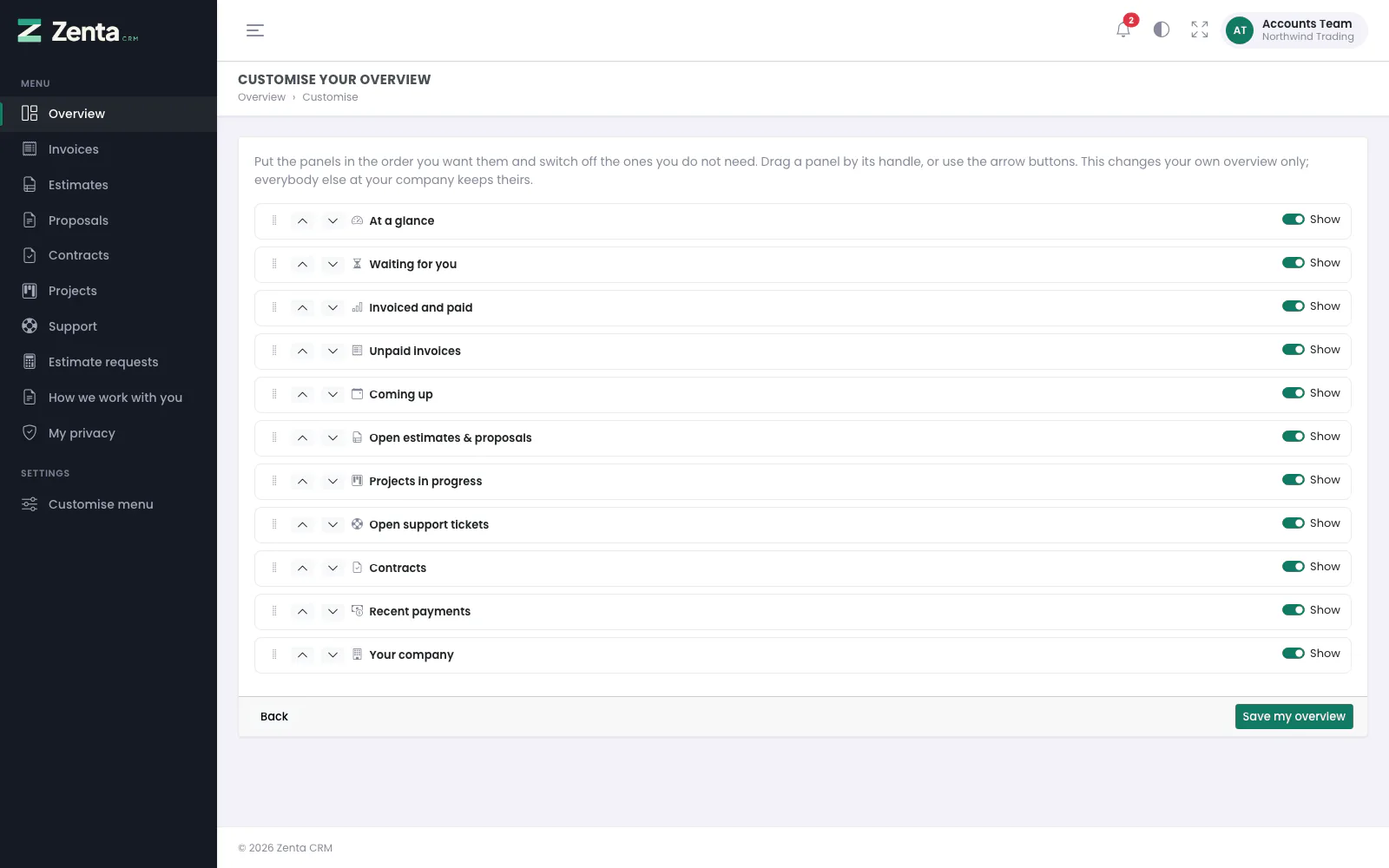 Customise your overview: each panel, its place, and whether it shows.
While the business allows it (Let customers arrange their own overview, on as shipped), the overview has a Customise button. Each contact can put the panels in the order they want — drag a panel by its handle, or use the up and down arrows — and switch off Show on the ones they do not need, then press Save my overview. Back leaves without saving.
- The arrangement is the contact's own: it follows them to any computer, and their colleagues keep theirs.
- Once they have saved one, Reset to default (after a confirmation) goes back to the business's layout.
- Only the panels the business shows can be arranged. A panel the business switches off never comes back, whatever a contact chose.
- If the business stops allowing it, everybody goes back to the business's layout at once, and the Customise screen says The overview is arranged for everybody by the business. What contacts chose is kept, and comes back if it is allowed again.
Arranging your own menu
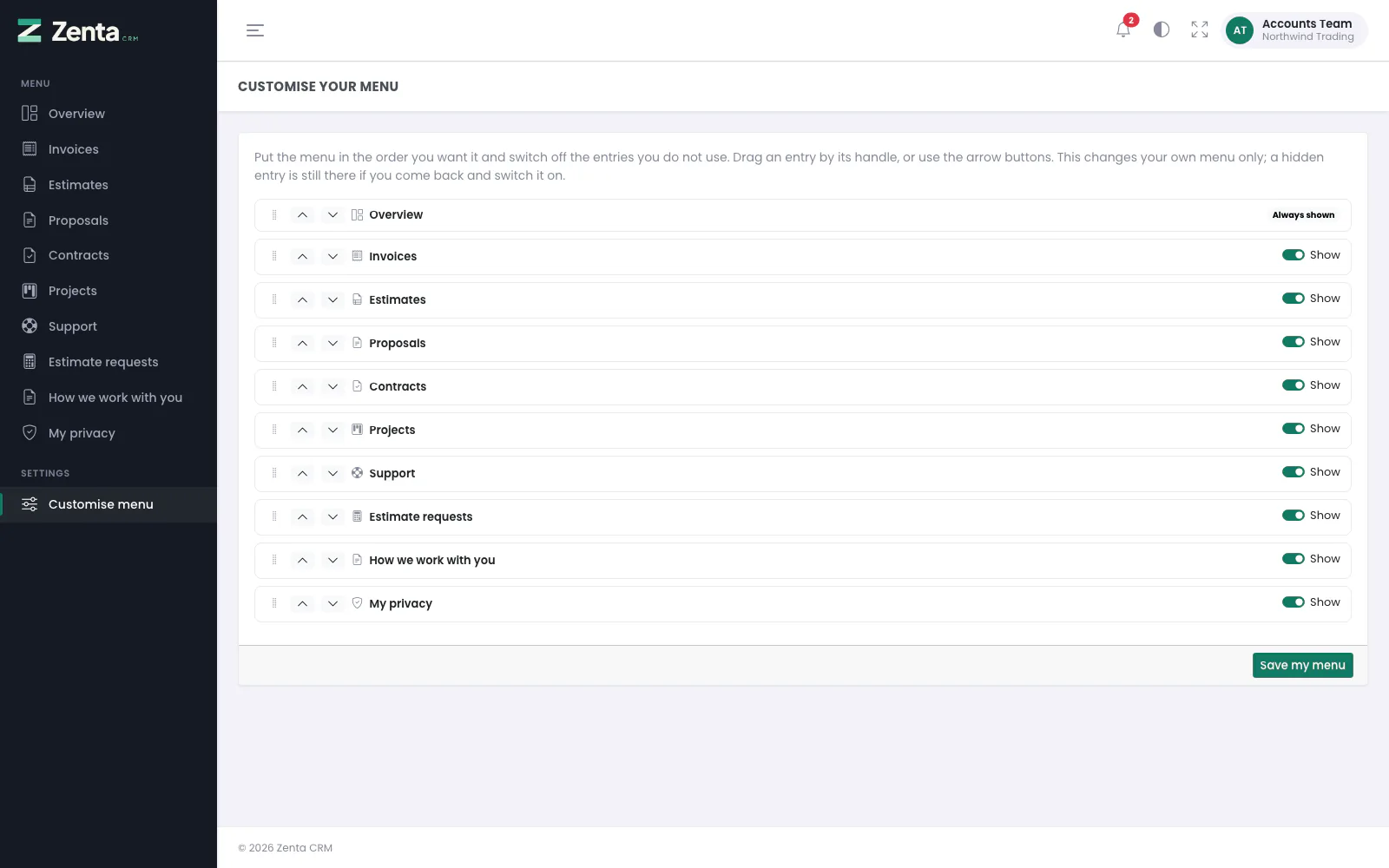 Customise your menu. Overview is always shown.
While the business allows it (Let customers arrange their own menu, set under Settings → Menu), the menu ends with Customise menu. It works the same way: reorder the entries, switch off the ones you do not use, and press Save my menu; Reset to default goes back to the business's menu. Overview is marked Always shown and cannot be hidden. A hidden entry is still there if you come back and switch it on.
- An entry the business hides, or one whose module is switched off, never shows, whatever a contact chose.
- An entry added later — a new page, a module switched back on, a plugin — appears at the end of an arranged menu until it is moved.
- With the option off, everybody sees the menu exactly as the business set it out, and the Customise menu screen is closed.
Ask AI
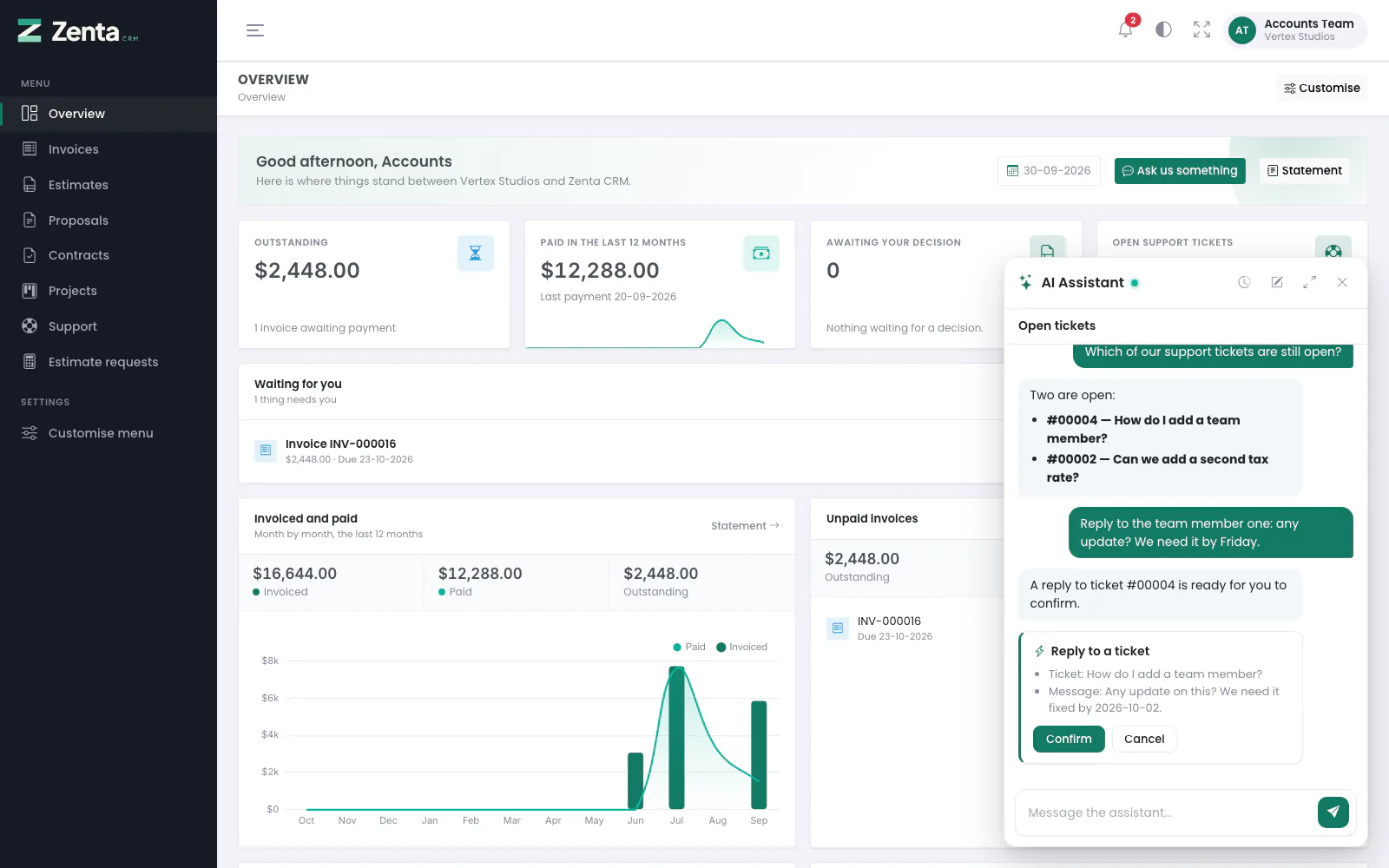 The portal's assistant: questions about the customer's own account, and a ticket reply waiting to be confirmed.
Where the business has switched it on (Settings → Customer portal → AI assistant), an Ask AI button sits in the bottom corner of every portal page. It answers about the customer's own account with the business, and does things there for them:
- What do we owe you? — read from the statement, exactly as it stands.
- Which of our tickets are still open?, How are our projects going?
- Reply to our ticket: any update? We need it by Friday. — prepares the reply.
- Ask for a quote for a new logo, budget around 2,000 — prepares the request.
- Accept estimate EST-0042, change my phone number, change my password.
Nothing is sent or changed until the contact presses Confirm on the card it prepares. Accepting or declining a quote is drawn in red. A password is typed into a box on the card, never into the conversation. Signing an estimate, a proposal or a contract is done on the document itself, and files are uploaded and downloaded on their own pages.
Notifications
 The bell, opened: the latest notices, unread ones in bold.
The bell in the top bar shows how many notices are unread. Open it for the latest ten; click one to go to what it is about, which also marks it read. Mark all read clears the count. The list is fetched when the bell is opened and checked every minute — or arrives straight away, when the business has connected Pusher.
A contact is told about:
- a new invoice, estimate or proposal sent to their company, and an invoice gone overdue;
- a payment received against one of their invoices;
- a reply from the business on a support ticket, and the ticket being closed (only the contact who raised it, when it has one);
- a project finished.
Only about what they may see: a contact kept out of invoices hears nothing about them, and a module that is switched off tells nobody. See also The bell in the customer portal.
 Notifications: every notice the contact has had, 30 to a page.
See all at the foot of the bell opens Notifications: every notice, newest first, 30 to a page, unread ones in bold, with how long ago each arrived. Mark all read asks first. With none yet the page says Nothing yet. New invoices, estimates, payments and replies to your tickets appear here.
The business's own pages
 A page written for customers, opened from the portal menu.
The business can write pages for its customers — how it works, opening hours,
terms — under Pages. A page whose audience is
Customer portal opens only for a signed-in contact, at
/portal/pages/ and its address. A public website page opens there too, so a
contact following a link in the portal stays in the portal; a staff-only page never does.
A page ticked Show in the portal menu appears in the menu under its own title.
An unpublished page, or an address that is not a page, answers "not found".
PortalMenu::defaults()
or the portal.navigation filter (with optional
parameters, when, current and
literal keys) so it can be hidden and arranged like the rest.
A plugin can add an overview panel through the
portal.dashboard.widgets filter: a label, a Blade view and a
data callable given the customer and the contact, returning
the view's variables or null for "nothing to show".
Addresses on this page
For reference and for anyone scripting against the panel. Everything here needs a customer contact signed in to the portal; the addresses that open without signing in are marked.
| Method | Address | What it does |
|---|---|---|
GET | portal | The overview. |
GET | portal/customise/dashboard | Customise your overview, while contacts may arrange it (403 otherwise). |
PUT | portal/customise/dashboard | Save my overview. |
POST | portal/customise/dashboard/reset | Reset to default: back to the business's overview. |
GET | portal/customise/menu | Customise your menu, while contacts may arrange it (403 otherwise). |
PUT | portal/customise/menu | Save my menu. |
POST | portal/customise/menu/reset | Reset to default: back to the business's menu. |
GET | portal/notifications | Notifications: every notice, 30 to a page. |
GET | portal/notifications/feed | The latest notices and the unread count, for the bell. Used by the page itself. |
POST | portal/notifications/{id}/read | Marks one notice read. Used by the page itself when you click it. |
POST | portal/notifications/read-all | Mark all read. |
POST | portal/notifications/pusher-auth | Lets your browser join your own Pusher channel. Used by the page itself. |
GET | portal/pages/{slug} | A page written for customers (or a public page), inside the portal. |
GET | portal/ai/assistant | The assistant's opening screen, while the business has it switched on (403 otherwise). Used by the page itself. |
POST | portal/ai/assistant | Asks the assistant a question. Used by the page itself. |
GET | portal/ai/assistant/history | Your recent conversations. Used by the page itself. |
GET | portal/ai/assistant/{conversation} | One of your conversations. Used by the page itself. |
DELETE | portal/ai/assistant/{conversation} | Deletes one of your conversations. |
POST | portal/ai/actions/{action}/confirm | Carries out what the assistant prepared, through the portal's own rules. |
POST | portal/ai/actions/{action}/cancel | Throws away what the assistant prepared. |