The platform website
The front page at your root address — the one that sells your plans — and its blog.
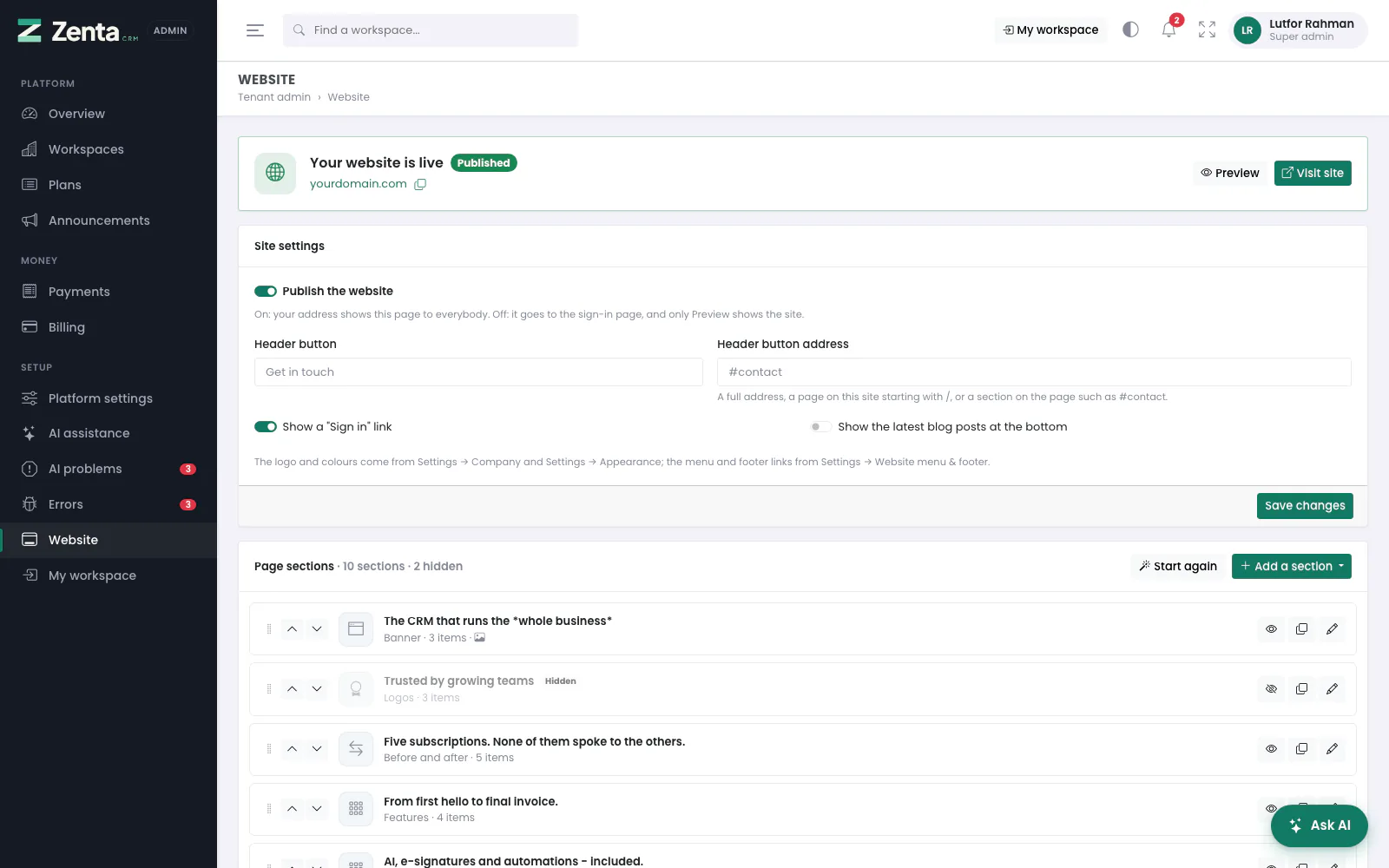 Tenant admin → Website: whether the site is live, its settings, its sections and the blog.
Tenant admin → Website builds the platform's own site, the one a
stranger finds at yourdomain.com. It is the same builder every workspace
has under Settings → Website for its own business site, pointed at
the platform: whichever workspace you happen to sit in, this screen always edits the
platform's page. The screen has four parts.
Where the site stands
Whether it is published, the address it can be reached at (with a copy button), a Preview button and, once it is live, Visit site. Preview works before anything is published: it shows the page exactly as visitors will see it, with a yellow bar across the top that only you can see.
Site settings
| Setting | What it does |
|---|---|
| Publish the website | On: your root address shows the front page, and the pricing page is live. Off: it goes to the sign-in page, and only Preview shows the site. |
| Header button and its address | The button at the right of the header. The address is a full address, a page on this site starting with /, or a section of the page such as #contact. |
| Show a "Sign in" link | In the header, to the platform's sign-in page. |
| Show the latest blog posts at the bottom | The three most recent posts. |
Press Save changes. The logo and colours come from your own workspace's Settings → Company and Settings → Appearance; the menu and footer links from Settings → Website menu & footer. Your terms, privacy policy and other pages are under Settings → Pages.
Page sections
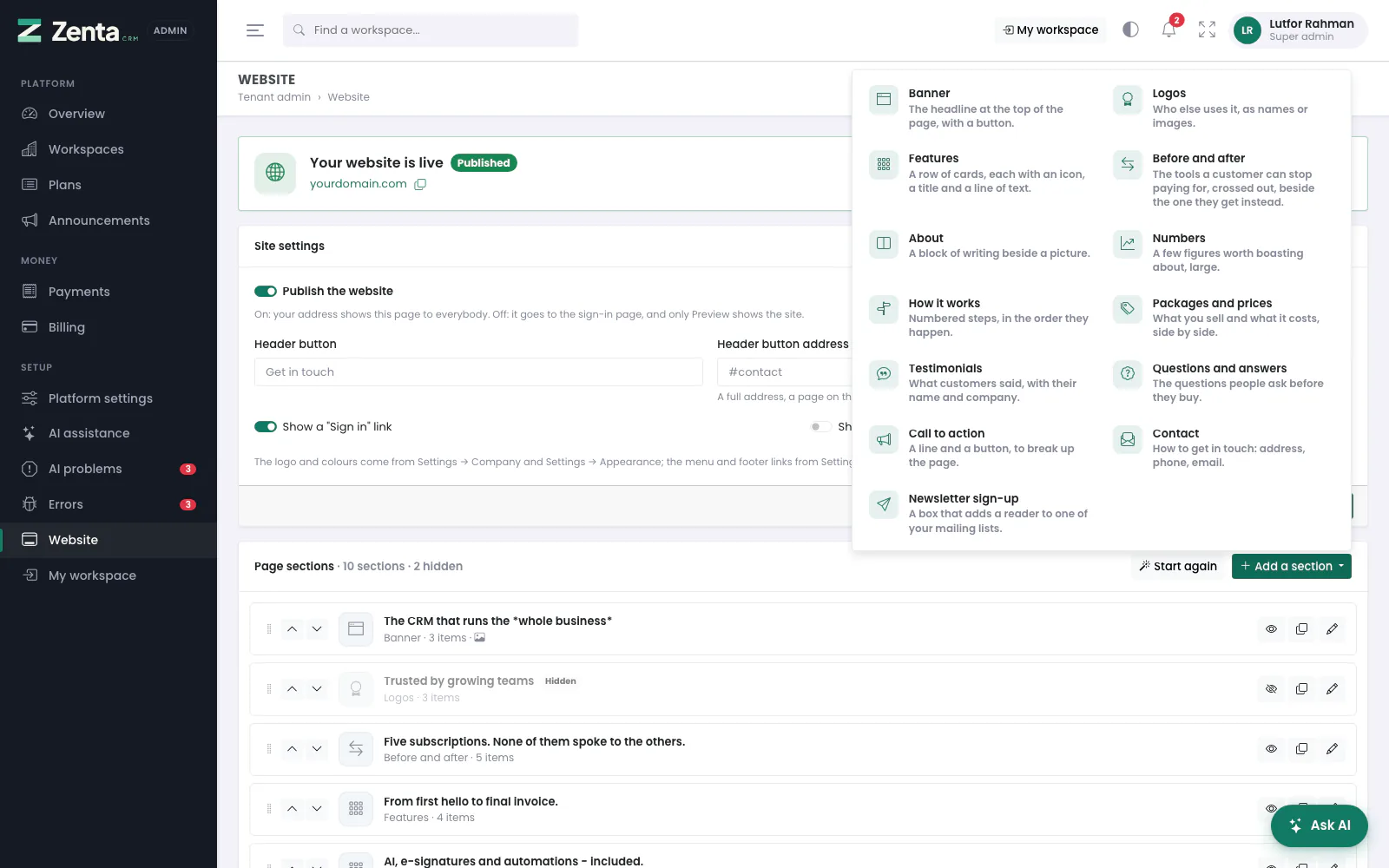 Add a section: the twelve kinds of section a page is built from.
The page is a list of sections. With none at all, visitors see a ready-made page: a hero with a screenshot of the dashboard, every module, a few figures read from your install, how it works, the client portal, your live plans, questions and answers and a call to action. Its Start your free trial buttons only appear while Let companies sign themselves up is on; otherwise they read See the plans.
- Start from the ready-made page saves those sections so every word can be changed. Customer logos and testimonials are saved hidden until you have real ones.
- Add a section opens the list of kinds below; pick one and fill it in.
- Start again replaces every section with the ready-made page, after asking. The sections you have now are deleted.
| Section | What it is |
|---|---|
| Banner | The headline at the top, with up to two buttons. Centred with a picture underneath, or text beside the picture. |
| Logos | Who else uses it, as names or images. |
| Features | Cards, each with an icon, a title and a line of text. |
| About | A block of writing beside a picture, on either side. |
| Numbers | A few large figures — workspaces served, years running. |
| How it works | Numbered steps, in the order they happen. |
| Packages and prices | What you sell and what it costs, one thing a line. One can be marked Recommended. |
| Testimonials | What customers said, with their name and company. |
| Questions and answers | The questions people ask before they buy. |
| Call to action | A line and a button, in a coloured panel. |
| Contact | Your email, phone and address — and, if you pick one, a web-to-lead form beside them, so an enquiry becomes a lead in your workspace. |
| Newsletter sign-up | A link through to your first public mailing list's own sign-up page. |
Editing a section
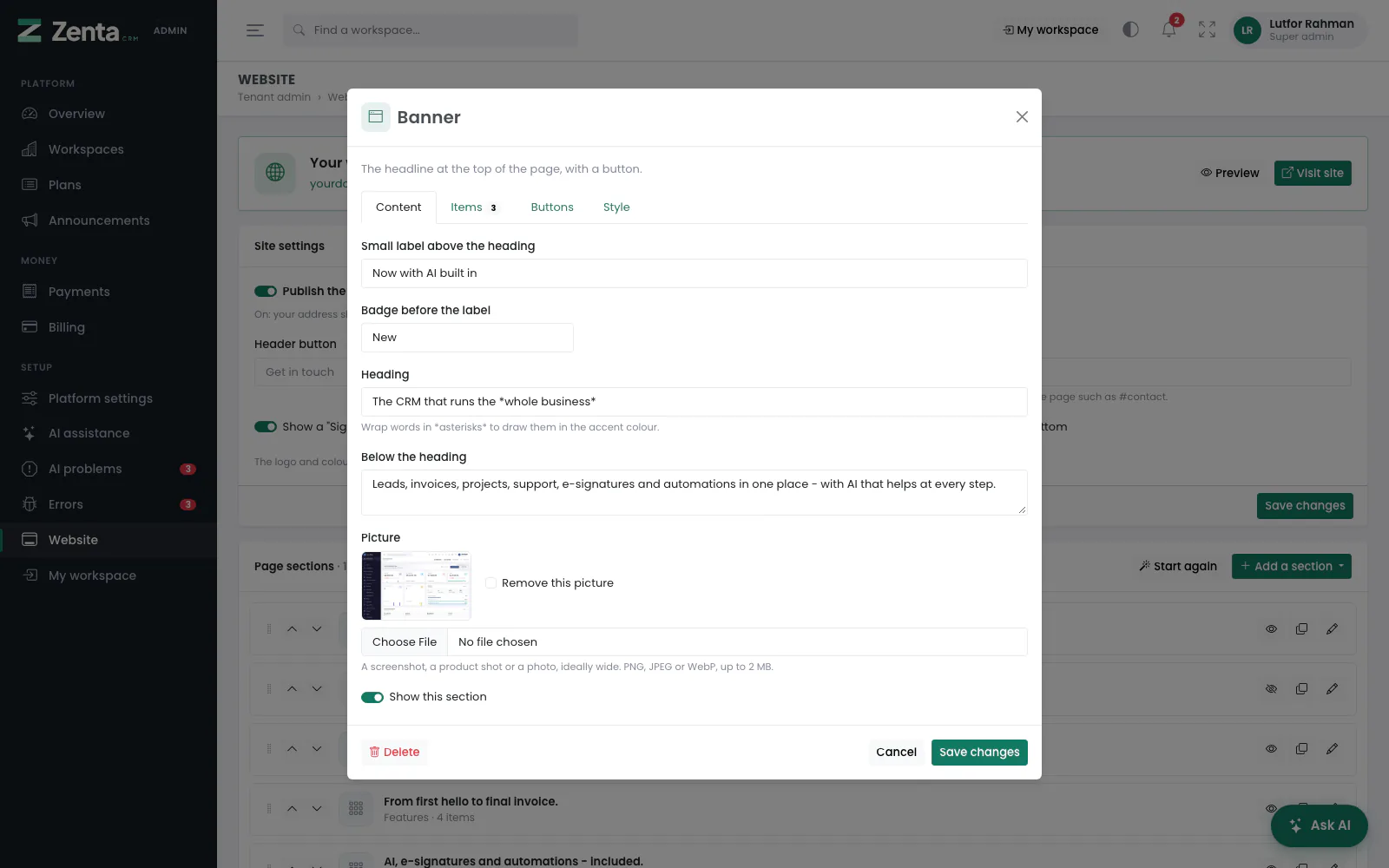 A section opens in a window with up to four tabs: Content, Items, Buttons and Style.
The button on a section opens it in a window with up to four tabs:
| Tab | Holds |
|---|---|
| Content | The small label above the heading, the heading, the line below it, the writing (basic HTML allowed) and the picture — PNG, JPEG or WebP up to 2 MB, never SVG. |
| Items | The cards, logos, steps, figures, packages, testimonials or questions. Add an item, move items up and down, and remove them. A row left empty is dropped when you save. A card's icon is a Bootstrap Icons name — start typing for suggestions. |
| Buttons | A button and, where the section has one, a second button: each a label and an address. A button with no label or address is not shown. |
| Style | The background — Plain, Tinted, Accent colour or Dark — and the layout, where the section has one (picture underneath, on the left or on the right). |
Show this section decides whether visitors see it. Press Save changes (Add section for a new one). Delete, at the bottom left, removes the section from the page after asking.
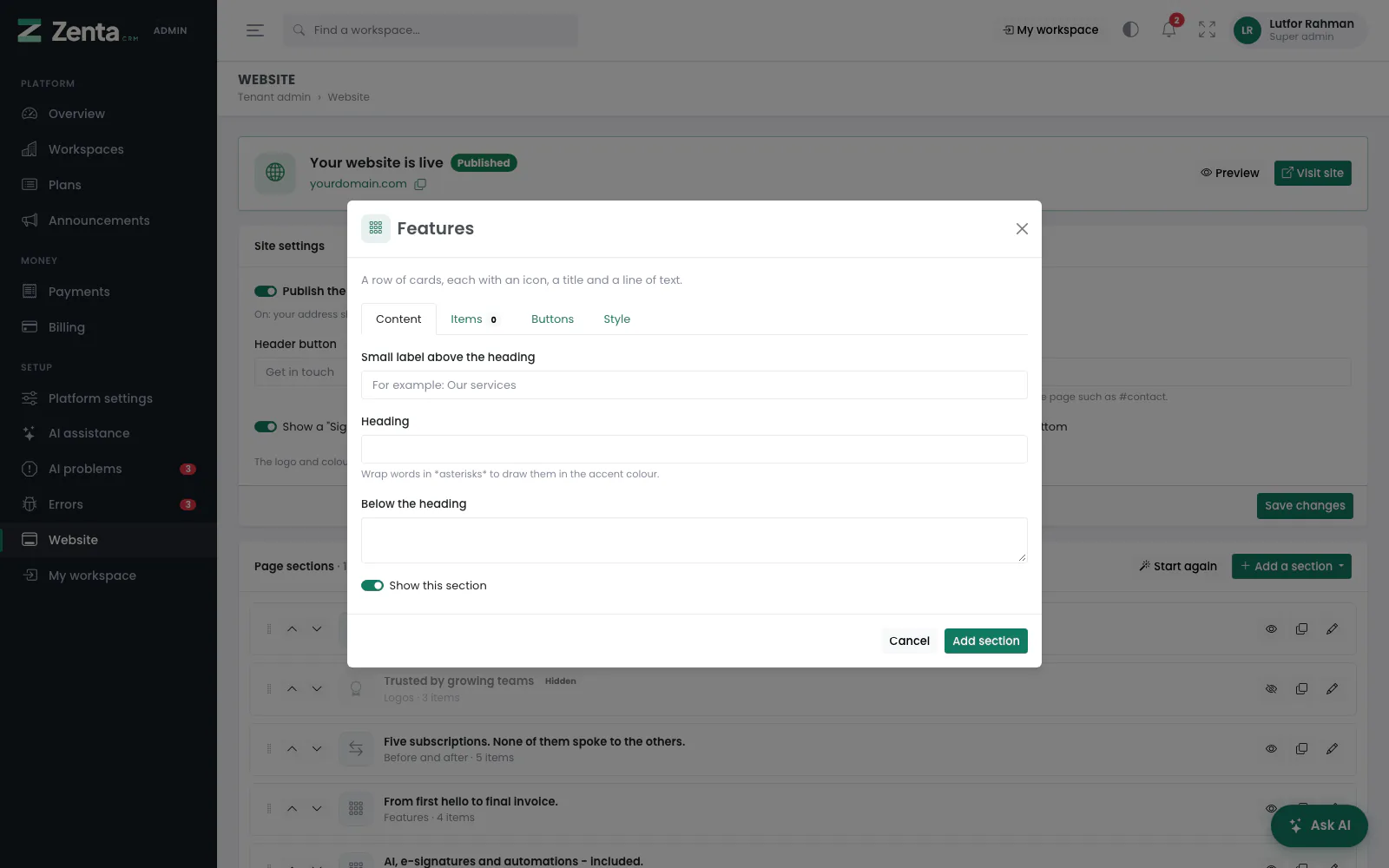 A new Features section, on its Content tab.
Arranging sections
- Reorder — drag a section by its handle, or use its arrows, then press Save order.
- Hide or show — the button. A hidden section stays on the list, marked Hidden, and is left off the page.
- Copy — the button. The copy starts hidden, so you can work on a variation without the live page changing.
The blog
 Further down: the order of the sections is saved with Save order, and the blog is at the bottom.
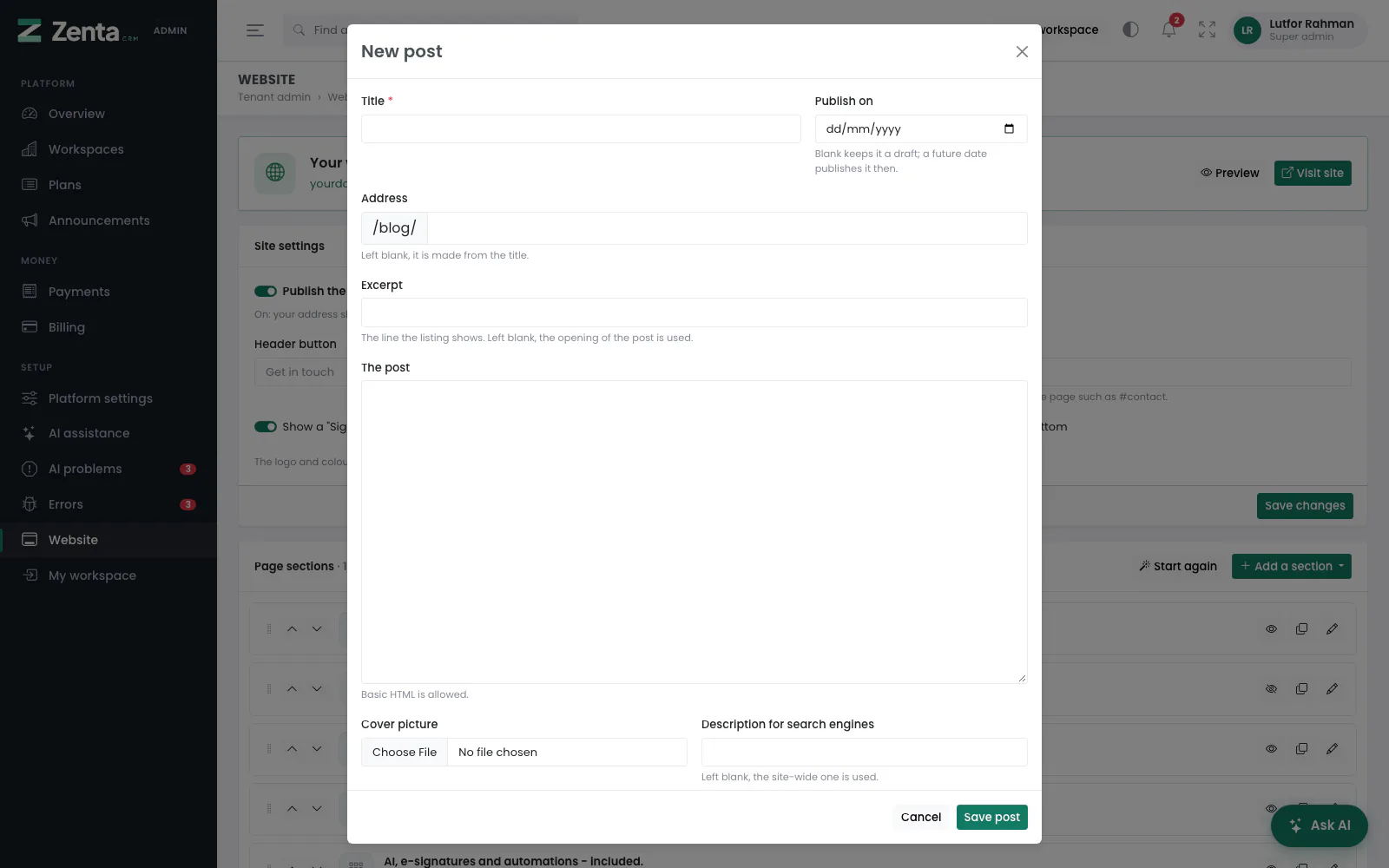 Writing a post. Leave Publish on blank to keep it a draft.
Posts read at /blog on your root address. The list shows each post's title,
address and date, with Draft or Scheduled for … beside it when it
is not out yet. Write a post adds one; edits
one.
| Field | What it does |
|---|---|
| Title | Required. |
| Publish on | Blank keeps it a draft; a date in the future publishes it then, with no scheduled job to forget to run. |
| Address | The end of /blog/…. Left blank, it is made from the title. |
| Excerpt | The line the listing shows. Left blank, the opening of the post is used. |
| The post | Basic HTML is allowed. |
| Cover picture | Optional. A picture for the post. |
| Description for search engines | Left blank, the site-wide one is used. |
Press Save post. Delete, in the post's window, removes it after asking.
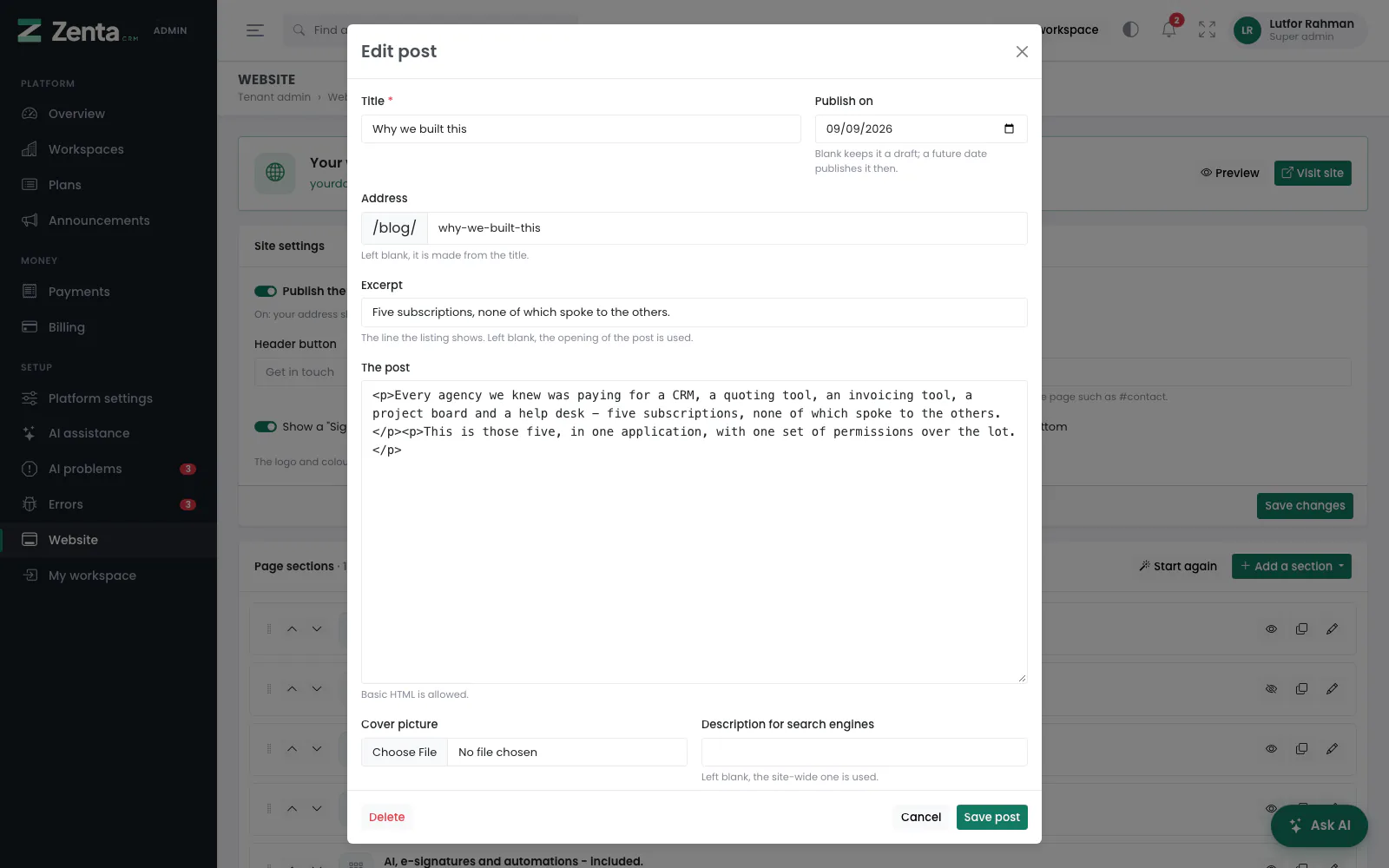 Editing a post. Delete is at the bottom left.
Addresses on this page
For reference and for anyone scripting against the panel. Everything here needs a signed-in super admin at the platform's own address; anybody else gets 403.
| Method | Address | What it does |
|---|---|---|
GET | tenant/admin/website | The Website screen. |
PUT | tenant/admin/website/settings | Saves Site settings, including Publish the website. |
POST | tenant/admin/website/starter | Adds the ready-made sections; with replace=1, replaces every section with them. |
GET | tenant/admin/website/sections/create | The new-section window, for ?type= one of the twelve kinds. |
POST | tenant/admin/website/sections | Adds the section to the end of the page. |
GET | tenant/admin/website/sections/{section}/edit | The section's window. |
PUT | tenant/admin/website/sections/{section} | Saves it. |
DELETE | tenant/admin/website/sections/{section} | Removes it from the page. |
POST | tenant/admin/website/sections/{section}/toggle | Shows or hides it. |
POST | tenant/admin/website/sections/{section}/duplicate | Copies it, hidden. |
PUT | tenant/admin/website/sections/order | Saves the order. |
GET | tenant/admin/website/posts/create | The new-post window. |
POST | tenant/admin/website/posts | Saves a new post. |
GET | tenant/admin/website/posts/{post}/edit | The post's window. |
PUT | tenant/admin/website/posts/{post} | Saves it. |
DELETE | tenant/admin/website/posts/{post} | Deletes it. |