Marketing campaigns
Mailing lists, sign-up forms, and campaigns by email, text message and WhatsApp — through your own accounts.
Everything under Marketing & Communications in the menu: mailing lists, the people on them, reusable messages, and campaigns sent by email, text message or WhatsApp — with the figures on how each one went.
| Screen | What it is for |
|---|---|
| Campaigns | One message, to one or more lists, on one channel — and how it went. |
| Message templates | Messages you expect to send more than once, and the WhatsApp templates Meta has approved. |
| Mailing lists → Lists | Who a campaign goes to. Filled from your leads and customers, a spreadsheet, a sign-up form, or by hand. |
| Mailing lists → All subscribers | Everybody on any list, with the record of when and how they agreed — and when they left. |
| Settings → Marketing channels | The SMS provider, the WhatsApp connection, the email footer, and how fast each channel may send. |
The whole area is one module, Marketing. Switched off under Modules, its menu entries and screens go, and so do the public sign-up pages — but confirmation and unsubscribe links in mail already sent go on working.
Mailing lists
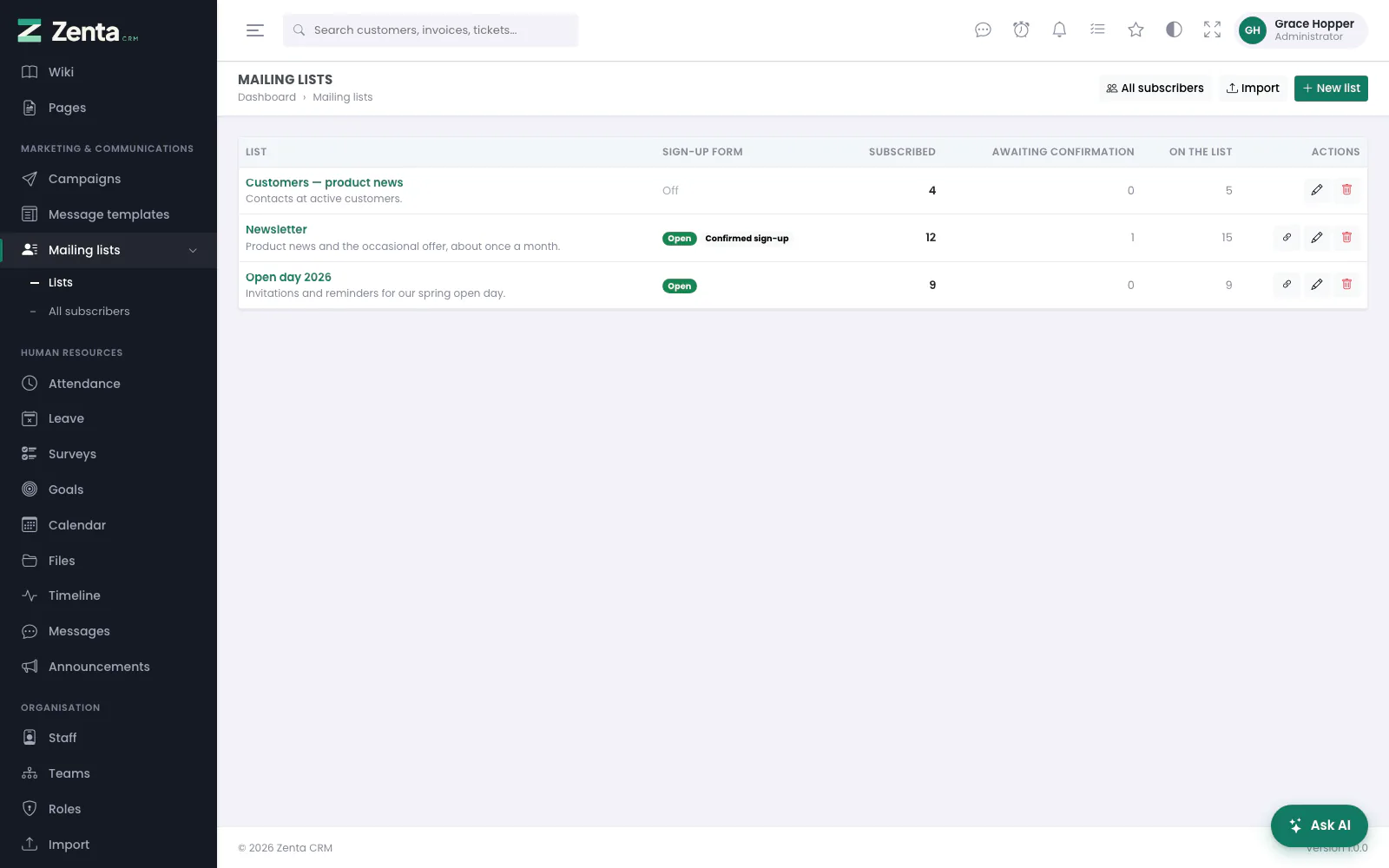 Mailing lists: whether each has a sign-up form, and how many people are subscribed, waiting to confirm, and on it at all.
Marketing & Communications → Mailing lists. Each row shows the list's name and description, its Sign-up form (Open, with Confirmed sign-up when new sign-ups must confirm, or Off), and three counts: Subscribed, Awaiting confirmation and On the list (everybody, including people who left). The buttons on a row copy the sign-up link (lists with a form only), open the list's settings, and remove it. All subscribers and Import are at the top.
A subscriber is one person, however many lists they are on. Whether they may be written to is kept on the person, not on each list: somebody who asks to hear nothing more hears nothing more, and a second list they happen to be on is not a loophole.
Making a list
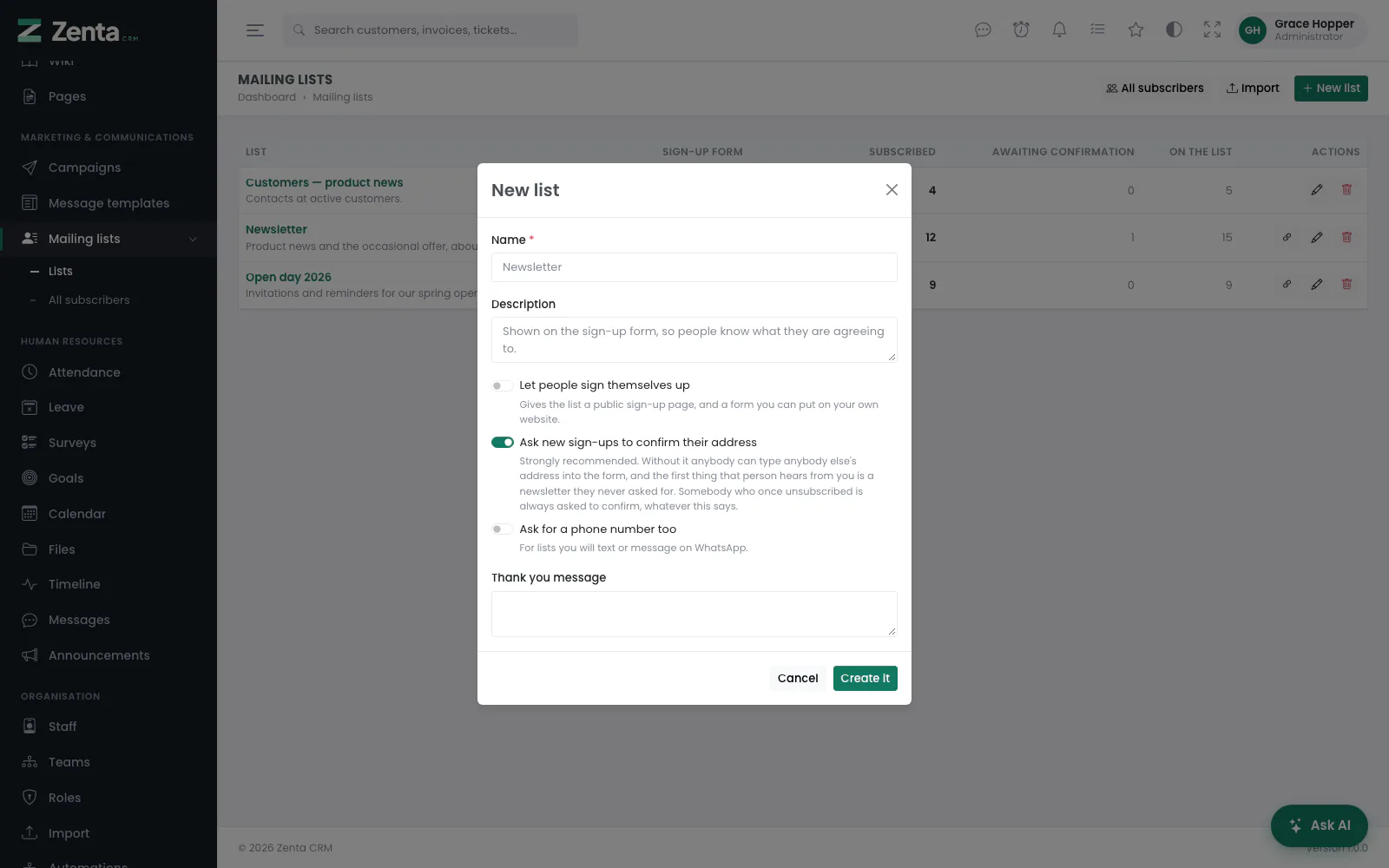 A new list. Asking sign-ups to confirm is on from the start.
Press New list.
| Field | What it does |
|---|---|
| Name | Required. Also the heading of the sign-up page. |
| Description | Shown on the sign-up form, so people know what they are agreeing to. |
| Let people sign themselves up | Gives the list a public sign-up page, and a form you can put on your own website. See Sign-up forms. |
| Ask new sign-ups to confirm their address | On by default, and worth leaving on. |
| Ask for a phone number too | Adds a mobile number to the form, for lists you will text or message on WhatsApp. |
| Thank you message | What the page says after somebody signs up. |
Press Create it; the list's own page opens. To change any of this later, press on the list's row, or on its page: the same form opens as List settings, with Save changes.
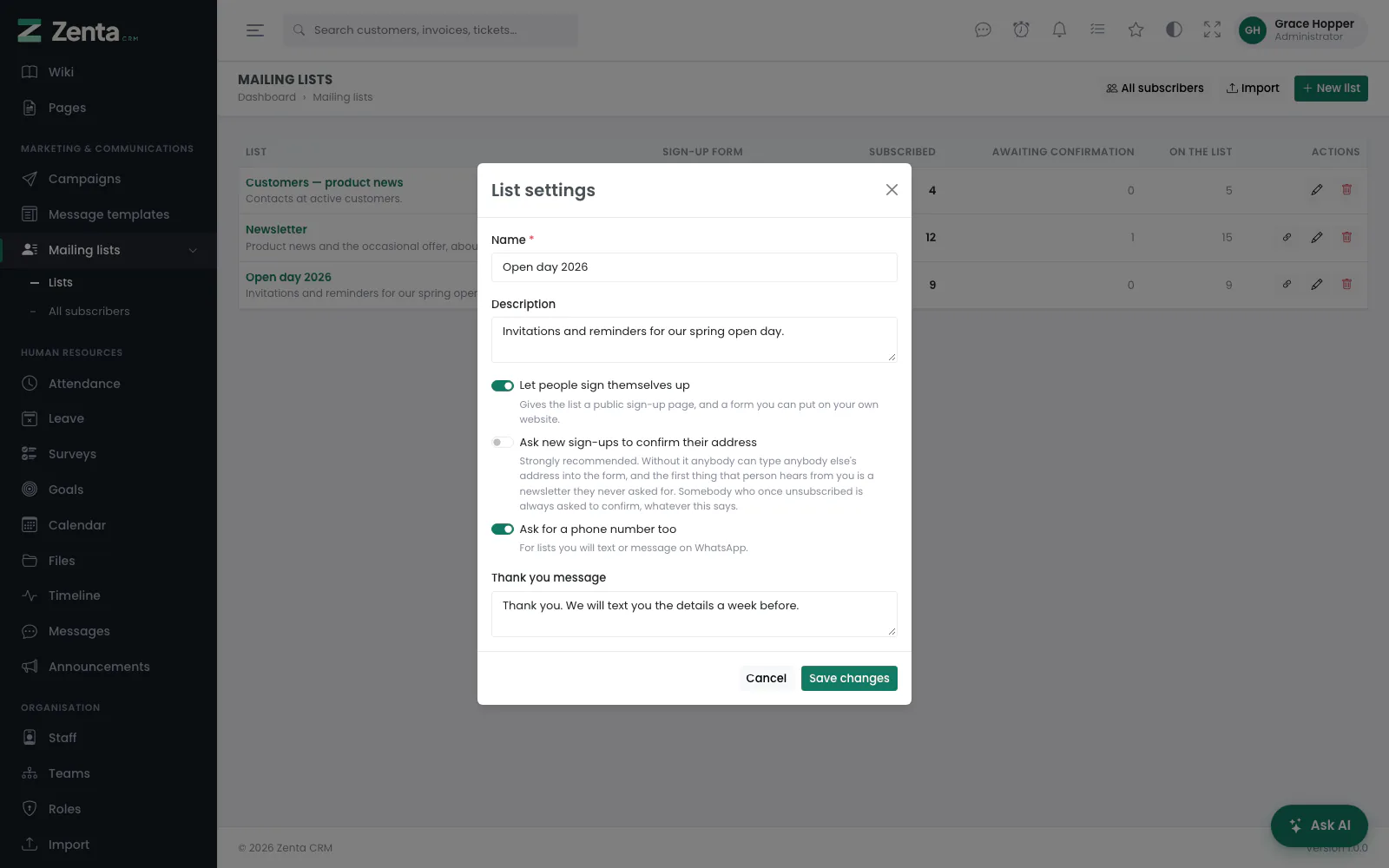 List settings: a list with its sign-up form open, collecting phone numbers.
A list's page
 A list: the counts, its sign-up form, and the people on it.
Click a list's name. Four tiles count Subscribed, Awaiting confirmation, Unsubscribed and On the list; click one to show only those people. Below, search by name, email, phone or company, or pick a status, and press Search. Across the top:
- Add from leads or customers — see below.
- Import a spreadsheet — opens Import.
- Add a person — the form under All subscribers, with this list already ticked.
- Export CSV — everybody on the list with their consent record: email, phone, first and last name, company, location, pain point, status, where they came from, and when they agreed, confirmed and unsubscribed. A cell that starts like a spreadsheet formula is made harmless.
- — the list's settings.
On each person's row, Take off this list removes them from this list only, after you confirm; they stay subscribed to anything else they are on. The other buttons on the row are the ones on All subscribers.
How people reach a list
| Way | Where |
|---|---|
| From the CRM, by filter | On a list, Add from leads or customers — by pipeline stage, source, customer group or tag. |
| From a selection | Tick leads or customers on their own lists and use the bulk action Add to a mailing list. |
| From a spreadsheet | Import → Subscribers. Name the list in a column, or rows land on a list called "Imported". |
| From a sign-up form | Switch on Let people sign themselves up in the list's settings. |
| From an automation | The action Add to a mailing list, by list name — made if it does not exist. |
| By hand | Add a person, optionally asking them to confirm by email first. |
Adding from leads or customers
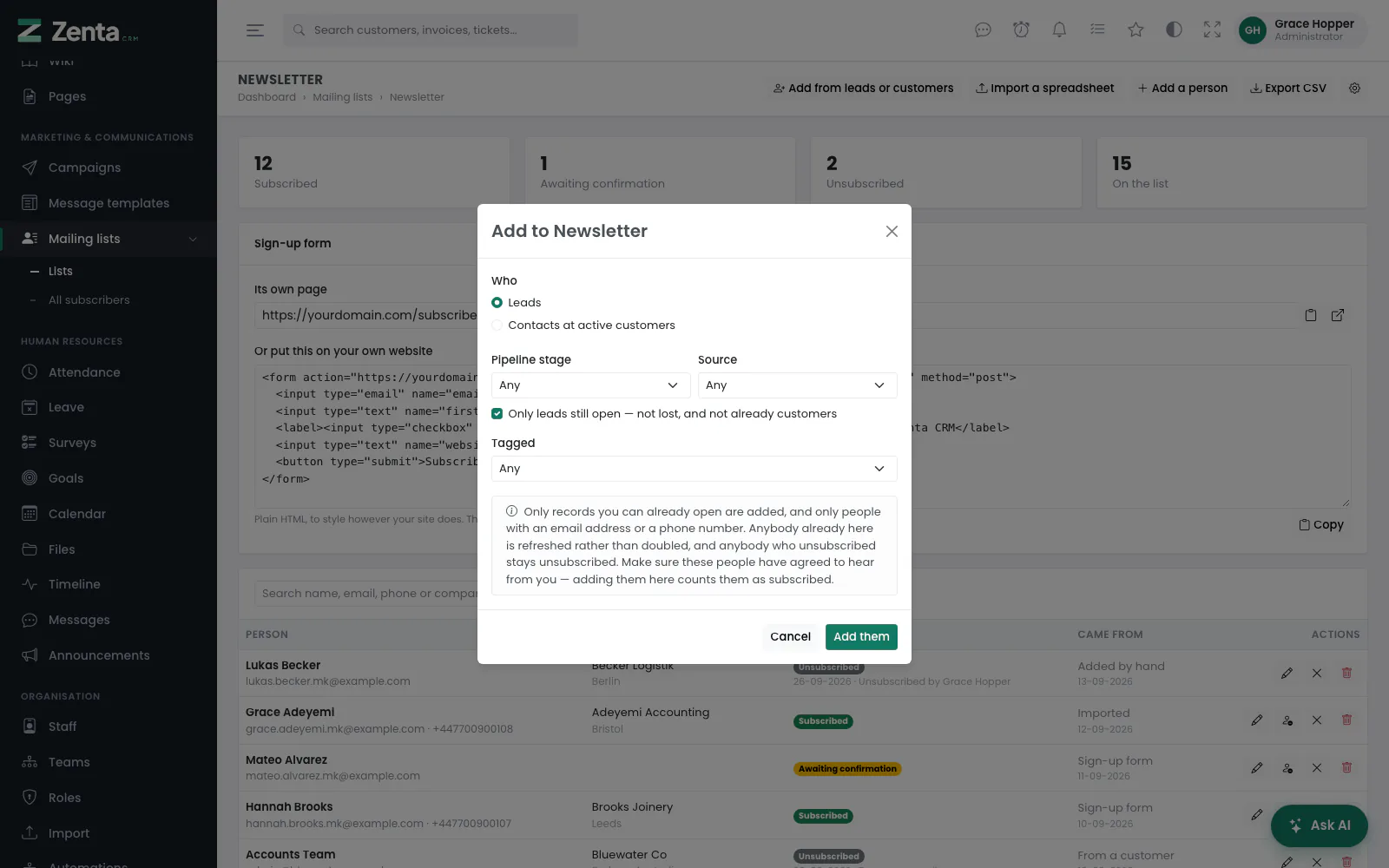 Adding open leads to a list, by pipeline stage, source and tag.
On the list, press Add from leads or customers.
| Field | What it does |
|---|---|
| Who | Leads, or Contacts at active customers. Only the ones your role can see are offered. |
| Pipeline stage and Source | Leads only. Any by default. |
| Only leads still open — not lost, and not already customers | Leads only; ticked by default. Leads marked as junk are never added. |
| Customer group | Customers only. Only active customers' contacts are added. |
| Tagged | Either kind: only records with that tag. |
Press Add them, and the message says how many people were added or refreshed. Only records you could already open are included — the same scope, and for leads the same privacy rule, as the lists they came from — and only people with an email address or a phone number. Anybody already a subscriber is refreshed rather than doubled, matched by email address and then by phone number.
Removing a list
The button on the list's row, then confirm. The people on it stay in All subscribers, with their consent records: deleting a list is tidying, not a decision to forget who agreed to what.
Sign-up forms
A list with its form switched on gets a Sign-up form box on its page: Its own page, a link to copy or open, and Or put this on your own website, a plain HTML form to Copy and style however your site does. The form asks for an email address, a first name, a mobile number if the list collects one, and a box to tick saying they would like to hear from you. A hidden "website" field catches bots — leave it in — and the form is rate-limited.
Ask new sign-ups to confirm their address is on by default and worth leaving on. Without it anybody can type anybody else's address into the form. With it, the person is sent the email template Confirm a mailing list sign-up — editable under Settings → Email templates — and counts only once they press the button behind the link. Somebody who once unsubscribed is always asked to confirm, whatever the list says.
The page after signing up says the same thing whatever happened — new, already on the list, or previously unsubscribed — so it cannot be used to find out whether an address is yours.
All subscribers
 All subscribers: everybody on any list, with where they came from and when they agreed.
Mailing lists → All subscribers, or the button of that name on Mailing lists. Search by name, email, phone or company, and narrow by status (Subscribed, Awaiting confirmation, Unsubscribed) or by list. Each row shows the person, their company and location, their status — with the date and reason for anybody who left — where they Came from (Added by hand, Imported, Sign-up form, From a lead, From a customer) with the date they agreed, and how many lists they are on.
Adding a person
 Adding a person by hand.
Press Add a person.
| Field | What it does |
|---|---|
| Email / Phone | At least one of the two. An address can be on only one subscriber in the workspace; to put somebody on another list, find them here and edit them. Give the phone with its country code, for SMS and WhatsApp. |
| First name, Last name, Company, Location | Optional; each is a merge tag. |
| Pain point | Optional. What they are trying to fix, in a phrase — it can be merged into a message. |
| Lists | Which lists they are on. |
| Ask them to confirm by email first | Off by default. On, they are emailed a link and count as Awaiting confirmation until they press it. Off, they count as subscribed straight away, on the understanding that they have already agreed to hear from you. |
Press Add.
Editing, unsubscribing and deleting
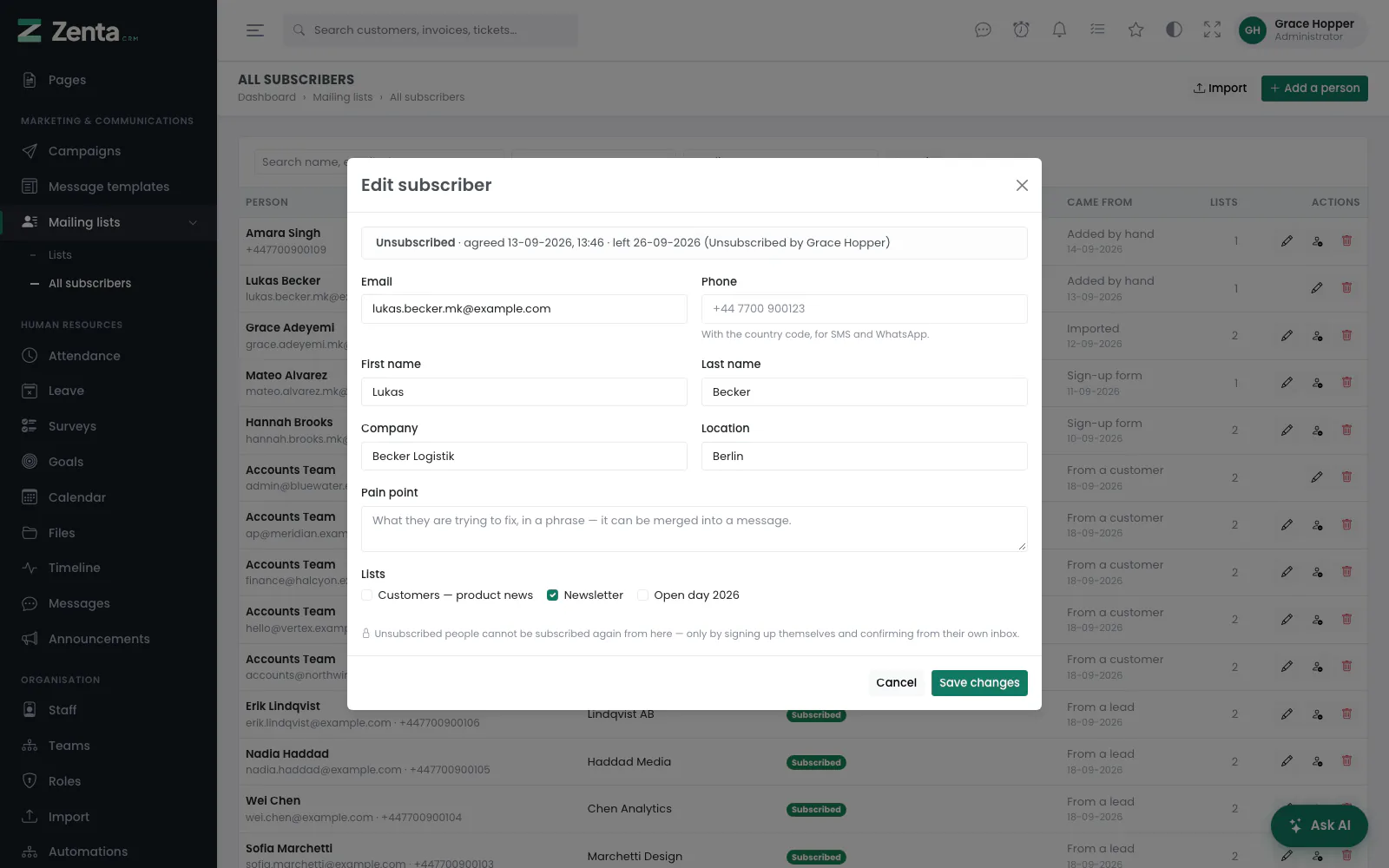 Editing somebody who left: the consent record at the top, and no way to subscribe them again.
opens Edit subscriber: the same fields, under a line that gives their status, when they agreed (and from which IP address, when known), when they confirmed and when they left, with the reason. Press Save changes. Ticking or unticking lists here adds or removes them; lists they stay on keep the date they joined.
Unsubscribe stops all marketing to the person, on every list, after you confirm. The record says who did it. There is no button to undo it: only they can subscribe again, from a sign-up form.
Delete is different. Unsubscribing keeps the record of who agreed to what and when, which is what lets you show why somebody was written to. Deleting forgets the person entirely, consent record and all — use it for somebody who has asked to be forgotten. Campaign figures they were part of stay as they were; the messages just stop saying who.
Message templates
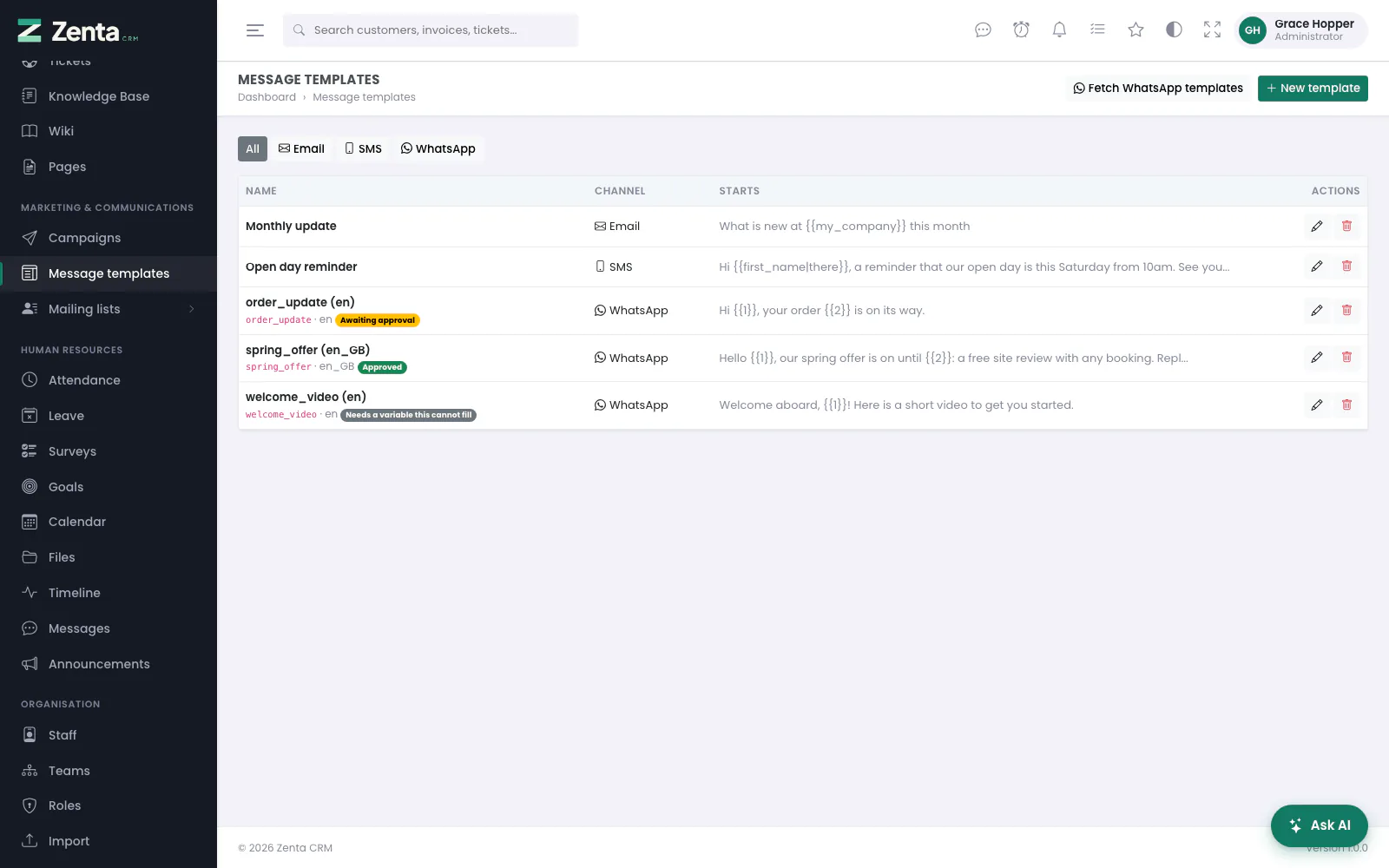 Message templates on every channel, with the state of each WhatsApp template at Meta.
Marketing & Communications → Message templates. A template is a message you expect to send more than once. Filter by All, Email, SMS or WhatsApp; each row shows how the message Starts, and a WhatsApp template its name at Meta, its language and its state: Approved, Awaiting approval, Rejected or Needs a variable this cannot fill.
 A new email template, with the merge tags beside it.
Press New template.
| Field | What it does |
|---|---|
| Name | Required. For you; it is what the campaign form lists. |
| Channel | Email, SMS or WhatsApp. The fields below change with it. |
| Subject | Email only. |
| Message | Required for email and SMS, with the merge tags beside it and, for SMS, the character and segment count. A tag that does not exist is refused when you save. |
| Template name at Meta and Language | WhatsApp only, both required: the name exactly as it appears in WhatsApp Manager (lower-case letters, numbers and underscores) and the language code it was approved in, such as en, en_US or pt_BR. |
Press Create it. With AI assistance connected, an email or SMS template also gets a Write it with AI box — see Writing a campaign.
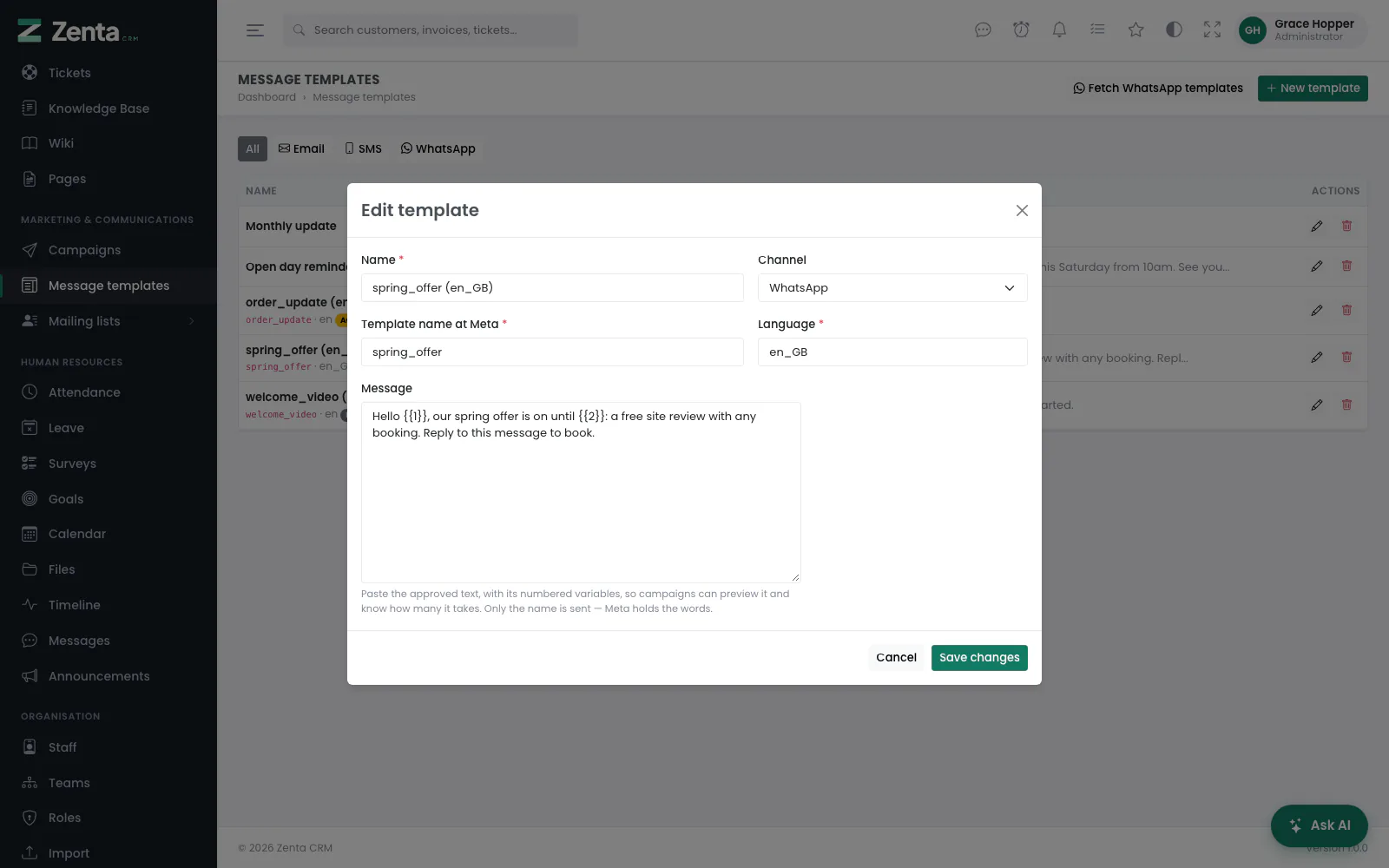 A WhatsApp template: the name and language at Meta, and the approved text with its numbered variables.
For a WhatsApp template, paste the approved text into Message, with its numbered variables. Only the name is sent — Meta holds the words — but the text lets campaigns preview it and know how many variables it takes. A template typed in by hand has no state from Meta until you fetch.
Fetch WhatsApp templates, shown once WhatsApp is connected, asks Meta for every template on your WhatsApp Business Account after you confirm. New ones are added, named with their language, such as spring_offer (en_GB); ones already here have their text and state refreshed. See WhatsApp.
edits a template (Edit template, then Save changes); removes it after you confirm. Neither touches a campaign that used it: a campaign keeps its own copy of the words.
Merge tags
Personalise any campaign or template with these, written with two braces on each side. The editor lists them and puts one where the cursor is.
| Tag | Becomes |
|---|---|
{{first_name}}, {{last_name}}, {{full_name}} | Their name |
{{email}}, {{phone}} | Their address and number |
{{company_name}} | The company they work for |
{{location}} | Where they are |
{{pain_point}} | The problem they want solved, in a phrase |
{{my_company}} | Your company name |
{{unsubscribe_url}} | Their personal unsubscribe link |
Give a tag a fallback for people without that value:
{{first_name|there}} reads "Hi there" rather than "Hi ,".
Most people on a list will not have a pain point, so that one nearly
always wants a fallback.
{company_name}
with single braces, where it means your company. Campaigns use double
braces, as every marketing tool does, and there {{company_name}}
is the recipient's. The two never meet.
A tag that does not exist, or one missing a brace, is refused when you save — rather than discovered in the inbox of everybody on the list.
Campaigns
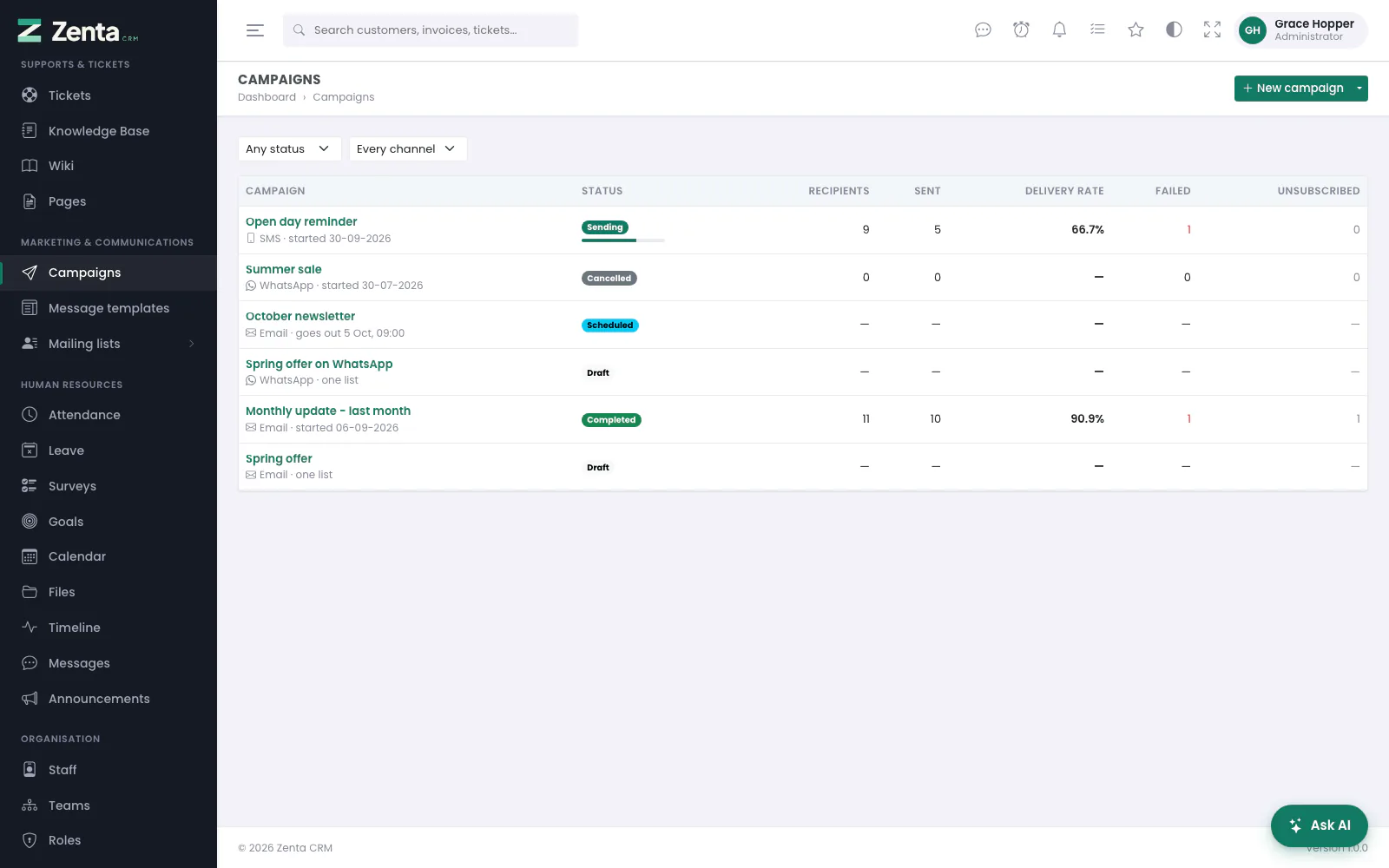 Campaigns: sending and paused ones first, then the newest, with how each went.
Marketing & Communications → Campaigns. Campaigns that are sending or paused come first, then the newest. Each row shows the channel and when it started (or when it goes out, or how many lists it has), its status — with a progress bar while sending — and Recipients, Sent, Delivery rate, Failed and Unsubscribed. Narrow the list with Any status and Every channel.
Writing a campaign
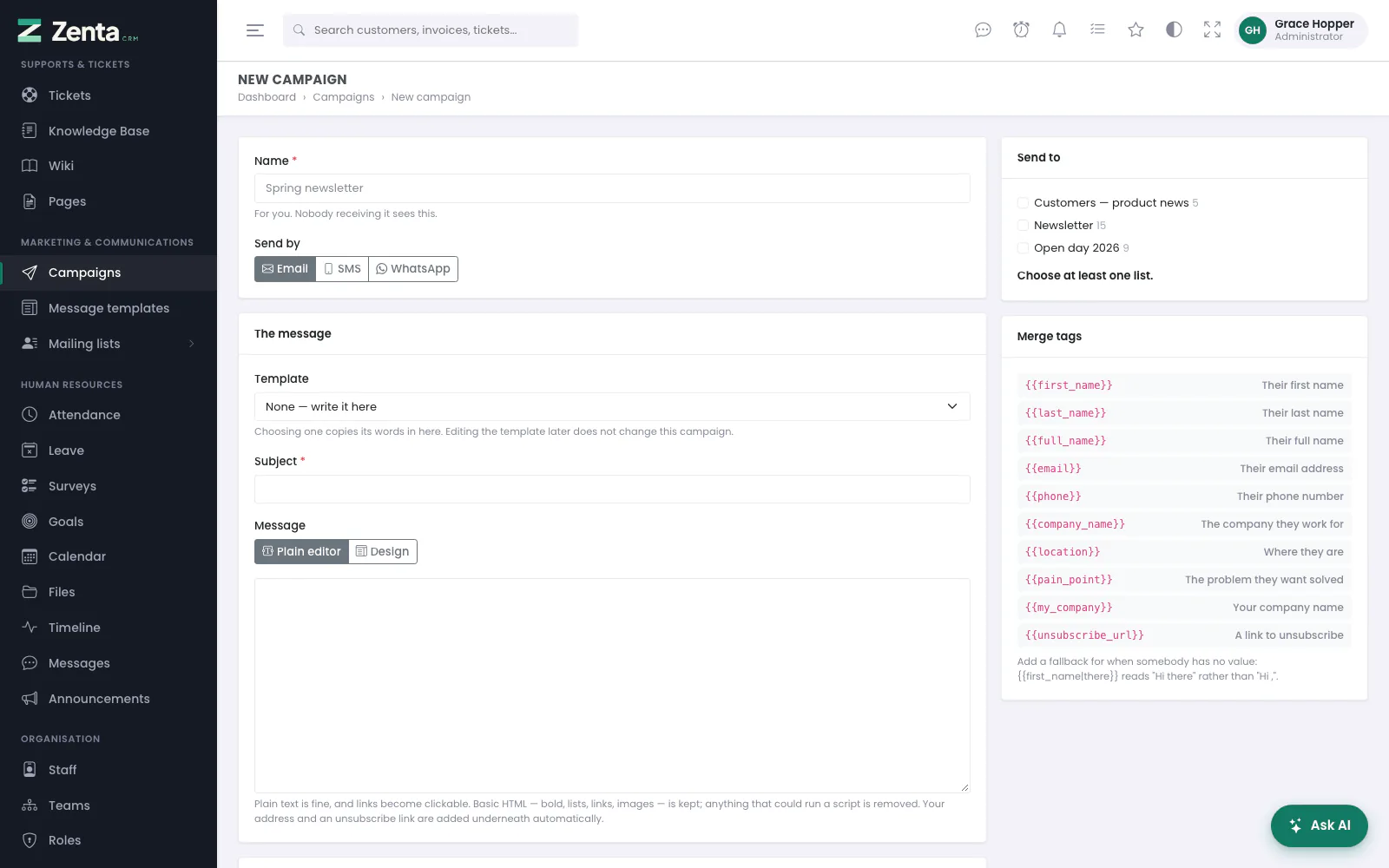 A new email campaign: the message on the left, who it goes to and the merge tags on the right.
Press New campaign, or its arrow to start on a particular channel.
| Field | What it does |
|---|---|
| Name | Required. For you; nobody receiving it sees this. |
| Send by | Email, SMS or WhatsApp. A channel that is not connected yet says so; you can still write the campaign and send it once that is done. |
| Template | None — write it here, or a template for this channel, whose words are copied in. Editing the template later does not change this campaign. |
| Subject | Email only; needed before it can be sent. |
| Message | Email and SMS. For email, the Plain editor or Design, the block builder described in The email builder. |
| Send to | Tick one or more lists; each shows how many people are on it, and the line underneath says how many the campaign would reach on this channel, and how many are left out and why. |
| Merge tags | Click one to put it where the cursor is. |
| Channel | What you write |
|---|---|
| A subject and a message. Plain text is fine and links become clickable; basic HTML — bold, lists, links, images — is kept, and anything that could run a script is removed. The Footer line from Settings, your company name and address, and an unsubscribe link are added underneath every one, and cannot be taken off. | |
| SMS | A message of up to 1,600 characters, with a live count of characters and segments. The line in Added to every text — "Reply STOP to opt out." by default — is appended and counted. One curly apostrophe or emoji changes a whole message to the 70-character segments, and the counter says so. |
| A template Meta has approved, and what fills each of its numbered variables. See below. |
 An SMS campaign: the counter under the message includes the STOP line added to every text.
With AI assistance connected and Outreach copy allowed, email and SMS campaigns get a Write it with AI box: say What is it for?, pick a tone (Friendly and professional, Warm and personal, Brief and direct or Formal) and press Write a draft. It uses the merge tags, and if there is already a draft it improves that instead. It invents no prices, dates or discounts — it leaves a bracketed note where one is needed — and a tag it made up becomes a note in square brackets rather than a tag that would stop the campaign. The draft lands in the editor; it is never saved or sent on its own.
A WhatsApp campaign
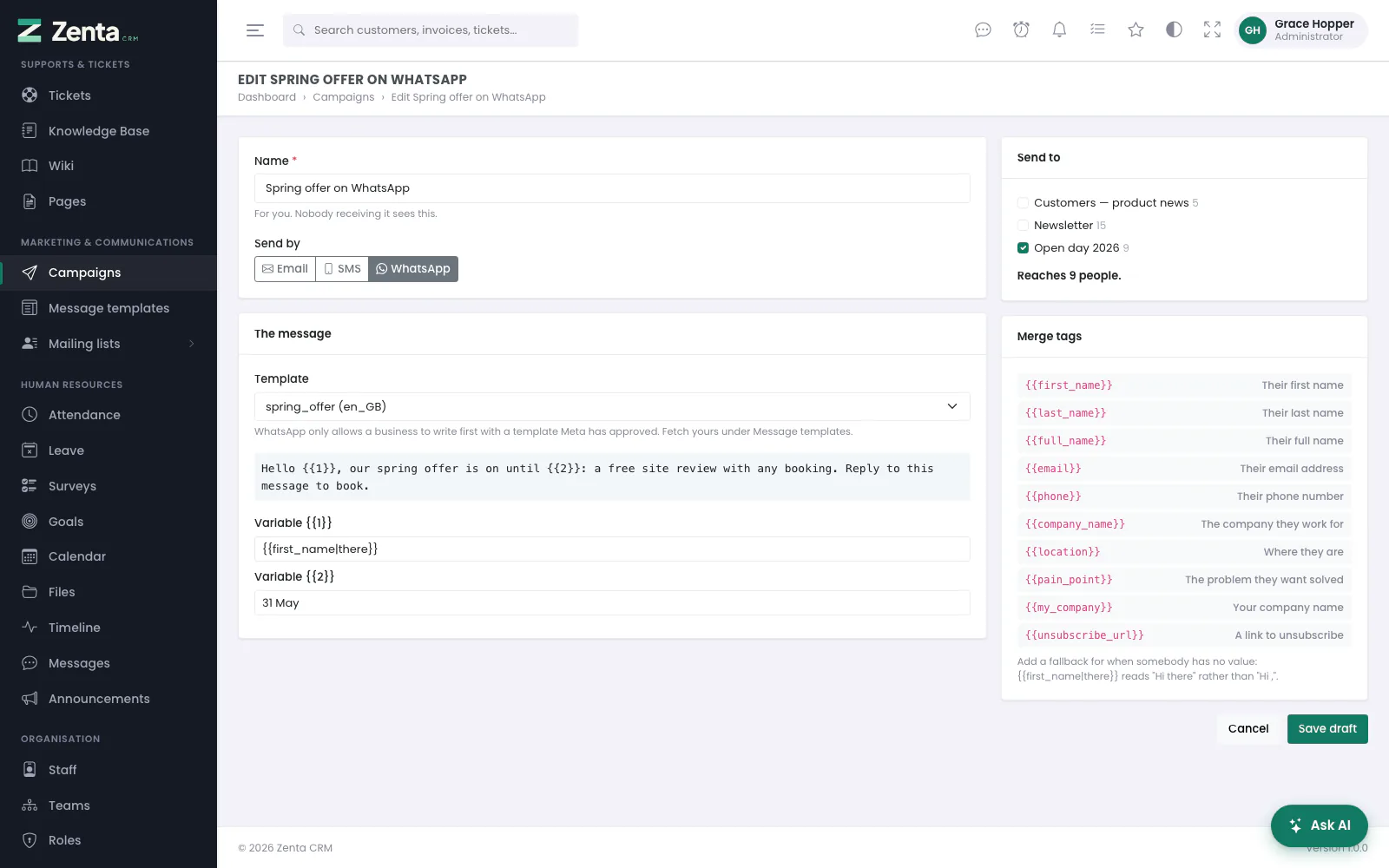 A WhatsApp campaign: the approved template, and a merge tag or fixed text for each of its variables.
Choose the template; its text is shown, with a Variable {{1}}, Variable {{2}}… box for each numbered variable. Fill each with a merge tag, fixed text, or both. A template Meta has not approved, or one needing a variable this cannot fill, is listed as not usable yet and cannot be chosen.
Press Save draft. The campaign's page opens; the next step is there. While a campaign is a draft or scheduled, Edit on its page opens the same form again.
Before it goes
 A draft: the preview with sample values, who it reaches and who is left out, and the Send it panel.
A draft's page shows the Preview — the message as it will read, with sample values in the merge tags, and for email the footer that is added — beside Who it reaches: how many people will be sent it, out of how many on the chosen lists, and how many are left out because they unsubscribed, have yet to confirm their address, or have no usable address for this channel.
Who a campaign reaches is fixed the moment it starts: subscribed people on its lists with an address for the channel, each once however many of the lists they are on. Two subscribers sharing a phone number get one text. Anybody who unsubscribes before their turn is skipped.
Send a test
Under Send a test, give an address or number — yours is filled in — and press Send test. It sends one real message, with sample values in the merge tags; nobody on the lists receives it. On SMS that is a paid message, so tests are limited to ten a minute. The box is shown only once the channel is connected.
Send it
The Send it panel is for people allowed to send (see Who can do what). Choose Start now or Schedule it with a date and time in the future, and press Send to N people. The button stays disabled while the panel lists anything under Before it can go: — the channel not connected, no list chosen, nobody on the lists reachable on this channel, an email with no subject, no message written, a WhatsApp template with a variable left empty, or a tag that is not a merge tag.
Two more notices can appear. If the server's outgoing mail is set to log
or array in .env, nothing would actually be delivered, and
the panel says so in red. If your company address is empty, it points out that
marketing email law in many countries, CAN-SPAM in the US included, expects a postal
address in every campaign.
Sending
Sending needs its own ability, Send, on the Campaigns module. Writing a campaign and putting it in front of ten thousand people are deliberately separate grants.
| Status | Means | Buttons on its page |
|---|---|---|
| Draft | Being written. Nothing is fixed. | Edit, Duplicate, |
| Scheduled | Waiting for its time. Can still be edited — and goes back to a draft if an edit leaves it unsendable. | Unschedule (back to a draft; nothing is sent), Cancel campaign, Edit, Duplicate, |
| Sending | Who it goes to has been fixed, and it is going out a minute's worth at a time. | Pause, Cancel campaign, Duplicate, Export CSV |
| Paused | Stopped where it was. | Resume, Cancel campaign, Duplicate, Export CSV |
| Completed | Everybody has been tried. | Duplicate, Export CSV, |
| Cancelled | Stopped for good. Anything not yet sent is marked skipped. | Duplicate, Export CSV if it had started, |
Each of Pause, Resume, Unschedule and Cancel campaign asks you to confirm first. Resume carries on from exactly where it stopped, and refuses if the channel has been disconnected in the meantime. Cancel campaign cannot be undone.
 A text campaign part-way through: delivery reports coming back, one failure with Twilio's reason, and three still waiting.
Once a campaign has started, it can no longer be changed: a second version would make one campaign two different messages, and the figures would describe neither. Duplicate it to send a corrected version: after you confirm, a new draft called "Copy of …" is made with the same message and lists, and opens for editing. Duplicating is also the way to send last month's newsletter's shape again.
Every message is a row of its own, which is what makes stopping and starting safe. A message is claimed before it is handed to the provider; if the server dies part-way through, that message is marked failed after fifteen minutes and never tried again, because whether it arrived cannot be known and a duplicate is worse than an honest gap.
Results
 What a finished email campaign did: who it reached, what failed and why, message by message.
Once started, a campaign's page shows how it went: the tiles below, a bar split into delivered, sent (or accepted), failed and skipped with the percentage done, the five commonest reasons under Why messages failed, and every message under Messages with its recipient, status, when it was sent and delivered, and any error. Filter the messages by All, Waiting, Sending, Sent, Delivered, Read, Failed or Skipped; clicking the Failed tile does the same.
| Figure | Means |
|---|---|
| Recipients | Who it was going to, fixed when it started. |
| Sent (Accepted, for email) | Handed to the provider, and taken. |
| Delivered | Reported by the handset. SMS through Twilio, and WhatsApp, report this; WhatsApp also reports read. On a channel with no delivery reports the tile says so. |
| Delivery rate | Delivered as a share of those attempted — or, on a channel with no delivery reports, accepted as a share of those attempted. |
| Failed | Refused, with the provider's reason, grouped under Why messages failed. |
| Waiting / skipped | Not yet tried, and never tried — because the person left or the campaign was cancelled. |
| Unsubscribed | People who left from this campaign's own unsubscribe link. |
Export CSV downloads every message: recipient, name, status, when it was sent, delivered and read, and the error. It appears once the campaign has started.
The button removes a campaign, and its figures with it, after you confirm. It is not offered while a campaign is sending or paused: cancel it first, which keeps the record of who was already sent it.
Marketing channels
Settings → Marketing channels has a card per channel. Change what you need and press Save changes at the foot. Keys, tokens and secrets are never shown again once saved: their boxes read Stored — leave blank to keep it, and a blank box leaves the stored one alone.
| Emails a minute | 1 to 1,000; 10 by default. The card's badge reads Not delivering when the server's outgoing mail is set to log or array. |
| Footer line | Printed above your company address and the unsubscribe link, which are always added — a company registration number, say. |
Text messages
 Settings, Marketing channels: email, and a connected Twilio account.
In the Text messages (SMS) card, choose a Provider:
| Provider | You need |
|---|---|
| Twilio | The Account SID (starts AC), the Auth token, and Send from: a Twilio number with its country code, or a Messaging Service id beginning MG. Delivery reports come back on their own to the address shown under Delivery reports — there is nothing to set up at Twilio — signed with your auth token and refused otherwise. People who reply STOP are refused by Twilio from then on, and recorded here as unsubscribed. |
| Clickatell | A Platform API integration key, as the API key. Messages count as sent when Clickatell accepts them. |
| MSG91 | The Auth key and an approved Sender id (up to 11 letters and numbers). Indian numbers also need a DLT-registered template. |
| Any HTTP gateway | For a local provider with a send URL: the Send URL, the Method (POST or GET), the Parameter for the number and the Parameter for the text, any Fixed parameters (one name=value a line, such as a sender id), optionally an Authorisation header, and whether to Send the number with its leading +. A message counts as sent when the gateway accepts it; there are no delivery reports. |
Under those, for every provider: Texts a minute (20 by default), Default country code, and Added to every text ("Reply STOP to opt out." by default; blank adds nothing).
Numbers must be international. Set a Default country code and numbers written the local way, like 07700 900123, are converted, for SMS and WhatsApp alike; without one they are skipped rather than guessed — a guessed country code does not fail, it reaches a stranger.
Once a provider is saved and connected, a test box appears. Press Test with the number blank to check the account without sending anything — only Twilio can be checked this way; the others say to send a test instead — or type your mobile to send one text. The test uses the saved settings, so save first. Disconnect removes the provider and its details, after you confirm; campaigns sending by text stop until another is connected.
 The WhatsApp card, verified, with the callback URL and verify token to give Meta.
Through Meta's WhatsApp Business Cloud API, with your own Meta app. A business may write first on WhatsApp only with a template Meta has approved, so a WhatsApp campaign names a template and fills its numbered variables rather than carrying free text.
- In your Meta app's WhatsApp → API Setup, copy the phone number id and the WhatsApp Business Account id.
- Create a permanent access token for a system user with the
whatsapp_business_messagingandwhatsapp_business_managementpermissions, and copy the app secret from the app's basic settings. - Enter them as Phone number id, Business account id, Access token and App secret in the WhatsApp card, set Messages a minute (20 by default), and press Save changes.
- Press Verify the connection. Meta says which number and business name the token belongs to, and the card reads Verified. A WhatsApp campaign cannot be sent until this has worked, and changing the number or the token clears it.
- In the Meta app under WhatsApp → Configuration, set the Callback URL and Verify token shown in the card, and subscribe to the messages field. The card says when Meta has confirmed the address.
- Under Message templates, press Fetch WhatsApp templates.
Fetching again refreshes each template's status, so one Meta approves later becomes usable without a second copy. A template whose header is an image, or whose header or buttons take a variable, is marked as needing a variable this cannot fill and is not offered: only the body's variables are filled. A template can also be typed in by hand, by its exact name and language code.
In the campaign, give each numbered variable a merge tag —
{{first_name|there}} for {{1}}, say. Meta
refuses a template with an empty variable, so give each a fallback;
a message that would have one is failed with a reason that says which.
With the callback registered, sent, delivered, read and failed come back against each message. Reports are checked against the app secret and ignored without it. Anybody who replies STOP, or who blocks your marketing messages in WhatsApp itself, is unsubscribed.
Disconnect removes the token and ids, after you confirm; WhatsApp campaigns stop until it is connected again.
Unsubscribing
Every campaign email carries an unsubscribe link, and the
List-Unsubscribe headers that let Gmail, Yahoo and Outlook
show their own unsubscribe button — a requirement for bulk senders since
2024. That button unsubscribes in one click. The link in the email opens
a page with a button and an optional reason; opening the link alone
changes nothing, because mail scanners open every link in a message
before a person does. Confirmation links work the same way.
Leaving covers every list and every channel. Messages about an account a person holds with you — invoices, reminders — are not marketing and are not affected. Staff can also unsubscribe somebody from All subscribers.
Who can do what
| Module | Abilities |
|---|---|
| Campaigns & templates | View, create, edit, delete, send, export. Sending — launching, scheduling, unscheduling, pausing, resuming and cancelling — needs send; a test message needs only edit. Duplicating a campaign and fetching WhatsApp templates need create; exporting a campaign's messages needs export. |
| Mailing lists & subscribers | View, create, edit, delete, export. Taking somebody off a list and unsubscribing them need edit. Adding from the CRM also needs permission to view leads or customers. |
| Settings | Marketing channels can be seen with view on Settings; saving, testing, verifying and disconnecting need edit. |
Both marketing modules are all-or-nothing and are off for every role but Administrator until you grant them: a list is the business's, not one salesperson's.
Addresses on this page
For reference and for anyone scripting against the panel. Everything here needs somebody signed in to the workspace whose role allows it; anybody else is refused.
| Method | Address | What it does |
|---|---|---|
GET | admin/campaigns | Campaigns, with status and channel filters. |
GET | admin/campaigns/create | The new campaign form; ?channel= email, sms or whatsapp starts on that channel. |
POST | admin/campaigns | Saves a new campaign as a draft. |
GET | admin/campaigns/{campaign} | A campaign: preview, who it reaches and the send panel before it starts; the results after. ?status= filters the messages. |
GET | admin/campaigns/{campaign}/edit | The campaign form, for a draft or scheduled campaign. |
PUT | admin/campaigns/{campaign} | Saves changes to a draft or scheduled campaign. |
DELETE | admin/campaigns/{campaign} | Removes a campaign that is not sending or paused. |
GET | admin/campaigns/audience | How many people the ticked lists reach on a channel, for the campaign form. Used by the page itself. |
POST | admin/campaigns/ai | Write a draft with AI, for the campaign and template forms. Never saved or sent. At most 30 a minute. |
POST | admin/campaigns/{campaign}/launch | Send to N people: starts a draft now, or schedules it (when = now or later, with send_at). |
POST | admin/campaigns/{campaign}/unschedule | Unschedule: a scheduled campaign back to a draft. |
PATCH | admin/campaigns/{campaign}/pause | Pause a sending campaign. |
PATCH | admin/campaigns/{campaign}/resume | Resume a paused campaign. |
PATCH | admin/campaigns/{campaign}/cancel | Cancel campaign: anything not yet sent is skipped. |
POST | admin/campaigns/{campaign}/duplicate | Duplicate: a new draft with the same message and lists. |
POST | admin/campaigns/{campaign}/test | Send test to one address or number (to). At most 10 a minute. |
GET | admin/campaigns/{campaign}/export | Downloads every message of a started campaign as CSV. |
GET | admin/message-templates | Message templates, with a channel filter. |
GET | admin/message-templates/create | The new template form (in a pop-up). |
POST | admin/message-templates | Saves a new template. |
GET | admin/message-templates/{template}/edit | The edit template form (in a pop-up). |
PUT | admin/message-templates/{template} | Saves changes to a template. |
DELETE | admin/message-templates/{template} | Removes a template; campaigns keep their copy of the words. |
POST | admin/message-templates/whatsapp-sync | Fetch WhatsApp templates from Meta, adding new ones and refreshing the rest. At most 10 a minute. |
GET | admin/subscriber-lists | Mailing lists. |
GET | admin/subscriber-lists/create | The new list form (in a pop-up). |
POST | admin/subscriber-lists | Creates a list. |
GET | admin/subscriber-lists/{list} | A list: counts, sign-up form and people, with q and status filters. |
GET | admin/subscriber-lists/{list}/edit | The list settings form (in a pop-up). |
PUT | admin/subscriber-lists/{list} | Saves a list's settings. |
DELETE | admin/subscriber-lists/{list} | Removes a list; the people on it stay. |
GET | admin/subscriber-lists/{list}/export | Downloads everybody on the list, with their consent record, as CSV. |
GET | admin/subscriber-lists/{list}/from-crm | The Add from leads or customers form (in a pop-up). |
POST | admin/subscriber-lists/{list}/from-crm | Adds or refreshes the leads or customer contacts matching the filter. |
DELETE | admin/subscriber-lists/{list}/subscribers/{subscriber} | Take off this list: removes one person from one list. |
GET | admin/subscribers | All subscribers, with q, status and list filters. |
GET | admin/subscribers/create | The Add a person form (in a pop-up); ?list= ticks that list. |
POST | admin/subscribers | Adds a person, and emails a confirmation link if asked. |
GET | admin/subscribers/{subscriber}/edit | The edit subscriber form (in a pop-up). |
PUT | admin/subscribers/{subscriber} | Saves a subscriber and which lists they are on. |
PATCH | admin/subscribers/{subscriber}/unsubscribe | Unsubscribe: stops all marketing to the person. |
DELETE | admin/subscribers/{subscriber} | Deletes a subscriber and their consent record. |
GET | admin/settings/marketing | Settings → Marketing channels. |
PUT | admin/settings/marketing | Saves the marketing channel settings. |
POST | admin/settings/marketing/sms/test | Test the SMS provider: checks the account, or sends one text to to. At most 10 a minute. |
POST | admin/settings/marketing/sms/disconnect | Disconnect the SMS provider and remove its details. |
POST | admin/settings/marketing/whatsapp/verify | Verify the connection with Meta. At most 10 a minute. |
POST | admin/settings/marketing/whatsapp/disconnect | Disconnect WhatsApp and remove its token and ids. |
POST | webhooks/marketing/twilio/{key} | Called by Twilio: delivery reports and STOP replies, accepted only with a valid signature. |
GET | webhooks/marketing/whatsapp/{key} | Called by Meta once, to confirm the webhook address. |
POST | webhooks/marketing/whatsapp/{key} | Called by Meta: WhatsApp delivery and read reports and STOP replies, accepted only with a valid signature. |