Roles and permissions
Your staff, the roles they hold, and the two questions every role answers: what somebody may do, and whose records they may do it to.
Most systems only answer the first question. Zenta CRM answers both, because "can see invoices" and "can see everyone's invoices" are very different permissions to give a new salesperson. Both live under the Organisation part of the menu: Staff for the people, Teams for who works with whom, and Roles for what they may do.
Staff
 Organisation → Staff: everybody who can sign in to the panel, their role, and when they last did.
Organisation → Staff lists the people who work in the panel. Each row shows the person's name and email address, their Role, their Job title, whether they are Active or Inactive, and their Last sign in. A yellow Overridden badge beside a role means some of that person's permissions differ from the role's (see Changing one person's permissions) — the first thing anybody auditing access needs to see.
Search by name or email in Search name or email, narrow to Active or Inactive with All statuses, and press Filter; Clear removes both. The count of people on the right follows the filter. Print and Export print or download the list as it is filtered (see Exporting).
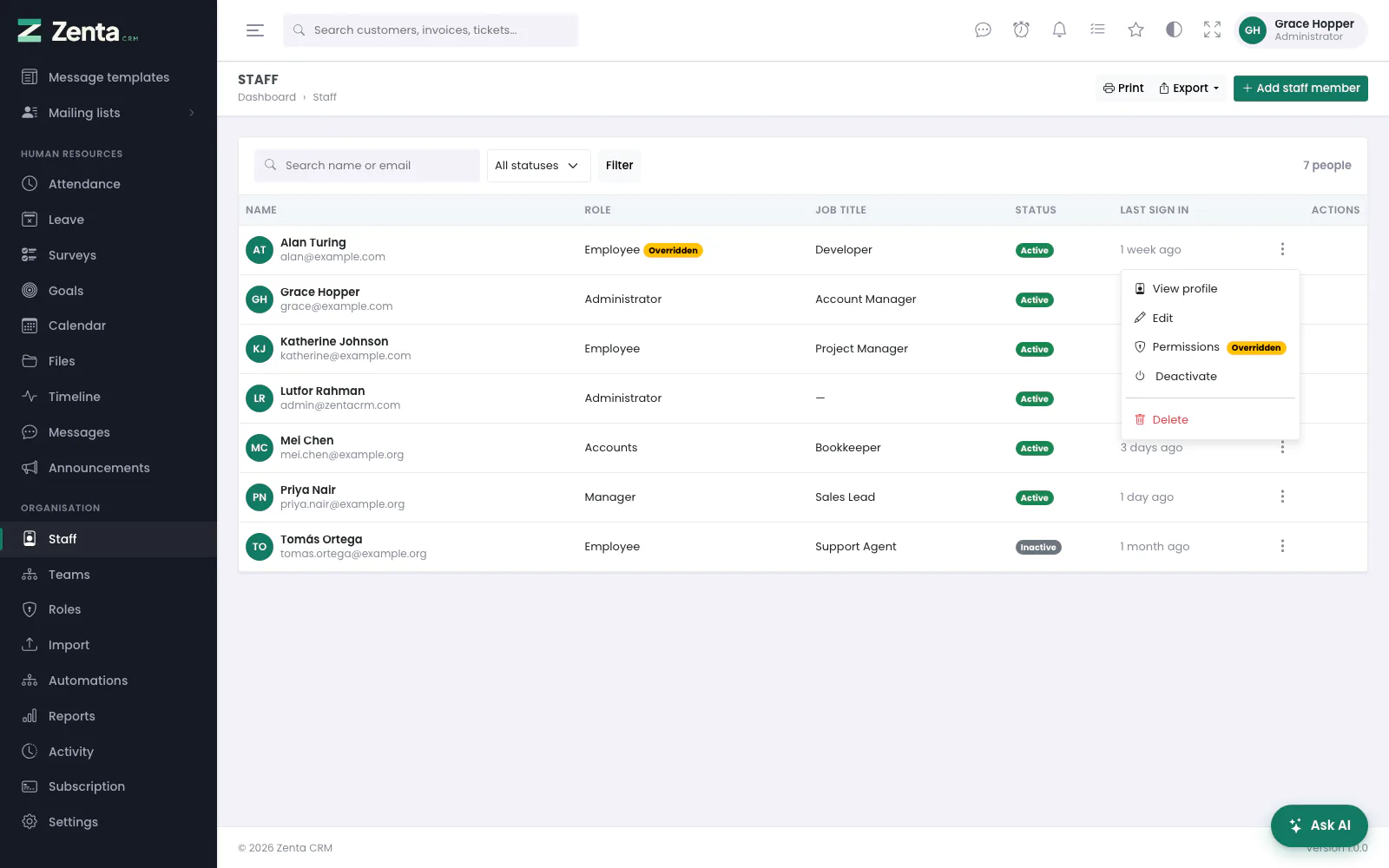 The row menu: the profile, the edit dialog, the person's permissions, deactivating and deleting.
The menu at the end of a row offers:
| Item | What it does |
|---|---|
| View profile | Opens the person's profile. |
| Edit | Opens the same dialog used to add somebody, filled in. |
| Permissions | Opens the page where this one person's permissions can differ from their role. Shown to people whose role may edit roles. |
| Deactivate / Reactivate | Stops the person signing in, or lets them back in. Not offered on your own row. The workspace owner cannot be deactivated. |
| Delete | Removes the person from your team, after a confirmation. Not offered on your own row, nor on the workspace owner's. |
Adding and editing a member of staff
 Add staff member. You set the password; the person signs in with this address and that password.
Press Add staff member. The dialog asks for:
| Field | What it does |
|---|---|
| First name | Required. |
| Last name | Optional. |
| Email address | Required. What they sign in with. Two people in your workspace cannot share one: Someone on your team already uses this address. When somebody who is not an administrator edits another person, the box is read-only (see below). |
| Phone, Job title | Optional. The job title shows on the list and the profile. |
| Role | What they may do. No role (no access) is allowed, and means exactly that. The list offers Administrator to administrators only. |
| Password and Confirm password | Required for somebody new; at least eight characters. When editing, leave blank to keep the current one. Not shown when somebody who is not an administrator edits another person. |
| Teams | Shown once you have teams (see Teams). Ticking one matters for any role scoped to Their teams. |
| Bio | A few lines shown on their profile. |
| Custom fields | Any fields you have added for staff appear here. |
| Active - can sign in | On by default. Off creates the account without letting it sign in yet. |
Press Add staff member to create the account, or Save changes when editing. Nothing is emailed to the person: you pass on the address and password yourself. Somebody who would rather choose their own can use Forgot password? on the sign-in page.
 Editing somebody. The link under Role opens their permission overrides.
When editing, a link under Role reads Override permissions for this person, or Permissions overridden - review when some already are. It is shown to people whose role may edit roles.
What only an administrator can change
Create and Edit on staff are what the shipped Manager role holds, so they stop short of an administrator's powers. For anybody who is not an administrator:
- The Role list leaves out Administrator, and saving somebody with it is refused: Only an administrator can give somebody the Administrator role.
- Editing somebody else, Email address is read-only, with Only an administrator can change another person's email address or password. under it, and the Password boxes are not there. Whoever controls an address can reset its password, so changing it is changing who owns the account.
- Editing yourself, the Role list is greyed out: Only an administrator can change your own role. Your own email and password you can still change here.
- An administrator's account cannot be edited, deactivated or deleted.
What they may not change is kept as it was, whatever the browser sends. The dialog is otherwise the same; see Running a team for how it looks to a manager.
A member of staff's profile
 A profile: who they are, their headline figures, and what they have done lately.
Click a name in the list, or View profile. The left side shows the person — job title, role, Active or Terminated — with how many Projects, Clients and Tasks they have, then their Bio (a sentence is written for them when it is empty), email, phone, teams, when they joined and last signed in, their Progress (the share of their tasks completed, and how many are open, done and overdue) and their Projects.
The tabs on the right:
- Activity — the last twenty things they created, changed or deleted, with View all activity once there are that many.
- Tasks — every task assigned to them, open ones first, with status, priority and due date.
- Projects — the projects they are on.
- Teams — the colleagues who share at least one team with them.
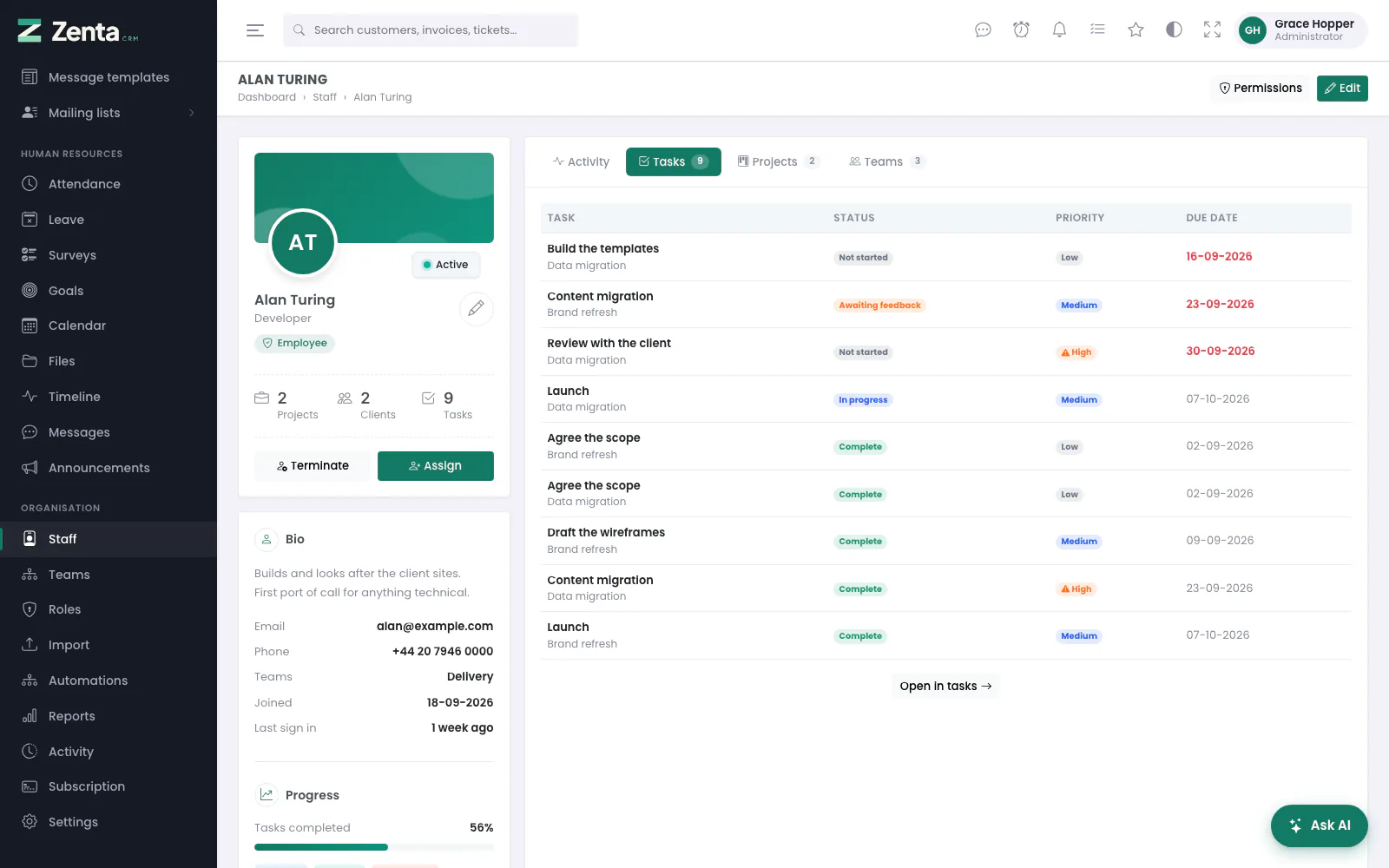 The Tasks tab: open work first, overdue dates in red.
Giving somebody work
 Assign: a running project, then any of its open tasks.
Assign on a profile opens Assign work to …. It is offered to anybody whose role may edit tasks or edit projects, and is greyed out for somebody who has been terminated.
- Project — required. Only projects that are still running, and that you can see, are listed.
- Tasks — the project's open tasks, grouped by status, loaded when you pick the project. Tasks already theirs are shown but cannot be chosen. Needs permission to edit tasks.
- Add to the project team — on by default; needs permission to edit projects. Somebody already on the team cannot be added again, and the switch says so.
Press Assign. The person gets a notification for every task they are given, and one for joining the project. Anybody given a task on a project is added to its team whether or not the switch was on — otherwise a role that only shows their projects would hide the very project their new tasks sit in. Choose at least one task or the team switch, or the dialog asks you to.
Deactivating, terminating and deleting
Deactivate on the list and Terminate on the profile are the same switch. After a confirmation the person can no longer sign in, and if they are signed in at that moment they are signed out on their next click. Their records and history are kept. Reactivate or Reinstate lets them back in with their existing role. You cannot deactivate yourself, and the workspace owner cannot be deactivated: The account owner cannot be deactivated.
Delete removes the person from your team. Use it for an account that should not exist at all; for somebody who has left, deactivating keeps their name on what they did. You cannot delete yourself, and the workspace owner's account cannot be deleted by anybody — it is the account of last resort.
Teams
 Organisation → Teams: each team with its description and its members, and New team.
Organisation → Teams. A team is a named group of staff, and it is what every scope called Their teams reads: somebody on that scope sees the work of everybody who shares at least one team with them. A person can be on several teams, or none — and somebody on no team has nobody to share one with, so Their teams shows them only their own work. Announcements, goals and calendar events addressed to one team use the same teams.
The list shows each Team with its description underneath, its Members as initials (hover for the name, or Nobody yet), and at the end of the row to edit it and to remove it.
 New team: a name, a description, and a box for each active member of staff.
Press New team. The dialog asks for:
| Field | What it does |
|---|---|
| Name | Required, up to 191 characters, and unique in the workspace. |
| Description | Optional; shown under the name in the list. |
| Members | A box for each active member of staff. Tick the people on the team. |
Press Add team. opens the same dialog as Edit team, filled in; change it and press Save changes. A person's teams can also be ticked in the Teams boxes of their staff record — both change the same thing.
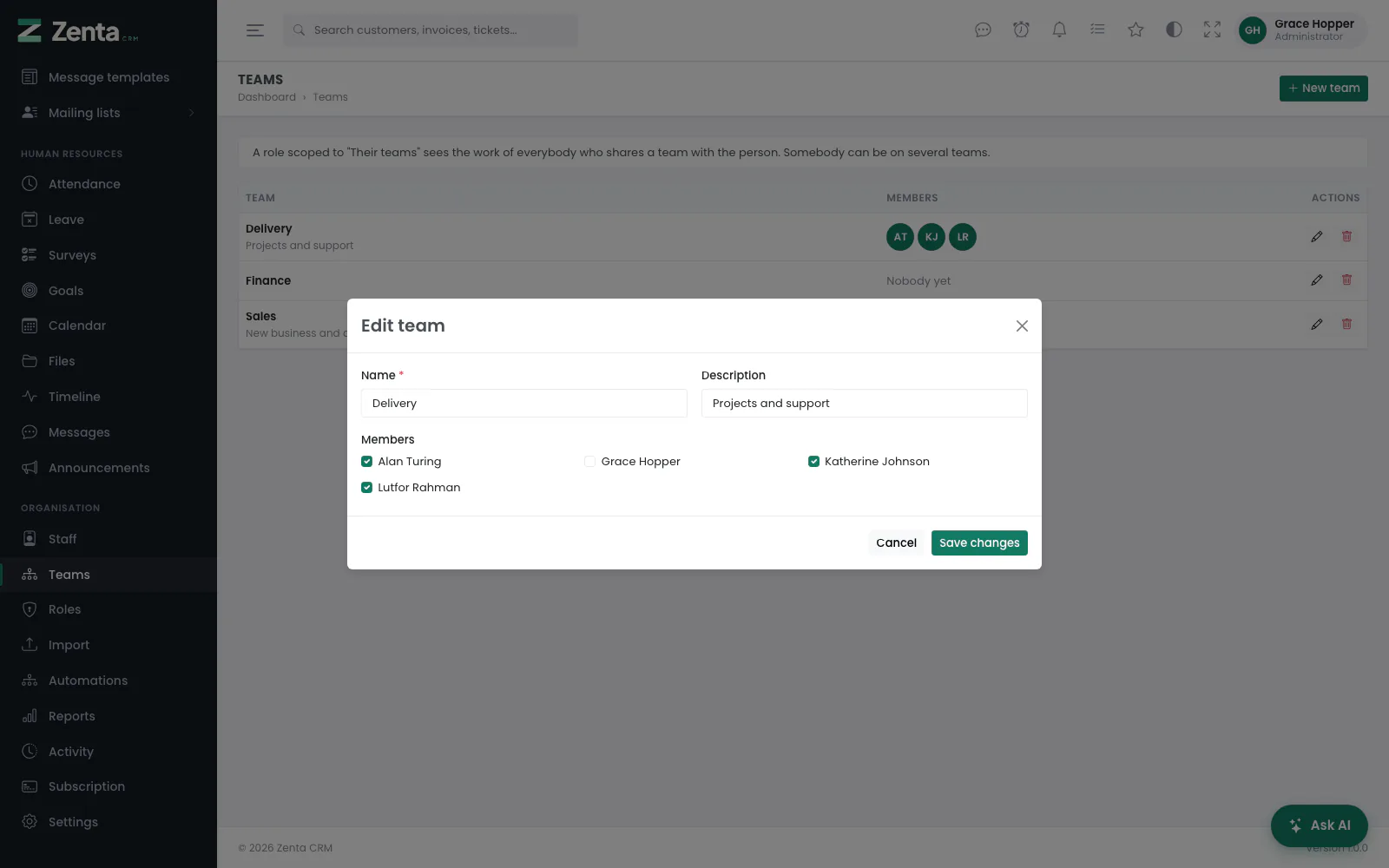 Edit team: the members already on it are ticked.
removes a team after you confirm (Remove this team? Its people stay; anyone scoped to their teams sees less of their work.). Nobody's account is touched; the people simply have one team fewer, and from then on anybody on a Their teams scope sees less of their former teammates' work.
The screen has its own module in the role editor, Teams, with View, Create, Edit and Delete: View shows the menu item and the list, and each of the others its button. The shipped Manager role holds View, Create and Edit, so a manager makes and changes teams but does not remove them.
Abilities
Organisation → Roles. A role is a list of modules — leads, invoices, tasks, staff, settings — and for each one, some combination of:
| Ability | Means |
|---|---|
| View | Open the screen and read records. |
| Create | Add new records. |
| Edit | Change existing ones. |
| Delete | Remove them. |
| Export | Download the list as a spreadsheet. |
| Approve | Leave only: grant or refuse somebody's request. |
| Send | Campaigns only: put a campaign in front of its lists. |
| Sign | Sign for the business only: countersign a document on the business's behalf. |
Not every module has every ability; the editor shows only the boxes that mean something for that module. AI assistance has its own three — Use the AI features, Use the assistant and Write agents (see AI assistance).
Approve and Send are separate from Edit on purpose. Correcting a typo in a leave request must not also mean being able to grant it, and writing a campaign must not also mean being able to email every customer with it.
Scope
And for each module, which records those abilities apply to — the dropdown at the end of each row:
| Scope | Means |
|---|---|
| All records | Every record in the workspace. |
| Their teams | Records owned by anyone on the same team. Teams are made under Organisation → Teams. |
| Assigned to them | Only records the person is assigned to. |
| Their clients | Records belonging to customers the person manages: customers whose Account owner they are, or where they are Also on the account. The same rule on every kind of record. |
| Their own records | Only records the person created or owns. |
| No access | The module is hidden entirely. |
Each module offers only the scopes that make sense for it: payments, items and settings are all or nothing, while projects and tasks offer all six.
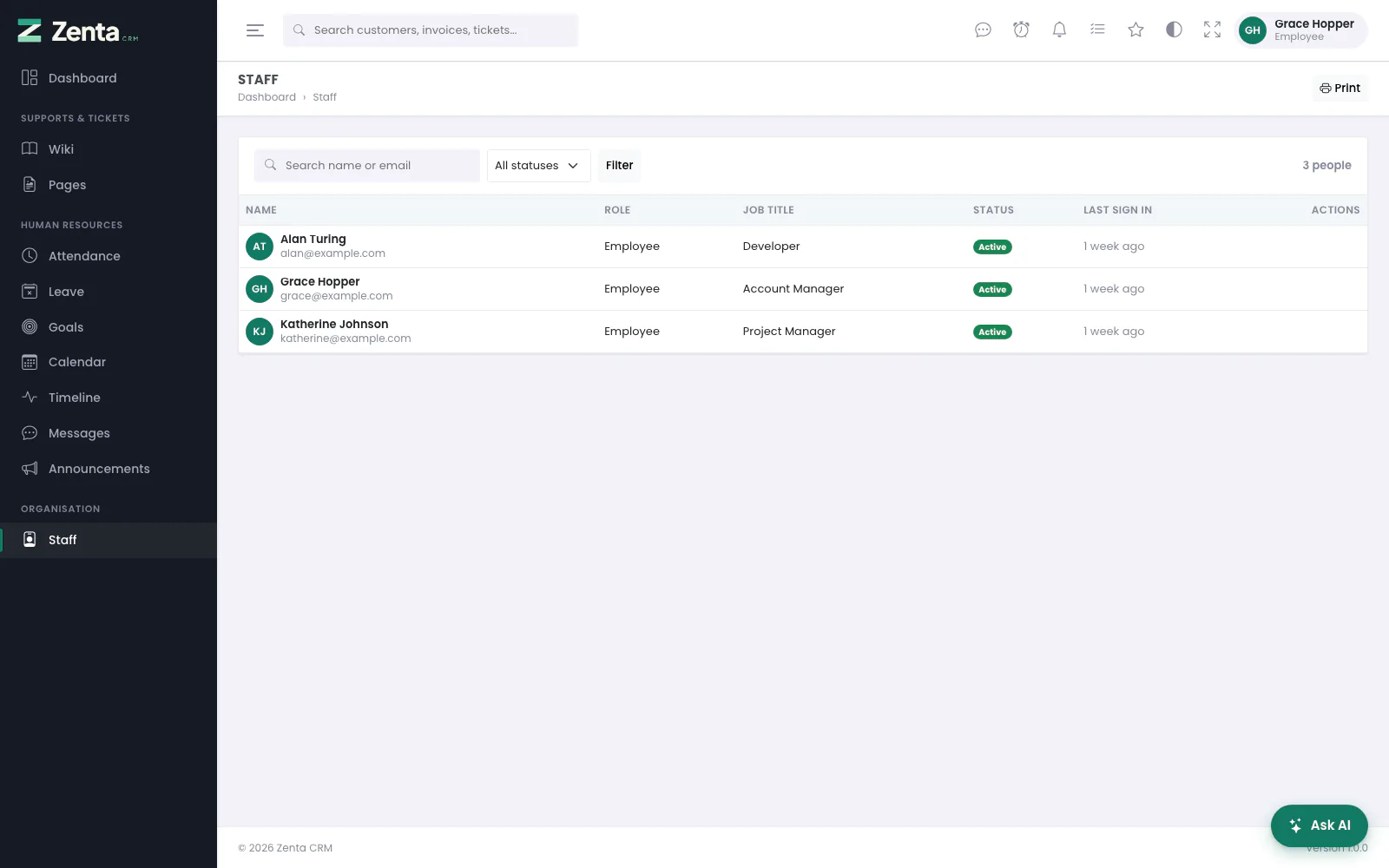 The staff list seen by an Employee: their teams, and nobody else.
Narrower still: restrictions
Some modules take a third, optional limit, under a collapsed line below their boxes. The scope still decides whose records they are; a restriction narrows that further and never widens it. Nothing ticked means no limit.
- Only these customer groups — customers, proposals, estimates, invoices, contracts, projects and tickets. A record that belongs to no customer at all is outside the limit.
- Only these departments — support tickets.
- Only these project categories — projects. A project with no category is outside the limit.
- Only these AI agents — AI assistance: the agents somebody may choose in the assistant (see AI).
An example
A salesperson might have:
- Leads: View, Create, Edit — Their own records
- Customers & contacts: View, Edit — Their own records
- Invoices: View — Their clients
- Reports: No access
They have full control of their own pipeline, can see the invoices of customers they manage, and cannot see the company's numbers.
Roles
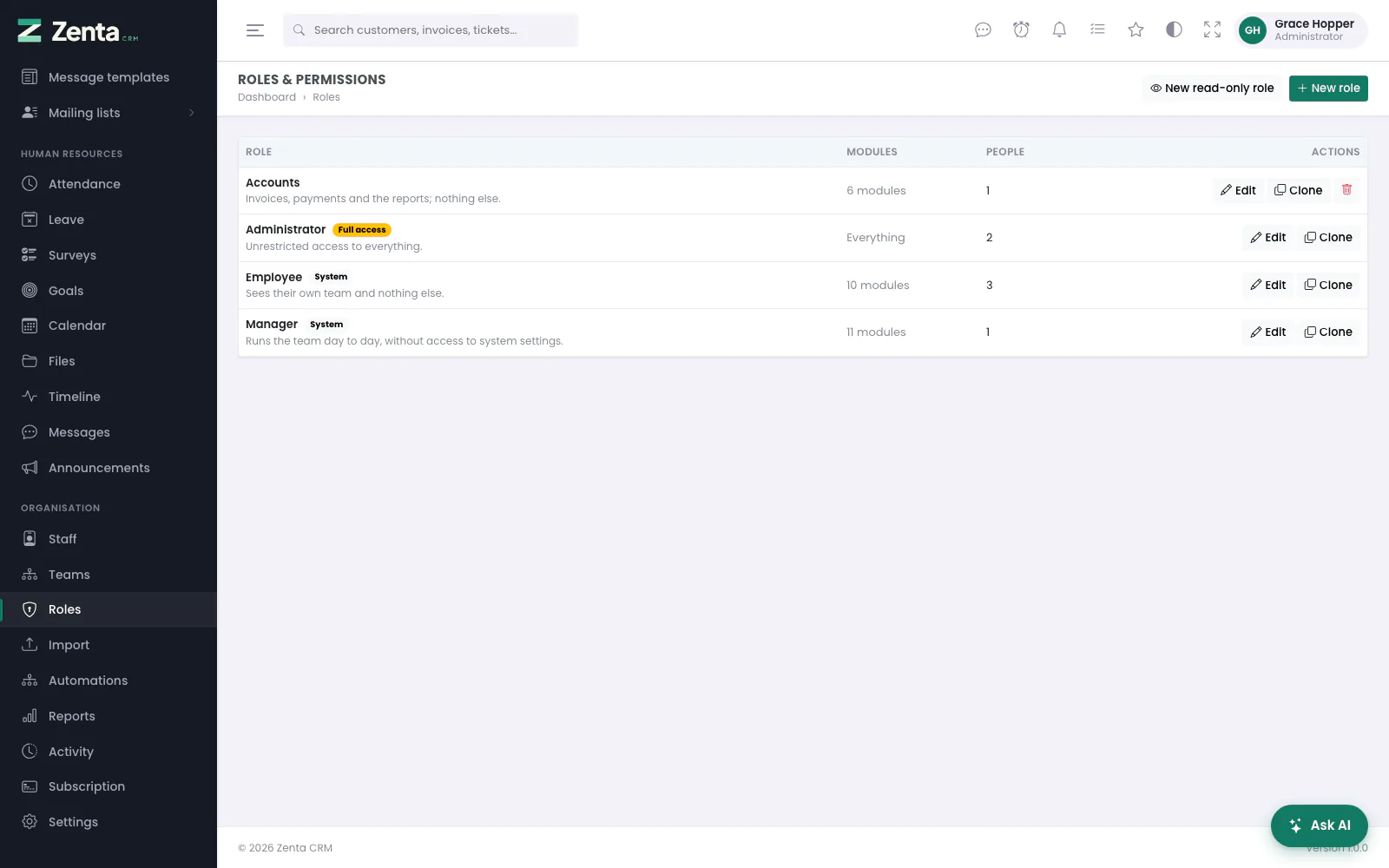 Organisation → Roles: each role, how many modules it reaches and how many people hold it.
The list shows each role with its description, how many Modules it reaches (Everything for the administrator role) and how many People hold it. The administrator role carries a Full access badge; the other roles every workspace starts with carry System.
The three roles you start with
| Role | What it holds |
|---|---|
| Administrator | Every permission, always. Unrestricted access to everything. |
| Manager | Runs the team day to day: staff and teams (view, create, edit), attendance, leave (including approving it), announcements, the timeline and the wiki, AI help and the assistant, the calendar, goals and messages. No customer, sales or delivery modules until you add them. |
| Employee | Sees their own team and nothing else: the staff of their teams, their own attendance and leave, reading announcements and the wiki, posting to the timeline, AI help and the assistant, the calendar, goals and messages. |
None of the three reaches leads, customers, invoices or projects out of the box: what your salespeople or project managers should see is your decision, so make a role for it (or edit these). Manager and Employee can be renamed and re-scoped freely. The administrator role can be renamed, but always holds every permission — editing its map would only be a way to lock the workspace out of its own account. System roles cannot be deleted.
Creating and editing a role
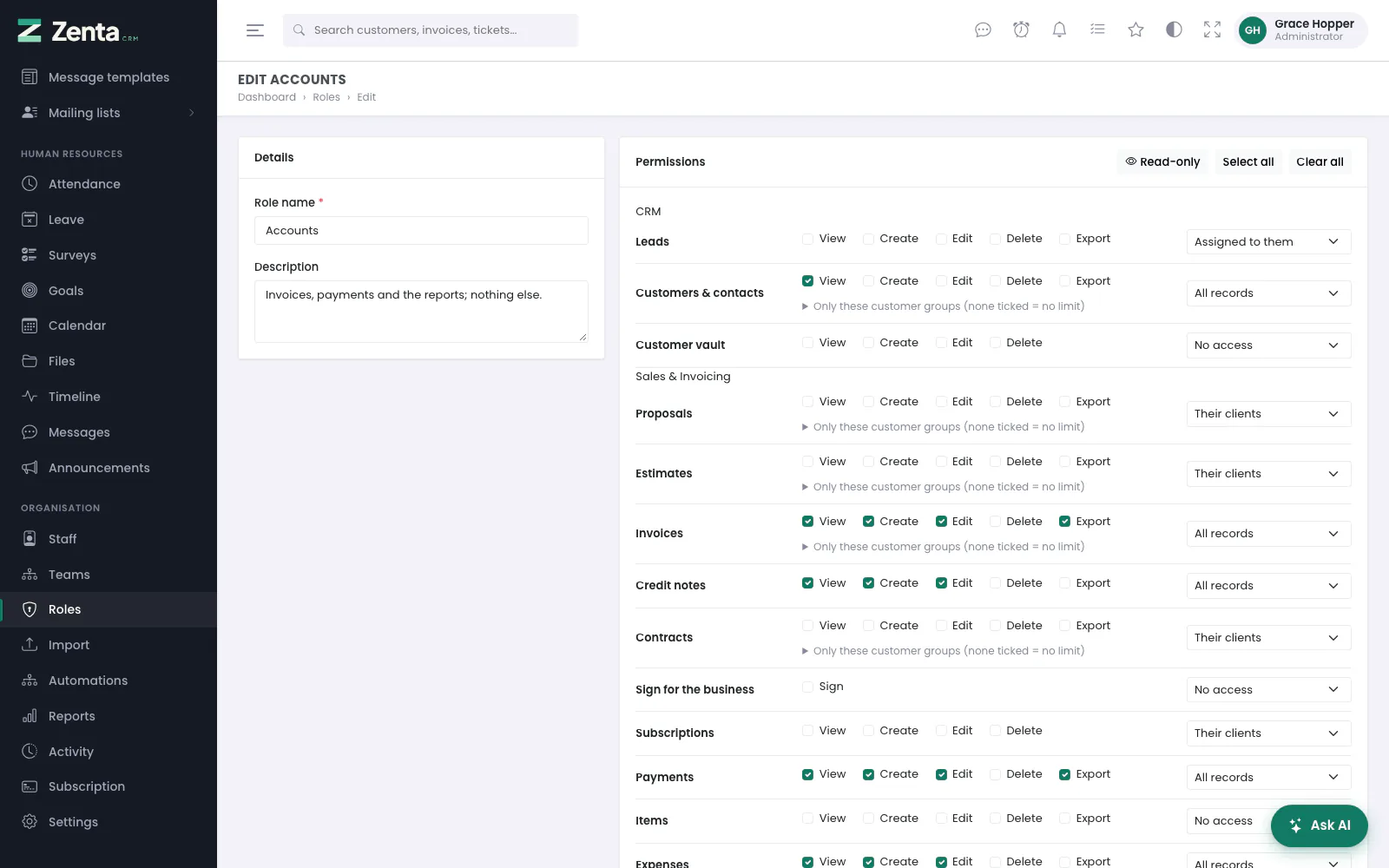 The role editor: a row per module, its abilities, and the scope at the end of the row.
New role opens a blank editor; Edit on a row opens that role. On the left, Role name (required, and unique in the workspace) and Description. On the right, Permissions: the modules in their groups, each with its ability boxes, any restrictions, and the scope dropdown. Across the top of the permissions:
- Read-only — ticks only the View boxes and clears everything else. The Organisation group (staff, roles, teams, settings) is left out, and a module at No access moves to the first scope that shows something.
- Select all — ticks every box. Scopes are left as they are.
- Clear all — clears every box.
Press Create role, or Save changes when editing. Anybody holding the role gets the change on their next click. Opening the administrator role shows only its name and description: This role always has every permission. Only its name and description can be changed.
 New read-only role: every View box ticked, outside the Organisation group.
New read-only role, beside New role, opens the editor with the read-only preset already applied — the quickest start for an auditor or somebody's first week. Nothing is saved until you press Create role.
Cloning and deleting a role
Clone on a row asks Make a copy of the … role, with the same permissions? and opens the copy, named Copy of … (numbered when that is taken). A copy is always an ordinary role, never a system one; a copy of the administrator role holds every permission but can be trimmed, which is the point of making it.
The button deletes a role you made, after a confirmation. A role somebody still holds cannot be deleted — This role is still assigned to … people. Move them to another role first.
Changing one person's permissions
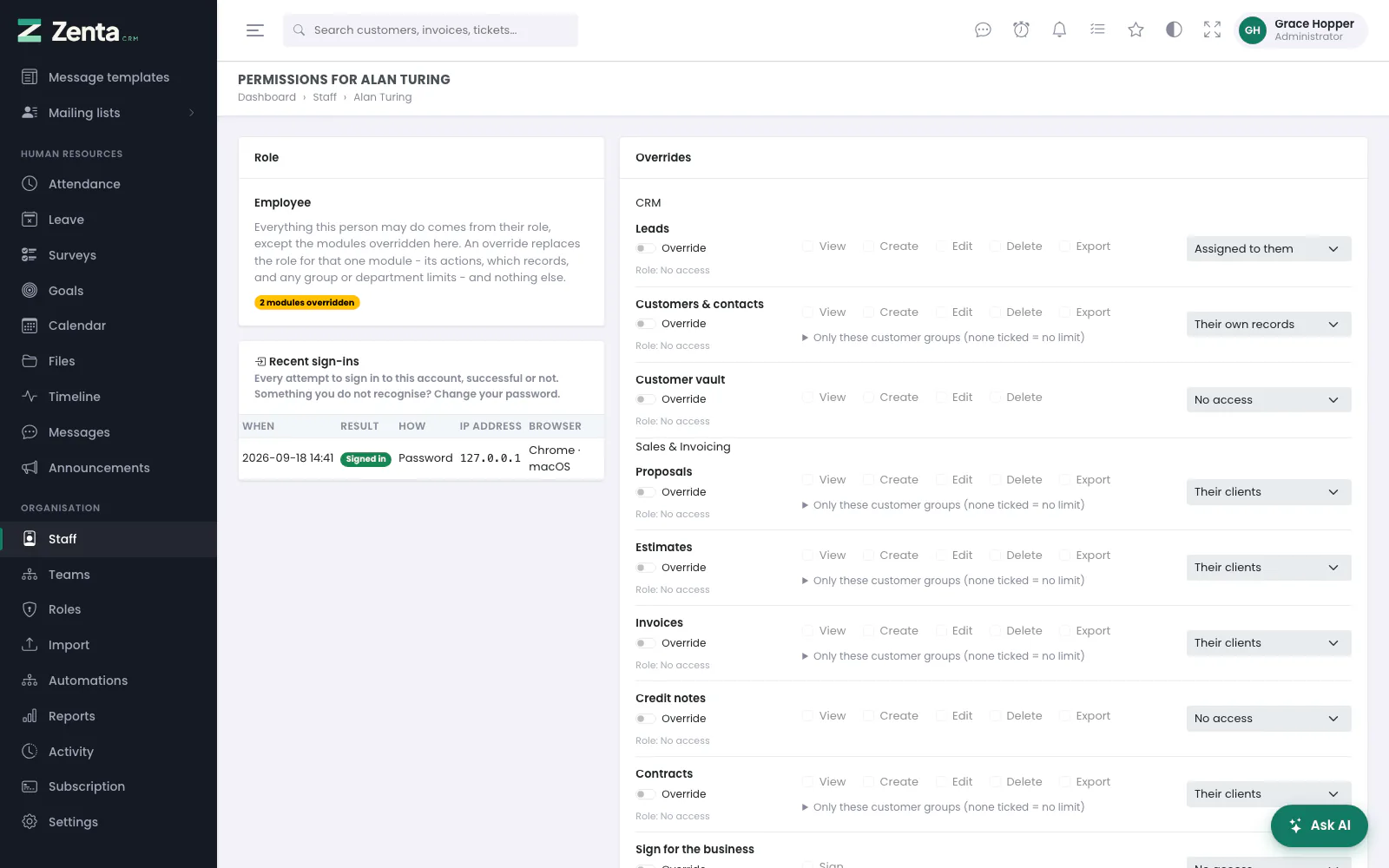 Permissions for one person: their role on the left, the modules on the right, and their recent sign-ins.
Sometimes one person needs a little more, or a little less, than their role — without making a role just for them. Permissions on a profile or in the staff list opens Permissions for …. It needs permission to edit both staff and roles.
Each module shows what the role gives (Role: View, Create · Their clients, or Role: No access). Switch on Override under a module and its boxes and scope unlock; set them, and press Save permissions.
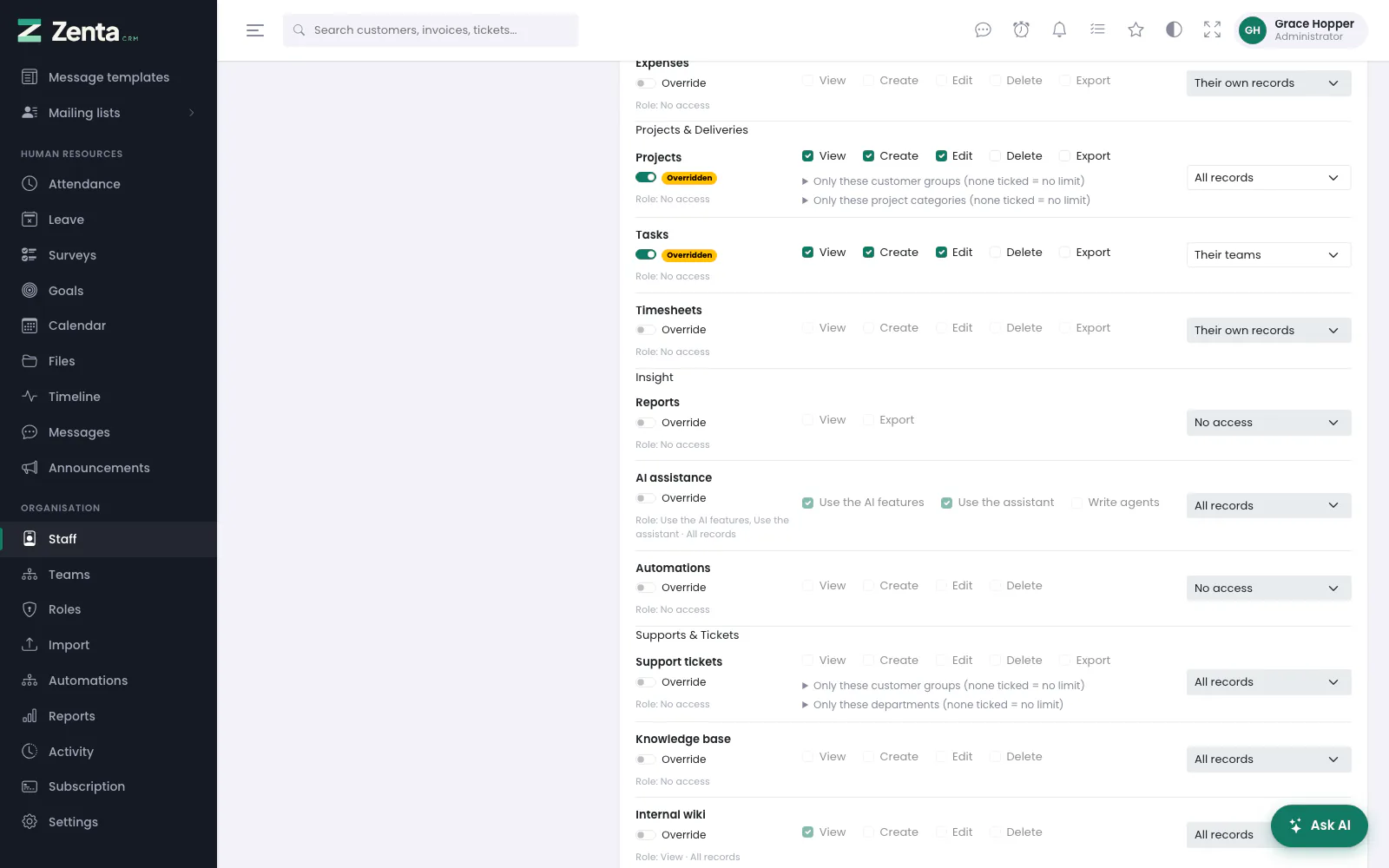 Two modules overridden: this person may work on every project, whatever their role says.
- An override replaces the role for that one module — its actions, which records, and any group or department limits — and nothing else. Every other module still follows the role, so changing the role later still reaches this person.
- An override with nothing ticked takes the module away from this person, whatever their role allows.
- Switch an override off and save, and that module follows the role again. With none left: Permissions now follow the role.
- You cannot change your own permissions — that would be a way to hand yourself what your role does not. Ask another administrator.
- An administrator holds every permission, so there is nothing to override.
The panel on the left repeats the role and counts the overridden modules. Administrators also see Recent sign-ins: the last ten attempts to sign in to this account, successful or not.
What the dashboard shows each person
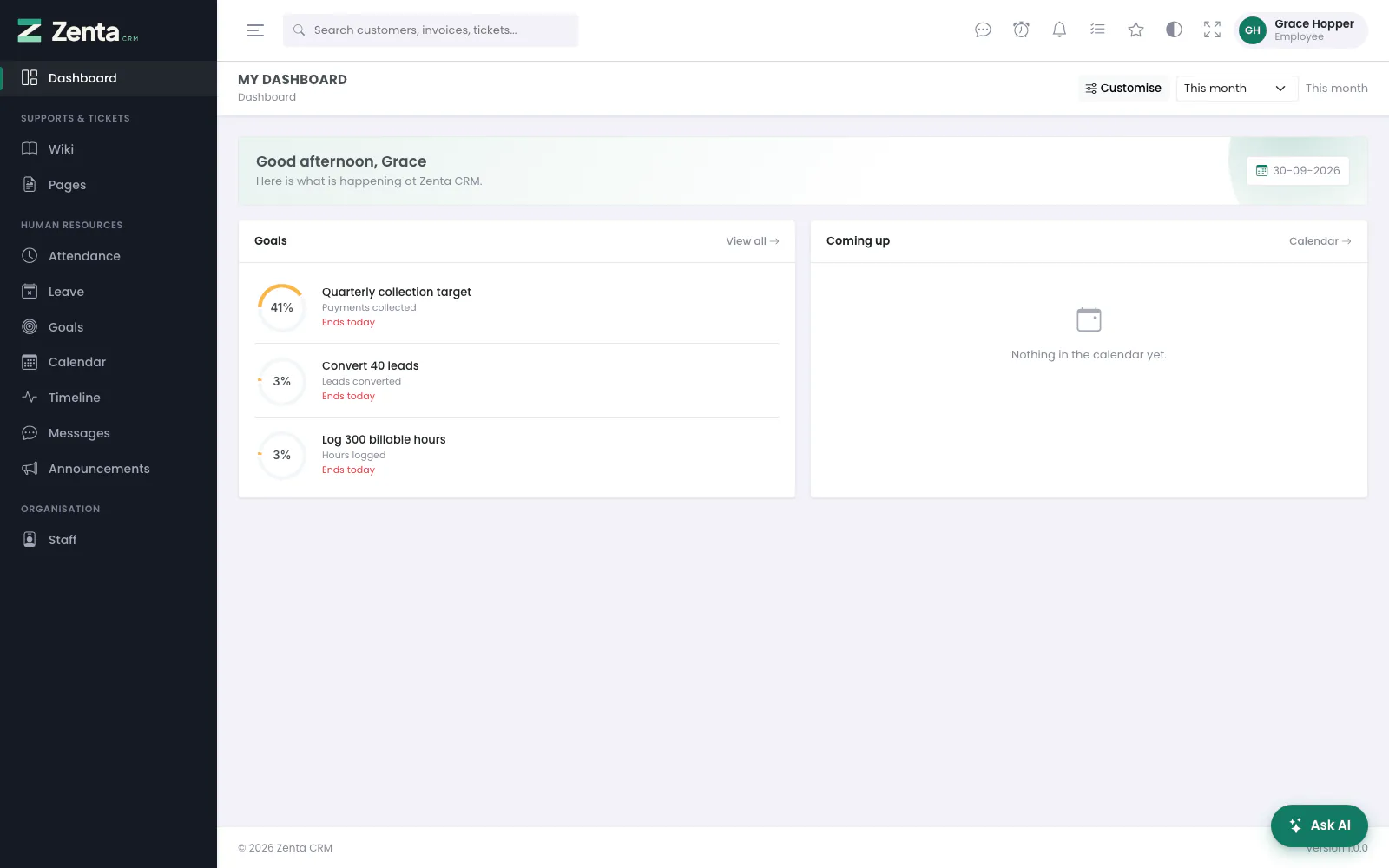 The dashboard of somebody on the Employee role: only panels for what the role can read.
Every dashboard panel is behind the permission for the thing it summarises, so the dashboard reaches exactly as far as the role does (see Reports and dashboards). The Latest activity panel, like Organisation → Activity itself, needs View on staff with the scope All records: seeing the whole staff, not only your own team (see The activity log).
Customer contacts
A contact at a customer is a different kind of account. They sign in at
/portal, never at the staff login, and the two audiences never see each
other's screens. What each contact may see is set per contact on the customer record.
Addresses on this page
For reference and for anyone scripting against the panel. Everything here needs somebody signed in to the workspace whose role allows it; anybody else is refused.
| Method | Address | What it does |
|---|---|---|
GET | admin/staff | The staff list, with q and status filters. |
GET | admin/staff/create | The Add staff member dialog. |
POST | admin/staff | Creates a member of staff. |
GET | admin/staff/{user} | A member of staff's profile. |
GET | admin/staff/{user}/edit | The Edit dialog. |
PUT | admin/staff/{user} | Saves the Edit dialog. |
PATCH | admin/staff/{user}/toggle | Deactivates or reactivates (terminates or reinstates) somebody. |
DELETE | admin/staff/{user} | Deletes a member of staff. |
GET | admin/staff/{user}/assign | The Assign work dialog. |
GET | admin/staff/{user}/assign/tasks | A project's open tasks for that dialog, as JSON (project_id); used by the page itself. |
POST | admin/staff/{user}/assign | Assigns the chosen tasks and/or adds the person to the project team. |
GET | admin/staff/{user}/permissions | One person's permission overrides. |
PUT | admin/staff/{user}/permissions | Saves them. |
GET | admin/teams | Organisation → Teams: the list of teams and their members. |
GET | admin/teams/create | The New team dialog. |
POST | admin/teams | Creates a team with its members. |
GET | admin/teams/{team}/edit | The Edit team dialog. |
PUT | admin/teams/{team} | Saves a team's name, description and members. |
DELETE | admin/teams/{team} | Removes a team; its people stay. |
GET | admin/roles | The list of roles. |
GET | admin/roles/create | The editor for a new role; ?preset=read-only opens it with the read-only preset. |
POST | admin/roles | Creates a role. |
GET | admin/roles/{role}/edit | The editor for an existing role. |
PUT | admin/roles/{role} | Saves a role. |
POST | admin/roles/{role}/clone | Makes a copy of a role and opens it. |
DELETE | admin/roles/{role} | Deletes a role nobody holds. |