Workspaces
Every customer workspace on the platform: find one, create one, change its plan, suspend it, or see it through its owner's eyes.
 Every workspace on the platform, with its owner, plan, people and state.
The list
Tenant admin → Workspaces. One row per workspace: its name and slug, the owner's email, its plan, how many people it has, when it was created and its status — with the date a trial ends under a workspace that is on one. Your own workspace is in the list too.
- Search by name or slug. The Find a workspace box in the top bar does the same from any page.
- Filter by status (each shows how many workspaces are in it) and by plan, then press Filter. Clear takes the filters off.
- Click a workspace's name to open it.
Creating a workspace by hand
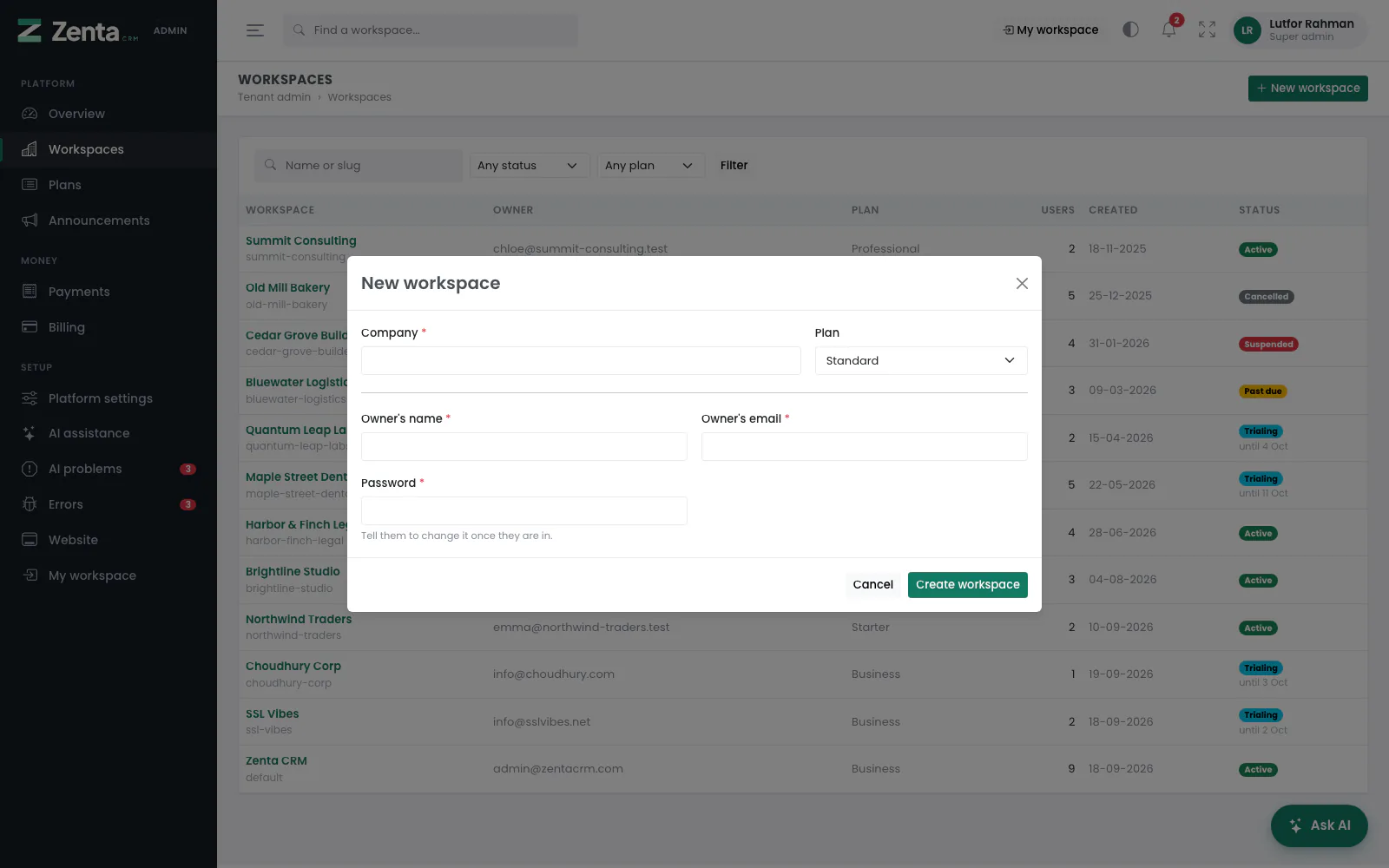 A new workspace: the company, its plan and the owner's account.
Companies can sign themselves up if you allow it (see How a company signs up). To create one yourself — for a customer you signed on the phone, say — press New workspace on the list or on the overview.
- Company — the workspace's name. Its slug and address are made from it.
- Plan — any active plan.
- Owner's name, Owner's email and a Password of at least eight characters. The email must not already belong to an account. Tell them to change the password once they are in.
- Press Create workspace.
The workspace is built exactly as a self sign-up builds it — the owner's account, the workspace's reference data and its settings — and you are taken to its page.
A workspace's page
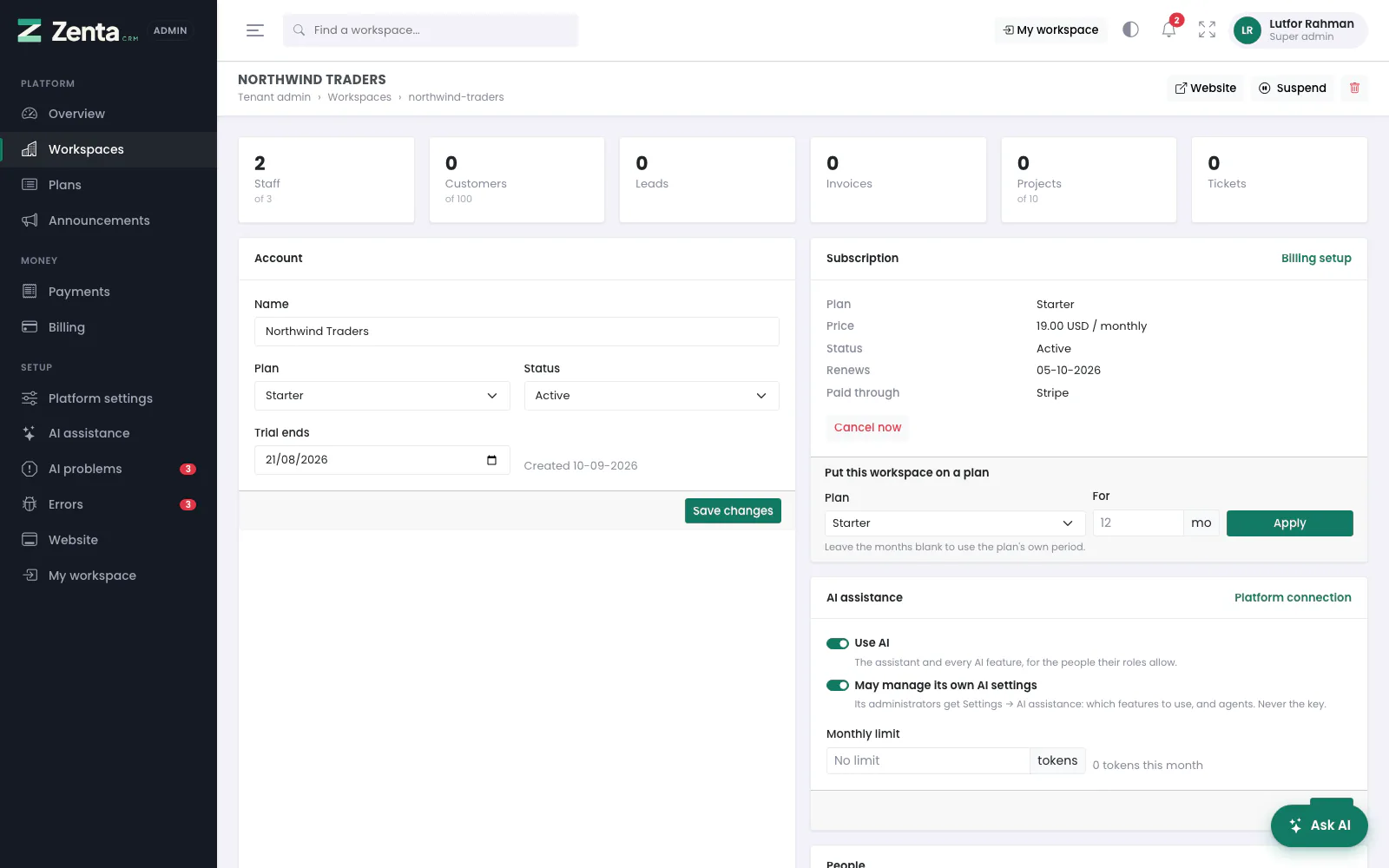 One workspace: what it uses against what its plan allows, its account, subscription, AI access and people.
Along the top, what the workspace holds against what its plan allows:
- Staff, Customers, Leads, Invoices, Projects and Tickets, each with of N under it when the plan caps it. A figure at or over its cap turns red.
The buttons at the top right:
| Button | What it does |
|---|---|
| Website | Opens the workspace's public address, written the way Workspace addresses says (subdomain or path), in a new tab. |
| Suspend / Restore | See Suspending a workspace. |
| See Deleting a workspace. |
Account
The workspace's Name, Plan (or No plan), Status and the date its Trial ends. Change any of them and press Save changes. This changes the record directly — it does not take or refund any money, and it does not create a subscription. Use it to correct a workspace, extend a trial by a week, or move it to another plan's feature set.
Subscription
The subscription in force, if there is one: its plan, price and period, status, when it renews (or Ends, if it is set to stop at the end of the period) and how it is paid — through a gateway, or Recorded by hand. Billing setup opens Billing.
- Put this workspace on a plan. Choose a plan and, optionally, for how many months (1 to 120), and press Apply. With the months left blank the plan's own period is used. This records exactly the same subscription a card payment would, so it is how you run the platform on bank transfers, and how you give a workspace a plan for free. The workspace becomes active straight away. It does not record any money: do that under Payments.
- Cancel now ends the subscription immediately and the workspace loses access. To let a paying workspace run to the end of the period it has paid for, cancel through the gateway instead.
AI assistance
Whether this workspace may use the platform's AI connection: Use AI, May manage its own AI settings and a Monthly limit in tokens (blank for no limit), with how many tokens it has used this month. Press Save. Your own workspace always has AI and its own settings. Platform connection opens AI assistance, which explains each switch and lists every workspace at once.
People, and signing in as one of them
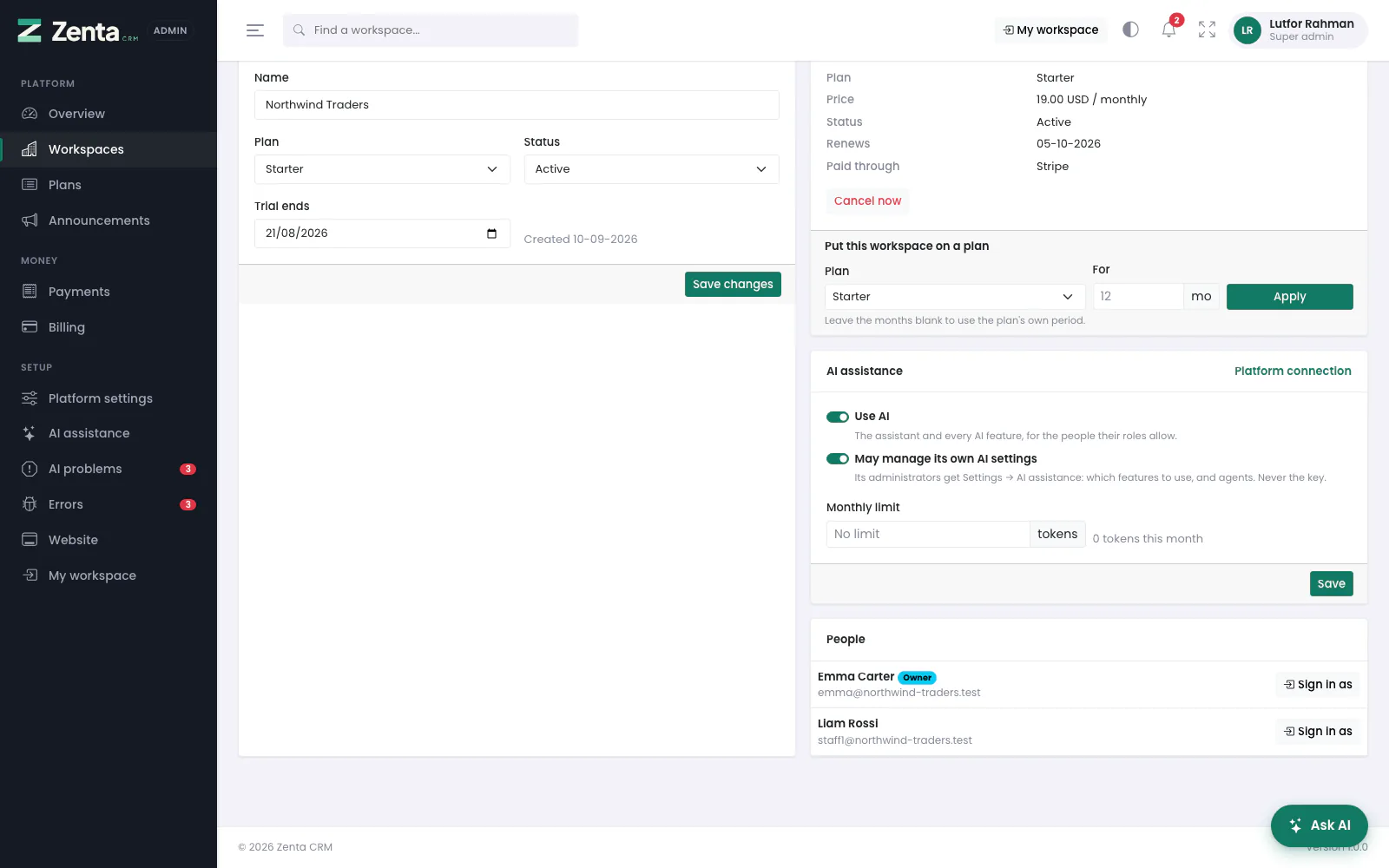 Further down a workspace's page: its AI access and its people, each with Sign in as.
Every staff member of the workspace, with the owner marked. Sign in as beside a person takes you to the workspace's own address, signed in as them, so you see exactly what they see — the quickest way to answer "it doesn't work for me".
- A band across the top of every page says whose account you are in: anything you change is changed on their account.
- Back to the tenant admin area in that band ends their session and signs you back in at the platform's address, on the Workspaces list. No password is needed either way; each trip is a one-time link.
- Super admins cannot sign in as each other, and Sign in as is not offered beside one.
Suspending a workspace
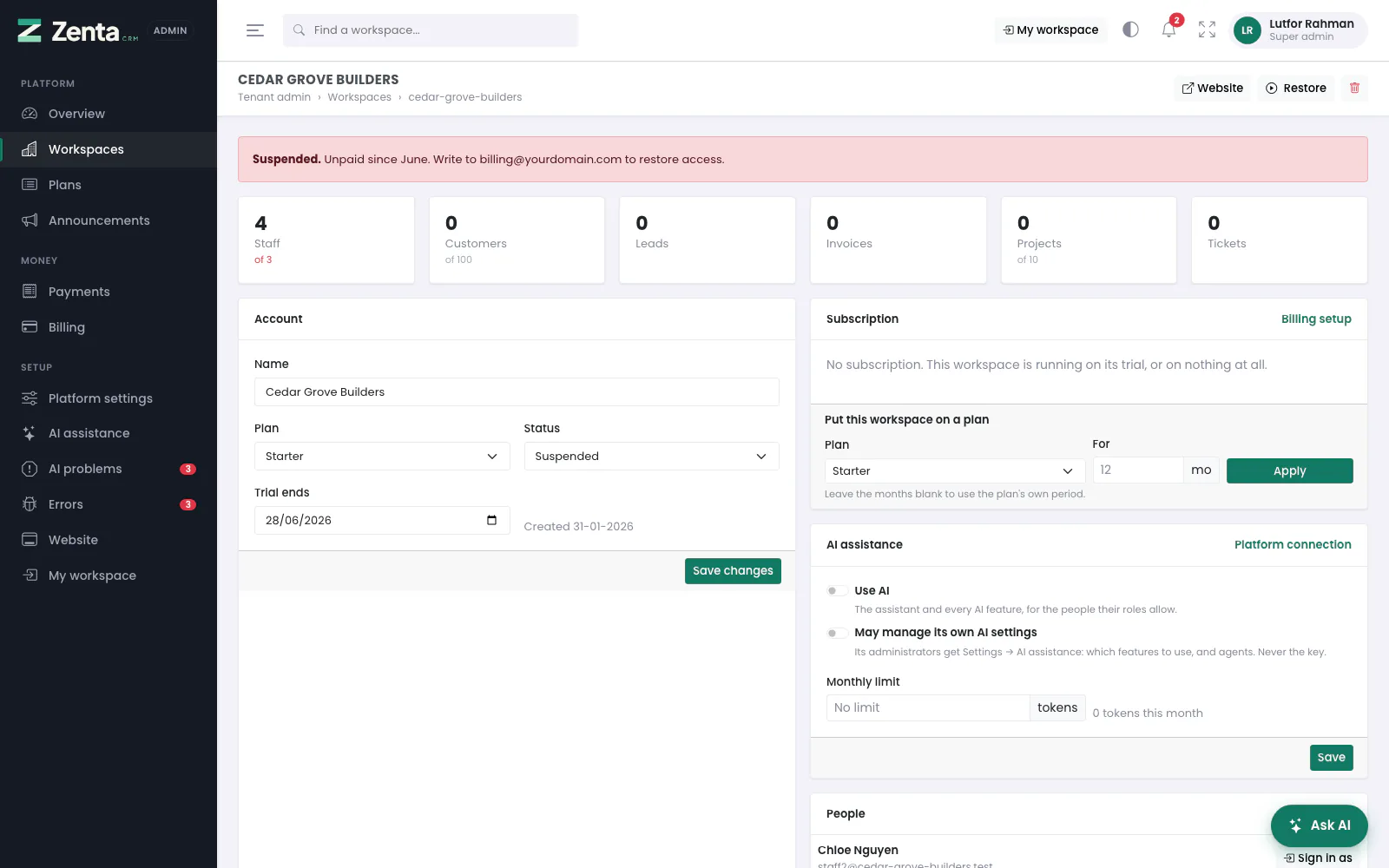 A suspended workspace: the reason its people are shown, and Restore.
Press Suspend on the workspace's page. You are asked for a reason (optional), and that reason is shown to the people it locks out, with the support email from Platform settings — which turns "the site is broken" into an email you do not have to answer. Nobody in the workspace can sign in; nothing is deleted.
Restore puts it back where it was, on trial if its trial has not ended and active otherwise, with nothing lost. Announcements addressed to suspended workspaces are still shown to them, on the page they are shut behind.
Deleting a workspace
The button on the workspace's page, then confirm. Everything in the workspace goes with it and it cannot be undone. You cannot delete the workspace you are signed in to. Suspend or cancel a workspace instead if there is any chance it comes back.
Addresses on this page
For reference and for anyone scripting against the panel. Everything here needs a signed-in super admin at the platform's own address; anybody else gets 403.
| Method | Address | What it does |
|---|---|---|
GET | tenant/admin/tenants | The list, with q, status and plan filters. |
GET | tenant/admin/tenants/create | The New workspace form. |
POST | tenant/admin/tenants | Creates the workspace and its owner. |
GET | tenant/admin/tenants/{tenant} | A workspace's page. |
PUT | tenant/admin/tenants/{tenant} | Saves the Account card: name, plan, status, trial end. |
PATCH | tenant/admin/tenants/{tenant}/suspend | Suspends it with an optional reason, or restores it. |
DELETE | tenant/admin/tenants/{tenant} | Deletes the workspace and everything in it. |
POST | tenant/admin/tenants/{tenant}/activate | Puts it on a plan by hand, for a number of months. |
POST | tenant/admin/tenants/{tenant}/cancel | Cancels its subscription now. |
PUT | tenant/admin/ai/workspaces/{tenant} | Saves its AI access and monthly limit. |
POST | tenant/admin/tenants/{tenant}/impersonate/{user} | Signs you in as that person, at the workspace's address. |
POST | stop-impersonating | Ends it and signs you back in as yourself. |