Search, filters and bulk actions
Find anything from the top bar, keep the filters you use, and change many records at once.
The search box
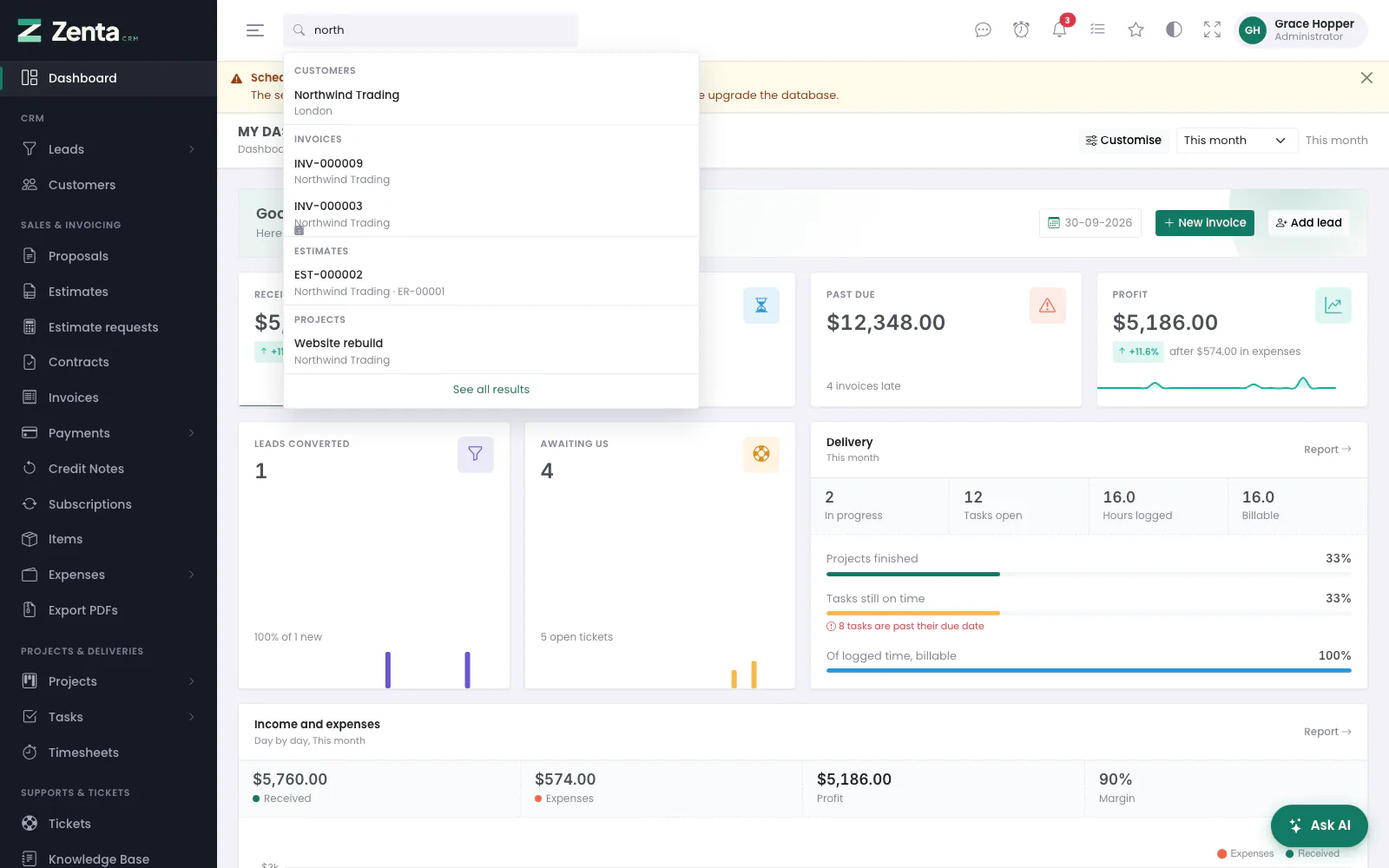 Results under the search box as you type, grouped by kind of record.
The box in the top bar, Search customers, invoices, tickets..., searches fifteen kinds of record at once: customers, leads, invoices, estimates, proposals, contracts, credit notes, projects, tasks, tickets, expenses, items, knowledge-base articles, wiki pages and campaigns.
- Type at least two characters. Results appear a moment after you stop typing, grouped by kind, a few of each; a group showing four of forty says 4/40.
- Click a result to open it. Expenses and items have no page of their own, so those open their list with your search already in the filter box.
- Press Enter, or See all results, for the results page.
- Press / anywhere (outside a text box) to jump to the search box, ↓ to move into the results, and Esc to close them.
There is no separate search index, which means nothing to rebuild and no window where the index and the records disagree. A record that stops being visible stops being findable in the same moment.
The results page
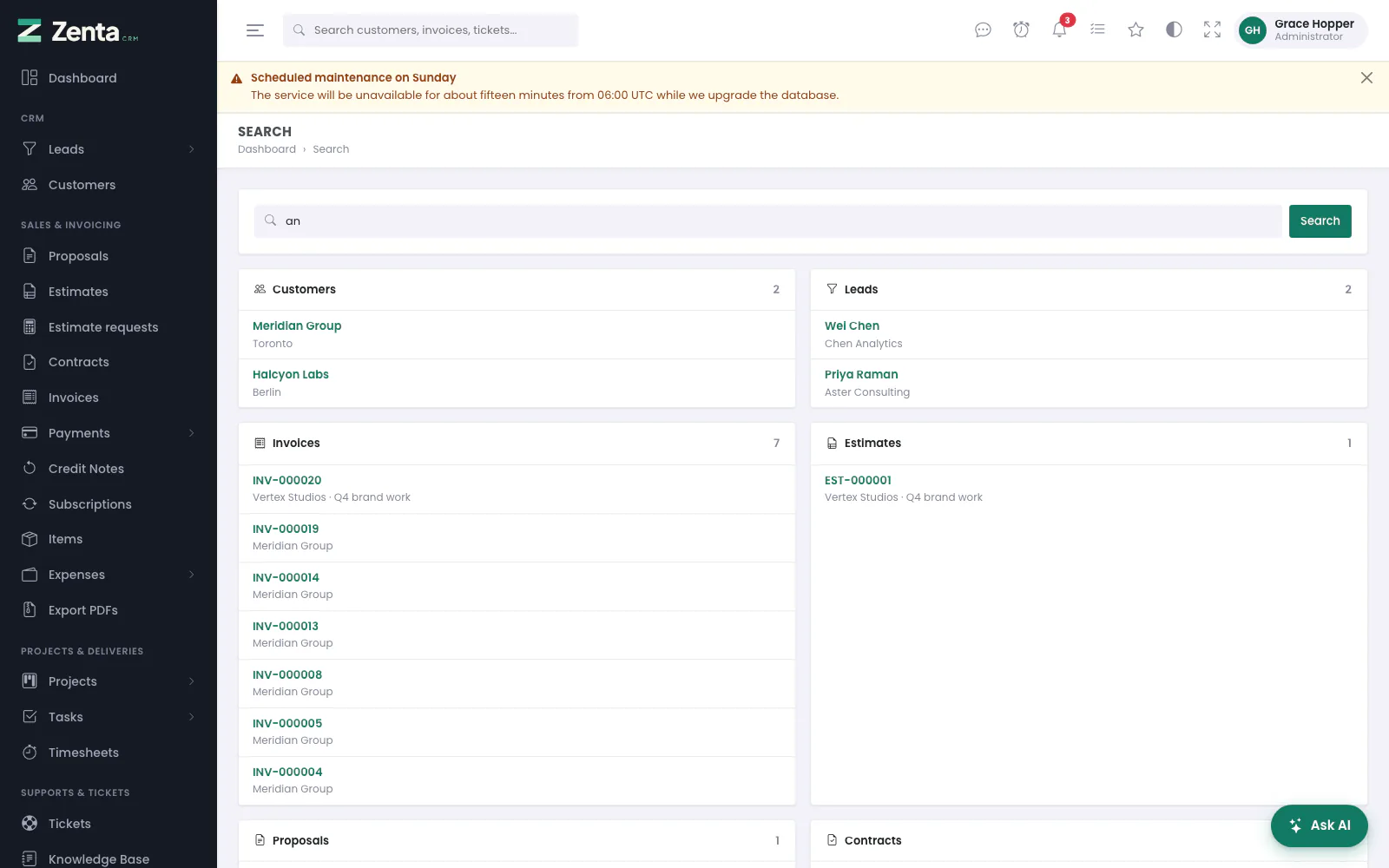 The results page: a card for each kind of record, with how many matched.
A card for each kind of record that matched, with the total in its corner and more results than the dropdown shows. Where there are more than it lists, the foot of the card says Showing 10 of 37. Narrow the search to see the rest. Search again from the box at the top of the page. When nothing matches, the page reminds you that only records you have permission to open are searched — the usual reason a record you know exists is not found.
How many results
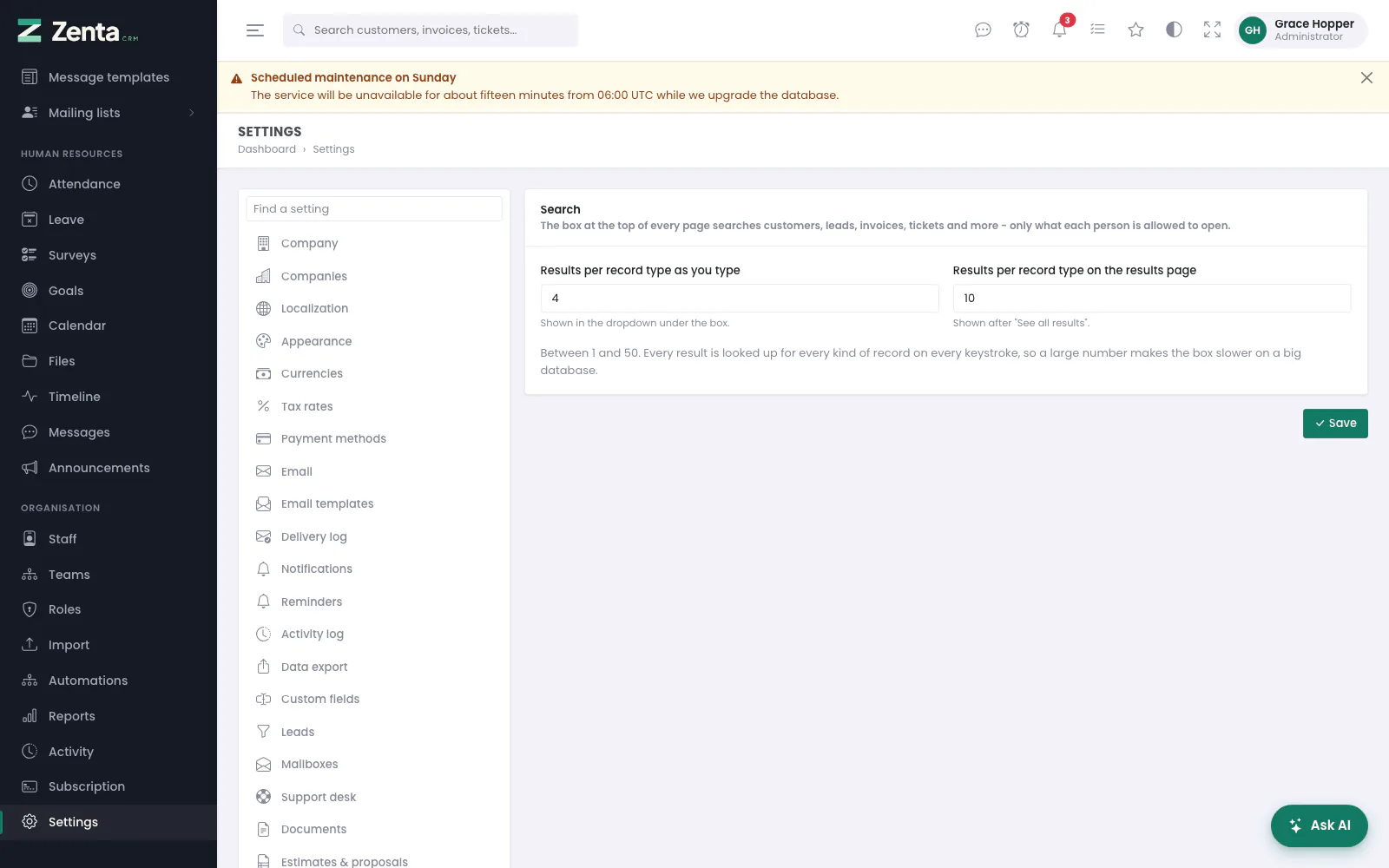 Settings → Search: how many results of each kind to show.
Settings → Search has two numbers, for the whole workspace:
| Setting | Default | What it does |
|---|---|---|
| Results per record type as you type | 4 | How many of each kind the dropdown under the box shows. |
| Results per record type on the results page | 10 | How many of each kind the page after See all results shows. |
Each can be between 1 and 50. Press Save. Every result is looked up for every kind of record as somebody types, so larger numbers make the box slower on a big database.
Saved filters
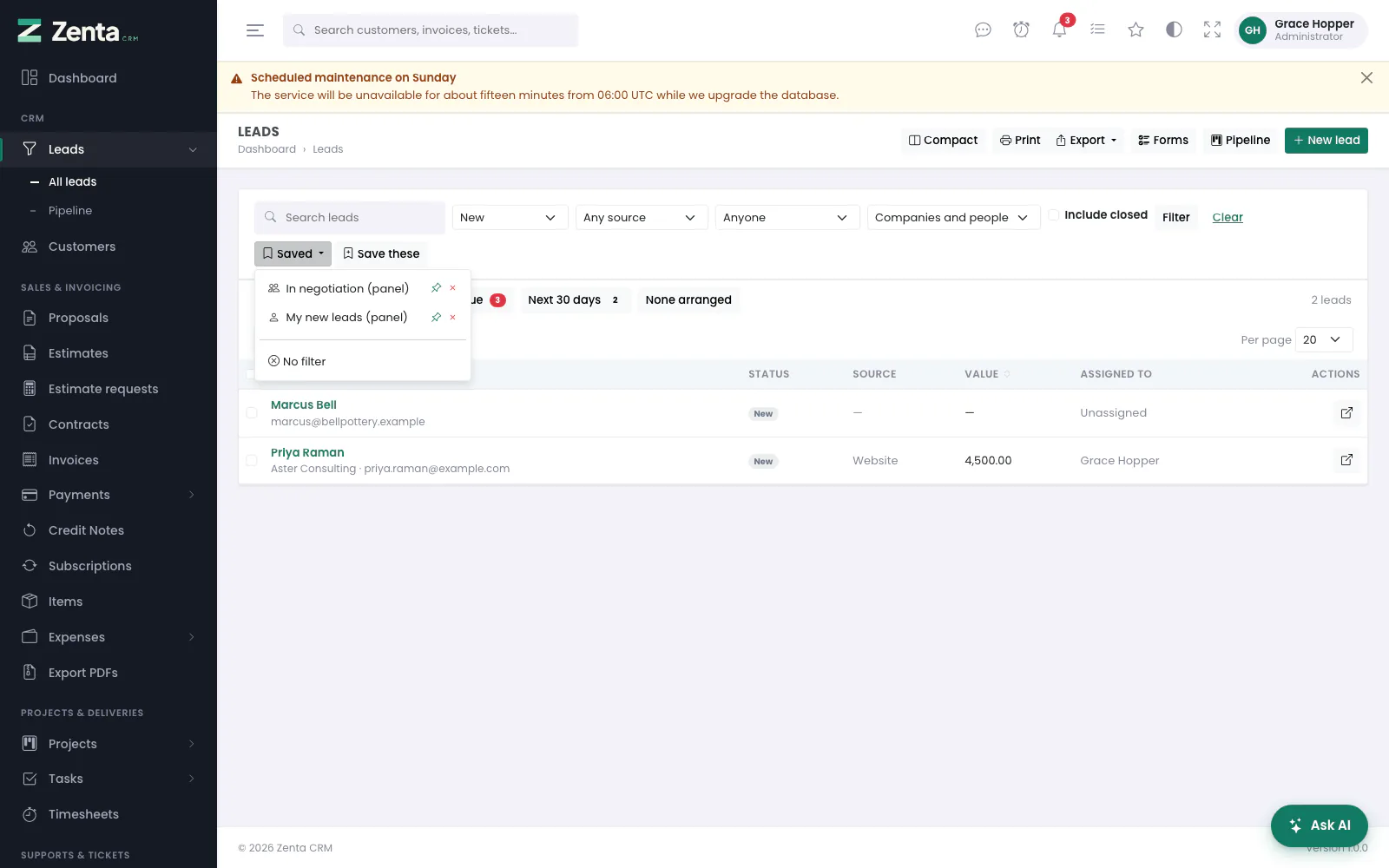 The Saved menu on the leads list: a shared filter, a personal one, and No filter.
The leads, customers, invoices, tasks and tickets lists can remember a set of filters under a name, so a view you use every day is one click away.
Saving one
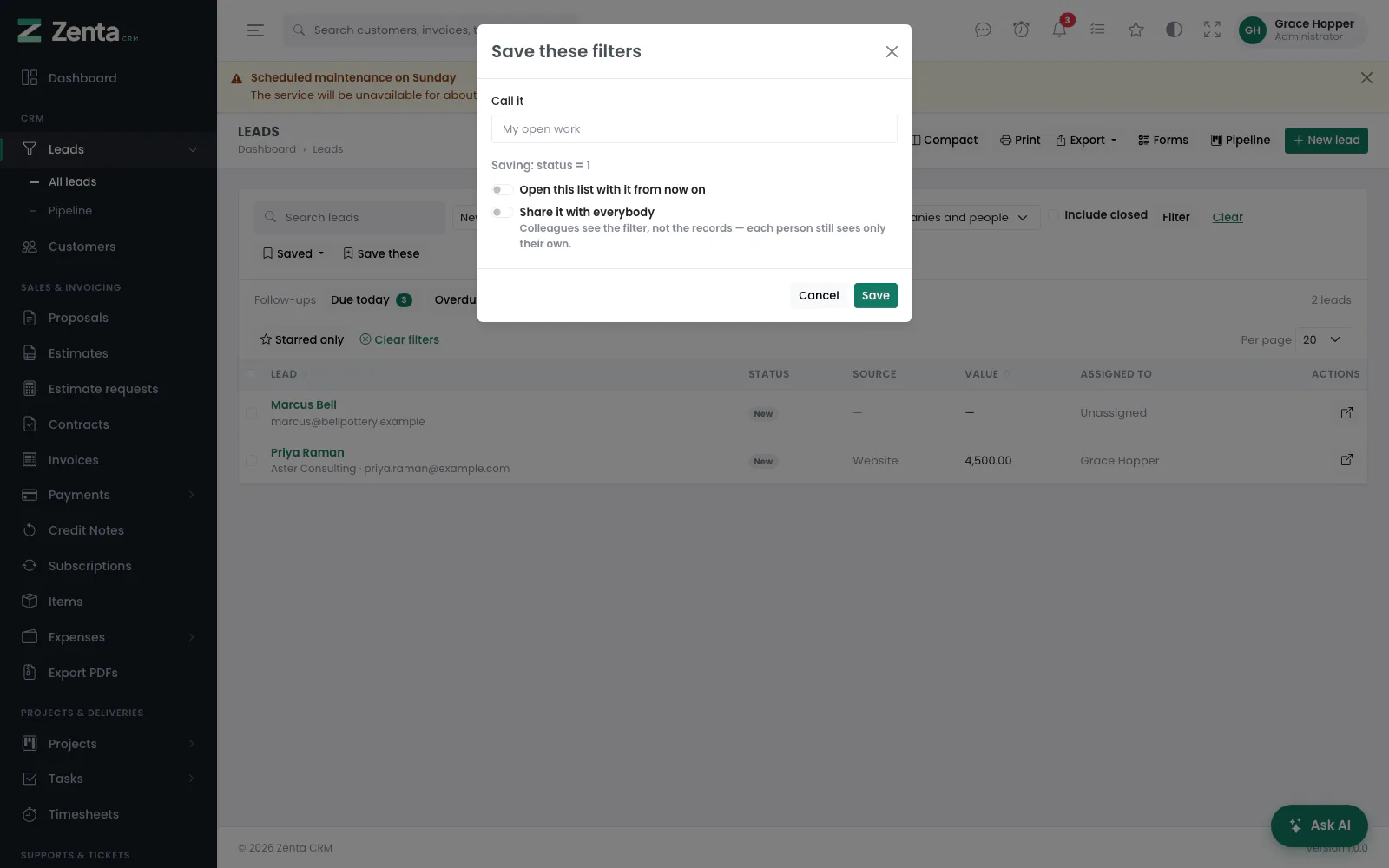 Save these filters: a name, and whether it opens the list and is shared.
- Set the list's filters and press Filter. A Save these button appears beside them once at least one filter is set.
- Press Save these. The dialog shows what will be saved, such as status = 1.
- Call it — a name of up to 60 characters.
- Optionally tick Open this list with it from now on and, if you may change settings, Share it with everybody.
- Press Save. It appears under Saved on that list from then on.
| Option | What it does |
|---|---|
| Open this list with it from now on | A bare visit to the list — from the menu, say — goes straight to that filter. An address that already carries filters of its own is left alone, so links from elsewhere still work. A filter of your own opening the list wins over a shared one. |
| Share it with everybody | Available to the whole workspace. Offered only to people who may edit settings, because it changes what other people see. |
What is stored is the list's own filter settings and nothing else — a page number, a sort order or anything added to the address by hand is dropped rather than saved. Each list holds up to 20 saved filters.
Using, pinning and removing them
- Open Saved and click a name to apply it. The icon beside each says whether it Opens by default (a filled pin), is Shared with everyone or is Yours only.
- The beside a filter, Open this list with it, makes it the one the list opens with, in place of any other. It is offered on your own filters, and on shared ones only if you may edit settings — pinning a shared filter changes the list for everybody.
- The , Remove, deletes a saved filter after you confirm. You can remove your own; a shared one only if you may edit settings.
- No filter, at the foot of the menu, opens the whole list, including when a filter is set to open it.
Sorting, page size and remembered filters
On the leads, customers, invoices, estimates, proposals, contracts, projects, tasks, tickets, expenses and payments lists, click a column heading with the mark to sort by it, and click again to reverse the order. The Per page menu above the table offers 10, 25, 50 or 100 rows, and the list's own default (20 on some lists). Both are remembered for you, per list, until you change them.
Each list also remembers the filters you last used. If you open it again from the menu, it comes back with those filters and says Showing the filters you used last time. Use Clear filters to see everything again, which is also remembered. A saved filter set to open the list always wins over the remembered one.
Starred only, on the lists of records that can be starred, shows just the ones you starred (see Starring records).
Bulk actions
 Three leads ticked: the bar of actions above the list.
The leads, customers, invoices, estimates, tasks and tickets lists have a tick box on every row and one in the header, which ticks every row on the page. Tick some and a bar appears with how many are selected, Clear, and what can be done to them.
| List | Actions |
|---|---|
| Leads | Assign to · Change status · Change source · Add a tag · Remove a tag · Add to a mailing list · Mark as lost · Mark as junk · Delete |
| Customers | Change owner · Add to a group · Remove from a group · Add a tag · Remove a tag · Add to a mailing list (their contacts) · Mark as active · Mark as inactive · Delete |
| Tasks | Assign to · Change status · Change priority · Make private · Make visible to everyone · Move to a project · Add a tag · Remove a tag · Delete |
| Tickets | Assign to · Change status · Change priority · Move to a department · Add a tag · Archive · Take out of the archive · Delete |
| Invoices, estimates | Download PDFs · Email to the customer · Delete |
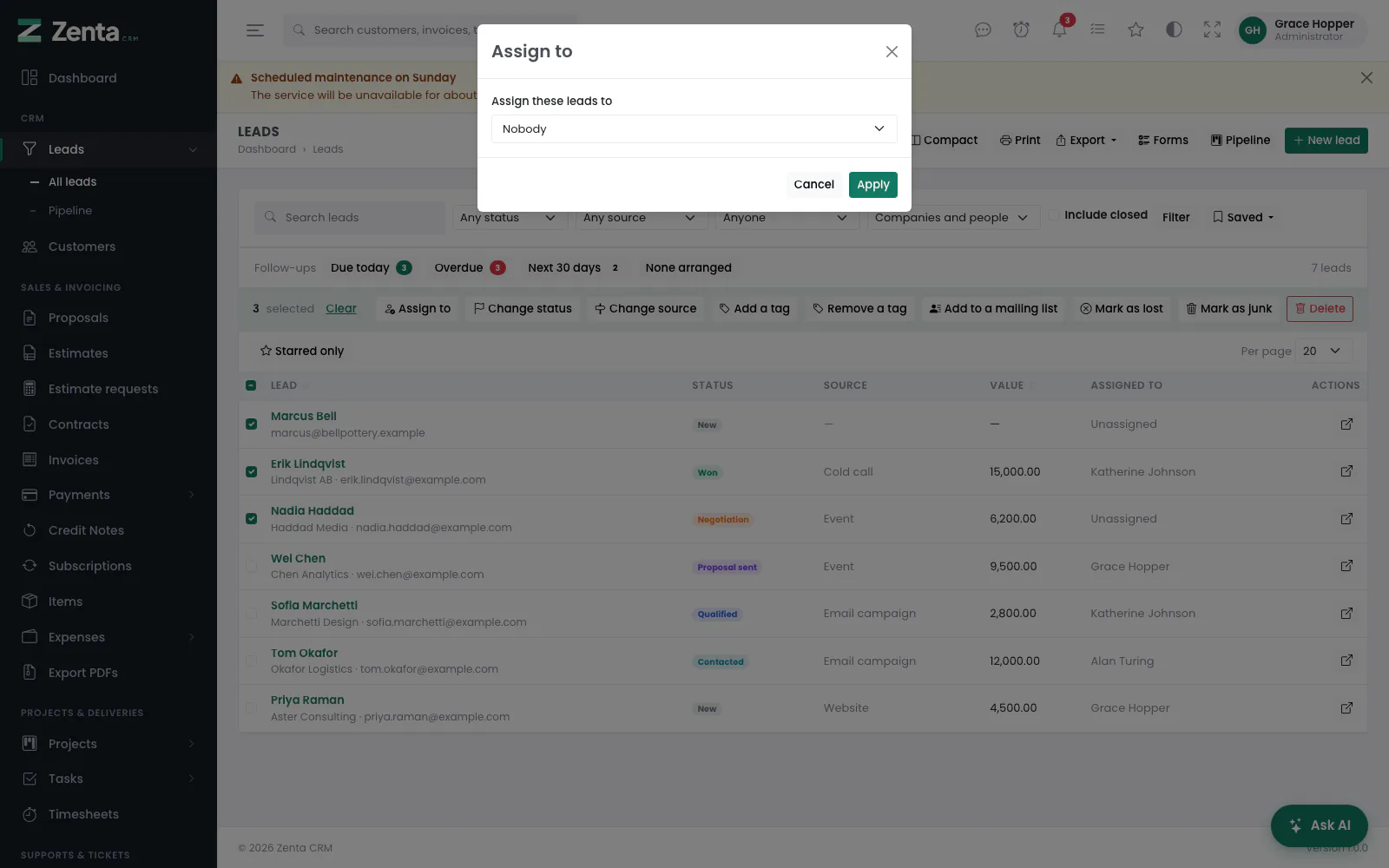 An action that needs a value asks for it first, then confirms.
- Tick the records.
- Press an action. One that needs a value — who to assign to, which status, which tag — opens a dialog to choose it (Nobody unassigns); press Apply.
- Confirm: This will be applied to the 3 selected records. The list reloads with the change made.
Delete is outlined in red and asks the same confirmation; what it deletes is gone as if you had deleted each record from its page. Download PDFs and Email to the customer on invoices and estimates send the ticked documents off rather than changing them; see The ones you ticked.
Each action carries its own permission. Being allowed to edit leads is not being allowed to delete a hundred of them, and the buttons you see are the ones you could use one record at a time. Adding to a mailing list needs the right to add subscribers.
The message afterwards says what changed rather than what was ticked: 2 of 3 leads updated. The rest were already set, or are no longer yours to change. A selection can hold records that were already as you wanted them, or that somebody else's change has put out of your reach since the page loaded.
One action takes at most 500 records. Every bulk change goes through the same path a single edit does, so the activity log records it and any automation listening for the change still fires.
Compact lists with a detail pane
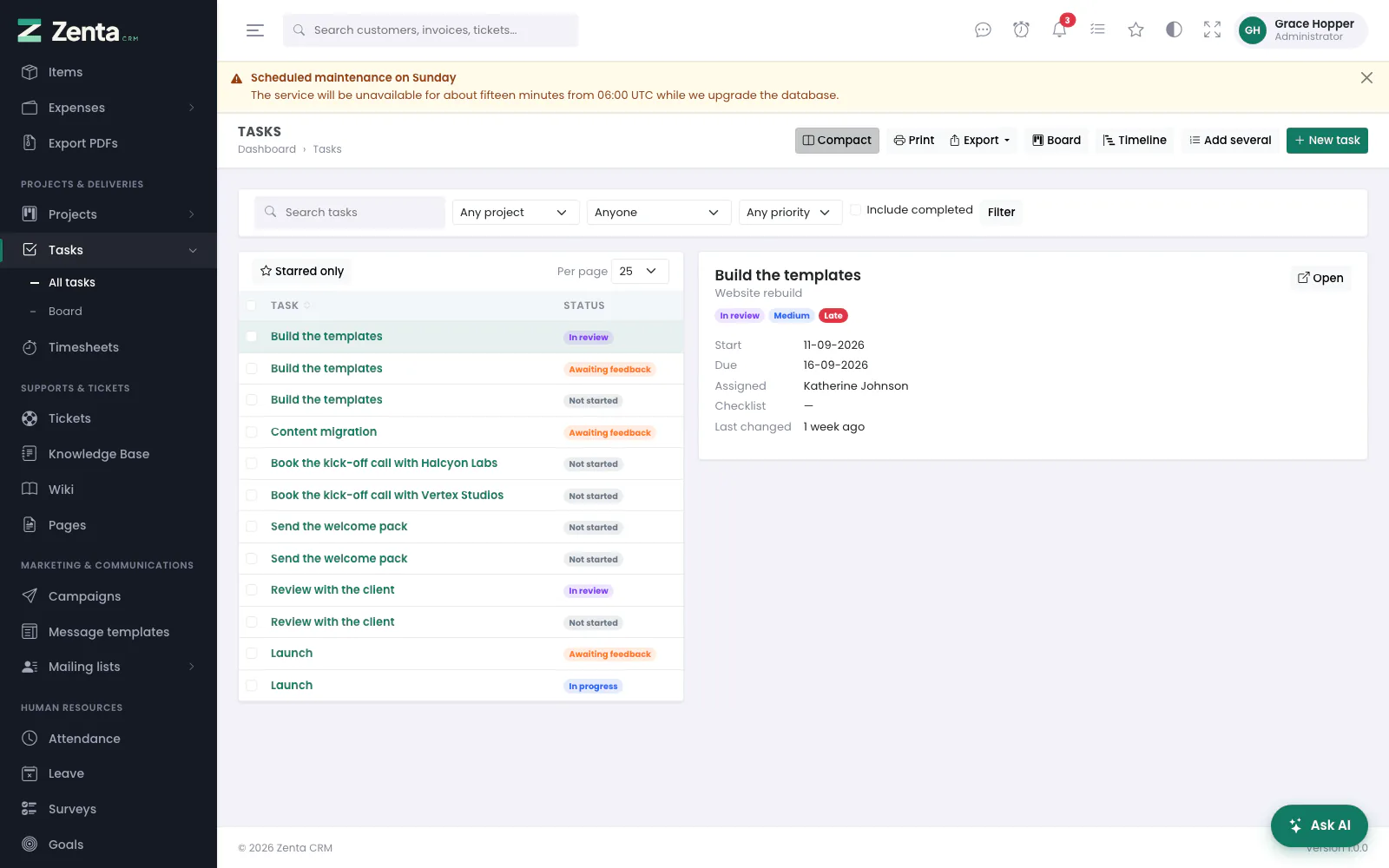 The tasks list in its compact layout, with the selected task beside it.
The Tasks, Tickets and Leads lists have a Compact button. Press it and the list narrows to the left, with the selected record's details on the right: its status, the key fields, the latest messages or notes, the latest activity and an Open button for the full page. Click a row, or use the up and down arrow keys, to move through the list; Enter opens the full page. Filters, sorting, bulk actions and pages work as before. Press Compact again to go back to the full list.
The choice is remembered for each person and each list, on the server, so it follows them to another browser. The normal list stays the default. The pane shows only what the person could open anyway — the same permissions and record visibility as the full page.
Addresses on this page
For reference and for anyone scripting against the panel. Everything here needs somebody signed in to the workspace whose role allows it; anybody else is refused.
| Method | Address | What it does |
|---|---|---|
GET | admin/search | The results page, for ?q=. |
GET | admin/search/preview | The results under the search box as you type (used by the page itself). |
GET | admin/settings/search | Settings → Search. |
PUT | admin/settings/search | Saves the two result counts. |
POST | admin/filters/{list} | Saves the list's current filters under a name. |
POST | admin/filters/{filter}/default | Makes a saved filter the one the list opens with. |
DELETE | admin/filters/{filter} | Removes a saved filter. |
POST | admin/bulk/{subject} | Applies a bulk action to the ticked records. |
POST | admin/list-layout/{list} | Remembers the normal or compact layout of a list (used by the page itself). |